


 Video Converter Ultimate
 Bildschirm recorder
 Videoreparatur
 Sicherer Download
Top-Lösungen zur Erhöhung der Sättigung in Videos
Unter Videosättigung versteht man die Intensität der Farben in einem Video. Es misst den Grad, in dem Farben lebendig und ausgeprägt sind. Der Sättigungspegel eines Videos kann angepasst werden, um ein bestimmtes Aussehen oder einen bestimmten Ton zu erzeugen. Beispielsweise kann eine zunehmende Sättigung Farben lebendiger und lebendiger erscheinen lassen, was häufig in Musikvideos oder Werbespots verwendet wird, um einen visuell aufregenden und aufmerksamkeitsstarken Effekt zu erzielen.
On the other hand, lower saturation levels can create a more subdued or nostalgic atmosphere, which is often used in movies or TV shows to convey a specific mood or emotion. Overall, video saturation is an essential tool for filmmakers and videographers to create a desired visual style and enhance the storytelling aspect of their work. So, if you are a video enthusiast, you must learn different ways on how to increase saturation in video.

Teil 1. Bearbeiten Sie die Videosättigung am Computer
1. Videokonverter Ultimate
When adjusting the saturation of your project video, Video Converter Ultimate is your helping hand. Most video enthusiasts favor this application due to its advanced editing functions, like enhancing video appearance and editing saturation parameters. The software has combined accelerated features that can provide better video output. It uses color correction technology to adjust brightness, contrast, hue, and saturation. What makes this tool unique is its variety of video editing options. You can also enhance the video, create 3D animation, input logos, and different aspects to enhance your video file. Check the guidelines below to learn the proper way to edit the saturation of a video with this app.
Step 1. Get Video Converter Ultimate
You can get the app's firmware on your computer by clicking the Free Download option below this step. Go to your PC's download folder and run the file to install it on your device. Then, finish the installation wizards and launch the app to master its essential functions.
Kostenloser DownloadFür Windows 7 oder höherSicherer Download
Kostenloser DownloadFür macOS 10.7 oder höherSicherer Download
Step 2. Import the Video File
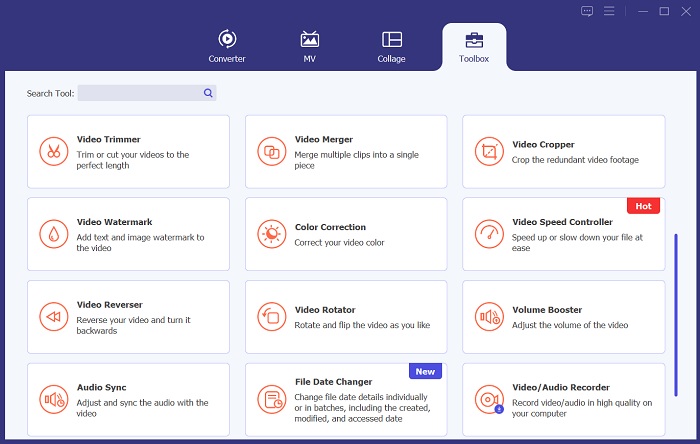
The following procedure is to import the video file on the tool. Go to the Toolbox option and scroll below for the Color Correction option. Tap the editing feature to launch a new dialogue box. Hit the + icon to access and import your project video.
Step 3. Edit the Saturation
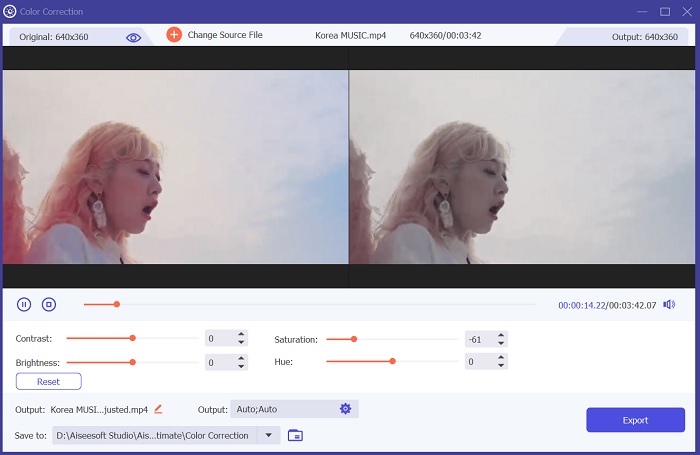
Lastly, use the slider to edit the saturation of your project video. Adjust the slider according to your preferred output. Then, hit the Export icon to save the changes. Go to the output folder and preview the edited video.
2. Klideo
Wenn es um die Bearbeitung von Videos geht, bietet Clideo eine Vielzahl von Komponenten, die Ihnen dabei helfen können, die gewünschten Ergebnisse zu erzielen. Eine dieser Funktionen ist die Möglichkeit, die Sättigung Ihres Videos anzupassen. Die Sättigung ist ein Maß dafür, wie intensiv oder lebendig die Farben in Ihrem Video erscheinen. Wenn Sie sie ändern, kann sich das gesamte Erscheinungsbild Ihres Filmmaterials drastisch verändern. Mit Clideo können Sie die Sättigung Ihres Videos ganz einfach mit einem einfachen Schieberegler anpassen. Mit diesem Schieberegler können Sie die Sättigung Ihres Videos erhöhen oder verringern, um es je nach Ihren Vorlieben lebendiger oder gedämpfter zu machen. Mit diesem Tool können Sie auch den Farbton und die Helligkeit Ihres Videos anpassen und so das Erscheinungsbild Ihres Filmmaterials noch weiter anpassen. Sehen Sie sich die Anleitung unten an, um zu erfahren, wie Sie diese App verwenden.
Step 1. The initial guide on editing saturation on Clideo is to access the online tool on your web browser. You can search for the app and access its interface. Then, study its essential editing functions to have a better editing experience.
Step 2. Next, hit the Choose File option to import your video. Search for the project video stored on your computer. Hit the Open option or icon to add the video to the online tool.
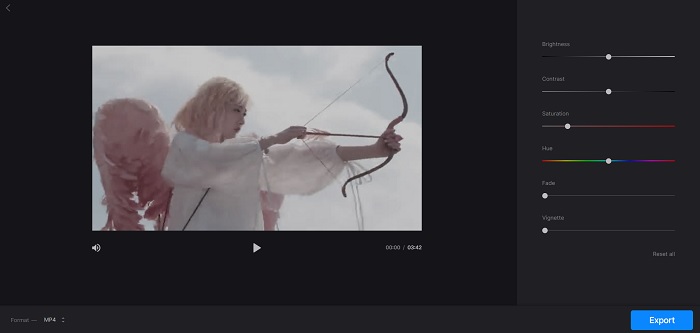
Step 3. Lastly, a video editing function and your project video will appear. Use the Saturation Slider to glide and adjust the saturation of your video. Click the Export option to save the changes created within the online app. Go to the output folder and preview the video.
Teil 2. Bearbeiten Sie die Videosättigung am Telefon
PowerDirector ist eine geeignete mobile App zum Bearbeiten der Sättigung Ihres Videos. In dieser App stehen Ihnen mehrere Funktionen zur Verfügung, mit denen Sie Ihr Filmmaterial verbessern können. Erstens ermöglicht Ihnen die Software, die Sättigungsstufen einzelner Farben anzupassen, wodurch Sie mehr Kontrolle über das Gesamtbild und die Atmosphäre Ihres Videos haben. Sie können auch die Farbanpassungsfunktion verwenden, um die Farben verschiedener Clips abzugleichen und so für Konsistenz im gesamten Projekt zu sorgen. Eine weitere wertvolle Funktion von PowerDirector ist die Möglichkeit, Farbvoreinstellungen anzuwenden, bei denen es sich um vorgefertigte Filter handelt, die das Aussehen Ihres Filmmaterials verbessern sollen. Diese Voreinstellungen können an Ihre Bedürfnisse angepasst werden, sodass Sie noch mehr Kontrolle über das Endprodukt haben.
Step 1. To adjust saturation in PowerDirector, get the app first. You can get or download the mobile app on Google Play Store and App Store. Launch the app and master its basic navigations and features.
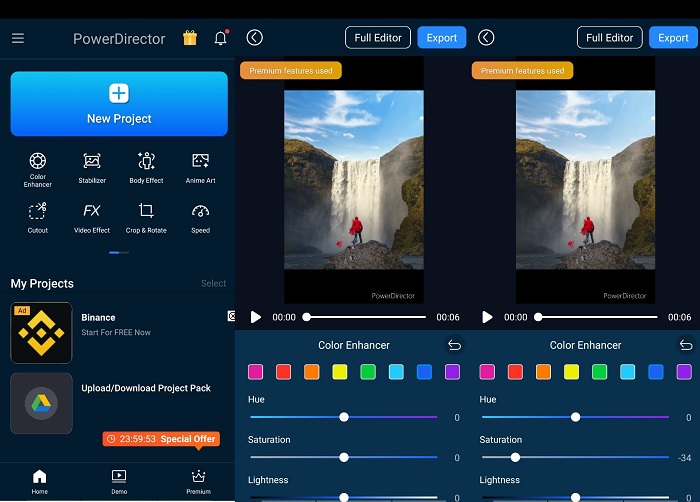
Step 2. Next, import the video by selecting the video clip you want to work with on your video gallery. Then, go to the editing options and find the Color Enhancer menu. From there, you can adjust the saturation of the clip by moving the slider left or right.
Step 3. Once satisfied with the saturation level, you can save your changes and hit Export to save the video. With these straightforward steps, you can adjust the saturation of your video clips in PowerDirector easily. Be mindful not to over-saturate the clip, as it can make the colors appear unnatural.
Weiterführende Lektüre:
How to Fix a Video That Is Too Bright? Top 5 Ways Here
Wie ändert man den Farbton eines Videos? Kreative Möglichkeiten im Überblick
Teil 3. FAQs zum Bearbeiten der Videosättigung
Wie behebt man die Sättigung in iMovie?
Um die Sättigung in iMovie zu korrigieren, gehen Sie zur Registerkarte „Farbkorrektur“ und passen Sie den Sättigungsregler an, bis Sie den gewünschten Sättigungspegel erreicht haben. Sie können auch die einzelnen Farbkanäle ändern, um die Sättigung für bestimmte Farben fein abzustimmen. Eine weitere Möglichkeit besteht darin, einen Farbkorrekturfilter hinzuzufügen und die Sättigungseinstellungen innerhalb des Filters anzupassen. Denken Sie daran, eine Vorschau Ihrer Änderungen anzuzeigen, bevor Sie Ihr endgültiges Video exportieren.
Wie erhöht man die Sättigung?
Um die Sättigung zu erhöhen, können Sie die Farbeinstellungen auf Ihrem Gerät oder Ihrer Bearbeitungssoftware anpassen. Versuchen Sie, ein Sättigungstool oder einen Filter zu verwenden, um die Farben in Ihrem Bild oder Video zu verbessern. Denken Sie daran, beim Erhöhen der Sättigung maßvoll vorzugehen, da zu gesättigte Farben unrealistisch und unattraktiv wirken können. Experimentieren Sie mit verschiedenen Sättigungsstufen, bis Sie die perfekte Balance für Ihr Projekt gefunden haben.
Was ist der kostenlose Video-Editor für den Raucheffekt?
Verschiedene Videobearbeitungstools können den Raucheffekt Ihres Projektvideos verbessern. In diesem Fall können Sie Video Converter Ultimate verwenden, da es eine Farbkorrekturfunktion enthält, mit der Sie das Erscheinungsbild Ihres Projektvideos nach Ihren Wünschen verbessern, bearbeiten und ändern können.
Fazit
Overall, editing video to get the desired saturation level is satisfying and easy. You can create different effects and emotions on your project video with the proper skills in editing the saturation of your project video. Video Converter Ultimate, Clideo, and PowerDirector are some of the tools that are a great help for you to achieve those cinematic filters and edits. If you are pleased with the solutions to add saturation to video in this article, then join our discussion by commenting on the thread below. Please give us your suggestions and ideas.
-
 So fügen Sie einen Instagram-Filter hinzu und erstellen ihn, bevor Sie Bilder und Videos veröffentlichen
 Was sind die Filter auf Instagram? Wie wende ich es an? Wie macht man einen? Diese Fragen werden in diesem Beitrag direkt beantwortet, also lesen Sie sie.
-
 Beste Technik zum schnellen Bearbeiten von WebM-Metadaten
 Lesen Sie die vollständigen Details, die wir unten bereitgestellt haben, während wir ein Tutorial zum Bearbeiten von WebM-Metadaten einfügen. Klicken Sie auf diesen Link, um mehr darüber zu erfahren.
-
 So schneiden Sie Videos einfach online mit erstaunlichen Programmen
 Ändern Sie die Größe von Videos ganz einfach online mit verschiedenen Videobearbeitungstools, die im Internet verfügbar sind. Probieren Sie beliebte Online-Videobearbeitungsplattformen aus.
