


 Video Converter Ultimate
 Bildschirm recorder
 Videoreparatur
 Sicherer Download
Ändern Sie die Größe von Videos für Instagram, um das Engagement und die Instagram-Präsenz zu steigern
Haben Sie es satt, ungeschickt zugeschnittene Videos in Ihrem Instagram-Feed zu haben? Es ist an der Zeit, Ihr Content-Spiel zu verbessern und Ihre Videos hervorzuheben! Mit dem Aufkommen von Videoinhalten ist es wichtiger denn je, sicherzustellen, dass Ihre visuellen Elemente perfekt für Instagram optimiert sind. Aber keine Sorge. Sie müssen kein professioneller Cutter sein, um Ihre Videos wie ein Profi zuzuschneiden.
In diesem Leitfaden führen wir Sie durch alles, was Sie wissen müssen, um Ihre Videos für Instagram zuzuschneiden, und sie gemäß den erforderlichen Spezifikationen zu gestalten, damit beeindruckende Inhalte entstehen, die die Aufmerksamkeit Ihrer Follower auf sich ziehen. Legen wir los!

Teil 1. Standard für das Seitenverhältnis von Instagram-Videos
Das Standard-Seitenverhältnis von Instagram-Videos ist 1:1, was bedeutet, dass Breite und Höhe des Videos gleich sein sollten. Dieses quadratische Seitenverhältnis ist die Standardeinstellung für Instagram-Videos und das am häufigsten verwendete Format auf der Plattform. Instagram unterstützt jedoch auch andere Seitenverhältnisse, darunter 4:5, 16:9 und 9:16.
Diese unterschiedlichen Seitenverhältnisse ermöglichen mehr Flexibilität beim Erstellen von Videos, aber es ist wichtig zu beachten, dass bestimmte Verhältnisse dazu führen können, dass Ihre Videos auf eine Weise beschnitten oder in der Größe geändert werden, die sich negativ auf ihre Qualität auswirken kann. Daher könnte dies die bestmögliche Antwort für diejenigen sein, die Fragen wie „Warum schneidet Instagram mein Video?“ haben. Indem Sie dem Standard für das Seitenverhältnis von Instagram-Videos folgen, können Sie sicherstellen, dass Ihre Videos ausgefeilt und professionell aussehen und für die Anzeige auf der Plattform optimiert sind.
Teil 2. Ändern Sie die Größe von Videos für Instagram offline
FVC Video Converter Ultimate ist eine ausgezeichnete Wahl, um Ihre Videos für Instagram zuzuschneiden. Das Programm bietet eine Reihe von Funktionen und Werkzeugen, mit denen Sie mühelos beeindruckende Inhalte erstellen können, die für die Plattform optimiert sind. Zu den herausragenden Funktionen von FVC Video Converter Ultimate gehört die Unterstützung verschiedener Seitenverhältnisse, darunter 1:1, das Standard-Seitenverhältnis für Instagram.
Das bedeutet, dass Sie Ihre Videos perfekt für Instagram zuschneiden können, ohne sich Gedanken über Qualitäts- oder Auflösungsverluste machen zu müssen. Dieses Dienstprogramm ist eine großartige App zum Zuschneiden von Videos für Instagram, insbesondere für Posts, Reels und Stories. Darüber hinaus können Sie andere Seitenverhältnisse wie 16:9, 4:3, 21:9 und vieles mehr nutzen. Befolgen Sie diese einfachen Schritte, um zu erfahren, wie Sie Videos für Instagram zuschneiden:
Schritt 1. Programm herunterladen und installieren
Laden Sie zunächst die App auf Ihren Computer herunter, indem Sie entsprechend dem Betriebssystem Ihres Computers auf die Schaltfläche Gratis herunterladen klicken. Installieren und starten Sie anschließend das Programm nach Abschluss der Installation.
Kostenloser DownloadFür Windows 7 oder höherSicherer Download
Kostenloser DownloadFür macOS 10.7 oder höherSicherer Download
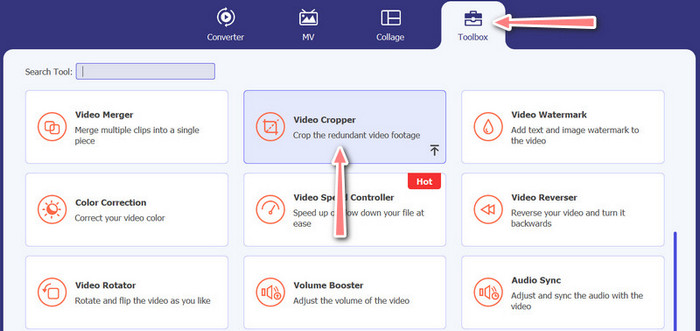
Schritt 2. Toolbox und Video-Zuschneider aufrufen
Gehen Sie nun zur Toolbox des Programms, indem Sie auf die Registerkarte Toolbox klicken. In diesem Bereich wird Ihnen eine Reihe von Optionen angezeigt. Wählen Sie nun die Option Video Cropper aus.
Schritt 3. Video zum Zuschneiden importieren
Fügen Sie das Video, das Sie zuschneiden möchten, hinzu, indem Sie auf die Schaltfläche mit dem Plus-Symbol im Upload-Bereich der Option Video Cropper klicken. Anschließend werden Sie zu einem anderen Bereich weitergeleitet, in dem Sie das hochgeladene Video zuschneiden können.
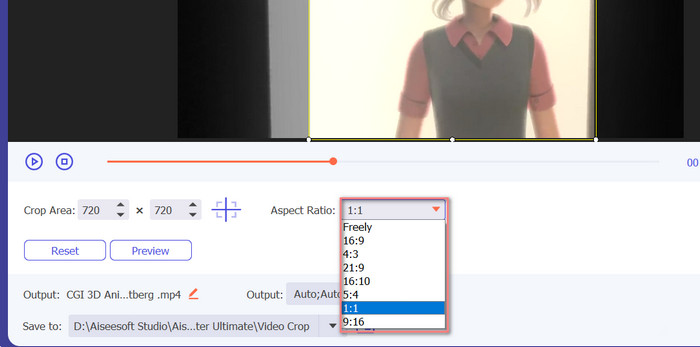
Schritt 4. Video zuschneiden
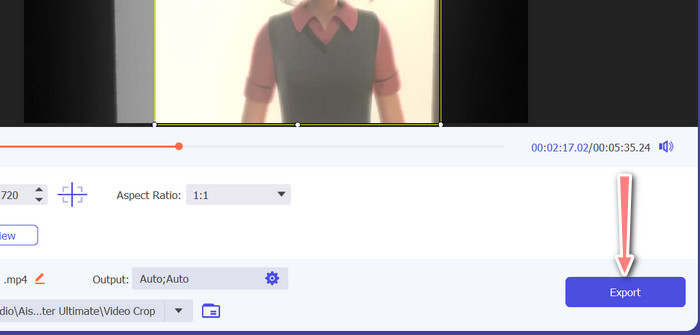
Wählen Sie das Seitenverhältnis aus, das Sie für Ihr Video verwenden möchten. Für Instagram sind die Standard-Seitenverhältnisse 1:1 (quadratisch) und 4:5 (vertikal). Sie können das gewünschte Seitenverhältnis auswählen, indem Sie auf das Dropdown-Menü unterhalb der Videovorschau klicken. Zum Exportieren klicken Sie auf die Schaltfläche Export in der unteren rechten Ecke der Benutzeroberfläche. Anschließend können Sie das Video mit Ihren Followern teilen oder es in Ihrem Instagram-Konto posten.
Teil 3. Video für Instagram Online zuschneiden
Kapwing ist ein beliebter Online-Videoeditor, der sich perfekt für alle eignet, die ihre Videos schnell und einfach für Instagram zuschneiden möchten, ohne sich mit komplizierter Software herumschlagen zu müssen. Ganz zu schweigen davon, dass Kapwing benutzerfreundlich gestaltet ist, sodass Sie die Plattform auch dann nutzen können, wenn Sie kein erfahrener Videoeditor sind, um qualitativ hochwertige Inhalte zu erstellen. Hier sind die Schritte zur Verwendung von Kapwing zum kostenlosen Zuschneiden von Videos für Instagram:
Schritt 1. Gehen Sie auf die Kapwing-Website und klicken Sie auf die Schaltfläche Start Editing.
Schritt 2. Laden Sie das Video hoch, das Sie zuschneiden möchten, indem Sie es per Drag & Drop in den Kapwing-Editor ziehen oder auf die Schaltfläche Upload klicken und die Datei von Ihrem Computer auswählen.
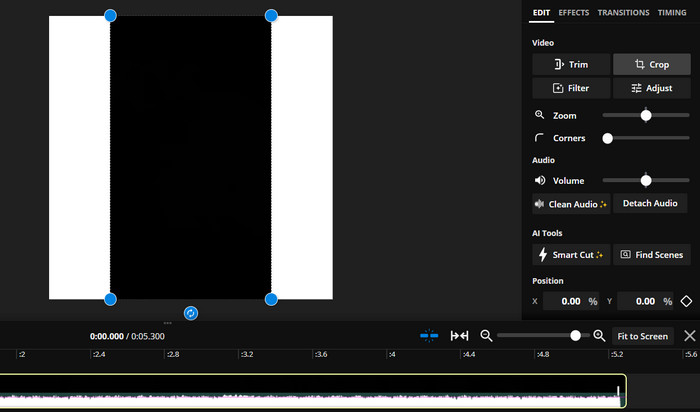
Schritt 3. Klicken Sie im Menü auf der rechten Seite auf das Werkzeug Crop. Wählen Sie anschließend das Seitenverhältnis, auf das Sie Ihr Video zuschneiden möchten, indem Sie eine der voreingestellten Optionen auswählen oder ein benutzerdefiniertes Seitenverhältnis erstellen. Verwenden Sie die Anfasser in der Videovorschau, um das Video auf die gewünschte Größe zuzuschneiden. Beachten Sie, dass Sie dieses Verfahren auch verwenden können, um Videos für Instagram-Posts zuzuschneiden.
Teil 4. Videos für Instagram auf Android zuschneiden
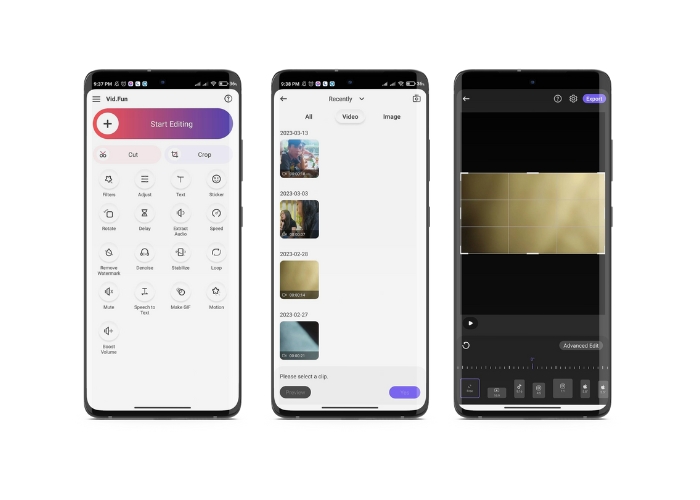
Vid.fun ermöglicht es Ihnen, Ihre Videos auf die perfekte Größe für Instagram zuzuschneiden, egal ob Sie ein Smartphone oder ein Tablet verwenden. Die App ist vollgepackt mit Funktionen, die Ihnen helfen, hochwertige Videos zu erstellen, darunter ein leistungsstarker Video-Zuschneider, mit dem Sie Ihre Videos in nur wenigen Fingertipps zuschneiden können. Außerdem bietet sie eine Auswahl an verschiedenen Seitenverhältnissen, sodass Sie sicher sein können, dass Ihre Videos auf Instagram großartig aussehen. Hier ist eine Anleitung, wie Sie mit dieser App auf Ihrem Android-Gerät Videos für Instagram Reels zuschneiden.
Schritt 1. Laden Sie Vid.fun aus dem Google Play Store herunter und installieren Sie die App. Starten Sie sie anschließend. Tippen Sie auf das Zuschneiden-Symbol (Crop), das sich auf dem Hauptbildschirm befindet.
Schritt 2. Fügen Sie eine Mediendatei hinzu, indem Sie sie aus der Galerie Ihres Geräts auswählen. Wählen Sie dann das gewünschte Seitenverhältnis, indem Sie im Menü am unteren Bildschirmrand eine Option auswählen. Alternativ können Sie die Anfasser in der Videovorschau verwenden, um den Zuschnitt anzupassen und das Video nach Wunsch zu positionieren.
Schritt 3. Sehen Sie sich eine Vorschau Ihres zugeschnittenen Videos an, um sicherzustellen, dass es so aussieht, wie Sie es sich wünschen. Sobald Sie mit dem Zuschnitt zufrieden sind, tippen Sie auf die Schaltfläche Export in der oberen rechten Ecke.
Weiterführende Lektüre:
Konkrete Anleitung – 2 Methoden, um Videos für Instagram zu kombinieren
Verschiedene Möglichkeiten, GIFs auf Instagram zu posten [Web- und Programmbasierte Tools]
Teil 5. Häufig gestellte Fragen zur Größenänderung von Videos für Instagram
Was passiert, wenn mein Video nicht dem erforderlichen Seitenverhältnis für Instagram entspricht?
Wenn Ihr Video nicht dem erforderlichen Seitenverhältnis für Instagram entspricht, wird es entweder mit schwarzen Balken an den Seiten oder oben und unten angezeigt oder es wird automatisch an den Rahmen angepasst.
Kann ich ein Video zuschneiden, das bereits auf Instagram hochgeladen wurde?
Nein, Sie können kein Video zuschneiden, das bereits auf Instagram hochgeladen wurde. Sie müssen das Video zuschneiden, bevor Sie es auf Instagram hochladen.
Kann ich ein Video zuschneiden, ohne an Qualität zu verlieren?
Ja, Sie können ein Video zuschneiden, ohne Qualität zu verlieren, solange Sie nicht zu stark zuschneiden. Wenn Sie ein Video zu stark zuschneiden, führt dies zu geringerer Qualität, da es die Auflösung des Videos verringert.
Fazit
Das Zuschneiden eines Videos für Instagram Stories, Posts oder Reels ist entscheidend, um sicherzustellen, dass Ihr Video gut aussieht und dem erforderlichen Seitenverhältnis entspricht. Mit den richtigen Tools wie FVC Video Converter Ultimate, Kapwing oder Vid.fun können Sie ganz einfach Videos für Instagram zuschneiden und auf das richtige Seitenverhältnis bringen.
-
 So fügen Sie einen Instagram-Filter hinzu und erstellen ihn vor dem Posten von Bildern &
 Was sind die Filter auf Instagram? Wie wende ich es an? Wie macht man einen? Diese Fragen werden in diesem Beitrag direkt beantwortet, also lesen Sie sie.
-
 Beste Techniken zum Beschleunigen eines Videos auf Instagram wie ein Profi
 Möchten Sie ein Beschleunigungsvideo auf Instagram hochladen? In diesem Fall bietet dieser Artikel die besten Techniken, mit denen Sie Videos einfach beschleunigen können.
-
 Ändern Sie die Größe von Fotos für Instagram auf Desktop, iPhone oder Android
 Wenn Sie die Größe Ihrer Fotos für Instagram ändern möchten, zeigen wir Ihnen die Schritte dazu. Lesen Sie, um die Schritte zum Ändern der Größe von Fotos für Instagram zu erfahren.
