


 Video Converter Ultimate
 Bildschirm recorder
 Videoreparatur
 Sicherer Download
Wie füge ich M4V-Dateien zusammen? Hier sind die 2 schnellsten Lösungen
M4V files, also known as MPEG-4 video files, are usually downloaded from iTunes. They are very similar to MP4 files because they both use MPEG-4 container format. It is very likely to happen that you just downloaded several incomplete video clips in M4V format from iTunes and then want to merge the M4V files into one complete story seamlessly. How to combine M4V files? This article intends to give you two methods to do it efficiently and without losing image quality.

Teil 1: Schnellste Lösung - Verwenden Sie einen kostenlosen M4V-Merger online
For the quickest solution, you can use FVC Free Online Video Merger, which doesn't take you a long time to learn about the steps and settings. Just load the tool in your browser, add your M4V files, and then give one click to merge the M4V files.
Hauptfunktionen
- • Füge kostenlos M4V-Dateien beliebiger Anzahl und Größe zu einer Datei zusammen.
- • Einfach zu bedienende Benutzeroberfläche und intuitive Pre-Merging-Prozesse.
- • Sie können die zusammengeführten M4V-Dateien als 9 andere Hauptformate speichern.
- • Lassen Sie in den kombinierten M4V-Videos kein Wasserzeichen.
- • Laden Sie Ihre Dateien beliebiger Größe in nur 1 Sekunde hoch.
Steps to join M4V files online for free
Step 1. Click here to load FVC Free Online Video Merger. On the online tool's webpage, click the Upload Videos to Merge button in the middle of your screen.

Note: The tool will prompt you to download and install a launcher if you are using the tool for the first time. Once you installed the launcher, click the Upload Videos to Merge button again.
Step 2. Now the Open window should pop up. Here you need to select the M4V files and then click the Open button at the bottom of the window.
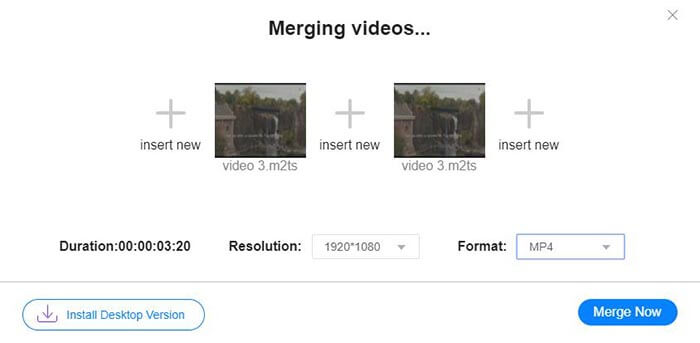
Step 3. After uploading the M4V files, you can adjust the sequence of the M4V files by removing the existing ones and inserting new ones in the desired places.
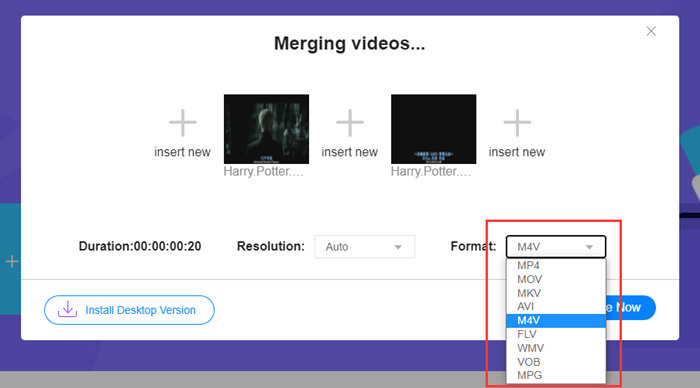
Step 4. To retain the merged file as M4V format, you need to choose M4V on the Format list. You can also choose any of the listed formats to convert the merged M4V video.
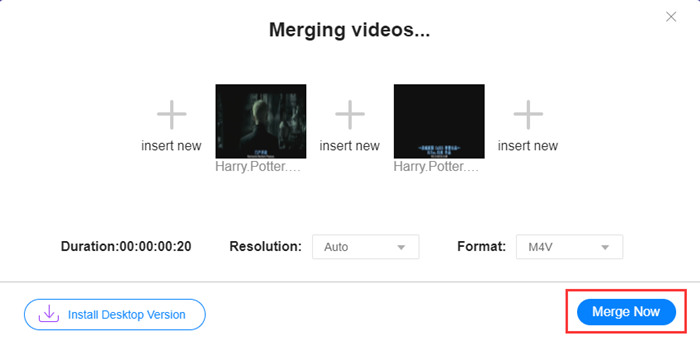
Step 5. Click the Merge Now button to start combining the M4V files. The tool will then ask you to decide the destination of the output file.
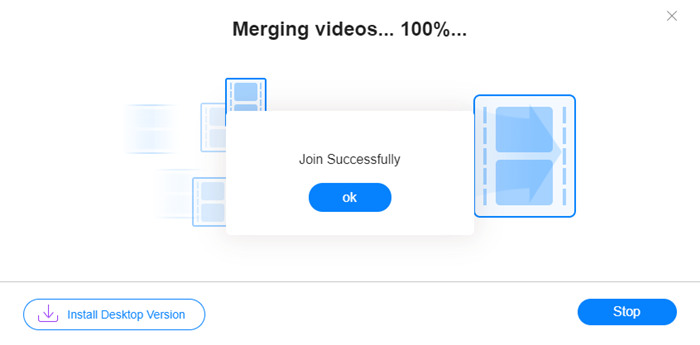
Wenn Sie unten die Erfolgsmeldung sehen, wird das zusammengeführte Video auf Ihrem Computer gespeichert.
You have already learned about the quickest way to combine M4V files. However, this method only allows you to connect the videos end by end, but cannot help you trim the unwanted ends, which may lead to periods of black screen in the video. Maybe you also need the next method to not only join M4V files, but also trim them seamlessly. You can compress M4V files here.
Teil 2: Eine Methode zum nahtlosen Zusammenführen von M4V-Dateien
To get a complete and seamless video, merely joining the M4V files end by end is not enough. You also need to trim the unwanted segments at the starts and endings. So this involves a video editing tool. You have numerous choices to choose from, but here we'd like to recommend Video Converter Ultimate. The reason is simple. It's easy to use and its features are powerful enough.
Hauptfunktionen
- • Zusammenführen, Trimmen, Drehen, Zuschneiden und Hinzufügen von Effekten zu M4V-Videos.
- • Hardwarebeschleunigende Technologie hilft, M4V-Dateien 70x schneller zu verbinden.
- • Reichhaltige Filter- und Effektsammlung zum Verschönern Ihrer Videos
- • Verwenden Sie den integrierten Video-Enhancer, um Ihre Videoqualität zu verbessern
- • Verwandeln Sie Ihre Videos in 3D und genießen Sie sie mit Ihrer 3D-Brille
Gratis DownloadFür Windows 7 oder neuerSicherer Download
Gratis DownloadFür MacOS 10.7 oder neuerSicherer Download
Steps to merge M4V files seamlessly
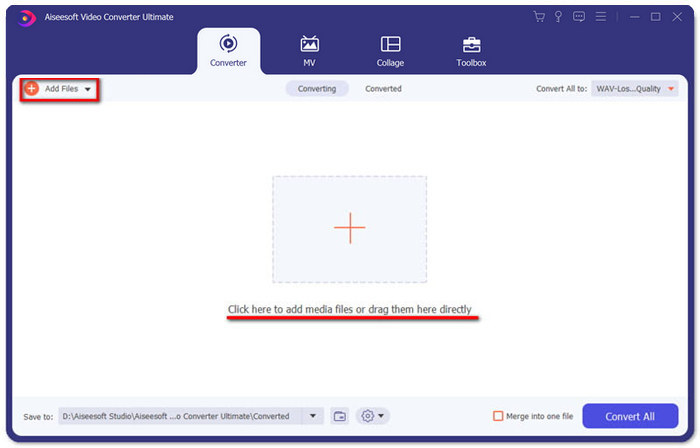
Step 1. Install and launch the Video Converter Ultimate. Click the Add Files button or drag files into the interface to add videos.
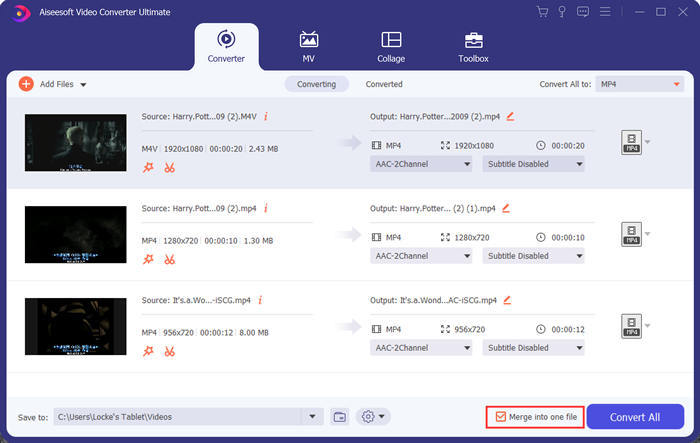
After adding them, you can drag the files up and down to arrange the order of them. Also, you need to tick the box for Merge into one file so that the program won't convert the added videos separately.
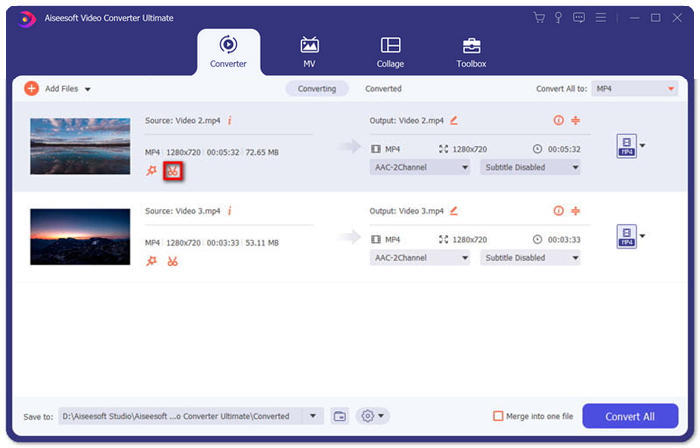
Step 2. To use the trimming feature, you can click the Cut icon on an added video.
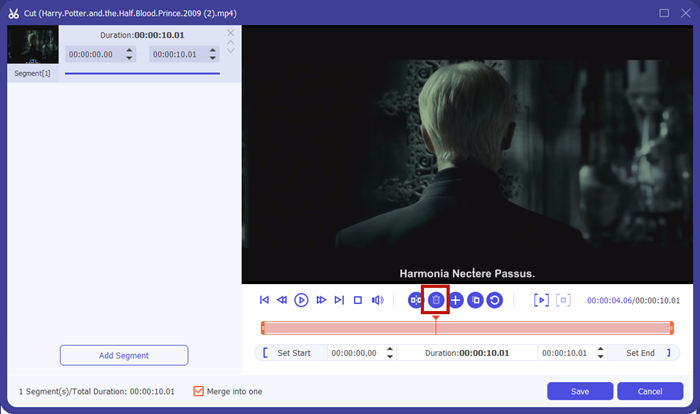
In the Cut interface, you can cut the unwanted parts of a video easily. Just select a segment by setting its start and end points, and then click the dustbin icon to remove it.
Step 3. Back to the main interface, you can choose the output file. Click the down-arrow beside Convert All to. Then you can select M4V or other formats as the output format.
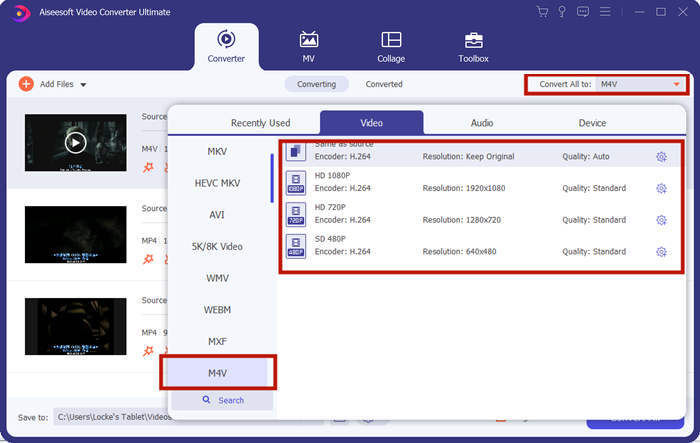
Step 4. Click the Convert All button in the bottom-right corner of the program and wait for the program to join the M4V files.

Wenn die Zusammenführung abgeschlossen ist, wird eine Erfolgsmeldung angezeigt. Dann finden Sie die zusammengeführte M4V-Datei im Zielordner. Oben sind zwei Methoden zum Verbinden von M4V-Videodateien aufgeführt. Wir haben auch einige der am häufigsten gestellten Fragen unten abgeschlossen.
Teil 3: Häufig gestellte Fragen zum Verbinden von M4V-Dateien
Was ist eine M4V-Datei?
M4V, entworfen von Apple, wird manchmal auch als iTunes Video File bezeichnet. Es ist MP4 ähnlich, da beide auf MPEG-4 basieren. Die Besonderheit von M4V besteht darin, dass iTunes einen DRM-Schutz hinzufügen kann, um die unbefugte Verteilung von iTunes-Videos zu verhindern.
Wie öffnet man eine M4V-Datei?
If not protected by DRM, an M4V file can be played in VLC, QuickTime, Windows Media Player, and many other media players. Sometimes it also works to change the .M4V extension to .MP4 to open it. However, an M4V file with DRM protection can only be played on authorized devices.
Kann ich den DRM-Schutz aus einer M4V-Datei entfernen?
Ja, du kannst. Auf dem Markt finden Sie unzählige DRM-Entfernungsprogramme. Hier sind einige davon: TunesKit DRM M4V Converter, Aimersoft DRM Media Converter, Requiem DRM Remover, Ondesoft iTunes Convertert, Apple Music Converter.
Fazit
This passage introduced two efficient ways to join several M4V video files into one. For the quickest solution, the FVC Free Online Video Merger is your best choice. You can use it without downloading any program. The uploading process can also be complete immediately. But if you want a higher quality, or not only to combine M4V files but also trim them, you can turn to Video Converter Ultimate. It provides you with powerful editing features while the UI is friendly to beginners. If you have found any better solutions, we'd like to know. Just leave us a comment below.
-
 So konvertieren Sie M4V in MP4 mit / ohne DRM
 6 Möglichkeiten zur kostenlosen Konvertierung von M4V in MP4 (DRM-Entfernung inbegriffen)
-
 5 besten M4V-Spieler, um M4V-Dateien einfach auf Computern / Handys abzuspielen
 Top 5 M4V-Player für Windows / Mac / Android / iOS, die Sie kennen sollten
-
 So extrahieren Sie MP3 aus M4V mit 4 hervorragenden Methoden, die Sie kennen sollten
 M4V to MP3 Converter - 4 beste Methoden zum Extrahieren von MP3 aus M4V-Dateien
