


 Video Converter Ultimate
 Bildschirm recorder
 Videoreparatur
 Sicherer Download
Einfache Anleitung zum effektiven Erstellen eines Teils eines Videos in Zeitlupe
Die meisten Filmemacher verwenden Overcranking, um das Video in Zeitlupe abzuspielen; hauptsächlich wird es jedoch im Sport für Sofortwiederholungen eingesetzt. Aufgrund des künstlerischen Effekts, den diese Technik mit sich bringt, ändern viele die Videogeschwindigkeit nach ihrem eigenen Geschmack. Anders ausgedrückt: Die Nachfrage nach einem Zeitlupen-Editor verbreitete sich im gesamten Internet, und der Bedarf an einem perfekten Videogeschwindigkeitsregler stieg immer weiter. Um Ihren Anspruch an den besten Geschwindigkeitsregler zu erfüllen, stellen wir die drei besten Geschwindigkeitsregler vor, die wir auf dem Markt gefunden haben und die sich hervorragend zum Anpassen der Videogeschwindigkeit eignen. Außerdem fügen wir zu jedem ausgewählten Tool ein Tutorial hinzu, in dem wir erklären, wie man einen Teil eines Videos in Zeitlupe macht.

Teil 1. Beste Möglichkeit, einen Teil eines Videos in Zeitlupe zu machen [dringend empfohlen]
Angesichts der Nachfrage nach einem erstklassigen Geschwindigkeitsregler zum Verlangsamen eines Clips bietet FVC Video Converter Ultimate die Unterstützung, die Sie für diese Aufgabe benötigen. Dieser ultimative Konverter stellt eine besondere Funktion zur Verfügung, mit der Sie Ihr Video verlangsamen oder in Hochgeschwindigkeit abspielen lassen und dies mit nur wenigen Klicks anwenden können. Mit dieser Software können Sie nichts falsch machen, denn sie gehört zu den am leichtesten verständlichen Programmen, die Sie nutzen können, und sie verfügt über eine aufgeräumte Benutzeroberfläche, die alles übersichtlich und nachvollziehbar macht.
Zusätzlich zum Geschwindigkeitsregler können Sie diese Software auch verwenden, um mehrere Videos gleichzeitig zu teilen und zusammenzuführen. Viele Benutzer waren von dieser Software wegen der multifunktionalen Merkmale und Funktionen begeistert, die sie Ihnen bietet. Angenommen, Sie möchten Teil der begeisterten Community sein und von dieser Software beeindruckt sein. In diesem Fall können Sie das folgende Tutorial lesen, wie Sie einen Teil eines Videos verlangsamen können, aber zuerst müssen Sie die Software herunterladen und installieren und sie dann öffnen, um zu beginnen.
Gratis DownloadFür Windows 7 oder neuerSicherer Download
Gratis DownloadFür MacOS 10.7 oder neuerSicherer Download
1. Trimmen Sie den Teil des Videos, den Sie in Zeitlupe anzeigen möchten
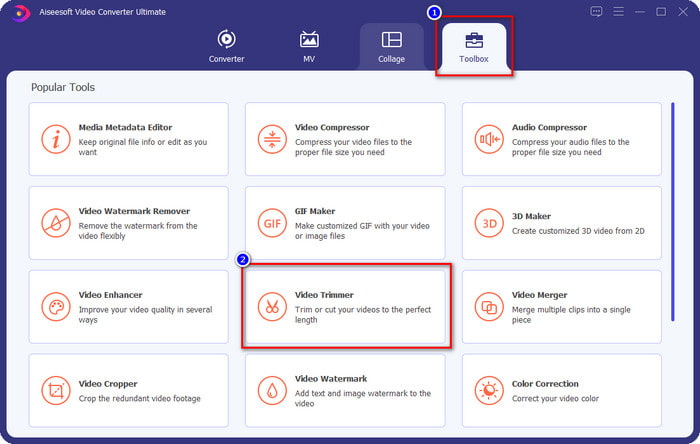
Schritt 1. Nachdem Sie die Software gestartet haben, gehen Sie zu Toolbox und suchen dort den Video Trimmer.
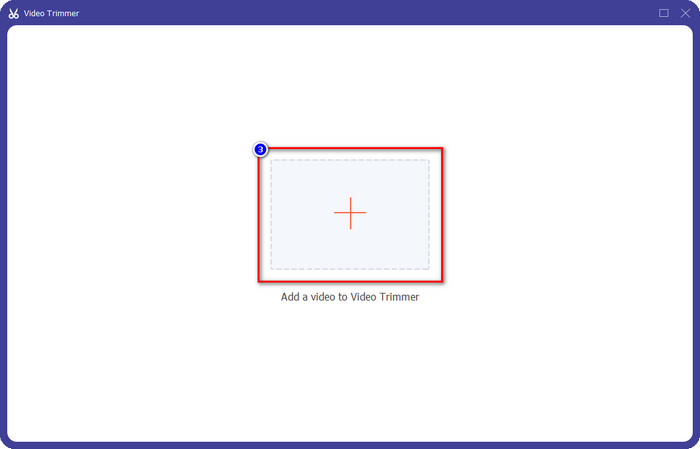
Schritt 2. Drücken Sie auf das +-Symbol, um das Video hinzuzufügen, das Sie teilen möchten, suchen Sie es in Ihrem Ordner und klicken Sie auf Öffnen.
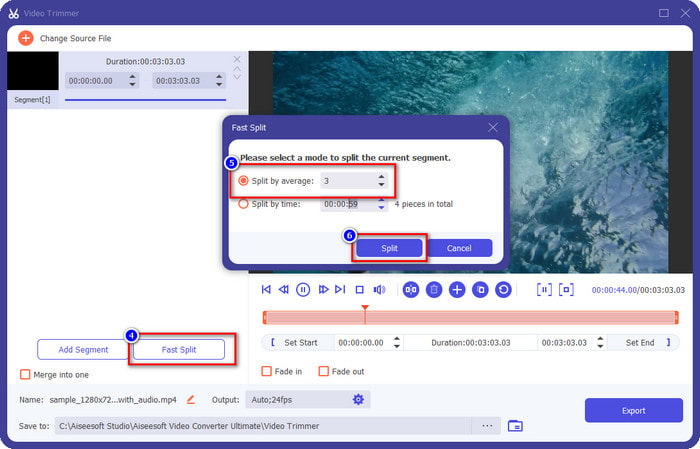
Schritt 3. Klicken Sie im Trimmer auf Fast Split, um das von Ihnen hinzugefügte Video in Segmente zu schneiden, und ändern Sie die Anzahl der Teile nach Wunsch. Wenn Sie die Segmente des Videos festgelegt haben, klicken Sie auf Split.
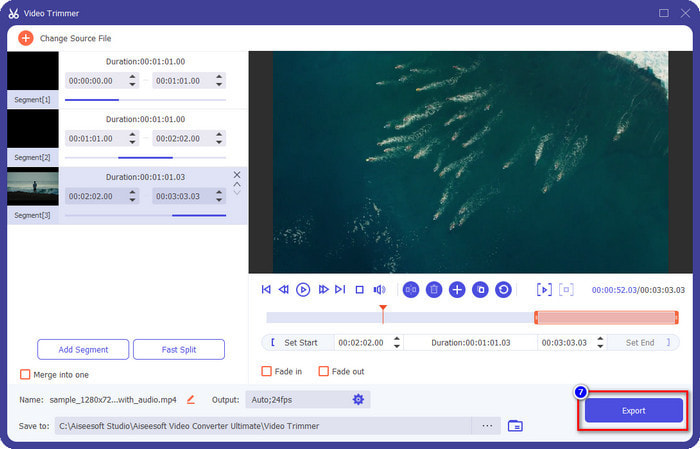
Schritt 4. Klicken Sie auf jedes Video, um zu prüfen, ob es sich um die richtigen Segmente handelt, die Sie in Zeitlupe abspielen möchten, und klicken Sie anschließend auf Export, um das Video auf Ihrem Laufwerk zu speichern.
2. Ändern Sie die Geschwindigkeit des Segments, das Sie exportiert haben
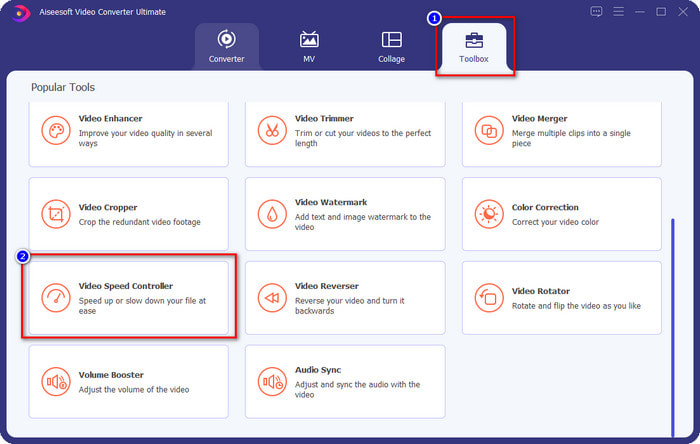
Schritt 1. Suchen Sie in der Toolbox nach dem Video Speed Controller, um das Segment, das Sie zuvor geschnitten haben, zu verlangsamen.
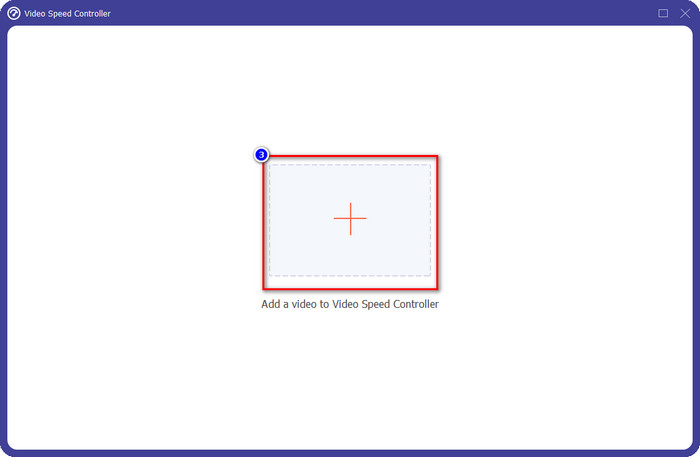
Schritt 2. Drücken Sie die +-Taste, um eine Videodatei hinzuzufügen, suchen Sie die geteilte Videodatei, die Sie verlangsamen möchten, und klicken Sie auf Öffnen, um sie hochzuladen.
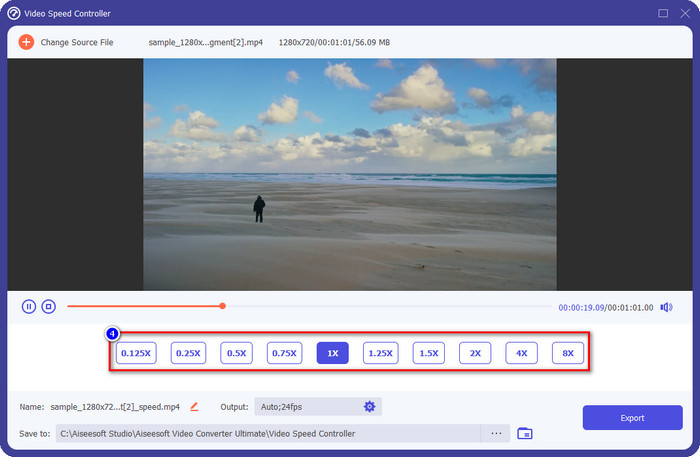
Schritt 3. Nachdem Sie das Video eingefügt haben, wählen Sie den Zeitlupen-Effekt aus, den Sie auf das geschnittene Video anwenden möchten. Auf Ihrem Bildschirm werden mehrere Geschwindigkeitsoptionen angezeigt. Probieren Sie sie aus, um zu sehen, ob dies die gewünschte Zeitlupe ist.
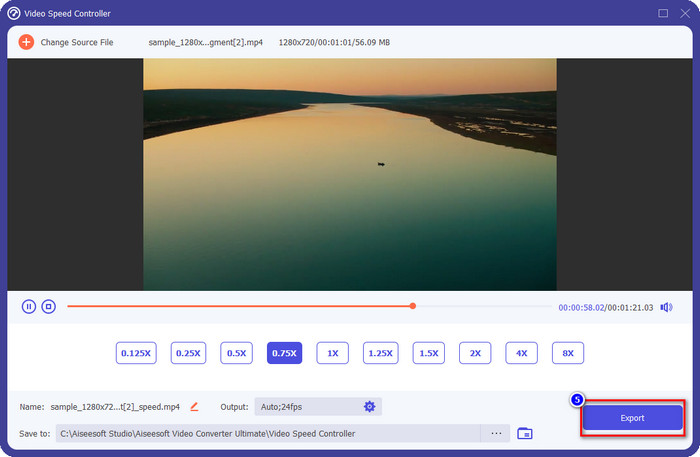
Schritt 4. Um das von Ihnen verlangsamte Video zu speichern, klicken Sie auf Export.
3. Führen Sie das zuvor geschnittene Video mit der Zeitlupe zusammen
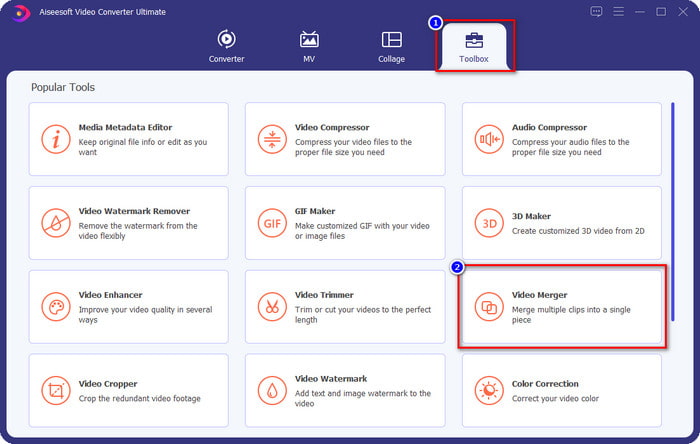
Schritt 1. Nachdem Sie das Video geschnitten und einen Zeitlupen-Effekt hinzugefügt haben, klicken Sie auf Video Merger, um alle Videos zu kombinieren; Sie finden diese Funktion in der Toolbox.
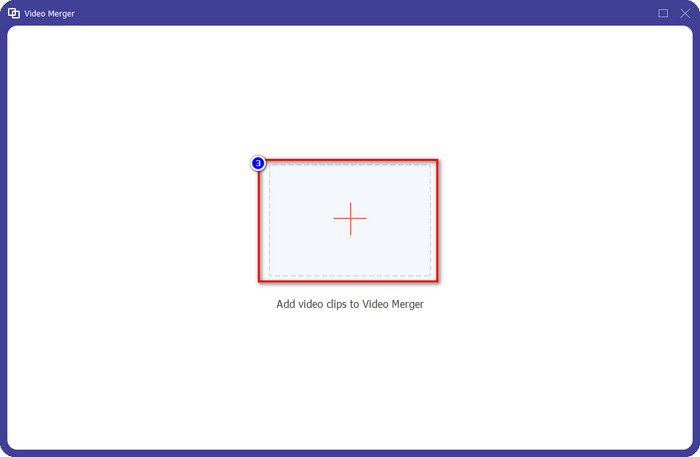
Schritt 2. Wenn Sie auf die +-Taste klicken, wird ein Ordner auf Ihrem Bildschirm angezeigt. Wählen Sie die Datei, die Sie hinzufügen möchten, und klicken Sie dann auf Öffnen.
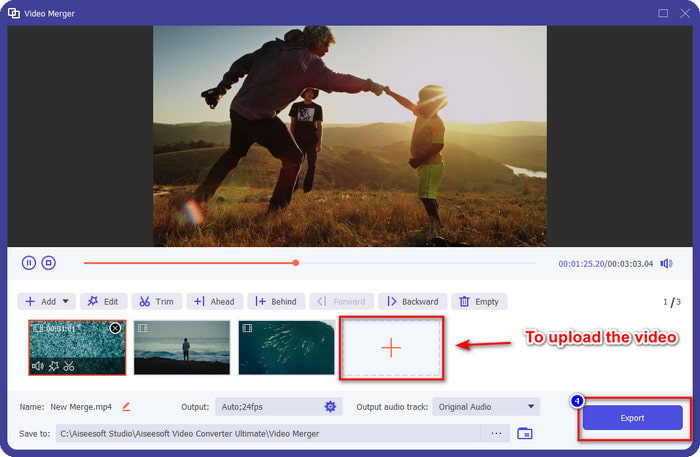
Schritt 3. Um die anderen Segmente hinzuzufügen, die Sie getrennt haben, klicken Sie erneut auf die +‑Taste, um sie alle hinzuzufügen. Ordnen Sie sie korrekt an, indem Sie jedes Segment ziehen, und wenn alles passt, klicken Sie auf Export, um das Video mit dem Teil in Zeitlupe zu speichern.
Teil 2. Andere Online- und Offline-Software, mit der Sie die Videogeschwindigkeit auf Zeitlupe ändern können
Online Video Cutter – Geschwindigkeitsregler
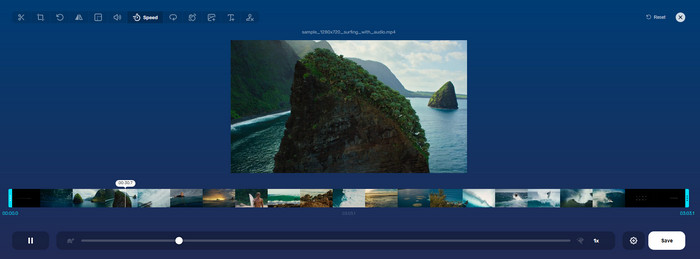
Der Online Video Cutter – Speed Controller ist kein Tool, das Sie herunterladen müssen, da es webbasiert ist. Mit einem solchen Videogeschwindigkeitsregler online können Sie das Tool direkt nutzen, ohne zusätzliche Ressourcen oder Dateien herunterladen zu müssen, um die Software zu starten. Außerdem unterstützt das Webtool grundlegende Bearbeitungsfunktionen, die Sie bei Bedarf verwenden können. Auch wenn dieses Tool nicht so professionell ist wie der oben erwähnte Editor, ist es dennoch bestens geeignet, um ein Video zu verlangsamen. Um zu erfahren, wie man einen Teil eines Videos in Zeitlupe macht, können Sie die folgenden Schritte befolgen.
Schritt 1. Um auf das Webtool zuzugreifen, suchen Sie danach im Browser Ihrer Wahl.
Schritt 2. Klicken Sie auf Open File und laden Sie die Videodatei oder das Segment hoch, das Sie in Zeitlupe abspielen möchten.
Schritt 3. Ziehen Sie den Schieberegler nach links, um das Video zu verlangsamen, und klicken Sie auf Save.
Kostenloses Geschwindigkeitsvideo
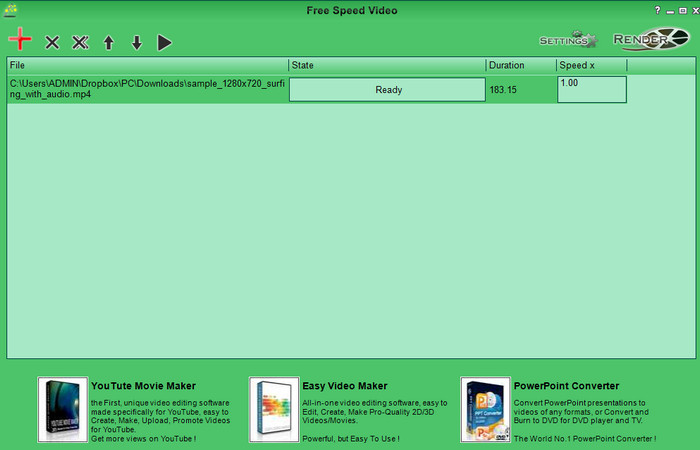
Ein weiterer Geschwindigkeitsregler, den Sie auf Ihren Desktop herunterladen können, ist Free Speed Video. Dieses Tool ist sehr einfach aufgebaut, sodass das Erlernen der Bedienung völlig stressfrei ist. Obwohl es eine schlichte Benutzeroberfläche hat, wäre ein Update für ein besseres Design und eine klarere Darstellung der verfügbaren Optionen wünschenswert. Wenn Sie das Design der Benutzeroberfläche nicht stört, können Sie diese Software kostenlos nutzen, um die Geschwindigkeit des Videos nach Ihren Anforderungen anzupassen. Um Ihnen beim Verlangsamen des Videos zu helfen, finden Sie nachfolgend Schritte, die erklären, wie man einen Teil eines Videos langsamer macht.
Schritt 1. Laden Sie das Programm herunter und folgen Sie dem Installationsprozess, um es auf Ihrem Computer einzurichten.
Schritt 2. Klicken Sie auf die +-Taste, um das Video hinzuzufügen, das Sie verlangsamen möchten.
Schritt 3. Geben Sie unter Speed x die gewünschte Geschwindigkeit ein.
Schritt 4. Klicken Sie auf Render, um das Endergebnis auf Ihrem Desktop zu speichern.
Teil 3. Häufig gestellte Fragen zum Erstellen eines Teils eines Videos in Zeitlupe
Warum friert der Teil des Videos mit Zeitlupe ein?
Der Übergang zwischen der Verlangsamung und dem Video mit normaler Geschwindigkeit friert aufgrund der unterschiedlichen Geschwindigkeiten beider Videos ein. Sie dürfen trotz Unterschieden keinen einfrierenden und verzögerten Übergang erleben, wenn Sie stattdessen das ultimative Tool verwenden.
Was macht den Videoübergang von Zeitlupe zu normaler Geschwindigkeit reibungsloser?
Es gibt keine bestimmte Antwort, aber es ist besser, einen Videoteil in Zeitlupe zu drehen, wenn das Tool, das Sie haben, die Geschwindigkeit erhöhen kann. Für einen reibungsloseren Übergang zwischen dem Video mit normaler Geschwindigkeit und Verlangsamung müssen Sie versuchen, das Video so zusammenzuführen, wie wir es mit der ultimativen Software getan haben.
Ist es schwierig, einen Verlangsamungseffekt auf den Videoteil anzuwenden?
Es könnte insbesondere sein, dass nicht alle Software, die Sie verwenden können, einen bestimmten Teil der Videogeschwindigkeit ändern können. Die meisten Geschwindigkeitsregler passen die Geschwindigkeit des gesamten Videos anstelle eines bestimmten Teils an. Wenn Sie also einen Teil der Wiedergabegeschwindigkeit der Clips ändern möchten, lesen Sie Teil 1, um alles zu erfahren.
Fazit
Abschließend haben wir nun genügend Anhaltspunkte, wie man mit Hilfe der beschriebenen Schritte und mit Ihrer Bereitschaft, diesen Artikel bis zum Ende zu lesen, einen Teil eines Videos in Zeitlupe erstellen kann. Auch wenn die Software die Geschwindigkeit eines Videos ändern kann, stellt es dennoch ein Problem dar, wenn Sie nur einen Teil davon anpassen möchten. Um also einen Teil des Clips in eine Zeitlupenversion zu verwandeln und Ihrem Video damit mehr Pepp zu verleihen, müssen Sie den FVC Video Converter Ultimate verwenden. Sie können diese Software installieren, indem Sie sie auf Ihren Desktop herunterladen, und dann den zuvor genannten Schritten folgen, um nur einen Teil des Clips und nicht die gesamte Videogeschwindigkeit zu verändern.
-
 Solide Beweise für Slow-Motion-Videos mit After Effects
 Alle Gedanken oder Gefühle können erzeugt oder verstärkt werden, indem man etwas in Zeitlupe betrachtet. Lesen Sie diesen Artikel, um zu erfahren, wie Sie Zeitlupe in After Effects erstellen.
-
 Bewährte Ansätze zum Erstellen von Zeitlupenvideos in Adobe Premiere
 Eine der besten Software von Adobe ist Premiere; Es dient eher dazu, Videos auf die nächste Stufe zu bringen, wie z. B. das Erstellen von Zeitlupenvideos. Lesen Sie diesen Artikel, um mehr über Adobe Premiere und seine hilfreichen Funktionen zu erfahren.
-
 Einfache Möglichkeit, ein Zeitlupenvideo in Windows Movie Maker zu erstellen
 Möchten Sie einen dramatischen Effekt auf Ihr Video werfen, um einen Clip durch Zeitlupe hervorzuheben oder zumindest vom Rest abzuheben, und Sie wissen nicht wie? Lesen Sie diesen Artikel weiter, um mehr zu erfahren.
