


 Video Converter Ultimate
 Bildschirm recorder
 Videoreparatur
Einfache Möglichkeiten zum schnellen Hinzufügen von Bildern zu Videos in iMovie
Bilder zu einem Video hinzuzufügen ist zu einer der besten Methoden geworden, eine Botschaft noch besser an das Publikum zu vermitteln. Die meisten Videobearbeitungsprogramme können Ihnen dabei helfen, schnell ein Bild über ein Video zu legen, und wenn Sie Apple‑Nutzer sind, sind Sie vielleicht bereits auf iMovie gestoßen. Es gilt als einer der besten Editoren, die Sie auf Ihrem Apple‑Gerät verwenden können. Dennoch finden viele durchschnittliche Apple‑Nutzer die Verwendung von iMovie schwierig, weil sie noch keine Erfahrung damit haben. Wenn Sie also ebenfalls Apple‑Nutzer sind, Probleme mit iMovie haben und ein Bild zu einem Video hinzufügen möchten, können Sie diesen Artikel lesen – das Hinzufügen von Bildern zu einem Video in iMovie ist einfach, wenn Sie sich die folgenden Details durchlesen.

Teil 1. So überlagern Sie ein Bild mit einem Video in iMovie [Mac]
Wenn Sie ein iMovie auf dem Mac haben, können Sie es verwenden und das Bild zum Video hinzufügen. Wenn Sie also jetzt lernen möchten, wie Sie ein Foto in Video iMovie einfügen, helfen Ihnen die folgenden Schritte.
Schritt 1. Suchen Sie iMovie im Finder und klicken Sie darauf, um es zu öffnen.
Schritt 2. Klicken Sie oben links in iMovie auf die Schaltfläche Importieren, um das Video und das Bild einfach zu importieren. Ziehen Sie die eingefügten Mediendateien in die Timeline und platzieren Sie sie dort.
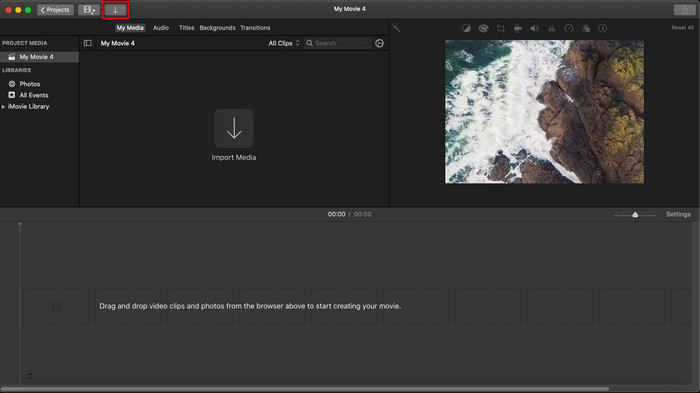
Schritt 3. Passen Sie das importierte Bild und seine Dauer an. Klicken Sie anschließend auf Exportieren, um die Datei auf Ihren Computer herunterzuladen.
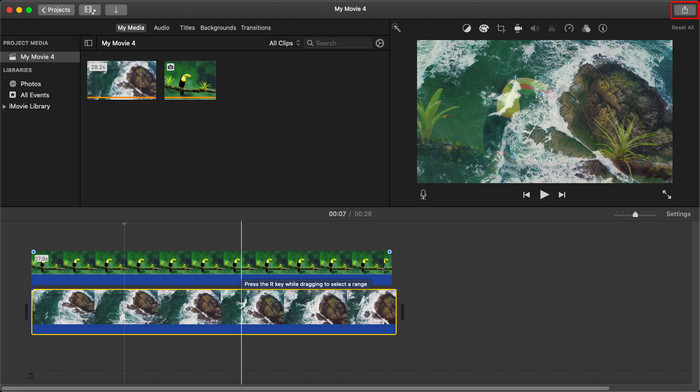
Die hier vorgestellten Schritte stammen aus der praktischen Erfahrung mit der Verwendung von iMovie. Die Schritte können variieren, wenn es ein Update für das Tool gibt oder in Kürze einige Änderungen vorgenommen werden.
Teil 2. So fügen Sie Fotos in Videos mit iMovie [iOS] ein
Was ist, wenn Sie ein iOS-Gerät verwenden und iMovie als Editor verwenden möchten, um einem Video ein Bild hinzuzufügen? Ist es möglich? Nun ja, das ist es. Wir können Ihnen beibringen, wie Sie ein Bild in einen Video-iMovie auf dem iPhone einfügen, indem Sie die Details unten mit den von uns bereitgestellten Schritten lesen.
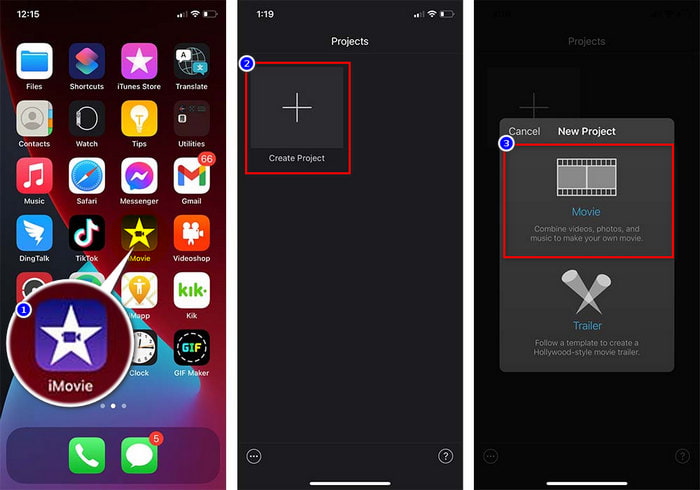
Schritt 1. Starten Sie die iMovie‑App auf Ihrem iOS‑Gerät, klicken Sie auf Projekt erstellen und dann auf Film. Fügen Sie das Video hinzu, das sich in Ihrer Mediathek befindet.
Schritt 2. Klicken Sie auf die +-Schaltfläche, um das Bild‑Wasserzeichen zum Video hinzuzufügen. Suchen Sie es in der Mediathek, klicken Sie darauf, drücken Sie auf die drei Punkte und wählen Sie Green/Blue Screen. Tippen Sie auf das Bild, um den Hintergrund automatisch zu entfernen.
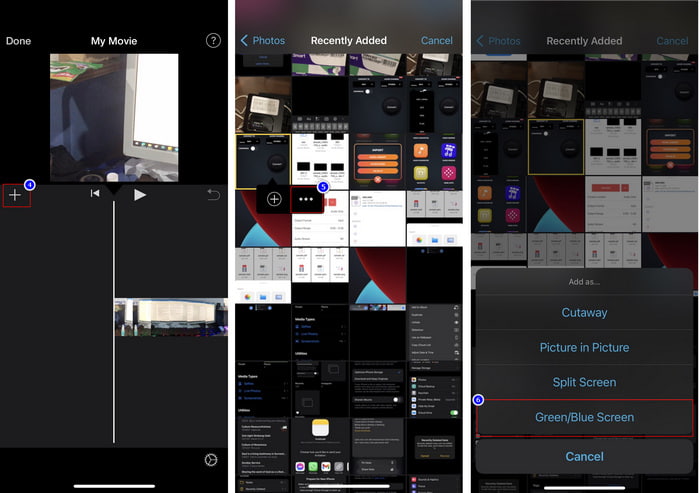
Schritt 3. Drücken Sie auf Fertig, klicken Sie auf Exportieren und dann auf Video sichern.
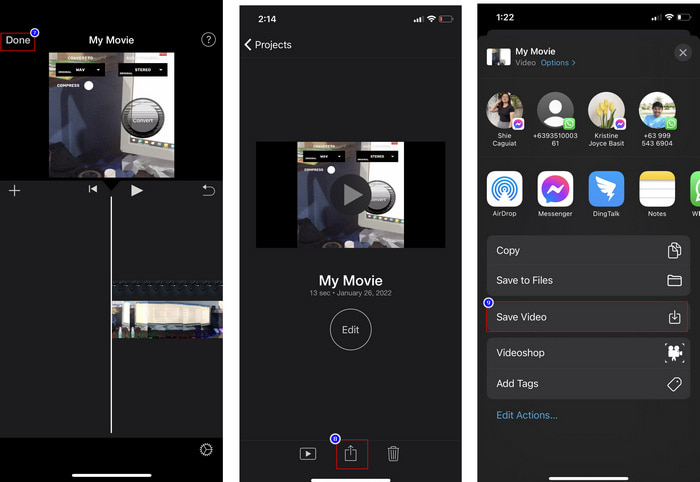
Alle Schritte, die wir hier vorgestellt haben, stammen aus der praktischen Erfahrung mit der Verwendung von iMovie unter iOS. Einige der Schritte können sich jedoch ändern, wenn die Editor-App bald aktualisiert wird.
Teil 3. Einfachste Lösung zum Einfügen von Fotos in Videos mit der besten Video-Wasserzeichen-Software auf dem Mac
Haben Sie die gleichen Schwierigkeiten, Fotos in iMovie über ein Video zu legen? Versuchen Sie, den Video Converter Ultimate zu verwenden, denn dieses Tool ist die beste Alternative zu iMovie. Die Gesamtleistung des Programms wurde bereits von Millionen von Nutzern gelobt, die es ausprobiert haben. Auch wenn sie unterschiedliche Probleme mit ihren Videos hatten, wählen sie dennoch dieses ultimative Tool, um sie zu lösen. Außerdem können Sie mit diesem Tool fast alles rund um Videos erledigen, wie z. B. schneiden, Bilder hinzufügen, zusammenführen, zuschneiden usw. Ganz gleich, welches Problem Sie haben – dies ist die All‑in‑one‑Lösung. Möchten Sie das Problem lösen? Dann folgen Sie den Schritten unten, die wir für Sie leicht nachvollziehbar aufgeschrieben haben.
Funktionen:
◆ Das ultimative Tool unterstützt mehrere Formate, sodass das Hochladen Ihres Formats nicht schwierig sein wird.
◆ Es unterstützt eine leicht verständliche Benutzeroberfläche, um Bilder innerhalb weniger Sekunden schnell zu jedem Video hinzuzufügen.
◆ Es unterstützt verschiedene Plattformen wie Mac und Windows, damit die Benutzer auf allen Plattformen genießen können.
Schritt 1. Sie können das Tool herunterladen, indem Sie unten auf die Download‑Schaltfläche klicken, es anschließend installieren und nach der Installation öffnen.
Gratis DownloadFür Windows 7 oder neuerSicherer Download
Gratis DownloadFür MacOS 10.7 oder neuerSicherer Download
Schritt 2. Nachdem Sie es geöffnet haben, klicken Sie auf die angezeigte +-Schaltfläche, um die Videodatei zu importieren. Danach wird ein Ordner geöffnet, in dem Sie die Videodatei auswählen und auf Öffnen klicken.
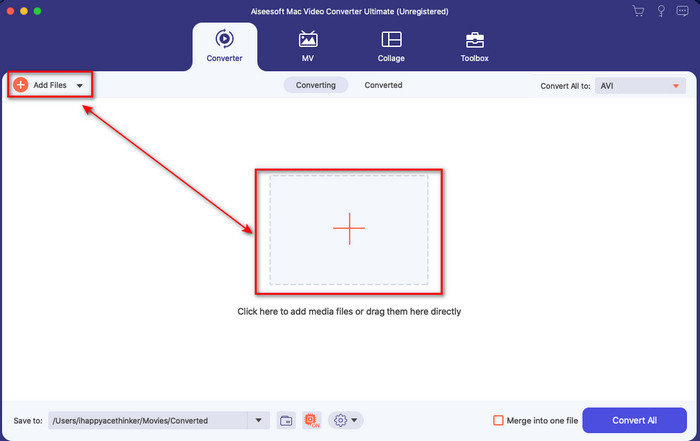
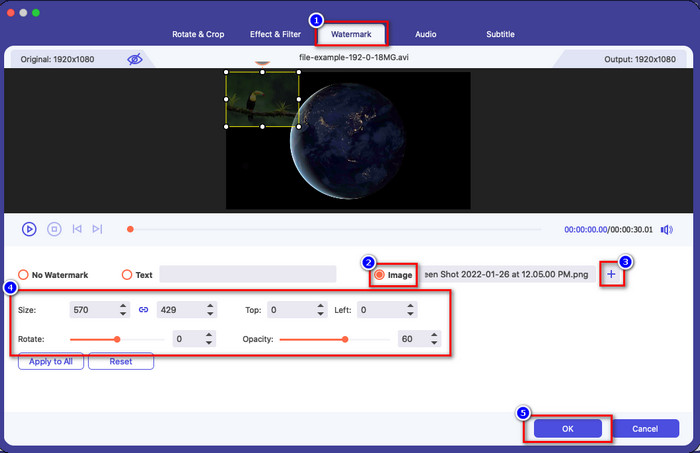
Schritt 3. Drücken Sie auf die Zauberstab-Schaltfläche, um das Bearbeitungsfenster des Konverters zu öffnen. Gehen Sie zu Wasserzeichen, klicken Sie auf Bild und dann auf Hinzufügen, um das Bild hochzuladen. Außerdem können Sie die Deckkraft des Bildes bearbeiten oder es drehen, je nach Bedarf. Um die Änderungen zu übernehmen, klicken Sie auf OK.
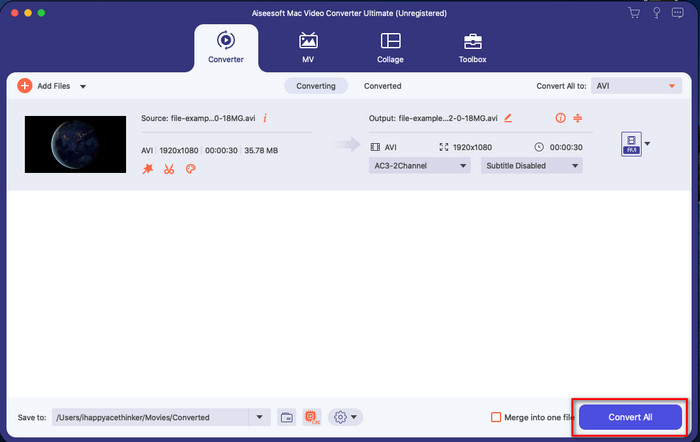
Schritt 4. Klicken Sie auf die Schaltfläche Alle konvertieren, um die Videodatei zu exportieren. Sie wird nach dem Exportvorgang in einem Ordner auf Ihrem Computer gespeichert – so einfach haben Sie bereits ein Wasserzeichen‑Bild in Ihrem Video. Glauben Sie jetzt an die Leistungsfähigkeit von Video Converter Ultimate? Sie haben das Bild‑Wasserzeichen im Handumdrehen zu Ihrem Video hinzugefügt.
Verwandt:
Wie man Audio zu einem Video hinzufügt
Wie man Untertitel zu einem Video hinzufügt
Teil 4. Häufig gestellte Fragen zum Hinzufügen von Fotos zu Videos in iMovie
Gibt es Beschränkungen für die Anzahl der Bilder, die in iMovie-Videos hinzugefügt werden?
Bisher hatten wir keine Unannehmlichkeiten beim Hinzufügen mehrerer Bilder zum Video während der Verwendung von iMovie. Der Exportvorgang dauert jedoch, wenn Sie dem Video zu viele Bilder hinzufügen, stürzt aber erfahrungsgemäß nicht ab.
Welche Bildformate kann ich in iMovie verwenden?
Es gibt zahlreiche Standbildformate, die iMovie unterstützt, wie BMP, PNG, JPG oder JPEG, HEIF, PSD, RAW TIFF und TGA, aber wenn Sie ein animiertes Bild wünschen, können Sie GIF verwenden. Obwohl es viele dieser Formate gibt, werden immer noch nicht alle Bildformate wie EXIF, WebP und dergleichen unterstützt.
Warum sollte ich iMovie verwenden?
Für Apple-Benutzer ist iMovie eine der besten Möglichkeiten, um einen Kurzfilm, Werbung, Vlogs und mehr zu erstellen; all dies ist kostenlos. Der Editor bietet eine halb fortgeschrittene Benutzeroberfläche, um den Benutzern zu helfen, eine praktische Erfahrung damit zu machen, wie eine erweiterte Benutzeroberfläche oder ein erweitertes Werkzeug aussieht. Außerdem ist die Software weniger technisch, dafür aber spezialisiert. Es ist nicht üblich, einen Editor zu sehen, der eine weniger technische Bedienung bietet, aber er kann Ihnen helfen, ein Profi zu sein und einige fortgeschrittene Tools mit spezialisierten Techniken hinzuzufügen.
Fazit
Abschließend können wir sagen, dass wir nun genug Wissen haben, um ganz einfach Fotos in iMovie über ein Video zu legen. Mit dem besten Tool auf Apple‑Geräten können Sie hier sogar komplexe Bearbeitungen durchführen. Allerdings bietet iMovie nicht alle Funktionen, die Sie vielleicht benötigen, doch Sie können den Video Converter Ultimate verwenden, um auf allen Plattformen einen leicht zu bedienenden Editor zu haben. Fragen Sie sich vielleicht, warum Sie dieses ultimative Tool verwenden sollten? Eine lange Erklärung ist nicht nötig, wenn es um dieses Tool geht, da wir oben bereits die Beweise präsentiert haben. Was sollten Sie also tun? Sie können auf die Download‑Schaltfläche klicken, um praktische Erfahrungen mit dem ultimativen Tool zu sammeln und dieses Problem zu lösen.
-
 Die 5 beliebtesten Audiorecorder-Apps für Android und iOS [2022 aktualisiert]
 Sie wissen nicht, welche Audiorecorder-App Sie verwenden sollten? Wenn ja, hilft Ihnen dieser Artikel bei der Auswahl der App, die Ihnen bei Ihrer Audioaufnahme hilft.
-
 Sprachnotiz auf iOS – Vor- und Nachteile, Funktionen und 4 beste Ersetzungen
 Was ist Sprachnotiz? Ist es der beste Audiorecorder für iOS? Suchen Sie eine Antwort auf diese Frage? Lesen Sie also den gesamten Umfang dieses Artikels, um mehr zu erfahren.
-
 7 Neueste kostenlose MOD-Konverter zum Ändern der MOD-Datei in ein neues Format
 Welche MOD-Konverter können Sie verwenden? Denken Sie die gleiche Frage? Hier sind wir also und stellen Ihnen die sieben Tools zur Verfügung, mit denen Sie Ihre MOD-Dateien konvertieren können.
