


 Video Converter Ultimate
 Bildschirm recorder
 Videoreparatur
 Sicherer Download
Top Watermark Remover zum einfachen Entfernen des Adobe Stock-Wasserzeichens aus Videos
Wusstest du, dass Adobe eine Bild- und Videoplattform für Stock‑Fotografie hat? Darf ich vorstellen: Adobe Stock, eine der größten Websites, die dir nahezu jedes benötigte Grafikdesign zur Verfügung stellt – und das dank lizenzfreier (royalty‑free) Nutzung ohne unerwartete Folgen. Du kannst HD‑Videos kostenlos, aber mit Wasserzeichen oder Stempel herunterladen, wenn du kein Guthaben oder Abo erworben hast. Vielleicht fragst du dich, ob es möglich ist, das Adobe‑Stock‑Wasserzeichen aus dem Video zu entfernen – und ja, das ist es! Im nächsten Teil verwenden wir den besten Wasserzeichen‑Entferner, den du je brauchen wirst; lies diesen Artikel weiter, um ihn besser kennenzulernen!

Teil 1. So entfernen Sie das Adobe Stock-Wasserzeichen aus dem Video durch Zuschneiden
FVC Video Converter Ultimate ist ein umfassender und einfach zu bedienender Bild‑ und Videoeditor, der sowohl Windows‑ als auch Mac‑Versionen unterstützt. Diese Software verfügt über eine leistungsstarke Zuschneidefunktion, mit der du ein Video von Adobe Stock ohne Wasserzeichen speichern kannst. Außerdem kannst du damit alles in deinen Videos zuschneiden, etwa Objekte, Stempel, Wasserzeichen, Datum und Uhrzeit.
Selbst wenn Sie im Zuschneiden unerfahren sind, können Sie es dennoch tun, wenn Sie mit dem unten hinzugefügten Tutorial fertig sind. Dieser Schritt ist jedoch nicht ideal, wenn sich das Wasserzeichen in der Mitte des Videos befindet, da Sie die Größe ändern und das unnötige tatsächliche Filmmaterial ausschneiden.
So schneidest du ein Videowasserzeichen mit FVC Video Converter Ultimate weg:
Schritt 1. Klicke auf die passende Download‑Schaltfläche unten, um die richtige Version dieses Videoeditors auf deinem Desktop zu installieren. Folge der Installation und dem Einrichtungsprozess und klicke dann auf „Jetzt starten“, um den Editor auf deinem System zu öffnen.
Gratis DownloadFür Windows 7 oder neuerSicherer Download
Gratis DownloadFür MacOS 10.7 oder neuerSicherer Download
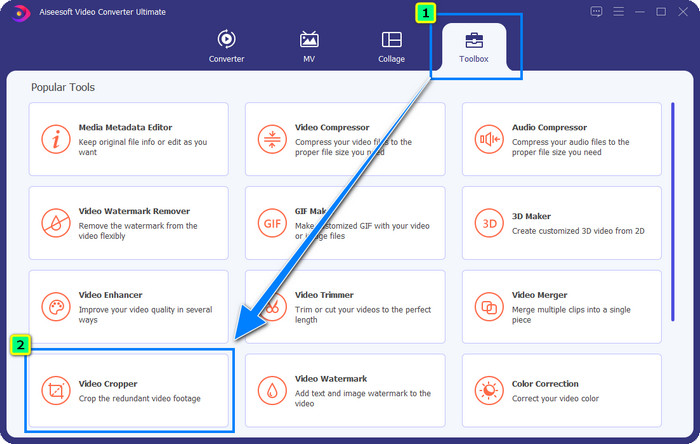
Schritt 2. Sobald das Tool geöffnet ist, wechsle zur Toolbox und wähle den Video Cropper aus.
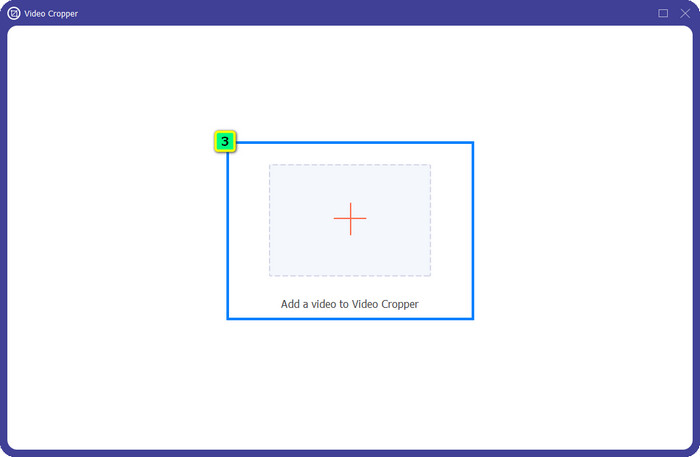
Schritt 3. Ein neues Werkzeugfenster erscheint auf deinem Bildschirm; tippe auf die +-Schaltfläche, um das Video hochzuladen, das du zuschneiden möchtest.
Schritt 4. Passe den Zuschneidebereich nach deinen Vorlieben an; achte darauf, dass sich das Wasserzeichen nicht im Rahmen befindet, damit im gespeicherten Video kein Wasserzeichen mehr zu sehen ist.
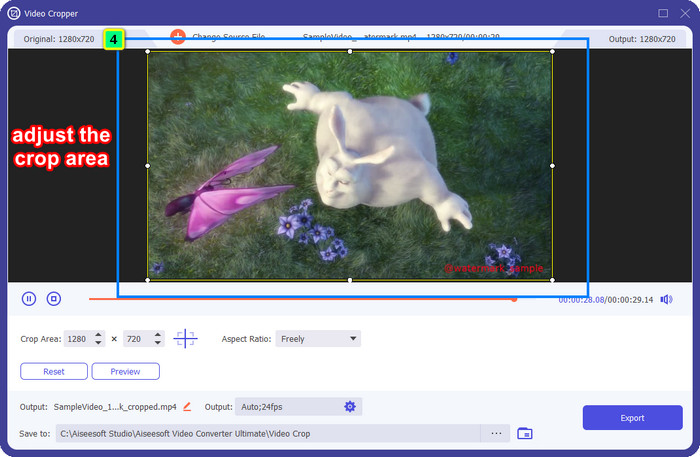
Schritt 5. Nach der Bearbeitung des Bildes ist es Zeit, das Endergebnis zu exportieren. Drücke auf Speichern unter und wähle den Speicherort, an dem die Datei abgelegt werden soll, und klicke dann auf Exportieren, um das finale Ergebnis auf deine lokale Festplatte herunterzuladen.
Teil 2. So entfernen Sie Adobe Stock-Wasserzeichen aus Videos ohne Zuschneiden
Gefällt dir das Entfernen des Adobe‑Stock‑Wasserzeichens per Zuschneiden nicht? Dann kannst du den Wasserzeichen‑Entferner dieses ultimativen Converters nutzen; er ist leistungsstark und hinterlässt nach der Bearbeitung keine Spuren des Wasserzeichens. FVC Video Converter Ultimate ist eine zuverlässige App, die zahlreiche Funktionen bietet, die du frei nutzen kannst, ohne zusätzliche Erweiterungen herunterladen zu müssen. Das neueste Update enthält einen Video‑Wasserzeichen‑Entferner, mit dem jeder ein Problem mit einem Videowasserzeichen einfach und effektiv lösen kann.
Im Gegensatz zur Zuschneidefunktion entfernt die Funktion zum Entfernen von Wasserzeichen das Wasserzeichen auf Ihrem Video, ohne dass die endgültige Ausgabe verschmiert wird. Es ändert nichts am Erscheinungsbild, da es die Größe und Qualität des Videos nicht beschneidet und verschiebt. Wenn Sie also daran interessiert sind, das Adobe Stock-Wasserzeichen aus einem Video zu entfernen, können Sie die Schritte befolgen, die wir als Nächstes enthalten.
Schritt 1. Wenn du die Software bereits heruntergeladen hast, kannst du mit dem nächsten Schritt fortfahren; falls nicht, klicke auf diese Download‑Schaltfläche, installiere das Programm und starte den Editor.
Gratis DownloadFür Windows 7 oder neuerSicherer Download
Gratis DownloadFür MacOS 10.7 oder neuerSicherer Download
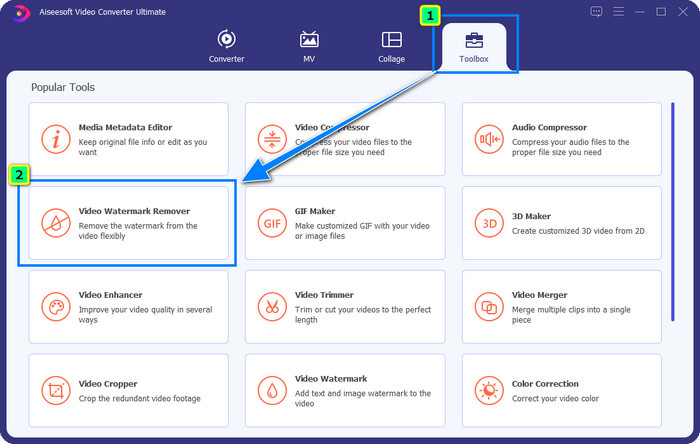
Schritt 2. Sobald das Tool auf deinem Desktop läuft, klicke auf die Toolbox und wähle die Funktion Video Watermark Remover, die diese Software unterstützt.
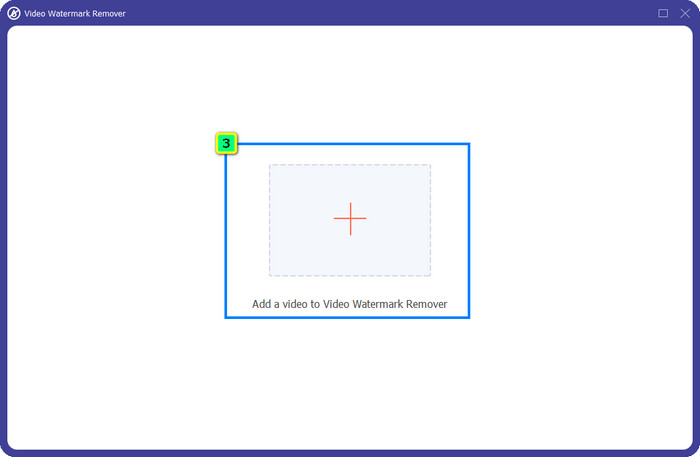
Schritt 3. Klicke auf die Plus-Schaltfläche; daraufhin wird ein Ordner auf deinem Bildschirm angezeigt. Lade das heruntergeladene Adobe‑Stock‑Video hoch und drücke auf Öffnen.
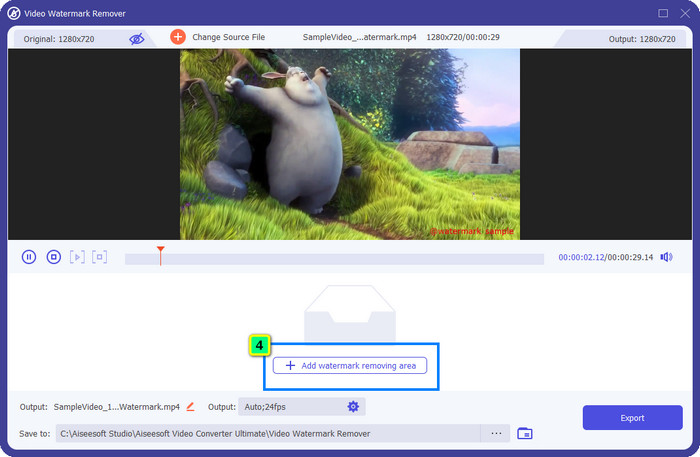
Schritt 4. Drücke auf Add Watermark Removing Area, um den Bereich mit dem Wasserzeichen in deinem Video zum Entfernen zu markieren.
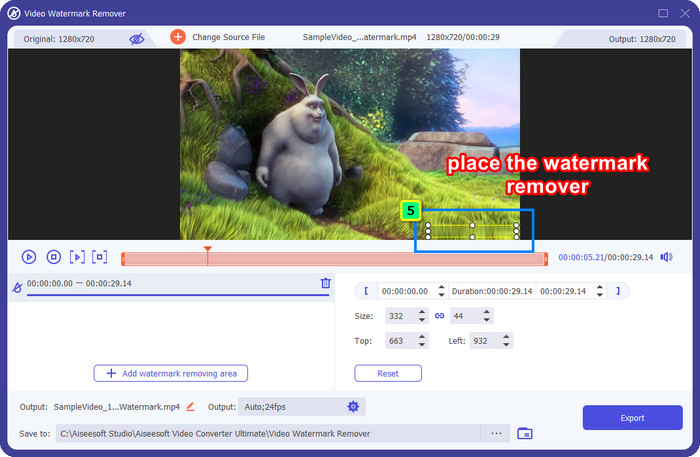
Schritt 5. Platziere den Rahmen über dem Bereich des Wasserzeichens; du kannst ihn frei anpassen, damit er genau auf das Wasserzeichen passt, das in deinem Video eingebettet ist.
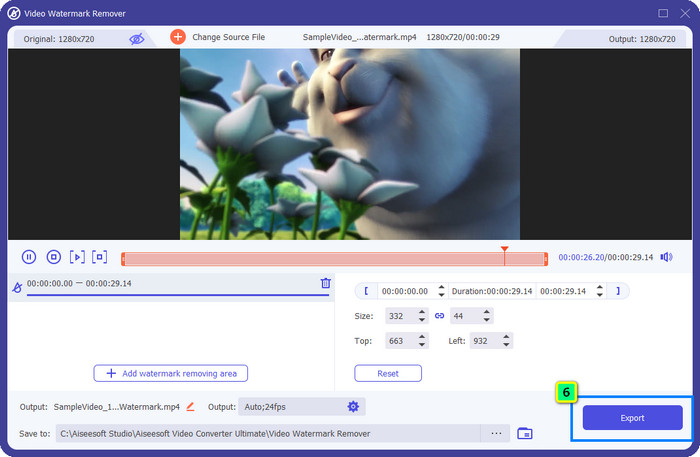
Schritt 6. Klicke zum Schluss auf Export, und du kannst das Video ganz einfach ohne Wasserzeichen verwenden.
Bonus: So entfernen Sie kostenlos das Adobe Stock-Wasserzeichen auf Bildern online
FVC Free Watermark Remover ist ein leistungsfähiger Wasserzeichen‑Entferner für Bilder, der direkt im Web verfügbar ist. Wenn du also ein Wasserzeichenproblem bei einem Bild hast, das du heruntergeladen oder auf deinem Gerät gespeichert hast, kannst du mit dieser Software beginnen. Anschließend kannst du dem Tutorial unten folgen, um das Adobe‑Stock‑Wasserzeichen online aus Bildern zu entfernen.
Schritt 1. Um diesen Online‑Wasserzeichen‑Entferner zu öffnen, kannst du auf diesen Link klicken.
Schritt 2. Drücke auf Upload Image, um das Bild mit Wasserzeichen hinzuzufügen, das du hier bearbeiten möchtest.
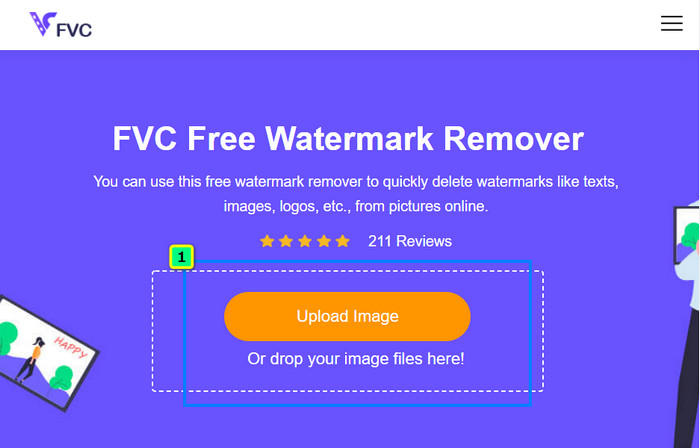
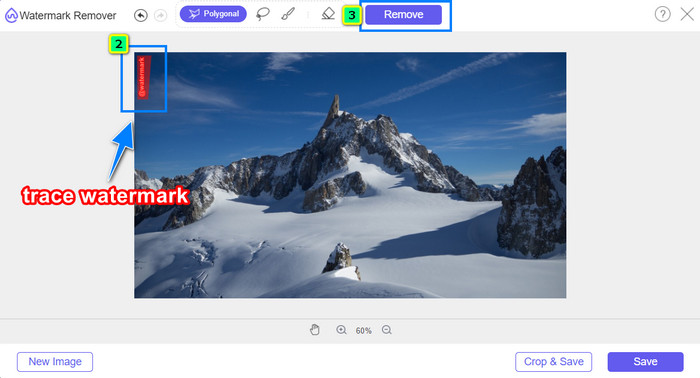
Schritt 3. Nutze das Polygon‑Werkzeug und fahre das Wasserzeichen Punkt für Punkt nach, indem du mit der linken Maustaste klickst. Drücke anschließend auf Remove, nachdem du es nachgezeichnet hast; die KI übernimmt dann die Entfernung des Wasserzeichens für dich.
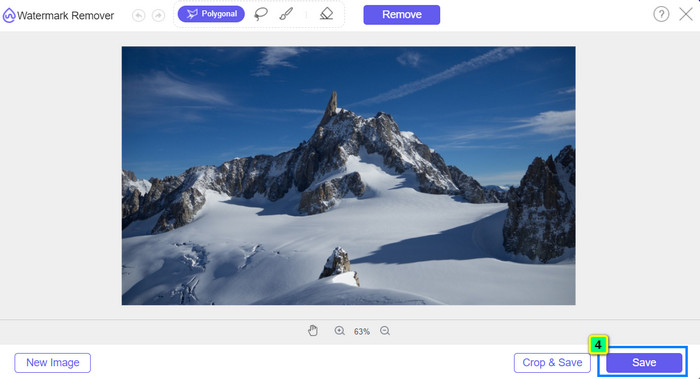
Schritt 4. Wenn du mit dem Ergebnis zufrieden bist und das Bild herunterladen möchtest, klicke auf die Schaltfläche Save, um es direkt auf deinem Desktop zu speichern.
Weiterführende Lektüre:
Neueste Methoden, um Objekte aus Fotos zu entfernen [6 Methoden]
Wie man ein Bild im Foto schärft – 3 Methoden [Schnellanleitung]
Teil 3. Häufig gestellte Fragen zum Entfernen des Adobe Stock-Wasserzeichens aus einem Video
Verschlechtert das Entfernen des Adobe Stock-Wasserzeichens aus dem Video die Qualität?
Manchmal, wenn Sie das Wasserzeichen auf dem Video entfernt haben, verschlechtert das von Ihnen verwendete Tool die Videoausgabe. Wenn Sie jedoch den FVC Video Converter Ultimate verwenden, tritt dieses Problem nicht auf. Tatsächlich können Sie die Videoqualitätseinstellung auf eine viel höhere Einstellung einstellen, um die Qualität zu verbessern.
Wo kann ich Adobe Stock-Credits erwerben?
Öffnen Sie die offizielle Website von Adobe Stock und gehen Sie dann zu Preise. Unter Pläne und Preise sehen Sie verschiedene Credit-Pakete, die Sie kaufen können. Je mehr Kredit, desto teurer kann es werden. Klicken Sie auf die gewünschte Anzahl, drücken Sie auf Jetzt kaufen, fügen Sie die Zahlungsinformationen hinzu und klicken Sie dann auf Gesicherte Bestellung aufgeben.
Warum sind Pläne für Adobe Stock super teuer?
Es mag aufgrund des Preises jedes verfügbaren Produkts auf Adobe Stock sehr teuer erscheinen. Neben dem Preis liegt die Steigerung darin, dass sich der Entwickler Adobe einen Namen gemacht hat. Sie kaufen das Produkt mit dem Namen.
Fazit
Mit dem ultimativen Wasserzeichen‑Entferner in diesem Artikel kannst du nun das Adobe‑Stock‑Wasserzeichen aus den Videos entfernen, die du von der offiziellen Website heruntergeladen hast. Aber welche Methode wird deiner Meinung nach am besten funktionieren? Zuschneiden oder Wasserzeichen‑Entfernung? Beide sind funktional und liefern hervorragende Ergebnisse. Wenn jedoch deine Bild- bzw. Videoabmessungen beschnitten oder in der Größe verändert werden, solltest du besser die Funktion Video Watermark Remover von FVC Video Converter Ultimate verwenden. Außerdem bietet FVC mit Hilfe eines Online‑Tools auch die Entfernung von Wasserzeichen aus deinen Bildern an, das in jedem Browser auf deinem Desktop zugänglich ist. Wir hoffen, dass dir die Informationen, die wir dir hier bereitgestellt haben, gefallen. Wenn du mehr erfahren möchtest, lies die weiteren Artikel unten.
-
 So entfernen Sie Wasserzeichen aus Videos mit Final Cut Pro [Vollständige Anleitung]
 Haben Sie ein Problem mit dem Wasserzeichen in Videos? Mehr haben wir nicht gesagt, denn wir haben ein Tutorial zum Entfernen von Wasserzeichen aus Videos mit Final Cut Pro bereitgestellt.
-
 Entfernen Sie das DaVinci Resolve-Wasserzeichen auf exportierten Videos mit dem vollständigen Tutorial
 Um das Davinci Resolve-Wasserzeichen zu entfernen, müssen Sie ein Tool verwenden oder die offizielle Version davon kaufen. Lesen Sie weiter, um mehr zu erfahren.
-
 So entfernen Sie das Wasserzeichen in Lunapic mit den enthaltenen Schritten [3 Möglichkeiten]
 Erfahren Sie, wie Sie das Wasserzeichen auf Lunapic mit den Methoden entfernen, die wir in diesem Blog hinzufügen. Lesen Sie die Informationen weiter, um sie besser zu kennen.
