


 Video Converter Ultimate
 Bildschirm recorder
 Videoreparatur
 Sicherer Download
Beste Methoden zum Entfernen des VideoScribe-Logos aus einem Video
Möchten Sie lernen, wie Sie das VideoScribe-Logo entfernen können? Es gibt Situationen, in denen in Ihren Videos ein Logo auftaucht. Man kann es oft nicht vermeiden, vor allem wenn der Eigentümer des Videos seine Inhalte schützen und seine Marke bewerben möchte. Zudem begegnet man Logos, wenn man die kostenlose Version einer bestimmten Anwendung nutzt. Ein gutes Beispiel dafür ist VideoScribe. Wenn Sie die kostenlose Version dieser Anwendung verwenden, wird Ihrem Video ein VideoScribe-Logo hinzugefügt, sofern Sie keine Lizenz erwerben. Doch bevor Sie diese kaufen, können Sie andere kostenlose Anwendungen verwenden, um das Logo aus Ihren Videos zu entfernen. Lesen Sie unbedingt diesen Artikel, um zu erfahren, wie Sie ein Logo entfernen können, ohne etwas zu kaufen.

Teil 1: So entfernen Sie das VideScribe-Logo aus dem Offline-Video
Wenn Sie das VideoScribe-Logo offline aus Ihren Videos entfernen möchten, können Sie Video Converter Ultimate verwenden. Mit dieser Anwendung können Sie das VideoScribe-Logo einfach und schnell aus Ihren Videos entfernen. Außerdem können Sie mit dieser Software Ihre Videos bearbeiten, ohne Qualitätsverluste zu erleiden. Darüber hinaus verfügt sie über eine einfache Benutzeroberfläche und bietet eine hochwertige Ausgabe. Video Converter Ultimate ist sowohl für Mac als auch für Windows verfügbar. Obwohl das Programm viele Funktionen besitzt, ist es dennoch gut für Einsteiger geeignet. Diese Anwendung unterstützt zahlreiche Dateiformate wie FLV, MOV, MP4, MTS, DivX, XviD und viele mehr. Zusätzlich bietet sie viele Bearbeitungstools, mit denen Sie Ihre Videos verbessern können, etwa Optimieren, Schneiden, Zuschneiden, Farbkorrektur, Drehen von Videos und vieles mehr. Video Converter Ultimate bietet Ihnen zudem zwei Möglichkeiten, das VideoScribe-Logo aus Ihren Videos zu entfernen.
Verwenden des Video-Wasserzeichen-Entferners
Schritt 1: Klicken Sie auf die Download-Schaltfläche unten, um Video Converter Ultimate auf Ihren Windows‑ oder Mac‑Computer herunterzuladen. Installieren Sie anschließend die Software auf Ihrem Gerät und starten Sie die Anwendung.
Gratis DownloadFür Windows 7 oder neuerSicherer Download
Gratis DownloadFür MacOS 10.7 oder neuerSicherer Download
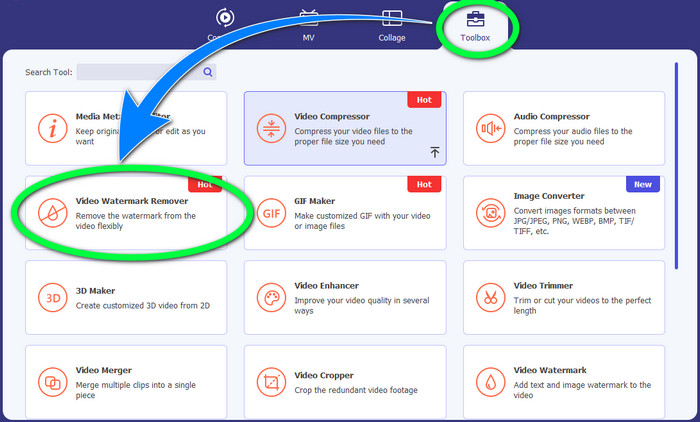
Schritt 2: Gehen Sie danach zum Bereich Toolbox und klicken Sie auf die Schaltfläche Video Watermark Remover. Eine neue Oberfläche erscheint auf Ihrem Bildschirm.
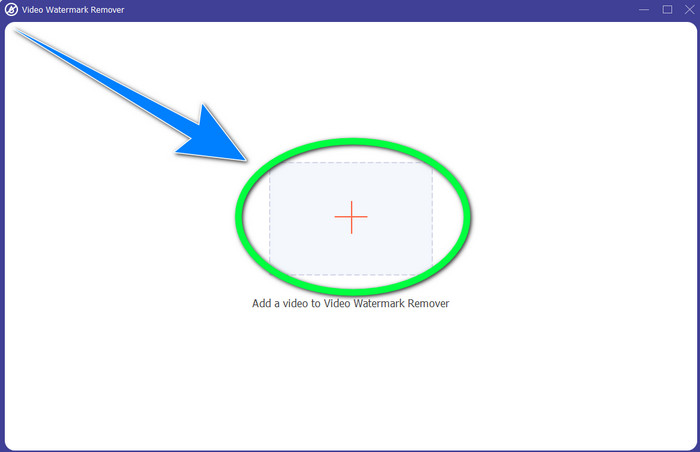
Schritt 3: Klicken Sie auf die +-Schaltfläche, um die Videodatei mit dem VideoScribe-Logo zu importieren, das Sie entfernen möchten.
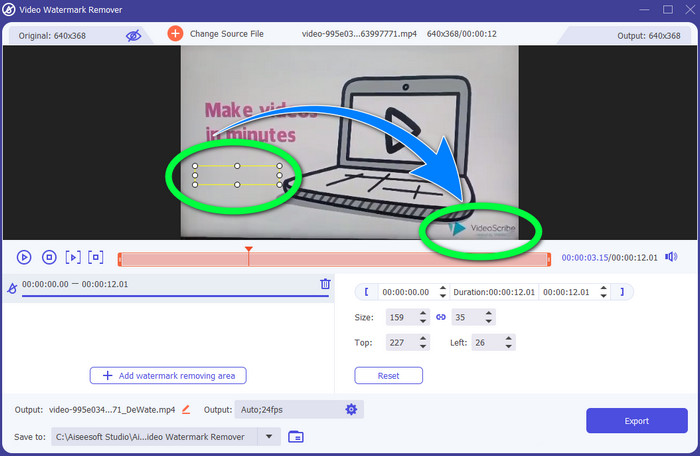
Schritt 4: Wenn Sie das Video importiert haben, klicken Sie auf Add Watermark Removing Area und ziehen Sie das kleine Auswahlfeld über das Logo. Sie können die Größe des Feldes anpassen.
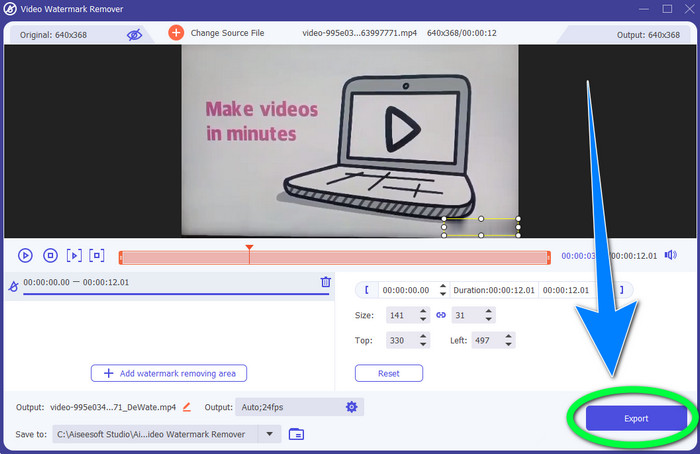
Schritt 5: Zum Schluss klicken Sie auf die Schaltfläche Export, um das Video ohne Logo zu speichern.
Verwendung der Video Cropper-Funktion
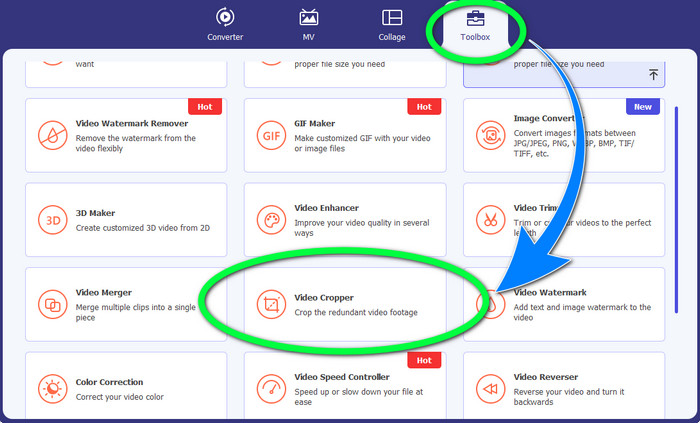
Schritt 1: Das Zuschneidewerkzeug ist eine weitere Möglichkeit, das VideoScribe-Logo zu entfernen. Klicken Sie unter Toolbox auf die Schaltfläche Video Cropper.
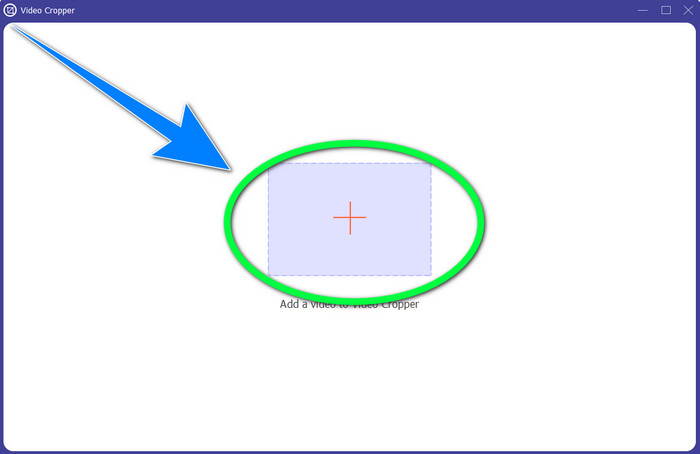
Schritt 2: Eine neue Oberfläche erscheint auf Ihrem Bildschirm. Wählen Sie das +-Symbol und fügen Sie Ihr Video mit dem VideoScribe-Logo ein.
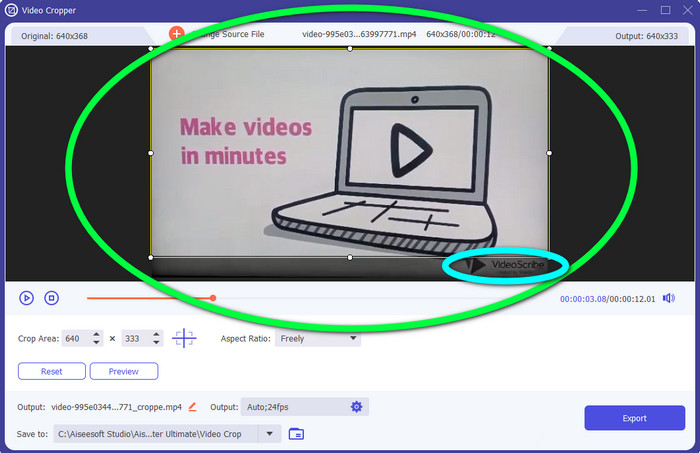
Schritt 3: Mit dem Zuschneidewerkzeug können Sie die Ränder Ihres Videos beschneiden. Befindet sich das Logo am Rand des Videos, können Sie diesen Teil abschneiden, um das Logo zu entfernen.
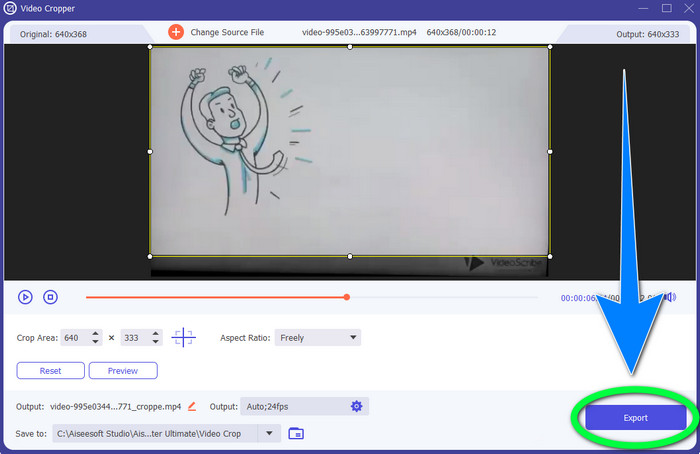
Schritt 4: Wenn Sie der Meinung sind, dass Sie das VideoScribe-Logo entfernt haben, klicken Sie auf die Schaltfläche Export und speichern Sie das fertige Video auf Ihrem Gerät.
Teil 2: So entfernen Sie das VideoScribe-Logo aus Video Online
Verwenden von BeeCut-Online Watermark Remover
Möchten Sie das VideoScribe-Logo online aus Ihren Videos entfernen? BeeCut-Online Watermark Remover ist eines der großartigen und nützlichen Online-Tools, die Sie verwenden können. Dieses Online-Tool kann Ihnen helfen, störende Elemente aus Ihren Videos zu entfernen, zum Beispiel Logos, Wasserzeichen, Texte, Datumsstempel und mehr. Somit können Sie das VideoScribe-Logo dank der einfachen Benutzeroberfläche mühelos aus Ihren Videos entfernen. Außerdem unterstützt BeeCut-Online Watermark Remover zahlreiche Dateiformate wie FLV, MOV, MP4, WebM, ASF, AVI, 3GP, MPG und weitere. Darüber hinaus können Sie mit diesem Tool auch störende Elemente aus Ihren Bildern entfernen. Leider ist diese Anwendung internetabhängig, das heißt, Sie können dieses Online-Tool nicht verwenden, wenn Sie keinen Internetzugang bzw. keine Internetverbindung haben. Der Entfernungsvorgang kann zudem zeitaufwendig sein – je nachdem, ob Ihre Internetverbindung schnell oder langsam ist. Unten finden Sie die Schritte in der richtigen Reihenfolge.
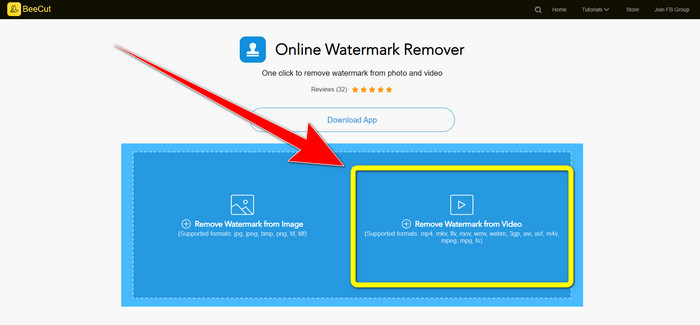
Schritt 1: Gehen Sie auf die Website von BeeCut-Online Watermark Remover. Klicken Sie auf die Schaltfläche Remove Watermark from Video und fügen Sie Ihr Video mit VideoScribe-Logo hinzu.
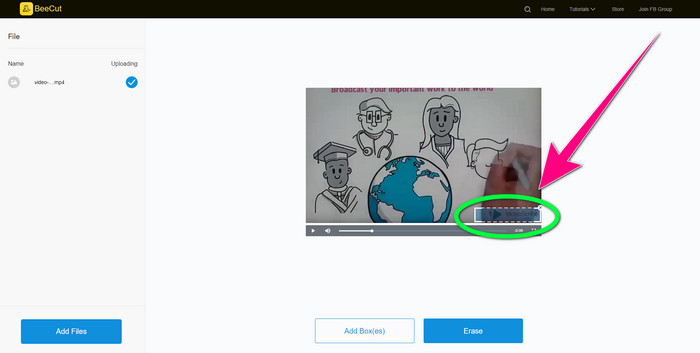
Schritt 2: Nachdem Sie Ihr Video hinzugefügt haben, verwenden Sie das kleine Kästchen, das Sie im Video sehen, und ziehen Sie es über das Logo, um es zu verdecken.
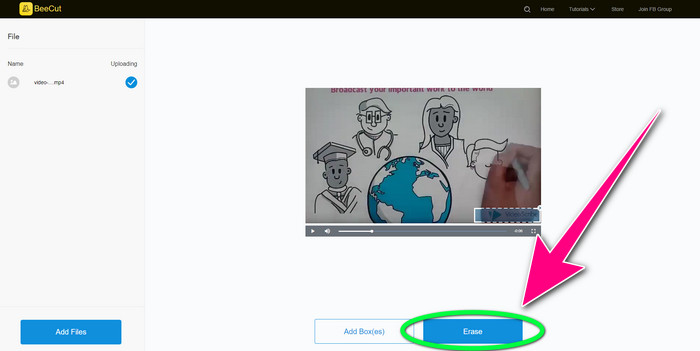
Schritt 3: Wenn Sie das Logo mit dem kleinen Kästchen vollständig abgedeckt haben, wählen Sie die Schaltfläche Erase, um Ihr Video ohne VideoScribe-Logo zu speichern und herunterzuladen.
Verwenden von Video-Wasserzeichen-Entferner online
Video Watermark Remover Online ist ein weiteres Online-Tool, mit dem Sie das VideoScribe-Logo aus Ihren Videos entfernen können. Es verfügt über eine einfache Oberfläche und eignet sich gut für Einsteiger. Außerdem können Sie Logos aus Ihren Videos entfernen, ohne die Qualität zu verlieren, was hervorragend ist. Allerdings hat dieses Online-Tool in der kostenlosen Version nur eingeschränkte Funktionen. Sie können Logos nur aus 5 Videos entfernen und diese nicht in andere Dateiformate exportieren. Und da es sich um eine Online-Anwendung handelt, können Sie sie ohne Internetverbindung nicht nutzen. Zudem funktioniert das Tool manchmal nicht einwandfrei. Wenn Sie lernen möchten, wie Sie Logos aus Ihren Videos entfernen, folgen Sie den einfachen Schritten unten.
Schritt 1: Gehen Sie auf die Website von Video Watermark Remover Online. Klicken Sie auf die Schaltfläche Click or Drag Videos Here, um Ihr Video mit einem VideoScribe-Logo einzufügen.

Schritt 2: Klicken Sie auf die Schaltfläche Remove Watermark und warten Sie auf den Entfernungsvorgang. Anschließend können Sie Ihr Video speichern.
Teil 3: Häufig gestellte Fragen zum Entfernen des VideoScribe-Logos aus Videos
Kann ich darauf vertrauen, dass Online-Tools Logos aus meinen Videos entfernen?
Ja, du kannst. Online-Tools sind sicher und können Ihre Videodatei sichern. Einige Tools können Ihre Dateien nach dem Vorgang automatisch löschen, sodass Sie sich keine Sorgen machen müssen. Allerdings sind nicht alle Online-Tools gleich, daher müssen Sie immer noch nach Bewertungen suchen, um zu wissen, ob Sie einem bestimmten Tool vertrauen können.
Wie entfernt man die Logos aus einem Video?
Wenn Sie das Logo loswerden möchten, laden Sie Video Converter Ultimate auf Ihren Computer oder Mac herunter. Sie können den Video-Wasserzeichen-Entferner oder das Video-Cropper-Tool verwenden. Diese zwei Möglichkeiten können Ihnen dabei helfen, das Logo aus Ihrem Video zu entfernen.
Kann ich das VideoScribe-Logo ohne Abonnement entfernen?
Ja, natürlich! Sie können das VideoScribe-Logo mit dem Video Converter Ultimate entfernen. Sie müssen diese Anwendung nicht kaufen, um das Logo zu entfernen, da sie kostenlos ist.
Fazit
Dieser Artikel hat Ihnen Informationen darüber gegeben, wie Sie das VideoScribe-Logo entfernen können – mithilfe einer herunterladbaren Software und mit Online-Tools. Wenn Sie jedoch ein Logo schnell und mühelos aus Ihren Videos entfernen möchten, können Sie Video Converter Ultimate verwenden.
-
 3 der neuesten Wasserzeichen-Entferner von Shutterstock, die Sie jemals brauchen werden
 Gefällt Ihnen das an das exportierte Video angehängte Shutterstock-Wasserzeichen nicht? Sie können einen Wasserzeichenentferner von Shutterstock verwenden, um es effektiv zu löschen.
-
 So entfernen Sie das Powtoon-Wasserzeichen mit 4 effektiven Methoden
 Lesen Sie diesen Artikel, um zu erfahren, wie Sie das Powtoon-Wasserzeichen mit den besten hier enthaltenen Tools und einem Tutorial entfernen können.
-
 Apowersoft Watermark Remover Review – Funktionen, Vor- und Nachteile und Preise
 Apowersoft Watermark Remover ist einer der besten Wasserzeichen-Entferner, der online und offline unterstützt, klicken Sie hier, um mehr zu erfahren!
