


 Video Converter Ultimate
 Bildschirm recorder
 Videoreparatur
 Sicherer Download
So entfernen Sie das Wasserzeichen in SmartDraw mit 2 Möglichkeiten
Wenn Sie eine einfache und leistungsstarke Möglichkeit benötigen, Diagramme, Zeichnungen und Karten zu erstellen und diese anschließend in Unternehmensqualität zu präsentieren, dann verwenden Sie SmartDraw. Mit SmartDraw können Sie Ihre Ideen nutzen und sie in die Realität umsetzen. Ist das Tool kostenlos? Sie können die siebentägige kostenlose Testversion verwenden, mit der Sie das Tool kostenlos, jedoch mit Wasserzeichen, nutzen können. Mit einem Wasserzeichen auf exportierten Dateien umzugehen, kann mühsam sein. Daher stellen wir Ihnen in diesem Blogbeitrag nur das beste Tool vor, das es derzeit auf dem Markt gibt und das besonders effizient beim Entfernen von Wasserzeichen ist. Lesen Sie weiter, um zu erfahren, wie man das Wasserzeichen in SmartDraw entfernt – auf zwei effektive Arten.

Teil 1. So entfernen Sie Wasserzeichen in Smart Draw durch den Kauf eines Lizenzschlüssels [Offizielle Version]
Wie entferne ich das Wasserzeichen von SmartDraw? Dies ist der erste Weg, den wir Ihnen vorstellen, und zwar durch den Kauf des Lizenzschlüssels für dieses Tool. Diese Plattform bietet Ihnen verschiedene Arten von Plänen, von denen Sie profitieren können. Darüber hinaus können Sie keinen einmonatigen Zugriff auf dieses Tool erwerben. Wenn Sie also den Lizenzschlüssel erwerben möchten, wird Ihnen monatlich eine Rechnung gestellt, aber der Gesamtbetrag, den Sie zahlen müssen, bezieht sich auf die Jahresversion. Wenn Sie die Leistung dieses Tools zu schätzen wissen und es kaufen möchten, können Sie den unten aufgeführten Schritten folgen.
Schritte zum Entfernen von Wasserzeichen in SmartDraw mit einem Lizenzschlüssel:
Schritt 1. Öffnen Sie die offizielle Website von SmartDraw und stellen Sie sicher, dass Sie die richtige Seite aufrufen, um eine sichere Transaktion zu gewährleisten.
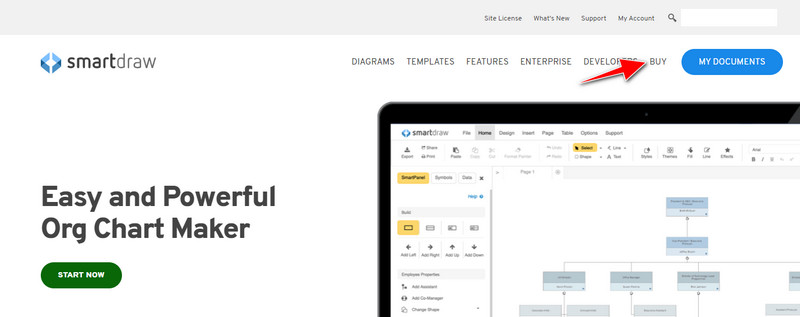
Schritt 2. Klicken Sie auf der Website auf Buy, um die verfügbaren Tarife zu sehen.
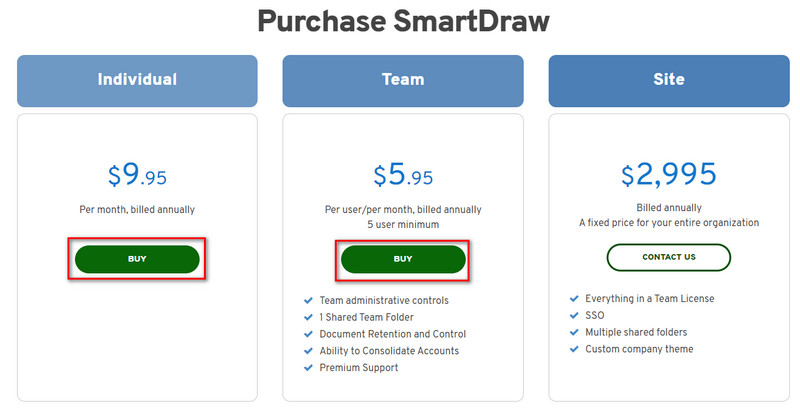
Schritt 3. Sie können SmartDraw als Individual, Team oder Site erwerben. Klicken Sie auf Buy Now, wenn Sie die Version für Individual oder Team kaufen möchten.
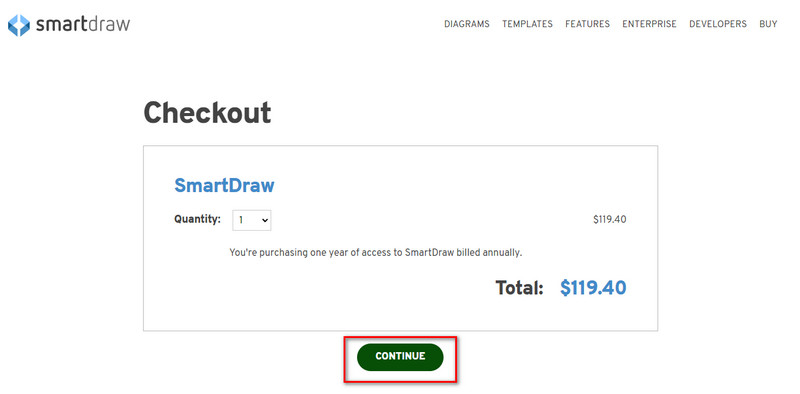
Schritt 4. Auf der rechten Seite sehen Sie den Gesamtpreis des Tools pro Jahr; klicken Sie auf Continue, um fortzufahren.
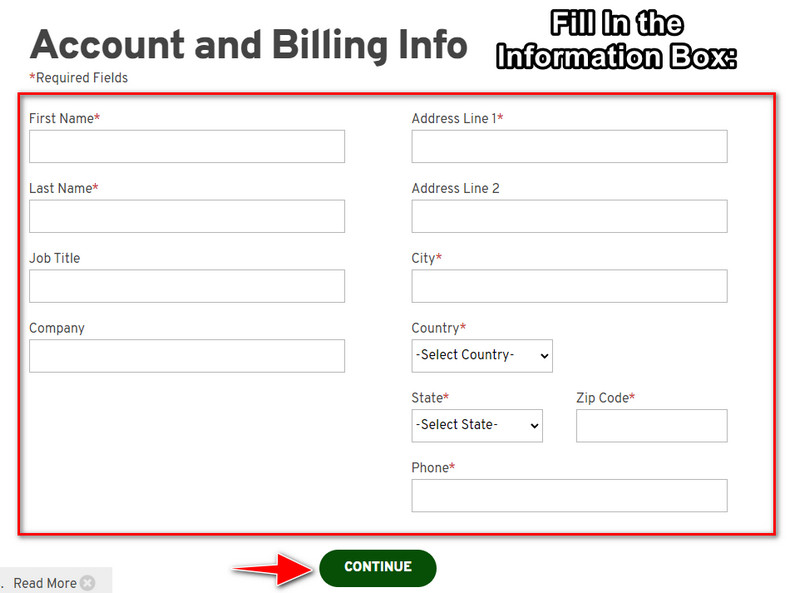
Schritt 5. Geben Sie Ihr Konto und Ihre Rechnungsdaten ein, die erforderlich sind, und klicken Sie dann auf Continue, um den Lizenzschlüssel zu erhalten.
Teil 2. So entfernen Sie Wasserzeichen in Smart Draw kostenlos über den Webdienst [kostenlos]
Wie entfernt man das Wasserzeichen aus der SmartDraw-Testversion, ohne es zu kaufen? Dann müssen Sie den FVC Free Watermark Remover Online verwenden. Dieser Wasserzeichen-Entferner ist sofort einsatzbereit. Sie benötigen keine besonderen Kenntnisse, um das Wasserzeichen aus Ihrem Bild zu entfernen, denn die Nutzung dieses Tools ist unkompliziert. Selbst wenn Sie Profi sind, können Sie diese Software verwenden, um unerwünschte Wasserzeichen oder Objekte aus Ihrem Bild zu entfernen. Mithilfe dieses Wasserzeichen-Entferners bleibt kein Fleck auf Ihrem Bild zurück, den er nicht entfernen kann. Möchten Sie diese Software ausprobieren, anstatt den Lizenzschlüssel zu kaufen? Dann folgen Sie der nachstehenden Anleitung, um Wasserzeichen auf Bildern effektiv zu entfernen.
Schritte zum kostenlosen Entfernen des Wasserzeichens von SmartDraw auf Diagrammen oder Diagrammen:
Schritt 1. Anstatt das Webtool im Browser zu suchen, können Sie auf diesen Link klicken, um es zu öffnen; es wird in einem neuen Tab Ihrer Suchmaschine gestartet.
Schritt 2. Ziehen Sie mit Ihrer Maus das Bild, Diagramm oder die Grafik, die Sie in SmartDraw erstellt haben, per Drag & Drop hinein, um sie hochzuladen.
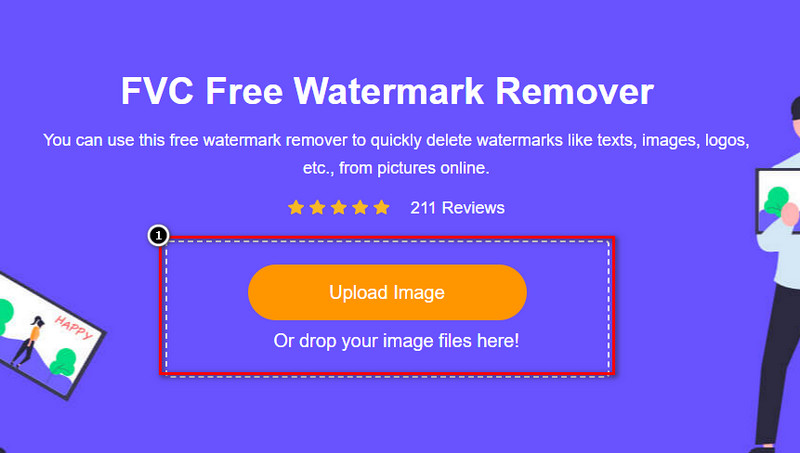
Schritt 3. Nachdem der Online-Wasserzeichen-Entferner gestartet wurde, wählen Sie das Werkzeug, mit dem Sie das Wasserzeichen im Bild markieren möchten.
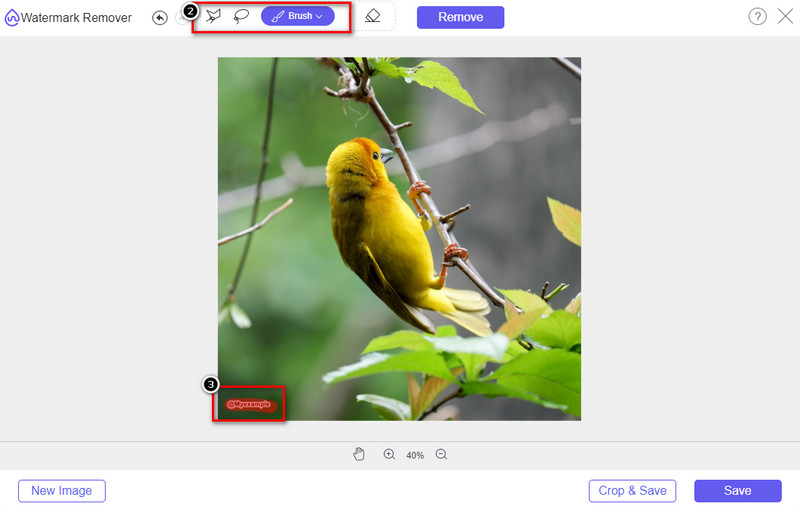
Schritt 4. Nachdem Sie das Wasserzeichen oder Logo auf Ihrem hochgeladenen Bild markiert haben, klicken Sie auf Remove.
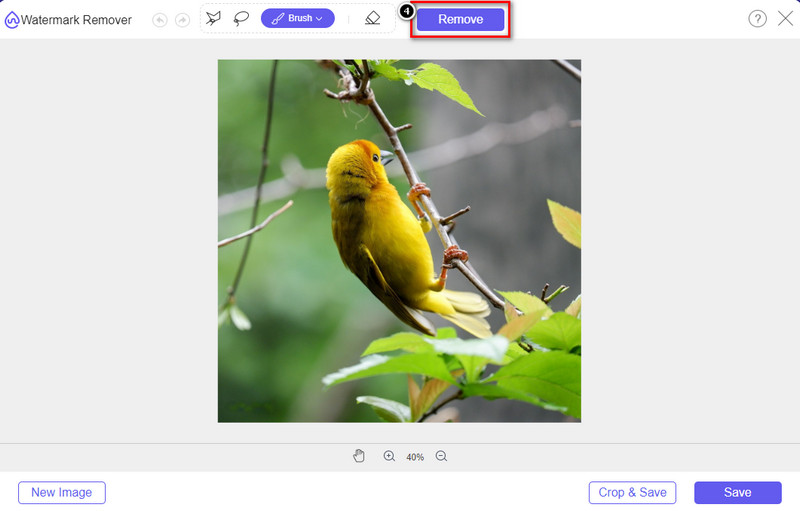
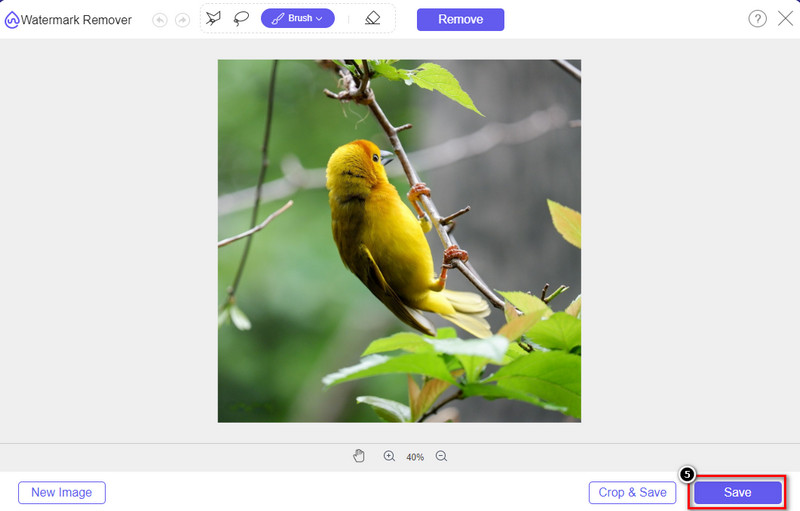
Schritt 5. Warten Sie, bis der Vorgang zum Entfernen des Wasserzeichens abgeschlossen ist, und klicken Sie auf Save, um das von Ihnen hochgeladene Diagramm oder die Grafik herunterzuladen. Ein Ordner wird auf Ihrem Bildschirm angezeigt; überprüfen Sie nun die von Ihnen erstellte Version der Grafik oder des Diagramms ohne Wasserzeichen.
Vorteile der Verwendung von FVC Free Watermark Remover Online:
◆ Das Herunterladen der App ist nicht erforderlich, da sie im Internet verfügbar ist.
◆ Unterstützt eine Vielzahl von Bildern und kann Wasserzeichen effektiv entfernen.
◆ Es handelt sich um einen speziellen Wasserzeichenentferner, der qualitativ hochwertige Ergebnisse liefert.
◆ Der endgültigen Ausgabe wird nach dem Export kein Wasserzeichen hinzugefügt.
◆ Keine Begrenzung der Verwendungshäufigkeit und Dateigröße.
Teil 3. Zusätzlicher Teil – Wie man ein Diagramm, eine Grafik oder ein Diagramm auf SmartDraw mit detaillierten Schritten erstellt
Der frühere Teil zeigt Ihnen, wie Sie das SmartDraw-Wasserzeichen entfernen. In diesem Teil werden wir Ihnen beibringen, wie Sie mit Hilfe von SmartDraw ein Diagramm, eine Grafik und ein Diagramm erstellen. Sie können die Schritte befolgen, die wir unten hinzufügen, um zu erfahren, wie es geht.
Schritt 1. Gehen Sie auf die offizielle Website, um ein Diagramm, eine Grafik oder ein Schaubild zu erstellen.
Schritt 2. Nachdem Sie die offizielle Website geöffnet haben, klicken Sie auf Start Now und melden Sie sich in Ihrem Konto an.
Schritt 3. Wählen Sie auf der linken Seite aus, welche Art von Vorlage Sie verwenden oder erstellen möchten.
Schritt 4. Fügen Sie die Informationen zu jedem Ablaufdiagramm hinzu. Auf der linken Seite der Website stehen Ihnen zusätzliche Optionen zur Verfügung.
Schritt 5. Klicken Sie auf die Schaltfläche Export, wählen Sie das gewünschte Format aus und klicken Sie darauf, um den Vorgang zu starten. Wenn Sie die kostenlose Version verwenden, wird ein Wasserzeichen vorhanden sein; Sie können die Schritte in Teil 2 kopieren, um das Wasserzeichen zu entfernen.
Weiterführende Lektüre:
So entfernen Sie das B612‑Wasserzeichen von Ihren Bildern
So entfernen Sie das WOW Slider‑Wasserzeichen kostenlos
Teil 4. Häufig gestellte Fragen zum Entfernen von SmartDraw-Wasserzeichen
Kann SmartDraw PNG-Bilder exportieren?
Ja, Sie können ein transparentes Diagramm im PNG-Format haben. Es wird jedoch ein Wasserzeichen hinzugefügt, wenn Sie die kostenlose Version verwenden. Sie können die offizielle Version kaufen, sodass das exportierte Bild ein Wasserzeichen enthält.
Wie hoch ist der Preis von SmartDraw?
Wenn Sie im Begriff sind, einen Plan für SmartDraw zu kaufen, können Sie den Plan ab $ 5,95 erwerben. Sie können die anderen Preise auf der offiziellen Website einsehen.
Was ist der Vorteil beim Kauf der Premium-Version von SmartDraw?
Sie können Teamadministratorkontrolle, Teamordner, Premium-Support erlangen und Bilder ohne Wasserzeichen für einzelne Pläne exportieren. Für andere Premium-Vorteile, die Sie erhalten können, besuchen Sie die offizielle Website und sehen Sie, welche Features und Funktionen Sie erhalten können.
Fazit
Jetzt wissen Sie, wie Sie SmartDraw ohne Wasserzeichen mit den beiden von uns hinzugefügten Möglichkeiten speichern können. Entweder Sie kaufen es oder verwenden ein Tool, um das Wasserzeichen in der exportierten Datei zu entfernen. Wenn Sie das Tool nicht kaufen möchten, müssen Sie es verwenden, da es das effizienteste Web-Tool zum Entfernen des Wasserzeichens ist. Wenn Sie der Meinung sind, dass dieser Artikel Ihnen geholfen hat, das Problem zu lösen, dann bewerten Sie uns mit 5 Sternen.
-
 4 beste Möglichkeiten, das Wasserzeichen aus GIF zu entfernen [Online & Offline]
 Müssen Sie Wasserzeichen aus GIF entfernen? Mit dem Tool in diesem Artikel lernen Sie die verschiedenen Stile mit den verschiedenen Wasserzeichenentfernern kennen, die auf Ihrer Plattform verfügbar sind.
-
 5 einfachste Möglichkeiten zum Entfernen von Metadaten in beliebigen Mediendateien
 Wie entferne ich Metadaten? Ist es schwer, es zu tun? Muss ich ein kostenloses Tool kaufen oder verwenden, um Tags zu entfernen? Alle diese Fragen haben Antworten in diesem Artikel.
-
 Hervorragender Photobucket-Wasserzeichenentferner online und offline
 Erfahren Sie, wie Sie mit diesem erstaunlichen Photobucket-Wasserzeichenentferner das Photobucket-Wasserzeichen von Ihren Fotos entfernen. Lesen Sie diesen Artikel, um die Möglichkeiten zu erfahren.
