


 Video Converter Ultimate
 Bildschirm recorder
 Videoreparatur
Top 6 Reverser-Software, die Sie verwenden können, um Video auf Windows und Mac umzukehren
Das Umkehren eines Videos kann eine neue Botschaft erzeugen, die das Publikum zum Nachdenken oder zum Staunen bringen kann. Dieser Videoeffekt wurde verwendet, um ein Video interessant zu machen und eine Botschaft auf andere Weise zu übermitteln. Viele Musikvideos wie Breezeblock von der Aljt wurden invertiert auf YouTube hochgeladen. Um mehr darüber zu erfahren, wie Sie Videos umkehren können, folgen Sie dieser Anleitung. Da es Ihnen hilft, das Umkehren von Videos einfacher denn je zu machen.

Teil 1. Top 1 & 2 Offline-Software und erfahren Sie, wie Sie ein Video unter Windows und Mac umkehren können
Top 1. Videokonverter Ultimate
Es gibt viele Videobearbeitungsprogramme, die den Markt dominieren wollen, aber der herausragende Konverter ist immer noch die beste Wahl. Video Converter Ultimate wurde bereits von Millionen von Nutzern verwendet und hat ihnen bei Problemen wie der Frage geholfen, wie man ein Video rückwärts abspielt. Mit diesem Tool können Sie Ihr Video selbst bearbeiten – mit einem professionellen Touch. Auch ohne Schnitt-Erfahrung ist dieses Tool ideal für Sie, und selbst mit Erfahrung profitieren Sie davon. Außerdem verfügen viele andere Editoren nicht über die gleichen erweiterten Funktionen, die diese Software bietet. Wenn Sie also mehr über diese Software erfahren möchten, sehen wir uns nun die folgenden Schritte an und befolgen sie genau.
Schritt 1. Laden Sie die Software zunächst auf Ihre Festplatte herunter, installieren Sie sie und folgen Sie dem Einrichtungsprozess.
Gratis DownloadFür Windows 7 oder neuerSicherer Download
Gratis DownloadFür MacOS 10.7 oder neuerSicherer Download
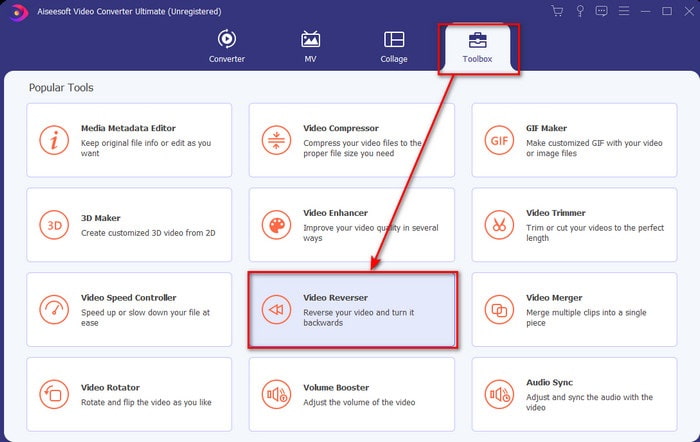
Schritt 2. Starten Sie dann das Tool und suchen Sie im Toolbox-Bereich den Video Reverser.
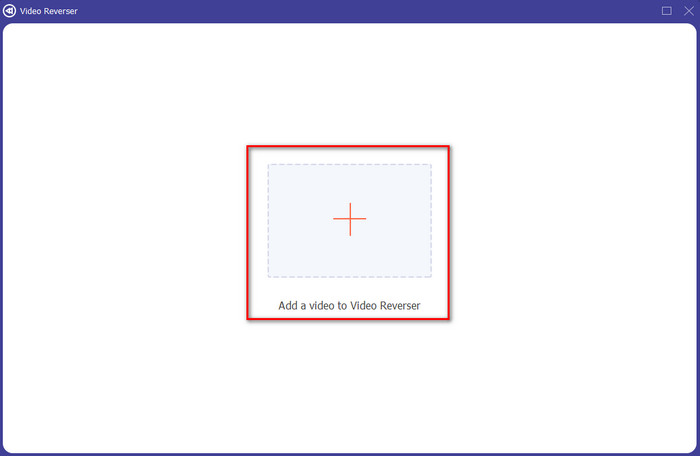
Schritt 3. Klicken Sie auf das + und wählen Sie im Ordner das Video aus, das Sie umkehren möchten. Klicken Sie anschließend auf Öffnen, um mit dem nächsten Schritt fortzufahren.
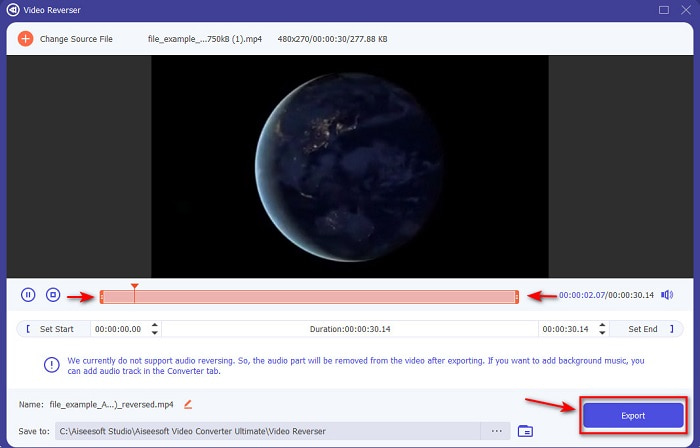
Schritt 4. Passen Sie dann die Länge des Videos an, indem Sie den Wiedergabebereich ein- und ausblenden. Um das rückwärts abgespielte Video herunterzuladen, klicken Sie auf Exportieren.
Schritt 5. Warten Sie ein paar Sekunden, bis der Export abgeschlossen ist. Danach können Sie das Video erneut ansehen, indem Sie auf die rückwärts abgespielte Datei im Ordner klicken. Genießen Sie den verzögerungsfreien Rückwärts-Effekt, der Ihnen vom Ultimate Converter Ultimate geboten wird.
Vorteile
- Professionelle Endausgaben können einfach ausgeführt werden, wenn Sie dieses Tool verwenden.
- Es hat viele erstaunliche Funktionen, um Ihr Video phänomenal zu machen.
- Unbegrenztes Rückwärtsfahren ist in diesem Tool möglich.
Nachteile
- Muss zuerst heruntergeladen werden, bevor Sie es verwenden können.
- Es ist nicht kostenlos, aber es lohnt sich, wenn Sie dieses phänomenale Profi-Tool kaufen.
Verwandt:
Wie man Audio zu einem Video hinzufügt
Top 2. Einfacher Video-Maker
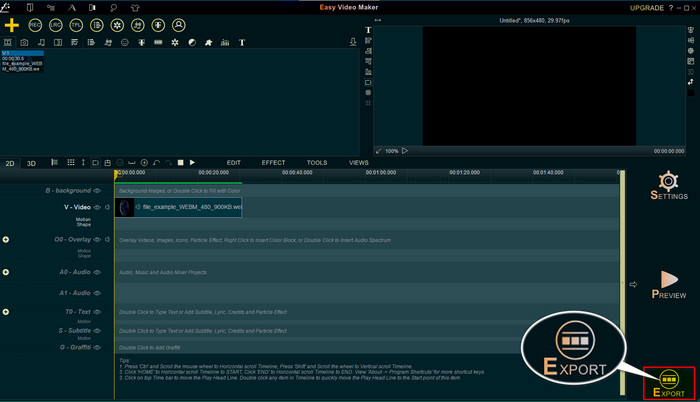
Easy Video Maker ist ein praktisches Tool mit grundlegenden bis mittleren Videobearbeitungsfunktionen, die Sie benötigen könnten. Außerdem können Sie damit die Bildqualität Ihres Videos verbessern, da es Übergänge, Effekte, Zusammenführen und mehr unterstützt. Die Benutzeroberfläche wirkt jedoch, als stamme sie aus den 90er-Jahren, da sie sehr altbacken aussieht. Zudem ist das Erstellen und Bearbeiten von Videos mit diesem Tool eher umständlich, auch wenn die Leistung an sich gut ist. Das Ausgabeformat, das dieses Tool unterstützt, ist MP4. Wenn Sie dieses Tool nutzen möchten, befolgen Sie die folgenden Schritte.
Schritt 1. Laden Sie den offiziellen Easy Video Maker aus dem Internet herunter.
Schritt 2. Starten Sie anschließend das Tool, klicken Sie auf die Schaltfläche Hinzufügen und dann auf Video importieren/hinzufügen. Ziehen Sie die Datei auf die Zeitleiste und klicken Sie mit der rechten Maustaste auf das Video. Wählen Sie Reverse Playback, um das Video rückwärts abzuspielen.
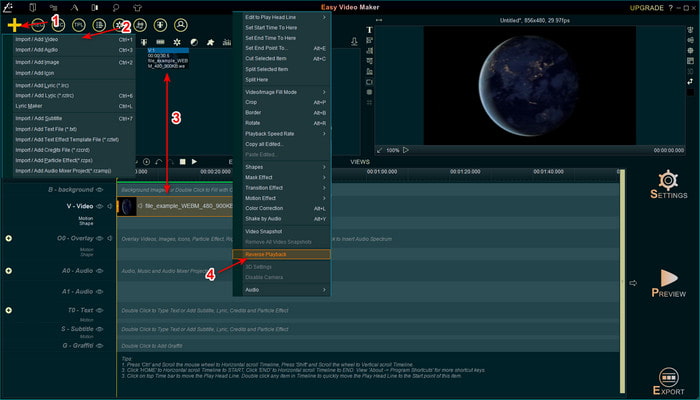
Schritt 3. Klicken Sie auf Exportieren, um die Datei auf Ihrem Laufwerk zu speichern.
Vorteile
- Das Tool kann kostenlos heruntergeladen werden.
- Es unterstützt die Bearbeitung auf mittlerer Ebene, die Sie benötigen.
- Das Erlernen der Verwendung wird einige Zeit in Anspruch nehmen, aber Sie werden sich daran gewöhnen.
Nachteile
- Das Starten des Tools lädt viel länger als erwartet und die Benutzeroberfläche sieht zu alt aus. Kein Retro-Feeling, sondern buchstäblich alt.
- Sie können nicht mehr als 5 Minuten Video in die kostenlose Version exportieren.
Teil 2. Top 3 & 4 Online-Tool zum Umkehren eines Videos
Top 3. Ezgif
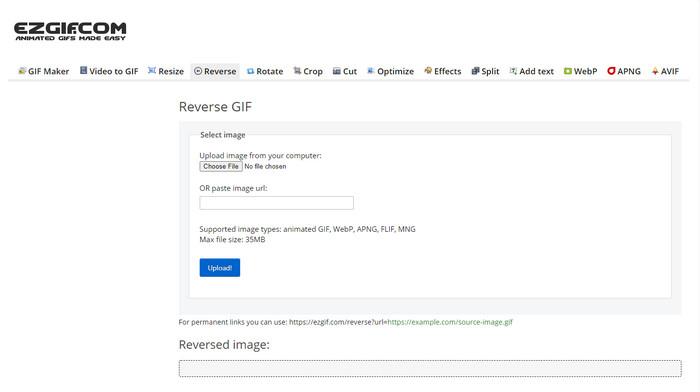
Ezgif bietet eine Funktion, mit der Sie online kostenlos einen Clip rückwärts abspielen können. Außerdem stehen weitere Bearbeitungsfunktionen wie das Erstellen von GIFs, Größenänderung, Zuschneiden, Optimieren und mehr zur Verfügung. Wenn Sie jedoch versuchen, eine Datei hochzuladen, die größer als 35 MB ist, erlaubt das Webtool keine Umkehrung, weil die Datei zu groß ist. Wenn Sie also ein langes Video umkehren möchten, ist dieses Tool aufgrund seiner Einschränkungen nicht die beste Wahl. Die Leistung der Rückwärts-Funktion ist jedoch sehr gut, um kurze Clips kostenlos rückwärts abspielen zu lassen.
Vorteile
- Sie müssen es nicht auf Ihren Desktop herunterladen.
- Flexibel und effizient.
- Benutzerfreundlich.
Nachteile
- Es begrenzt Ihre Rückwärtsfahrt auf nur 35 MB, was sehr klein ist.
- Das Herunterladen der umgekehrten Datei auf Ihr Laufwerk dauert viel länger als erwartet.
Top 4. Klideo
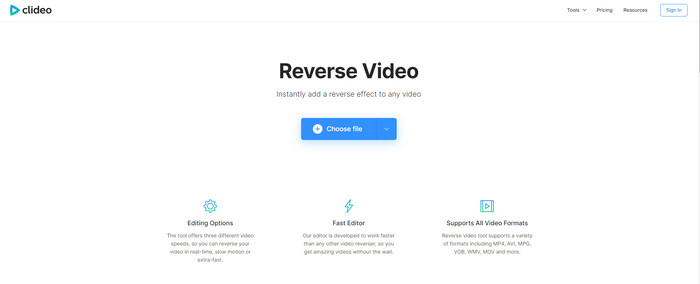
Ein weiteres Online-Tool, das Sie zum Rückspulen eines Videos verwenden können, ist Clideo. Die optische Gestaltung des Tools ist sehr minimalistisch, aber dennoch sehr ansprechend. Das Gesamtbild wirkt ordentlicher als bei Ezgif und professioneller. Doch wie man so sagt: Lassen Sie sich vom Aussehen nicht täuschen – das Hochladen der Datei ist hier extrem langsam, insbesondere wenn Ihre Datei größer als 40 MB ist. Stellen Sie also sicher, dass Sie genügend Zeit und Geduld mitbringen, nur um die Datei hochzuladen. Dafür unterstützt das Tool viele Bearbeitungsfunktionen, mit denen Sie Ihr Video kostenlos verbessern können.
Vorteile
- Kostenlos für jeden, der über eine Internetverbindung verfügt.
- Die Web-Benutzeroberfläche ist im Allgemeinen großartig.
- Es stehen erstaunliche Bearbeitungsfunktionen zur Verfügung.
Nachteile
- Das Hoch- und Herunterladen des Videos zum Rückwärtsfahren wird viel Zeit in Anspruch nehmen als erwartet.
- Nach dem Exportieren des Reverse-Videos ist ein riesiges Wasserzeichen enthalten.
Teil 3. Top 5 & 6 Apps zum Umkehren eines Videos auf iPhone/Android
Top 5. Reverse-Video: 4+ rückwärts abspielen
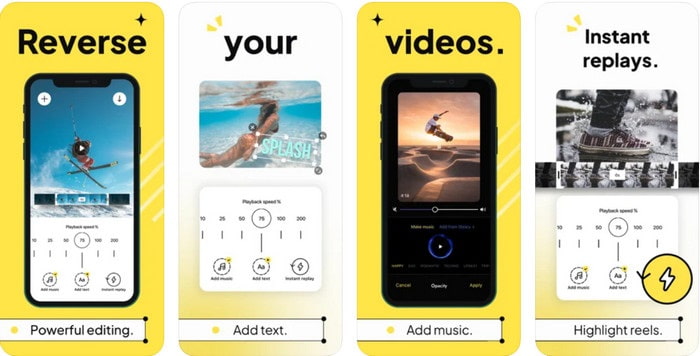
Reverse Video: Play Backwards 4+ ist ausschließlich für iOS-Nutzer verfügbar und dient dazu, ein Video rückwärts zu bearbeiten. Die Benutzeroberfläche dieser App ist leicht verständlich, zudem können Sie Text und Musik als Hintergrund hinzufügen. Obwohl Sie die App kostenlos herunterladen können, berichten viele Rezensionen im App Store, dass es sich um eine Geldabzocke handelt. Viele Nutzer schildern, dass sie zu einer 5-Sterne-Bewertung gedrängt werden, um auf die Funktionen der App zugreifen zu können. Wenn Sie sie trotzdem selbst ausprobieren möchten, sollten Sie Ihre Erwartungen niedrig halten, denn diese App ist keine gute Wahl zum Umkehren von Videos.
Vorteile
- Es erreicht bereits 4,5 Sterne in der Bewertung.
- Die Videoumkehrung hier ist gut zu verwenden.
Nachteile
- Die meisten Bewertungen hier beziehen sich nicht auf die App. Und die meisten wiederholen sich, die über Unsinn reden.
- Es dauert ewig, nur eine einzelne Datei zu laden.
- Die kostenlos exportierte Videoqualität ist schlecht.
Top 6. Reverse Movie FX - magisches Video
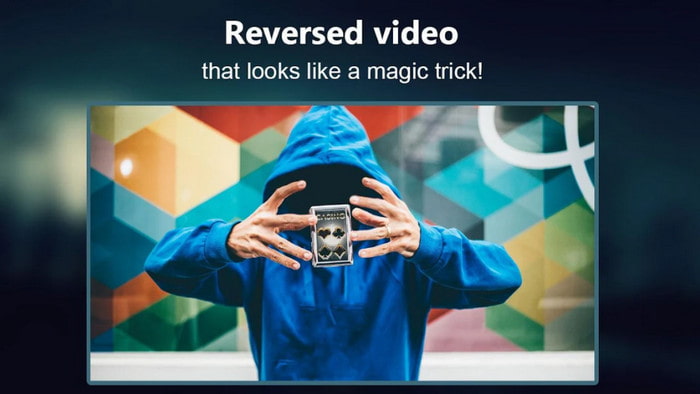
Einen Film rückwärts abspielen können Sie mit Hilfe dieser Android-App aus dem Play Store: Reverse Movie FX - magic video. Sie wird bereits von vielen Nutzern verwendet, die gerne Rückwärtsfilme erstellen, und bietet auch Loop- sowie Hintergrundmusik-Unterstützung. Obwohl das Tool auf den ersten Blick nahezu perfekt wirkt, nimmt die Videoqualität der Ausgabedatei ab. Wenn Sie zum Beispiel ein 1080p-Video umkehren, erhalten Sie in der Regel nur 720p oder weniger. Außerdem enthält die App Werbung – achten Sie darauf, denn manche Anzeigen tauchen plötzlich auf. Dennoch ist das Rückwärtsabspielen hier einfach und besser gelöst als bei Reverse Video: Play Backwards 4+.
Vorteile
- Es ist großartig, einen umgekehrten Clip, Film oder Video auf Ihrem Telefon zu erstellen.
- Leicht verständliche Benutzeroberfläche.
- 4,5 Sterne in App-Rezensionen.
Nachteile
- Die App hat viele Popping-Anzeigen aus dem Nichts.
- Kleinere und größere Fehler sind noch in der App. Wenn Sie beispielsweise versuchen, ein Video umzukehren, wird manchmal ein Fehler angezeigt.
Teil 4. Häufig gestellte Fragen zu Reverse-Video
Was ist der Unterschied zwischen invertieren und umkehren?
Umkehren Sie den Fokus darauf, etwas in eine andere Seite oder eine andere Position zu drehen; es könnte auf dem Kopf oder von innen nach außen sein. Wenn Sie beispielsweise die Zahl 12 invertieren, ist das Ergebnis 21. Während das Rückwärtsfahren von einer Richtung aus in die ursprüngliche Richtung erfolgt. Wenn die Uhr beispielsweise rückwärts läuft, zählt sie bis 12, 11, 10, 9, 8, 7, 6 usw.
Kann der Rücklauf-Videoeffekt als Übergänge verwendet werden?
Ja, anstatt einen guten alten animierten Übergang zu verwenden, versuchen Sie doch einmal, die Kunst des Zurückspulens von Videos zu erkunden. Allein durch das Hinzufügen von Reverse kann es sehr effektiv sein, besonders wenn Sie nicht so erfahren in der Videobearbeitung sind. Und nur indem Sie dies als Übergang verwenden, können Sie ein großartiges Video erstellen, das andere Menschen in Erstaunen versetzen kann, sogar Sie. Fügen Sie dann Musik im Hintergrund hinzu, um es noch fabelhafter zu machen.
Kann ich ein Video rückwärts auf VLC ansehen?
Ja, Sie können bereits Reverse-Clips, Filme oder jede Art von Video auf VLC ansehen. Aber wenn es nicht vorgefertigt ist oder sollten wir sagen, ist es nicht schon umgekehrt, wenn Sie es dort spielen. Dann ist es traurig zu sagen, dass es die umgekehrte Wiedergabe von Videos nicht unterstützt. Bevor Sie es also auf VLC abspielen, kehren Sie es mit Hilfe des Tools in der Liste um.
Fazit
Dank Ihrer Geduld beim Lesen und sorgfältigen Befolgen der Schritte in diesem Artikel zum Thema wie man ein Video rückwärts abspielt, verfügen Sie nun über das Wissen und die Fähigkeit, Videos selbst rückwärts abzuspielen. Jetzt müssen Sie nur noch die beste Reverse-Software auswählen, um den bestmöglichen Effekt zu erzielen und Ihr Video herausragen zu lassen. Und vor allem: Der beste Video-Reverser in dieser Liste ist nichts anderes als der außergewöhnliche Video Converter Ultimate. Jetzt ist also genau der richtige Zeitpunkt, ihn herunterzuladen, auszuprobieren und den Reverse-Effekt selbst damit zu erstellen.
Gratis DownloadFür Windows 7 oder neuerSicherer Download
Gratis DownloadFür MacOS 10.7 oder neuerSicherer Download
-
 So verbinden Sie VOB-Videos von DVDs unter Windows und Mac
 Wie verbindet man VOB-Videos von DVD unter Windows und Mac? Hier sind 2 effiziente Methoden, um die extrahierten VOB-Dateien zu kombinieren und direkt von einer DVD zusammenzuführen.
-
 Die 6 besten AVI-Merger: So verbinden Sie AVI-Videodateien unter Windows und Mac
 Wenn Sie AVI-Videos für eine DVD zusammenfügen möchten, erfahren Sie mehr über die Funktionen der Top 6 der besten AVI-Joiner, einschließlich kostenloser Online-Tools, sowie der Desktop-Programme aus dem Artikel.
-
 [Anleitung] 2 ultimative Methoden zum Verbinden von MXF-Videos von Sony X70
 Wenn Sie einige MXF-Videos von Sony X70 aufgenommen haben, was sind die besten Methoden, um MXF-Dateien zusammenzufügen? Hier sind die 2 effizienten Methoden, um die Videos mit hoher Qualität zu kombinieren.
