


 Video Converter Ultimate
 Bildschirm recorder
 Videoreparatur
 Sicherer Download
Was ist eine Farbkorrektur und wie wird sie durchgeführt?
Waren Sie schon einmal unzufrieden mit langweiligem oder unstimmigem Filmmaterial, das Ihrer Kreativität nicht gerecht wird? Verabschieden Sie sich von Ihren Sorgen! Eine KI-gestützte Farbkorrektur wurde speziell entwickelt, um Ihre Videoaufnahmen oder Filme zum Leben zu erwecken und sicherzustellen, dass jede Farbe, jeder Farbton und jeder Ton so zur Geltung kommt, wie Sie es beabsichtigen. Bei dieser innovativen Technologie handelt es sich um eine Spitzentechnologie, die die Kraft der künstlichen Intelligenz nutzt, um Ihre Videos zu verbessern und ihnen Farbperfektion zu verleihen.
Ob Farbfehler korrigiert, eine bestimmte Atmosphäre geschaffen oder einfach die allgemeine visuelle Wirkung verfeinert werden soll – eine KI-gestützte Videofarbanpassung rationalisiert den Prozess und liefert herausragende Ergebnisse. Erwecken wir Ihre Videoinhalte mit lebendigen, naturgetreuen Farben zum Leben, die Ihr Publikum fesseln und einen bleibenden Eindruck hinterlassen. Machen Sie sich bereit, Ihre Welt mit Brillanz zu malen, während wir in diesem Artikel in die Tiefe gehen.
Teil 1. Was ist eine Farbkorrektur bei Videos?
Es ist ganz einfach zu verstehen, was die Farbkorrekturdefinition in Videos ist. Darunter versteht man das Verbessern und Modifizieren der Farben und Töne eines Videos, um das gewünschte Aussehen zu erzielen oder Genauigkeit und Konsistenz sicherzustellen. Es ist wie die Feinabstimmung der Farben in einem Foto, aber für bewegte Bilder. Stellen Sie sich vor, Sie machen ein Foto und die Farben wirken etwas unscharf, matt oder übermäßig kräftig. Das kann auch in einem Video passieren, allerdings sind es oft tausende Frames. Die Farbkorrektur hilft, diese Inkonsistenzen zu beheben und stellt sicher, dass die Farben im gesamten Video gut übereinstimmen. Wenn eine Szene beispielsweise an einem bewölkten Tag aufgenommen wurde, können die Farben ruhig und bläulich erscheinen. Die Farbkorrektur kann die Töne aufwärmen, damit sie natürlicher wirken, oder den Blautönen einen künstlerischen Effekt verleihen. Außerdem können Kontrast, Sättigung, Helligkeit und andere Aspekte angepasst werden, um eine bestimmte Stimmung oder einen bestimmten Stil in einem Video zu erzeugen.
Teil 2. Verschiedene Situationen mit Farbkorrektur
Die Farbkorrektur ist in einer Vielzahl von Situationen bei der Videoproduktion von entscheidender Bedeutung. Dadurch soll die gewünschte visuelle Wirkung erzielt und die Konsistenz gewahrt bleiben. Nachfolgend sind einige Situationen aufgeführt, in denen eine Farbkorrektur in einem Video erforderlich ist.
Gemischte Lichtumgebungen – Farbkorrektur ist hilfreich, wenn an Orten mit unterschiedlichen Lichtquellen gedreht wird, etwa Tageslicht, Leuchtstoff- und Glühlampenlicht. Die Farbkorrektur hilft, die Farben auszugleichen und zu vereinheitlichen, sodass das Bild natürlich und über alle Aufnahmen hinweg konsistent wirkt.
Probleme beim Weißabgleich – die Korrektur des Weißabgleichs stellt sicher, dass Weißtöne wirklich weiß erscheinen und nicht von unerwünschten Farbstichen verfälscht werden, was häufig durch falsche Kameraeinstellungen oder unterschiedliche Lichtbedingungen verursacht wird.
Belichtungsprobleme – Videofarbanpassung kann überbelichtetes (zu helles) oder unterbelichtetes (zu dunkles) Material korrigieren, Details hervorheben und ein ausgewogenes Verhältnis von dunklen und hellen Tönen herstellen.
Color Grading für die Ästhetik – zur Farbkorrektur gehört auch das Color Grading, bei dem die Farben des Videos gezielt verändert werden, um eine bestimmte Stimmung oder einen bestimmten Stil zu erzeugen. Dazu gehört etwa, Kontrast und Sättigung zu erhöhen oder dem Video einen Vintage-Look zu verleihen.
Die Tageszeit nachbilden – die Anpassung der Videofarben ist nützlich, um eine bestimmte Tageszeit zu simulieren, zum Beispiel eine Tagszene so wirken zu lassen, als würde es regnen, sie wie bei Sonnenuntergang aufgenommen erscheinen zu lassen oder die Farben so zu verändern, dass Morgen- oder Abendlicht vermittelt wird.
Teil 3. Wie führt man eine Farbkorrektur bei Videos durch?
Farbkorrektur im Videoschnitt ist ein wesentlicher Prozess, da sie die allgemeine visuelle Qualität Ihres Videos verbessert. Eines der besten Werkzeuge, auf das Sie sich verlassen können, ist Video Converter Ultimate. Dieses leistungsstarke Tool mit Farbkorrektur-Palette ermöglicht es Ihnen, die Farben in Ihren Videos schnell zu korrigieren und so ihre visuelle Wirkung und Qualität zu steigern. Mit diesem Tool können Sie mit verschiedenen Farbkorrektur-Optionen experimentieren, um den gewünschten Look für Ihr Video zu erzielen. Dank seiner Bearbeitungsfunktionen können Nutzer ihre Videos schneiden, bearbeiten, zuschneiden und mit Effekten versehen.
Darüber hinaus ermöglicht es die nahtlose Konvertierung zwischen verschiedenen Videoformaten und erleichtert so die Anpassung Ihrer Videoinhalte an verschiedene Geräte. Ein weiterer lobenswerter Aspekt dieses Tools ist seine Benutzerfreundlichkeit. Mit Video Converter Ultimate können Sie Farben ganz einfach anpassen und korrigieren, um Ihr Video ansprechender zu gestalten. Hier finden Sie eine Schritt-für-Schritt-Anleitung zur Verwendung dieses Tools:
Schritt 1: Video Converter Ultimate herunterladen und installieren
Wenn Sie das Tool noch nicht haben, können Sie Video Converter Ultimate auf Ihrem Computer herunterladen und installieren. Klicken Sie dazu je nach Betriebssystem Ihres Computers auf eine der Gratis herunterladen-Schaltflächen unten und folgen Sie den Installationsanweisungen.
Kostenloser DownloadFür Windows 7 oder höherSicherer Download
Kostenloser DownloadFür macOS 10.7 oder höherSicherer Download
Schritt 2: Video Converter Ultimate starten
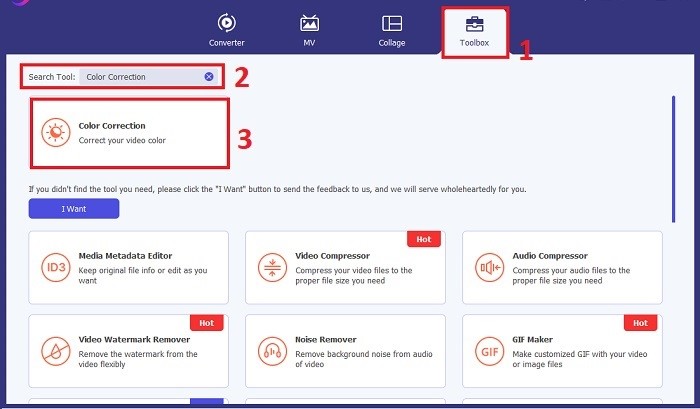
Nach der Installation starten Sie die Video-Korrekturanwendung auf Ihrem Computer, um die Hauptoberfläche aufzurufen. Gehen Sie im globalen Menü zur Toolbox. Dort können Sie die Funktion Farbkorrektur des Tools finden oder suchen und anklicken.
Schritt 3: Importieren Sie das Video zur Farbkorrektur
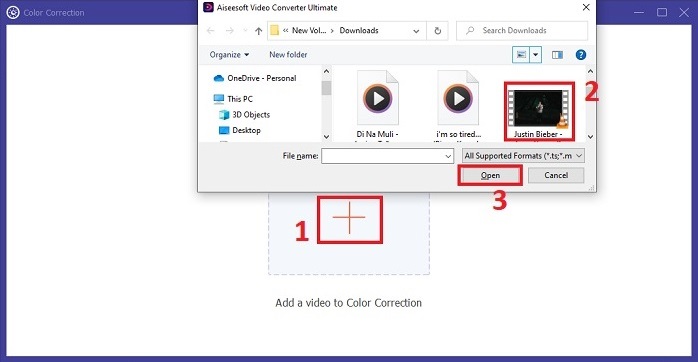
Klicken Sie auf die Plus-Schaltfläche, um das Video zu importieren, das Sie farblich korrigieren möchten. Suchen Sie die Videodatei auf Ihrem Computer und klicken Sie auf Öffnen, um sie in die Software zu laden.
Schritt 4: Video-Farbparameter anpassen
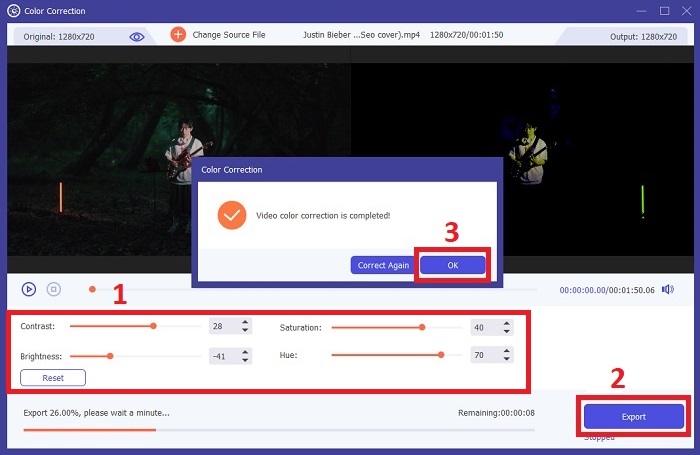
Sobald das Video importiert wurde, passen Sie Parameter wie Helligkeit, Kontrast, Sättigung und Farbton an, um die gewünschte Farbkorrektur zu erzielen. Während Sie das Video im Tool bearbeiten, können Sie die Änderungen in der rechten Vorschau in Echtzeit sehen. Wenn Sie mit den Farb-Anpassungen zufrieden sind, klicken Sie auf Exportieren. Warten Sie, bis das Tool das Video verarbeitet und das Ergebnis an Ihrem gewünschten Speicherort ablegt.
Weiterführende Lektüre:
Videofilter: Verbessere deine Videos mit Filtern und Effekten auf dem Desktop
Was ist 3D? Alles, was Sie über 3D wissen müssen und wie man es erstellt
Teil 4. FAQs zur Videofarbkorrektur
Woher weiß ich, ob ich eine Farbkorrektur benötige?
Sind Sie nicht sicher, ob Ihr Video eine Farbkorrektur benötigt? Eine Farbkorrektur ist erforderlich, wenn die Farben ungleichmäßig oder seltsam wirken oder nicht zur gewünschten Stimmung oder zum gewünschten Motiv Ihres Videomaterials passen.
Ist eine Farbkorrektur wirklich notwendig?
Absolut! Eine KI-Videofarbkorrektur ist bei der Videoproduktion unerlässlich, um sicherzustellen, dass die Farben präzise und optisch ansprechend sind. Es verbessert die visuelle Einheitlichkeit und kann ein anständiges Video zu einem außergewöhnlichen machen.
Was ist ein Farbkorrektor im Film?
Ein Farbkorrektor im Film ist ein Werkzeug, entweder Hardware oder Software, das in der Postproduktion zum Ändern und Ausbalancieren von Farben verwendet wird. Es hilft Filmemachern dabei, ein bestimmtes Erscheinungsbild, eine bestimmte Stimmung oder Atmosphäre zu erreichen, wodurch die visuelle Darstellung ansprechender und einheitlicher in der Geschichte gestaltet wird.
Fazit
Abschließend ist die Videofarbanpassung der Schlüssel zu einem fesselnden visuellen Erlebnis. Es geht darum, Farben und Tonwerte so fein abzustimmen, dass sie Ihrer kreativen Vision entsprechen und jedes einzelne Bild die beabsichtigte Brillanz vermittelt. Der Einsatz KI-gestützter Farbkorrektur verwandelt Ihre Videos, indem er lebendige, naturgetreue Farben integriert, die einen bleibenden Eindruck hinterlassen. Von der Korrektur gemischter Beleuchtung bis zur Gestaltung spezifischer Stimmungen hebt diese Innovation Ihr Storytelling auf ein neues Niveau. Video Converter Ultimate erweist sich dabei als starker Partner, der den Farbkorrekturprozess vereinfacht und Ihr kreatives Potenzial freisetzt.
-
 Was ist FPS? Alles, was Sie darüber wissen müssen
 Was ist FPS? Erfahren Sie alle Informationen, die Sie über Frames pro Sekunde (FPS) benötigen und was es in verschiedenen Situationen bewirken kann. Lesen Sie diesen Artikel für alle Details.
-
 Top Photo Color Enhancer App auf Ihrem Android & iOS kostenlos
 Möchten Sie eine Fotofarbverbesserungs-App auf Ihrem Telefon haben? Nun, wählen Sie aus, welche Enhancer Ihrer Meinung nach am besten zu Ihnen passen.
-
 Ultimative Anleitung zum Ändern der Videoauflösung, die plattformübergreifend verfügbar ist
 Müssen Sie die Videoauflösung des Videos ändern? Wenn dies der Fall ist, lernen Sie die verschiedenen Methoden kennen, mit denen Sie die Videoauflösung des Videos, das Sie gerade ansehen, ganz einfach ändern können.
