


 Video Converter Ultimate
 Εγγραφή οθόνης
 Επισκευή βίντεο
Μάθετε να χρησιμοποιείτε το Premiere Pro για να επιταχύνετε ένα βίντεο με 2 εναλλακτικές λύσεις Premiere
Το Premiere Pro είναι ένα από τα κορυφαία προγράμματα που έχει αναπτύξει η Adobe για επαγγελματικό μοντάζ βίντεο. Επίσης, η απόδοση αυτού του εργαλείου έχει επαινεθεί από πολλούς χρήστες που το χρησιμοποιούν ήδη. Στην πραγματικότητα, θα σας δείξουμε πώς να επιταχύνετε τα βίντεό σας με τη βοήθεια αυτού του εργαλείου, ώστε να μην χρειαστεί να περάσετε από πολλές ρυθμίσεις ή ό,τι άλλο θα κάνατε στην αρχή. Και τώρα, ας σας δείξουμε πώς να επιταχύνετε ένα βίντεο στο Premiere Pro και ποιες είναι οι εναλλακτικές λύσεις του.

Μέρος 1. Πώς να επιταχύνετε ένα βίντεο στο Premiere Pro
Ο κορυφαίος επεξεργαστής βίντεο που θα θέλατε να αγοράσετε και να χρησιμοποιήσετε είναι το Adobe Premiere Pro. Αυτό το εργαλείο είναι ένα ολοκληρωμένο πακέτο που κάθε επαγγελματίας θα ήθελε σίγουρα να χρησιμοποιεί. Γιατί αυτό το λογισμικό μπορεί να αντεπεξέλθει σε απαιτητικό μοντάζ, όπως ακριβώς θα θέλατε να κάνετε αν είστε επαγγελματίας. Επίσης, αν θέλετε εντυπωσιακό αποτέλεσμα τότε πρέπει να μάθετε να χρησιμοποιείτε αυτό το εργαλείο. Όμως, η εκμάθηση του Premiere Pro σίγουρα θα σας πάρει πολύ χρόνο, οπότε αν είστε πολυάσχολο άτομο αυτό ίσως πρέπει να είναι η έσχατη λύση σας. Ωστόσο, αν είστε πρόθυμοι να μάθετε και έχετε πολύ ελεύθερο χρόνο, τότε οπωσδήποτε αξίζει να το δοκιμάσετε.
Επιπλέον, εάν θέλετε να χρησιμοποιήσετε αυτό το εργαλείο, πρέπει να ξοδέψετε ένα μεγάλο χρηματικό ποσό επειδή είναι κυριολεκτικά ακριβό σε σύγκριση με τα άλλα εργαλεία επεξεργασίας βίντεο. Τώρα λοιπόν, αν θέλετε να μάθετε πώς να χρησιμοποιείτε την έκδοση Adobe Premiere Pro cc 2018 ή νεότερη έκδοση για να επιταχύνετε το βίντεο, ακολουθήστε τα παρακάτω απλοποιημένα βήματα.
Βήματα για το πώς να επιταχύνετε ένα βίντεο στο Adobe Premiere Pro:
Βήμα 1. Αγοράστε και κατεβάστε το Adobe Premiere Pro από την επίσημη ιστοσελίδα του. Έπειτα εκκινήστε το εργαλείο για να ξεκινήσετε την επιτάχυνση.
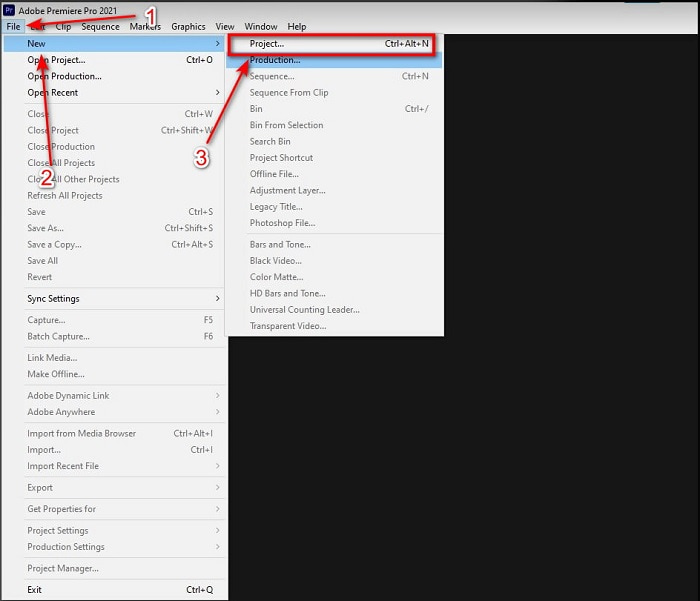
Βήμα 2. Κάντε κλικ στο File, μετά επιλέξτε New και Project, περιμένετε να εμφανιστεί ένα παράθυρο σαν αυτό και κάντε κλικ στο OK για να συνεχίσετε. Ανοίξτε τον φάκελο και εντοπίστε το βίντεο, σύρετε και αποθέστε το αρχείο στο Media Browser για να το τοποθετήσετε δίπλα στο Timeline.
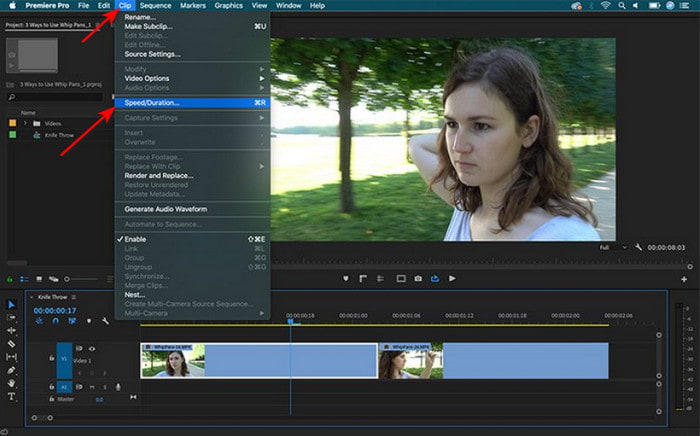
Βήμα 3. Κάντε κλικ στο βίντεο που εισαγάγατε στο Timeline και πατήστε Clip στο επάνω μέρος. Στη συνέχεια, από κάτω επιλέξτε Speed/Duration και πατήστε το. Αλλάξτε το ποσοστό ταχύτητας σύμφωνα με τις προτιμήσεις σας και κάντε κλικ στο OK για να αποθηκεύσετε την επιτάχυνση· για να αποθηκεύσετε το αρχείο κάντε κλικ στο κουμπί Export.
Μέρος 2. 2 από τις καλύτερες εναλλακτικές λύσεις Premiere Pro για την επιτάχυνση των βίντεο
1. Video Converter Ultimate
Αν η επιτάχυνση είναι το πρόβλημά σας, τότε αυτή πρέπει να είναι η λύση: σας παρουσιάζουμε το Video Converter Ultimate. Σε αντίθεση με άλλους επεξεργαστές βίντεο, αυτό το εντυπωσιακό εργαλείο είναι το καλύτερο για κάθε είδους επεξεργασία, μετατροπή, δημιουργία GIF, ενίσχυση, αντιστροφή, επιτάχυνση και άλλα. Επίσης, πολλοί χρήστες ήδη αγαπούν αυτό το λογισμικό, καθώς προσφέρει προηγμένες λειτουργίες όπως το Adobe Premiere Pro αλλά σε μια απλοποιημένη μορφή. Επιπλέον, δεν μπορούμε να βρούμε άλλο εργαλείο που να παρέχει τόσο προηγμένες δυνατότητες και να είναι ταυτόχρονα τόσο εύκολο στη χρήση. Ουσιαστικά δεν υπάρχει τίποτα σαν το Video Converter Ultimate. Αν και το εργαλείο είναι επί πληρωμή, αξίζει κάθε cent που θα ξοδέψετε και είναι πολύ οικονομικό. Οπότε τώρα, αν θέλετε να μάθετε μια εναλλακτική για το πώς να επιταχύνετε βίντεο στο Premiere Pro, τότε ακολουθήστε προσεκτικά τα παρακάτω βήματα.
Βήματα για το πώς να επιταχύνετε βίντεο με τη βοήθεια του Video Converter Ultimate:
Βήμα 1. Κατεβάστε το λογισμικό στον δίσκο του υπολογιστή σας και στη συνέχεια εγκαταστήστε το για να συνεχίσετε.
Δωρεάν ΛήψηΓια Windows 7 ή νεότεραΑσφαλής λήψη
Δωρεάν ΛήψηΓια MacOS 10.7 ή νεότεροΑσφαλής λήψη
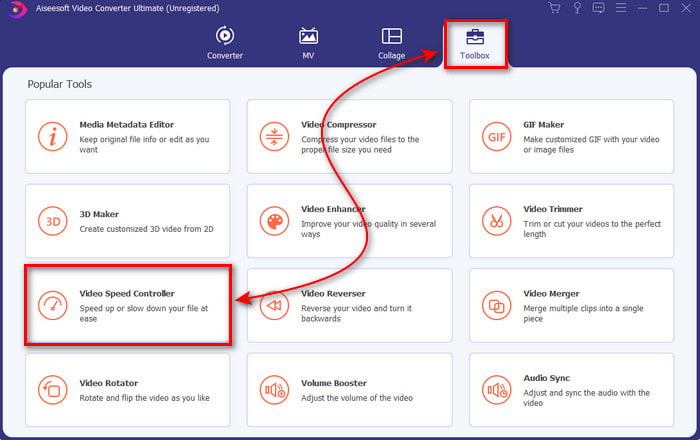
Βήμα 2. Εκκινήστε το εργαλείο και έπειτα κάντε κλικ στο Toolbox και βρείτε το Video Speed Controller.
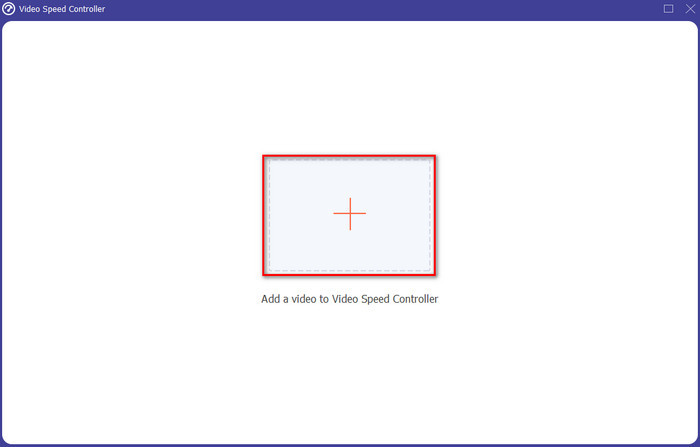
Βήμα 3. Για να προσθέσετε το βίντεο που θέλετε να επιταχύνετε, κάντε κλικ στο κουμπί +. Έπειτα εντοπίστε το αρχείο στον φάκελο και κάντε κλικ στο Open για να εισαγάγετε το αρχείο βίντεο.
Βήμα 4. Στη συνέχεια, επιλέξτε την ταχύτητα που θέλετε να έχει το βίντεό σας, κάνοντας κλικ στις επιλογές box. Αν πλέον είστε ικανοποιημένοι με την ταχύτητα του βίντεό σας, τότε κάντε κλικ στο Export για να το αποθηκεύσετε απευθείας στον υπολογιστή σας.
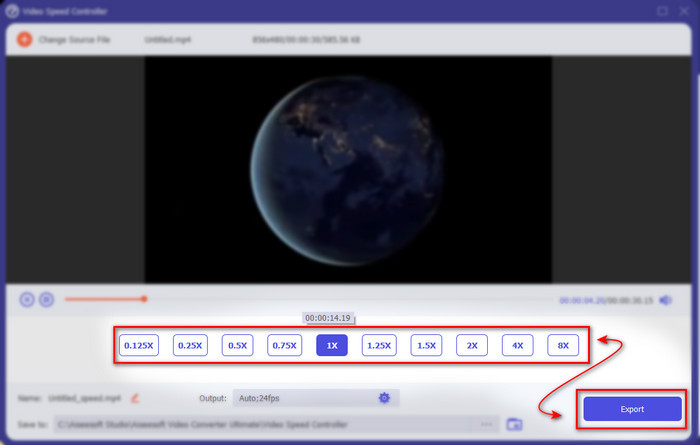
Βήμα 5. Μόλις ολοκληρωθεί η διαδικασία εξαγωγής, θα εμφανιστεί ένας φάκελος. Κάντε κλικ στο αρχείο που επιταχύνατε νωρίτερα και εντυπωσιαστείτε από το ότι η επιτάχυνση του βίντεο έγινε χωρίς απώλεια ποιότητας.
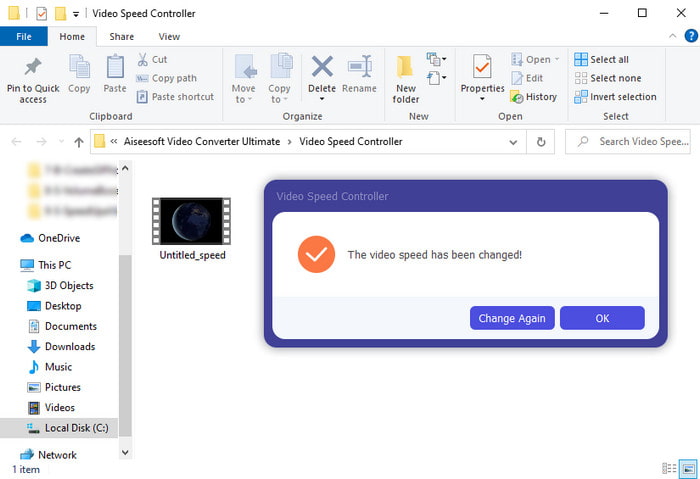
2. iMovie
Αν έχετε Mac, τότε είναι σχεδόν απαραίτητο να χρησιμοποιήσετε αυτό το εργαλείο, επειδή είναι ήδη προεγκατεστημένο στον υπολογιστή σας. Το iMovie είναι ένας από τους δημοφιλείς επεξεργαστές βίντεο που θα αγαπήσετε να χρησιμοποιείτε λόγω των δωρεάν λειτουργιών που προσφέρει. Αν είστε χρήστης Windows, τότε μην περιμένετε να μπορείτε να χρησιμοποιήσετε αυτό το εργαλείο, γιατί δεν είναι διαθέσιμο στον υπολογιστή σας. Παρόλο που το εργαλείο είναι δωρεάν, εξακολουθούν να υπάρχουν ορισμένοι περιορισμοί, όπως βασικές δυνατότητες μοντάζ που ίσως θα θέλατε να χρησιμοποιήσετε αλλά δεν είναι διαθέσιμες σε αυτό. Ωστόσο, αν έχετε περιορισμένο budget, τότε αυτό πρέπει να είναι η βασική σας επιλογή ως χρήστες Mac. Επίσης, αν θέλετε να πετύχετε κάτι σαν Premiere Pro speed up video, τότε ακολουθήστε τα παρακάτω βήματα.
Πώς να επιταχύνετε βίντεο στο iMovie:
Βήμα 1. Ανοίξτε το iMovie στο Mac σας και κάντε κλικ στο File και μετά στο Import Media, επιλέξτε το αρχείο για να συνεχίσετε.
Βήμα 2. Σύρετε το βίντεο που εισαγάγατε νωρίτερα στο Timeline. Στη συνέχεια, κάντε κλικ στο αρχείο βίντεο στο Timeline ώστε να μπορείτε να ρυθμίσετε την ταχύτητα. Στα δεξιά κάντε κλικ στο Speed και επιλέξτε από τη λίστα με τις αναπτυσσόμενες επιλογές ποια ταχύτητα θέλετε να εφαρμόσετε.
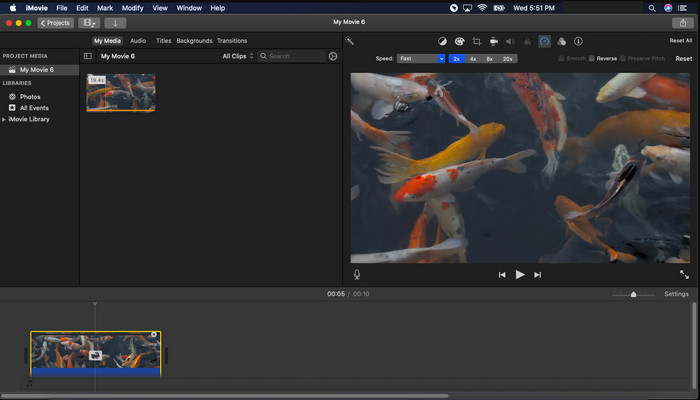
Βήμα 3. Αφού εφαρμόσετε την επιτάχυνση, κάντε κλικ στο Export και έπειτα στο Export File για να αποθηκεύσετε την επιταχυνμένη έκδοση του βίντεο.
Μέρος 3. Συχνές ερωτήσεις σχετικά με το Premiere Pro Speed Up
Μπορώ να επιβραδύνω ένα βίντεο στο Premiere Pro;
Απολύτως ναι· απλώς ακολουθήστε την ίδια διαδικασία που περιγράψαμε παραπάνω, αλλά τώρα αλλάξτε το ποσοστό σε μικρότερο από εκατό για να το κάνετε πιο αργό. Ή μπορείτε να κάνετε κλικ εδώ για να μάθετε αναλυτικά πώς να επιβραδύνετε ένα βίντεο.
Πόσο γρήγορα μπορώ να ρυθμίσω το βίντεο στο Premiere Pro;
Το μέγιστο ποσοστό που μπορείτε να ορίσετε στην ταχύτητα του βίντεο είναι 10.000% τοις εκατό. Έτσι, εάν θέλετε να μάθετε αν είναι πραγματικό, ελέγξτε το μόνοι σας και ρυθμίστε την ταχύτητα σε 10.000%.
Το Adobe Premiere Pro έχει απαίτηση συστήματος;
Στην πραγματικότητα, ναι, υπάρχουν ελάχιστες απαιτήσεις που χρειάζεται το λογισμικό Adobe για να μπορεί να χρησιμοποιεί το εργαλείο σωστά. Όπως, στην παρακάτω λίστα: GPU: Intel® i5-4590 / AMD FX 8350 ισοδύναμο ή πιο πρόσφατο. RAM: 8 GB μνήμης RAM ή ακόμα υψηλότερη. λειτουργικό σύστημα: Microsoft Windows ή macOS. η οθόνη πρέπει να είναι 1920 x 1080 ή μεγαλύτερη.
συμπέρασμα
Καθώς φτάνουμε στο τέλος, είναι πλέον σαφές για εμάς ότι ακόμη και μια απλή επιτάχυνση μπορεί να γίνει με το premiere pro. Ωστόσο, το premiere pro είναι εξαιρετικά ακριβό, επομένως παραθέτουμε κάποιο οικονομικό λογισμικό που θα θέλατε να χρησιμοποιήσετε για να επιταχύνετε. Όπως το Video Converter Ultimate, επειδή αυτό το λογισμικό παρέχει λειτουργίες επεξεργασίας προηγμένης τεχνολογίας, ακόμα κι αν ο υπολογιστής σας είναι χαμηλής ποιότητας. Έτσι, εάν θέλετε να μάθετε πώς να επιταχύνετε εύκολα ένα βίντεο στο Premiere Pro, κάντε λήψη του Video Converter Ultimate για να απολαύσετε την ίδια δυνατότητα, αλλά σε μια εύκολη έκδοση.
-
 [4 τρόποι] Πώς να επιταχύνετε εύκολα τα βίντεό σας στο Διαδίκτυο
 Θέλετε να επιταχύνετε ένα βίντεο στο διαδίκτυο; Διαβάστε αυτό το άρθρο για να μάθετε περισσότερα σχετικά με την επιτάχυνση ενός βίντεο με διάφορους δυνατούς τρόπους.
-
 Ευκολότεροι τρόποι για να επιταχύνετε τα βίντεο σε μορφή MP4 [Εκτός σύνδεσης και Διαδικτυακά]
 Θέλετε να επιταχύνετε το βίντεό σας, αλλά είναι σε μορφή MP4; Αυτό το άρθρο μπορεί να σας βοηθήσει να γνωρίζετε τις διαφορές στον τρόπο επιτάχυνσης του βίντεό σας είτε στο διαδίκτυο είτε εκτός σύνδεσης.
-
 Τα 4 κορυφαία προγράμματα αναπαραγωγής βίντεο με ελεγκτή ταχύτητας το 2021
 Δεν έχετε παρατηρήσει την ταχύτητα αναπαραγωγής κάθε αναπαραγωγής πολυμέσων κάθε φορά που παίζετε ένα βίντεο; Αυτό το άρθρο είναι κατάλληλο για να μάθετε τα πάντα για τα προγράμματα αναπαραγωγής βίντεο με έλεγχο ταχύτητας.
