


 Video Converter Ultimate
 Εγγραφή οθόνης
 Επισκευή βίντεο
Πώς να αφαιρέσετε το υδατογράφημα από το GIF στο διαδίκτυο [Βήμα προς βήμα]
Η προσθήκη υδατογραφήματος σε ένα GIF έγινε ένας από τους τρόπους προστασίας του, αλλά τι γίνεται αν χρειαστεί να αφαιρέσετε το υδατογράφημα που προσθέσατε στο GIF σας; Τι πρέπει να κάνετε; Διαθέτει ο Δημιουργός GIF που χρησιμοποιείτε αυτή τη λειτουργία; Δεν διαθέτει εργαλείο αφαίρεσης υδατογραφήματος; Γνωρίζουμε ότι είναι κουραστικό να αντιμετωπίζετε αυτό το πρόβλημα, έτσι δεν είναι; Όμως δεν χρειάζεται να ανησυχείτε, γιατί όλες αυτές οι ερωτήσεις θα απαντηθούν παρακάτω, αφού βρήκαμε τέσσερα εργαλεία αφαίρεσης υδατογραφήματος που μπορείτε να χρησιμοποιήσετε offline και online. Αυτά τα εργαλεία έχουν επιλεγεί προσεκτικά από την αγορά για να σας προσφέρουν τις καλύτερες δυνατές λύσεις ώστε να αφαιρέσετε το υδατογράφημα από το GIF.
Μια ματιά σε αυτές τις εφαρμογές
| Video Converter Ultimate | Online Εργαλεία GIF | WatermarkRemover.io | Pixlr | PhotoShop | |
| Ανάλυση | 8 ΧΙΛ | 1080P | 5 χιλ. | 8 ΧΙΛ | 300 χιλιάδες |
| Ταχύτητα διαδικασίας | Γρήγορα | Μεσαίο | Μεσαίο | Γρήγορα | Εξαρτάται από το υλικό σας |
| Απαιτήσεις Υλικού | Χαμηλός | N/A | Μεσαίο | Υψηλός | Πολύ Υψηλό |
Μέρος 1. Ο ευκολότερος τρόπος για γρήγορη κατάργηση υδατογραφήματος από GIF σε Windows & Mac
Το Video Converter Ultimate μπορεί με επιτυχία να σας βοηθήσει να αφαιρέσετε το υδατογράφημα από ένα GIF, αν αυτό επιθυμείτε. Αυτό το εργαλείο μπορεί να σας βοηθήσει να προσθέσετε και να αφαιρέσετε υδατογραφήματα· ουσιαστικά είναι ένα all‑in‑one εργαλείο που θα χρειαστείτε σε Windows ή Mac. Επιπλέον, με αυτό το εργαλείο μπορείτε να δημιουργήσετε το δικό σας GIF και να προσθέσετε το υδατογράφημα που θέλετε για να το προστατεύσετε. Για να το δοκιμάσετε, μπορείτε να ακολουθήσετε τα απλά βήματα που παρέχουμε και τελειώσατε. Έτσι θα έχετε έτοιμο το GIF σας χωρίς υδατογράφημα σε λιγότερο από ένα λεπτό.
Πλεονεκτήματα του Video Converter Ultimate:
◆ Είναι η καλύτερη επιλογή για να αφαιρέσετε και να προσθέσετε ένα υδατογράφημα στο GIF σας.
◆ Ένα φιλικό προς το χρήστη GUI μπορεί να σας βοηθήσει γρήγορα να κατανοήσετε τι συμβαίνει στη διεπαφή του εργαλείου.
◆ Η ενσωματωμένη εξαιρετικά γρήγορη διαδικασία μετατροπής και η επιτάχυνση υλικού μπορούν να σας βοηθήσουν με την αστραπιαία εισαγωγή και εξαγωγή.
◆ Διαθέσιμο σε όλες τις πλατφόρμες, όπως Windows και Mac για λήψη.
◆ Διαθέτει τις καλύτερες προηγμένες λειτουργίες του GIF maker που μπορείτε να χρησιμοποιήσετε στην επιφάνεια εργασίας σας για να δημιουργήσετε ένα εξατομικευμένο GIF.
Βήματα για το πώς να αφαιρέσετε υδατογράφημα από GIF με το Ultimate Watermark Remover
Βήμα 1. Κατεβάστε το λογισμικό στον δίσκο του υπολογιστή σας κάνοντας κλικ στο παρακάτω κουμπί. Έπειτα εκκινήστε το και ανεβάστε ένα gif ή βίντεο.
Δωρεάν ΛήψηΓια Windows 7 ή νεότεραΑσφαλής λήψη
Δωρεάν ΛήψηΓια MacOS 10.7 ή νεότεροΑσφαλής λήψη
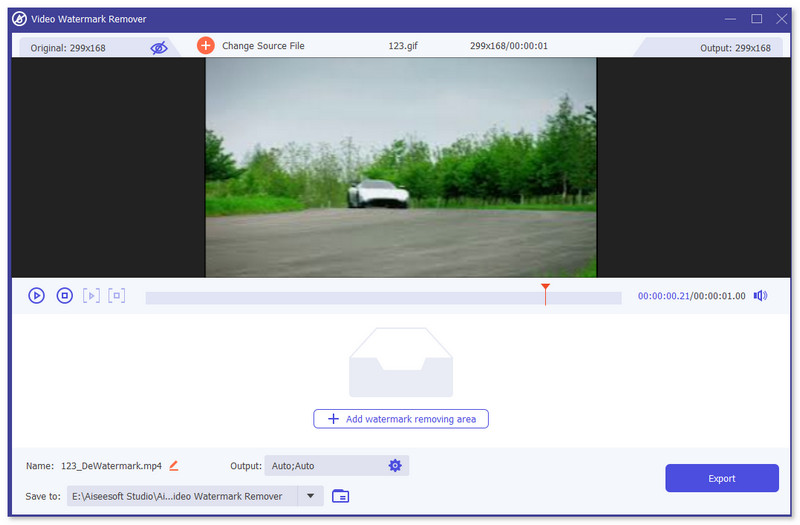
Βήμα 2. Ανοίξτε το εργαλείο αφαίρεσης υδατογραφήματος, πηγαίνετε στην Εργαλειοθήκη (Toolbox) και αναζητήστε το Video Watermark Remover.

Βήμα 3. Ανεβάστε ένα gif ή βίντεο και κάντε κλικ στο Export.
Σχετικά:
Προσθήκη Υδατογραφήματος σε Βίντεο
Αφαίρεση υδατογραφήματος TikTok
Αφαίρεση υδατογραφήματος από GIF με το Adobe Photoshop
Αν έχετε εγκατεστημένο το Adobe PhotoShop στον υπολογιστή σας, μπορείτε επίσης να βασιστείτε σε αυτό για να αφαιρέσετε υδατογραφήματα ή σκιές από μια εικόνα. Το PhotoShop μπορεί να αναγνωριστεί ως ένα από τα πιο δημοφιλή και ισχυρά εργαλεία επεξεργασίας φωτογραφιών που σας επιτρέπει να προσθέσετε εφέ, να φιλτράρετε, να διαγράψετε αντικείμενα κ.λπ. Παρόλο που δεν είναι ένα δωρεάν πρόγραμμα επεξεργασίας φωτογραφιών, σας παρέχει μια δωρεάν δοκιμαστική περίοδο 30 ημερών. Τώρα μπορείτε να ακολουθήσετε τον παρακάτω οδηγό για να αφαιρέσετε ανεπιθύμητα αντικείμενα από μια φωτογραφία.
Βήμα 1. Εκκινήστε το PhotoShop στον υπολογιστή σας. Μπορείτε να μεταβείτε στον επίσημο ιστότοπο της Adobe για να κατεβάσετε δωρεάν το PhotoShop και να έχετε μια δωρεάν δοκιμή.
Βήμα 2. Μπορείτε να κάνετε απευθείας drag and drop για να εισαγάγετε το αρχείο εικόνας που θέλετε να επεξεργαστείτε. Μπορείτε επίσης να κάνετε κλικ στο File στη γραμμή μενού και έπειτα στο Open για να επιλέξετε μια τοπική φωτογραφία στον υπολογιστή σας.
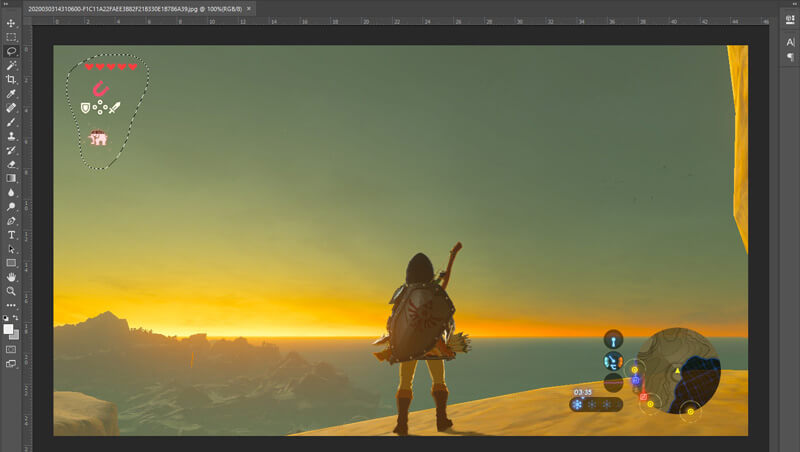
Βήμα 3. Μπορείτε να χρησιμοποιήσετε το εργαλείο Select and Mask για να επιλέξετε τα ανεπιθύμητα αντικείμενα. Σε αυτό το βήμα, μπορείτε ελεύθερα να επιλέξετε το κατάλληλο εργαλείο για να ορίσετε την περιοχή που θέλετε να αφαιρέσετε.
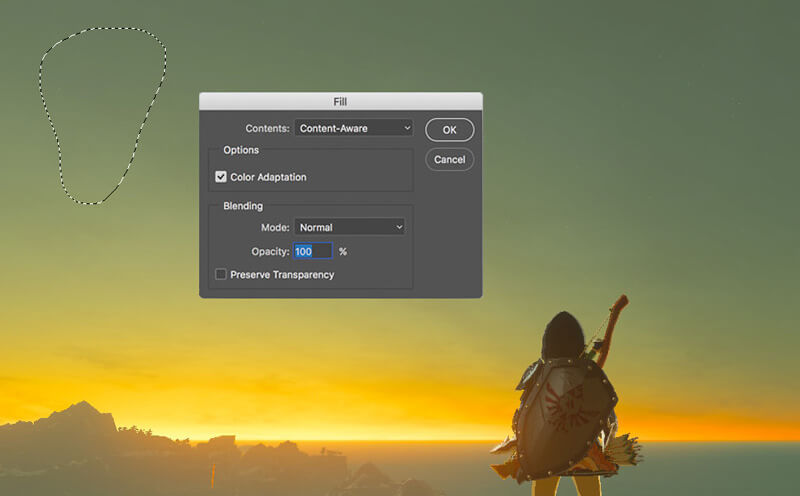
Βήμα 4. Τώρα μπορείτε να βασιστείτε στο εργαλείο Content-Aware Fill του Photoshop για να αφαιρέσετε αντικείμενα από τη φωτογραφία και να αντικαταστήσετε αυτό το μέρος με κατάλληλο περιεχόμενο. Συγκριτικά, αν δεν θέλετε απλώς να σβήσετε κάποια αντικείμενα σε μια φωτογραφία, η λειτουργία Content-Aware Fill μπορεί να σας προσφέρει καλύτερο αποτέλεσμα.
Βήμα 5. Αφού το PhotoShop αφαιρέσει το αντικείμενο, μπορείτε να κάνετε κλικ στο File και έπειτα στο Save για να αποθηκεύσετε την επεξεργασμένη εικόνα στον υπολογιστή σας. Μπορείτε να διαλέξετε οποιαδήποτε δημοφιλή μορφή εικόνας, όπως JPG, PNG, GIF και άλλες, ως μορφή εξόδου. Εδώ μπορείτε επίσης να πατήσετε Ctrl + S για να αποθηκεύσετε και να εξαγάγετε το αρχείο εικόνας σας από το PhotoShop.
Μέρος 2. Πώς να αφαιρέσετε το υδατογράφημα από το GIF στο διαδίκτυο
Με αυτά τα δωρεάν διαδικτυακά εργαλεία, μπορείτε να αφαιρέσετε υδατογραφήματα σε GIF. Ωστόσο, θα πρέπει να θυμάστε ότι αυτά τα εργαλεία δεν θα λειτουργήσουν εάν δεν έχετε σύνδεση στο διαδίκτυο, επειδή όλα τα εργαλεία εξαρτώνται από το δίκτυο. Επίσης, η χρήση τους μπορεί να πάρει χρόνο, επειδή αποθηκεύεται προσωρινά καθώς χρησιμοποιείτε αυτά τα εργαλεία web. Έτσι, εάν θέλετε να μάθετε το δωρεάν πρόγραμμα αφαίρεσης GIF στο διαδίκτυο, διαβάστε τις παρακάτω λεπτομέρειες.
Αφαίρεση υδατογραφήματος από GIF με εργαλεία GIF στο διαδίκτυο
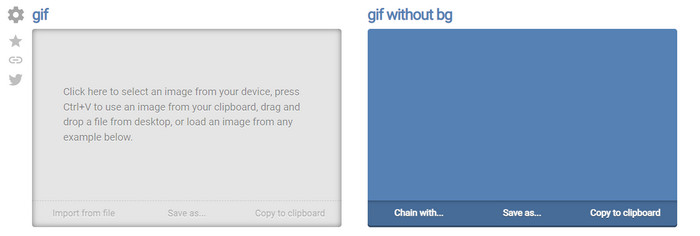
Το Online GIF Tools είναι ένα δωρεάν εργαλείο που μπορείτε να χρησιμοποιήσετε για να αφαιρέσετε υδατογραφήματα από GIF. Αυτό το εργαλείο προσφέρει στους χρήστες προηγμένες δυνατότητες αφαίρεσης, όπως την αφαίρεση του υδατογραφήματος φόντου του GIF. Αν και το εργαλείο είναι εντυπωσιακό, η αφαίρεση του υδατογραφήματος μπορεί να είναι περίπλοκη, επειδή εξαλείφει τα pixel συγκεκριμένων χρωμάτων σε κάθε καρέ.
Βήμα 1. Ανοίξτε τα Online GIF Tools στον φυλλομετρητή (browser) σας.
Βήμα 2. Κάντε κλικ στο Import File για να ανεβάσετε το GIF. Στην επιλογή background color, κάντε κλικ στο options color coder για να εντοπίσετε το χρώμα του υδατογραφήματος.
Βήμα 3. Κάντε κλικ στο Save As και έπειτα στο Download για να αποθηκεύσετε το GIF στον δίσκο σας.
Αφαίρεση υδατογραφήματος από GIF με το Watermark Remover Online
Με το WatermarkRemover.io, το υδατογράφημά σας αφαιρείται αυτόματα από το GIF. Αυτό το εργαλείο είναι εξαιρετικό για δωρεάν αφαίρεση υδατογραφημάτων. Επιτρέπει στους χρήστες να έχουν λιγότερο κόπο κατά την αφαίρεση, επειδή δεν χρειάζεται να κάνετε τίποτα, καθώς το εργαλείο αναλαμβάνει τη διαδικασία. Ωστόσο, ορισμένες περιοχές δεν είναι διαθέσιμες με αυτό το εργαλείο· ουσιαστικά, δεν μπορείτε να κατεβάσετε το GIF με το αφαιρεμένο υδατογράφημα.
Βήμα 1. Εκκινήστε το WatermarkRemover.io και προσθέστε το αρχείο GIF κάνοντας κλικ στο κάτω μέρος του λογότυπου.
Βήμα 2. Αφού προσθέσετε το αρχείο, η διαδικασία θα ξεκινήσει αυτόματα· περιμένετε να ολοκληρωθεί.
Βήμα 3. Κάντε κλικ στο κουμπί λήψης (download) για να το αποθηκεύσετε στον υπολογιστή σας.
Αφαίρεση υδατογραφήματος από GIF με Pixlr

Αν θέλετε το καλύτερο διαδικτυακό εργαλείο για να αφαιρέσετε το υδατογράφημα από το GIF σας, τότε χρησιμοποιήστε το Pixlr. Σε αντίθεση με τα δύο προηγούμενα web tools, αυτό το εργαλείο είναι αρκετά διαφορετικό, γιατί διαθέτει πολλές λειτουργίες που μπορεί να θέλετε να χρησιμοποιήσετε για την αφαίρεση του υδατογραφήματος. Αν και το εργαλείο μοιάζει με το Photoshop, σε ορισμένα σημεία δεν είναι τόσο αποτελεσματικό όσο το Photoshop, ειδικά στην αφαίρεση υδατογραφημάτων από GIF, και επιπλέον προσθέτει δικό του υδατογράφημα στο τελικό αρχείο κατά την εξαγωγή.
Βήμα 1. Αναζητήστε το Pixlr και ανοίξτε το.
Βήμα 2. Πατήστε Advance Editor, προσθέστε το GIF και κάντε κλικ στο Open Image. Αφού προσθέσετε το GIF, κάντε κλικ στο εικονίδιο droplet για να θολώσετε το υδατογράφημα, κάντε επαναλαμβανόμενα κλικ επάνω του και βεβαιωθείτε ότι το αφαιρέσατε.
Βήμα 3. Κάντε κλικ στο File then Save.
Μέρος 3. Συχνές ερωτήσεις σχετικά με την κατάργηση του υδατογραφήματος από το GIF
Η κατάργηση του υδατογραφήματος μειώνει το μέγεθος του αρχείου;
Το μέγεθος του αρχείου θα αλλάξει, αλλά δεν θα έχει σημαντικό αντίκτυπο επειδή απλώς αφαιρείτε ένα κομμάτι από το υδατογράφημα στο βίντεό σας. Επομένως, εάν το αρχικό μέγεθος αρχείου και το υδατογράφημα που έχει εξαχθεί δεν είναι σχεδόν το ίδιο, το πρόβλημα βρίσκεται σε αυτό που χρησιμοποιήσατε.
Γιατί υπάρχει ένα θολό στο βίντεό μου μετά την αφαίρεση του υδατογραφήματος;
Υπάρχει μια θαμπάδα στο βίντεό σας αφού αφαιρέσετε το υδατογράφημα, επειδή αυτός είναι ο τρόπος με τον οποίο το εργαλείο αφαιρεί το υδατογράφημα. Είναι μια από τις μεθόδους που παρέχουν τα εργαλεία για να αφαιρέσετε το υδατογράφημα σε οποιοδήποτε βίντεο ή εικόνα θολώνοντάς το.
Θα αλλάξει η ποιότητα του GIF μετά την αφαίρεση του υδατογραφήματος;
Δεν θα παρατηρήσετε αλλαγή όσον αφορά την ποιότητα μετά την αφαίρεση του υδατογραφήματος στο GIF σας. Ωστόσο, ορισμένα εργαλεία μειώνουν την ποιότητα του GIF σας επειδή δεν υποστήριζαν GIF υψηλής ποιότητας. Επομένως, θυμηθείτε να επιλέξετε το σωστό εργαλείο που υποστηρίζει την εξαγωγή υψηλής ποιότητας εξόδου, παρόλο που έχετε αφαιρέσει το υδατογράφημα από αυτό.
συμπέρασμα
Συνολικά, αυτό το άρθρο μας δίνει την ευκαιρία να αφαιρέσουμε αποτελεσματικά το υδατογράφημα από το GIF ή το βίντεο που χρησιμοποιούμε. Έτσι, τα εργαλεία που παρουσιάζουμε είναι αποτελεσματικά και ιδανικά για την αφαίρεση υδατογραφημάτων από τα GIF μας. Ωστόσο, το Video Converter Ultimate εξακολουθεί να υπερέχει στην αφαίρεση ή προσθήκη υδατογραφημάτων σε GIF. Αν λοιπόν συμφωνείτε μαζί μας σχετικά με αυτό το εργαλείο, τότε πρέπει να το χρησιμοποιήσετε· και αν όχι, θα πρέπει τουλάχιστον να δοκιμάσετε να το κατεβάσετε και να αφαιρέσετε το υδατογράφημα από το GIF σας. Στη συνέχεια, το εργαλείο θα σας βοηθήσει να το κάνετε γρήγορα, και η γνώμη σας για τις δυνατότητές του πιθανότατα θα αλλάξει.
-
 Ο καλύτερος τρόπος για να προσθέσετε υδατογράφημα σε βίντεο στο Photoshop σε Windows και Mac
 Θέλετε να μάθετε πώς να προσθέσετε ένα υδατογράφημα σε ένα βίντεο στο Photoshop; Σε αυτήν την περίπτωση, αυτό το άρθρο θα σας παρέχει τα δύο πράγματα που πρέπει να γνωρίζετε.
-
 3 καλύτερες λύσεις για το πώς να αφαιρέσετε εύκολα το υδατογράφημα από τα βίντεο
 Θέλετε να αφαιρέσετε το ενοχλητικό υδατογράφημα στο βίντεο; Με αυτό το ιστολόγιο, μπορείτε να μάθετε τις διαφορετικές ιδέες για την αφαίρεση του υδατογραφήματος σε ένα βίντεο.
-
 5 καλύτεροι τρόποι για να αλλάξετε την εικόνα σε κινούμενο GIF [Ενημερώθηκε 2022]
 Χρειάζεστε μια εικόνα μετατροπέα σε GIF; Αυτό το άρθρο θα παρέχει τους πέντε καλύτερους μετατροπείς που μπορούμε να βρούμε στην αγορά. Λοιπόν, ας μάθουμε αυτά τα εργαλεία διαβάζοντας αυτό το άρθρο.
