


 Video Converter Ultimate
 Εγγραφή οθόνης
 Επισκευή βίντεο
3 τρόποι για να προσθέσετε φόντο σε Photo Online, σε iPhone, Android και υπολογιστή
Κατά την επεξεργασία μιας εικόνας, συχνά χρειάζεται να αφαιρέσετε το αρχικό φόντο και να προσθέσετε ένα διαφορετικό. Για μια εικόνα με διαφανές φόντο, μπορείτε εύκολα να αλλάξετε το φόντο χρησιμοποιώντας ένα πρόγραμμα επεξεργασίας εικόνων. Στις περισσότερες περιπτώσεις, όμως, πρέπει πρώτα να αφαιρέσετε το τρέχον φόντο και στη συνέχεια να προσθέσετε ένα καινούργιο στη φωτογραφία. Αναζητάτε μια καλή εφαρμογή επεξεργασίας εικόνων για να προσθέσετε φόντο σε μια φωτογραφία;
Αυτή η ανάρτηση λέει 3 αποτελεσματικές μεθόδους για να προσθέσετε φόντο σε μια φωτογραφία. Είτε θέλετε να προσθέσετε λευκό φόντο σε μια φωτογραφία απευθείας στο διαδίκτυο, είτε να προσθέσετε φόντο σε μια φωτογραφία σε iPhone ή να αλλάξετε το φόντο της εικόνας σε μια συσκευή Android, μπορείτε να ακολουθήσετε τη συγκεκριμένη μέθοδο για να το κάνετε αυτό.

Μέρος 1. Πώς να προσθέσετε δωρεάν ένα φόντο σε μια φωτογραφία στο διαδίκτυο
Για να προσθέσετε γρήγορα φόντο σε μια φωτογραφία, μπορείτε πρώτα να δοκιμάσετε κάποια online εργαλεία επεξεργασίας εικόνων. Σας προτείνουμε ιδιαίτερα το εύχρηστο Free Background Remover Online για να αφαιρέσετε το αρχικό φόντο της εικόνας σας και να προσθέσετε ένα διαφορετικό. Αυτό το δωρεάν εργαλείο αλλαγής φόντου υποστηρίζει όλες τις συχνά χρησιμοποιούμενες μορφές εικόνας όπως JPG, PNG, GIF και άλλες. Σας προσφέρει έναν απλό τρόπο να προσθέσετε λευκό φόντο σε μια φωτογραφία ή να αντικαταστήσετε το τρέχον φόντο με μια διαφορετική εικόνα.
Βήμα 1. Ανοίξτε το πρόγραμμα περιήγησης που χρησιμοποιείτε, όπως Chrome, Safari, Yahoo, IE ή Firefox, και μεταβείτε σε αυτόν τον δωρεάν ιστότοπο αλλαγής φόντου φωτογραφιών. Όταν φτάσετε στη σελίδα, μπορείτε απλώς να κάνετε κλικ στο κουμπί Upload Portrait για να επιλέξετε και να προσθέσετε τη φωτογραφία σας για περαιτέρω επεξεργασία.

Βήμα 2. Χάρη στην προηγμένη τεχνολογία τεχνητής νοημοσύνης (AI), θα επιλεγεί αυτόματα το κύριο αντικείμενο της ανεβασμένης εικόνας σας. Στη συνέχεια, μπορείτε να χρησιμοποιήσετε τη λειτουργία Keep or Erase για περαιτέρω επεξεργασία.
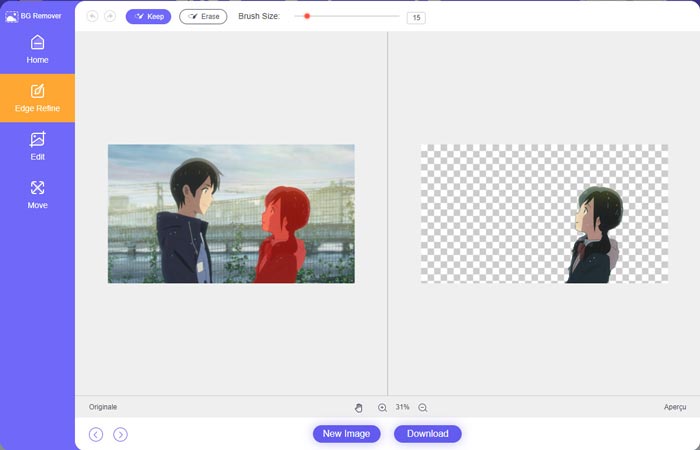
Βήμα 3. Κάντε κλικ στην επιλογή Edit στα αριστερά και, στη συνέχεια, μπορείτε να επιλέξετε να αλλάξετε το χρώμα φόντου ή να προσθέσετε φόντο στη φωτογραφία. Σε αυτό το βήμα, μπορείτε επίσης να βασιστείτε στη λειτουργία Crop για να προσαρμόσετε το μέγεθος της εικόνας σύμφωνα με τις ανάγκες σας.
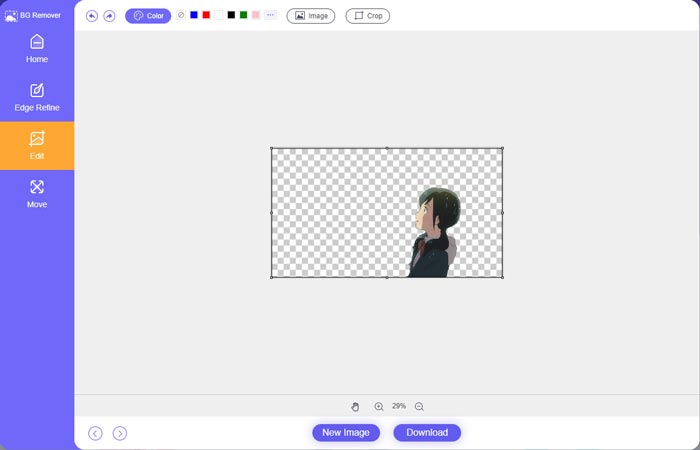
Βήμα 4. Αφού προσθέσετε ένα κατάλληλο φόντο στη φωτογραφία, μπορείτε να κάνετε κλικ στο κουμπί Download για να την αποθηκεύσετε στον υπολογιστή σας. Το επεξεργασμένο αρχείο εικόνας θα αποθηκευτεί από προεπιλογή σε μορφή PNG.
Μέρος 2. Πώς να προσθέσετε ένα φόντο σε μια φωτογραφία χρησιμοποιώντας το Adobe Photoshop
Το Adobe Photoshop είναι ένα από τα πιο διάσημα προγράμματα επεξεργασίας εικόνων που διαθέτει πολλές δυνατότητες για να επεξεργαστείτε εικόνες, προσαρμοσμένα εφέ και να κάνετε άλλες λειτουργίες. Εάν έχετε εγκατεστημένο το Photoshop στον υπολογιστή σας, μπορείτε να επιλέξετε να προσθέσετε φόντο στη φωτογραφία στο Photoshop.
Βήμα 1. Ανοίξτε το Photoshop στον υπολογιστή σας και προσθέστε τη φωτογραφία σας σε αυτό. Μπορείτε ελεύθερα να κατεβάσετε την πιο πρόσφατη έκδοση του Photoshop από την επίσημη ιστοσελίδα της Adobe. Σημειώστε ότι η Adobe προσφέρει μόνο μια δωρεάν δοκιμή 7 ημερών για τη χρήση του Photoshop.
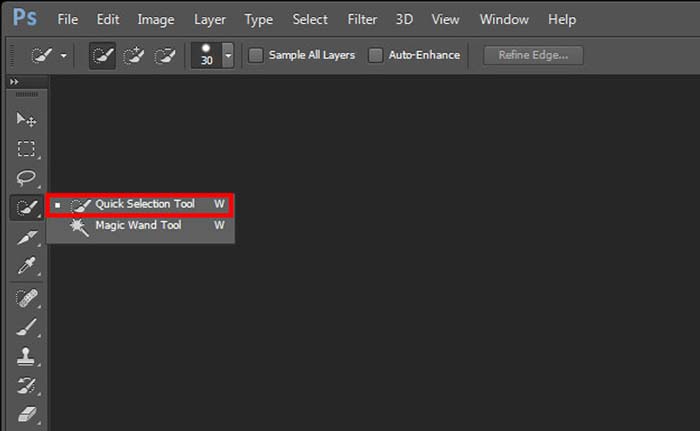
Βήμα 2. Όταν η φωτογραφία σας φορτωθεί στο Photoshop, μπορείτε να κάνετε κλικ στο εικονίδιο του Quick Selection Tool or Magic Wand Tool στην αριστερή εργαλειοθήκη, για να επιλέξετε το φόντο που θέλετε να αλλάξετε.
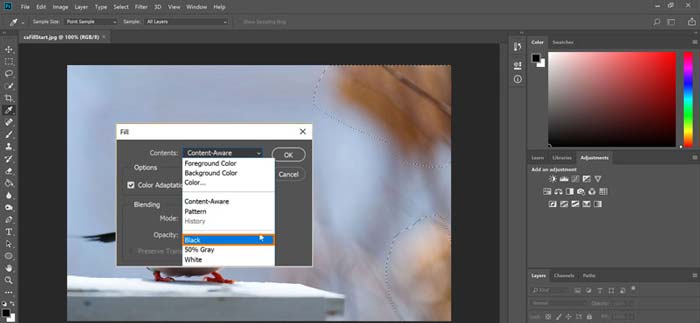
Βήμα 3. Αφού επιλέξετε το φόντο της φωτογραφίας, μπορείτε να κάνετε δεξί κλικ πάνω του και να επιλέξετε την επιλογή Fill. Τώρα μπορείτε απλά να προσθέσετε λευκό φόντο στη φωτογραφία ή να αλλάξετε το φόντο σε άλλο χρώμα, όπως μαύρο, μπλε, γκρι ή οποιοδήποτε άλλο χρειάζεστε.
Βήμα 4. Αν θέλετε να προσθέσετε μια νέα εικόνα ως φόντο, θα πρέπει πρώτα να αφαιρέσετε το επιλεγμένο φόντο. Μπορείτε να πατήσετε το πλήκτρο Delete στο πληκτρολόγιό σας για να απαλλαγείτε από το τρέχον φόντο. Στη συνέχεια, μπορείτε να προσθέσετε το αρχείο εικόνας στο Photoshop και να σύρετε το επίπεδό του κάτω από το επίπεδο του φόντου. Με αυτόν τον τρόπο μπορείτε εύκολα να αντικαταστήσετε το αρχικό φόντο με μια νέα εικόνα.
Βήμα 5. Αφού προσθέσετε φόντο σε μια φωτογραφία στο Photoshop, μπορείτε να κάνετε κλικ στο επάνω μενού File και στη συνέχεια να επιλέξετε την επιλογή Save As από το αναπτυσσόμενο μενού. Επιλέξτε τη σωστή μορφή εικόνας για αυτή τη φωτογραφία και αποθηκεύστε την στον υπολογιστή σας.
Μέρος 3. Πώς να προσθέσετε ένα φόντο σε μια φωτογραφία σε iPhone και τηλέφωνο Android
Όταν θέλετε να προσθέσετε φόντο σε μια φωτογραφία σε τηλέφωνο iPhone, iPad ή Android, πρέπει να βρείτε μια καλή εφαρμογή επεξεργασίας φόντου εικόνας.
Το LightX είναι μια πλήρης εφαρμογή επεξεργασίας φωτογραφιών για χρήστες iOS και Android. Προσφέρει έναν εύχρηστο τρόπο να αφαιρείτε ανεπιθύμητο φόντο, να προσθέτετε νέο φόντο στη φωτογραφία, να προσθέτετε διάφορα εφέ, να δημιουργείτε ποιοτικά selfies και πολλά άλλα, απευθείας στο τηλέφωνό σας. Πολλά προηγμένα εργαλεία επεξεργασίας εικόνας έχουν ενσωματωθεί στην εφαρμογή LightX, όπως ανάμειξη χρωμάτων, προσαρμοσμένος κορεσμός φωτογραφιών, αντίθεση, απόχρωση, καμπύλες και πολλά άλλα. Μπορείτε να την κατεβάσετε από το App Store ή το Google Play Store.
Βήμα 1. Εγκαταστήστε και ανοίξτε την εφαρμογή LightX στο iPhone, iPad ή Android τηλέφωνό σας. Δώστε στην εφαρμογή άδεια πρόσβασης στις φωτογραφίες της συσκευής σας. Προσθέστε τη φωτογραφία σας για περαιτέρω επεξεργασία φόντου.
Βήμα 2. Για να αφαιρέσετε το τρέχον φόντο της φωτογραφίας και να το αλλάξετε με κάτι άλλο, μπορείτε να σύρετε προς τα αριστερά ώστε να εμφανιστούν πολλές διαφορετικές επιλογές. Στην κατηγορία Creative μπορείτε να επιλέξετε τη λειτουργία Cutout για να προσθέσετε φόντο στη φωτογραφία. Τώρα πρέπει χειροκίνητα να επιλέξετε το κύριο αντικείμενο και να διαγράψετε το αρχικό φόντο.
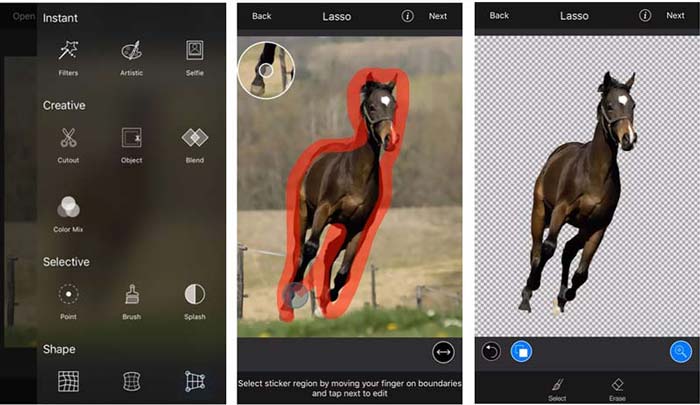
Βήμα 3. Αφού αφαιρέσετε το φόντο, μπορείτε να πατήσετε Next στην επάνω δεξιά γωνία για να συνεχίσετε. Στη συνέχεια μπορείτε να χρησιμοποιήσετε τη λειτουργία Crop για να αλλάξετε το μέγεθος της εικόνας. Πατήστε Done για να επιβεβαιώσετε την ενέργειά σας. Μετά από αυτό, μπορείτε να πατήσετε το BG Image στο κάτω μέρος της οθόνης για να προσθέσετε ένα διαφορετικό φόντο στη φωτογραφία. Μπορείτε ελεύθερα να προσαρμόσετε τα εφέ του νέου φόντου ανάλογα με τις ανάγκες σας.
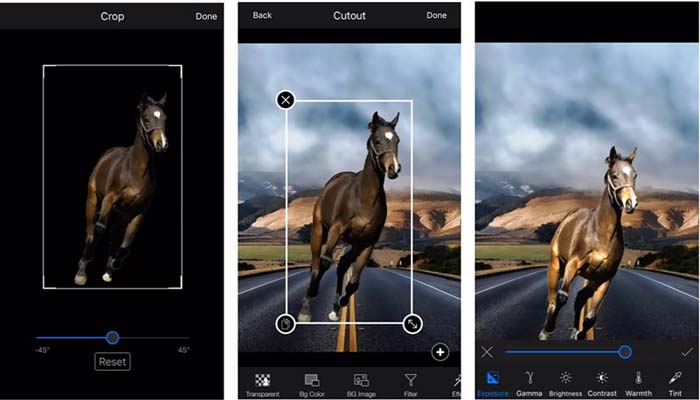
Είτε χρησιμοποιείτε συσκευή iOS είτε Android, μπορείτε να ακολουθήσετε παρόμοια βήματα για να προσθέσετε φόντο σε μια φωτογραφία χρησιμοποιώντας την εφαρμογή LightX. Σημειώστε ότι, ως χρήστης iOS, πρέπει να πληρώσετε $3.99 για αυτήν την εφαρμογή προσθήκης φόντου. Εάν είστε χρήστης Android, μπορείτε να το εγκαταστήσετε από το Google Play Store. Για αναβάθμιση σε έκδοση premium, πρέπει να πληρώσετε το ίδιο τίμημα.
Σχετικά:
Τι είναι η ανάλυση βίντεο: Σε βάθος ματιά στην ανάλυση και περισσότερα
6 αγαπημένα επιλογές από τα κινούμενα φίλτρα Snapchat στο Snapchat
Μέρος 4. Συχνές ερωτήσεις για το πώς να προσθέσετε ένα φόντο σε μια φωτογραφία
Πώς μπορώ να προσθέσω διαφορετικό φόντο σε μια φωτογραφία στο Mac μου;
Μπορείτε να χρησιμοποιήσετε τις 2 πρώτες μεθόδους για να αλλάξετε απλά το φόντο της φωτογραφίας σας σε Mac. Εκτός από το προτεινόμενο Free Background Remover Online και το Adobe Photoshop, μπορείτε επίσης να βασιστείτε σε άλλα προγράμματα επεξεργασίας εικόνων για να προσθέσετε ένα νέο φόντο στη φωτογραφία σας.
Πώς να αλλάξετε την ταπετσαρία σε ένα iPhone;
Το iOS προσφέρει έναν απλό τρόπο αλλαγής της ταπετσαρίας σε iPhone ή iPad. Μπορείτε να μεταβείτε στην εφαρμογή Ρυθμίσεις, να πατήσετε την επιλογή Ταπετσαρία και, στη συνέχεια, να πατήσετε Επιλογή νέας ταπετσαρίας.
Μπορώ να προσθέσω φόντο σε μια ζωντανή φωτογραφία στο iPhone μου;
Όχι. Το iPhone δεν σας προσφέρει έναν άμεσο τρόπο να αλλάξετε το φόντο μιας ζωντανής φωτογραφίας. Επιτρέπεται μόνο να την περικόψετε, να εφαρμόσετε φίλτρα, να προσαρμόσετε εφέ και να την αλλάξετε σε ακίνητη εικόνα.
συμπέρασμα
Αυτή η ανάρτηση μοιράζεται 3 χρήσιμες μεθόδους για να προσθέσετε φόντο σε μια φωτογραφία. Όταν χρειαστεί να αφαιρέσετε το αρχικό φόντο της φωτογραφίας και να προσθέσετε ένα νέο σε αυτό, μπορείτε να επιλέξετε τον επεξεργαστή εικόνας που προτιμάτε για να το κάνετε αυτό.
-
 Κορυφαίοι 3 τρόποι για να προσθέσετε φίλτρα σε GIF με τους καλύτερους επεξεργαστές GIF [Αγαπημένο]
 Θέλετε να μάθετε πώς να προσθέσετε ένα φίλτρο στο GIF για να το βελτιώσετε; Σε αυτό το ιστολόγιο, θα μάθετε εύκολα τις διάφορες τεχνικές για να προσθέσετε φίλτρα στα GIF σας.
-
 3 ευκολότεροι τρόποι για να προσθέσετε υδατογράφημα σε ένα GIF σε απευθείας σύνδεση και εκτός σύνδεσης
 Η προσθήκη ενός υδατογραφήματος σε ένα GIF μπορεί να είναι τόσο εύκολη όσο το 1-2-3, εάν χρησιμοποιείτε σωστά το σωστό εργαλείο. Τα εργαλεία στην αγορά είναι πολύ ευρεία, αλλά θα παρουσιάσουμε τα τρία εργαλεία στα οποία μπορείτε να βασιστείτε.
-
 5 καλύτεροι τρόποι για να αλλάξετε την εικόνα σε κινούμενο GIF [Ενημερώθηκε 2022]
 Χρειάζεστε μια εικόνα μετατροπέα σε GIF; Αυτό το άρθρο θα παρέχει τους πέντε καλύτερους μετατροπείς που μπορούμε να βρούμε στην αγορά. Λοιπόν, ας μάθουμε αυτά τα εργαλεία διαβάζοντας αυτό το άρθρο.
