


 Video Converter Ultimate
 Εγγραφή οθόνης
 Επισκευή βίντεο
 Ασφαλές κατέβασμα
2 εύκολες μέθοδοι για το πώς να αφαιρέσετε το υδατογράφημα Dxtory
Όταν πρόκειται για εγγραφή gameplays και άλλων εφαρμογών, το Dxtory είναι ένα από τα πιο δημοφιλή προγράμματα καταγραφής οθόνης για πολλούς χρήστες. Πολλοί χρησιμοποιούν αυτό το screen recorder επειδή είναι από τις λίγες εφαρμογές καταγραφής οθόνης που μπορούν να καταγράφουν έως και 120 fps. Επιπλέον, καταγράφει γρήγορα τις πληροφορίες βίντεο DirectX και OpenGL στο σύστημά σας. Ωστόσο, όταν κάνετε εγγραφή με το Dxtory Screen Recorder, αφήνει ένα υδατογράφημα στο βίντεό σας. Ως αποτέλεσμα, οι χρήστες αναζητούν έναν τρόπο να αφαιρέσουν αυτό το ενοχλητικό υδατογράφημα. Σε αυτό το άρθρο θα μάθετε πώς να αφαιρέσετε το υδατογράφημα του Dxtory από το βίντεο που έχετε καταγράψει από την οθόνη σας.

Μέρος 1. Πώς να κάνετε εγγραφή στην οθόνη χρησιμοποιώντας το Dxtory
Αν ψάχνετε για μια εφαρμογή λογισμικού που μπορεί να καταγράψει τις καλύτερες στιγμές του παιχνιδιού σας, το Dxtory είναι μια κατάλληλη εφαρμογή. Το Dxtory είναι μια εφαρμογή που μπορεί να σας βοηθήσει να καταγράψετε την οθόνη σας ενώ παίζετε ένα παιχνίδι, συζητάτε ένα μάθημα στο διαδίκτυο ή παρακολουθείτε βίντεο στον υπολογιστή σας. Είναι μια γνωστή εφαρμογή λογισμικού για εγγραφή οθόνης. Η συσκευή εγγραφής οθόνης Dxtory διαθέτει τα απαραίτητα εργαλεία για να μεταβείτε στις ρυθμίσεις καθολικές, προηγμένες, πλήκτρα πρόσβασης, στιγμιότυπο οθόνης, βίντεο και ήχου κ.λπ.
Επιπλέον, αυτή η συσκευή εγγραφής οθόνης σάς επιτρέπει να τραβάτε ένα στιγμιότυπο οθόνης κατά την εγγραφή. Μπορείτε επίσης να τροποποιήσετε αυτά τα στιγμιότυπα οθόνης με επιλογές μπορντούρας, κλιμάκωσης και κοπής. Διαθέτει επίσης εγγραφή πολλαπλών πηγών ήχου, πράγμα που σημαίνει ότι το Dxtory μπορεί να εγγράψει ταυτόχρονα το παιχνίδι και τον ήχο του μικροφώνου. Είναι επίσης η ταχύτερη λήψη ταινιών για εφαρμογές DirectX και OpenGL. Έτσι, εάν θέλετε να χρησιμοποιήσετε το Dxtory για εγγραφή οθόνης, συνεχίστε να διαβάζετε αυτό το μέρος.
Πώς να εγγράψετε το gameplay χρησιμοποιώντας τη συσκευή εγγραφής οθόνης Dxtory:
Βήμα 1. Πρώτα, πρέπει να κατεβάσετε το Dxtory στη συσκευή σας. Ακολουθήστε τη διαδικασία εγκατάστασης. Μπορείτε να αγοράσετε την άδεια, ώστε να μην έχετε περιορισμούς στην εγγραφή και να μην υπάρχει υδατογράφημα στο τελικό βίντεο.
Βήμα 2. Εκτελέστε την εφαρμογή που θέλετε να καταγράψετε και ανοίξτε το Dxtory.
Βήμα 3. Μεταβείτε στην καρτέλα Target και κάντε κλικ στο παιχνίδι που παίζετε. Η λίστα διεργασιών θα εμφανιστεί αμέσως στη λίστα στόχων.
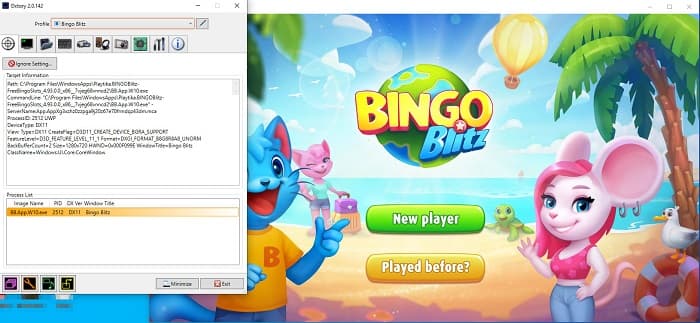
Βήμα 4. Στη συνέχεια, πηγαίνετε στην καρτέλα Folder και επιλέξτε τον φάκελο προορισμού του αρχείου σας. Έπειτα, μεταβείτε στο Hotkeys για να επιλέξετε τα πλήκτρα για τη διαδικασία καταγραφής οθόνης. Μπορείτε επίσης να ρυθμίσετε τον ήχο.
Βήμα 5. Ελαχιστοποιήστε το Dxtory και ξεκινήστε το παιχνίδι σας. Θα δείτε έναν αριθμό στο επάνω αριστερό μέρος της οθόνης του παιχνιδιού που δείχνει τα FPS σας. Πατήστε το πλήκτρο γρήγορης καταγραφής βίντεο που ορίσατε στο πάνελ Hotkeys για να ξεκινήσει η εγγραφή.
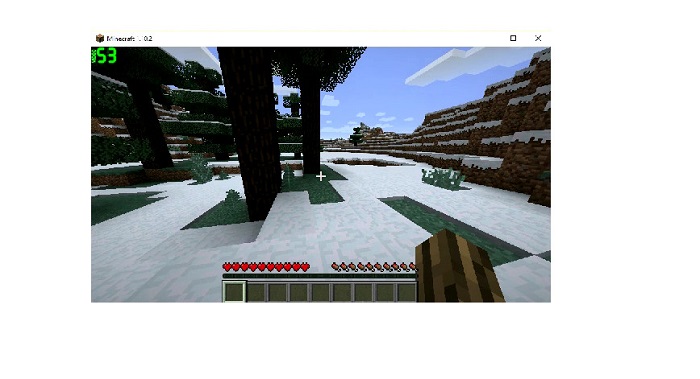
Βήμα 6. Στη συνέχεια, αν θέλετε να διακόψετε την εγγραφή, πατήστε το ίδιο πλήκτρο που πατήσατε για να ξεκινήσει. Το βίντεο αποθηκεύεται στον επιλεγμένο προορισμό όταν σταματήσετε την εγγραφή.
Τώρα μπορείτε να απολαύσετε το βίντεο που καταγράψατε από την οθόνη. Αν δεν αγοράσατε την άδεια, θα δείτε υδατογράφημα στο βίντεό σας. Άρα, αν θέλετε να αφαιρέσετε το υδατογράφημα από το βίντεο, διαβάστε το επόμενο μέρος.
Μέρος 2. Πώς να αφαιρέσετε το υδατογράφημα Dxtory χρησιμοποιώντας το Ultimate Tool
Εάν θέλετε να αφαιρέσετε το υδατογράφημα Dxtory από το βίντεο εγγραφής οθόνης σας, πιθανότατα θέλετε να χρησιμοποιήσετε αυτήν την καταπληκτική εφαρμογή λογισμικού. Διαβάστε αυτό το μέρος για να μάθετε τις πλήρεις περιγραφές σχετικά με αυτό το εργαλείο και πώς να το χρησιμοποιήσετε για τη διαδικασία αφαίρεσης υδατογραφήματος Dxtory.
Το FVC Video Converter Ultimate είναι μία από τις πιο γνωστές εφαρμογές που σας επιτρέπει να αφαιρείτε υδατογραφήματα από οποιοδήποτε βίντεο. Διαθέτει ένα εύχρηστο περιβάλλον εργασίας, γεγονός που το καθιστά φιλικό προς τον χρήστη εργαλείο. Επιπλέον, το FVC Video Converter Ultimate υποστηρίζει πολλούς τύπους αρχείων, όπως MP4, MKV, MOV, M4V, AVI, FLV και πάνω από 1000 ακόμη. Και αν θέλετε μια εφαρμογή με πολλές λειτουργίες επεξεργασίας, αυτό το εργαλείο είναι ιδανικό για εσάς. Περιλαμβάνει πολλές προηγμένες δυνατότητες επεξεργασίας, όπως περικοπή βίντεο, αφαίρεση υδατογραφήματος βίντεο, συγχώνευση βίντεο, περικοπή/κόψιμο βίντεο και άλλα μέσα από το Toolbox.
Με τη γρήγορη διεπαφή επεξεργασίας, μπορείτε εύκολα να αφαιρέσετε οποιοδήποτε υδατογράφημα είναι ενσωματωμένο στο βίντεό σας. Επομένως, ακολουθήστε τα παρακάτω βήματα για να έχετε ένα βίντεο Dxtory χωρίς υδατογράφημα.
Υπάρχουν δύο τρόποι για να αφαιρέσετε το υδατογράφημα Dxtory στο βίντεό σας.
Μέθοδος 1: Πώς να αφαιρέσετε το υδατογράφημα Dxtory χρησιμοποιώντας τη λειτουργία περικοπής βίντεο:
Βήμα 1. Πρώτα, εγκαταστήστε το FVC Video Converter Ultimate στη συσκευή σας, κάνοντας κλικ στο κουμπί Download παρακάτω για Windows ή Mac. Ακολουθήστε τη διαδικασία εγκατάστασης και ανοίξτε την εφαρμογή.
Δωρεάν ΛήψηΓια Windows 7 ή νεότεραΑσφαλής λήψη
Δωρεάν ΛήψηΓια MacOS 10.7 ή νεότεροΑσφαλής λήψη
Βήμα 2. Στην κύρια διεπαφή, κάντε κλικ στο πάνελ Toolbox και επιλέξτε τη λειτουργία Video Cropper.
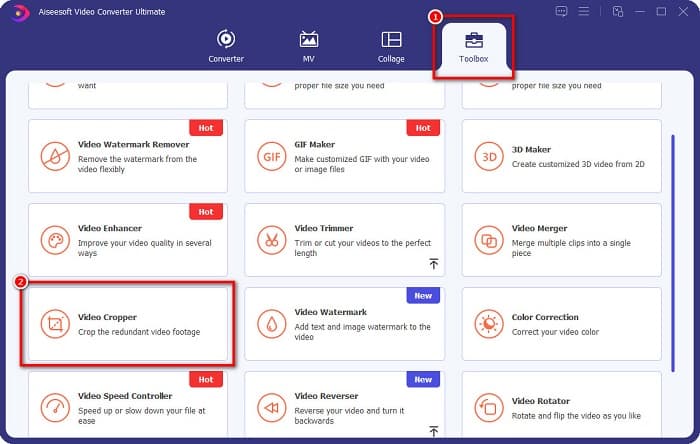
Βήμα 3. Έπειτα, κάντε κλικ στο κουμπί με το σύμβολο συν (+) για να ανεβάσετε το βίντεο από το οποίο θέλετε να αφαιρέσετε το υδατογράφημα. Μπορείτε επίσης να σύρετε και να αποθέσετε το βίντεό σας από τα αρχεία του υπολογιστή σας.
Βήμα 4. Στη συνέχεια, μπορείτε να κάνετε προεπισκόπηση του αποτελέσματός σας. Θα δείτε ένα πλαίσιο περικοπής· ρυθμίστε τις πλευρές του πλαισίου περικοπής μέχρι το υδατογράφημα να μην περιλαμβάνεται στο βίντεο.
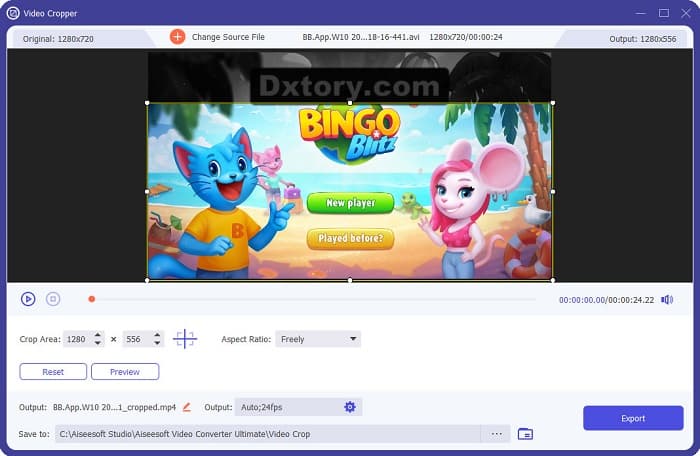
Μπορείτε να προσαρμόσετε το μέγεθος της περιοχής περικοπής κάνοντας κλικ στο κουμπί πάνω-κάτω κάτω από την προεπισκόπηση του βίντεό σας.
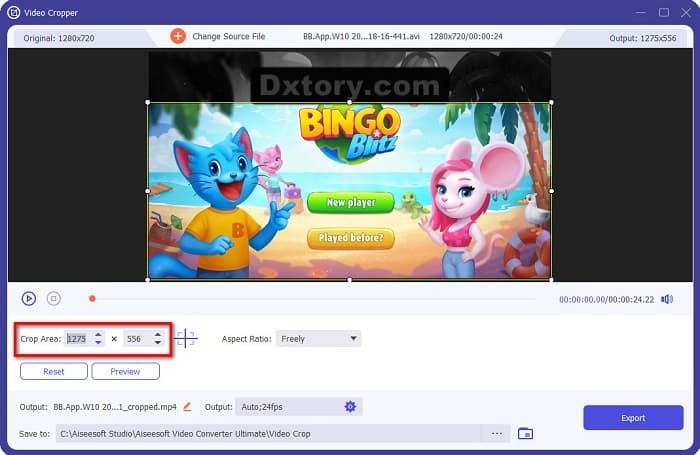
Βήμα 5. Τέλος, κάντε κλικ στο κουμπί Preview για να δείτε το αποτέλεσμα του βίντεό σας και πατήστε Export αν είστε ικανοποιημένοι με το αποτέλεσμα.
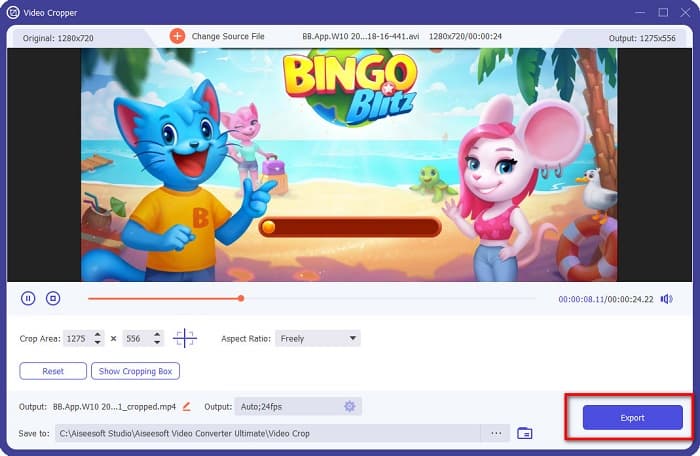
Με αυτά τα εύκολα βήματα, μπορείτε να αφαιρέσετε το υδατογράφημα Dxtory στο βίντεό σας χρησιμοποιώντας τη λειτουργία Video Cropper του FVC Video Converter UItimate.
Μέθοδος 2: Πώς να αφαιρέσετε το υδατογράφημα Dxtory χρησιμοποιώντας το Video Watermark Remover του FVC Video Converter Ultimate:
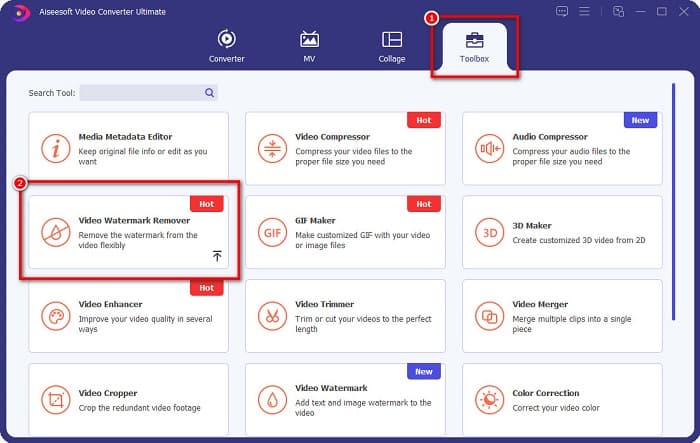
Βήμα 1. Αν η εφαρμογή είναι ήδη εγκατεστημένη στη συσκευή σας, ανοίξτε την. Έπειτα, πηγαίνετε στο Toolbox και επιλέξτε το Video Watermark Remover.
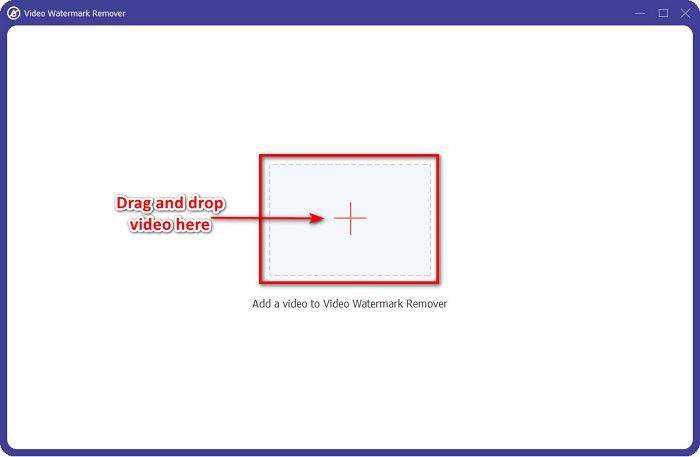
Βήμα 2. Στη συνέχεια, κάντε κλικ στο κουμπί με το + ή σύρετε και αποθέστε το βίντεο Dxtory στο πλαίσιο με το σύμβολο +.
Βήμα 3. Αφού ανεβάσετε το βίντεο, θα δείτε την προεπισκόπησή του. Κάντε κλικ στην περιοχή Add watermark removing.
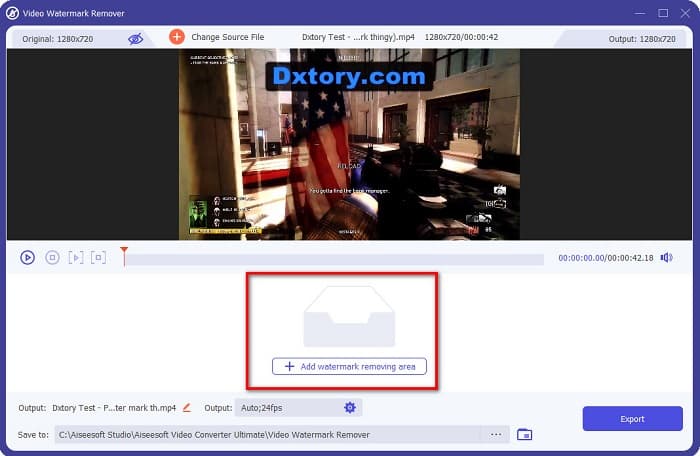
Βήμα 4. Έπειτα, θα εμφανιστεί στο βίντεό σας μια περιοχή αφαίρεσης υδατογραφήματος. Τοποθετήστε την πάνω από το υδατογράφημα του Dxtory.
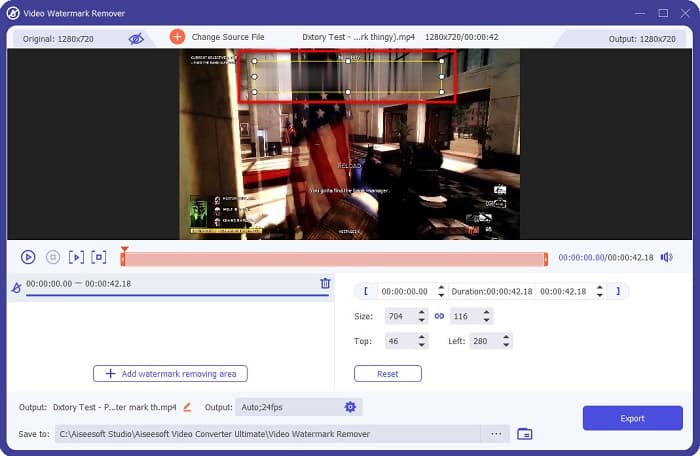
Προαιρετικό. Αν υπάρχουν δύο ή περισσότερα υδατογραφήματα στο βίντεό σας, κάντε κλικ στο add watermark removing area για να προσθέσετε επιπλέον πλαίσιο αφαίρεσης.
Βήμα 5. Τέλος, κάντε κλικ στο κουμπί Export για να αποθηκεύσετε το τελικό βίντεο στη συσκευή σας. Κι αυτό ήταν!
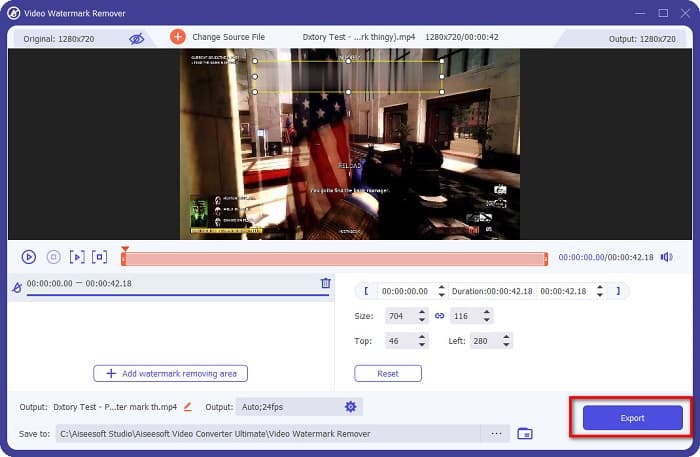
Απλό, έτσι δεν είναι; Μπορείτε να αφαιρέσετε το υδατογράφημα του Dxtory από το βίντεό σας τόσο εύκολα. Μπορείτε επίσης να αφαιρέσετε υδατογραφήματα από το TikTok με παρόμοιες μεθόδους όπως παραπάνω.
Μέρος 3. Συχνές ερωτήσεις σχετικά με την κατάργηση του υδατογραφήματος Dxtory
Μπορεί το Adobe After Effects να αφαιρέσει το υδατογράφημα Dxtory;
Ναι. Το Adobe After Effects είναι το πιο δημοφιλές πρόγραμμα για αφαίρεση υδατογραφημάτων βίντεο, ικανό να αφαιρέσει οποιοδήποτε υδατογράφημα από το βίντεό σας (λογότυπο, κείμενο, εικόνες). Μπορεί επίσης να αφαιρέσει το υδατογράφημα του Dxtory από το βίντεό σας. Ωστόσο, πολλοί χρήστες δυσκολεύονται να το χρησιμοποιήσουν. Εντοπίστε το υδατογράφημα στην εικόνα σας. Τοποθετήστε το πλαίσιο αφαίρεσης υδατογραφήματος πάνω στο υδατογράφημα. Μεταβείτε στο πάνελ Layer. Δημιουργήστε Null Objects. Κάντε κλικ στο Save Frame as. Εισαγάγετε τα επεξεργασμένα βίντεο. Μειώστε την Opacity της εικόνας σας. Χρησιμοποιήστε την επιλογή Pick-up whip.
Μπορείτε να αφαιρέσετε το υδατογράφημα από τις εικόνες σας;
Μπορείτε να αφαιρέσετε υδατογραφήματα, όπως λογότυπα, κείμενο ή οποιαδήποτε στοιχεία από τις εικόνες σας. Μπορείτε να χρησιμοποιήσετε το δωρεάν FVC watermark remover για να αφαιρέσετε οποιαδήποτε υδατογραφήματα από την εικόνα σας.
Γιατί το Dxtory βάζει υδατογραφήματα σε βίντεο;
Η Dxtory έβαλε ένα υδατογράφημα στα βίντεό της, ώστε να αγοράσετε την επί πληρωμή της έκδοση. Επίσης, ενσωματώνουν υδατογραφήματα στα βίντεό τους, ώστε να αποτρέπονται τα πνευματικά δικαιώματα.
συμπέρασμα
Όπως αναφέρθηκε παραπάνω, υπάρχουν δοκιμασμένοι τρόποι για το πώς να αφαιρέσετε τα υδατογραφήματα του Dxtory από τα βίντεό σας. Και χρησιμοποιώντας το FVC Video Converter Ultimate, μπορείτε εύκολα να αφαιρέσετε οποιαδήποτε ενοχλητικά υδατογραφήματα από την εικόνα σας. Κατεβάστε το τώρα και απολαύστε τις κορυφαίες δυνατότητές του.
-
 Πώς να αφαιρέσετε εύκολα το υδατογράφημα από το Wondershare DVD Creator
 Αυτό το άρθρο καλύπτει πληροφορίες σχετικά με τον τρόπο κατάργησης του υδατογραφήματος από το Wondershare DVD Creator. Για να λάβετε όλες τις πληροφορίες που χρειάζεστε, είναι απαραίτητο να το διαβάσετε.
-
 Πώς να αφαιρέσετε το υδατογράφημα Coub με απλά βήματα
 Μάθετε πώς να αφαιρείτε το υδατογράφημα coub στα βίντεό σας χρησιμοποιώντας αυτά τα δημοφιλή εργαλεία αφαίρεσης υδατογραφήματος. Διαβάστε αυτό το άρθρο για να μάθετε αυτά τα καταπληκτικά εργαλεία και πώς να τα χρησιμοποιήσετε.
-
 Πώς να αφαιρέσετε εύκολα το υδατογράφημα Lumion σε Windows & Mac
 Χρειάζεται να αφαιρέσετε το υδατογράφημα Lumion για να το παρουσιάσετε επαγγελματικά; Λοιπόν, υπάρχουν εργαλεία που μπορείτε να χρησιμοποιήσετε για να σας βοηθήσουν να απαλλαγείτε από το υδατογράφημα που αφήνει.
