


 Video Converter Ultimate
 Εγγραφή οθόνης
 Επισκευή βίντεο
 Ασφαλές κατέβασμα
Πώς να εγγράψετε στο PS4 μέσω προεπιλογής και τις καλύτερες εναλλακτικές λύσεις
Το PS4, ή PlayStation 4, εντυπωσιάζει πολλούς gamers με την εντυπωσιακή του ισχύ και την εξαιρετική απόδοσή του από τη στιγμή που κυκλοφόρησε. Ακόμα και σήμερα, παραμένει σημαντικό κομμάτι της ζωής πολλών παικτών χάρη στη μεγάλη γκάμα παιχνιδιών του και στη δυνατότητά του να κάνει περισσότερα από απλό gaming. Όταν λοιπόν παίζεις τα αγαπημένα σου παιχνίδια στο PS4, είναι απολύτως φυσιολογικό να θέλεις να καταγράφεις εκείνες τις επικές στιγμές για να τις μοιραστείς με άλλους, σωστά; Όποιος κι αν είναι ο λόγος σου, το να ξέρεις πώς να κάνεις εγγραφή στο PS4 είναι αρκετά σημαντικό. Γι' αυτό είμαστε εδώ για να σε βοηθήσουμε!
Σε αυτήν την ανάρτηση, θα αναλύσουμε τα βήματα που πρέπει να ακολουθήσετε για να καταγράψετε το παιχνίδι σας στην αγαπημένη σας κονσόλα χρησιμοποιώντας τον προεπιλεγμένο τρόπο, μαζί με τις καλύτερες εναλλακτικές που μπορείτε να χρησιμοποιήσετε! Επομένως, δώστε προσοχή και ακολουθήστε προσεκτικά για να βεβαιωθείτε ότι το κάνετε σωστά.

Μέρος 1. Πώς να εγγράψετε την οθόνη του PS4 σε πλήρη ποιότητα χωρίς όριο εκτός από τον προεπιλεγμένο τρόπο
Εφόσον το PS4 έχει χρονικό περιορισμό στην εγγραφή, ας περάσουμε πρώτα στην καλύτερη εναλλακτική λύση. Αφού, λοιπόν, θέλεις να καταγράφεις τις gaming συνεδρίες σου στην κονσόλα, το FVC Screen Recorder είναι η πιο αξιόπιστη επιλογή σου. Πρόκειται για λογισμικό υπολογιστή που ειδικεύεται στην καταγραφή gameplay, καθώς και οθονών, βίντεο, ήχων, κινητών τηλεφώνων και άλλων. Με υποστήριξη ασυμπίεστης εγγραφής στα 60 καρέ ανά δευτερόλεπτο, μπορείς να καταγράφεις το gameplay σου ομαλά και σε υψηλή ποιότητα. Επιπλέον, είναι ιδιαίτερα χρήσιμο για όσους θέλουν να καταγράφουν απεριόριστο gameplay. Ακόμη, αυτό το FVC Screen Recorder προσφέρει επιλογές επεξεργασίας και κοινοποίησης των κλιπ που έχεις καταγράψει σε διάφορες πλατφόρμες, όπως YouTube, Twitter, Facebook, Instagram και άλλες.
Το πιο ενδιαφέρον είναι ότι παρέχει προτιμήσεις όπου μπορείτε να προσαρμόσετε τις εγγραφές σας για να ταιριάζουν στις ανάγκες σας. Έτσι, είτε πρόκειται για προσαρμογή ρυθμίσεων εξόδου, καθαρισμό της φωνής σας με ακύρωση θορύβου ή ενσωμάτωση της κάμερας web σε λειτουργία εικόνας σε εικόνα, αυτό το εργαλείο σας έχει καλύψει! Επίσης, με δυνατότητες όπως η λήψη στιγμιότυπων, η γρήγορη κοινή χρήση σε δημοφιλείς ιστότοπους και η βελτίωση, αυτή η συσκευή εγγραφής οθόνης εξακολουθεί να είναι ένα ευέλικτο εργαλείο για τους παίκτες. Επομένως, δείτε πώς μπορείτε να εγγράψετε μια οθόνη PS4 χωρίς χρονικούς περιορισμούς.
Βήμα 1. Πρώτα πρέπει να κατεβάσεις τη σωστή έκδοση του game recorder στον υπολογιστή σου και να το ανοίξεις. Πριν ξεκινήσεις την εγγραφή, βεβαιώσου ότι το PS4 σου είναι συνδεδεμένο στον ίδιο υπολογιστή μέσω screencast remote play.
Free DownloadΓια Windows 7 ή νεότεραΑσφαλής λήψη
Free DownloadΓια MacOS 10.7 ή νεότεραΑσφαλής λήψη
Βήμα 2. Όταν ανοίξει το πρόγραμμα εγγραφής, θα έχεις κάποιες επιλογές. Για αυτήν την εργασία, όμως, κάνε κλικ στο εργαλείο Game Recorder. Έπειτα, επίλεξε το παράθυρο όπου προβάλλεται το PS4 σου κάνοντας κλικ στο βελάκι στο πρώτο πλαίσιο επιλογής. Στη συνέχεια, μπορείς ελεύθερα να ρυθμίσεις τις υπόλοιπες παραμέτρους σύμφωνα με τις προτιμήσεις σου.
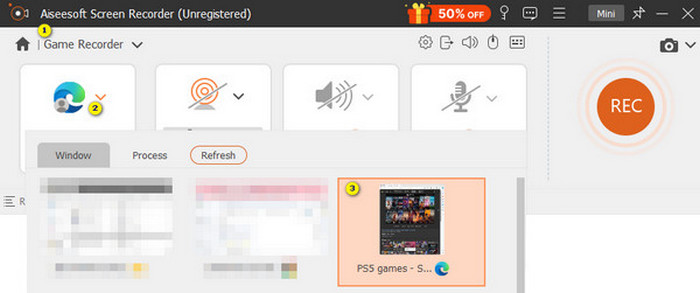
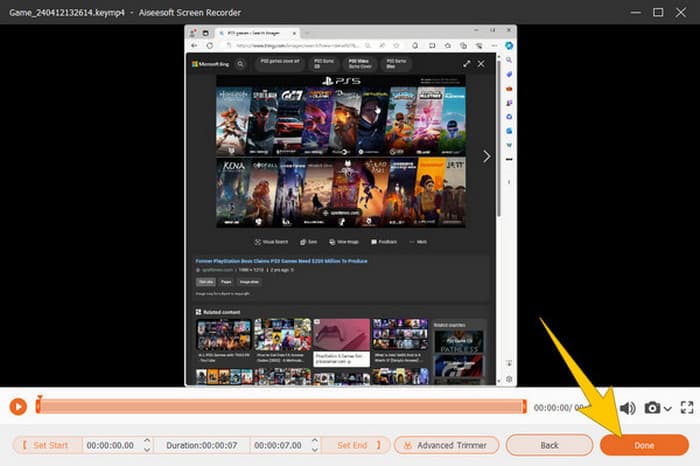
Βήμα 3. Μετά τη ρύθμιση, κάνε κλικ στο κουμπί REC για να ξεκινήσει η εγγραφή. Όταν τελειώσεις την εγγραφή, πάτησε το κουμπί Stop. Όταν ολοκληρωθεί, το λογισμικό θα σε μεταφέρει σε ένα παράθυρο όπου μπορείς να κάνεις μερικές ρυθμίσεις στο βίντεό σου. Μπορείς να το κόψεις (trim), να πάρεις ένα στιγμιότυπο και να ρυθμίσεις την ένταση του ήχου, αν το επιθυμείς. Έπειτα, κάνε κλικ στο κουμπί Done για να προχωρήσεις στην αποθήκευση του αποτελέσματος.
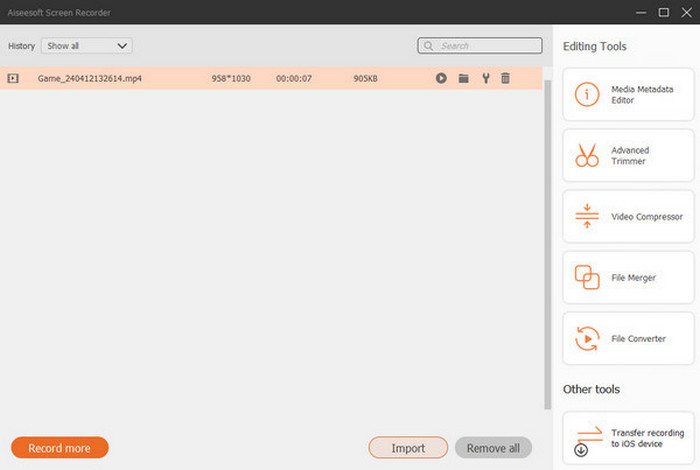
Βήμα 4. Όταν αποθηκευτεί το βίντεο, θα εμφανιστεί ένα νέο παράθυρο. Μπορείς να κάνεις δεξί κλικ στο καταγεγραμμένο παιχνίδι σου και να επιλέξεις κάποια προηγμένη ρύθμιση που θέλεις να εφαρμόσεις. Επίσης, αν θέλεις, μπορείς να επιλέξεις να το μοιραστείς στην πλατφόρμα που επιθυμείς. Έτσι μπορείς να καταγράφεις την οθόνη του PS4 χωρίς κανέναν περιορισμό.
Μέρος 2. Τρόπος εγγραφής στο PS4 με τον προεπιλεγμένο τρόπο
Πέρα από το λογισμικό τρίτων game recorder, έχεις επίσης έναν ενσωματωμένο καταγραφέα στο PS4. Ας προχωρήσουμε τώρα στα βήματα χρήσης του ενσωματωμένου καταγραφέα του PS4.
Βήμα 1. Ξεκίνα ανοίγοντας το PS4 σου και επιλέγοντας το παιχνίδι που θέλεις να καταγράψεις. Έπειτα, μπες στο παιχνίδι της επιλογής σου και άρχισε να παίζεις. Όταν είσαι έτοιμος να ξεκινήσεις την εγγραφή, απλώς πάτησε δύο φορές γρήγορα το κουμπί Share στο χειριστήριό σου.
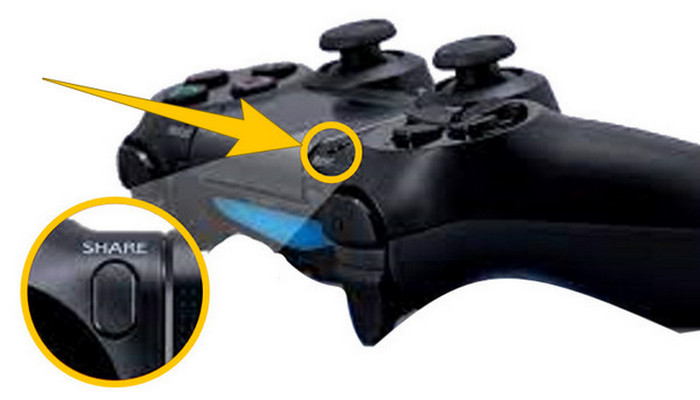
Βήμα 2. Θα ειδοποιηθείς ότι η εγγραφή έχει ξεκινήσει. Αλλά πώς σταματάς την εγγραφή gameplay στο PS4 όταν τελειώσεις; Για να το κάνεις αυτό, αρκεί να κρατήσεις πατημένο για λίγο το κουμπί Share.
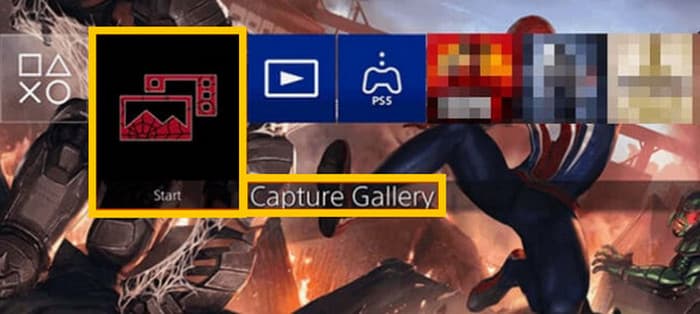
Βήμα 3. Στη συνέχεια, δες την εγγραφή σου μεταβαίνοντας στο Main Menu και επιλέγοντας το Capture Gallery από τις διαθέσιμες επιλογές.
Μέρος 3. Πώς να εγγράψετε το παιχνίδι στο PS4 χρησιμοποιώντας μια κάρτα Capture
Μια άλλη δημοφιλής εναλλακτική λύση στην προεπιλεγμένη συσκευή εγγραφής PS4 είναι η χρήση κάρτας λήψης. Σίγουρο πράγμα! Μια κάρτα λήψης θα σας βοηθήσει να συνδέσετε το PS4 σας με άλλες συσκευές και θα σας επιτρέψει να καταγράψετε τα πάντα στο PS4 σας. Αν δεν το γνωρίζατε ναι, τότε συνεχίστε να διαβάζετε και ακολουθήστε τις οδηγίες που δίνουμε παρακάτω.
Βήμα 1. Σύνδεσε την κάρτα σύλληψης (capture card) στο PS4 σου, στον υπολογιστή σου και στην οθόνη της τηλεόρασης μέσω HDMI. Έπειτα, βεβαιώσου ότι ο υπολογιστής σου διαθέτει OBS ώστε να μπορέσει να γίνει η εγγραφή.

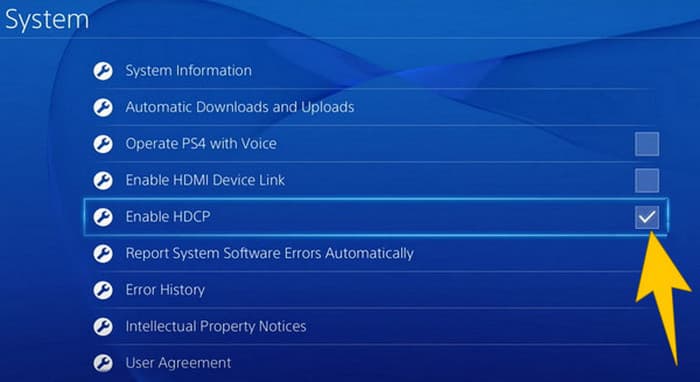
Βήμα 2. Τώρα, ρύθμισε το PS4 σου πηγαίνοντας στο Settings και επιλέγοντας System, έπειτα System Information. Από εκεί, ενεργοποίησε την επιλογή Enable HDCP.
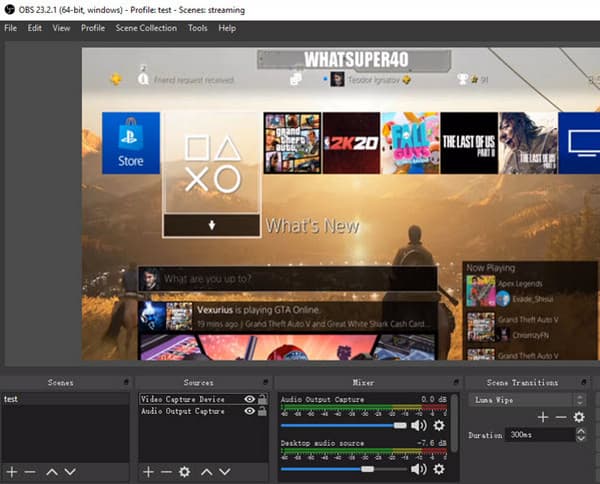
Βήμα 3. Άνοιξε το OBS και μετά πήγαινε στο Source Section>Plus>Video Capture Device και στη συνέχεια κάνε κλικ στο κουμπί OK. Τώρα μπορείς να κάνεις κλικ στο κουμπί Start Recording και να αρχίσεις να παίζεις για να καταγράψεις το gameplay σου. Για να σταματήσεις την εγγραφή, κάνε κλικ στο κουμπί Stop Recording όποτε θέλεις.
Μέρος 4. Συχνές ερωτήσεις σχετικά με την εγγραφή στο PS4
Πώς να σταματήσετε την εγγραφή παιχνιδιού στο PS4;
Για να σταματήσετε την εγγραφή του παιχνιδιού χρησιμοποιώντας την προεπιλεγμένη συσκευή εγγραφής του PS4 σας, απλά πρέπει να πατήσετε παρατεταμένα το κουμπί Share. Αφού πατήσετε αυτό το κουμπί, θα δείτε την επιλογή Διακοπή εγγραφής στην οθόνη σας. Κάντε κλικ για να το εφαρμόσετε.
Χρειάζομαι ειδικό λογισμικό για να χρησιμοποιήσω μια κάρτα λήψης στο PS4 μου;
Ναι. Βασικά, θα χρειαστείς ειδικό λογισμικό όπως το OBS για να λειτουργήσει η κάρτα σύλληψης με το PS4 σου. Εκτός από αυτό, θα χρειαστείς επίσης συσκευές προβολής (οθόνη/τηλεόραση) και καλώδια σύνδεσης, όπως HDMI και USB, ώστε να μπορείς να κάνεις επιτυχημένα εγγραφή οθόνης με χρήση capture card.
Ποιοι είναι οι περιορισμοί για την εγγραφή στο PS4 στην ενσωματωμένη συσκευή εγγραφής;
Είναι αλήθεια ότι η ενσωματωμένη δυνατότητα εγγραφής στο PS4 έχει περιορισμούς στην εγγραφή. Τα πιο συνηθισμένα όρια είναι η διάρκεια και η ποιότητα του καταγεγραμμένου παιχνιδιού.
συμπέρασμα
Αυτές είναι οι οδηγίες για το πώς να κάνεις εγγραφή στο PS4. Μπορείς να κάνεις εγγραφή χρησιμοποιώντας τον ενσωματωμένο τρόπο της κονσόλας, μια κάρτα σύλληψης ή εξειδικευμένο λογισμικό που είναι ιδανικό για εγγραφή οθόνης. Ωστόσο, δεν πρέπει να αγνοείς τους περιορισμούς του ενσωματωμένου καταγραφέα, οι οποίοι σε εμποδίζουν να καταγράφεις μεγάλης διάρκειας και υψηλής ποιότητας βίντεο. Με παρόμοιο τρόπο, και οι κάρτες σύλληψης ενδέχεται να έχουν περιορισμούς, ανάλογα με το υλικό (hardware) και τον αποθηκευτικό χώρο του υπολογιστή σου. Επομένως, αν δεν θέλεις αυτοί οι περιορισμοί να σε επηρεάζουν, τότε επίλεξε το FVC Screen Recorder ως την καλύτερη λύση σου.
-
 Πώς να ηχογραφήσετε τα Epic Stunt, τα Clutches ή τα Tutorials στο Minecraft
 Θέλετε να μάθετε πώς να καταγράφετε τα ακροβατικά σας στο Minecraft; Στη συνέχεια, διαβάστε αυτό το άρθρο όπως σας παρέχουμε.
-
 Πώς να εγγράψετε στο PS5 με 2 απόλυτους τρόπους χωρίς όριο
 Αυτό το άρθρο θα σας δείξει τους υπέροχους τρόπους για να μάθετε πώς να εγγράφετε gameplay στο PS5. Οι προεπιλεγμένοι και απεριόριστοι τρόποι βρίσκονται σε αυτόν τον οδηγό άρθρου! Διαβάστε το λοιπόν τώρα!
-
 Λεπτομερής οδηγός σχετικά με τον τρόπο αναπαραγωγής αρχείων MKV στο PS4 [Ενημερώθηκε 2024]
 Διαβάζοντας αυτό το άρθρο θα μάθετε μερικούς τρόπους για το πώς να παίξετε το MKV στο PS4 και πώς να μετατρέψετε το αρχείο βίντεο σε περίπτωση που το βίντεο δεν παίζει.
