


 Video Converter Ultimate
 Εγγραφή οθόνης
 Επισκευή βίντεο
Πώς να δημιουργήσετε ένα GIF από τις φωτογραφίες σας που είναι αποθηκευμένες στο iPhone σας
Χρησιμοποιήσαμε GIF για να κάνουμε το απλό κείμενό μας πιο ελκυστικό και καταφέραμε να έχουμε ένα καλύτερο αποτέλεσμα από τις απλές εικόνες, επειδή είναι κινούμενες «στατικές» εικόνες. Επιπλέον, λόγω της μεγάλης δημοφιλίας του μορφότυπου, πολλοί χρήστες προσπαθούν ήδη να δημιουργήσουν τα δικά τους GIF, είτε σε υπολογιστές είτε σε κινητά. Τώρα λοιπόν θα μιλήσουμε για το πώς να φτιάξετε ένα GIF σε iPhone από φωτογραφίες που έχετε αποθηκεύσει στη συσκευή σας. Συνεχίστε την ανάγνωση αυτού του κειμένου καθώς εξηγούμε πώς να δημιουργείτε GIF και ποια είναι τα διαφορετικά προγράμματα που μπορείτε να χρησιμοποιήσετε.

Μέρος 1. Πώς να αποθηκεύσετε τη ζωντανή φωτογραφία ως GIF στην εφαρμογή Φωτογραφίες
Γνωρίζατε ότι μπορείτε να φτιάξετε απλά GIF από τις φωτογραφίες σας στο iPhone; Χρησιμοποιώντας την εφαρμογή Φωτογραφίες. Αυτή η προεγκατεστημένη εφαρμογή αποθηκεύει πολλές εικόνες και βίντεο στο τηλέφωνό σας. Ουσιαστικά είναι ένας χώρος αποθήκευσης για τις φωτογραφίες που τραβάτε, όπως η Συλλογή (Gallery) στο Android. Ωστόσο, αυτό το εργαλείο παρέχει και δυνατότητες επεξεργασίας που ίσως να μη γνωρίζετε. Αν και διαθέτει λειτουργία δημιουργίας GIF, εξακολουθεί να στερείται ορισμένων βασικών εργαλείων επεξεργασίας για να κάνετε τα GIF σας εντυπωσιακά και ξεκούραστα στο μάτι. Παρ’ όλα αυτά, αν θέλετε να δοκιμάσετε το εργαλείο, ακολουθήστε τα παρακάτω βήματα και μάθετε πώς να φτιάξετε ένα GIF σε iPhone από τις Φωτογραφίες.
Βήμα 1. Ανοίξτε την προεγκατεστημένη εφαρμογή Κάμερα στο iPhone σας.
Βήμα 2. Στη συνέχεια, πατήστε το Live Photo στο επάνω κέντρο και πατήστε το κουμπί Λήψη.
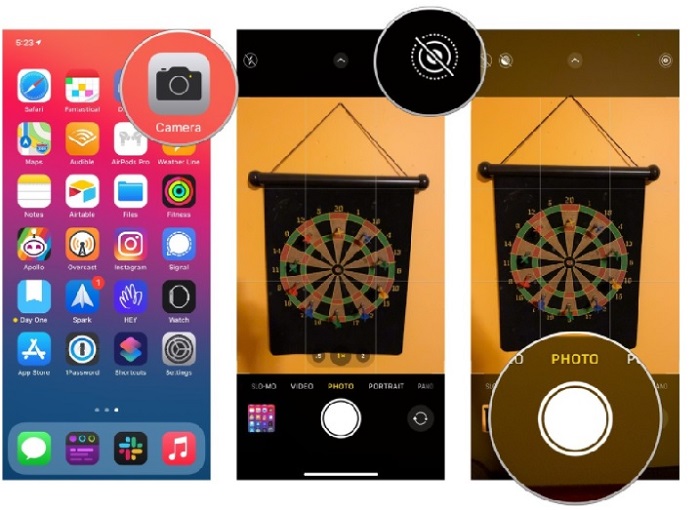
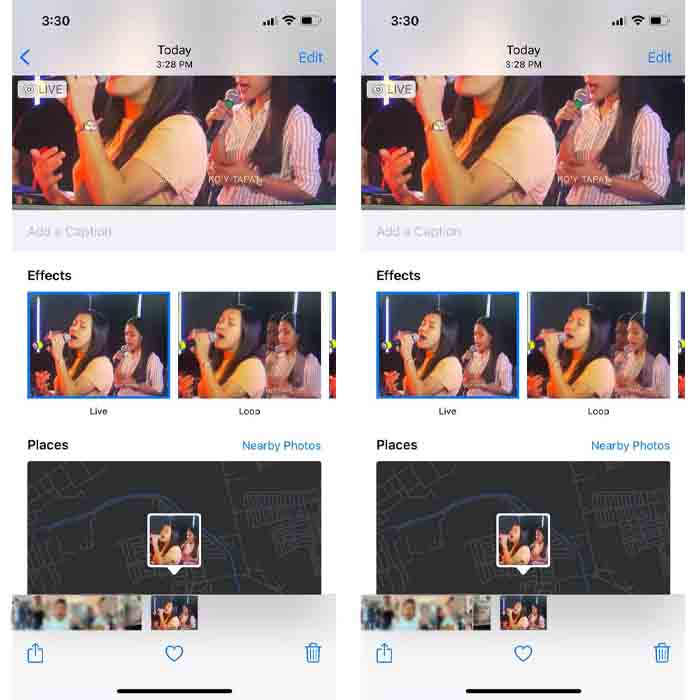
Βήμα 3. Μετά από αυτό, πατήστε τη μικρή τετράγωνη φωτογραφία στην κάτω αριστερή πλευρά της διεπαφής της κάμερας. Έπειτα, σαρώστε προς τα πάνω τη φωτογραφία και επιλέξτε εκεί τα εφέ GIF. Αφού τα επιλέξετε, το αρχείο θα αποθηκευτεί αυτόματα και θα είναι έτοιμο για κοινή χρήση με άλλους ή στα κοινωνικά δίκτυα.
Πλεονεκτήματα
- Δεν χρειάζεται να κάνετε λήψη γιατί είναι ήδη προεγκατεστημένο στο iPhone σας.
- Απλό στη χρήση ως εργαλείο επεξεργασίας.
Μειονεκτήματα
- Δεν μπορείτε να μετατρέψετε τις εικόνες σε GIF αν δεν είναι ζωντανή φωτογραφία.
- Δεν παρέχει πολλές δυνατότητες επεξεργασίας για να κάνετε το GIF σας εκπληκτικό.
Μέρος 2. Πώς να φτιάξετε ένα GIF στο iPhone με το GIPHY
Το GIPHY είναι μια τεράστια βιβλιοθήκη GIF, στην οποία μπορείτε να έχετε δωρεάν πρόσβαση, ειδικά αν εγγραφείτε. Μπορείτε επίσης να μοιραστείτε εδώ τα δικά σας έτοιμα GIF, βοηθώντας άλλους να χρησιμοποιήσουν τα GIF που δημιουργήσατε. Ωστόσο, το εργαλείο δεν υποστηρίζει τη χρήση πολλαπλών εικόνων για να τις ενώσει σε ένα GIF. Παρ’ όλα αυτά, τα φίλτρα που προσφέρει είναι εξαιρετικά και εύχρηστα. Αν λοιπόν θέλετε να χρησιμοποιήσετε το GIPHY και να δημιουργήσετε GIF, ακολουθήστε τα παρακάτω βήματα.
Βήμα 1. Κατεβάστε το GIPHY στο iPhone σας και ανοίξτε το μετά την εγκατάσταση.
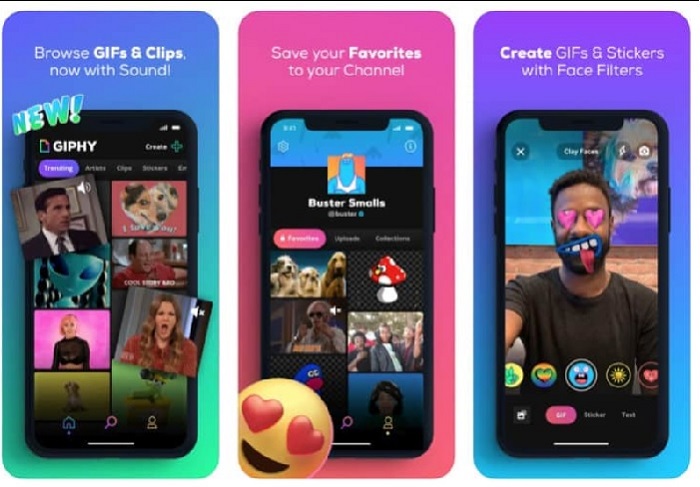
Βήμα 2. Πατήστε Create και στο επάνω αριστερό μέρος πατήστε το κουμπί album και επιτρέψτε στο εργαλείο να αποκτήσει πρόσβαση στις εικόνες σας.
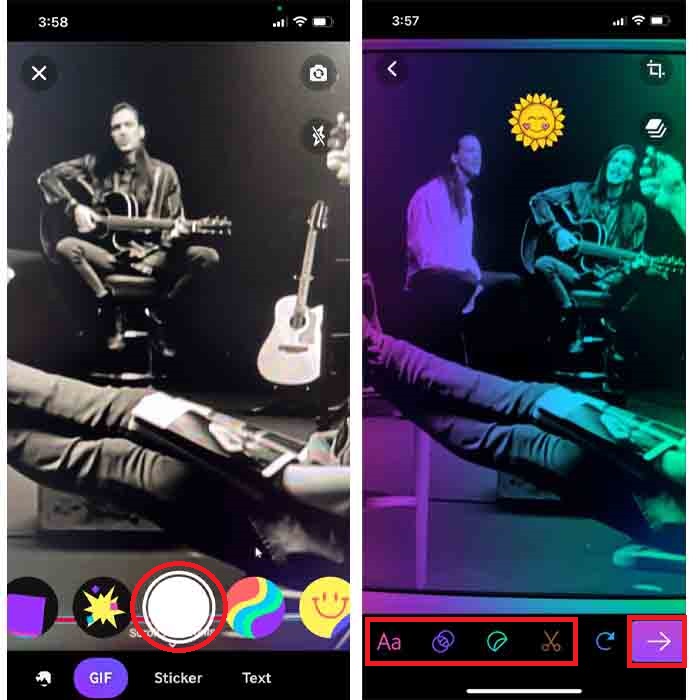
Στη συνέχεια επιλέξτε την εικόνα σας που θέλετε να μετατραπεί σε GIF και κάντε την επεξεργασία στη διεπαφή.
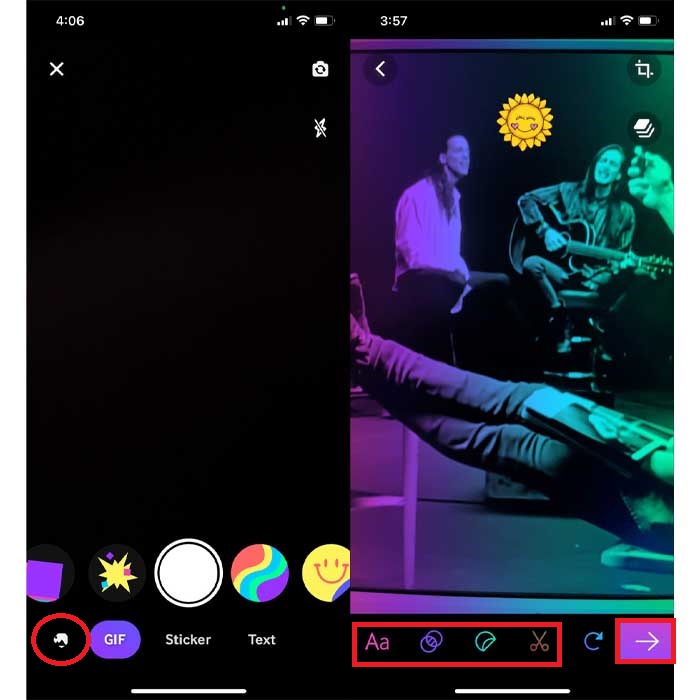
Βήμα 3. Δεν μπορείτε να αποθηκεύσετε το GIF απευθείας στο iPhone σας, οπότε έχετε δύο επιλογές. Η πρώτη είναι να το ανεβάσετε στο cloud storage του GIPHY και μετά να το κάνετε δημόσιο ή ιδιωτικό, ή να το κοινοποιήσετε αμέσως.
Πλεονεκτήματα
- Είναι μια τεράστια βιβλιοθήκη GIF.
- Έχει καλύτερο αποτέλεσμα από αυτό που προσφέρουν οι Φωτογραφίες.
Μειονεκτήματα
- Δεν μπορείτε να αποθηκεύσετε το ολοκληρωμένο GIF απευθείας στον αποθηκευτικό χώρο σας. Είτε θα το αποθηκεύσετε στον λογαριασμό που έχετε δημιουργήσει στο GIPHY είτε θα το μοιραστείτε.
- Δεν είναι δυνατή η μεταγλώττιση εικόνων για δημιουργία GIF.
Μέρος 3. Το πιο επαγγελματικό εργαλείο για τη δημιουργία GIF από πολλές φωτογραφίες
Αν το πρώτο εργαλείο που παρουσιάσαμε δεν σας δίνει τα GIF που θέλετε, τότε δοκιμάστε το Video Converter Ultimate. Αυτό το πρόγραμμα μπορεί να δημιουργήσει GIF από τις φωτογραφίες σας καλύτερα από τις δύο άλλες εγγενείς ή λήψιμες εφαρμογές. Το μειονέκτημα είναι ότι το εργαλείο είναι διαθέσιμο μόνο για υπολογιστές, επομένως πρέπει πρώτα να μεταφέρετε τις πολλαπλές φωτογραφίες σας στον υπολογιστή πριν φτιάξετε τα GIF. Επίσης, τα φίλτρα που μπορείτε να χρησιμοποιήσετε εδώ είναι εντυπωσιακά και πραγματικά θα σας καταπλήξουν. Για να μάθετε λοιπόν πώς να φτιάξετε ένα GIF σε iPhone από πολλές φωτογραφίες, ακολουθήστε τα παρακάτω βήματα.
Βήμα 1. Κατεβάστε πρώτα το Video Converter Ultimate και εγκαταστήστε το.
Δωρεάν ΛήψηΓια Windows 7 ή νεότεραΑσφαλής λήψη
Δωρεάν ΛήψηΓια MacOS 10.7 ή νεότεροΑσφαλής λήψη
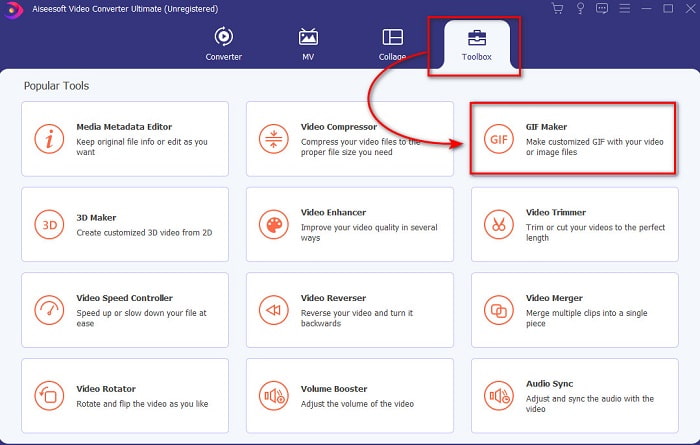
Βήμα 2. Στην ενότητα Toolbox πατήστε το GIF Maker.
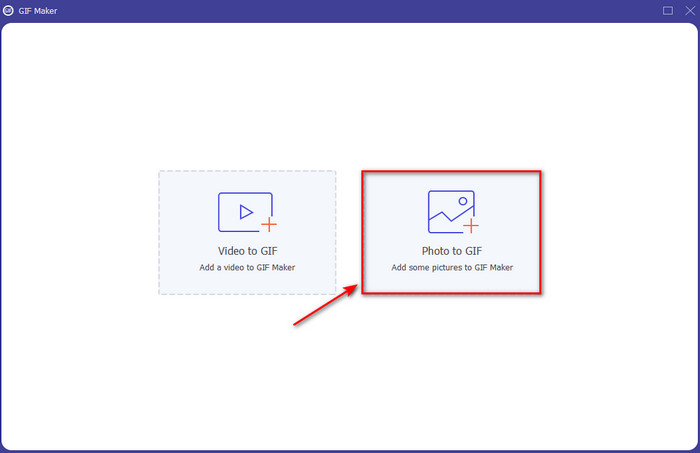
Βήμα 3. Πατήστε Photos to GIF, επιλέξτε τη φωτογραφία που θέλετε να μετατραπεί σε GIF και πατήστε Open. Επιπλέον, δεν μπορείτε να προσθέσετε πολλές εικόνες από την αρχή, αλλά μπορείτε να τις προσθέσετε αργότερα. Στη συνέχεια, αλλάξτε τις Ρυθμίσεις εξόδου για το GIF και πατήστε OK.
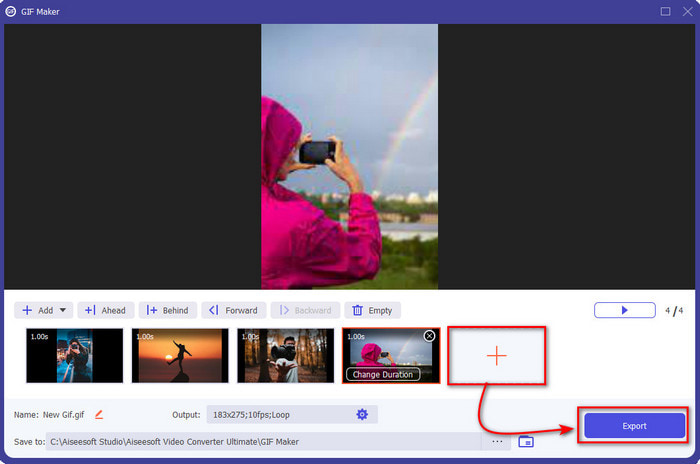
Βήμα 4. Για να προσθέσετε τις υπόλοιπες εικόνες, θα χρειαστεί να πατήσετε το κουμπί + και να επιλέξετε. Αφού εισαχθούν όλες οι εικόνες, πατήστε Export.
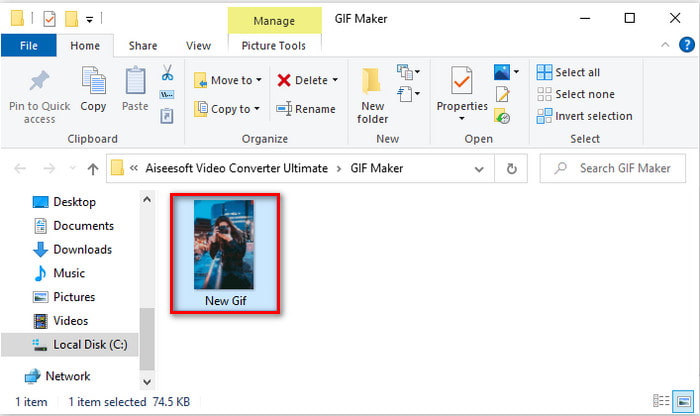
Βήμα 5. Περιμένετε μερικά δευτερόλεπτα και ένας φάκελος θα εμφανιστεί στην οθόνη σας με το GIF που δημιουργήσατε νωρίτερα.
Πλεονεκτήματα
- Ο εκπληκτικός επεξεργαστής στον οποίο μπορείτε να βασιστείτε για να κάνετε το GIF σας εξαιρετικό.
- Έχει πολλές προηγμένες δυνατότητες που μπορείτε να χρησιμοποιήσετε.
- Η εκμάθηση του τρόπου χρήσης αυτού του εργαλείου είναι ευκολότερη λόγω του on-point του.
Μειονεκτήματα
- Θα χρειαστεί να μεταφέρετε τις εικόνες στο iPhone σας στην επιφάνεια εργασίας.
- Πρέπει πρώτα να γίνει λήψη στον υπολογιστή σας για να μπορέσετε να αποκτήσετε πρόσβαση.
Μέρος 4. Συχνές ερωτήσεις σχετικά με τη δημιουργία GIF από τις Φωτογραφίες στο iPhone
Πώς να φτιάξετε ένα GIF στο Android από φωτογραφίες;
Μπορείτε να επαναλάβετε τα βήματα στο Μέρος 3 και απλώς να κάνετε το ίδιο πράγμα. Βασικά, θα χρειαστεί να μεταφέρετε όλο το βίντεο που θέλετε να μετατραπεί σε GIF στη μονάδα δίσκου σας. Στη συνέχεια, ακολουθήστε τα βήματα που παρέχονται παρακάτω.
Τι είναι ένα GIF;
Τα GIF είναι σήμερα πολύ δημοφιλή, επειδή μπορούν να κάνουν τα απλά μηνύματά μας πιο εκφραστικά και ουσιαστικά από ποτέ. Για να μάθετε περισσότερα για το τι είναι ένα GIF, πατήστε σε αυτόν τον σύνδεσμο και διαβάστε την εξήγηση.
Γιατί οι εικόνες μου γίνονται θολές όταν τις μετατρέπω σε GIF;
Επειδή τα GIF υποστηρίζουν μόνο 256 διαφορετικά χρώματα το μέγιστο. Σε αντίθεση με τα JPEG και PNG, αυτή η μορφή εικόνας υποστηρίζει πάνω από 16 εκατομμύρια συνδυασμούς χρωμάτων. Έτσι, τα JPEG και PNG παράγουν την υψηλότερη ποιότητα εικόνας σε σύγκριση με τα GIF. Αλλά τα JPEG και PNG δεν μπορούν να περιέχουν κινούμενα κινούμενα σχέδια όπως τα GIF.
συμπέρασμα
Καθώς φτάνουμε στο τέλος, είναι πλέον πιο εύκολο για εμάς να διαχειριζόμαστε και να δημιουργούμε GIF ακόμη και στα iPhone μας. Αν και όλα τα εργαλεία που αναφέρθηκαν σε αυτό το άρθρο μπορούν να σας βοηθήσουν να δημιουργήσετε απλά GIF, το Video Converter Ultimate παραμένει το καλύτερο. Προσφέρει πολλές επιπλέον δυνατότητες που μπορείτε να χρησιμοποιήσετε για να κάνετε τα βίντεό σας ακόμη πιο εντυπωσιακά, σε σημείο που να μην πιστεύετε ότι εσείς δημιουργήσατε αυτό το GIF. Μην συμβιβάζεστε λοιπόν με ένα απλό λογισμικό, όταν μπορείτε να έχετε το καλύτερο εργαλείο στα χέρια σας. Κατεβάστε το αμέσως και μετατρέψτε τη συλλογή των εικόνων σας σε GIF.
-
 Επιλέξτε το καλύτερο GIF Cropper Online και Offline για Περικοπή GIF [2021]
 Η επιλογή του καλύτερου εργαλείου περικοπής είναι απαραίτητη και ορισμένοι από τους κατασκευαστές GIF δεν παρείχαν αυτήν τη δυνατότητα. Αλλά ποιο είναι το καλύτερο εργαλείο περικοπής GIF για χρήση και πώς να το χρησιμοποιήσετε;
-
 5 καλύτερες επιλογές για εγγραφή μορφής GIF με συσκευές εγγραφής GIF για υπολογιστή και Mac
 Ποια είναι η καλύτερη συσκευή εγγραφής GIF που πρέπει να χρησιμοποιήσετε για την εγγραφή GIF; Η παρακάτω λίστα παρέχει στοιχεία σχετικά με το ποια είναι η καλύτερη συσκευή εγγραφής οθόνης.
-
 Πώς να μετατρέψετε MPG σε μορφή GIF [Online & Offline]
 Θέλετε να εκφράσετε ένα πολύ καλύτερο συναίσθημα; Στη συνέχεια, πρέπει να χρησιμοποιήσετε το GIF. Αυτή η εγγραφή θα σας διδάξει πώς να μετατρέψετε ένα αρχείο MPG σε GIF για να εκφράσετε πολύ καλύτερα τα συναισθήματά σας.
