


 Video Converter Ultimate
 Εγγραφή οθόνης
 Επισκευή βίντεο
 Ασφαλές κατέβασμα
Πώς να ξεθολώσετε εικόνες χρησιμοποιώντας τις πιο ισχυρές εφαρμογές
Είναι αρκετά απογοητευτικό να διαπιστώνεις ότι η φωτογραφία που τράβηξες είναι θολή. Η φωτογραφία σου είναι θολή επειδή το θέμα που φωτογραφίζεις κινείται, η κάμερα τρέμει ή ο φωτισμός στον χώρο δεν είναι καλός. Επιπλέον, δεν μπορείς να γυρίσεις πίσω τη στιγμή που τράβηξες τη φωτογραφία, κάτι που είναι πολύ απογοητευτικό. Η διόρθωση αυτής της εικόνας φαίνεται αδύνατη, αλλά δεν είναι. Ευτυχώς, υπάρχουν συγκεκριμένες μέθοδοι με τις οποίες μπορείς να ξεθολώσεις μια θολή εικόνα. Με τις καλύτερες εφαρμογές επιδιόρθωσης εικόνας, μπορείς να διορθώσεις τη θολή φωτογραφία σου. Αυτός ο οδηγός θα σου δείξει πώς να ξεθολώσεις μια εικόνα χωρίς κόπο.

Μέρος 1. Πώς να ξεθολώσετε μια εικόνα στο διαδίκτυο
Οι άνθρωποι προτιμούν να χρησιμοποιούν μια διαδικτυακή εφαρμογή για να ξεθάμπουν εικόνες, επειδή τους επιτρέπει να εξοικονομούν χώρο στις συσκευές τους. Επίσης, όταν χρησιμοποιείτε ένα διαδικτυακό εργαλείο, πρέπει απλώς να έχετε πρόσβαση στο πρόγραμμα περιήγησής σας. Βολικό σωστά; Ως εκ τούτου, αναζητούμε το καλύτερο online εργαλείο αναβάθμισης εικόνας για να διορθώσετε τη θαμπάδα της φωτογραφίας σας.
Το FVC Free Image Upscaler είναι η καλύτερη επιλογή αν ψάχνεις τρόπο να καθαρίσεις (deblur) μια εικόνα online. Επιπλέον, είναι δωρεάν και ασφαλές στη χρήση. Μπορείς επίσης να το έχεις πρόσβαση από όλους τους φυλλομετρητές, όπως Google, Firefox και Safari. Ακόμη, μπορείς να βελτιώσεις την ποιότητα της εικόνας σου με μεγέθυνση 2x, 4x, 6x και 8x. Επίσης, χρησιμοποιεί τεχνολογία ΤΝ (Τεχνητής Νοημοσύνης) που ανιχνεύει αυτόματα τα θολά σημεία της εικόνας σου και στη συνέχεια τα βελτιώνει.
Επιπλέον, το FVC Free Image Upscaler σάς δίνει τη δυνατότητα να διορθώσετε με ακρίβεια χαμένα pixel, υφές χρώματος και περισσότερες λεπτομέρειες. Και παρόλο που είναι διαδικτυακή εφαρμογή, έχει μια γρήγορη διαδικασία αναβάθμισης και δεν περιέχει διαφημίσεις που μπορεί να σας αποσπάσουν την προσοχή. Επομένως, εάν ενδιαφέρεστε να χρησιμοποιήσετε το δωρεάν πρόγραμμα αναβάθμισης εικόνας, ακολουθήστε τον παρακάτω απλό οδηγό.
Πώς να ξεθολώσετε τις εικόνες χρησιμοποιώντας το FVC Free Image Upscaler:
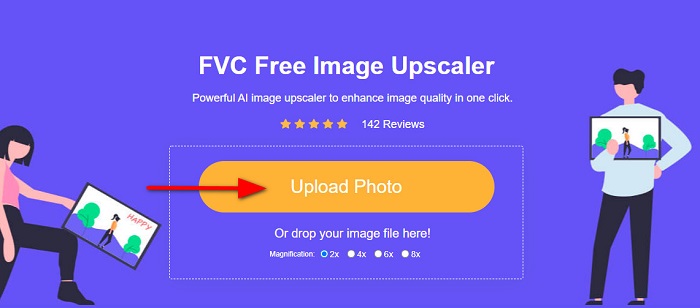
Βήμα 1. Πρώτα, άνοιξε τον φυλλομετρητή σου και πληκτρολόγησε FVC Free Image Upscaler στο πλαίσιο αναζήτησης. Μπορείς επίσης να κάνεις κλικ απευθείας στον σύνδεσμο για την κεντρική σελίδα. Έπειτα, εκκίνησε την εφαρμογή κάνοντας κλικ στο κουμπί Upload Photo. Αφού εκκινήσεις την εφαρμογή, προχώρα στο επόμενο βήμα.
Βήμα 2. Στην πρώτη οθόνη, κάνε κλικ στο κουμπί Upload Photo για να εισαγάγεις την εικόνα που θέλεις να ξεθολώσεις. Θα εμφανιστούν οι φάκελοι του υπολογιστή σου, όπου θα εντοπίσεις τη φωτογραφία σου. Κάνε κλικ στο Open για να την ανεβάσεις.
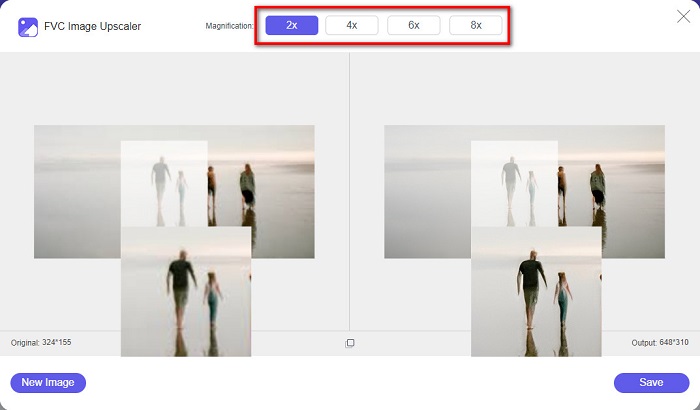
Βήμα 3. Αφού ανεβάσεις την εικόνα σου, επίλεξε το προεπιλεγμένο επίπεδο μεγέθυνσης που προτιμάς για την εικόνα. Μπορείς να επιλέξεις ανάμεσα σε μεγέθυνση 2x, 4x, 6x και 8x. Έπειτα, μπορείς να δεις την προεπισκόπηση του αποτελέσματος στα δεξιά, ώστε να διακρίνεις τη διαφορά από το αρχικό αρχείο σου.
Βήμα 4. Τέλος, αποθήκευσε το αποτέλεσμα κάνοντας κλικ στο κουμπί Save στην κάτω δεξιά γωνία της οθόνης.
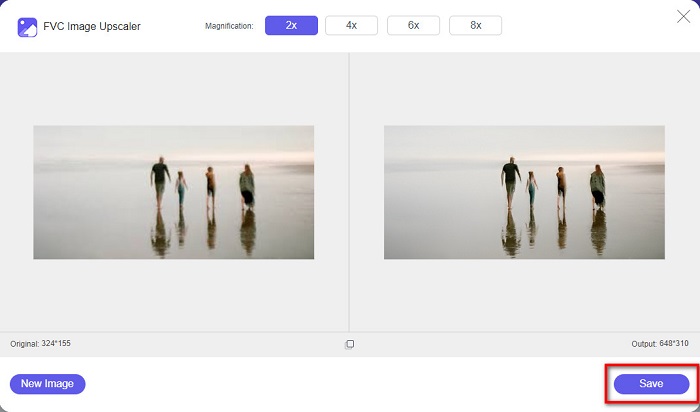
Και αυτά είναι τα βήματα για το πώς να ξεθολώσετε μια εικόνα στο διαδίκτυο. Θα δείτε από το αποτέλεσμα πώς αυτό το δωρεάν πρόγραμμα αναβάθμισης εικόνας μπορεί να σας βοηθήσει να διορθώσετε την ποιότητα της εικόνας σας.
Μέρος 2. Πώς να ξεθολώσετε μια εικόνα εκτός σύνδεσης στην επιφάνεια εργασίας
Πολλοί επαγγελματίες χρησιμοποιούν έναν υπολογιστή για την επεξεργασία εικόνων ή βίντεο. Επίσης, πολλές εφαρμογές επεξεργασίας φωτογραφιών είναι διαθέσιμες μόνο σε επιτραπέζιους υπολογιστές. Και σε αυτό το μέρος, θα σας μάθουμε τις καλύτερες μεθόδους για να ξεθολώσετε μια εικόνα εκτός σύνδεσης στην επιφάνεια εργασίας σας.
Ξεθάμπωμα εικόνας χρησιμοποιώντας το Photoshop
Το Adobe Photoshop είναι πιθανότατα η καλύτερη εφαρμογή επεξεργασίας εικόνας που μπορείς να χρησιμοποιήσεις για να ξεθολώσεις τις φωτογραφίες σου. Αυτή η εφαρμογή εκτός σύνδεσης διαθέτει πολλά εργαλεία και λειτουργίες επεξεργασίας που μπορείς να χρησιμοποιήσεις για να βελτιώσεις μια εικόνα. Επιπλέον, μπορείς να προσθέσεις ευκρίνεια στη φωτογραφία σου αν η ποιότητα δεν είναι καλή ή αν είναι θολή. Και χρησιμοποιώντας τα προηγμένα εργαλεία επεξεργασίας του, μπορείς σίγουρα να δημιουργήσεις εξαιρετικά αποτελέσματα. Επιπλέον, μπορείς να αφαιρέσεις άτομα ή αντικείμενα από την εικόνα σου, να σχεδιάσεις μια εικόνα ή ένα αντικείμενο με το εργαλείο μολυβιού ή πένας, να χειριστείς το χρώμα της φωτογραφίας σου και πολλά ακόμη. Με το Adobe Photoshop μπορείς να δημιουργήσεις εκπληκτικές εικόνες που έχεις επεξεργαστεί. Ωστόσο, το Adobe Photoshop δεν είναι ένα εργαλείο φιλικό προς αρχάριους. Χρειάζεσαι σε βάθος γνώση για το πώς να χρησιμοποιείς τα εργαλεία του, ώστε να ξεθολώσεις ή να επεξεργαστείς την εικόνα σου. Παρ’ όλα αυτά, θα σου δώσουμε τα βήματα για να χρησιμοποιήσεις το Photoshop ώστε να ξεθολώσεις εικόνες. Θα σου δείξουμε επίσης δύο τρόπους χρήσης του Photoshop για να μειώσεις τη θολούρα της εικόνας σου.
Διαδικασία αποθολώματος εικόνας χρησιμοποιώντας το Adobe Photoshop:
Βήμα 1. Κατέβασε το Adobe Photoshop στον υπολογιστή σου και εγκατέστησέ το. Μόλις το κατεβάσεις και το εγκαταστήσεις, εκτέλεσέ το στη συσκευή σου.
Βήμα 2. Έπειτα, άνοιξε την εικόνα που θέλεις να ξεθολώσεις στην κεντρική οθόνη. Μπορείς επίσης να πατήσεις CTRL + O στο πληκτρολόγιό σου για να ανοίξεις εύκολα την εικόνα σου.
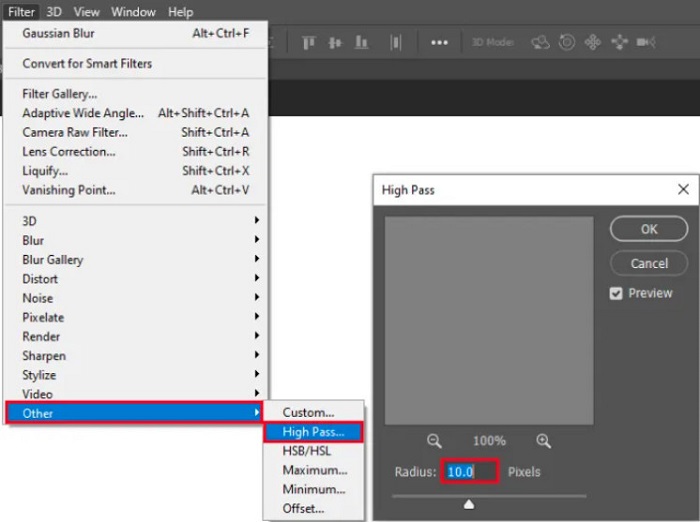
Βήμα 3. Στη συνέχεια, κάνε διπλότυπο το background του layer σου και επίλεξέ το. Έπειτα, κάνε κλικ στο Filter > Other > High Pass. Ρύθμισε το High Pass στο 10%.
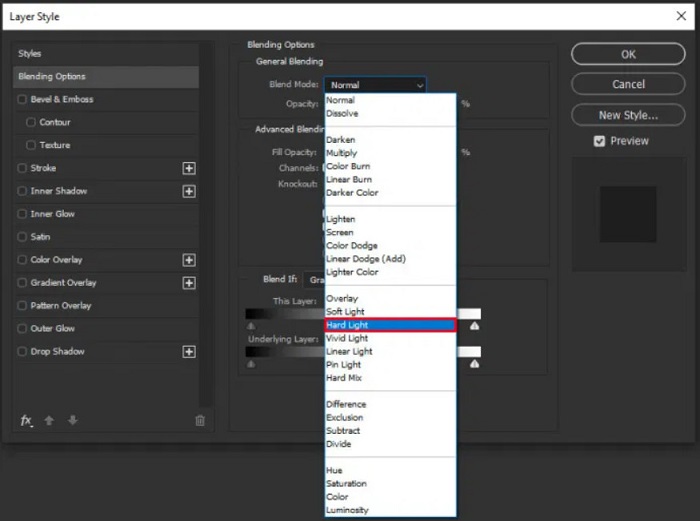
Βήμα 4. Στο παράθυρο Layer Style, άλλαξε το blend mode από normal σε hard light και στη συνέχεια τροποποίησε την opacity μέχρι η φωτογραφία να γίνει καθαρή ή βελτιωμένη.
Αν χρησιμοποιείς τη νέα έκδοση του Photoshop, μπορείς να χρησιμοποιήσεις την επιλογή μείωσης κουνήματος κάμερας (camera shake reduction) για να οξύνεις μια εικόνα με το Photoshop.
Βήμα 1. Εισήγαγε την εικόνα που θέλεις να ξεθολώσεις στο Photoshop.
Βήμα 2. Έπειτα, πήγαινε στο Filter > Sharpen > Shake Reduction.
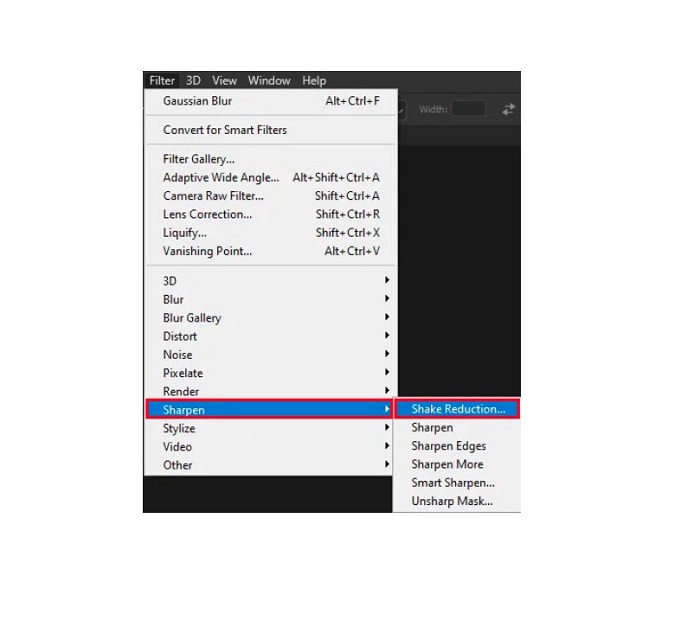
Βήμα 3. Στη συνέχεια, το Photoshop θα επεξεργαστεί την εικόνα σου και μετά θα μπορείς να δεις το τελικό αποτέλεσμα.
Ξεθάμπωμα εικόνας χρησιμοποιώντας το Paint.net
Ένα ακόμη δωρεάν πρόγραμμα επεξεργασίας φωτογραφιών εκτός σύνδεσης που μπορείς να χρησιμοποιήσεις είναι το Paint.net. Ένα από τα δυνατά χαρακτηριστικά αυτής της εφαρμογής είναι η όξυνση μιας εικόνας. Μετακινώντας τον ρυθμιστικό δείκτη (slider), μπορείς να ρυθμίσεις τον βαθμό ευκρίνειας στην εικόνα σου, δίνοντάς της πιο κοφτερή, καθαρή όψη και αφαιρώντας τη θολούρα. Επιπλέον, είναι πιο εύχρηστο από το Adobe Photoshop. Διαθέτει επίσης άλλες λειτουργίες επεξεργασίας που μπορείς να χρησιμοποιήσεις για να επεξεργαστείς τις φωτογραφίες σου. Κι αν δεν ξέρεις πώς να χρησιμοποιήσεις αυτή την εφαρμογή, μπορείς να έχεις πρόσβαση στις online συμβουλές και οδηγούς χρήσης της. Επιπλέον, είναι μία από τις πιο γνωστές εφαρμογές επεξεργασίας εικόνας για χρήστες Windows, επειδή διαθέτει πολλές λειτουργίες διόρθωσης που μπορείς να αξιοποιήσεις για να βελτιώσεις τη φωτογραφία σου. Ένα μικρό μειονέκτημα του Paint.net είναι ότι δεν μπορείς να διορθώσεις το κείμενο που έχεις εισαγάγει μετά την εφαρμογή των εφέ. Παρ’ όλα αυτά, αυτό το λογισμικό σου επιτρέπει να δημιουργείς αποτελέσματα επεξεργασίας πολλαπλών επιπέδων.
Πώς να ξεθολώσετε μια εικόνα χρησιμοποιώντας το Paint.net:
Βήμα 1. Για να ξεκινήσεις, άνοιξε την εικόνα σου στο Paint.net πατώντας CTRL + O στο πληκτρολόγιο. Μπορείς επίσης να πας στο File και να επιλέξεις την επιλογή Open. Έπειτα θα εμφανιστούν τα αρχεία της επιφάνειας εργασίας σου, όπου θα επιλέξεις την εικόνα σου και θα την ανοίξεις.
Βήμα 2. Στη συνέχεια, κάνε κλικ στο Effects > Picture και μετά επίλεξε Sharpen.
Βήμα 3. Έπειτα, στο παράθυρο Sharpen θα δεις τον ρυθμιστικό δείκτη, με τον οποίο θα ρυθμίσεις την ευκρίνεια της εικόνας σου για να την ξεθολώσεις. Μπορείς επίσης να πατήσεις το κουμπί με τα up/down arrow για να αλλάξεις τον βαθμό ευκρίνειας της φωτογραφίας σου.
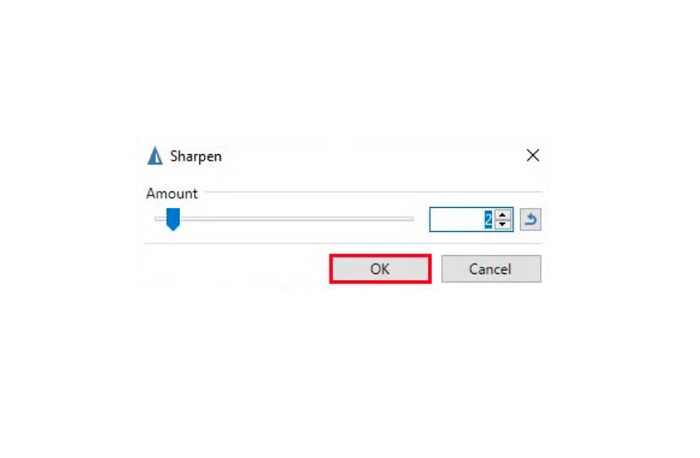
Βήμα 4. Πάτησε το κουμπί OK και αποθήκευσε το αποτέλεσμα.
Μέρος 3. Πώς να ξεθολώσετε μια εικόνα στο iPhone
Εάν είστε χρήστης συσκευής iPhone, μπορείτε επίσης να κατεβάσετε ορισμένες εφαρμογές για να ξεθολώσετε την εικόνα σας. Μπορείτε να επιλέξετε μεταξύ των εφαρμογών από το App Store σας για να ξεθολώσετε την εικόνα σας. Ωστόσο, ορισμένες εφαρμογές μπορούν να αγοραστούν, και πρέπει να τις αγοράσετε πριν τις χρησιμοποιήσετε. Αλλά σε αυτό το μέρος, θα σας διδάξουμε πώς να ξεθολώσετε την εικόνα σας στο iPhone σας χρησιμοποιώντας μια δωρεάν και αξιόλογη εφαρμογή.
Το Foton είναι μία από τις πιο δημοφιλείς εφαρμογές ξεθολώματος εικόνων στο iPhone. Μπορείς να κατεβάσεις αυτή την εφαρμογή δωρεάν από το AppStore. Επιπλέον, διαθέτει και άλλες λειτουργίες επεξεργασίας που μπορείς να χρησιμοποιήσεις, όπως κολάζ, περικοπή, προσθήκη προτύπων, διαχωρισμό και άλλα. Έχει επίσης ένα εύχρηστο περιβάλλον, κάτι που την κάνει φιλική προς τον χρήστη. Με αυτή την εφαρμογή μπορείς να ξεθολώσεις την εικόνα σου ρυθμίζοντας την ευκρίνειά της. Κι αν θέλεις να προσθέσεις περισσότερη «κοφτερή» λεπτομέρεια στη φωτογραφία σου για να την κάνεις ακόμη πιο εντυπωσιακή, μπορείς να ρυθμίσεις το contrast, την καθαρότητα (clarity), τον κορεσμό (saturation) και το dehaze της εικόνας σου. Επιπλέον, είναι ασφαλής στη χρήση, οπότε δεν χρειάζεται να ανησυχείς για την ασφάλεια των αρχείων εικόνας σου. Το μειονέκτημα αυτής της εφαρμογής είναι ότι πρέπει να αγοράσεις την pro έκδοση για να χρησιμοποιήσεις τις υπόλοιπες λειτουργίες της.
Πώς να ξεθολώσετε μια εικόνα στο iPhone:
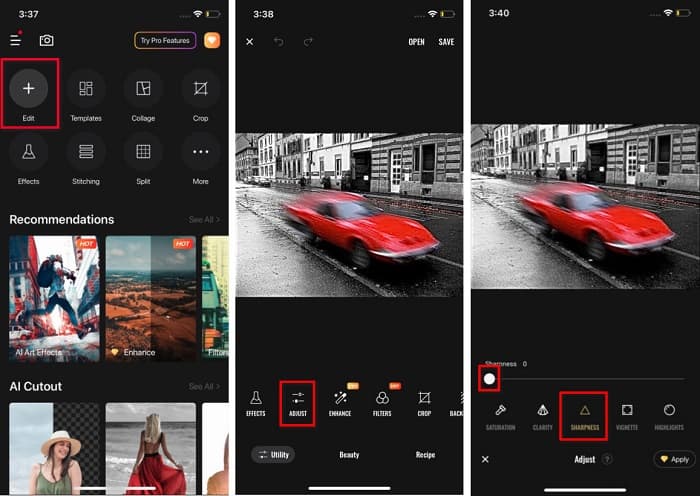
Βήμα 1. Άνοιξε το App Store στο iPhone σου και αναζήτησε το Foton. Εγκατέστησέ το στο τηλέφωνό σου και άνοιξέ το μόλις ολοκληρωθεί η εγκατάσταση. Έπειτα, στην κεντρική οθόνη της εφαρμογής, πάτησε την επιλογή Edit.
Βήμα 2. Επίλεξε την εικόνα που θέλεις να ξεθολώσεις και θα μεταφερθείς σε άλλη οθόνη. Πάτησε την επιλογή Adjust κάτω από την εικόνα σου και στη συνέχεια σύρε προς τα αριστερά για να βρεις τη λειτουργία Sharpness.
Βήμα 3. Στο παράθυρο Sharpness, σύρε τον ρυθμιστικό δείκτη στο επίπεδο ευκρίνειας που προτιμάς μέχρι να μειωθεί η θολούρα της εικόνας σου.
Βήμα 4. Τέλος, πάτησε το κουμπί Save στην επάνω δεξιά γωνία της οθόνης για να αποθηκεύσεις το αποτέλεσμα στη συσκευή iPhone σου. Κάνε κλικ εδώ για να μάθεις πώς να αλλάζεις το μέγεθος μιας εικόνας σε iPhone.
Μέρος 4. Πώς να ξεθολώσετε μια εικόνα στο τηλέφωνο Android
Πολλοί άνθρωποι διαθέτουν επίσης συσκευές Android και εάν χρησιμοποιείτε επίσης μία, μπορείτε να διαβάσετε αυτό το μέρος για να μάθετε πώς να ξεθάβετε μια εικόνα στο Android. Αναζητήσαμε τις πιο δημοφιλείς εφαρμογές ξεθολώματος φωτογραφιών για Android και τις δοκιμάσαμε μία προς μία. Ευτυχώς, βρήκαμε μια εφαρμογή που είναι καλύτερο να προτείνουμε.
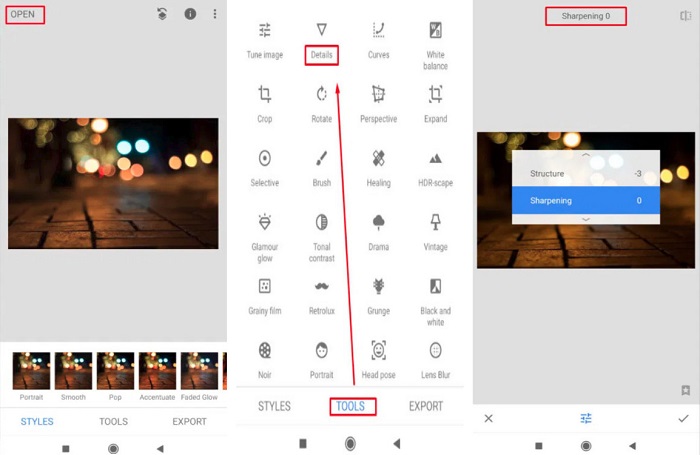
Το Snapseed είναι η καλύτερη εφαρμογή αν θέλεις να ξεθολώσεις την εικόνα σου σε συσκευή Android. Χρησιμοποιώντας τις λειτουργίες sharpen και structure, μπορείς να προσθέσεις ευκρίνεια στην εικόνα σου για να αφαιρέσεις τα θολά σημεία. Επιπλέον, διαθέτει πολλές λειτουργίες επεξεργασίας που μπορούν να σε βοηθήσουν να βελτιώσεις την ποιότητα της εικόνας σου. Και όπως και τα άλλα εργαλεία που αναφέραμε παραπάνω, έχει ένα απλό περιβάλλον χρήσης. Έτσι, αν είσαι αρχάριος, μπορείς να χρησιμοποιήσεις αυτή την εφαρμογή για να ξεθολώσεις την εικόνα σου. Ωστόσο, θα χρειαστεί να έχεις ενεργοποιημένο το WiFi σου πριν χρησιμοποιήσεις την εφαρμογή.
Πώς να ξεθολώσετε μια εικόνα στο Android χρησιμοποιώντας το Snapseed:
Βήμα 1. Κατέβασε την εφαρμογή στη συσκευή Android σου και άνοιξέ την. Αφού την ανοίξεις, φόρτωσε την εικόνα σου μέσα στην εφαρμογή.
Βήμα 2. Έπειτα, στον πίνακα Tools, επίλεξε την επιλογή Details.
Βήμα 3. Στη συνέχεια, επίλεξε το Sharpen ή το Structure της εικόνας σου για να αλλάξεις την όψη της θολής φωτογραφίας. Ρυθμίζοντας αυτές τις δύο επιλογές, θα αφαιρέσεις τη θολούρα από την εικόνα σου.
Μέρος 5. Συχνές ερωτήσεις σχετικά με το πώς να ξεθολώσετε μια εικόνα
Θα αυξηθεί το μέγεθος του αρχείου όταν ξεθολώνετε μια εικόνα;
Ναί. Όταν ξεθολώνετε μια εικόνα, το PPI της θα αυξηθεί, με αποτέλεσμα το μέγεθος του αρχείου να είναι μεγαλύτερο από το πρωτότυπο.
Γιατί η εικόνα μου γίνεται θολή όταν την κάνω μεγαλύτερη;
Μάλλον οφείλεται σε πρόβλημα συμπίεσης. Όταν προσπαθείτε να αλλάξετε το μέγεθος μιας εικόνας, μεγεθύνετε επίσης τα pixel της φωτογραφίας σας. Έτσι, η συμπίεση μιας εικόνας μπορεί να επηρεάσει την ποιότητα της εικόνας σας.
Μπορώ να ξεθολώσω μια εικόνα JPG στο Adobe;
Σίγουρα! Μπορείτε να χρησιμοποιήσετε το Adobe Photoshop εάν θέλετε να ξεθολώσετε μια εικόνα JPG. Το Adobe Photoshop υποστηρίζει τυπικές μορφές εικόνας, όπως PNG, JPG και JPEG
συμπέρασμα
Τώρα που ξέρεις πώς να ξεθολώσεις μια εικόνα με τους πιο απλούς τρόπους, μπορείς να διορθώσεις τις θολές φωτογραφίες σου. Όλες οι μέθοδοι που παρουσιάσαμε παραπάνω θα σε βοηθήσουν σίγουρα να πετύχεις τον στόχο σου. Αλλά αν θέλεις να εξοικονομήσεις χώρο στη συσκευή σου, προτείνουμε να χρησιμοποιήσεις το FVC Free Image Upscaler, στο οποίο έχεις πρόσβαση δωρεάν και online.
-
 Πώς να αλλάξετε το μέγεθος μιας εικόνας στο PowerPoint [Ο πιο γρήγορος τρόπος αλλαγής μεγέθους]
 Η εκμάθηση του τρόπου αλλαγής μεγέθους εικόνων στο PowerPoint είναι απαραίτητη ειδικά αν θέλετε να το χρησιμοποιήσετε στην παρουσίασή σας. Διαβάστε αυτό το άρθρο για να μάθετε πώς να το κάνετε.
-
 Εικόνα 1440p – Όλες οι πληροφορίες που θα χρειαστείτε [Ενημερώθηκε 2022]
 Θέλετε να μάθετε για τις εικόνες 1440p; Ή που μπορείτε να το προμηθευτείτε; Να μετατραπεί η εικόνα σας σε 1440p; Διαβάστε αυτό για να τα μάθετε όλα.
-
 Εκμάθηση για την αφαίρεση εικονοστοιχείων μιας εικόνας χρησιμοποιώντας το 3 καλύτερο πρόγραμμα Unpixelator φωτογραφιών
 Αντιμετωπίζετε πρόβλημα με το χειρισμό εικόνων με pixel; Σήμερα, λύσαμε το πρόβλημα και μπορείτε να χρησιμοποιήσετε τα εργαλεία που προσθέτουμε εδώ.
