


 Video Converter Ultimate
 Εγγραφή οθόνης
 Επισκευή βίντεο
Κατανοήστε πώς να κατεβάσετε το iFunny Link σε μορφή MP4 [Online & Offline]
Όπως όλοι γνωρίζουμε, το iFunny είναι ο νέος προμηθευτής memes στο διαδίκτυο. Προσφέρει επίσης καθημερινά ανανεωμένα memes σε διάφορες κατηγορίες. Ωστόσο, αν εξάγετε βίντεο από εκεί, υπάρχει πάντα ένα υδατογράφημα στην κάτω αριστερή πλευρά του βίντεο. Επιπλέον, σε αυτό το άρθρο θα μιλήσουμε για το πώς να κατεβάσετε και να αποθηκεύσετε αρχεία σε μορφή iFunny σε MP4 χωρίς κανένα υδατογράφημα. Χωρίς άλλη καθυστέρηση, ας περάσουμε στα εργαλεία που μπορείτε να χρησιμοποιήσετε για να αποθηκεύσετε βίντεο.

Μέρος 1. Οι καλύτερες μέθοδοι αποθήκευσης βίντεο iFunny σε MP4 σε υπολογιστή και Mac
1. Δωρεάν συσκευή εγγραφής οθόνης FVC
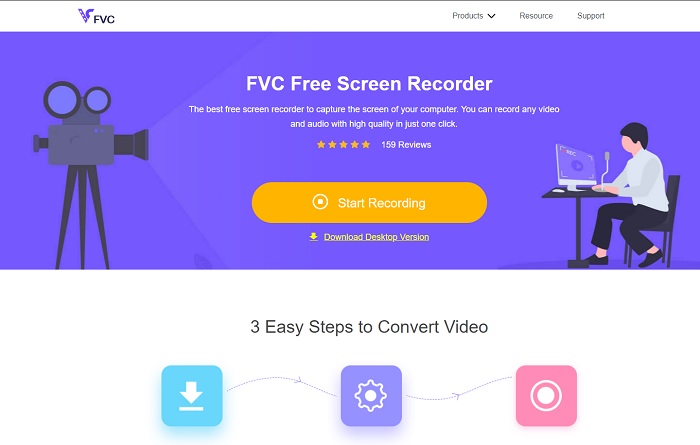
Αν το κατέβασμα βίντεο iFunny σε MP4 δεν είναι το δυνατό σας σημείο, τότε σίγουρα είναι η εγγραφή της οθόνης. Το FVC Free Screen Recorder σάς δίνει πλήρη έλεγχο της εγγραφής βίντεο μέσω της οθόνης σας. Επίσης, μπορείτε να αλλάξετε τη μορφή αν το θέλετε, αλλά υπάρχουν μόνο περιορισμένες επιλογές σε αυτή τη λειτουργία. Παρ’ όλα αυτά, είναι ασφαλές και αξιόπιστο, όχι μόνο επειδή έχει ενσωματωμένη βιβλιοθήκη για εύκολη πρόσβαση στις εγγραφές. Λοιπόν, κάντε χώρο για το καλύτερο διαδικτυακό εργαλείο που μπορείτε να βρείτε στο ίντερνετ. Ακολουθήστε τις παρακάτω οδηγίες καθώς εξηγούμε πώς να χρησιμοποιήσετε αυτό το εργαλείο.
Βήμα 1. Μεταβείτε στον σύνδεσμο που σάς παρέχουμε και θα ανοίξει μια ιστοσελίδα.
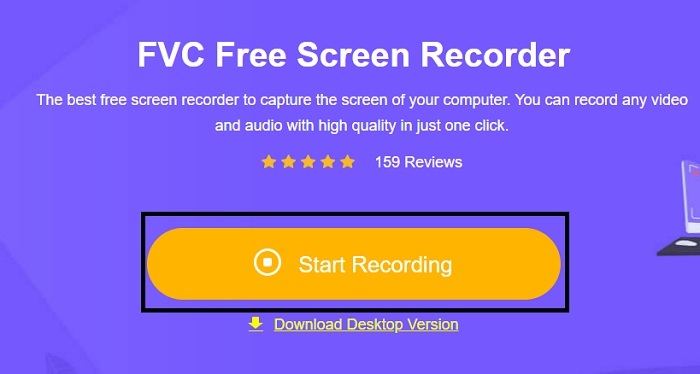
Βήμα 2. Για να ξεκινήσετε το εργαλείο, κάντε κλικ στο Start Recording και επιτρέψτε την εκτέλεση του εργαλείου.
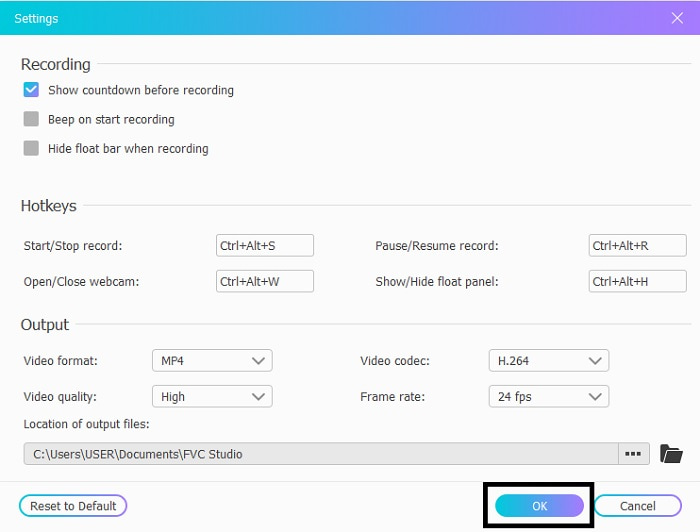
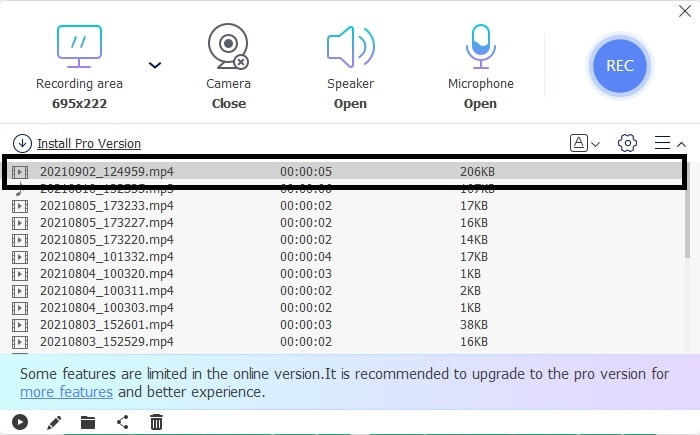
Βήμα 3. Στη μικρή γραμμή εργαλείων, κάντε κλικ στο εικονίδιο gear για να αλλάξετε τις ρυθμίσεις εγγραφής, τις συντομεύσεις (hotkeys) και την έξοδο, αν θέλετε. Για να αποθηκεύσετε τις αλλαγές, κάντε κλικ στο OK.
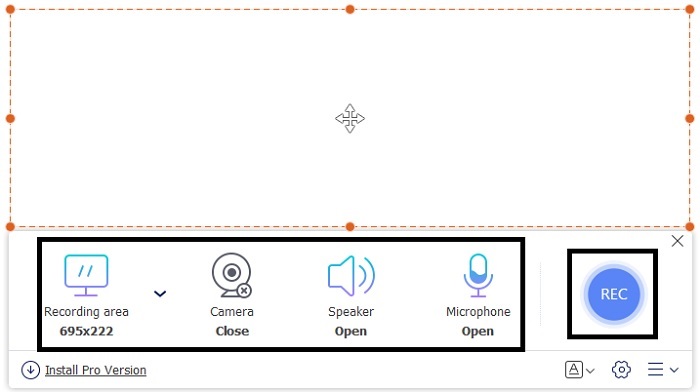
Βήμα 4. Τώρα προσαρμόστε το μήκος και το πλάτος της εγγραφής στην Recording Area. Αν θέλετε να προσθέσετε την αντίδραση του προσώπου σας, κάντε κλικ στο Webcam, προσθέστε τον ήχο του βίντεο ενεργοποιώντας το System Sound, και για να προσθέσετε τον δικό σας ήχο ενεργοποιήστε το Microphone. Κάντε κλικ στο στρογγυλό κουμπί REC για να ξεκινήσει η εγγραφή.
Βήμα 5. Όταν ολοκληρώσετε την εγγραφή, κάντε κλικ στο κουμπί με τον κύβο για να σταματήσει. Θα αποθηκευτεί αυτόματα στον δίσκο σας, αλλά μπορείτε να ελέγξετε το καταγεγραμμένο αρχείο στη λίστα History και να το παρακολουθήσετε.
2. Εγγραφή οθόνης FVC
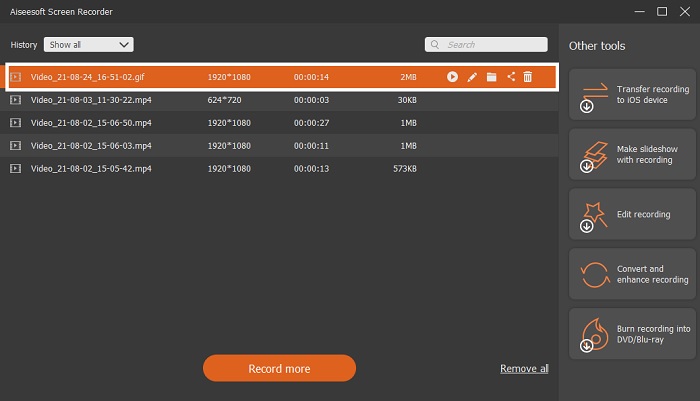
Γνωρίζουμε ότι τα διαδικτυακά εργαλεία σάς δίνουν μόνο περιορισμένες λειτουργίες, που σημαίνει ότι δεν μπορείτε να προσθέσετε και να εξερευνήσετε πολλά. Αλλά τι θα λέγατε αν μπορούσατε να γράφετε σε ανώτατο επίπεδο χωρίς καμία δυσκολία; Σας παρουσιάζουμε το FVC Screen Recorder, έναν πολυχρηστικό καταγραφέα οθόνης που εστιάζει στην καινοτομία και σε ένα πιο «μελλοντικό» περιβάλλον εργασίας. Ο καλύτερος τρόπος για να αποθηκεύσετε βίντεο iFunny χωρίς να χάσετε την ποιότητά τους είναι να τα καταγράψετε ως iFunny σε MP4. Διότι, αν μοιραστείτε ένα βίντεο σε άλλες πλατφόρμες μέσω iFunny, υπάρχει πιθανότητα να χαθεί η ποιότητά του, ειδικά όταν κατεβάζετε απλώς τον σύνδεσμο.
Ίσως αναρωτιέστε αν αυτό το εργαλείο δεν είναι φιλικό προς το χρήστη ή αν είναι εύκολο στη χρήση του δεν μπορεί να εγγράψει όπως κάνουν τα pro tools. Για να είμαι ειλικρινής, δεν υπάρχει τέτοιο εργαλείο που να αναπτύσσει αυτό το είδος λειτουργίας εκτός από το FVC Screen Recorder. Υπάρχουν τρία πράγματα για τα οποία είναι περήφανο αυτό το εργαλείο επειδή είναι εύκολο, αποτελεσματικό και χαμηλό κόστος, ενώ παράλληλα βιώνει εξαιρετική εγγραφή. Έτσι, χωρίς να καυχιόμαστε για αυτό, ας προχωρήσουμε στο πώς να το χρησιμοποιήσετε ακολουθώντας τα παρακάτω βήματα.
Βήμα 1. Επιλέξτε ποια έκδοση του προγράμματος υποστηρίζει τον υπολογιστή ή το laptop σας για να το κατεβάσετε. Η λήψη θα διαρκέσει ένα με δύο λεπτά για να αποθηκευτεί στον δίσκο σας. Εγκαταστήστε το και ρυθμίστε το εργαλείο σύμφωνα με τις προτιμήσεις σας και κάντε κλικ στο Finish για να αποθηκευτούν.
Free DownloadΓια Windows 7 ή νεότεραΑσφαλής λήψη
Free DownloadΓια MacOS 10.7 ή νεότεραΑσφαλής λήψη
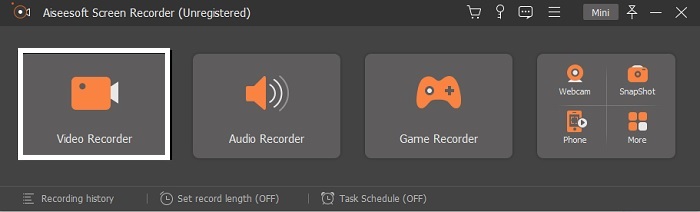
Βήμα 2. Το εργαλείο θα εκκινηθεί αυτόματα στην οθόνη σας. Κάντε κλικ στο Video Recorder για να καταγράψετε τα βίντεο iFunny.
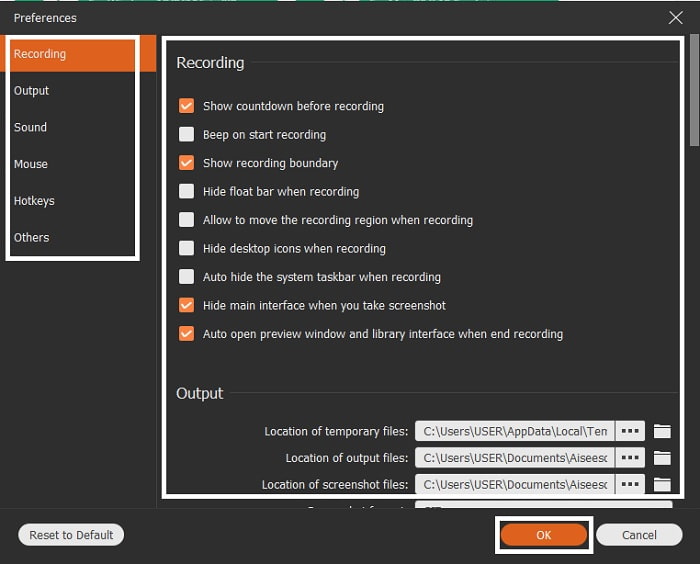
Βήμα 3. Στη γραμμή εργαλείων, πηγαίνετε στο εικονίδιο cog και αλλάξτε τις προτιμήσεις. Για να αποθηκεύσετε τις ρυθμίσεις που κάνατε, κάντε κλικ στο OK.
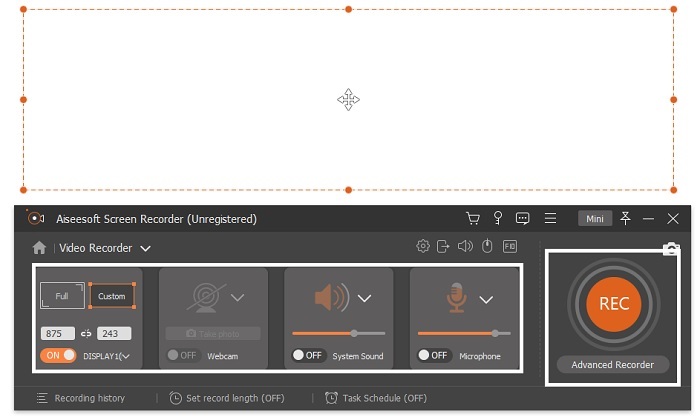
Βήμα 4. Αλλάξτε το screen ratio της εγγραφής με βάση αυτό που θέλετε. Άλλες λειτουργίες: για να προσθέσετε τις αντιδράσεις σας, ενεργοποιήστε το Webcam, για να προσθέσετε τον ήχο του βίντεο που γράφετε κάντε κλικ στο System Sound, και τέλος, για να προσθέσετε τη φωνή σας κάντε κλικ στο Microphone. Αν όλα είναι έτοιμα, κάντε κλικ στο κουμπί REC για να ξεκινήσει η εγγραφή.
Βήμα 5. Για να σταματήσετε την εγγραφή, κάντε κλικ στο κουμπί με το square. Για να αποθηκεύσετε το βίντεο iFunny και να το αποθηκεύσετε απευθείας σε μορφή MP4, κάντε κλικ στο Save και μετά στο Next. Αν θέλετε να παρακολουθήσετε την εγγραφή iFunny που κάνατε, πηγαίνετε στη Recording List και κάντε κλικ στην πρώτη καταχώρηση.
Μέρος 2. Σύνδεσμος iFunny στο Εργαλείο Web Downloader MP4
Όλα τα εργαλεία που αναφέρθηκαν στη λίστα είναι από τα καλύτερα που μπορείτε να χρησιμοποιήσετε για λήψη μέσω συνδέσμου. Αντιγράψτε τον σύνδεσμο iFunny για αποθήκευση σε MP4 με τη βοήθεια αυτών των εργαλείων.
1. TubeOffline
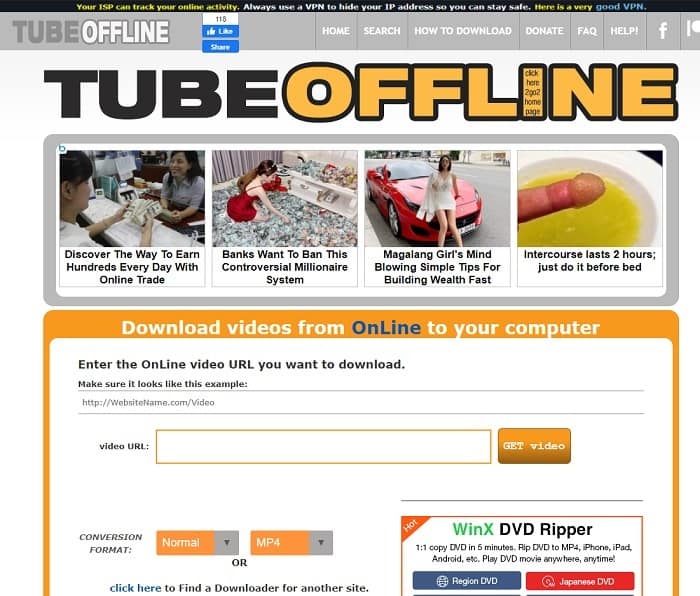
Μετατρέψτε τον σύνδεσμο iFunny με τη βοήθεια του TubeOffline. Αυτό το εργαλείο σάς βοηθά να κάνετε τη μετατροπή με ευκολία, αλλά το μειονέκτημά του είναι ότι έχει παντού διαφημίσεις. Επίσης, δεν υπάρχει όριο ηλικίας για τις διαφημίσεις που εμφανίζει. Καθώς δοκιμάσαμε το εργαλείο, διαπιστώσαμε ότι το περιβάλλον του δεν είναι κατάλληλο για άτομα κάτω των 18 ετών λόγω σεξουαλικού περιεχομένου στις διαφημίσεις. Όσο παραμένετε στην ιστοσελίδα, οι διαφημίσεις συνεχίζουν να πετάγονται από το πουθενά. Αν όμως δεν ενοχλείστε από τις διαφημίσεις, τότε αξίζει να το δοκιμάσετε.
2. ExpertsPHP
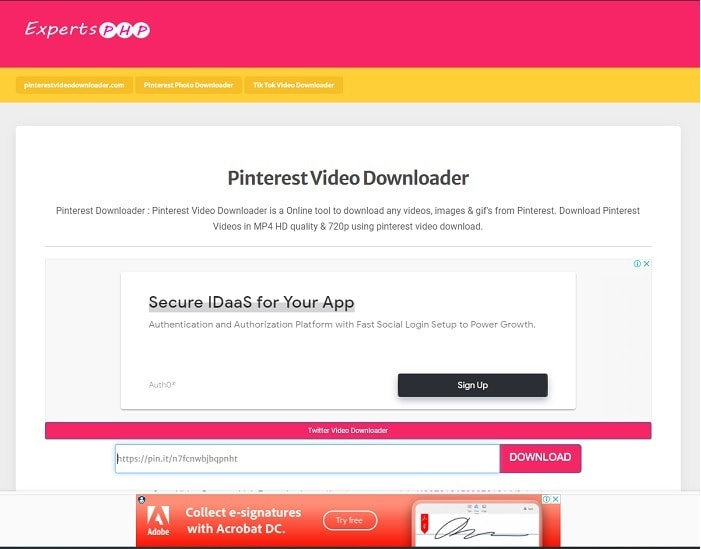
Αυτό το εργαλείο έχει κι αυτό διαφημίσεις, αλλά πολύ λιγότερες σε σχέση με το TubeOffline. Το ExpertsPHP μπορεί να γίνει ο downloader σας για iFunny link σε MP4, αν θέλετε να το χρησιμοποιήσετε. Αυτό το διαδικτυακό εργαλείο είναι πολύ απλό στη χρήση, πράγμα που σημαίνει ότι ακόμη και ένας αρχάριος μπορεί να το χειριστεί. Ωστόσο, προσφέρει μόνο δύο επιλογές: επιλέγετε ανάμεσα στις δύο και κάνετε λήψη. Αν και αυτό το εργαλείο μπορεί να είναι η επιλογή σας για την αποθήκευση βίντεο iFunny, εξακολουθούν να υπάρχουν προβλήματα αν το αρχείο δεν κατέβει σωστά. Παρ’ όλα αυτά, είναι πολύ καλύτερο από το πρώτο, ειδικά αν σάς ενοχλούν οι διαφημίσεις.
3. DoremiZone
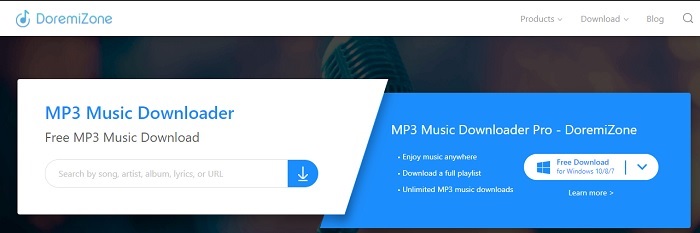
Αν τα δύο πρώτα εργαλεία για λήψη από το iFunny έχουν διαφημίσεις, το DoremiZone δεν έχει καθόλου. Αυτό το εργαλείο είναι πολύ κατατοπιστικό, καθώς δείχνει πώς να το χρησιμοποιήσετε. Ο μπλε και ο λευκός χρωματισμός ταιριάζουν τέλεια στην ιστοσελίδα. Επίσης, αντί να εισάγετε απλώς ένα URL και να κάνετε λήψη, το εργαλείο διαθέτει μια μοναδική μηχανή αναζήτησης αποκλειστικά για μουσική. Μπορείτε να αναζητήσετε τραγούδι, όνομα καλλιτέχνη και στίχους. Παρόλο που το εργαλείο προσφέρει αυτήν την προηγμένη λειτουργία, αν η σύνδεσή σας διακοπεί, υπάρχει μεγάλη πιθανότητα να λείπουν κάποια τμήματα κώδικα από το αρχείο.
Περαιτέρω ανάγνωση
Πώς να μετατρέψετε M2TS σε MKV
Μέρος 3. Συχνές ερωτήσεις σχετικά με το iFunny σε MP4
Είναι το iFunny κατάλληλο για πρόσβαση σε ανηλίκους;
Το απαιτούμενο όριο ηλικίας για πρόσβαση στο iFunny είναι 13+, αλλά αν δεν συνδεθείτε στον ιστότοπό του. Δεν υπάρχει καμία πιθανότητα ο προγραμματιστής του iFunny να παρακολουθεί αυτό το όριο ηλικίας και τις δραστηριότητες των ανηλίκων.
Μπορώ να μοιραστώ τα μιμίδια ή τα βίντεό μου στο iFunny;
Ναι, μπορείτε να μοιραστείτε τα μιμίδια ή τα βίντεό σας που έχουν δημιουργηθεί μέσω αυτής της πλατφόρμας. Μοιραστείτε τα μιμίδια που δημιουργήσατε εδώ και αφήστε τον κόσμο να τα χρησιμοποιήσει για να εκφράσει καλύτερα τα συναισθήματά του.
Μπορώ να δημιουργήσω GIF στο iFunny;
Μπορείτε να δημιουργείτε GIF στο iFunny, αλλά υπάρχει ένα πολύ καλύτερο εργαλείο που υποστηρίζει τη δημιουργία meme. Το FVC Ultimate Video Converter έχει ως μία από τις λειτουργίες του έναν δημιουργό GIF, με τον οποίο μπορείτε να φτιάξετε τα πιο ξεκαρδιστικά GIF που έχετε δει ποτέ. Πρέπει να κατεβάσετε αυτό το εργαλείο και να μεταβείτε στη γραμμή εργαλείων για να το χρησιμοποιήσετε.
συμπέρασμα
Συνοψίζοντας, η εγγραφή είναι ο ιδανικός και καλύτερος τρόπος για να αποθηκεύσετε βίντεο iFunny σε MP4. Όμως, η επιλογή ανάμεσα στα δύο εργαλεία μπορεί να είναι δύσκολη για εσάς. Καθώς αναζητούμε το καλύτερο εργαλείο που μπορεί να σάς δώσει το πιο εντυπωσιακό αποτέλεσμα που επιθυμείτε, το FVC Screen Recorder είναι το κορυφαίο στον τομέα της εγγραφής βίντεο, ήχου και ακόμη και gameplay. Αν αγοράσετε αυτό το εργαλείο, είναι σαν να έχετε ήδη προετοιμαστεί για το μέλλον. Το FVC Screen Recorder σάς υπόσχεται ακόμη πιο προηγμένες, «μελλοντικές» λειτουργίες καθώς συνεχίζει να εξελίσσεται.
-
 2 δωρεάν τρόποι μετατροπής ARF σε MP4 σε Mac & PC (100% Working)
 Λάβετε ένα αρχείο ARF, αλλά δεν ξέρετε πώς να το ανοίξετε; Αυτή η ανάρτηση μπορεί να σας βοηθήσει ακριβώς. Εδώ είναι 2 δωρεάν τρόποι για να μετατρέψετε ARF σε MP4 σε Mac και PC λεπτομερώς.
-
 Οδηγός για το πώς να μετατρέψετε το RMVB σε MP4 σε Windows / Mac (3 δωρεάν τρόποι)
 Θέλετε να μετατρέψετε το RMVB σε MP4 για εύκολη αναπαραγωγή στον υπολογιστή σας ή στο κινητό τηλέφωνο; Θα βρείτε απλούς τρόπους για να μετατρέψετε τα αρχεία RMVB σε MP4 σε αυτόν τον οδηγό.
-
 4 καλύτεροι μετατροπείς MP4 σε M4V για να μετατρέψετε τα βίντεο MP4 σε M4V με ευκολία
 Όταν πρέπει να αλλάξετε αρχεία MP4 σε M4V, θα πρέπει να μάθετε περισσότερες λεπτομέρειες σχετικά με τις διαφορές μεταξύ των δύο μορφών, καθώς και τους καλύτερους μετατροπείς MP4 σε M4V από το άρθρο.
