


 Video Converter Ultimate
 Εγγραφή οθόνης
 Επισκευή βίντεο
 Ασφαλές κατέβασμα
Από 50MB έως 5MB - Πώς να συμπιέσετε το αρχείο MP4 σε δευτερόλεπτα
Αφού τραβήξετε μερικά βίντεο, ίσως θελήσετε να τα ανεβάσετε στην ιστορία του Instagram ή να τα μοιραστείτε με τους φίλους σας. Ωστόσο, οι περισσότερες πλατφόρμες κοινωνικών μέσων έχουν όριο μεγέθους αρχείου για μεταφορτώσεις. Έτσι, όταν στέλνετε ένα βίντεο MP4 μέσω WhatsApp ή προσθέτετε ένα συνημμένο MP4 στο email σας, ενδέχεται να τα βρείτε πολύ μεγάλα για να τα ανεβάσετε μερικές φορές.
Επομένως, για να λύσετε αυτό το πρόβλημα, χρειάζεται να συμπιέσετε αρχεία MP4, ή με άλλα λόγια, να βοηθήσετε τα βίντεό σας να «χάσουν βάρος».
Το παρακάτω άρθρο θα σας καθοδηγήσει στο πώς να μειώσετε το μέγεθος των MP4 βίντεο χωρίς να θυσιάσετε την ποιότητα προβολής.

Μέρος 1. Πώς να συμπιέσετε MP4 βίντεο online & δωρεάν
Αν αναζητάτε έναν δωρεάν online συμπιεστή MP4 χωρίς εγγραφή ή κρυφές χρεώσεις, μπορείτε να δοκιμάσετε το FVC Free Video Compressor, το οποίο σας επιτρέπει να μειώσετε στο ελάχιστο οποιοδήποτε βίντεο 4K, HD ή SD σε μικρότερο αρχείο χωρίς υδατογράφημα. Και σε αντίθεση με άλλους δωρεάν συμπιεστές, μπορείτε να συμπιέσετε όσα MP4 βίντεο θέλετε δωρεάν, χωρίς όριο στο μέγεθος αρχείου ή στη διάρκεια του βίντεο.
Επιπλέον, επειδή αυτός ο συμπιεστής είναι ένα προϊόν που βασίζεται στον Ιστό, λειτουργεί τέλεια σε Windows, Mac και Linux. Μπορείτε να το χρησιμοποιήσετε εύκολα στο διαδίκτυο με πρόγραμμα περιήγησης, εφόσον είστε συνδεδεμένοι στο Διαδίκτυο.
Για να αποκτήσετε γρήγορα αυτό το εργαλείο συμπίεσης, ακολουθήστε τα παρακάτω βήματα.
Βήμα 1. Μεταβείτε στο FVC Free Video Compressor στον browser σας και κάντε κλικ στο Add Files to Compress για να εκτελέσετε το launcher. Αλλά αν χρησιμοποιείτε το εργαλείο για πρώτη φορά, κατεβάστε πρώτα το launcher.
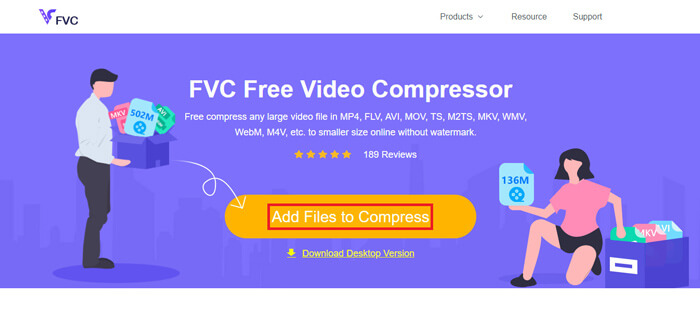
Βήμα 2. Αφού το εγκαταστήσετε, επιλέξτε το(α) αρχείο(α) MP4 που θέλετε να συμπιέσετε. Ρυθμίστε το μέγεθος του βίντεο, τη μορφή, την ανάλυση και το bitrate σύμφωνα με τις ανάγκες σας.
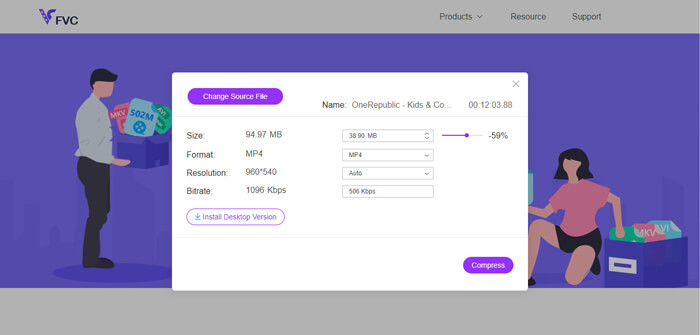
Βήμα 3. Κάντε κλικ στο Compress για να ξεκινήσει η συμπίεση.
Μέρος 2. Πώς να συμπιέσετε το MP4 χρησιμοποιώντας ένα δωρεάν λογισμικό χωρίς σύνδεση
Εάν το δίκτυό σας δεν είναι τόσο σταθερό, καλύτερα να συμπιέσετε βίντεο εκτός σύνδεσης στην επιφάνεια εργασίας σας, κάτι που αποφεύγει την επίδραση της κατάστασης δικτύου.
Το Video Converter Ultimate είναι ένα ολοκληρωμένο δωρεάν εργαλείο για συμπίεση, μετατροπή και επεξεργασία αρχείων βίντεο/ήχου στον υπολογιστή σας. Υποστηρίζει πάνω από 1.000 μορφές και σας προσφέρει 10 επιλογές ανάλυσης εξόδου. Μπορείτε να μετονομάσετε το βίντεο πριν από τη συμπίεση, ώστε να μπορείτε εύκολα να το ξεχωρίζετε από άλλα αρχεία MP4. Το ολοκαίνουργιο Video Converter Ultimate περιέχει μεγάλο αριθμό χρήσιμων δυνατοτήτων επεξεργασίας και πολλές εντυπωσιακές λειτουργίες, όπως επεξεργαστή μεταδεδομένων (Metadata editor), δημιουργό GIF (GIF maker), δημιουργό 3D (3D maker), βελτιωτή βίντεο (Video enhancer), κ.λπ.
Δωρεάν ΛήψηΓια Windows 7 ή νεότεραΑσφαλής λήψη
Δωρεάν ΛήψηΓια MacOS 10.7 ή νεότεροΑσφαλής λήψη
Βήμα 1. Εκκινήστε το Video Converter Ultimate στον υπολογιστή σας.
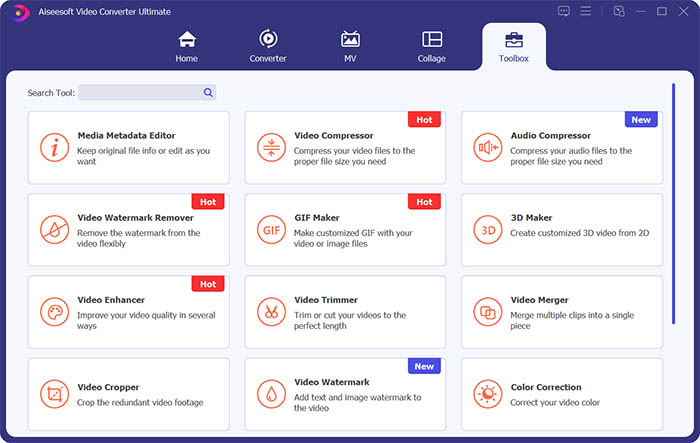
Βήμα 2. Κάντε κλικ στο Toolbox. Βρείτε το Video Compressor στο Toolbox. Κάντε κλικ στο εικονίδιο + για να προσθέσετε ένα βίντεο για συμπίεση.
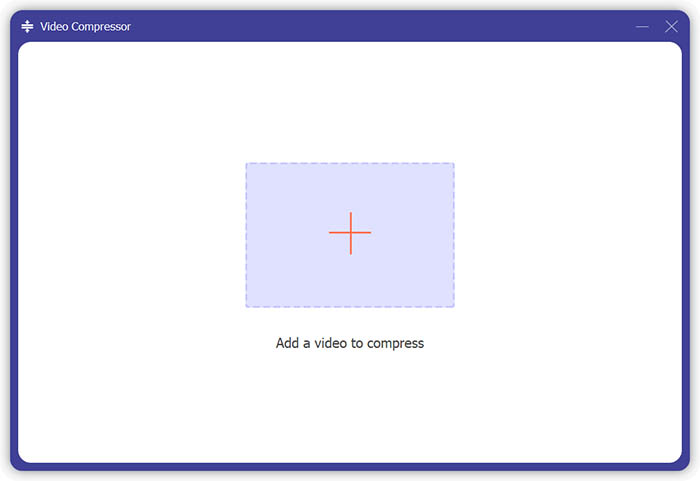
Βήμα 3. Μπορείτε να ρυθμίσετε το μέγεθος, το όνομα, τη μορφή, την ανάλυση και το bitrate του αρχείου εξόδου.
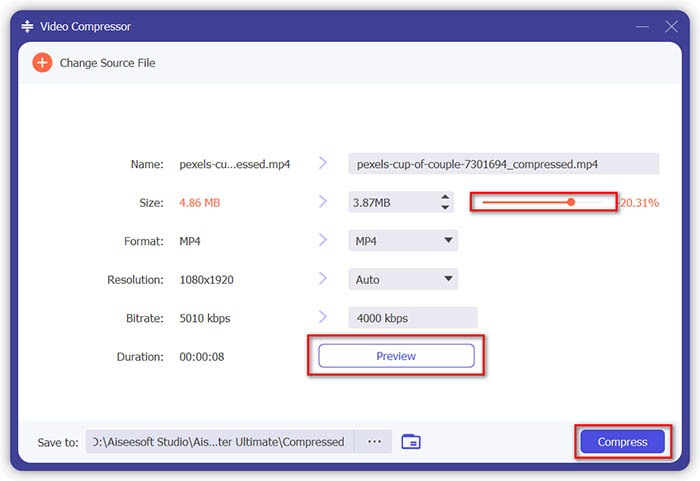
Βήμα 4. Κάντε κλικ στο κουμπί Compress και περιμένετε να λάβετε το MP4 βίντεό σας.
Μέρος 3. Πώς να συμπιέσετε αρχεία MP4 με το χειρόφρενο
Το HandBrake είναι επίσης ένα δωρεάν εργαλείο συμπίεσης βίντεο που μπορεί να σας βοηθήσει να ελαχιστοποιήσετε το μέγεθος του αρχείου MP4.
Βήμα 1. Κατεβάστε και εγκαταστήστε το HandBrake στον υπολογιστή σας. Έπειτα ανοίξτε το και κάντε κλικ στο File στα αριστερά. Επιλέξτε το αρχείο που θέλετε να συμπιέσετε.
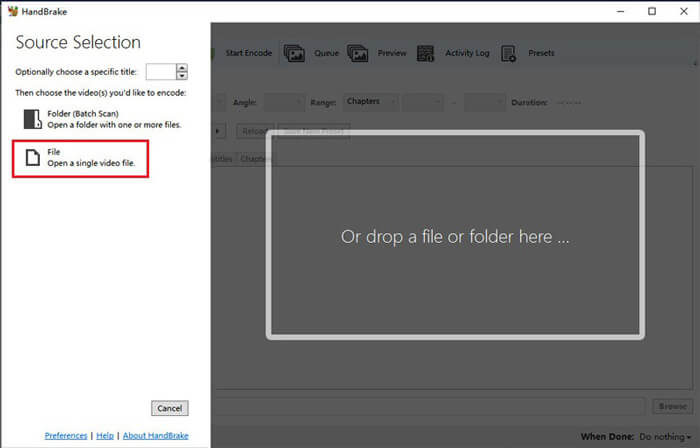
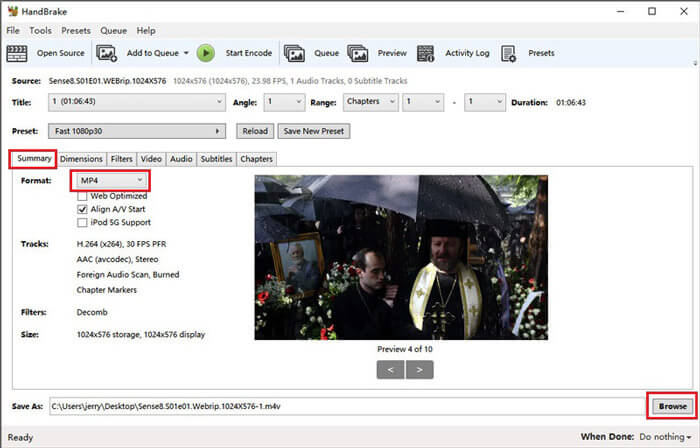
Βήμα 2. Αλλάξτε τη θέση αποθήκευσης του συμπιεσμένου βίντεο κάνοντας κλικ στο Browse. Μπορείτε επίσης να μετονομάσετε το βίντεο. Έπειτα επιλέξτε MP4 ως μορφή εξόδου.
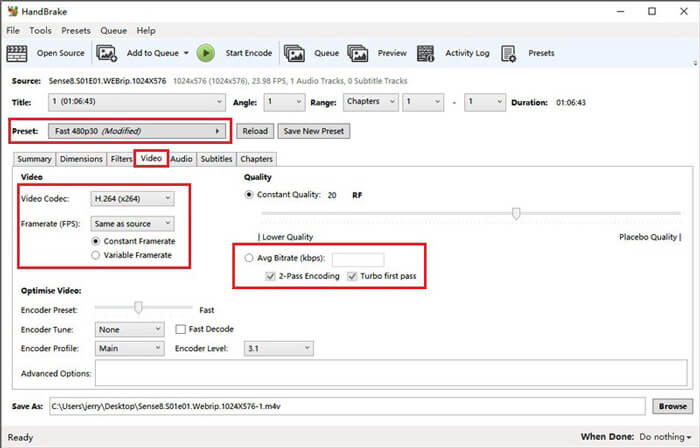
Βήμα 3. Για το Preset επάνω, το Fast 480p30 είναι μια χαρά. Μεταβείτε στην καρτέλα Video και ελέγξτε αν ο codec βίντεο είναι H.264 (x264). Επιλέξτε τον ρυθμό καρέ ανάλογα με το αρχικό σας βίντεο. Αν δεν ξέρετε τι να διαλέξετε, απλώς επιλέξτε Same as source. Τσεκάρετε το Constant Framerate για καλύτερη συμβατότητα. Εισαγάγετε ένα Average Bitrate (kbps) για το βίντεο (μεταξύ 5.000 και 10.000).
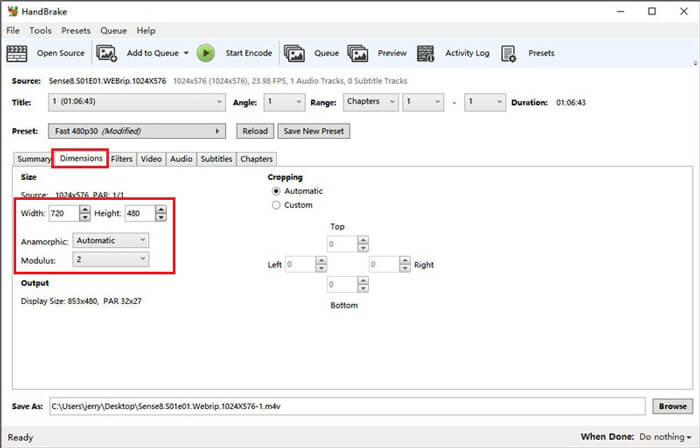
Βήμα 4. Κάντε κλικ στο Dimensions και αλλάξτε το μέγεθος του καρέ ή την ανάλυση του βίντεο. Αλλάξτε το Anamorphic σε None και το Modulus σε 2. Έπειτα τσεκάρετε το Keep Aspect Ratio. Αν χρειάζεται, μπορείτε να χρησιμοποιήσετε το arrow down στο Width για να μειώσετε το μέγεθος.
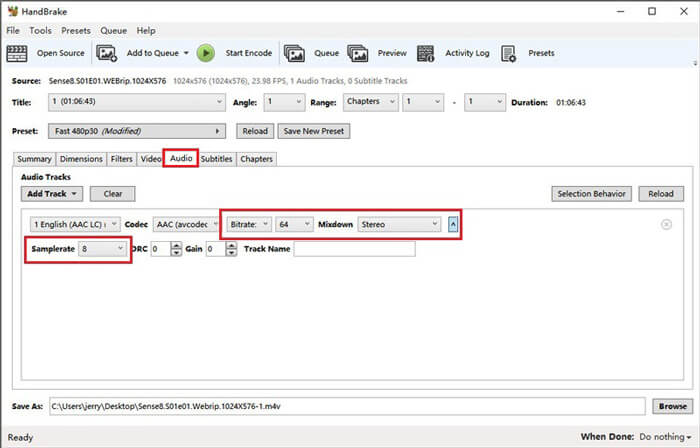
Βήμα 5. Επιλέξτε την καρτέλα Audio και ανοίξτε το κρυφό μενού ρυθμίσεων. Διαλέξτε 8 για το Samplerate και επιλέξτε Stereo για το Mixdown.
Βήμα 6. Πατήστε το κουμπί Start Encode για να ξεκινήσει η συμπίεση.
Για αρχάριους, στην πραγματικότητα δεν σας προτείνουμε να χρησιμοποιήσετε το HandBrake, επειδή είναι δύσκολο να κατανοήσετε και να προσαρμόσετε τις παραμέτρους. Και χρειάζεται πραγματικά πολύς χρόνος για την απόκτηση του συμπιεσμένου αρχείου.
Μέρος 4. Συχνές ερωτήσεις για τη συμπίεση MP4
1. Μπορεί το ffmpeg να συμπιέσει το MP4;
Ναι, μπορείτε να χρησιμοποιήσετε την ακόλουθη ακολουθία χαρακτήρων για να συμπιέσετε ένα αρχείο MP4:
$ ffmpeg -i input.mp4 -vcodec h264 -acodec mp2 output.mp4
Ωστόσο, κάποιοι ίσως διαπιστώσουν ότι το μέγεθος αυξήθηκε αντί να μειωθεί, όταν το βίντεο είναι ήδη αρκετά μικρό.
2. Μπορεί το HandBrake να εξάγει WMV, MOV και FLV;
Το HandBrake σας υποστηρίζει στη συμπίεση βίντεο μόνο σε μορφές MP4(.M4V) και MKV, που σημαίνει ότι δεν μπορεί να κάνει εξαγωγή αρχείων σε άλλες μορφές, όπως WMV, MOV, FLV, AVI κ.λπ. Αν χρησιμοποιήσετε το HandBrake για να πάρετε συμπιεσμένα βίντεο, τότε θα χρειαστεί να μετατρέψετε τα MP4 σε WMV ή σε άλλες μορφές μόνοι σας.
3. Η συμπίεση βίντεο MP4 χάνει ποιότητα;
Η ποιότητα σίγουρα θα χαθεί, λίγο ή πολύ, όταν συμπιέζουμε MP4 από πλήρες μέγεθος σε μικρότερο. Ωστόσο, με έναν επαγγελματικό συμπιεστή βίντεο όπως το FVC Free Video Compressor και το Video Converter Ultimate, μπορείτε να διατηρήσετε όσο το δυνατόν περισσότερο την αρχική ποιότητα εικόνας. Επίσης, η χρήση ενός καλού MP4 player για την αναπαραγωγή αρχείων MP4 μπορεί να σας βοηθήσει να έχετε έξοδο υψηλής ποιότητας.
συμπέρασμα
Μέχρι στιγμής, σας παρουσιάσαμε 3 μεθόδους για να συμπιέσετε MP4 σε μικρότερο μέγεθος. Αν δεν θέλετε να εγκαθιστάτε πολύ λογισμικό στον υπολογιστή σας, μπορείτε να δοκιμάσετε το FVC Free Video Compressor, που είναι online και δωρεάν στη χρήση. Αλλά αν χρειάζεστε έναν ισχυρό επεξεργαστή βίντεο, το Video Converter Ultimate είναι η καλύτερη επιλογή σας. Ελπίζουμε να βρήκατε χρήσιμη αυτήν την ανάρτηση και μην ξεχάσετε να μας αφήσετε ένα μήνυμα για να εκφράσετε τις απόψεις σας.
-
 Πώς να μετατρέψετε MP4 σε WMV για Mac / Windows
 Αυτή η ανάρτηση μοιράζεται τον τρόπο μετατροπής βίντεο MP4 σε μορφή WMV σε Mac ή Windows. Θα σας προσφέρουμε επίσης διάφορες επιλογές, όπως λογισμικό επιτραπέζιου υπολογιστή και διαδικτυακούς μετατροπείς που βασίζονται στον Ιστό. Είστε έτοιμοι να μάθετε τα καλύτερα εργαλεία μετατροπής MP4 σε WMV;
-
 Πώς να μετατρέψετε τα αρχεία βίντεο MP4 σε κινούμενες εικόνες GIF χωρίς απώλεια ποιότητας
 Ψάχνετε τον καλύτερο τρόπο για να μετατρέψετε το βίντεο MP4 σε κινούμενα GIF; Εδώ είναι ένας αναλυτικός οδηγός για να το κάνετε στο Photoshop, το Windows Movie Maker, τον online μετατροπέα βίντεο και άλλα.
-
 MOV VS MP4 - Ποιο είναι καλύτερο
 MOV VS MP4, ποιο είναι καλύτερο; Αυτή η ανάρτηση λέει τη διαφορά μεταξύ MP4 και MOV, ώστε να έχετε την καλύτερη επιλογή για χρήση στα αρχεία βίντεο.
