


 Video Converter Ultimate
 Εγγραφή οθόνης
 Επισκευή βίντεο
 Ασφαλές κατέβασμα
Πώς να διορθώσετε το χρώμα με τα καλύτερα 5 εργαλεία που πρέπει να έχετε
Η διόρθωση χρώματος είναι μια θεμελιώδης διαδικασία στο μοντάζ βίντεο που βελτιώνει και «δένει» τα χρώματα σε ένα βίντεο, προσφέροντας ένα οπτικά ελκυστικό και εντυπωσιακό αποτέλεσμα. Περιλαμβάνει τη ρύθμιση της αντίθεσης, του κορεσμού, της φωτεινότητας και των αποχρώσεων ενός βίντεο, ώστε να επιτευχθεί η ιδανική οπτική ατμόσφαιρα. Είτε είστε επαγγελματίας βιντεογράφος είτε επίδοξος δημιουργός περιεχομένου, η κατανόηση του τρόπου εφαρμογής της διόρθωσης χρώματος αλλάζει τα δεδομένα στην παράδοση ολοκληρωμένων οπτικών. Η διαδικασία ξεκινά με τον εντοπισμό και την ανάλυση της υπάρχουσας χρωματικής ισορροπίας, των φωτεινών σημείων, των σκιών και των μεσαίων τόνων στο υλικό του βίντεο. Στη συνέχεια, γίνονται ρυθμίσεις με τη χρήση εξειδικευμένου λογισμικού που προσφέρει αυθεντικό έλεγχο πάνω σε αυτά τα χρωματικά στοιχεία. Ας εμβαθύνουμε σε αυτό το άρθρο για να μάθουμε πώς να διορθώσετε προβλήματα χρώματος σε βίντεο με τα καλύτερα εργαλεία στα οποία μπορείτε να βασιστείτε.

Μέρος 1. Πέντε τρόποι για το πώς να διορθώσετε το χρώμα του βίντεο
Η εύρεση διάφορων δωρεάν διορθώσεων χρωμάτων προγράμματος επεξεργασίας βίντεο στο διαδίκτυο για να αυξήσετε την οπτική ελκυστικότητα του βίντεό σας μπορεί να είναι τόσο εύκολη όσο νομίζετε. Ωστόσο, η αναζήτηση πιο προηγμένων και αξιόπιστων είναι κάπως δύσκολη για να δημιουργήσετε τη σωστή διάθεση για τα βίντεό σας. Ανακαλύψτε πέντε αποτελεσματικούς τρόπους για να τελειοποιήσετε τα χρώματα του βίντεό σας χρησιμοποιώντας διάφορα ευέλικτο λογισμικό, βελτιώνοντας την αφήγηση και προσελκύοντας το κοινό σας.
1. Video Converter Ultimate
Το Video Converter Ultimate είναι μια ολοκληρωμένη λύση βίντεο που σας δίνει τη δυνατότητα να βελτιώσετε την ποιότητα του βίντεό σας ρυθμίζοντας βασικές παραμέτρους, όπως φωτεινότητα, αντίθεση και κορεσμό. Αυτός ο εύχρηστος διορθωτής χρώματος σάς επιτρέπει επίσης να επεξεργάζεστε βίντεο με λειτουργίες όπως περικοπή, κόψιμο και συγχώνευση. Επιπλέον, προσφέρει μια πληθώρα επιλογών για μετατροπή βίντεο, επιτρέποντάς σας να μετατρέπετε βίντεο σε χιλιάδες μορφές και να τα προσαρμόζετε για διάφορες συσκευές, όπως MP4, MKV, MOV, MP3, AAC, GIF, iPhone, Samsung και Apple TV, ώστε να μπορούν να απολαμβάνονται σε διαφορετικές πλατφόρμες. Επιπρόσθετα, οι χρήστες μπορούν να προσθέτουν υπότιτλους και υδατογραφήματα, ώστε να κάνουν τα βίντεό τους πιο προσωπικά. Με ένα απλό, κατανοητό περιβάλλον εργασίας, αυτό το εργαλείο είναι ιδανικό είτε είστε αρχάριος είτε έμπειρος χρήστης. Ακολουθήστε τα παρακάτω βήματα για να μάθετε πώς να διορθώνετε τα χρώματα του βίντεό σας χρησιμοποιώντας το Video Converter Ultimate με επιτυχία.
Βήμα 1: Λήψη και εγκατάσταση του διορθωτή χρώματος
Αρχικά, αποκτήστε το εργαλείο κάνοντας κλικ σε ένα από τα κουμπιά Free Download παρακάτω. Ανάλογα με το λειτουργικό σύστημα του υπολογιστή σας, βεβαιωθείτε ότι κατεβάζετε την έκδοση του Video Converter Ultimate που είναι κατάλληλη για τον υπολογιστή σας. Ακολουθήστε τις οδηγίες για να το εγκαταστήσετε.
Δωρεάν λήψηΓια Windows 7 ή νεότεραΑσφαλής λήψη
Δωρεάν λήψηΓια MacOS 10.7 ή νεότεροΑσφαλής λήψη
Βήμα 2: Εκκίνηση του Video Converter Ultimate
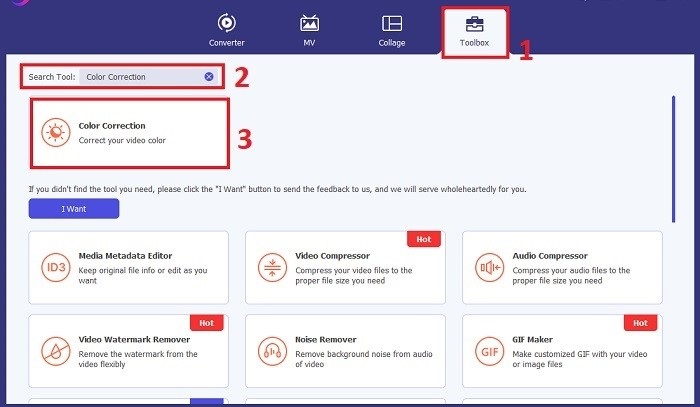
Αφού ολοκληρωθεί η εγκατάσταση, ανοίξτε το Video Converter Ultimate. Μεταβείτε στο Toolbox στο κύριο μενού και βρείτε τη λειτουργία Color Correction. Κάντε κλικ σε αυτήν για να συνεχίσετε.
Βήμα 3: Εισαγωγή του βίντεο για διόρθωση χρώματος
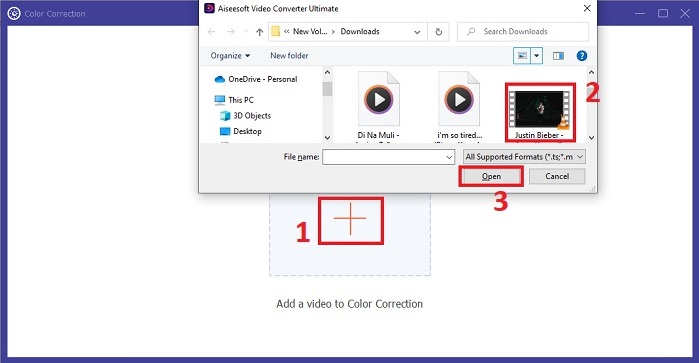
Τώρα, κάντε κλικ στο κουμπί Plus για να εισαγάγετε το βίντεο στο οποίο θέλετε να διορθώσετε τα χρώματα. Εντοπίστε το αρχείο βίντεο στον υπολογιστή σας. Έπειτα, επιλέξτε Open για να το φέρετε μέσα στο λογισμικό.
Βήμα 4: Ρύθμιση των χρωματικών παραμέτρων του βίντεο και αποθήκευση
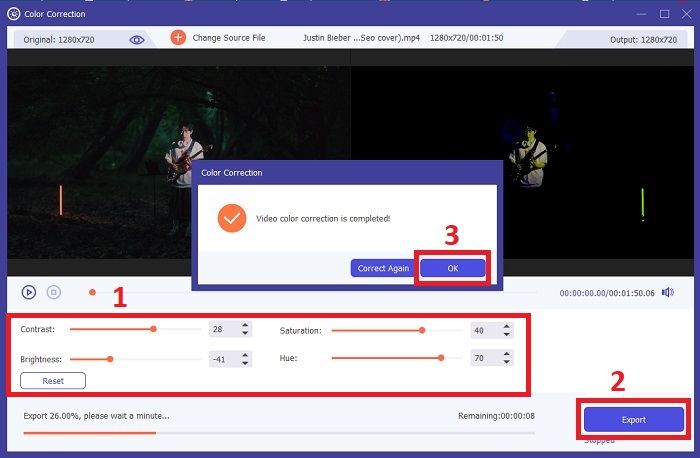
Αφού εισαγάγετε το βίντεο, ρυθμίστε με ακρίβεια τις χρωματικές παραμέτρους, όπως φωτεινότητα, αντίθεση, κορεσμό και απόχρωση, ώστε να πετύχετε τη διόρθωση χρώματος που επιθυμείτε. Όταν μείνετε ικανοποιημένοι με τις ρυθμίσεις χρώματος, κάντε κλικ στο Export. Αφήστε το εργαλείο να επεξεργαστεί το βίντεο και να αποθηκεύσει τη διορθωμένη έκδοση στην τοποθεσία που επιλέξατε.
2. Color Correction Premiere Pro
Το Premiere Pro είναι γνωστό για το λογισμικό επεξεργασίας βίντεο υψηλής ποιότητας και τις ολοκληρωμένες ικανότητες διόρθωσης χρωμάτων. Προσφέρει διάφορα εργαλεία και εφέ ταξινόμησης χρωμάτων για ακριβείς προσαρμογές. Το Color Correction Premiere Pro σάς δίνει τη δυνατότητα να προσαρμόσετε την ισορροπία χρωμάτων και την έκθεση ή να εφαρμόσετε δημιουργικές εμφανίσεις για να επιτύχετε το επιθυμητό οπτικό στυλ. Μπορείτε επίσης να επιλέξετε από τα εκατοντάδες ενσωματωμένα εφέ βίντεο και τις μεταβάσεις ή να ξεκινήσετε με επαγγελματικά σχεδιασμένα πρότυπα και να τα τροποποιήσετε για να δημιουργήσετε το επιθυμητό αποτέλεσμα. Επιπλέον, διαθέτει χαρακτηριστικά συνεργασίας και ενσωματώνεται ομαλά με άλλο λογισμικό της Adobe, γεγονός που το καθιστά κορυφαία επιλογή μεταξύ των επαγγελματιών.
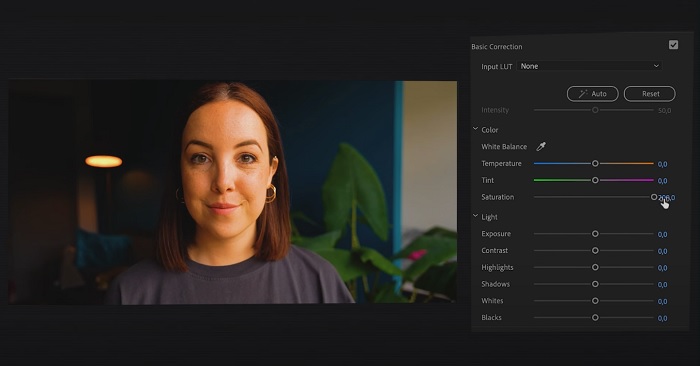
Βήμα 1. Ξεκινήστε ανοίγοντας το Premiere Pro και εισάγοντας το βίντεό σας. Έπειτα, μεταβείτε στο Color workspace.
Βήμα 2. Μέσα στο Color workspace, χρησιμοποιήστε το πάνελ Lumetri Color για να ρυθμίσετε την έκθεση, τη χρωματική ισορροπία και τις δημιουργικές εμφανίσεις (creative looks).
Βήμα 3. Χρησιμοποιήστε τα scopes για να διασφαλίσετε ότι οι ρυθμίσεις χρώματος ευθυγραμμίζονται με το επιθυμητό αποτέλεσμα. Τέλος, κάντε προεπισκόπηση και εξαγωγή του διορθωμένου βίντεο.
3. Davinci Resolve Color Correction
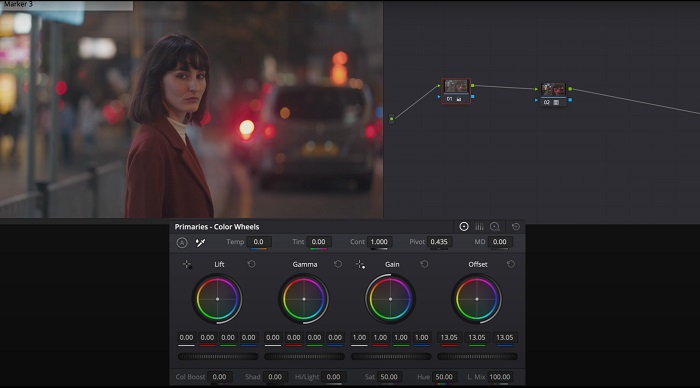
Εξερευνήστε τις εξαιρετικές δυνατότητες ταξινόμησης χρωμάτων. Αυτό το λογισμικό all-in-one συνδυάζει επαγγελματική επεξεργασία, διόρθωση χρωμάτων, οπτικά εφέ και ηχητική μετα-παραγωγή. Με τη φιλική προς τον χρήστη διεπαφή και το ολοκληρωμένο σύνολο χαρακτηριστικών του εργαλείου, μπορείτε να ζωντανέψετε το δημιουργικό σας όραμα με ακρίβεια και στυλ. Τα προηγμένα εργαλεία ταξινόμησης χρωμάτων του Davinci Resolve Color Correction σάς επιτρέπουν να κάνετε τα βίντεό σας να ξεχωρίζουν. Είτε εργάζεστε σε ταινίες αιχμής του Χόλιγουντ είτε σε προσωπικά έργα, αυτό το εργαλείο δίνει τη δυνατότητα στους επαγγελματίες και τους λάτρεις να δημιουργούν συναρπαστικές αφηγήσεις με απαράμιλλη ποιότητα.
Βήμα 1. Ανοίξτε το Davinci Resolve και εισαγάγετε το βίντεό σας. Αφού εισαχθεί, μεταβείτε στην καρτέλα Color.
Βήμα 2. Στην καρτέλα Color, χρησιμοποιήστε τα color wheels, τις καμπύλες (curves) και τα nodes για να διορθώσετε το χρώμα του βίντεό σας. Μπορείτε να χρησιμοποιήσετε τα διαθέσιμα scopes για ακριβείς ρυθμίσεις.
Βήμα 3. Αφού κάνετε τις απαραίτητες ρυθμίσεις χρώματος, κάντε προεπισκόπηση του διορθωμένου βίντεο για να βεβαιωθείτε ότι ανταποκρίνεται στις προσδοκίες σας. Όταν μείνετε ικανοποιημένοι, εξαγάγετε το διορθωμένο βίντεο ώστε να είναι έτοιμο προς χρήση.
4. Final Cut Pro Color Correction
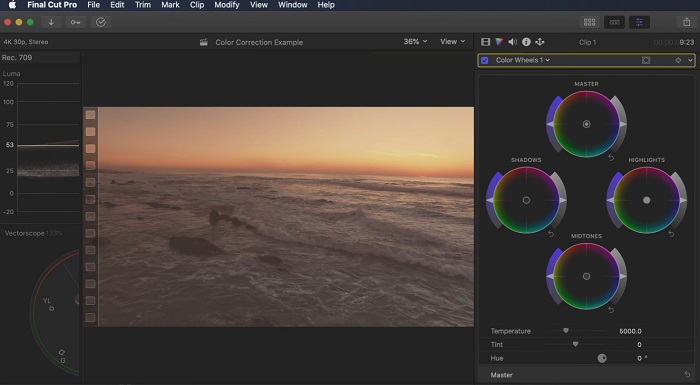
Εάν είστε χρήστης Mac που αναζητά μια κορυφαία εφαρμογή επεξεργασίας βίντεο, το Final Cut Pro είναι μια εξαιρετική επιλογή. Διαθέτει φιλική προς το χρήστη διεπαφή και ισχυρά χαρακτηριστικά που κάνουν την επεξεργασία παιχνιδάκι. Όσον αφορά τη διόρθωση χρώματος, το Final Cut Pro προσφέρει έναν πίνακα χρωμάτων και τροχούς χρώματος για προσαρμογή της έκθεσης, του κορεσμού και της απόχρωσης. Μπορείτε να εφαρμόσετε χρωματικά εφέ σε πραγματικό χρόνο και να χρησιμοποιήσετε προηγμένα εργαλεία βαθμολόγησης για να βελτιώσετε το υλικό σας. Επιπλέον, εξάγει ομαλά σε συσκευές Apple και δημοφιλείς διαδικτυακές πλατφόρμες. Εάν είστε επαγγελματίας που αναζητάτε την αποτελεσματικότητα και τη δημιουργικότητα, το Final Cut Pro δεν έχει κανένα μυαλό. Βεβαιωθείτε ότι διαθέτετε macOS 13.4 ή μεταγενέστερη έκδοση και υπολογιστή Mac με πυρίτιο Apple για βέλτιστη απόδοση.
Βήμα 1. Μπορείτε να ξεκινήσετε εισάγοντας το βίντεό σας στο Final Cut Pro και στη συνέχεια να μεταβείτε στο Color workspace.
Βήμα 2. Χρησιμοποιήστε το Color Board ή τα Color Wheels για να κάνετε βασικές ρυθμίσεις στην έκθεση, τον κορεσμό και την απόχρωση.
Βήμα 3. Βελτιώστε περαιτέρω το χρώμα του βίντεό σας με πρόσθετα εργαλεία color grading, διασφαλίζοντας το καλύτερο δυνατό αποτέλεσμα. Όταν τελειώσετε, κάντε προεπισκόπηση και εξαγωγή του διορθωμένου βίντεο.
5. Διόρθωση χρώματος After Effects
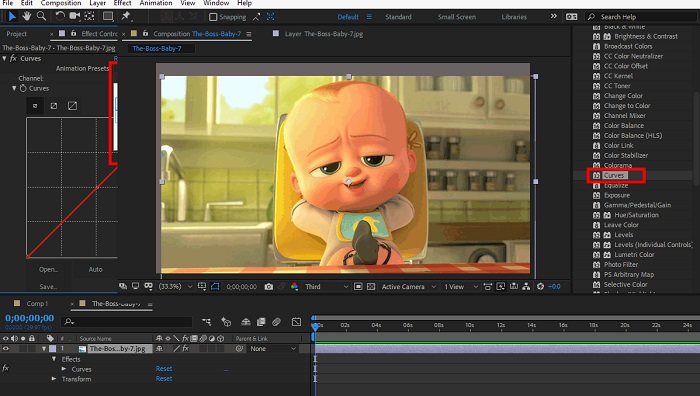
Το After Effects είναι ένα διάσημο λογισμικό κίνησης γραφικών και οπτικών εφέ με ισχυρές δυνατότητες διόρθωσης χρώματος. Εκτός από τα βασικά εφέ διόρθωσης χρώματος, παρέχει διάφορα επίπεδα προσαρμογής και εφέ για τη βελτίωση και την τροποποίηση των χρωμάτων. Μπορείτε να ζωντανέψετε γρήγορα κείμενο και γραφικά, ζωντανεύοντάς τα με σαγηνευτικές κινήσεις. Το Color Correction After Effects σάς δίνει τη δυνατότητα να αξιοποιήσετε τα επίπεδα, τις καμπύλες και τις λειτουργίες ανάμειξης για να επιτύχετε την επιθυμητή ταξινόμηση χρωμάτων. Είναι μια ευέλικτη επιλογή διόρθωσης χρώματος χάρη στην ενσωμάτωσή της με διαφορετικά προϊόντα της Adobe και σε μια μεγάλη κοινότητα που παρέχει σεμινάρια και πρόσθετα. Επιπλέον, το λογισμικό εξελίσσεται συνεχώς, εισάγοντας χαρακτηριστικά όπως ένα διαισθητικό πλαίσιο ιδιοτήτων, διαφανές επίπεδο ελέγχου και αποτελεσματική απόδοση πολλαπλών καρέ που εξορθολογίζουν τις ροές εργασίας και διατηρούν τις δημιουργίες στην αιχμή της δημιουργικότητας.
Βήμα 1. Εισαγάγετε το κλιπ βίντεο στο project του εργαλείου. Εφαρμόστε εφέ διόρθωσης χρώματος μεταβαίνοντας στο πάνελ Effects & Presets και επιλέγοντας κατάλληλα εργαλεία διόρθωσης χρώματος, όπως Curves, Levels ή Color Balance.
Βήμα 2. Κάντε κλικ στο εφαρμοσμένο εφέ διόρθωσης χρώματος για να αποκτήσετε πρόσβαση στις παραμέτρους του. Στη συνέχεια, τροποποιήστε ρυθμίσεις όπως έκθεση, αντίθεση, κορεσμό και απόχρωση, ώστε να διορθώσετε και να ενισχύσετε τα χρώματα στο βίντεό σας.
Βήμα 3. Κάντε προεπισκόπηση του βίντεο στο πάνελ Composition για να δείτε πώς οι διορθώσεις χρώματος επηρεάζουν το υλικό. Ρυθμίστε εκ νέου τις παραμέτρους με βάση την προεπισκόπηση, διασφαλίζοντας ότι επιτυγχάνεται η επιθυμητή διόρθωση χρώματος, και προχωρήστε σε render ή εξαγωγή του διορθωμένου βίντεο.
Περαιτέρω ανάγνωση:
Κορυφαίες εφαρμογές ενίσχυσης χρώματος φωτογραφιών σε Android & iOS δωρεάν
4 εντυπωσιακοί τρόποι για να προσθέσετε φίλτρο σε βίντεο σε Windows & macOS
Μέρος 2. Συχνές ερωτήσεις σχετικά με τους διορθωτές χρωμάτων βίντεο
Πώς μπορώ να εκτελέσω διόρθωση χρώματος σε ένα iMovie;
Για να διορθώσετε τα χρώματα στο iMovie, εισαγάγετε το κλιπ βίντεο, επιλέξτε το και κάντε κλικ στο κουμπί Color Correction (εικονίδιο μαγικού ραβδιού). Ρυθμίστε τους ρυθμιστές για έκθεση, κορεσμό και χρώμα, ώστε να πετύχετε την προτιμώμενη εμφάνιση.
Πώς μπορώ να αποκτήσω πρόσβαση στα εργαλεία διόρθωσης χρώματος στο OpenShot;
Στο OpenShot Video Editor για διόρθωση χρώματος, επιλέξτε ένα κλιπ, μεταβείτε στην καρτέλα Effects και κάντε κλικ στο Color Correction. Ρυθμίστε τους ρυθμιστές για φωτεινότητα, αντίθεση, απόχρωση και κορεσμό, ώστε να πετύχετε τη διόρθωση χρώματος που επιθυμείτε.
Πώς μπορώ να αποκτήσω πρόσβαση στα εργαλεία διόρθωσης χρώματος στο Sony Vegas;
Στο Sony Vegas για διόρθωση χρώματος, επιλέξτε το κλιπ στο οποίο θέλετε να διορθώσετε τα χρώματα, μεταβείτε στην καρτέλα Video FX και αναζητήστε το Color Corrector. Σύρετέ το και αποθέστε το πάνω στο κλιπ και προσαρμόστε τις ιδιότητες χρώματος στο παράθυρο Effect Controls.
συμπέρασμα
Η πλήρης εξοικείωση με τη διόρθωση χρώματος είναι απαραίτητη για την ενίσχυση της οπτικής γοητείας των βίντεό σας και τη δημιουργία μιας καθηλωτικής εμπειρίας θέασης. Σε αυτόν τον οδηγό, εξερευνήσαμε πέντε ισχυρούς διορθωτές χρώματος για να πετύχετε άψογη διόρθωση χρώματος. Αν αναζητάτε εργαλεία επεξεργασίας βίντεο υψηλής ποιότητας, σκεφτείτε να χρησιμοποιήσετε τα Video Converter Ultimate, Premiere Pro, Final Cut Pro, DaVinci Resolve ή After Effects. Αυτά τα προγράμματα προσφέρουν ένα ευρύ φάσμα δυνατοτήτων και λειτουργιών, ώστε να σας βοηθήσουν να δημιουργήσετε βίντεο επαγγελματικής εμφάνισης. Το καθένα έχει το δικό του σύνολο χαρακτηριστικών και λειτουργιών, που ανταποκρίνονται σε διαφορετικές προτιμήσεις και επίπεδα εμπειρίας.
-
 Πώς να προσθέσετε και να δημιουργήσετε ένα φίλτρο Instagram πριν δημοσιεύσετε εικόνα και βίντεο
 Ποια είναι τα φίλτρα στο Instagram; Πώς να το εφαρμόσετε; Πώς να φτιάξετε ένα; Αυτές οι ερωτήσεις θα έχουν ξεκάθαρες απαντήσεις σε αυτήν την ανάρτηση, οπότε διαβάστε τις.
-
 Μέθοδοι χωρίς προβλήματα για τη μετατροπή εικόνων σε ασπρόμαυρες
 Θέλετε να κάνετε τις φωτογραφίες σας να φαίνονται νοσταλγικές; Έχουμε μια απάντηση για εσάς. Αυτή η ανάρτηση θα προσφέρει αξιόλογους τρόπους μετατροπής μιας έγχρωμης εικόνας σε ασπρόμαυρη.
-
 6 Αγαπημένη επιλογή Snapchat Κινούμενα φίλτρα Snapchat στο Snapchat
 Θέλετε να μάθετε τους καλύτερους τρόπους για να προσθέσετε φίλτρα σε βίντεο Snapchat; Λοιπόν, μπορείτε να κάνετε κλικ σε αυτό και να μάθετε τα διαφορετικά φίλτρα που μπορείτε να χρησιμοποιήσετε για να εφαρμόσετε σε βίντεο Snapchat.
