


 Video Converter Ultimate
 Εγγραφή οθόνης
 Επισκευή βίντεο
Πώς να μετατρέψετε την βαρετή ταπετσαρία της οθόνης σας σε ένα εκπληκτικό ζωντανό GIF
Οι περισσότεροι από εμάς χρησιμοποιούμε μια εικόνα υψηλής ποιότητας ως φόντο, και κάποιοι χρησιμοποιούν βίντεο‑ταπετσαρία. Ήξερες όμως ότι μπορείς να χρησιμοποιήσεις GIF ως ταπετσαρία, ώστε το φόντο σου να δείχνει πιο ζωντανό από ποτέ; Αν λοιπόν θέλεις να μάθεις πώς να κάνεις ένα GIF ταπετσαρία, συνέχισε παρακάτω. Θα σου πάρει μόλις πέντε λεπτά για να μάθεις πώς να το ρυθμίσεις, και θα σου δείξουμε ακόμη πώς να φτιάξεις το τέλειο GIF από βίντεο ή εικόνες.

Μέρος 1. Πώς να δημιουργήσετε ένα GIF ως ταπετσαρία σας στο iPhone
Οι περισσότεροι από εμάς έχουμε ήδη ένα κινητό τηλέφωνο στα χέρια μας, όπως ένα iPhone. Ήξερες όμως ότι μπορείς να μετατρέψεις το απλό φόντο σου σε κάτι πολύ καλύτερο; Ναι, η ταπετσαρία στο iPhone σου μπορεί να γίνει ένα μαγικό GIF. Ωστόσο, τα GIF δεν υποστηρίζονται άμεσα ως ταπετσαρία στις συσκευές iPhone. Άρα, η λύση είναι να μετατρέψεις πρώτα το GIF σε Live Photo και μετά να το ορίσεις ως νέο φόντο. Διαφορετικά, θα έχεις μόνο μια στατική εικόνα αντί για κινούμενη. Σε αυτή την περίπτωση, θα χρειαστεί να μετατρέψεις το GIF σε Live Photo κατεβάζοντας την εφαρμογή Convert - GIF & Live Wallpaper και να κάνεις τη μετατροπή. Στη συνέχεια, προχώρησε στο πώς να κάνεις ένα GIF ταπετσαρία στο iPhone ακολουθώντας τα παρακάτω βήματα.
Βήματα για το πώς να μετατρέψετε το GIF σε ζωντανή φωτογραφία:
Βήμα 1. Από το App Store, κατέβασε το Convert - GIF & Live Wallpaper και άνοιξέ το αμέσως.
Βήμα 2. Πάτησε Allow ώστε η εφαρμογή να έχει πρόσβαση στις εικόνες σου και επίλεξε το GIF από το άλμπουμ.
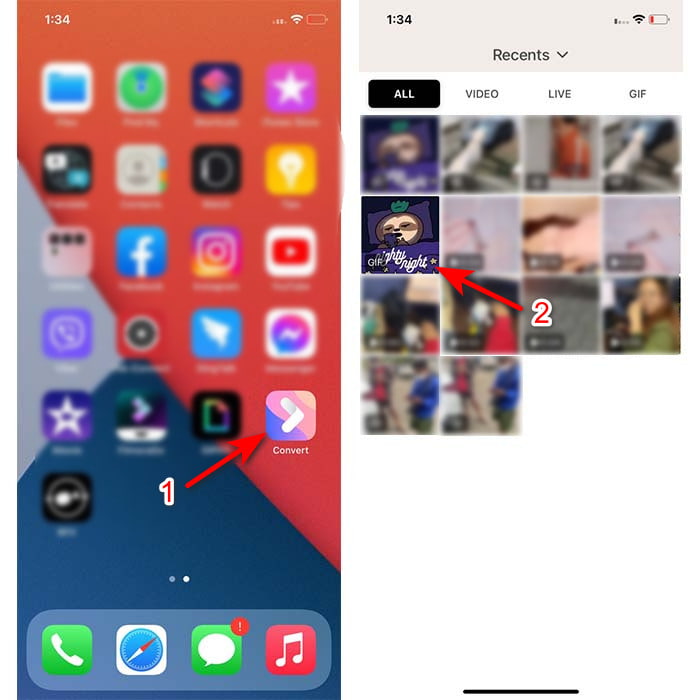
Βήμα 3. Έπειτα πάτησε το κουμπί λήψης (download) και όρισε ως μορφή αποθήκευσης το Live Photo, πάτησε Save για να συνεχίσεις.
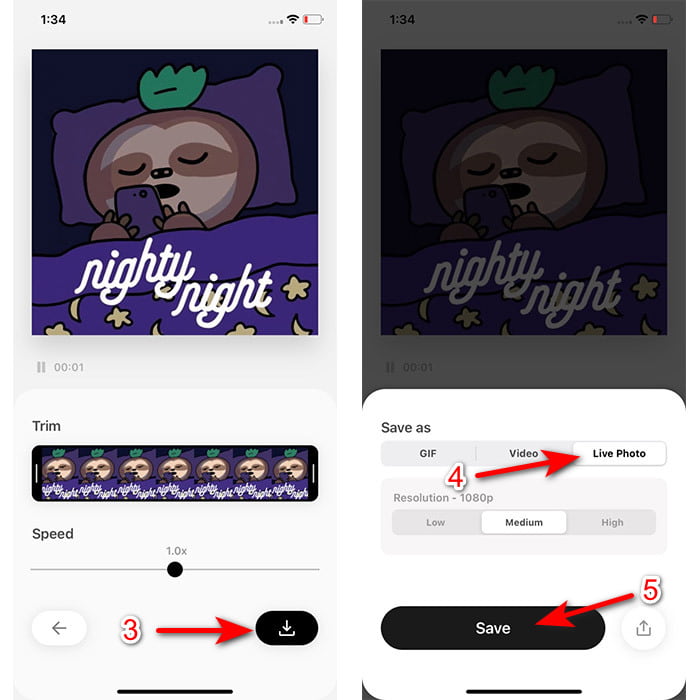
Βήματα για το πώς να δημιουργήσετε μια ζωντανή φωτογραφία ως ταπετσαρία σας στο iPhone:
Βήμα 1. Πάτησε στην εφαρμογή Photo και βρες στη library το GIF που έχεις μετατρέψει.
Βήμα 2. Στη συνέχεια πάτησε το κουμπί Share και βρες την επιλογή Use as Wallpaper.
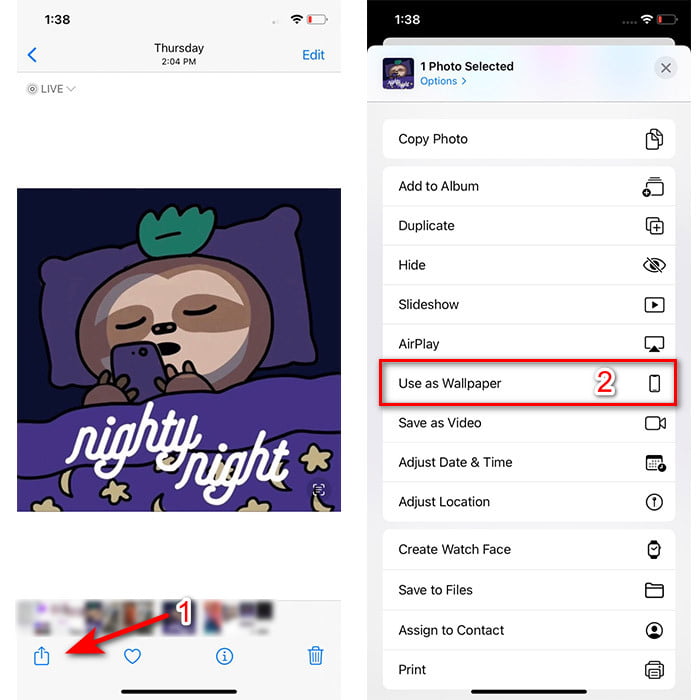
Βήμα 3. Πάτησε στο Live Photo για να βεβαιωθείς ότι είναι ενεργό και κάνε κλικ στο Set. Επίλεξε αν θέλεις να είναι ταπετσαρία στην οθόνη κλειδώματος (Lock Screen), στην αρχική οθόνη (Home Screen) ή και στα δύο. Επιπλέον, τα Live Photos δεν λειτουργούν στην Home Screen, γιατί χρειάζεται να πατάς την οθόνη για 3 έως 5 δευτερόλεπτα. Γι’ αυτό είναι προτιμότερο να χρησιμοποιείς Live Photo στην οθόνη κλειδώματος.
Μέρος 2. Πώς να δημιουργήσετε ένα GIF ως ταπετσαρία σας στα Windows
Αν θέλεις να κάνεις το φόντο στα Windows ακόμα πιο εντυπωσιακό, δοκίμασε να ακολουθήσεις τα παρακάτω βήματα. Σε αυτή την περίπτωση, δεν μπορείς να προσθέσεις απευθείας το GIF ως φόντο, γιατί θα εμφανίζεται μόνο ως στατική εικόνα. Για να το αποφύγεις αυτό, θα χρειαστείς ένα εργαλείο τρίτου κατασκευαστή, όπως το Lively Wallpaper. Και τώρα, ας ξεκινήσουμε τον οδηγό για το πώς να κάνεις ένα GIF ταπετσαρία στα Windows 10.
Βήμα 1. Κατέβασε το Lively Wallpaper από το Microsoft Store. Έπειτα εκκίνησέ το μόλις ολοκληρωθεί η λήψη.
Βήμα 2. Πάτησε το κουμπί + επάνω αριστερά και μετά το Browse. Εντόπισε το αρχείο GIF στο φάκελο που θα εμφανιστεί στην οθόνη σου και πάτησε Open. Θα εμφανιστεί μια μικρή βιβλιοθήκη· πάτησε OK και στη συνέχεια Save.
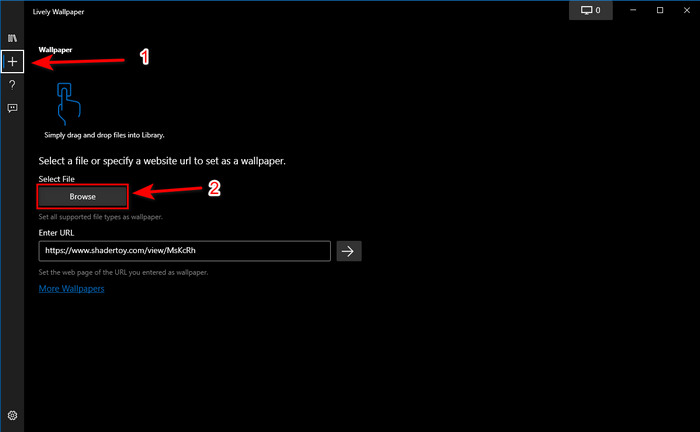
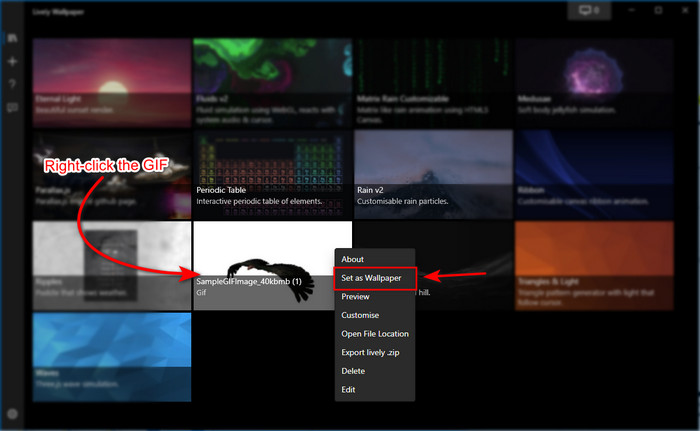
Βήμα 3. Βρες το GIF στη built‑in συλλογή, έπειτα δεξί κλικ με το ποντίκι και επίλεξε set it as a wallpaper.
Μέρος 3. Πώς να δημιουργήσετε ένα GIF από βίντεο/φωτογραφίες με το Video Converter Ultimate
Δώστε ζωή στο φόντο της οθόνης σας χρησιμοποιώντας ένα κινούμενο GIF που δημιουργήθηκε στο Video Converter Ultimate. Αυτό το λογισμικό έχει ήδη αποδείξει ότι η δημιουργία ενός GIF μπορεί να γίνει εύκολα είτε πρόκειται για εικόνα είτε για βίντεο. Επιπλέον, σε αντίθεση με άλλα εργαλεία online και offline, αυτό το εργαλείο είναι πολύ μοναδικό σε σύγκριση με αυτά. Επειδή ο απόλυτος μετατροπέας έχει ήδη όλες τις προηγμένες δυνατότητες που πιθανότατα θα χρησιμοποιούσατε.
Παρόλο που το λογισμικό υποστηρίζει προηγμένες λειτουργίες, παραμένει φιλικό προς τον χρήστη και μπορεί να χρησιμοποιηθεί εύκολα από όλους, επαγγελματίες ή μη. Τώρα λοιπόν θα σου δείξουμε πώς να φτιάξεις ένα GIF για ταπετσαρία σε PC, Mac, Android και iPhone. Επίσης, θα παρουσιάσουμε διαφορετικούς τρόπους για να δεις ότι ακόμη και ένα βίντεο ή μεμονωμένες εικόνες μπορούν να μετατραπούν σε ένα εντυπωσιακό GIF με τη βοήθεια του Video Converter Ultimate. Πριν προχωρήσουμε στα βήματα, είναι απαραίτητο πρώτα να κατεβάσεις το εργαλείο στον υπολογιστή σου, να το εγκαταστήσεις, να κάνεις τη γρήγορη αρχική ρύθμιση και μετά να πατήσεις finish για να συνεχίσεις.
Δωρεάν ΛήψηΓια Windows 7 ή νεότεραΑσφαλής λήψη
Δωρεάν ΛήψηΓια MacOS 10.7 ή νεότεροΑσφαλής λήψη
4 εύκολα βήματα για να δημιουργήσετε ένα κινούμενο GIF από βίντεο:
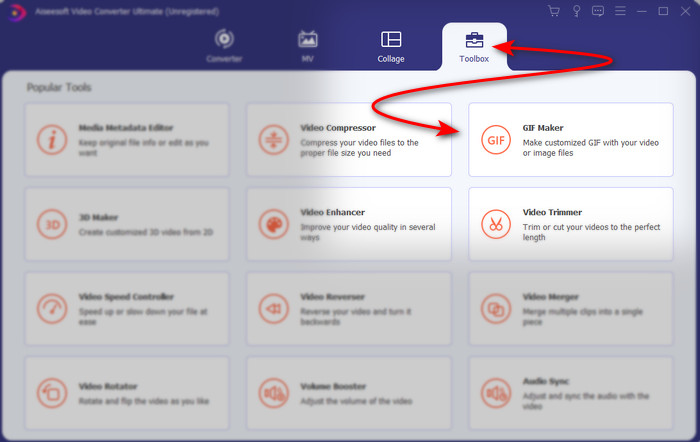
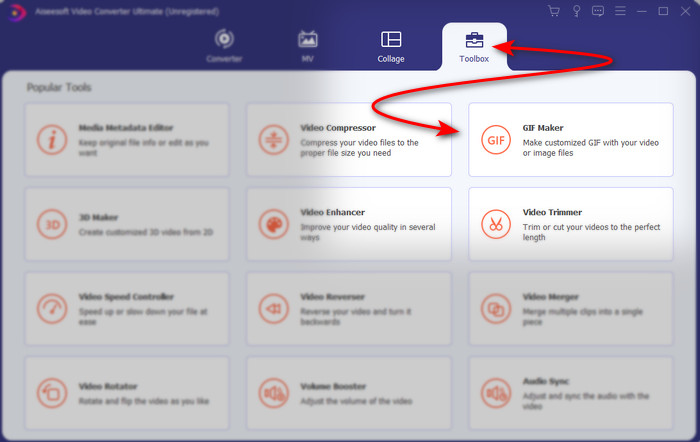
Βήμα 1. Εκκίνησε το εργαλείο και βρες την καρτέλα Toolbox. Εκεί θα βρεις το GIF Maker, κάνε κλικ για να συνεχίσεις.
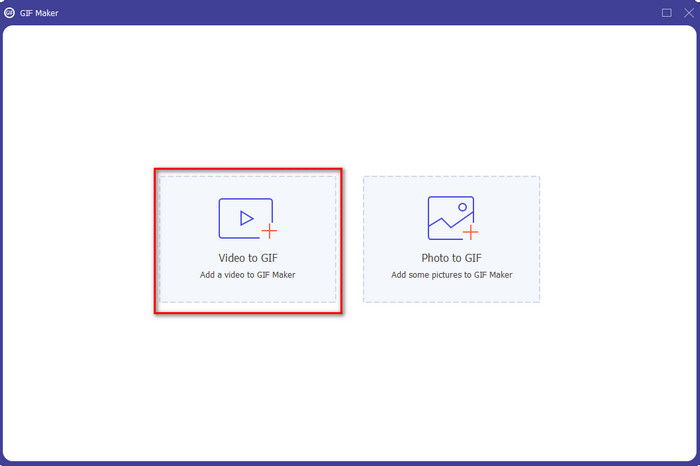
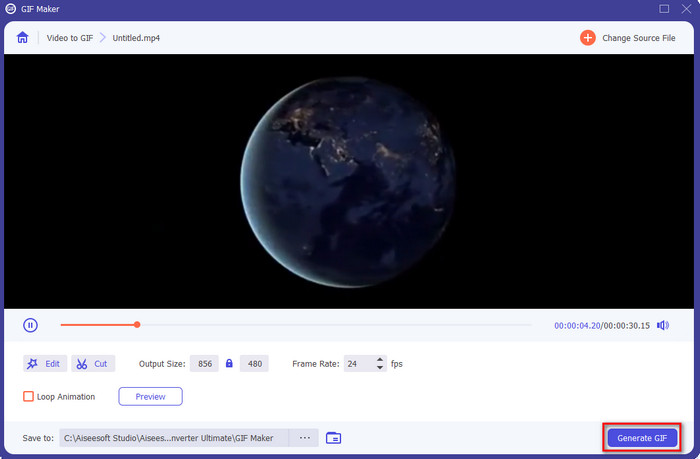
Βήμα 2. Κάνε κλικ στο Videos to GIF και αμέσως θα εμφανιστεί ένα παράθυρο επιλογής αρχείου. Επίλεξε το βίντεο που θέλεις να μετατραπεί σε GIF και πάτησε Open.
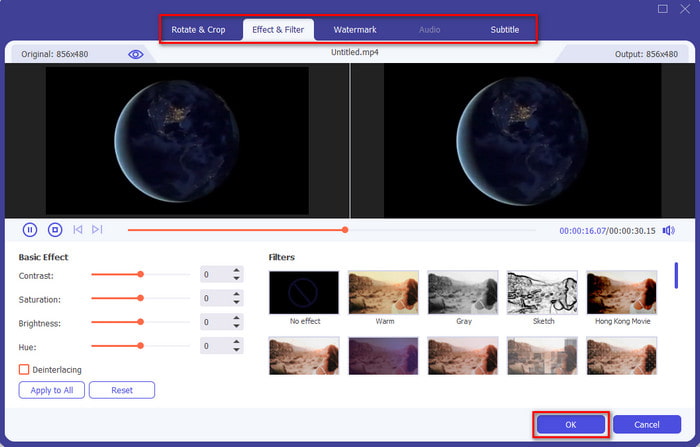
Βήμα 3. Στο περιβάλλον εργασίας, κάνε κλικ στο κουμπί με το μαγικό ραβδί για να επεξεργαστείς το βίντεό σου. Αφού ολοκληρώσεις την επεξεργασία, πάτησε OK για να αποθηκευτούν οι αλλαγές που έκανες.
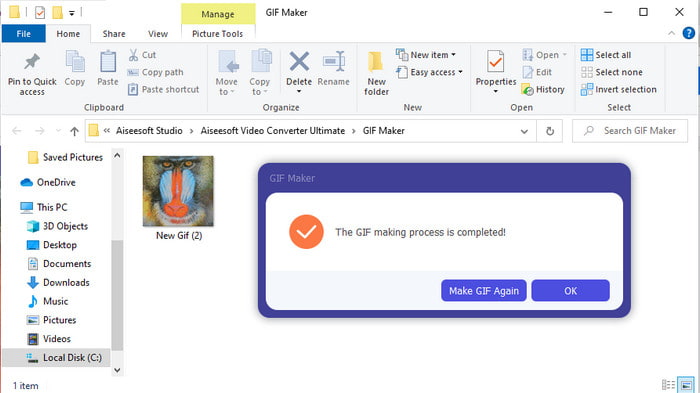
Βήμα 4. Πάτησε Generate GIF για να αποθηκεύσεις αμέσως το GIF στον αποθηκευτικό σου χώρο. Όταν ολοκληρωθεί η μετατροπή βίντεο σε GIF, ο εξερευνητής αρχείων θα εμφανιστεί στην οθόνη με το αρχείο GIF· κάνε κλικ για να το δεις.
4 εύκολα βήματα για να φτιάξετε ένα κινούμενο GIF από εικόνες:
Βήμα 1. Αν η εγκατάσταση του λογισμικού έχει ολοκληρωθεί, άνοιξέ το. Πήγαινε στην ενότητα Toolbox και βρες εκεί το GIF Maker.
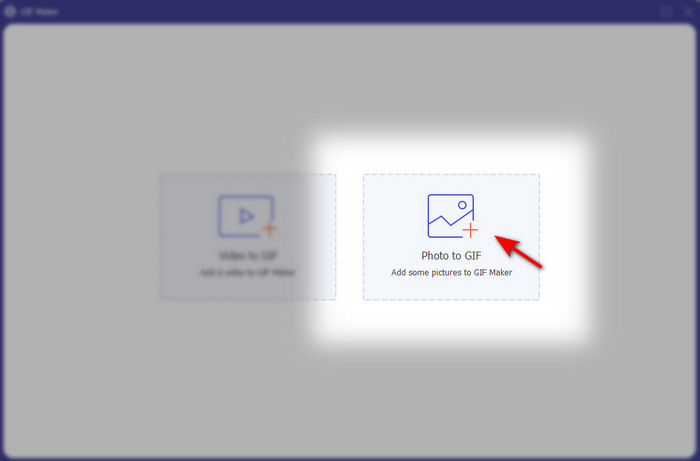
Βήμα 2. Για να μετατρέψεις τις εικόνες σου σε κινούμενο GIF, κάνε κλικ στο Image to GIF. Ένας φάκελος θα εμφανιστεί στην οθόνη σου· επίλεξε την πρώτη εικόνα και πάτησε Open.
Βήμα 3. Το Output Setting θα εμφανιστεί αυτόματα· πάτησε OK για να συνεχίσεις. Για να προσθέσεις δύο ή περισσότερες εικόνες, πάτησε το κουμπί +. Επιπλέον, εδώ δεν μπορείς να κάνεις εκτεταμένη επεξεργασία όπως στη λειτουργία video to GIF. Μπορείς όμως να ρυθμίσεις τη σειρά των εικόνων και τη διάρκεια εμφάνισής τους.
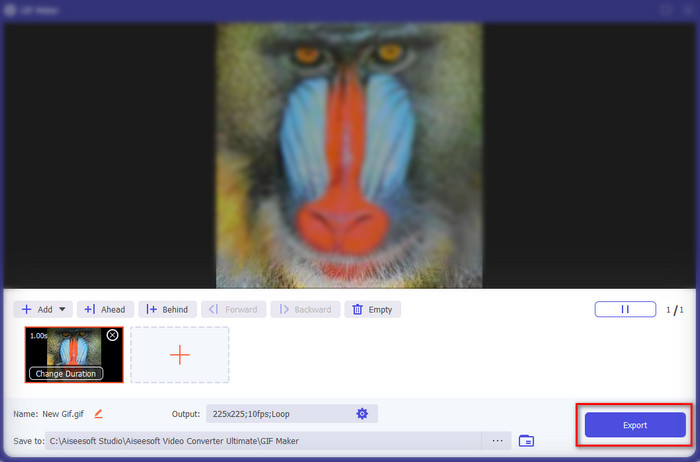
Βήμα 4. Αν όλα είναι όπως τα θες, ήρθε η ώρα να πατήσεις το κουμπί Export για να συνεχίσεις. Όταν ολοκληρωθεί η εξαγωγή, θα εμφανιστεί ο διαχειριστής αρχείων με το GIF που δημιούργησες νωρίτερα.
Σχετικά:
Πώς να δημοσιεύσεις GIF στο Instagram
Καλύτερα online εργαλεία μετατροπής GIF σε βίντεο
Μέρος 4. Συχνές ερωτήσεις σχετικά με τη δημιουργία ενός GIF ως ταπετσαρίας σας
Γιατί τα GIF παγώνουν όταν χρησιμοποιούνται ως φόντο;
Φυσικά, όλες οι συσκευές δεν υποστηρίζουν GIF ως φόντο. Ωστόσο, μπορείτε ακόμα να χρησιμοποιήσετε ένα εργαλείο τρίτου μέρους για να εφαρμόσετε το GIF σας στο φόντο σας.
Μπορώ να αποθηκεύσω κινούμενα GIF στο διαδίκτυο και να τα χρησιμοποιήσω ως ταπετσαρία στο iPhone μου;
Απολύτως ναι! Μπορείτε να τα αποθηκεύσετε. Εάν χρησιμοποιείτε αυτήν τη στιγμή το GIPHY, κάντε κλικ στην έλλειψη για να το αποθηκεύσετε ως ζωντανή φωτογραφία. Τώρα λοιπόν, μπορείτε να παραλείψετε τα βήματα για τη μετατροπή του GIF σε ζωντανό βίντεο και απλώς να προχωρήσετε στον τρόπο χρήσης του GIF για να το χρησιμοποιήσετε ως φόντο παραπάνω.
Η κινούμενη ταπετσαρία καταναλώνει τη διάρκεια ζωής της μπαταρίας;
Στην πραγματικότητα, είναι ένα ναι, επειδή η κινούμενη ταπετσαρία ή οι κινούμενες ταπετσαρίες καταναλώνουν σχεδόν 2-41 TP1T της διάρκειας ζωής της μπαταρίας επειδή η CPU και η GPU εξακολουθούν να λειτουργούν στο παρασκήνιο.
συμπέρασμα
Καθώς φτάνουμε στο τέλος, είδαμε ότι μπορούμε να χρησιμοποιήσουμε ένα GIF ως ταπετσαρία για να δώσουμε ζωή σε μια απλή εικόνα φόντου. Φυσικά, όλες οι εφαρμογές που παρουσιάστηκαν εδώ είναι εξαιρετικές στον τομέα τους. Όπως και το Video Converter Ultimate· με αυτό το λογισμικό μπορείς εύκολα να μάθεις πώς να χρησιμοποιείς GIF ως ταπετσαρία, ανεξάρτητα από την πλατφόρμα. Αν λοιπόν θέλεις να δημιουργήσεις ένα μοναδικό GIF, κατέβασε αυτό το εργαλείο στον υπολογιστή σου και δοκίμασέ το ο ίδιος.
-
 Εκπαιδευτικό πρόγραμμα για τη συμπίεση του GIF και τη μείωση του μεγέθους του αρχείου με υψηλή ποιότητα
 Εδώ είναι 2 εύκολοι τρόποι συμπίεσης GIF στον υπολογιστή ή στο κινητό σας τηλέφωνο. Μπορείτε να χρησιμοποιήσετε το FVC Free Online Video Compressor και το Photoshop για να μειώσετε το μέγεθος αρχείου GIF σε διαφορετικές πτυχές.
-
 Δημιουργήστε το καλύτερο κινούμενο GIF σας μέσω του Online GIF Maker [2021]
 Μια κατατοπιστική ανασκόπηση, σχετικά με τον τρόπο δημιουργίας GIF χρησιμοποιώντας αυτούς τους απλούς διαδικτυακούς δημιουργούς GIF που έχετε ήδη συναντήσει ή όχι στο διαδίκτυο.
-
 Επιλέξτε το καλύτερο GIF Cropper Online και Offline για Περικοπή GIF [2021]
 Η επιλογή του καλύτερου εργαλείου περικοπής είναι απαραίτητη και ορισμένοι από τους κατασκευαστές GIF δεν παρείχαν αυτήν τη δυνατότητα. Αλλά ποιο είναι το καλύτερο εργαλείο περικοπής GIF για χρήση και πώς να το χρησιμοποιήσετε;
