


 Video Converter Ultimate
 Εγγραφή οθόνης
 Επισκευή βίντεο
 Ασφαλές κατέβασμα
Ολοκληρωμένοι τρόποι για να καταργήσετε αποτελεσματικά το υδατογράφημα του φίλτρου Picsart στα βίντεό σας
Σήμερα, είναι απολύτως απαραίτητο «όπλο» να διαθέτετε ένα λογισμικό επεξεργασίας οπτικού υλικού στον υπολογιστή σας, στο οποίο μπορείτε να βασιστείτε, όπως το Picsart. Με αυτό, μπορείτε να προσαρμόσετε μερικές ρυθμίσεις και να μετατρέψετε μια συνηθισμένη εικόνα σε εντυπωσιακή φωτογραφία, όπως δεν την έχει ξαναδεί κανείς! Μπορείτε να προσελκύσετε περισσότερους πελάτες ή κοινό με μια εντυπωσιακή εικόνα που δημιουργείτε. Ωστόσο, υπάρχει ένα πρόβλημα με τη χρήση του Picsart, και αυτό είναι το υδατογράφημα που προσθέτει κατά την εξαγωγή. Το υδατογράφημα είναι αρκετά ενοχλητικό και μπορεί να γίνει αποσπαστικό οπτικά αν δεν αφαιρεθεί. Οπότε, αν θέλετε το λογισμικό και έναν οδηγό για το πώς να αφαιρέσετε το υδατογράφημα φίλτρου του Picsart, συνεχίστε να διαβάζετε αυτό το άρθρο για να μάθετε περισσότερα!

Μέρος 1. Πώς να αφαιρέσετε το υδατογράφημα φίλτρου Picsart χρησιμοποιώντας το ελεύθερο λογισμικό στην επιφάνεια εργασίας
FVC Video Converter Ultimate - Number One Αφαίρεση υδατογραφήματος σε Windows & Mac
Ας ξεκινήσουμε παρουσιάζοντας το λογισμικό με την κορυφαία μας επιλογή, η οποία μπορεί να σας βοηθήσει και να σας δείξει πώς να αφαιρέσετε το υδατογράφημα του Picsart. Το FVC Video Converter Ultimate είναι το απαραίτητο «όπλο» στο οπλοστάσιο· θα το χρειαστείτε για να αφαιρέσετε εύκολα τα υδατογραφήματα από βίντεο, διατηρώντας παράλληλα ένα επαγγελματικό αποτέλεσμα. Χάρη στην απόδοσή του και στα ασύγκριτα χαρακτηριστικά του, πολλοί χρήστες το έχουν ήδη δοκιμάσει και το εργαλείο δεν τους απογοήτευσε. Αν χρειάζεστε βοήθεια για να αφαιρέσετε το υδατογράφημα από το βίντεό σας, μπορείτε να ακολουθήσετε βήμα προς βήμα τις οδηγίες που παραθέτουμε παρακάτω.
Βήμα 1. Αποκτήστε το απόλυτο αυτό λογισμικό στη συσκευή σας κάνοντας κλικ στο κατάλληλο κουμπί λήψης παρακάτω. Έπειτα, εγκαταστήστε το λογισμικό στον υπολογιστή σας και κάντε κλικ στο Start Now για να το ανοίξετε.
Δωρεάν ΛήψηΓια Windows 7 ή νεότεραΑσφαλής λήψη
Δωρεάν ΛήψηΓια MacOS 10.7 ή νεότεροΑσφαλής λήψη
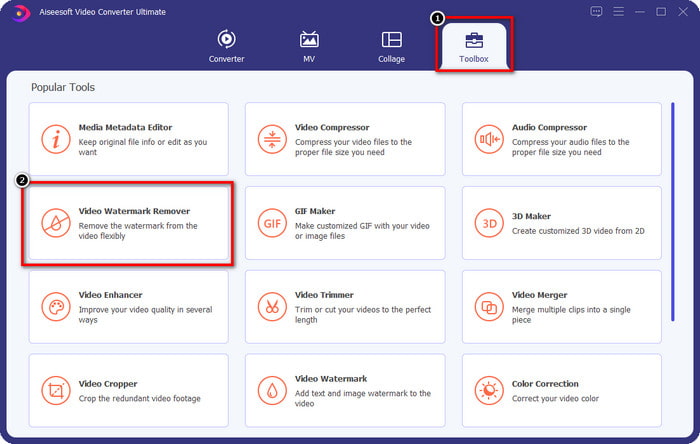
Βήμα 2. Στην ενότητα Toolbox θα δείτε άλλα χαρακτηριστικά που μπορείτε να χρησιμοποιήσετε και τα οποία θα σας βοηθήσουν να δώσετε μια ολοκληρωμένη, επαγγελματική πινελιά στο βίντεό σας. Σήμερα, όμως, κάντε κλικ στο Video Watermark Remover.
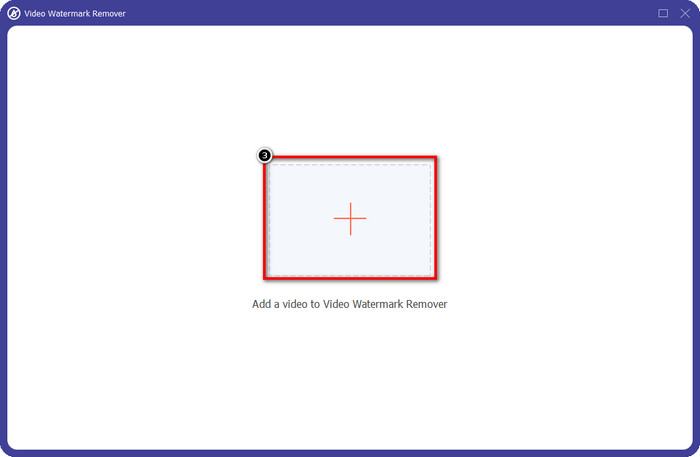
Βήμα 3. Ανεβάστε το βίντεο που επεξεργαστήκατε στο Picsart κάνοντας κλικ στο εικονίδιο +. Αναζητήστε το αρχείο στον φάκελο που θα εμφανιστεί στην οθόνη σας και, στη συνέχεια, κάντε κλικ στο Open.
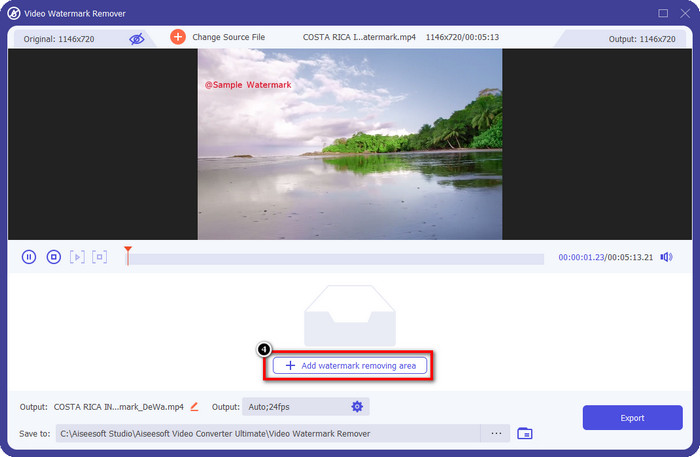
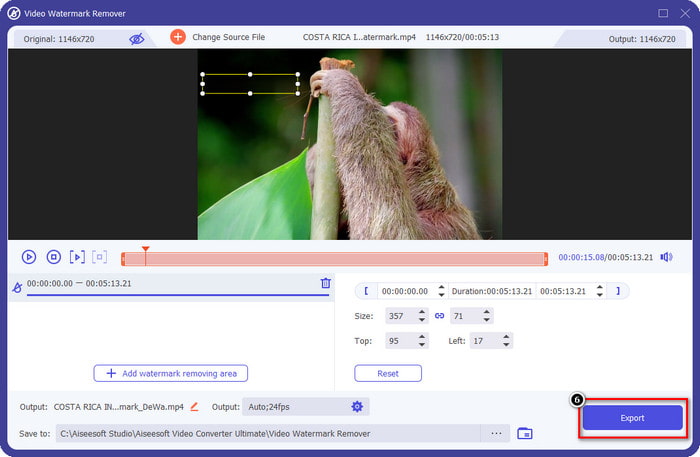
Βήμα 4. Πατήστε το Add Watermark Removing Area για να ορίσετε την περιοχή από την οποία θα αφαιρεθεί το υδατογράφημα που είναι ενσωματωμένο στο βίντεο που ανεβάσατε.
Βήμα 5. Σύρετε και τοποθετήστε το πλαίσιο επιλογής πάνω στο υδατογράφημα ώστε να το καλύψετε πλήρως. Μπορείτε να μεγαλώσετε ή να μικρύνετε το πλαίσιο, ανάλογα με τις προτιμήσεις σας.
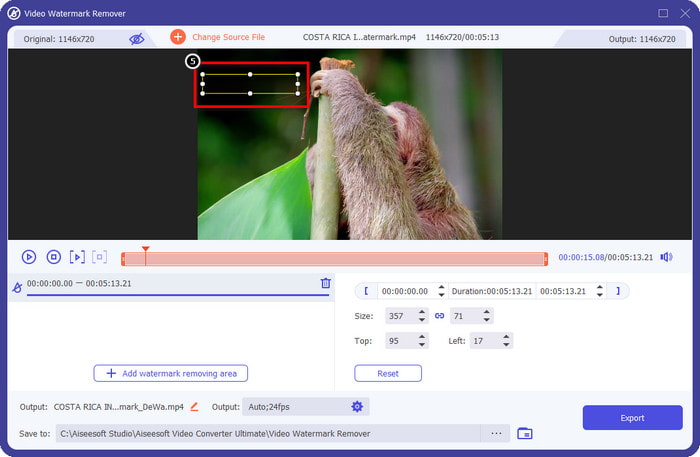
Βήμα 6. Τώρα που καλύψατε το υδατογράφημα με το πλαίσιο επιλογής, κάντε κλικ στο Export για να αποθηκεύσετε το τελικό αποτέλεσμα στον τοπικό σας δίσκο.
Φωτογραφίες σε Windows- Υδατογράφημα εξωφύλλου με τρισδιάστατη σχεδίαση
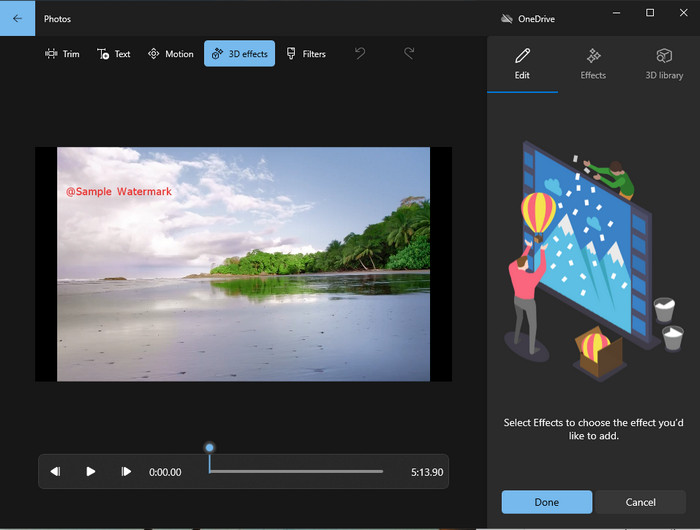
Αν δεν σας αρέσει να κατεβάζετε λογισμικό και χρησιμοποιείτε Windows, τότε πρέπει να δοκιμάσετε την εφαρμογή Photos για να επεξεργαστείτε το υδατογράφημα στο βίντεό σας. Το να μάθετε πώς να αφαιρέσετε το υδατογράφημα του Picsart με αυτό το εργαλείο θα γίνει ακόμη πιο γρήγορα, επειδή δεν θα χρειαστεί να περάσετε από το στάδιο λήψης μιας εφαρμογής. Το εργαλείο δεν αφαιρεί κυριολεκτικά το υδατογράφημα από το βίντεο, αλλά μπορείτε να το καλύψετε με 3D σχέδια. Παρ’ όλα αυτά, η απόδοση αυτού του προεγκατεστημένου προγράμματος προβολής και επεξεργασίας οπτικού υλικού είναι καλή. Δεν είστε σίγουροι; Τότε μπορείτε να διαβάσετε τα παρακάτω βήματα και να τα ακολουθήσετε, αν θέλετε.
Βήμα 1. Κάντε κλικ στο κουμπί των Windows στη γραμμή εργασιών και αναζητήστε την εφαρμογή Photos για να την ανοίξετε.
Βήμα 2. Αφού ανοίξετε τον ενσωματωμένο επεξεργαστή, κάντε κλικ στο σύμβολο + για να ανεβάσετε εδώ το βίντεο που θέλετε να επεξεργαστείτε.
Βήμα 3. Μεταβείτε στην καρτέλα 3D Effects, κάντε κλικ στο 3D Library και αναζητήστε το σχέδιο που θέλετε να χρησιμοποιήσετε για να καλύψετε το υδατογράφημα. Τοποθετήστε το σχέδιο που επιλέξατε στο σημείο όπου εμφανίζεται το υδατογράφημα.
Βήμα 4. Πατήστε Finish Video για να αποθηκεύσετε το τελικό αποτέλεσμα στον τοπικό δίσκο του υπολογιστή σας με Windows.
PickFrom Blur Video Online

Το PickFrom Blur Video Online μπορεί να σας βοηθήσει να αφαιρέσετε το υδατογράφημα του PicsArt από τα βίντεο που έχετε στο διαδίκτυο. Το εργαλείο αυτό είναι άγνωστο σε πολλούς, αλλά θα το παρουσιάσουμε σήμερα. Το συμπεριλάβαμε γιατί είναι αποτελεσματικό στην αφαίρεση υδατογραφημάτων από τα βίντεο που ανεβάζετε. Το περιβάλλον χρήσης του είναι απλό και λιτό· δεν θα χαθείτε όταν το χρησιμοποιήσετε. Αν, λοιπόν, θέλετε να αφαιρέσετε το υδατογράφημα, ακολουθήστε τη διαδικασία παρακάτω.
Βήμα 1. Ανοίξτε το πρόγραμμα περιήγησης, αναζητήστε το όνομα του εργαλείου και κάντε κλικ στο πρώτο αποτέλεσμα για να ανοίξετε τον online αφαιρέτη υδατογραφημάτων.
Βήμα 2. Κάντε κλικ στο Click to Add File για να ανεβάσετε εδώ το βίντεο.
Βήμα 3. Επιλέξτε την επιλογή Blur Part of the Video και τοποθετήστε το πλαίσιο επιλογής πάνω στο υδατογράφημα.
Βήμα 4. Πατήστε Start για να κάνετε λήψη του βίντεο χωρίς το υδατογράφημα.
Μέρος 2. Πώς να αφαιρέσετε το υδατογράφημα Picsart αγοράζοντας την έκδοση Premium
Πρέπει να αγοράσετε το λογισμικό εάν δεν θέλετε να αντιμετωπίσετε προβλήματα με την αφαίρεση του χρυσού υδατογραφήματος Picsart. Θα σας κοστίσει ένα συγκεκριμένο ποσό γιατί θα χρειαστεί να το πληρώσετε για να μπορέσετε να το χρησιμοποιήσετε και στη συνέχεια να εξαγάγετε το βίντεο χωρίς ενσωματωμένο υδατογράφημα. Επομένως, εάν θέλετε έναν οδηγό βήμα προς βήμα για την αγορά του Picsart, πρέπει να ακολουθήσετε τον επόμενο οδηγό που προσθέτουμε.
Βήμα 1. Ανοίξτε την επίσημη ιστοσελίδα του Picsart και συνδεθείτε στον λογαριασμό σας. Αν δεν έχετε λογαριασμό, πρέπει να δημιουργήσετε έναν κάνοντας εγγραφή (Sign up) εδώ.
Βήμα 2. Στην κεντρική σελίδα, κάντε κλικ στο Pricing και δείτε τις τιμές για κάθε διαθέσιμο προϊόν.
Βήμα 3. Επιλέξτε το πρόγραμμα που θέλετε, μηνιαίο ή ετήσιο, και στη συνέχεια κάντε κλικ στο Go to Payment.
Βήμα 4. Προσθέστε τα στοιχεία χρέωσης συμπληρώνοντας τις πληροφορίες που απαιτούνται και, στη συνέχεια, κάντε κλικ στο Purchase Now.
Σχετικά:
Αφαίρεση υδατογραφήματος Lumion
Αφαίρεση υδατογραφήματος από φωτογραφίες αποφοίτησης
Μέρος 3. Συχνές ερωτήσεις σχετικά με τον τρόπο κατάργησης του υδατογραφήματος Picsart
Μπορώ να αγοράσω μόνιμα το Picsart Gold;
Δεν υποστηρίζει βάση ή πρόγραμμα εφάπαξ πληρωμής, επομένως εάν θέλετε να χρησιμοποιήσετε το Picsart Gold, θα πρέπει να επωφεληθείτε από το μηνιαίο ή ετήσιο πρόγραμμα. Δείτε την τιμή για κάθε πρόγραμμα μεταβαίνοντας στον επίσημο ιστότοπο του.
Μπορώ να δημιουργήσω μια προσαρμοσμένη συνδρομή στο Picsart;
Ναι, μπορείτε να δημιουργήσετε μια συνδρομή για μια ομάδα στο Picsart. Μπορείτε να ορίσετε τον αριθμό των ατόμων που θα χρησιμοποιούν την εφαρμογή.
Πού μπορώ να έχω πρόσβαση στο Picsart;
Μπορείτε να κάνετε λήψη του Picsart σε Windows, Android και iOS. Δυστυχώς, η εφαρμογή δεν διαθέτει έκδοση για Mac αυτήν τη στιγμή, αλλά μην λυπάστε επειδή μπορείτε να χρησιμοποιήσετε άλλο λογισμικό επεξεργασίας πολυμέσων που είναι διαθέσιμο στο σύστημά σας.
συμπέρασμα
Το σεμινάριο που διδάξαμε νωρίτερα σας δίνει μια ιδέα για την αφαίρεση υδατογραφημάτων χρησιμοποιώντας το PicsArt και τα καλύτερα εργαλεία αφαίρεσης υδατογραφημάτων που μπορείτε να χρησιμοποιήσετε. Τώρα μπορείτε να απολαύσετε το βίντεο που επεξεργάζεστε στο Picsart χωρίς να ταλαιπωρηθείτε με το υδατογράφημα του προϊόντος που προσθέτει στο τελικό αποτέλεσμα. Έτσι, εάν δεν είστε ακόμα πεπεισμένοι με τα εργαλεία που παρουσιάζουμε, είναι απαραίτητο να τα δοκιμάσετε πρώτα, ειδικά το FVC Video Converter Ultimate. Κάντε κλικ στο κουμπί λήψης και αποκτήστε το δωρεάν στα Windows & Mac σας και, στη συνέχεια, απολαύστε τις δυνατότητες και τις λειτουργίες που παρέχει και τις οποίες μπορείτε να εκμεταλλευτείτε.
-
 Πώς να αφαιρέσετε το υδατογράφημα Pond5 χρησιμοποιώντας τα Ultimate Tools
 Μάθετε πώς να αφαιρέσετε το υδατογράφημα Pond5 ακολουθώντας τα παρακάτω απλά βήματα. Μπορείτε εύκολα να αφαιρέσετε το υδατογράφημα Pond5 στην εικόνα σας χρησιμοποιώντας αυτά τα εντυπωσιακά εργαλεία.
-
 2 ισχυροί τρόποι για το πώς να αφαιρέσετε το υδατογράφημα Dxtory
 Μάθετε πώς να αφαιρείτε το υδατογράφημα Dxtory ακολουθώντας τις δύο καλύτερες μεθόδους. Αν ψάχνετε για το καταλληλότερο εργαλείο για να αφαιρέσετε το υδατογράφημα Dxtory, διαβάστε εδώ.
-
 Εξαιρετικά προϊόντα αφαίρεσης υδατογραφημάτων Arnold Maya που δεν πρέπει να χάσετε
 Πολλά εργαλεία αφαίρεσης υδατογραφημάτων μπορούν να αφαιρέσουν το υδατογράφημα Arnold Maya. Αλλά αν θέλετε να μάθετε ποια είναι τα καλύτερα προϊόντα αφαίρεσης υδατογραφημάτων Arnold Maya, διαβάστε αυτήν τη σελίδα.
