


 Video Converter Ultimate
 Εγγραφή οθόνης
 Επισκευή βίντεο
 Ασφαλές κατέβασμα
Πώς να αφαιρέσετε το υδατογράφημα WeVideo σε επεξεργασμένο βίντεο σαν επαγγελματίας
Δεν θέλετε να κάνετε λήψη ή να επωφεληθείτε από κανένα μηνιαίο πρόγραμμα επεξεργασίας βίντεο στην επιφάνεια εργασίας σας επειδή δεν έχετε αρκετό προϋπολογισμό για αυτό; Το WeVideo είναι ένα εργαλείο που πρέπει να δοκιμάσετε εάν θέλετε ένα δωρεάν πρόγραμμα επεξεργασίας βίντεο που δεν θα κόβει χρήματα. Αυτό το εργαλείο ιστού σάς επιτρέπει να κάνετε μια απίστευτη έξοδο βίντεο εντός των ορίων σας και με πιο όμορφο τρόπο, κάνοντας μερικά απλά βήματα. Λόγω της δημοτικότητάς του, το εργαλείο έχει γίνει ένα από τα προγράμματα επεξεργασίας βίντεο με τις περισσότερες επισκέψεις στα οποία μπορείτε να έχετε πρόσβαση στον Ιστό.
Από αυτήν την ημέρα και έπειτα, οι πιθανότητες οι χρήστες να επισκέπτονται τον ιστότοπο για τον video editor του θα αυξηθούν. Ωστόσο, οι χρήστες έχουν ορισμένες απορίες σχετικά με αυτόν τον online video editor και πολύ συχνά ρωτούν: «έχει το WeVideo υδατογράφημα;» που εφαρμόζεται στο επεξεργασμένο βίντεο; Για να απαντήσετε στην ερώτηση, πρέπει να διαβάσετε ολόκληρο το άρθρο ώστε να ανακαλύψετε αν τελικά αφήνει υδατογράφημα στο βίντεο που επεξεργάζεστε εδώ.

Μέρος 1. Έχει το WeVideo υδατογράφημα;
Ναι, προσθέτει το υδατογράφημα WeVideo μόλις εξαγάγετε το βίντεο που επεξεργάζεστε εδώ. Υπάρχουν διάφορες μέθοδοι για να αφαιρέσετε το υδατογράφημα WeVideo, αλλά δεν είναι όλο το εργαλείο αφαίρεσης υδατογραφήματος που μπορείτε να δείτε στην αγορά τόσο αποτελεσματικό όσο το άλλο εργαλείο αφαίρεσης υδατογραφήματος. Αντί να δοκιμάσετε όλα τα εργαλεία για να δείτε ποιο σας ταιριάζει, εξετάζονται τα καλύτερα πράγματα εδώ, καθώς σας παρέχουμε το εργαλείο αφαίρεσης υδατογραφήματος με το χέρι της επιλογής μας που παρέχει την καλύτερη απόδοση για την αφαίρεση του υδατογραφήματος. Ακόμα κι αν είστε επαγγελματίας ή όχι, μπορείτε να χρησιμοποιήσετε αυτό το εργαλείο αφαίρεσης υδατογραφήματος για να εξαλείψετε εύκολα το υδατογράφημα στο βίντεό σας.
Μέρος 2. Πώς να απαλλαγείτε από το υδατογράφημα WeVideo
FVC Video Converter Ultimate
Το FVC Video Converter Ultimate προσφέρει την καλύτερη ποιότητα βίντεο τόσο για αρχάριους όσο και για επαγγελματίες. Χάρη στην ικανότητά του να αφαιρεί το υδατογράφημα από το βίντεο, έγινε δημοφιλές σε πολλούς χρήστες και η πρώτη τους επιλογή για την αφαίρεση υδατογραφημάτων από τα βίντεό τους. Είναι συμβατό με Windows και macOS, οπότε υποστηρίζει πολλές πλατφόρμες, από τις παλαιότερες μέχρι τις πιο πρόσφατες εκδόσεις. Παρόλο που το εργαλείο δεν είναι δωρεάν, θα πετύχετε το καλύτερο δυνατό αποτέλεσμα μόλις χρησιμοποιήσετε αυτό το λογισμικό. Για τους χρήστες που θέλουν να το χρησιμοποιήσουν και για όσους το έχουν ήδη δοκιμάσει αλλά θέλουν να μάθουν πώς να απαλλαγούν από το υδατογράφημα του WeVideo, ο παρακάτω οδηγός βήμα προς βήμα θα σας καθοδηγήσει ώστε να αφαιρέσετε αποτελεσματικά το υδατογράφημα από το βίντεό σας.
Βήμα 1. Μπορείτε να κατεβάσετε αυτό το λογισμικό κάνοντας κλικ στο κουμπί λήψης που παρουσιάζεται παρακάτω, επιλέγοντας ποιο λειτουργικό σύστημα χρησιμοποιείτε αυτήν τη στιγμή και βεβαιώνοντας ότι κάνετε κλικ στο σωστό κουμπί. Έπειτα, εγκαταστήστε άμεσα το λογισμικό, ακολουθήστε τις οδηγίες ρύθμισης και ανοίξτε το.
Δωρεάν ΛήψηΓια Windows 7 ή νεότεραΑσφαλής λήψη
Δωρεάν ΛήψηΓια MacOS 10.7 ή νεότεροΑσφαλής λήψη
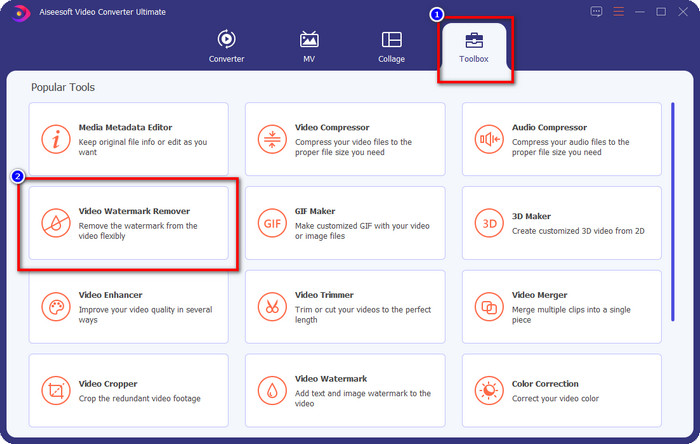
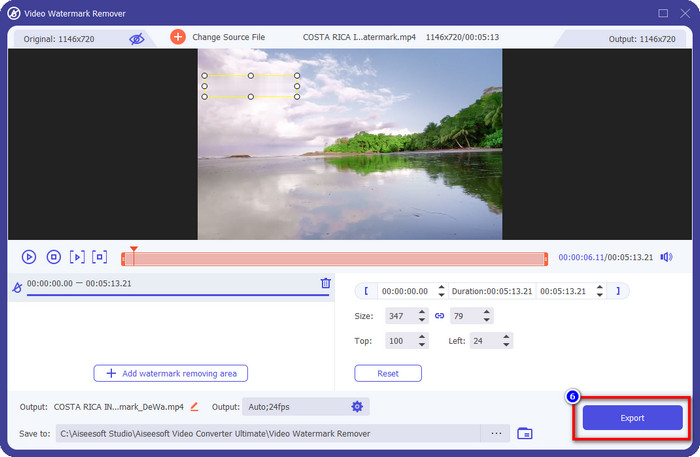
Βήμα 2. Στο Toolbox, εντοπίστε το Video Watermark Remover που διαθέτει το εργαλείο και κάντε κλικ πάνω του για να συνεχίσετε.
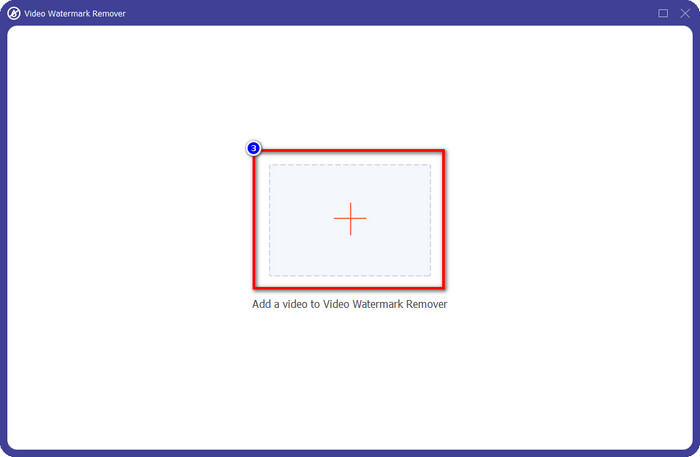
Βήμα 3. Κάνοντας κλικ στο εικονίδιο +, ανεβάζετε το βίντεο που περιέχει υδατογράφημα. Αναζητήστε το στον φάκελο που θα εμφανιστεί στην οθόνη σας, κάντε κλικ μία φορά στο αρχείο και πατήστε Open για να το ανεβάσετε.
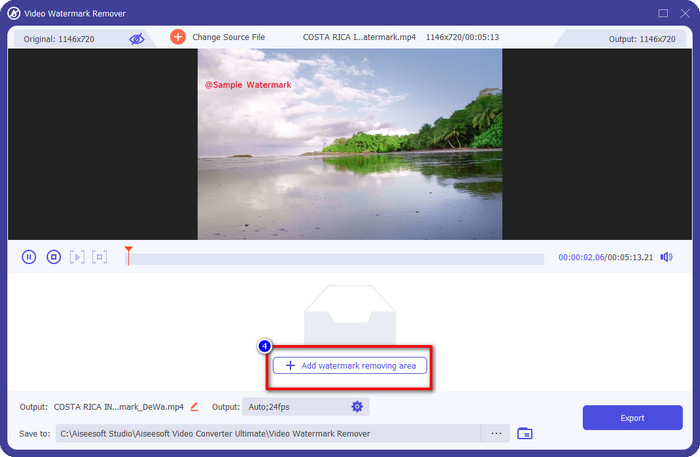
Βήμα 4. Αφού ανεβάσετε το βίντεο με υδατογράφημα, πατήστε Add Watermark Removing Area και περιμένετε για τη σύντομη διαδικασία φόρτωσης.
Βήμα 5. Τοποθετήστε το πλαίσιο επιλογής επάνω στο υδατογράφημα του WeVideo και καλύψτε το πλήρως, ώστε όταν εξαχθεί το βίντεο να μην φαίνονται καθόλου ίχνη του υδατογραφήματος στο τέλος του βίντεο.
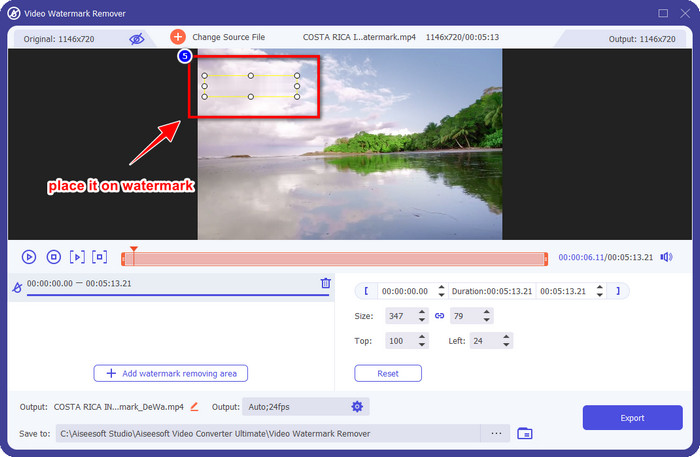
Βήμα 6. Τώρα μπορείτε να αποθηκεύσετε το βίντεο στο οποίο αφαιρέσατε το υδατογράφημα, κάνοντας κλικ στο κουμπί Export. Η διαδικασία αποθήκευσης δεν θα διαρκέσει πολύ, επειδή υποστηρίζει εξαιρετικά γρήγορη επεξεργασία και επιτάχυνση μέσω υλικού.
iMyFone Mark Go
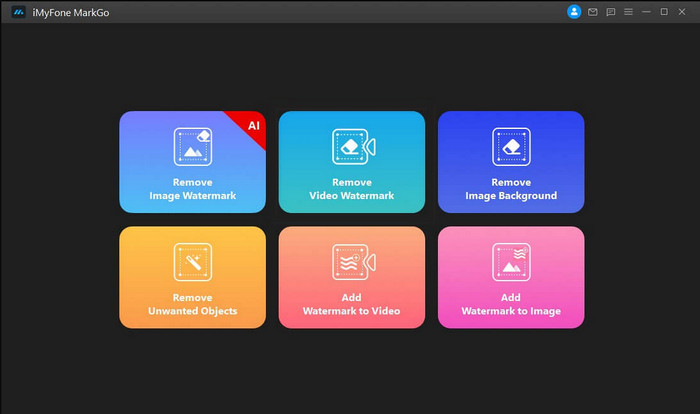
Το iMyFone Mark Go είναι ακόμη ένα εργαλείο αφαίρεσης υδατογραφημάτων που μπορείτε να κατεβάσετε σε Windows και Mac για να σας βοηθήσει να αφαιρέσετε το υδατογράφημα του WeVideo. Αυτό το εργαλείο αφαιρεί αποτελεσματικά το υδατογράφημα από το βίντεό σας, παρόμοια με το τι μπορεί να προσφέρει το «ultimate» εργαλείο. Όπως κάθε άλλο offline λογισμικό που μπορείτε να κατεβάσετε στον υπολογιστή σας, θα χρειαστεί να αποκτήσετε την πλήρη έκδοση για να αφαιρέσετε το υδατογράφημα και να αξιοποιήσετε την premium εκδοχή του προγράμματος. Αν και έχει κάποιο κόστος, δεν είναι τόσο ακριβό σε σύγκριση με άλλα προγράμματα αφαίρεσης υδατογραφημάτων που μπορείτε να κατεβάσετε. Αν, λοιπόν, θέλετε να αφαιρέσετε εύκολα και αποτελεσματικά το υδατογράφημα από το βίντεό σας, μπορείτε να ακολουθήσετε τα παρακάτω βήματα, καθώς σας δείχνουμε τη διαδικασία βήμα προς βήμα.
Βήμα 1. Κατεβάστε το λογισμικό στον υπολογιστή σας μεταβαίνοντας στον επίσημο ιστότοπό του.
Βήμα 2. Αφού εκκινήσετε το λογισμικό, κάντε κλικ στο Remove Video Watermark.
Βήμα 3. Προσθέστε το αρχείο βίντεο κάνοντας κλικ στο Add the Video. Επιλέξτε το αρχείο βίντεο που έχει υδατογράφημα.
Βήμα 4. Μετακινήστε το ορθογώνιο πλαίσιο που θα εμφανιστεί και τοποθετήστε το επάνω στο υδατογράφημα ώστε να το καλύψετε. Παρόλο που υπάρχουν άλλες τρεις επιλογές για αφαίρεση υδατογραφήματος, δεν μπορείτε να τις χρησιμοποιήσετε, επειδή προορίζονται για χρήστες της premium έκδοσης.
Βήμα 5. Κάντε κλικ στο κουμπί Export για να αποθηκεύσετε το βίντεο από το οποίο αφαιρέσατε το υδατογράφημα.
Online Video Cutter – Αφαιρέστε το λογότυπο από το βίντεο
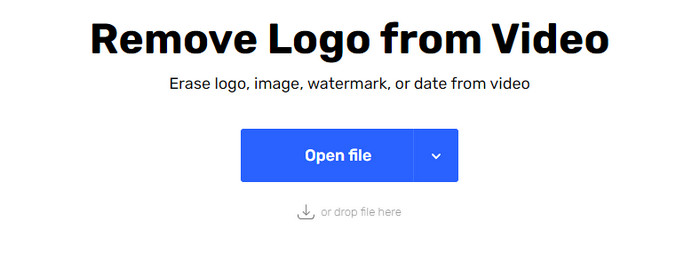
Πώς να αφαιρέσετε δωρεάν το υδατογράφημα του WeVideo; Χρησιμοποιήστε το Online Video Cutter – Remove Logo From Video. Το λογισμικό αυτό είναι ένα δωρεάν διαδικτυακό εργαλείο που μπορείτε να χρησιμοποιήσετε για να αφαιρέσετε το υδατογράφημα από το βίντεό σας στο διαδίκτυο, χωρίς να χρειαστεί να κατεβάσετε ή να πληρώσετε τίποτα. Αν το συγκρίνουμε με άλλα προγράμματα αφαίρεσης υδατογραφημάτων στην αγορά, είναι αρκετά αποτελεσματικό, αν και όχι τόσο ισχυρό όσο το «ultimate» λογισμικό. Μπορεί να καλύψει το υδατογράφημα στο βίντεό σας ώστε να βελτιωθεί η οπτική εμφάνιση του βίντεο. Παρ’ όλα αυτά, αν δεν έχετε σύνδεση στο διαδίκτυο, αυτό το εργαλείο δεν είναι η καλύτερη επιλογή για την αφαίρεση του υδατογραφήματος από το βίντεό σας. Αν όμως διαθέτετε σύνδεση, τότε μπορείτε να ακολουθήσετε τα παρακάτω βήματα για να αρχίσετε να χρησιμοποιείτε αυτό το εργαλείο και να αφαιρέσετε το υδατογράφημα από το βίντεό σας.
Βήμα 1. Ανοίξτε μια νέα καρτέλα και αναζητήστε το όνομα του εργαλείου για να ξεκινήσετε την αφαίρεση του υδατογραφήματος από το βίντεο.
Βήμα 2. Κάντε κλικ στο Open File για να ανεβάσετε εδώ το βίντεο από το WeVideo, ώστε να δημιουργηθεί η προεπισκόπηση του βίντεο που ανεβάσατε.
Βήμα 3. Κάντε κλικ επάνω στο υδατογράφημα για να εφαρμόσετε την περιοχή αφαίρεσης που διαθέτει αυτό το εργαλείο. Μόλις κάνετε κλικ σε οποιοδήποτε σημείο του βίντεο, θα εμφανιστεί ένα πλαίσιο επιλογής.
Βήμα 4. Πατήστε Save για να αποκτήσετε το βίντεο χωρίς το υδατογράφημα.
Σχετικά:
Πώς να αφαιρέσετε το υδατογράφημα του Movavi
Πώς να αφαιρέσετε το υδατογράφημα του Weibo
Μέρος 3. Συχνές ερωτήσεις σχετικά με την κατάργηση του υδατογραφήματος WeVideo
Ποιο εργαλείο είναι το καλύτερο για να αφαιρέσετε το υδατογράφημα WeVideo;
Χωρίς δεύτερη αμφιβολία, είναι το FVC Video Converter Ultimate. αυτό το εργαλείο παρέχει την καλύτερη απόδοση για την αφαίρεση του υδατογραφήματος στο βίντεό σας. Μεταξύ του επιλεγμένου εργαλείου αφαίρεσης υδατογραφήματος, δεν μπορούμε να αρνηθούμε ότι το απόλυτο εργαλείο είναι ανώτερο από το άλλο εργαλείο αφαίρεσης υδατογραφήματος.
Μπορώ να κόψω το υδατογράφημα WeVideo;
Ναι, μπορείτε να περικόψετε το υδατογράφημα που αφήνει το WeVideo στο βίντεό σας. Ωστόσο, η διάσταση του βίντεο θα μειωθεί και υπάρχει πιθανότητα να μειωθεί η ποιότητά του επειδή κόψατε την αναλογία διαστάσεων.
Τι κάνει το WeVideo το καλύτερο πρόγραμμα επεξεργασίας βίντεο στον Ιστό;
Με τις πλήρεις βασικές λειτουργίες επεξεργασίας βίντεο που μπορείτε να συνηθίσετε και πόσο εύκολο είναι να χρησιμοποιήσετε το εργαλείο. Αυτές είναι οι πιο κοινές γνώσεις σχετικά με το τι κάνει το WeVideo ένα από τα καλύτερα προγράμματα επεξεργασίας βίντεο που μπορείτε να χρησιμοποιήσετε στον ιστό. Αλλά δεν είναι τόσο καλό όσο το άλλο πρόγραμμα επεξεργασίας βίντεο Adobe Premiere Pro, Final Cut Pro, κ.λπ.
συμπέρασμα
Επιτέλους, με τις μεθόδους που παρέχουμε παραπάνω, έχετε τώρα μια ιδέα για το πώς να απαλλαγείτε από το υδατογράφημα WeVideo. Τι πιστεύετε όμως για το εργαλείο που επιστρατεύουμε; Εάν εξακολουθείτε να μην έχετε ιδέα τι να χρησιμοποιήσετε, πρέπει να δοκιμάσετε το FVC Video Converter Ultimate κατά τη γνώμη μας. Παρέχει το καλύτερο από τα καλύτερα για την αφαίρεση του υδατογραφήματος και είναι επίσης εύκολο στη χρήση. Λοιπόν, τι περιμένεις? Κάντε κλικ στο κουμπί λήψης για να έχετε το εργαλείο αφαίρεσης υδατογραφήματος και να το χρησιμοποιήσετε αμέσως.
-
 123rf Watermark Removers – Ενδελεχής επισκόπηση των απόλυτων εργαλείων
 Αν θέλετε να μάθετε ποια είναι τα πιο σημαντικά προϊόντα αφαίρεσης υδατογραφημάτων 123rf, διαβάστε προσεκτικά αυτό το άρθρο. Αυτό το άρθρο παρέχει μια εις βάθος ανασκόπηση των εργαλείων.
-
 Πώς να αφαιρέσετε το υδατογράφημα DeviantArt σε Windows και Mac
 Θέλετε να μάθετε πώς να αφαιρείτε το υδατογράφημα DeviantArt στις εικόνες σας; Χρησιμοποιώντας τα πιο σημαντικά εργαλεία αφαίρεσης υδατογραφημάτων DeviantArt, μπορείτε εύκολα να αφαιρέσετε αυτά τα ενοχλητικά υδατογραφήματα.
-
 Απόλυτα λογισμικά για την κατάργηση υδατογραφήματος βοηθητικού βίντεο σε εξαγόμενα βίντεο [2022]
 Θέλετε να μάθετε πώς να αφαιρέσετε το υδατογράφημα στο βίντεο που κατεβάζετε στο Video Helper; Αν ναι, διαβάστε αυτό το άρθρο για να μάθετε.
