


 Video Converter Ultimate
 Grabador de pantalla
 Reparación de vídeo
 Descarga segura
Cómo desenfocar imágenes utilizando las aplicaciones más potentes
Es bastante frustrante descubrir que la imagen que has tomado está borrosa. Tu foto está borrosa porque el sujeto que estás fotografiando se mueve, la cámara tiembla o la iluminación del lugar no es buena. Además, no puedes recuperar el momento en el que tomaste la foto, lo cual resulta muy decepcionante. Arreglar esa imagen parece imposible, pero no lo es. Por suerte, existen métodos específicos que puedes emplear para desdiblar una imagen borrosa. Con las mejores aplicaciones de reparación de imágenes, puedes corregir tu foto desenfocada. Esta guía te enseñará cómo desdibujar una imagen sin esfuerzo.

Parte 1. Cómo desenfocar una imagen en línea
Las personas prefieren usar una aplicación en línea para desenfocar las imágenes porque les permite ahorrar espacio en sus dispositivos. Además, al usar una herramienta en línea, solo necesita acceder a ella en su navegador. ¿Conveniente verdad? Por lo tanto, buscamos el mejor escalador de imágenes en línea para corregir el desenfoque de su foto.
FVC Free Image Upscaler es la mejor opción si buscas una forma de desdibujar una imagen online. Además, es gratuito y seguro de usar. También puedes acceder a él en todos los navegadores web, incluidos Google, Firefox y Safari. Asimismo, puedes mejorar la calidad de tu imagen con ampliaciones de 2x, 4x, 6x y 8x. También utiliza tecnología de IA (Inteligencia Artificial) que detecta automáticamente las partes borrosas de tu imagen y luego las mejora.
Además, FVC Free Image Upscaler le permite corregir con precisión píxeles perdidos, texturas de color y más detalles. Y a pesar de ser una aplicación en línea, tiene un rápido proceso de mejora y no contiene anuncios que puedan distraerlo. Entonces, si está interesado en usar el escalador de imágenes gratuito, siga la guía simple a continuación.
Cómo desenfocar imágenes usando FVC Free Image Upscaler:
Paso 1. Primero, abre tu navegador y escribe FVC Free Image Upscaler en la barra de búsqueda. También puedes hacer clic en el enlace para ir directamente a la página principal. A continuación, inicia la aplicación haciendo clic en el botón Upload Photo. Después de iniciar la aplicación, procede al siguiente paso.
Paso 2. En la primera interfaz, haz clic en el botón Upload Photo para importar la imagen que quieres desdibujar. Se abrirán las carpetas de tu ordenador para que localices tu foto. Haz clic en Open para cargarla.

Paso 3. Después de subir tu imagen, selecciona el ajuste de ampliación que prefieras. Puedes elegir entre una ampliación de 2x, 4x, 6x y 8x. Luego, podrás ver la vista previa del resultado en la parte derecha para apreciar la diferencia con respecto al archivo original.
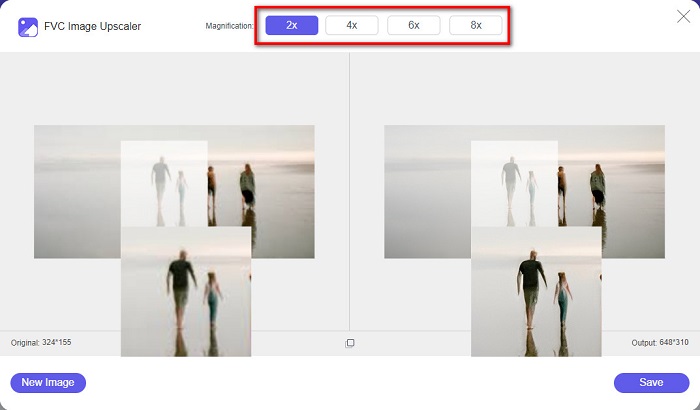
Paso 4. Por último, guarda el resultado haciendo clic en el botón Save en la esquina inferior derecha de la interfaz.
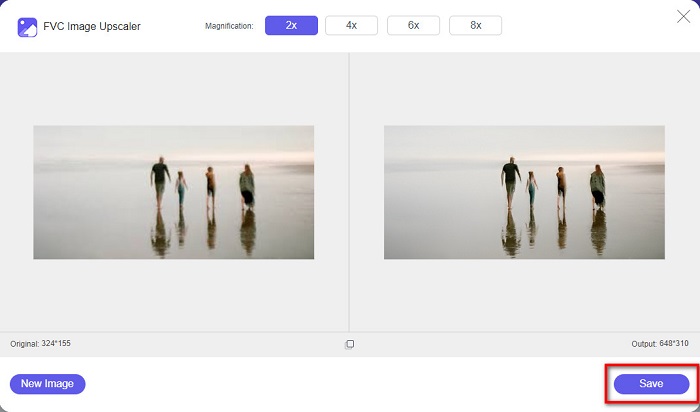
Y esos son los pasos sobre cómo desenfocar una imagen en línea. Verá en el resultado cómo este escalador de imágenes gratuito puede ayudarlo a corregir la calidad de su imagen.
Parte 2. Cómo desenfocar una imagen sin conexión en el escritorio
Muchos profesionales usan una computadora para editar imágenes o videos. Además, muchas aplicaciones de edición de fotos solo están disponibles en computadoras de escritorio. Y en esta parte, le enseñaremos los mejores métodos para desenfocar una imagen sin conexión en su escritorio.
Desenfocar imagen usando Photoshop
Adobe Photoshop es probablemente la mejor aplicación de edición de imágenes que puedes usar para desdibujar tus fotos. Esta aplicación de escritorio cuenta con muchas funciones y herramientas de edición que puedes utilizar para mejorar una imagen. Además, puedes añadir nitidez a tu foto si la calidad no es buena o si está borrosa. Y gracias a sus herramientas de edición avanzadas, sin duda podrás producir resultados excelentes. Asimismo, puedes eliminar personas u objetos de tu imagen, dibujar una figura u objeto con la herramienta lápiz o pluma, manipular el color de tu foto y mucho más. Con Adobe Photoshop, puedes crear imágenes fantásticas que tú mismo has editado. Sin embargo, Adobe Photoshop no es una herramienta intuitiva. Necesitas un conocimiento profundo de cómo usar sus herramientas para desdibujar o editar tu imagen. No obstante, te proporcionaremos los pasos para que puedas usar Photoshop para desdiblar imágenes. También te mostraremos dos formas de usar Photoshop para reducir la borrosidad de tu imagen.
Proceso de desenfoque de imagen con Adobe Photoshop:
Paso 1. Descarga Adobe Photoshop en tu ordenador e instálalo. Una vez que hayas descargado e instalado la aplicación, ejecútala en tu dispositivo.
Paso 2. Luego, abre en la interfaz principal la imagen que quieres desdibujar. También puedes pulsar CTRL + O en tu teclado para abrir tu imagen fácilmente.
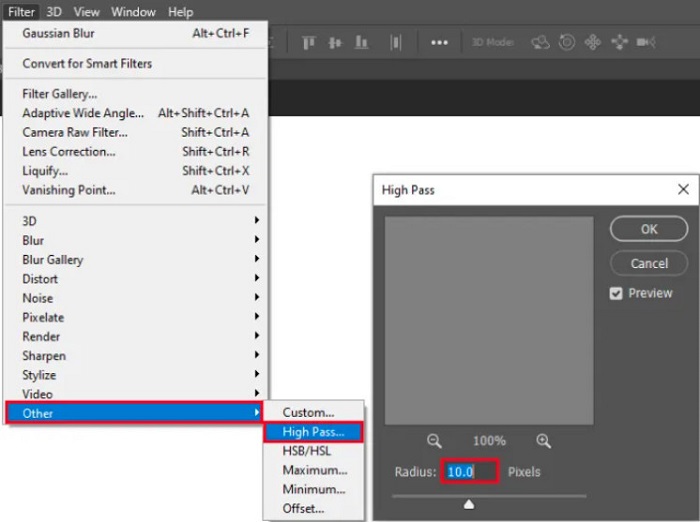
Paso 3. A continuación, duplica el fondo de tu capa y selecciónalo. Después, haz clic en Filter > Other > High Pass. Establece el High Pass en 10%.
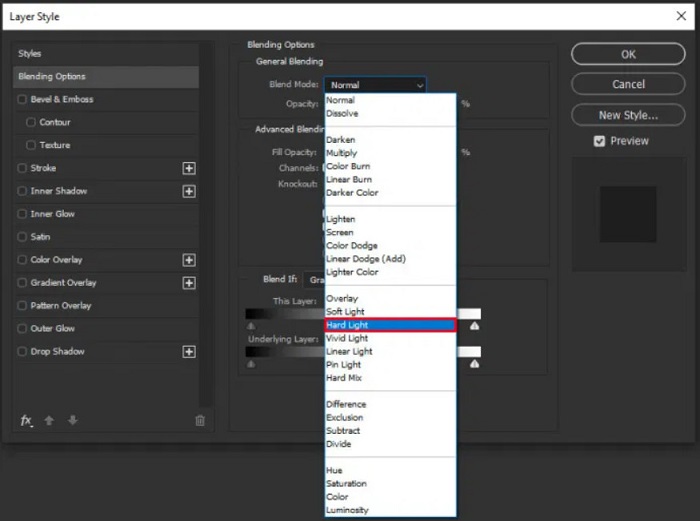
Paso 4. En la ventana de Layer Style, cambia el modo de fusión de normal a hard light y luego ajusta la opacity hasta que la foto se vea nítida o mejorada.
Si utilizas la versión nueva de Photoshop, puedes usar la opción de reducción de movimiento de cámara para aumentar la nitidez de una imagen con Photoshop.
Paso 1. Importa en Photoshop la imagen que quieres desdibujar.
Paso 2. Luego, ve a Filter > Sharpen > Shake Reduction.
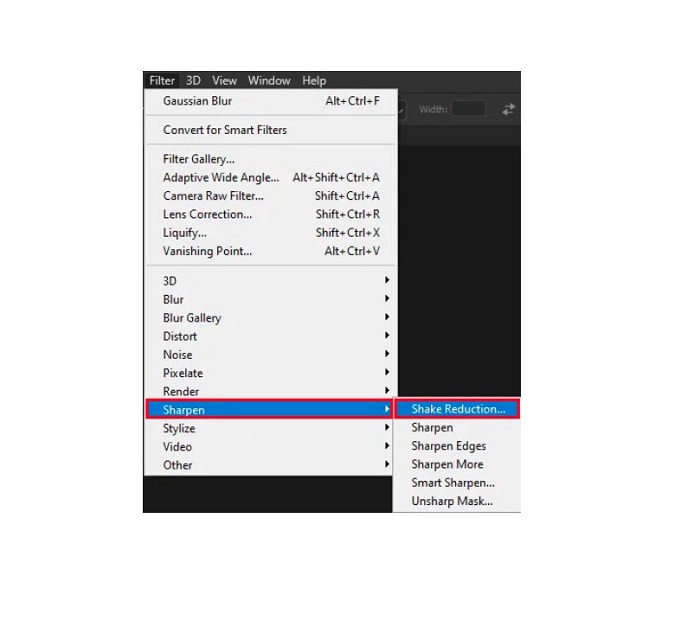
Paso 3. Después, Photoshop procesará tu imagen y podrás ver el resultado.
Desenfocar imagen usando Paint.net
Otro programa gratuito de edición de fotos sin conexión que puedes usar es Paint.net. Una de las funciones más potentes de esta aplicación es el enfoque de la imagen. Moviendo el deslizador, puedes ajustar el grado de nitidez de tu imagen, lo que hace que tenga un aspecto definido y nítido y elimina el desenfoque. Además, es más fácil de usar que Adobe Photoshop. También dispone de otras funciones de edición que puedes utilizar para retocar tus fotos. Y si no sabes usar esta aplicación, puedes acceder a su servicio de consulta online y a tutoriales paso a paso. Asimismo, es una de las aplicaciones de edición de imágenes más conocidas entre los usuarios de Windows porque ofrece muchas funciones de corrección que puedes usar para mejorar tu foto. Un pequeño inconveniente de Paint.net es que no puedes corregir el texto que has introducido después de aplicar los efectos. Aun así, este software te permite crear resultados de edición de imágenes por niveles.
Cómo desenfocar una imagen usando Paint.net:
Paso 1. Para empezar, abre tu imagen en Paint.net pulsando CTRL + O en tu teclado. También puedes ir a File y buscar la opción Open. Entonces, aparecerán los archivos de tu escritorio, donde seleccionarás tu imagen y la abrirás.
Paso 2. Luego, haz clic en Effects > Picture y selecciona Sharpen.
Paso 3. Después, en el panel Sharpen, verás el deslizador con el que ajustarás la nitidez de tu imagen para desdibujarla. También puedes pulsar el botón de flecha arriba/abajo para cambiar el nivel de nitidez de tu foto.
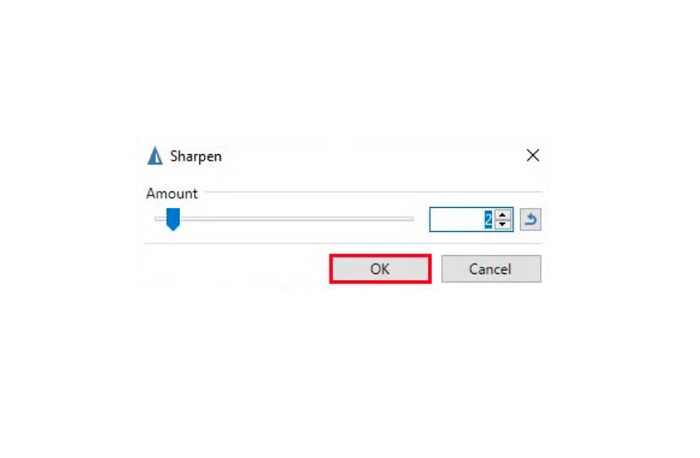
Paso 4. Pulsa el botón OK y guarda el resultado.
Parte 3. Cómo Desenfocar una Imagen en iPhone
Si es usuario de un dispositivo iPhone, también puede descargar algunas aplicaciones para desenfocar su imagen. Puede elegir entre las aplicaciones de su App Store para desenfocar su imagen. Sin embargo, algunas aplicaciones se pueden comprar, lo que requiere que las compre antes de usarlas. Pero en esta parte, le enseñaremos cómo desenfocar su imagen en su iPhone usando una aplicación gratuita y notable.
Foton es una de las aplicaciones más utilizadas para desdibujar imágenes en iPhone. Puedes descargar esta app de forma gratuita en la App Store. Además, tiene otras funciones de edición que puedes usar, como crear collages, recortar, añadir plantillas, dividir y mucho más. También cuenta con una interfaz fácil de usar, lo que la convierte en una aplicación muy intuitiva. Con esta app, puedes desdibujar tu imagen ajustando la nitidez. Y si quieres añadir más definición a tu foto para que resulte aún más impactante, puedes ajustar el contraste, la claridad, la saturación y la corrección de neblina (dehaze). Además, es segura de usar, por lo que no tienes que preocuparte por la seguridad de tus archivos de imagen. El inconveniente de esta app es que debes comprar la versión Pro para utilizar sus demás funciones.
Cómo desenfocar una imagen en iPhone:
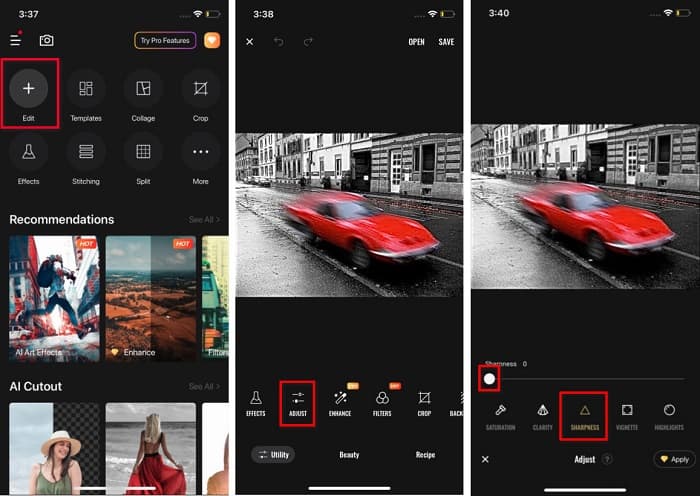
Paso 1. Abre la App Store en tu iPhone y busca Foton. Instálala en tu teléfono y ábrela una vez instalada. Luego, en la interfaz principal de la app, pulsa la opción Edit.
Paso 2. Selecciona la imagen que quieres desdibujar; después, se abrirá otra interfaz. Pulsa la opción Adjust debajo de tu imagen y desliza hacia la izquierda hasta encontrar la función Sharpness.
Paso 3. En el panel de Sharpness, arrastra el deslizador hasta el nivel de nitidez que prefieras, hasta que se reduzca la borrosidad de tu imagen.
Paso 4. Por último, pulsa el botón Save en la esquina superior derecha de la interfaz para guardar el resultado en tu iPhone. Haz clic aquí para aprender a redimensionar una imagen en un iPhone.
Parte 4. Cómo desenfocar una imagen en un teléfono Android
Muchas personas también tienen dispositivos Android, y si también está usando uno, puede leer esta parte para aprender a desenfocar una imagen en Android. Buscamos las aplicaciones de desenfoque de fotos más populares para Android y las probamos una por una. Afortunadamente, encontramos una aplicación que es mejor recomendar.
Snapseed es la mejor aplicación si quieres desdibujar tu imagen en un dispositivo Android. Con sus funciones de nitidez (Sharpen) y estructura (Structure), puedes añadir definición a tu imagen para eliminar las partes borrosas. Además, cuenta con muchas herramientas de edición que te ayudan a mejorar la calidad de tu foto. Y, al igual que las demás herramientas mencionadas, tiene una interfaz sencilla. Así que, si eres principiante, puedes usar esta app para desdibujar tu imagen. No obstante, debes activar el WiFi antes de usar esta aplicación.
Cómo desenfocar una imagen en Android usando Snapseed:
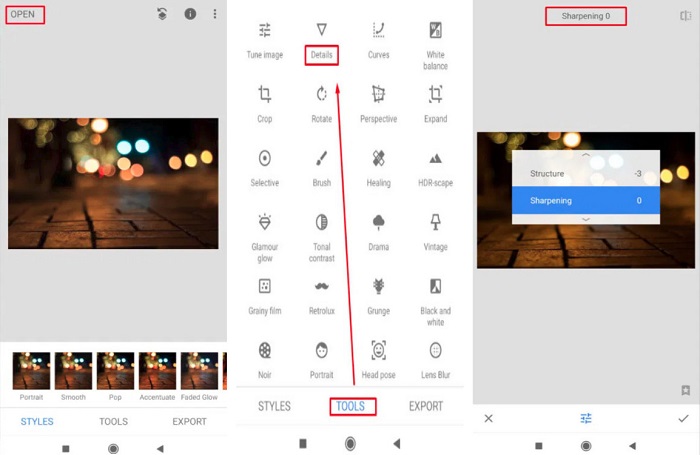
Paso 1. Descarga la app en tu dispositivo Android y ábrela. Después de abrirla, abre tu imagen en la aplicación.
Paso 2. Luego, en el panel de Tools, selecciona la opción Details.
Paso 3. A continuación, selecciona la opción Sharpen o Structure de tu imagen para lograr un cambio en tu foto borrosa. Ajustando estas dos opciones, eliminarás la borrosidad de tu imagen.
Parte 5. Preguntas frecuentes sobre cómo desenfocar una imagen
¿Aumentará el tamaño del archivo al desenfocar una imagen?
Sí. Cuando desenfoca una imagen, el PPI de la misma aumentará, lo que hará que el tamaño del archivo sea mayor que el original.
¿Por qué mi imagen se vuelve borrosa cuando la hago más grande?
Probablemente se deba a un problema de compresión. Cuando intenta cambiar el tamaño de una imagen, también está ampliando los píxeles de su foto. Por lo tanto, comprimir una imagen puede afectar la calidad de su imagen.
¿Puedo desenfocar una imagen JPG en Adobe?
¡Definitivamente! Puede usar Adobe Photoshop si desea desenfocar una imagen JPG. Adobe Photoshop admite formatos de imagen estándar, como PNG, JPG y JPEG
Conclusión
Ahora que ya sabes cómo desdibujar una imagen utilizando los métodos más sencillos, puedes corregir tus fotos. Todos los métodos que hemos mostrado arriba te ayudarán sin duda a alcanzar el objetivo que deseas. Pero si quieres ahorrar espacio en tu dispositivo, te recomendamos usar FVC Free Image Upscaler, al que puedes acceder gratis y online.
-
 Cómo cambiar el tamaño de una imagen en PowerPoint [La forma más rápida de cambiar el tamaño]
 Aprender a cambiar el tamaño de las imágenes en PowerPoint es esencial, especialmente si desea usarlo en su presentación. Lee este artículo para saber cómo hacerlo.
-
 Imagen de 1440p: toda la información incluida que necesitará [actualizado en 2022]
 ¿Quieres saber acerca de las imágenes de 1440p? O donde se puede conseguir? ¿Convertir tu imagen a 1440p? Lee esto para conocerlos todos.
-
 Tutorial para despixelar una imagen usando los 3 mejores despixeladores de fotos
 ¿Tiene problemas para manejar imágenes pixeladas? Hoy, hemos resuelto el problema y puede usar las herramientas que agregamos aquí.
