


 Video Converter Ultimate
 Grabador de pantalla
 Reparación de vídeo
 Descarga segura
Las formas más excelentes sobre cómo ampliar una imagen para imprimir
Ampliar una imagen se puede hacer de dos maneras. Puedes agrandar una foto reescalándola o aumentando los píxeles de tu imagen. Otra forma de ampliar una imagen es cambiando el tamaño real o las dimensiones de una fotografía. En esta guía te mostraremos estas dos formas de agrandar una foto. Según tus necesidades, podrás resolver todas tus dudas. Lee esta guía para aprender cómo agrandar una imagen para imprimirla, usarla en línea y sin conexión.

Parte 1. Ampliar imagen sin perder calidad en línea para imprimir
Suena complicado cuando escuchas por primera vez sobre la ampliación de la calidad de una imagen. Pero, después de leer este post, seguro que te resultará fácil. Hay toneladas de aplicaciones que pueden ayudarte a ampliar tu imagen. Pero el problema es que hay tantos que es difícil elegir uno. Afortunadamente, encontramos una aplicación que puede ayudarte a ampliar una imagen de manera fácil y gratuita.
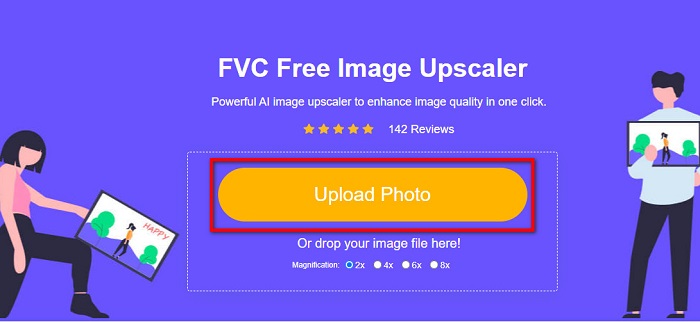
FVC Free Image Upscaler es una increíble aplicación en línea para agrandar fotos que puedes usar desde el navegador. Lo bueno de las aplicaciones en línea es que no necesitas descargarlas, lo que te permite ahorrar espacio de almacenamiento. Puedes ampliar tu imagen con esta herramienta online a 2x, 4x, 6x o 8x de aumento. Además, utiliza un proceso de aumento mediante tecnología de IA que detecta automáticamente las partes de baja calidad de una imagen y las mejora.
Además, los principiantes pueden usar fácilmente esta aplicación porque tiene una interfaz de usuario intuitiva. Además, tiene un efecto de vista previa que le permite verificar los resultados de su salida antes de guardarla. FVC Free Image Upscaler es de uso gratuito en todos los navegadores web, como Google, Firefox y Safari.
Cómo ampliar una imagen para imprimir usando FVC Free Image Upscaler
Paso 1. Ve a tu navegador web y busca FVC Free Image Upscaler en la barra de búsqueda. También puedes hacer clic en este enlace para ir directamente a la página principal.
Paso 2. En la interfaz principal, haz clic en el botón Upload Photo para añadir la imagen que quieres agrandar. También puedes arrastrar y soltar (drag-drop) tu imagen para subirla.
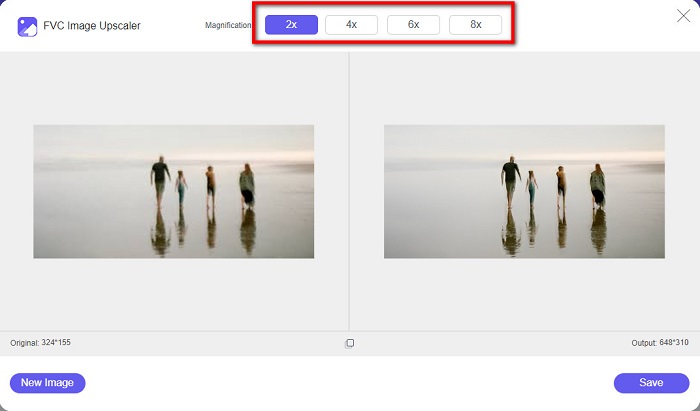
Paso 3. Cuando se haya subido tu archivo, se te dirigirá a otra interfaz. Selecciona el aumento que prefieras para tu imagen. Puedes elegir entre 2x, 4x, 6x y 8x. Cuanto menor sea la calidad de tu imagen, mayor deberá ser el aumento que selecciones.
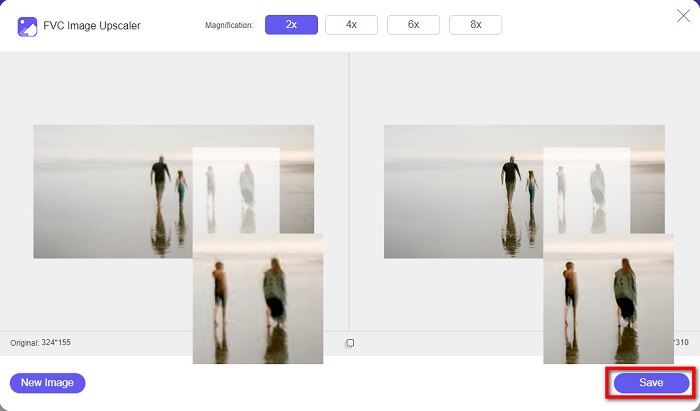
Paso 4. Pasa el cursor sobre la imagen de la izquierda para ver el resultado del aumento. ¿Ves los cambios? Haz clic en el botón Save en la esquina inferior derecha de la interfaz para guardar el resultado en tu dispositivo.
Y esos son los sencillos pasos sobre cómo ampliar una imagen para imprimirla en línea usando FVC Free Image Upscaler. Fácil como un pastel, ¿verdad? Pero si desea ampliar una foto cambiando las dimensiones de su imagen, lea la siguiente parte.
Parte 2. Cómo agrandar una imagen en Photoshop sin perder calidad
Probablemente te hayas encontrado con esta aplicación cuando buscabas cómo ampliar una foto. Y Adobe Photoshop es la aplicación de edición de fotos más eminente en Internet. Adobe Photoshop es utilizado principalmente por profesionales que suelen editar imágenes para publicar en diferentes plataformas. Con las herramientas y funciones de esta aplicación, seguramente puede producir resultados sorprendentes. Pero, ¿sabías que también puedes ampliar una imagen con Adobe Photoshop? Sí, lo leiste bien. También es una herramienta adecuada para ampliar imágenes sin perder calidad. Con Adobe Photoshop, puede ampliar su imagen cambiando la resolución o ingresando manualmente el ancho y el alto de su imagen. Aunque Adobe Photoshop es una aplicación profesional, su función de ampliación es fácil de usar. Sin más preámbulos, estos son los pasos para ampliar una imagen usando Photoshop sin pérdidas.
Paso 1. Antes que nada, descarga Adobe Photoshop en tu ordenador. Está disponible para casi todos los sistemas operativos, como Windows y macOS. Una vez que la aplicación esté instalada en tu dispositivo, importa la imagen que quieres agrandar.
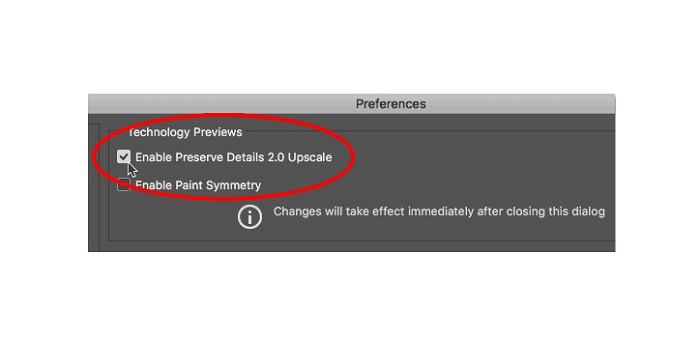
Paso 2. A continuación, activa Preserve Details 2.0. Si utilizas un ordenador con Windows, ve al panel Edit en la Menu Bar. Si utilizas un Mac, ve al menú Photoshop CC, elige Preferences y haz clic en el botón Technology Previews. Esto mostrará el cuadro de diálogo Preferences en la opción Technology Previews. Marca la casilla junto a Enable Preserve Details 2.0 Upscale. Después, pulsa OK para cerrar el cuadro de diálogo en la opción Technology Previews.
Paso 3. Luego, abre el cuadro de diálogo Image Size yendo al menú Image y seleccionando la opción Image Size.
Paso 4. Al ampliar o reescalar una imagen en Photoshop, queremos ajustar las dimensiones físicas de la imagen o, dicho de otro modo, queremos añadir o eliminar píxeles. Por lo tanto, asegúrate de que la opción Resample esté seleccionada.
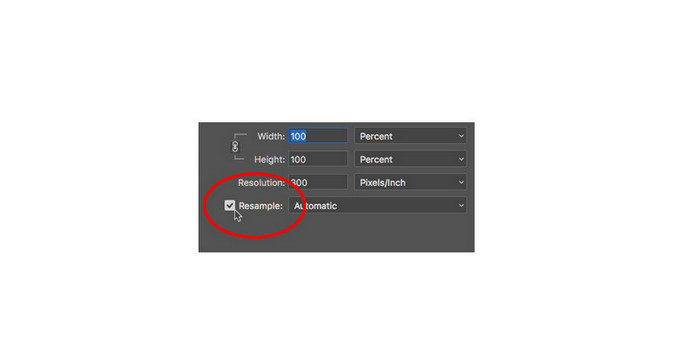
Paso 5. Después, cambia la height y la width de tu foto introduciendo las dimensiones que prefieras para tu imagen. De forma predeterminada, el ancho y el alto están vinculados, así que si cambias el ancho de tu imagen, la altura se ajustará en consecuencia.
Paso 6. Por último, cambia el Resample Method a Preserve Details 2.0. El método de remuestreo predeterminado está configurado en Automatic. Sin embargo, Photoshop no lo seleccionará cuando Resample esté en Automatic. Por lo tanto, cambia la opción Resample haciendo clic en Automatic y selecciona Preserve Details 2.0.
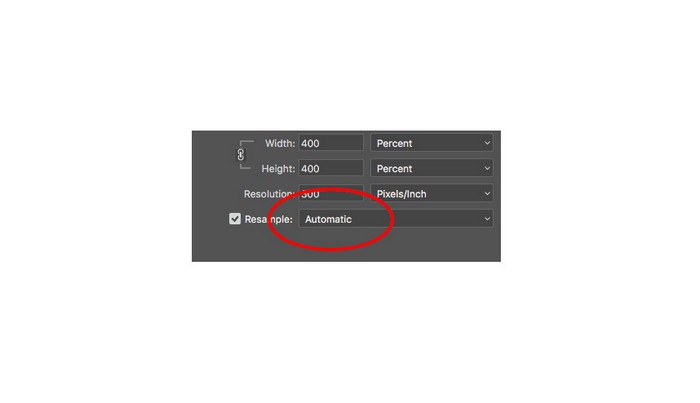
Paso 7. Ahora es momento de previsualizar los resultados. Después de seleccionar Preserve Details 2.0, la pestaña de vista previa de la izquierda se actualizará y te mostrará cómo se verá tu imagen aumentada. Arrastra la imagen con el ratón dentro de la ventana de vista previa para ver las diferentes partes de tu imagen.
Siguiendo estos pasos, seguramente aprenderá cómo ampliar una imagen para imprimirla sin perder calidad.
Relacionado con:
Los 7 mejores ampliadores de fotos en línea y sin conexión
Los 4 mejores ampliadores de GIF offline y online que no te puedes perder
Parte 3. Preguntas frecuentes sobre cómo ampliar la imagen sin perder calidad
¿Puedo ampliar el tamaño del archivo JPG en línea?
Puedes cambiar el tamaño de archivo de tu imagen JPG usando FVC Free Image Upscaler. Solo tienes que aumentar la ampliación a 6x u 8x para agrandar el tamaño de tu imagen JPG.
¿Adobe Photoshop admite archivos PNG?
Sí. Los archivos PNG son compatibles con muchas plataformas, incluido Adobe Photoshop. Puede importar casi todos los formatos de archivo de imagen con Adobe Photoshop, como PNG, JPG, JPEG, BMP y WebP.
¿La ampliación de mi imagen afecta el tamaño del archivo?
Sí, lo hace. El tamaño del archivo de su imagen aumenta porque está ajustando la cantidad total de píxeles de su imagen o la cantidad de píxeles en cada pulgada. Pero el tamaño del archivo también será más pequeño cuando reduzca el ancho y el alto de su imagen.
Conclusión
Y estos son los métodos sobre cómo agrandar una imagen sin perder calidad. Con cualquiera de los dos métodos, en línea o sin conexión, puedes ampliar tu imagen sin comprometer su calidad. Pero si quieres una forma más sencilla de agrandar una foto, te recomendamos usar FVC Free Image Upscaler, una aplicación fácil de usar.
-
 Cómo cambiar el tamaño de la imagen en Illustrator con 2 formas diferentes
 Aprenda las mejores formas de cambiar el tamaño de una imagen en Illustrator. Para comenzar, descargue y abra la aplicación Adobe Illustrator en su PC y siga estos sencillos pasos.
-
 6 formas de cambiar el tamaño de una imagen en la web y sin conexión [funcionamiento 100%]
 Con el tutorial que agregamos aquí, ahora puede cambiar fácilmente el tamaño de una imagen según su tamaño preferido. ¡Aprende cómo hacerlo aquí!
-
 Las mejores maneras de cambiar el tamaño de la foto en su iPhone de forma gratuita y sin instalación
 Cambiar el tamaño de una foto en tu iPhone puede ser difícil de aprender. Afortunadamente, este artículo proporciona un tutorial sobre cómo cambiar fácilmente la dimensión de las imágenes.
