


 Video Converter Ultimate
 Grabador de pantalla
 Reparación de vídeo
 Descarga segura
Las 4 mejores formas de convertir gratis MP4 a MOV
MP4 es uno de los formatos de vídeo más populares y está ampliamente soportado por la mayoría de reproductores, editores y dispositivos. Pero en algunos casos, aún necesitas convertir MP4 a MOV. ¿Sabes cómo cambiar MP4 a MOV?

Cuando buscas en Google cómo convertir MP4 a MOV en Internet, puedes ver que hay muchos conversores de vídeo que pueden ayudarte a realizar la conversión, incluidos algunas herramientas de conversión online gratuitas. En este artículo, te mostraremos 4 formas gratuitas de convertir MP4 a MOV fácilmente.
Parte 1. Cómo convertir gratis MP4 a MOV en Mac / PC sin pérdida de calidad
Aunque en el mercado se ofrece una gran cantidad de programas para convertir MP4 a MOV, muchos de ellos pierden parte de la calidad de imagen y de sonido durante la conversión. Si quieres convertir MP4 a MOV sin pérdida de calidad, deberías elegir Free Video Converter.
Free Video Converter está especialmente diseñado para hacer frente a todo tipo de conversiones de vídeo y audio. Es altamente compatible con casi todos los formatos de video / audio, incluidos MP4, MOV, MKV, FLV, AVI, WMV, MP3, AAC, FLAC y más. Le permite convertir gratis MP4 a MOV en Mac o PC con Windows mientras mantiene la calidad original.
Descarga gratisPara Windows 7 o posteriorDescarga segura
Descarga gratisPara macOS 10.7 o posteriorDescarga segura
Paso 1. Haz doble clic en el botón de descarga de arriba y sigue las instrucciones para instalar y ejecutar este conversor gratuito de MP4 a MOV en tu Mac/PC. Asegúrate de descargar la versión correcta según tu sistema.
Paso 2. Cuando entres en la ventana principal, haz clic en Add File(s) para importar el o los archivos MP4 que quieras convertir. Este conversor gratuito de MP4 a MOV incorpora una función de conversión por lotes que te permite convertir uno o varios archivos MP4 a la vez.
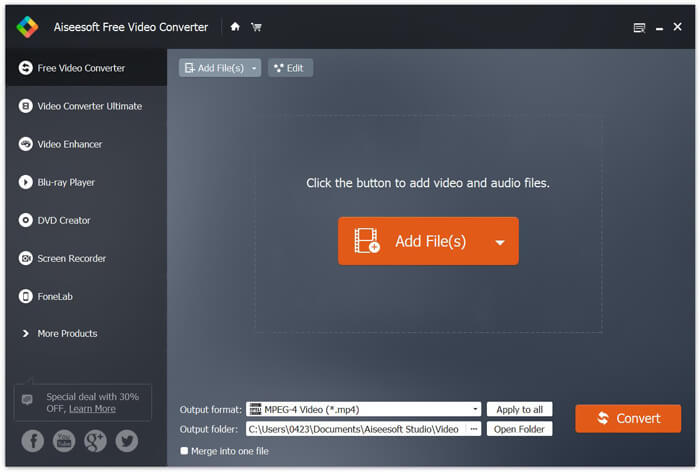
Paso 3. Haz clic en Output format y elige MOV como formato de destino en la lista desplegable. Ahora solo tienes que hacer clic en el botón Convert para iniciar la conversión de MP4 a MOV.
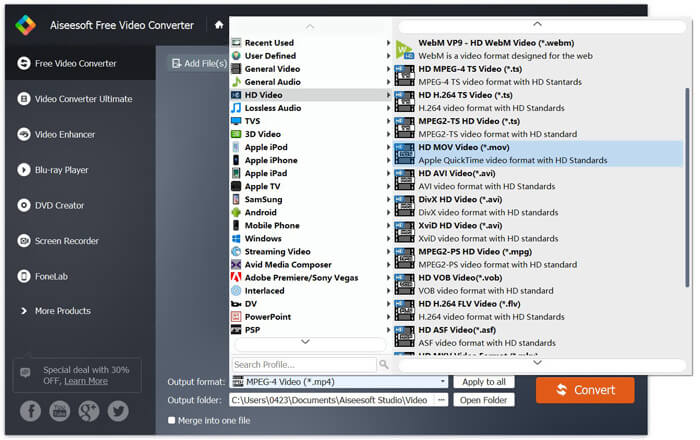
Solo unos segundos después, el MP4 original se convertirá a formato MOV. Además de MOV, también puede convertir MP4 a MKV, FLV, AVI, etc. con alta calidad. Este convertidor de video gratuito también incluye algunas funciones básicas de edición. Antes de la conversión final de MP4 a MOV, puede usarlos para editar sus videos MP4.
Parte 2. Cómo cambiar MP4 a MOV gratis con Online Video Converter
Como se mencionó anteriormente, hay muchos convertidores de video en línea gratuitos que se ofrecen en el mercado que pueden ayudarlo a convertir MP4 en MOV. Aquí, en esta publicación, presentaremos 2 métodos sobre cómo cambiar MP4 a MOV en línea.
1. FVC Free Online Video Converter
Si quieres convertir MP4 a MOV online de forma gratuita, FVC Free Online Video Converter será tu mejor opción. Con solo 3 pasos sencillos, podrás completar la conversión y obtener el archivo convertido sin pérdida de calidad en cuestión de segundos.
Paso 1. Haz clic en el enlace de arriba y ve a FVC Free Online Video Converter. Luego haz clic en Add Files to Convert en el centro del banner. Después descarga e instala FVC launcher en tu ordenador.
Descarga la versión de escritorio para convertir archivos por lotes.

Paso 2. Después de seleccionar y subir el vídeo que quieres convertir, tienes que elegir MOV como formato de salida para el archivo de vídeo convertido.
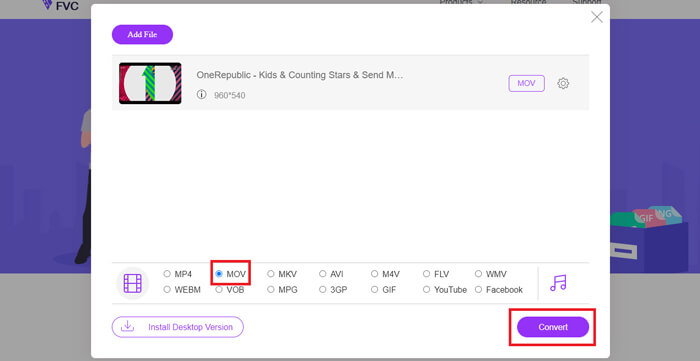
Paso 3. Haz clic en Convert. Y puedes elegir guardar el archivo convertido en tu escritorio. Después, solo espera un momento para obtener tu vídeo MOV.
2. CloudConvert
CloudConvert es una herramienta de conversión de video en línea muy popular y fácil de usar. Tiene la capacidad de convertir más de 200 formatos, incluidos formatos de audio, video, documentos, libros electrónicos, archivos, imágenes, hojas de cálculo o presentaciones. Además, este confiable conversor en línea protegerá sus datos y privacidad.
Paso 1. Abre tu navegador y ve al sitio oficial de CloudConvert. Está diseñado con una interfaz sencilla que puede ofrecerte una experiencia de conversión cómoda.
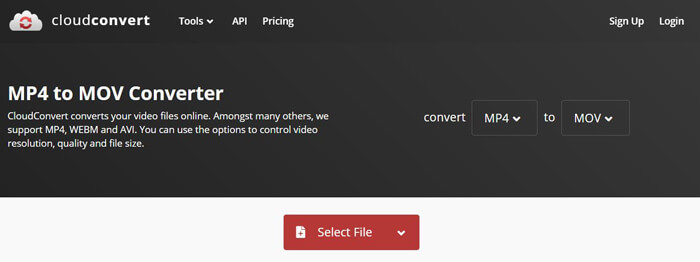
Paso 2. Haz clic en el botón Select File para subir el archivo MP4 que quieras convertir. Aquí puedes añadir archivos desde el ordenador, URL, Google Drive, OneDrive o Dropbox. Durante este paso, puedes añadir más archivos para la conversión.
Una cosa que debe preocupar es que este convertidor gratuito de MP4 a MOV solo le permite convertir un video de menos de 1 GB. Necesita comprar un paquete para convertir archivos más grandes.
Paso 3. Haz clic en el botón Convert para empezar a subir y convertir tu archivo MP4. Luego puedes hacer clic en el botón Download para guardar el vídeo MOV convertido en tu ordenador.

Al usar CloudConvert para convertir MP4 a MOV en línea, debe dedicar más tiempo al proceso de carga, conversión y descarga de videos, especialmente cuando está convirtiendo un archivo grande.
Parte 3. Cómo convertir MP4 a MOV con VLC Media Player
VLC Media Player es un reproductor multimedia popular y de código abierto. Más que un simple reproductor, VLC también puede funcionar como herramienta de conversión de vídeo para ayudarte a realizar varias conversiones. Si tienes VLC instalado en tu ordenador, puedes usarlo para convertir tu archivo MP4 a vídeo MOV.
Paso 1. Abre VLC Media Player en tu ordenador. Si no tienes VLC, puedes ir a su sitio oficial para descargarlo gratis.
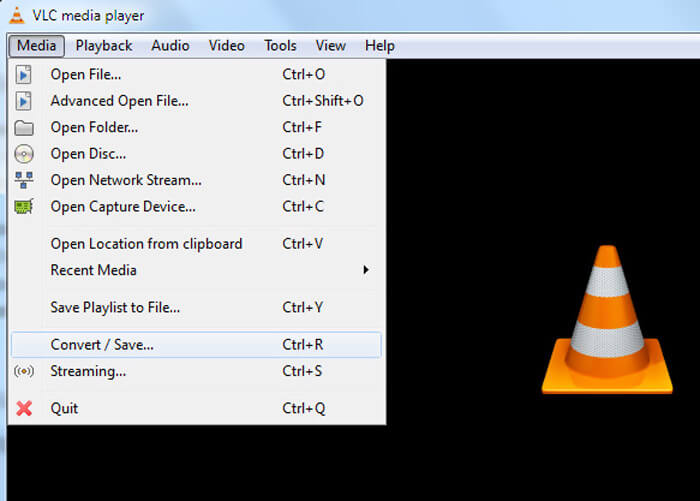
Paso 2. Haz clic en el botón Media en la barra de menús y luego elige la opción Convert/Save en la lista desplegable.
Paso 3. Aparecerá una nueva ventana de Open Media. Aquí puedes hacer clic en File > Add para importar el archivo MP4 que quieras convertir.
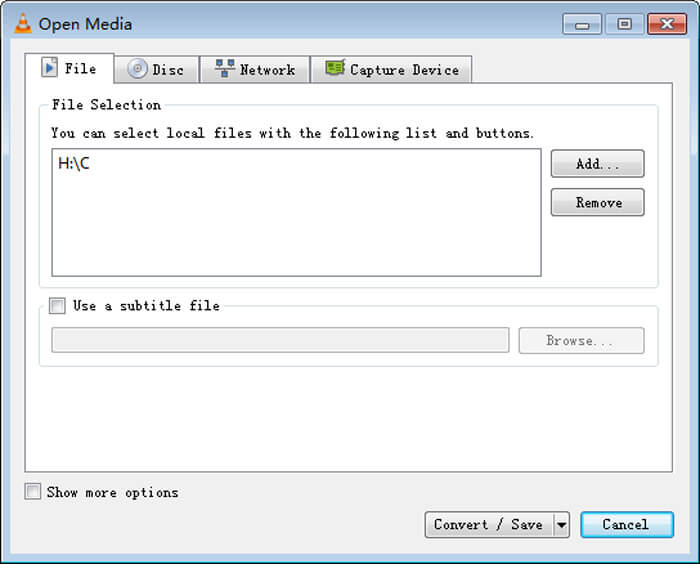
Paso 4. Haz clic en el botón Convert/Save en la parte inferior para confirmar la operación. Luego se te dirigirá a una ventana de Convert donde puedes seleccionar la carpeta de destino y el formato de salida para el vídeo convertido.
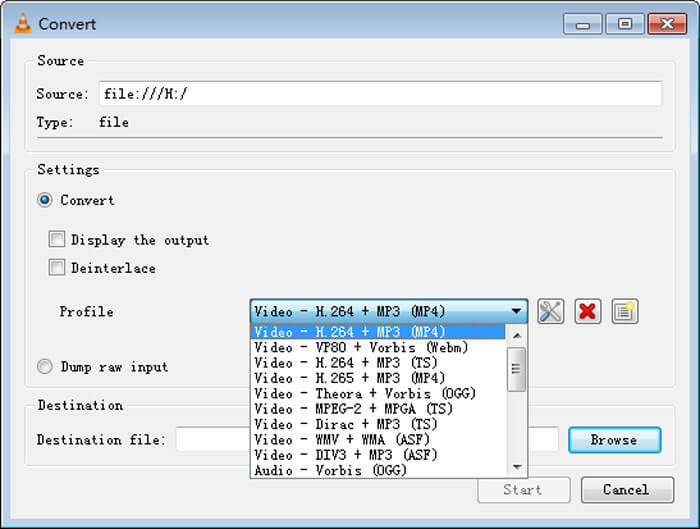
Paso 5. Elige MOV como formato de salida en la lista desplegable Profile. Después haz clic en Start para realizar la conversión de vídeo de MP4 a MOV en VLC.
MP4 frente a MOV
Lanzado por el Grupo de expertos en imágenes en movimiento (MPEG) en 2001, el formato MP4 puede ayudarlo a guardar datos de video, audio, subtítulos e imágenes en pistas separadas. Es la abreviatura de MPEG-4 Parte 14. Además, es uno de los formatos más populares utilizados para transmitir y compartir videos.
El formato MOV se puede utilizar para almacenar una película, un programa de televisión, un videoclip corto o una película casera. En realidad, se guarda en el formato de archivo QuickTime (QTFF), que fue presentado por Apple en 1991. Los archivos MOV se usan a menudo cuando las personas quieren guardar un video con alta calidad.
Parte 4. Preguntas frecuentes sobre la conversión de MP4 a MOV
Pregunta 1. ¿Puede QuickTime convertir MP4 a MOV?
Cuando tenga la necesidad de convertir MP4 a MOV en Mac, puede probar QuickTime. Puede abrir video MP4 con QuickTime Player. Luego haga clic en el botón Exportar y elija el formato MOV. Puede cambiar el nombre del archivo, seleccionar la ubicación y la resolución de video. Luego puede hacer clic en el botón Exportar para convertir MP4 a MOV gratis en Mac.
Pregunta 2. ¿Qué es mejor, MOV o MP4?
MP4 es uno de los formatos de almacenamiento de archivos multimedia más populares. Es un archivo contenedor digital, solo una envoltura alrededor del vídeo, no el vídeo en sí. De forma similar a MP4, MOV también es un archivo contenedor digital. MOV está codificado con el códec MPEG-4.La principal diferencia entre MOV y MP4 es que MOV se usa sobre todo en entornos Mac. MOV está especialmente diseñado para QuickTime. MP4 es un estándar internacional que puede ser compatible con la mayoría de reproductores multimedia y sistemas. En términos generales, el vídeo MOV suele tener mayor calidad y un tamaño más grande. El archivo MP4 suele estar más comprimido y tener un tamaño menor. Por lo tanto, no se puede afirmar simplemente que MOV es mejor que MP4, o que MP4 es el mejor.
Pregunta 3. ¿La conversión de MOV a MP4 pierde calidad?
Cuando desee convertir MOV a MP4, o cambiar MP4 a MOV, debe elegir algún convertidor de video profesional. En la mayoría de los casos, no verá ninguna pérdida de calidad después de la conversión.
Pregunta 4. ¿Existe algún convertidor de MP4 a MOV gratuito?
Hay muchos convertidores de video gratuitos que se ofrecen en Internet que pueden ayudarlo a convertir MP4 a MOV. Además del CloudConvert recomendado, también puede confiar en FFmpeg, HandBrake, ZAMZAR, Convert Files y más para hacer la versión de conversión.
-
 Cómo convertir sus archivos de video MP4 en imágenes GIF animadas sin pérdida de calidad
 ¿Está buscando la mejor manera de convertir su video MP4 en GIF animados? Aquí hay una guía detallada para hacerlo en Photoshop, Windows Movie Maker, convertidor de video en línea y más.
-
 MOV VS MP4 - Cuál es mejor
 MOV VS MP4, ¿cuál es mejor? Esta publicación indica la diferencia entre MP4 y MOV, para que pueda obtener la mejor opción para usar en sus archivos de video.
-
 Cómo convertir MOV a MP4 sin perder calidad
 ¿Quiere convertir archivos MOV (Apple QuickTime Movie) a MP4? Esta publicación comparte 4 métodos gratuitos para convertir sus archivos de video MOV a formato MP4 en Windows 10/8/7 / XP y Mac OS X.

