


 Video Converter Ultimate
 Grabador de pantalla
 Reparación de vídeo
 Descarga segura
Cómo unir archivos MOV (QuickTime) gratis
Después de recopilar muchos materiales de video MOV, es posible que desee organizar los materiales y unirlos en un archivo completo. Sin embargo, para principiantes o productores de videos aficionados, usar una herramienta técnica como Adobe Premiere Pro puede resultar demasiado complicado. Quizás pasará días o incluso meses para estudiar cómo operar el programa.
De hecho, si solo quieres unir clips de vídeo, puedes usar un sencillo y eficaz combinador de vídeos para resolver tu problema, que solo tarda unos minutos en unir dos o más archivos MOV.
Con los siguientes pasos, puedes combinar archivos MOV fácilmente tanto en Mac como en Windows. Así que, sigue leyendo y prueba tú mismo los métodos.

Parte 1. Cómo fusionar videos MOV en QuickTime
MOV, también conocido como QuickTime File Format (QTFF), es un contenedor de vídeo digital con códec MPEG-4. Fue presentado por Apple en 1998 para dar soporte a QuickTime Player. Por lo tanto, si tienes un Mac, en realidad puedes usar QuickTime Player para unir archivos MOV sin dificultad.
Sorprendentemente, QuickTime no es solo un reproductor multimedia, sino también un editor de video que te permite combinar videos separados, editar clips de video e incluso grabar audio o video en tu Mac. Además, es fácil de usar y mantiene la calidad original de los videos.
Estos son los pasos sobre cómo unir videoclips en QuickTime.
Paso 1. Busca los vídeos que quieras unir y abre uno de ellos con QuickTime Player. (Puedes moverlos antes a una misma carpeta o al escritorio para ahorrar tiempo).
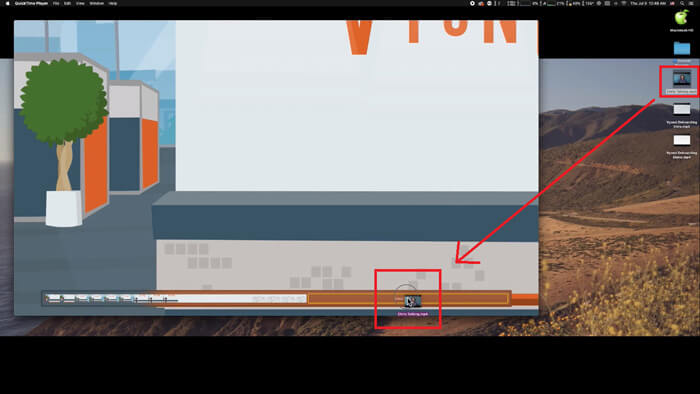
Paso 2. Tras abrir el archivo, aparecerá en la pantalla la ventana del reproductor. Ahora arrastra el otro clip de vídeo a QuickTime Player. Puedes mantener pulsado y arrastrar el clip de vídeo para ponerlo en el orden correcto. Cuando sueltes el ratón, aparecerá un botón OK junto a tus clips de vídeo. Haz clic en él.
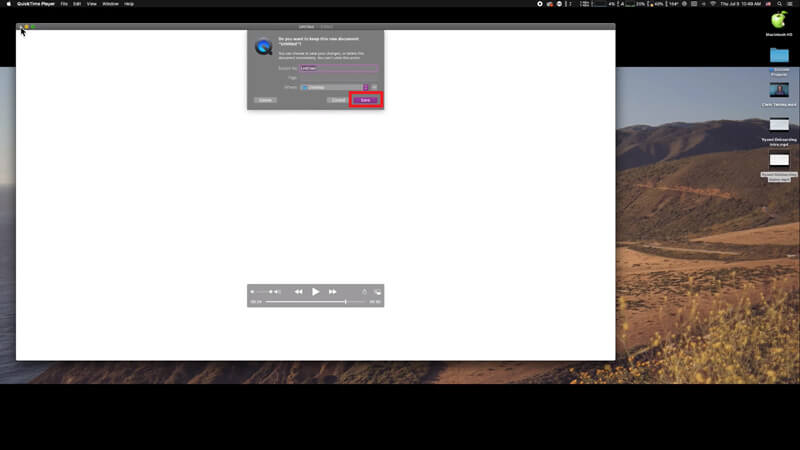
Paso 3. Cierra QuickTime y recibirás inmediatamente un aviso para que guardes el vídeo unido. Solo tienes que introducir un nuevo nombre y seleccionar una carpeta de destino antes de hacer clic en el botón Guardar.
Parte 2. Cómo fusionar archivos MOV en línea y gratis
Sin embargo, QuickTime no puede ayudarte a unir distintos archivos de vídeo en varios formatos, como MP4, MOV, AVI, WMV, FLV, etc., en un único archivo MOV. En este caso, necesitas usar un combinador de vídeos más profesional que admita múltiples formatos de vídeo.
Así que, te presentamos FVC Free Online Video Merger, el mejor unidor de vídeos para unir vídeos gratis. Con esta herramienta, puedes subir tantos vídeos como quieras sin límite. Además de MOV, puedes exportar otros formatos de vídeo populares, lo cual es muy práctico para compartir el vídeo en plataformas de streaming como YouTube.
En lugar de instalar un programa serio y costoso en su PC, puede unir cualquier video para producir un video increíble en línea con este combinador de video fácil de usar, que también le permite crear un video sin marca de agua. No importa qué sistema utilice, Windows, Mac o Linux, puede funcionar bien. Todo lo que necesita es un navegador y una red estable.
Los siguientes pasos lo guiarán sobre cómo operar esta herramienta de combinación de videos.
Paso 1. Haz clic en el enlace de arriba para abrir en tu navegador la web de FVC Free Online Video Merger.
Paso 2. Haz primero clic en el botón Upload Videos to Merge del banner. Después tendrás que seguir las instrucciones en pantalla para descargar e instalar un lanzador en tu ordenador.

Paso 3. Una vez finalizada la instalación, aparecerá inmediatamente una ventana emergente. Ahora puedes seleccionar y añadir al combinador de vídeos todos los archivos MOV que quieras unir.
Paso 4. Después de subirlos, comprueba si el orden de los clips de vídeo es correcto. Luego cambia la Resolution según necesites y el Format a MOV o a cualquier otro formato que quieras.
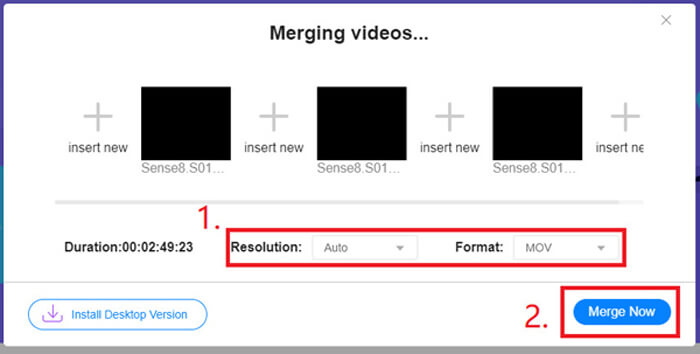
Paso 5. Haz clic en Merge Now para iniciar la combinación.
Parte 3. Cómo combinar archivos MOV en Windows 10
Si no tiene una Mac pero posee una PC con Windows 10, puede intentar los siguientes pasos para unir archivos MOV.
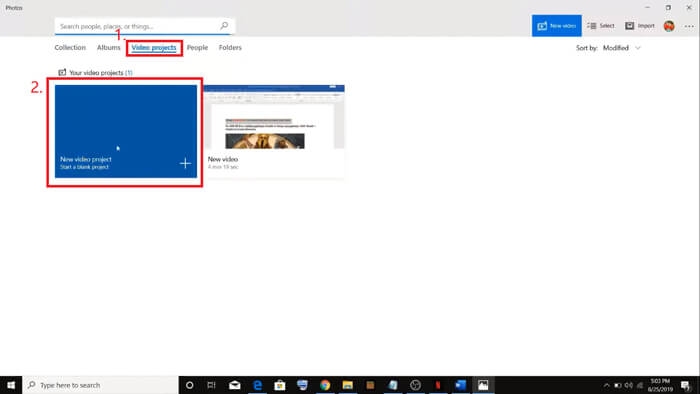
Paso 1. Abre la aplicación Fotos en tu PC. Puedes encontrarla buscándola en la barra de Búsqueda. Luego selecciona la pestaña Proyectos de vídeo en la parte superior y haz clic en Nuevo proyecto de vídeo. Ponle un nombre al proyecto de vídeo.
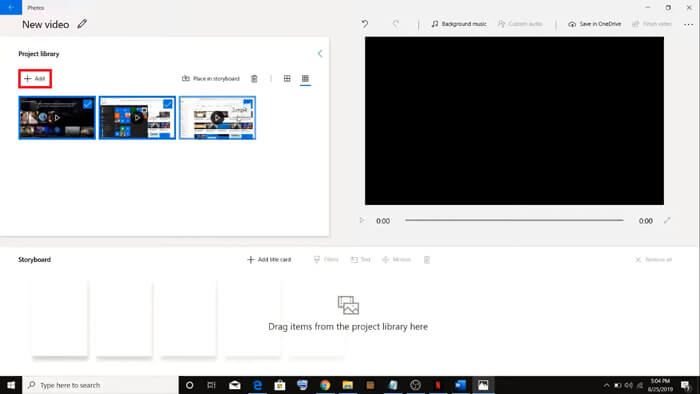
Paso 2. Haz clic en el botón Agregar en la esquina superior izquierda y selecciona todos los vídeos que quieras convertir desde tu PC.
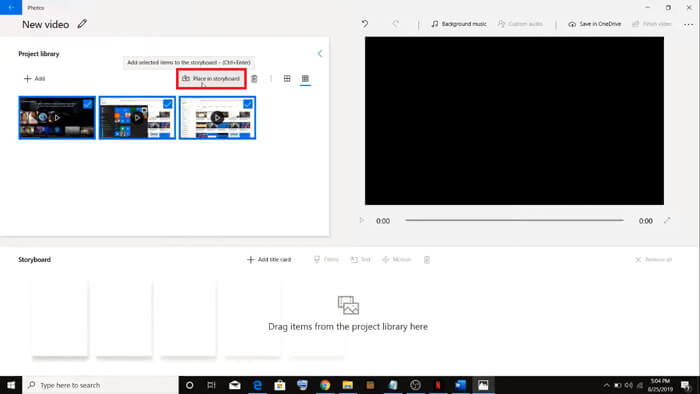
Paso 3. Después haz clic en el botón Colocar en la línea de tiempo para combinar todos tus archivos MOV.
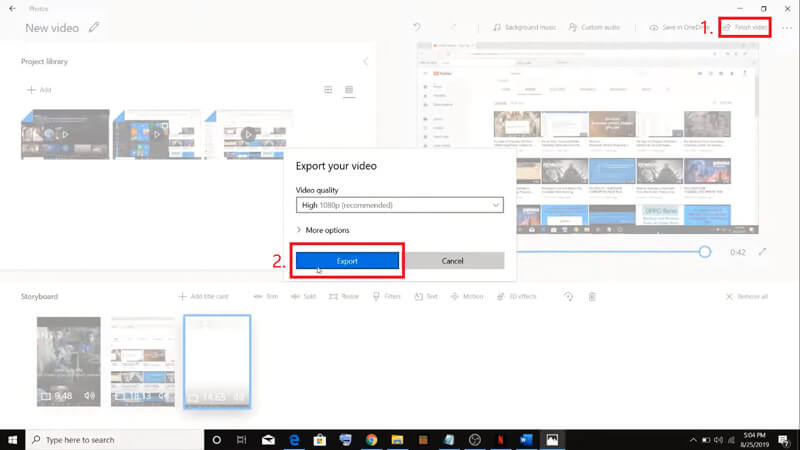
Paso 4. Tras ajustar el orden de los vídeos, haz clic en Finalizar vídeo en la esquina superior derecha. Luego exporta el vídeo unido a tu PC.
Parte 4. Preguntas frecuentes sobre la fusión de MOV
1. ¿Puedo usar QuickTime Player en Windows?
Aunque Apple ya no ofrece compatibilidad con QuickTime para Windows, aún puedes encontrar en Internet el paquete de instalación de QuickTime. No obstante, debes tener en cuenta que solo podrás usarlo para reproducir vídeos. Así que, básicamente es un reproductor normal que te ayuda muy poco.
Si eres usuario de Windows y quieres unir archivos MOV, simplemente puedes usar el potente FVC Free Online Video Merger.
2. ¿Qué es mejor para YouTube, MOV o MP4?
Después de crear un vídeo fantástico uniendo todo tu material de vídeo, quizá quieras subirlo a YouTube, Facebook, Instagram u otras plataformas. En ese caso, MP4 será una mejor opción, ya que ocupa menos espacio y es más fácil de compartir por Internet.
Quizá quieras conocer más diferencias entre MOV y MP4.
3. ¿QuickTime Player puede exportar video MP4?
No y sí. Porque QuickTime en sí no permite a los usuarios exportar archivos MP4. Pero si has pagado la actualización a QuickTime Pro, entonces puedes disfrutar de la unión de archivos MOV y obtener automáticamente el archivo MP4 convertido. Si no quieres pagar nada pero aun así quieres convertir MOV a MP4 en Mac, puedes probar un conversor online gratuito llamado FVC Free Online Video Converter, que es compatible tanto con Mac como con Windows.
Conclusión
Así que estos son los métodos que puedes adoptar cuando necesites unir varios archivos MOV en uno solo. Si utilizas Mac, puedes usar directamente el software integrado QuickTime Player para obtener el archivo MOV unido. Los usuarios de Windows 10 pueden probar Fotos. En cuanto al resto de ordenadores con Windows, los usuarios pueden elegir FVC Free Online Video Merger y disfrutar de una experiencia fantástica de unión de vídeos sin restricciones, sin anuncios y sin virus.
Si te gusta esta publicación y te resulta práctica, puedes compartirla con tus amigos. Y no dudes en dejarnos tu comentario. Ahora es tu turno de probar los métodos y fusionar tus archivos.
-
 Cómo convertir QuickTime a MP4 en Windows / Mac / Online / iOS / Android
 Lea y obtenga 4 formas de convertir QuickTime a videos MP4 de forma gratuita en su teléfono o computadora. Puede cambiar el formato de archivo de MOV a MP4 en Windows / Mac / iPhone / Android / en línea con facilidad.
-
 Las 4 mejores formas de convertir gratis MP4 a MOV
 ¿Cómo convertir MP4 a MOV en Mac? ¿Existe alguna forma gratuita de convertir MP4 a MOV sin pérdida de calidad? Esta publicación comparte 4 formas simples de ayudarlo a realizar la conversión de video de MP4 a MOV en Mac, PC con Windows y en línea.
-
 Cómo convertir M2TS a MOV en Windows / Mac (en línea / fuera de línea)
 ¿Necesita convertir M2TS a MOV para reproducir archivos de video en varios reproductores y plataformas? Este artículo lo ayudará a encontrar el mejor método en línea / fuera de línea para convertir M2TS a MOV en Windows / Mac.
