


 Video Converter Ultimate
 ضبط صفحه
 تعمیر ویدیو
افکار خود را با درک چگونگی افزایش سرعت یک ویدیو در iMovie جمع آوری کنید
You love watching documentaries on your new iPhone, you always watch them because of the story it proposes. With no particular reasons, you want to compile each one of them and edit them in a fast manner. Your searching for the best app that can edit and at the same time speed up your video, so you find iMovie. But since you are just new to iPhone and to the app itself, you don't know how to use it and how to speed up a video using iMovie. Continue reading because this article provides a lot of details for you to learn more about this app.

قسمت 1. نحوه افزایش سرعت ویدیو در iMovie
با استفاده از ویژگی های iMovie می توان به این سوال پاسخ داد که چگونه سرعت یک ویدیو را افزایش دهیم. خروجی ویدیوی با کیفیت بالا، قالبهای مختلف و ابزارهای تکمیلی در دسترس میتواند کنترل سرعت پخش را برای اولین بار به آیفون بیاورد. iMovie همچنین این قدرت را دارد که مانند سایر برنامه ها سرعت ویدیو را افزایش دهد. یکی از ابزارهای آن میتواند تنظیمات ویدیوی شما را همراه با سایر ابزارهای موجود خود انجام دهد. اکنون با استفاده از این برنامه که فقط در سیستم عاملهای iOS و مک موجود است، به راحتی میتوانید به ویدیوهایی که میخواهید سرعت آنها را افزایش دهید دسترسی پیدا کنید. حالا شما در مورد ابزار می دانید، بیایید برویم و در مورد رویه هایی که باید دنبال کنید صحبت کنیم.
برای کاربران آیفون
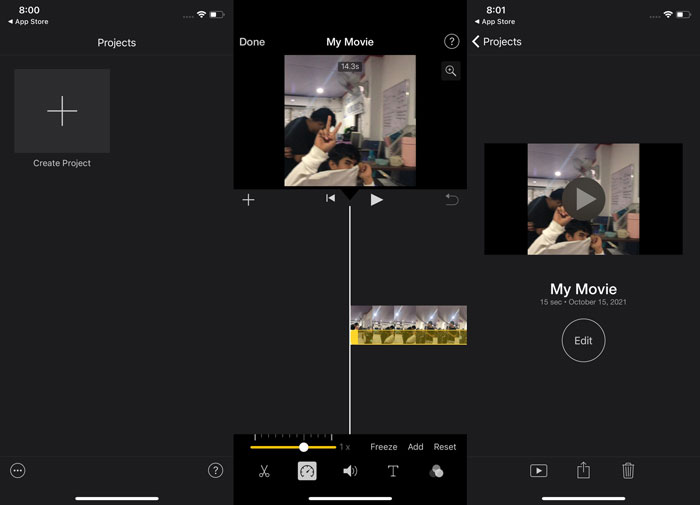
Step 1: Go to your iPhone or iPad's App Store and download the iMovie app to it. Whenever an interface overview appears, choose Continue. When you're on the Projects page, tap the + plus sign icon to begin a brand-new video clip. Continue by selecting Movie in the New Projects window
Step 2: Following the selection of a video from your camera roll, click the Create Movie button at the bottom of the screen. Tap the timeline and wait for the editing tools to appear before using the speed tool, which looks like a speedometer. To fast-forward or rewind your video, simply move the yellow bottom Slider. You have the option of speeding things up by up to two times or slowing them down by an eighth of their original speed.
Step 3: When you're done, go to the upper left corner of your phone's screen and click Done. In order to save your finished video, go to your Share menu and choose where you want to store it from the options that appear.
برای کاربران مک
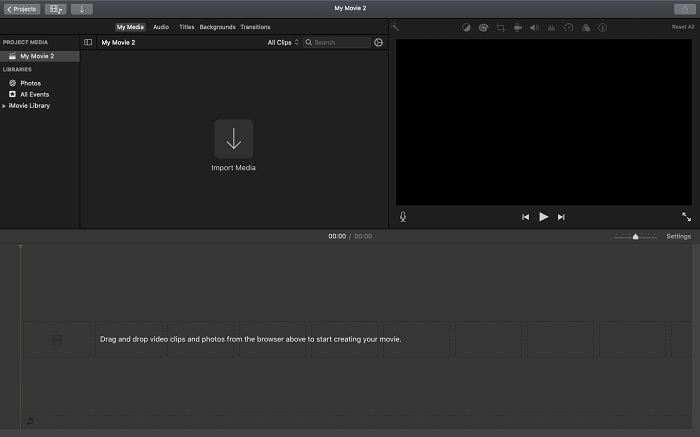
Step 1: Select a clip in the timeline in the iMovie app on your Mac and then change the clip's speed.
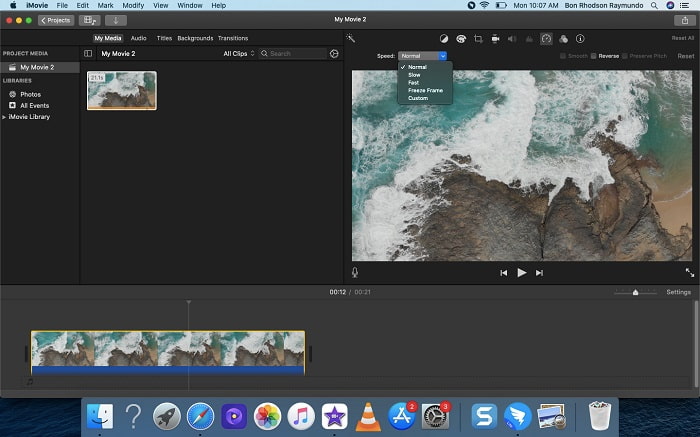
Step 2: By clicking on the Speed button at the top side of the interface, you can reveal the speed settings. Simply choose between Slow and Fast speeds from a speed button to fine-tune your download speed.
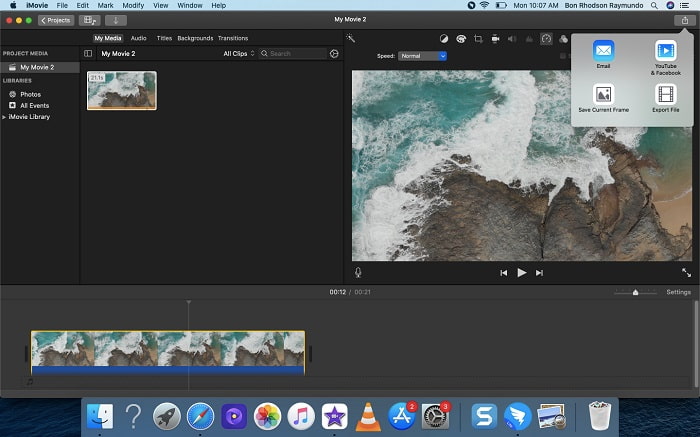
Step 3: Click the Upload icon on the upper top corner of the interface to export the file on your desktop.
بخش 2. راه ساده دیگری برای افزایش سرعت ویدیو
Using an iPhone or other online apps only available on the iPhone as an editor of your video can be difficult if you want to speed up your video's playback rate. Video Converter Ultimate will be the best option for you to consider, as it will allow you to speed up your video permanently. You can adjust the playback speed of your video with this tool which you can get for free. It has different featured tools including Video Speed Controller that can make your video speed up its playback speed on a high-quality output and very fast conversion. To know more about the details, the following are the steps you must take:
Step 1: To save the software to your computer, click Free Download. After that, customize the software by installing it.
دانلود رایگانبرای ویندوز 7 یا بالاتردانلود امن
دانلود رایگانبرای MacOS 10.7 یا بالاتردانلود امن
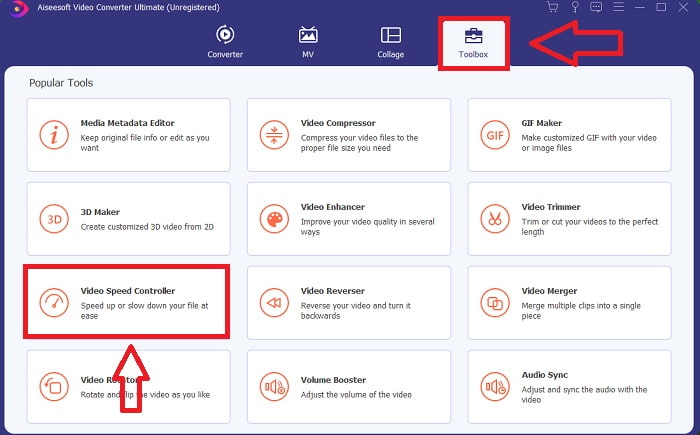
Step 2: After launching the software for the first time after installation, select the Toolbox feature and then the Video Speed Controller feature.
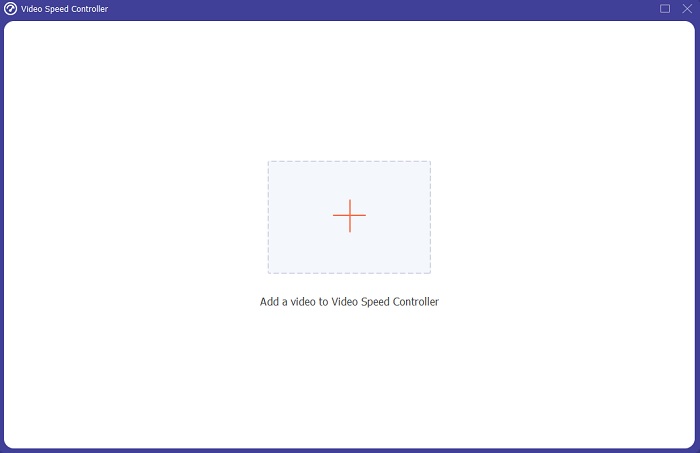
Step 3: To begin with the editing phase, you can now upload a video file from your computer by clicking the + sign that will appear after you proceed clicking the Video Speed Controller tool.
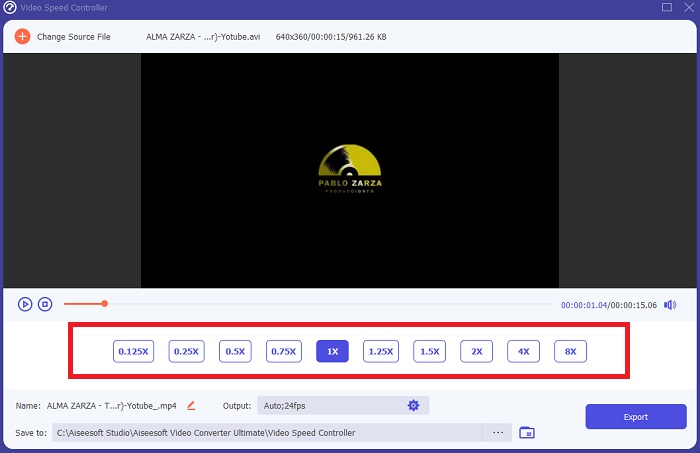
Step 4: You can now speed up a video faster than the iMovie, because this tool will leave you choices to pick on how fast are you going to apply the speed multiplier to your video. You can also play the preview of your video after choosing your preferred speed adjustment to know if it satisfies you.
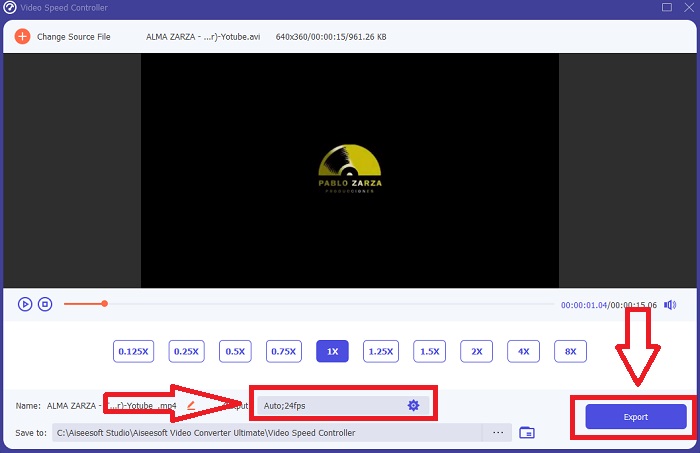
Step 5: You can choose your desired output by changing the format, resolution, and quality of your video clip after you've finished adjusting the playback speed of your video clip, among other things. When you're ready to save your work, select Export and specify a location.
Related:
بهترین پخشکننده ویدیو برای آیفون
بخش 3. سؤالات متداول در مورد چگونگی افزایش سرعت ویدیوها
اگر یک ویدیوی سریع بفرستم و یک ویدیوی آهسته دریافت کنم تا اندازه ویدیو کاهش یابد، چه؟
خیر، این فقط بر روی ارائه داده ها تأثیر می گذارد و نه بر میزان خود. با این حال، می توان اندازه ویدیو را با اجرای آن با نرخ فریم کمتر کاهش داد. با فریم های کمتر در ثانیه، همان سرعت نسخه اصلی را حفظ می کند. 60 در مقابل 30 فریم در ثانیه تأثیر قابل توجهی بر اندازه فایل ویدیویی دارد. به دلیل تغییرات فریم به فریم که در هنگام رمزگذاری ویدیو در نظر گرفته می شود. رزولوشن ویدیو را به عنوان مثال از 1080p به 720p کاهش دهید تا اندازه آن بیشتر کاهش یابد. به این دلیل حجم فایل به میزان قابل توجهی کاهش می یابد.
گزینه های شما برای افزایش سرعت پخش ویدئو در مک چیست؟
برای افزایش سرعت پخش دو یا چند برابر (5 یا بیشتر)، روی دکمه جلو یا عقب کلیک کنید تا فیلم با سرعت دلخواه شما مانند 30 یا 60 بار پخش شود. در حالی که ویدیو در حال پخش است، می توانید سرعت پخش را با افزایش 1.1 برابری با کلیک بر روی دکمه جلو یا عقب، تغییر دهید.
چگونه سرعت پخش ویدیو را برای همیشه تغییر دهم؟
Think about how many steps it takes to change the playback speed of your videos. Even though video tools and video editors are readily available online, you're still on the lookout for the best tool to fix playback speed issues with your video clip. Numerous web tools are available on the internet, some of which are free to use but require payment to unlock all features. Video Converter Ultimate, a free program for speeding up videos, is your best bet in making your playback speed permanently changed.
نتیجه
In conclusion, iMovie is a great app available on iOS system devices like Mac and iPhone to resolve the problem of the playback speed of a video. It is accessible to an extensive number of users, it is convenient, and it is free. Yes, it is great for editing the playback speed; how about the other key video factors? That's why we recommend the Video Converter Ultimate to use as the best software to use in fixing the playback speed of a video; not just that, it also has a lot of features that can help you make an outstanding video you can never imagine.
-
 پخش کننده DVD DVD - نحوه پخش فیلم های DVD در موبایل های Android
 چگونه می توان فایل های DVD را در موبایل های Android پخش کرد؟ آیا دستگاه پخش DVD اندروید وجود دارد؟ در این مقاله ، شما با 3 روش پخش فیلم های DVD در موبایل های Android با یا بدون درایور خارجی آشنا خواهید شد.
-
 بهترین 10 پخش کننده رایگان MP4 Android برای پخش فیلم های HD/4K
 اگرچه موبایل های اندرویدی دارای پخش کننده های پیش فرض برای پخش ویدیوهای MP4 هستند، اما از تنظیم تنظیمات پخش و سایر عملکردها پشتیبانی نمی کنند. بنابراین، می توانید با 10 بهترین پخش کننده MP4 اندروید از این مقاله آشنا شوید.
-
 Samsung Video Player Stuck: 5 بهترین پخش کننده ویدیویی برای سامسونگ
 وقتی فیلم ها را از طریق پخش کننده ویدئویی پیش فرض سامسونگ پخش می کنید ، ممکن است متوجه شوید که همیشه گیر می کند. برای داشتن یک تجربه دید روان و بهتر ، می توانید در این مقاله با 5 بهترین پخش کننده ویدیو برای سامسونگ آشنا شوید.
