


 Video Converter Ultimate
 ضبط صفحه
 تعمیر ویدیو
نحوه تبدیل MTV به AVI با کیفیت بالا: بهترین رویکردهایی که باید بدانید
AVI (Audio Video Interleave) is a video container that holds and encodes both audio and video data. Despite having less compression power than some of its competitors, most DVD players can play files in this container. The AVI codec is required for multimedia players to decode AVI data. This video file is available in every video player and video editor. However, MTV's video format is not that famous for using and being converted into other formats. If you're wondering how it will happen that you will convert MTV to AVI, continue reading the article to know more about these two formats.

قسمت 1. نحوه تبدیل MTV به AVI در ویندوز و مک
There are many different methods to convert MTV to AVI, and it varies on its purpose. It can be downloaded as an application, used in an online web tool, or installed in a program. But have you ever thought about software that can convert multiple video formats in the fastest manner? Video Converter Ultimate is software this article recommends you to use, not just because it is the fastest converter that is free to download. It has a lot of featured tools to offer that can be helpful in editing videos. One of its main features that you can't find from other applications or web tools is that it supports various formats, including converting MTV to AVI. If you're not interested yet, read these given details to learn more about the software:
Step 1. To begin, click on the Free Download button below to start the download process. You have the option of downloading the software from Windows or Mac if you prefer once the download is complete. Before you simply run the program, you need to get it installed on your computer's desktop and click Start Now to get started.
دانلود رایگانبرای ویندوز 7 یا بالاتردانلود امن
دانلود رایگانبرای MacOS 10.7 یا بالاتردانلود امن
Step 2. Launch the downloaded application. When you first start the program, a window will appear with the Converter interface. This is where you'll enter your video file and begin converting.
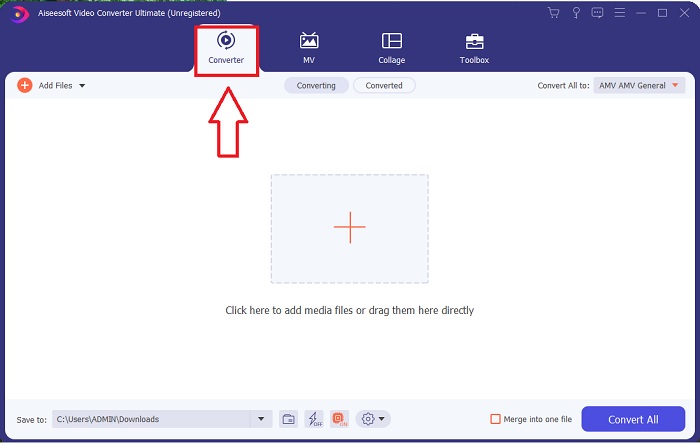
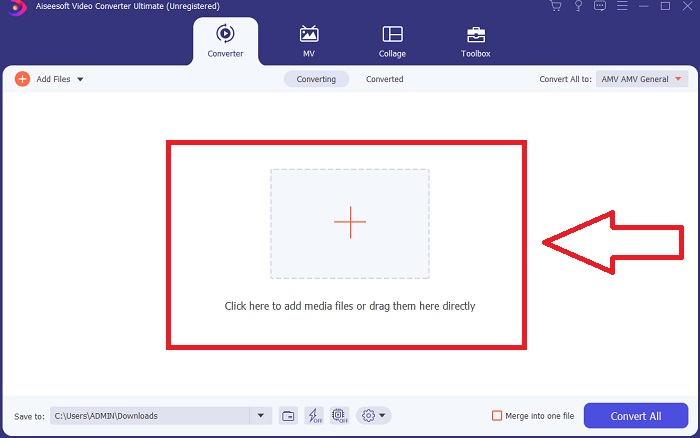
Step 3. Import your files into the converter to begin the conversion process. Drag and drop the video file you want to convert onto the + icon.
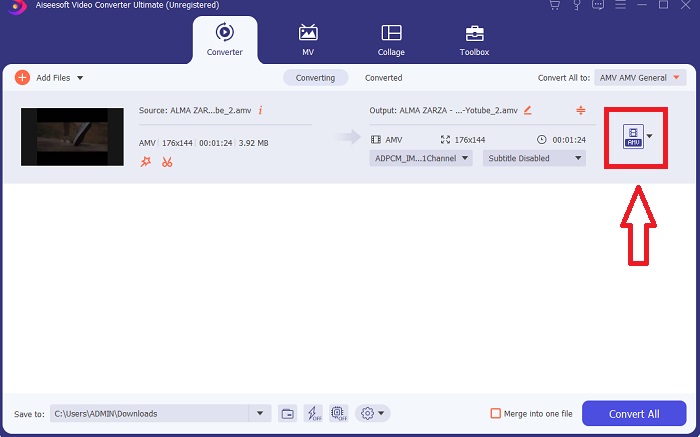
Step 4. Select a video format from the list in the upper-right corner of the screen. Locate and select the drop-down menu of Convert All to, then choose the AVI format from the video category list. However, if your preferred video output isn't listed, you can change the quality settings to suit your needs. You can alter the display's resolution, frame rate, and even audio quality by clicking the gear icon. To keep your changes, click the Create New button.
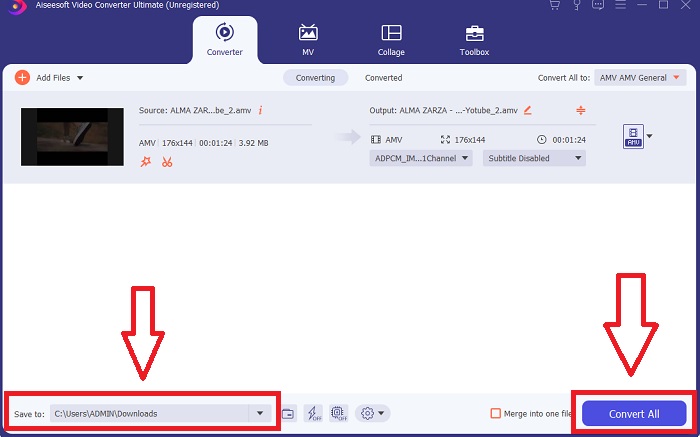
Step 5. Once you've finished editing the video and it's ready to be converted, click Convert All to start the process of transferring it to your computer.
قسمت 2. نحوه تبدیل MTV به AVI آنلاین
روش 1: Online-Convert.com
با استفاده از این مبدل فایل آنلاین رایگان، می توانید به راحتی و به سرعت رسانه خود را از یک فرمت به فرمت دیگر تبدیل کنید. بسیاری از فرمت ها را می توان با استفاده از این ابزار وب و همچنین طیف وسیعی از مقاصد تبدیل کرد. برای توضیحات بیشتر مراحل زیر را برای شما ارائه می کنیم:
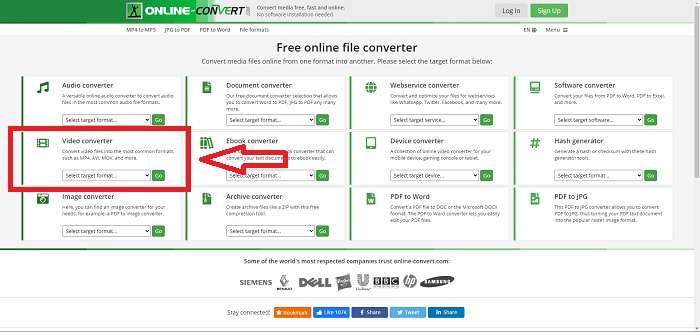
Step 1. Search for online-convert on any search engine and click the webtool. After you click the webtool, its interface will appear. The different processes of converting files will be your choices. Choose Video Converter if you wish to convert MTV to AVI; after deciding, select Convert to AVI and proceed by clicking Go.
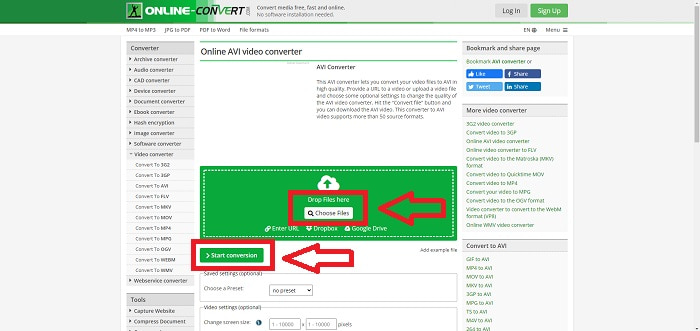
Step 2. After proceeding, another interface will going to appear. Click Choose Files to upload the file you want to convert. Wait a minute long - depending on the file size - to process your video file. Then, click Start Conversion to convert your file to AVI.
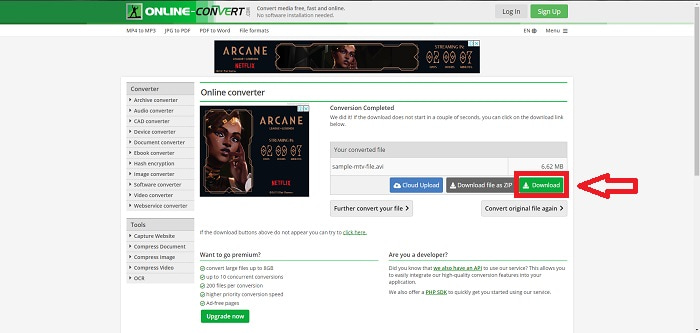
Step 3. To begin downloading the converted file, click Download.
روش 2: Video-Converter.com
از این مبدل ویدیوی آنلاین رایگان برای تغییر تنظیمات ویدیو مانند فرمت، وضوح و اندازه ویدیو در مرورگر وب خود استفاده کنید. برای دانستن بیشتر در مورد این ابزار وب آنلاین، در اینجا مراحلی وجود دارد که باید بدانید:
Step 1. Open the video converter in any search engine. Click the primary web tool, and another window will pop up. On the main interface, you will see the whole process of conversion already. To start, click the Open File to import any video file you wish to convert.
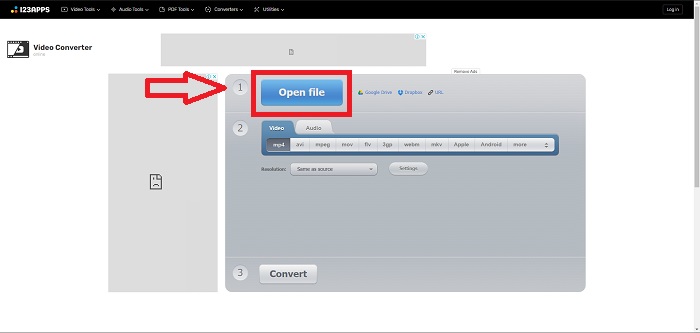
Step 2. Choose the format you want to convert your video from all the video formats given. Since you will convert MTV to AVI, choose the AVI. You can edit the resolution and the video output by clicking the Same as Source or Settings.
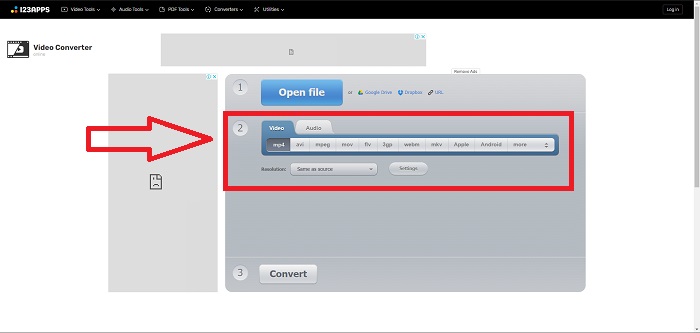
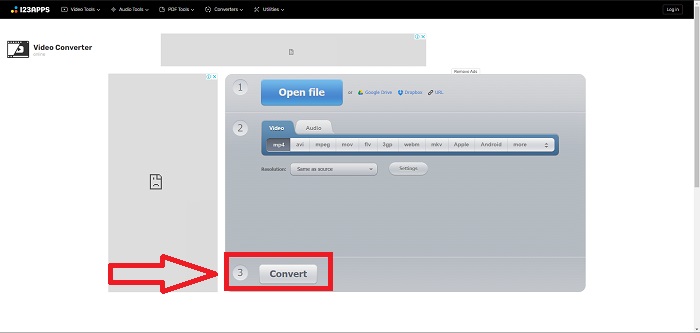
Step 3. Convert the file by clicking Convert. After you convert the file, you can now download the file by clicking the Download button after you convert.
قسمت 3. حقایق جالب در مورد MTV و AVI
AVI چیست؟
This file format, also known as Audio Video Interleaved (AVI), combines audio and video data into one file to play it back simultaneously. It primarily serves as a storage space for electronic media such as televisions, movies, and other video recordings. After the release of Windows 3.1, AVI came into widespread use. Video and audio are combined using a powerful compression algorithm currently the conventional standard for Windows PC movie storage. Images and audio can be preserved in high fidelity even though AVI video is not lossless. On the contrary, AVI consumes a lot of memory, sometimes as much as a DVD does for storage. That's most likely why MPEG-1 came after it, all the way up to MPEG-4 today.
MTV چیست؟
اکثریت قریب به اتفاق فایل های MTV متعلق به MTV هستند. فرمت فایل MTV برای امکان پخش ویدیو در پخش کننده های MP4 قابل حمل کم هزینه ساخت چین بدون افزایش قیمت این دستگاه ها با حق امتیاز مجوز و قدرت پردازنده بیشتر ایجاد شده است. MP4 Watch یکی از محصولاتی است که از این فرمت فایل استفاده می کند.
بخش 4. سوالات متداول در مورد MTV و AVI
آیا AVI کیفیت بالایی دارد؟
AVI یک فرمت ویدیویی با کیفیت بالا است که توسط مایکروسافت توسعه یافته است. این توسط YouTube پشتیبانی میشود و به شما امکان تماشای تلویزیون در رایانه را میدهد. ویدیوی با کیفیت بالا به فرمت کدگذاری ویدیویی خاصی به نام Advanced Video Coding HD نیاز دارد.
AVI معمولا در کجا استفاده می شود؟
از زمان ایجاد مایکروسافت در نوامبر 1992، فرمت فایل AVI به طور گسترده ای برای انتقال و ذخیره داده های تصویری و صوتی استفاده شده است. فایلهای AVI را میتوان در طیف گستردهای از سیستمعاملها از جمله ویندوز، مک او اس ایکس، لینوکس و یونیکس به دلیل سازگاری بالایشان پخش کرد.
چگونه یک ویدیو را به فرمت MTV تبدیل کنم؟
با استفاده از AVS Video Converter، می توانید به نوار ابزار اصلی بروید، به تب Formats بروید و روی دکمه To MTV کلیک کنید. میتوانید با کلیک بر روی دکمه Browse در نوار ابزار بالا، یک فایل ورودی را جستجو کنید. روی دکمه Browse پایین کلیک کنید و نام فایل خروجی را که می خواهید ایجاد کنید تایپ کنید. با ایجاد یک حساب کاربری در MTV در مورد ظاهر و احساس MTV تصمیم بگیرید.
نتیجه
برای نتیجهگیری، همیشه بین آنلاین و نرمافزار تفاوتی وجود دارد که قبل از استفاده، ابتدا باید آن را دانلود کنید. جوانب مثبت و منفی وجود دارد، اما توصیه می کنیم از Video Converter Ultimate برای راحتی و کیفیت خروجی پایه استفاده کنید. با این کار می توانید مبدل و ویرایشگر حرفه ای را به طور همزمان در یک نرم افزار تجربه کنید.
-
 نحوه تبدیل TS به AVI / MKV / MOV / WMV آنلاین و رایگان در Win / Mac
 آیا می خواهید پرونده های TS را به سرعت به AVI / MKV / MOV / WMV تبدیل کنید؟ این مقاله مبدل های ویدیویی آنلاین و آفلاین را با راهنمای کامل نشان می دهد. شاید بتوانید بهترین مبدل TS رایگان را از اینجا دریافت کنید.
-
 4 روش کارآمد برای تبدیل MOV به AVI در رایانه شخصی و مک [2021]
 آیا می خواهید بدانید بهترین مبدل MOV به AVI در وب چیست؟ و چرا FVC Ultimate Video Converter ممکن است برای شما مناسب باشد.
-
 انتخاب عالی برای تبدیل MKV به فرمت AVI
 در نحوه تبدیل ویدیوهای MKV با مراحل آسان که به طور انحصاری برای شما ارائه شده است، آشنا شوید. آیا می خواهید بدانید چگونه؟ سپس برای کسب اطلاعات بیشتر روی این لینک کلیک کنید.
