


 Video Converter Ultimate
 ضبط صفحه
 تعمیر ویدیو
بررسی جامع برای نرم افزار ضبط صدا برای ضبط موثر صدا
اگر شما یک متخصص یا آماتور باشید، باید حتماً یک نرمافزار ضبط صدا داشته باشید تا بتوانید صدا را برای یک کاربرد خاص دستکاری و ویرایش کنید. علاوه بر این، انتخاب یک ضبطکننده صدای مناسب روی دستگاهتان میتواند چالشبرانگیز باشد، چون گزینههای زیادی در بازار وجود دارد. بهجای اینکه چندین برنامه ضبط صدا را یکییکی امتحان کنید، ما چهار ضبطکنندهای را که برای نیازهای شما مناسب یافتهایم معرفی میکنیم تا از دانلود یا استفاده از نرمافزارهای مخرب دور بمانید. فهرست ضبطکنندههای صدای زیر با دقت پالایش شده تا فقط بهترین گزینهها را در اختیار شما بگذارد، نه برنامههای ضعیف و کمکارایی را که ضبط صدای مناسبی ارائه نمیدهند.

قسمت 1. 4 بهترین نرم افزار ضبط صدا در ویندوز و macOS
1. ضبط صفحه FVC
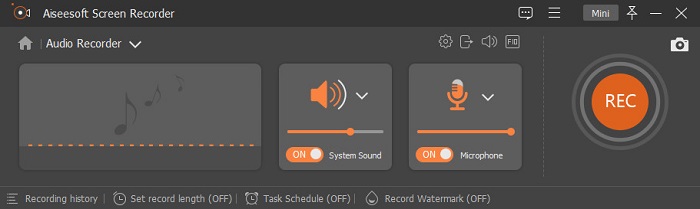
آیا لازم است صدای کامپیوتر را ضبط کنید، اما نمیدانید از چه ابزاری استفاده کنید؟ در این صورت، ما بهترین و پرطرفدارترین ضبطکننده موجود در بازار، یعنی FVC Screen Recorder را معرفی میکنیم. این نرمافزار رابط کاربری بسیار خوبی دارد و به کاربران اجازه میدهد بدون انجام کارهای پیچیده با آن کار کنند. علاوه بر این، معمولاً کاربران با نویز پسزمینه مشکل دارند، بنابراین با کمک قابلیت حذف نویز جدیدی که به آن اضافه شده، میتوانید بدون دردسرِ صداهای ریز پسزمینه ضبط کنید. افزون بر آن، این برنامه چندین قابلیت دارد که به شما برای ضبط کردنِ مؤثر کمک میکند. میخواهید بدانید این قابلیتها چه هستند؟ در این صورت، بیایید نگاهی گذرا به ویژگیهای کلیدی FVC Screen Recorder بیندازیم.

ضبط صفحه
4,988,518+ دانلود- صداها را با کیفیت صدای فوق العاده بالا ضبط می کند.
- ضبط صدا 24/7 تا زمانی که فضای کافی در درایو رایانه خود دارید.
- می توانید صدای سیستم را همزمان با میکروفون ضبط کنید.
- بهبود میکروفون برای تجربه بسیار بهتر از ضبط صدای شما در دسترس است.
- در صورت نیاز می توانید صدای میکروفون را بررسی کنید.
دانلود رایگانبرای ویندوز 7 یا بالاتردانلود امن
دانلود رایگانبرای macOS 10.7 یا بالاتردانلود امن
طرفداران
- این برنامه به کاربران اجازه می دهد تا هیجان بالایی را برای ضبط صدا در مک یا ویندوز تجربه کنند.
- ویژگی های اصلی ویرایش مانند برش یا برش صدا در دسترس هستند.
- دارای تاریخچه ضبط داخلی برای یافتن صدای ضبط شده به راحتی.
منفی ها
- از افزودن جلوههای صوتی در حین ضبط پشتیبانی نمیکند.
- قبل از استفاده خرید کنید
2. جسارت
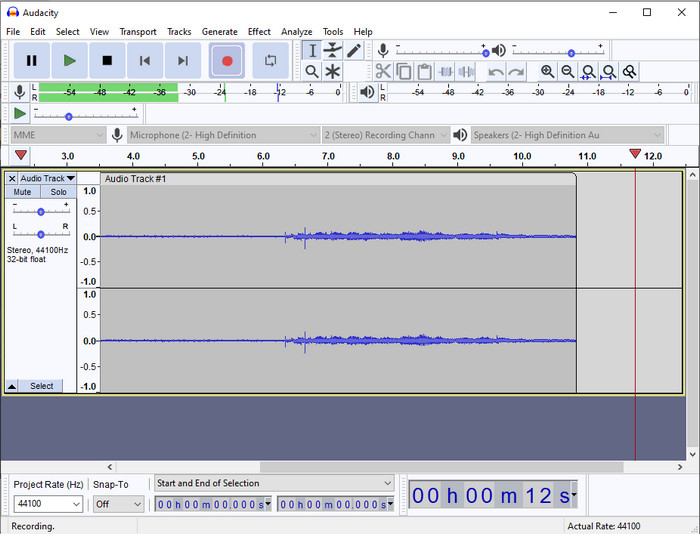
اگر به یک ابزار حرفهای برای مدیریت ضبط صدای خود نیاز دارید، Audacity میتواند کمکتان کند. این ضبطکننده حرفهای صدا تاکنون به میلیونها پادکستر در مسیر ضبط صدا کمک کرده است. اگر به یک ضبطکننده پیشرفته و در عین حال رایگان نیاز دارید، این برنامه یکی از بهترین گزینهها است. با اینکه امکانات حرفهای برای ضبط دارد، به دلیل رابط کاربری ضعیف، کار کردن و آشنایی با آن دشوار است. با وجود آنکه برای ضبط حرفهای مناسب است، برخی از قابلیتهای آن مثل حذف نویز هنوز نیاز به ارتقا دارند. با این حال، Audacity صدای کامپیوتر را به شکلی حرفهای ضبط میکند که همه ضبطکنندهها قادر به ارائه آن نیستند.
طرفداران
- دانلود رایگان در تمامی پلتفرم های دسکتاپ.
- این ویژگی های ویرایش خبره را برای حرفه ای ارائه می دهد.
- دارای برخی ویژگی های پیشرفته است که برای ایجاد یک پادکست به آنها نیاز خواهید داشت.
منفی ها
- رابط کاربری گرافیکی نرم افزار قدیمی است.
- ارتقاء به برخی از ویژگی های آن نیاز دارد.
- برای آماتورها و کسانی که ضبط کردن بلد نیستند بهترین انتخاب نیست.
3. پخش کننده QuickTime
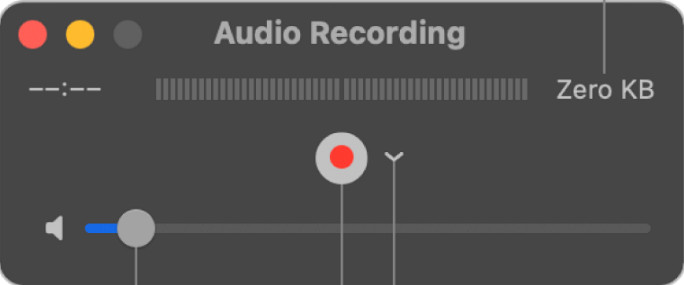
برنامه QuickTime Player در صورت نیاز میتواند روی مک بهعنوان یک ضبطکننده صدا نیز استفاده شود. اگرچه این پخشکننده برای ضبط چندان کافی و کارآمد نیست و ممکن است با تأخیر و افت کیفیت در خروجی صدا روبهرو شوید، اما اگر به یک ضبط سریع صدا روی مک احتیاج داشته باشید، گزینه بدی نیست، چون نیازی به دانلود ندارد و بدون شک امن است. با این حال، اگر یک کاربر حرفهای هستید و بهدنبال بهترین نرمافزار ضبط صدا میگردید، این ابزار انتخاب ایدئالی برای شما نیست.
طرفداران
- در حال حاضر در هر macOS موجود است.
- رایگان، ایمن و آسان برای استفاده.
منفی ها
- به اندازه ضبط کننده های صوتی دیگر در این لیست موثر نیست.
- کیفیت خروجی نهایی صدا پایین است.
- بهترین انتخاب برای ضبط و ویرایش حرفه ای نیست.
مرتبط:
چگونه با استفاده از QuickTime صفحه را همراه با صدا در مک ضبط کنیم
چگونه QuickTime را به MP4 تبدیل کنیم
4. Ocenaudio
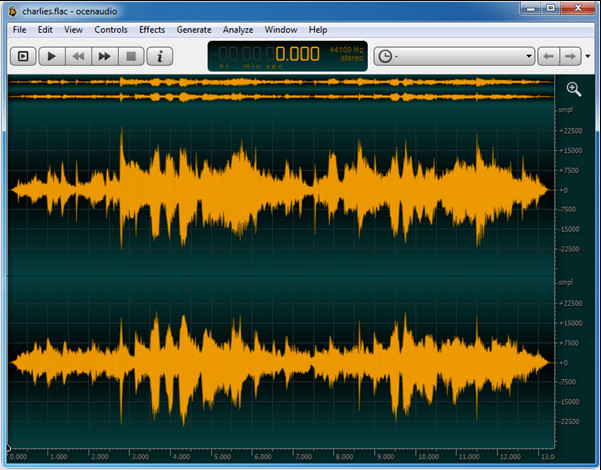
اگر به یک ضبطکننده چندمنظوره برای ضبط صدا در ویندوز 10 یا نسخههای بالاتر نیاز دارید، Oceanaudio میتواند به شما کمک کند. این ابزار رابطی تقریباً مشابه Audacity دارد، اما درک رابط کاربری آن سادهتر است. در توضیح بیشتر، این ضبطکننده امکانات پیشرفته و قابلیتهایی را ارائه میدهد که در ضبط صدا به آنها نیاز خواهید داشت. با اینکه کار کردن با آن کمی دشوار است و احتمالاً لازم است برای استفادهاش یک آموزش تماشا کنید، اما در نهایت ارزشش را دارد. پس اگر به دنبال ویرایشگری با رابط کاربری بهتر از Audacity هستید، این گزینه میتواند انتخاب شما باشد.
طرفداران
- از فناوری پیشرفته برای ضبط استفاده می کند.
- این یک انتخاب تخصصی برای انجام ضبط صدا است.
- هنگام ضبط می توانید به صدای خود گوش دهید.
منفی ها
- کاربر پسند نیست.
- مبتدیان ممکن است هنگام استفاده از این ابزار گیج شوند.
بخش 2. نمودار مقایسه در مورد نرم افزار ضبط صدا
| امکانات | ضبط صفحه FVC | غم و اندوه | پخش کننده QuickTime | Ocenaudio |
| ضبط صدا و میکروفون سیستم |  | | | |
| ضبط را ویرایش کنید | | |  | |
| شتاب سخت افزاری | | | | |
| پیش شنیدن در زمان واقعی | | | | |
| کیفیت اصلی را ذخیره کنید | | | | |
| بهترین رابط کاربری | | | | |
بخش 3. سوالات متداول در مورد نرم افزار ضبط صدا
آیا Cinch Audio Recorder بهترین ضبط کننده صدا است؟
ما اخیراً یک بررسی درباره Cinch Audio Recorder انجام دادهایم. بنابراین اگر میخواهید درباره این ضبطکننده صدا بیشتر بدانید، باید روی این لینک کلیک کنید و اطلاعات دقیقتری درباره این برنامه به دست آورید.
یک ضبط صوت خوب چه ویژگی هایی دارد؟
قبل از انتخاب یک ضبط کننده صوتی خوب، باید استانداردهای اولیه را بدانید. ابتدا باید بتواند به راحتی صدا را روی میکروفون شما ضبط کند. دوم اینکه ایمن و عاری از بدافزار است. سوم، اگر نیاز به خرید ابزار دارید، خود ابزار باید برتری را در اختیار کاربران قرار دهد. چهارم، میزان اثربخشی به این معنی است که ابزار باید در ضبط بسیار مؤثر باشد. پنجم، ویژگی های اولیه یا پیشرفته باید برای کمک به ضبط کردن کاربران در دسترس باشد. قبل از انتخاب یک ضبط کننده صدا برای کمک به شما، می توانید به این استانداردها اعتماد کنید.
چگونه در ویندوز 10 صدا ضبط کنیم؟
پیش از ضبط در ویندوز 10، باید بهترین ضبطکننده را انتخاب کنید؛ برای نمونه FVC Video Recorder. ابتدا آن را روی رایانه خود دانلود، بهسرعت نصب و اجرا کنید. سپس گزینه Audio Recorder را انتخاب کرده و روی آن کلیک کنید. حالا میتوانید بهراحتی صدای سیستم یا میکروفون را با روشن کردن آنها در نوار ابزار شناور به ضبط خود اضافه کنید. وقتی برای ضبط آماده بودید، روی دکمه گرد قرمز کلیک کنید تا شروع شود. اگر لازم است ضبط را متوقف کنید، روی دکمه مربعی کلیک کنید تا پایان یابد؛ پس از آن، رابط کاربری جدیدی فهرست ضبطهای صوتی انجامشده را به شما نشان خواهد داد.
نتیجه
امروز با نرمافزارهای ضبط صدا که روی دسکتاپ شما در دسترساند آشنا شدیم. تمام ابزارهایی که اینجا معرفی شدند، در ضبط صدای شما کمکتان خواهند کرد. با این حال، اگر به دنبال ضبطکنندهای هستید که از بقیه بهتر عمل کند، FVC Screen Recorder میتواند گزینه مناسب شما باشد. هنوز نسبت به این ضبطکننده صدا تردید دارید؟ در این صورت، تنها راه این است که آن را دانلود کنید و خودتان امتحان کنید تا ببینید آیا همانطور که در این مقاله گفتهایم عمل میکند یا نه.
-
 4 دستگاه ضبط صدا رایگان AIFF که صدا با کیفیت بالا تولید می کنند
 این مقاله در مورد AIFF و برخی از محبوب ترین ابزارهایی که می توانید برای تولید فرمت AIFF با کیفیت بالا استفاده کنید صحبت می کند.
-
 3 تا از بهترین تکنیک ها در مورد نحوه ضبط صدا در آیفون
 آیا به دلیل عدم توانایی ضبط صدا در آیفون به درستی مشکل دارید؟ سپس این مقاله را بخوانید تا بدانید چگونه صدا را در آیفون ضبط کنید و ابزارهای موجود چیست.
-
 7 از ضبط صوت باشکوه قابل دسترسی در همه پلتفرم ها
 آیا می خواهید نحوه ضبط صدا را یاد بگیرید؟ سپس به این مقاله بروید زیرا ما در مورد بهترین ضبط کننده صوتی که می تواند مطابق با نیازهای شما باشد صحبت می کنیم.
