


 Video Converter Ultimate
 ضبط صفحه
 تعمیر ویدیو
چگونه به راحتی یک واترمارک به ویدیو اضافه کنیم | ۳ روش برتر
واترمارکها نقش مهمی در محتوای دیجیتال منتشرشدهی ما دارند و بهعنوان هویت و لایهای از محافظت در برابر استفادهی غیرمجاز عمل میکنند. بنابراین اگر شما یک تولیدکنندهی محتوا هستید که ویدیو منتشر میکنید و نمیخواهید ویدیوهایتان بدون اجازه یا بدون ذکر منبع استفاده شوند، افزودن واترمارک یک راهحل ساده اما مؤثر است. ازاینرو در این مقاله قرار است به شما کمک کنیم به سه روش مختلف به ویدیو واترمارک اضافه کنید. اگر آمادهاید، برویم سراغ مراحل.

بخش ۱. اضافه کردن واترمارک به ویدیو | راه حل نهایی
راهحل نهایی برای افزودن واترمارک به ویدیو، استفاده از FVC Screen Video Converter Ultimate است. با این ابزار، کاربران میتوانند بهراحتی با استفاده از ابزار Video Watermark به ویدیوهای خود واترمارک اضافه کنند. بله، این مبدّل ویدیو یک جعبهابزار (Toolbox) دارد که شامل ابزارهای متنوعی است و کاربران میتوانند هر زمان که برای هر مشکل صوتی یا تصویری به راهحلی نیاز داشتند از آنها استفاده کنند.
ویژگی های اصلی
• پشتیبانی از بیش از ۱۰۰۰ فرمت ورودی، که میتواند تقریباً همه انواع ویدیوها را پوشش دهد.
• به کاربران اجازه میدهد تا یک واترمارک تصویری به ویدیو اضافه کنند.
• به کاربران اجازه میدهد تا یک واترمارک متنی به ویدیو اضافه کنند.
• امکان سفارشی سازی و ویرایش اولیه واترمارک اضافه شده را فراهم می کند.
• از گزینههای مختلف خروجی ویدئو پشتیبانی میکند.
در اینجا نحوه اضافه کردن واترمارک به ویدیو با استفاده از FVC Video Converter Ultimate آورده شده است:
مرحله ۱. ابتدا باید FVC Video Converter Ultimate را روی کامپیوتر خود دانلود و نصب کنید. توجه داشته باشید که این برنامه با هر دو سیستمعامل Windows و macOS سازگار است.
دانلود رایگانبرای ویندوز 7 یا بالاتردانلود امن
دانلود رایگانبرای MacOS 10.7 یا بالاتردانلود امن
مرحله 2. ابزار را اجرا کنید، روی تب Toolbox کلیک کرده و از آنجا Video Watermark را انتخاب کنید.
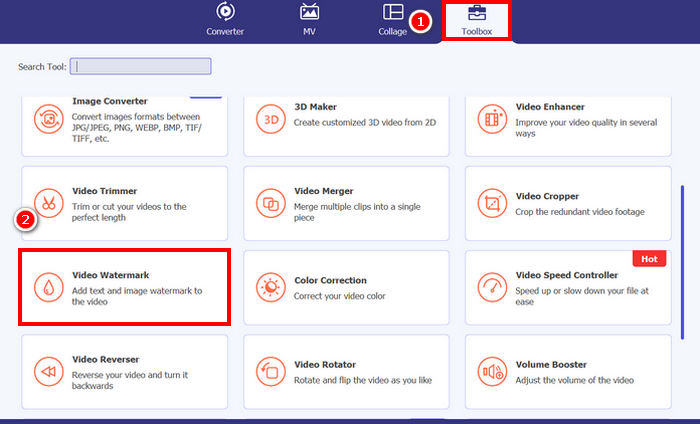
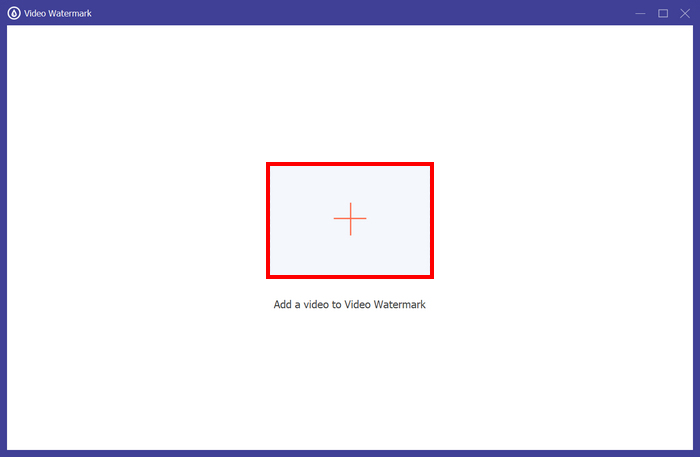
مرحله ۳. بعد از آن، روی Add a Video to Video Watermark کلیک کنید و ویدیویی را که میخواهید به آن واترمارک تصویری اضافه کنید، انتخاب کنید.
مرحله 4. حالا + Image Watermark را انتخاب کنید تا تصویری را که میخواهید بهعنوان واترمارک ویدیوی خود استفاده کنید، اضافه نمایید. از آنجا میتوانید آن را تنظیم کنید. پس از اتمام، روی دکمه Export کلیک کنید.
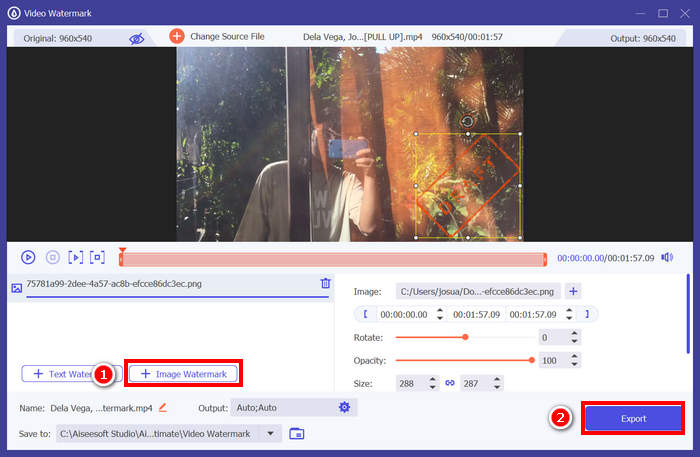
با FVC Video Converter Ultimate، میتوانید به راحتی به ویدیو واترمارک اضافه کنید و توجه داشته باشید که میتوانید واترمارک متنی یا تصویری اضافه کنید. همچنین، این نرمافزار دارای ویژگیهای ویرایش اولیه است که در آن میتوانید میزان شفافیت، اندازه و حتی چرخش آن را تنظیم کنید. در نهایت، رابط کاربری آن بسیار ساده و شهودی است، بنابراین حتی مبتدیان نیز میتوانند به راحتی نحوه استفاده از آن را یاد بگیرند.
قسمت ۲. چگونه در Canva به یک ویدیو واترمارک اضافه کنیم؟
Canva یک ابزار ویرایش محبوب است و قطعاً نام آن را شنیدهاید. اما آیا میدانستید که میتوان از این ابزار برای افزودن واترمارک به ویدیو هم استفاده کرد؟ بله، با رابط کاربری ساده و قابلیت درَگاَنددراپ قدرتمند، Canva این امکان را میدهد که بهراحتی لوگو یا واترمارک دلخواه خود را آپلود کرده و آن را دقیقاً در جایی که میخواهید روی ویدیو قرار دهید. در ادامه، راهنمای گامبهگام برای افزودن واترمارک به ویدیو با استفاده از Canva آمده است:
مرحله ۱. ابتدا باید یک حساب کاربری Canva داشته باشید. میتوانید ثبتنام کنید یا با حساب Google خود وارد شوید.
مرحله ۲. سپس، Canva را باز کنید و روی Create a Design کلیک کرده و گزینه Upload را انتخاب کنید تا فایل ویدیوییای را که میخواهید واترمارک کنید، وارد (Import) نمایید.
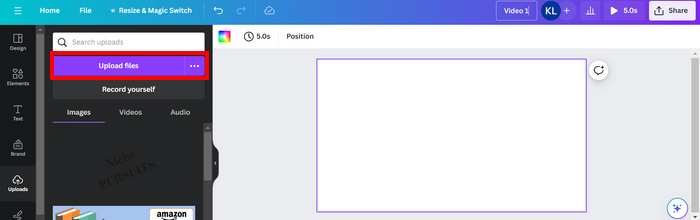
مرحله ۳. حالا همین کار را با واترمارک خود انجام دهید؛ آن را آپلود کرده و روی ویدیو درَگ کنید. وقتی در جای مناسب قرار گرفت، میتوانید اندازه واترمارک را بزرگتر یا کوچکتر کنید و رنگ و شفافیت آن را ویرایش نمایید.
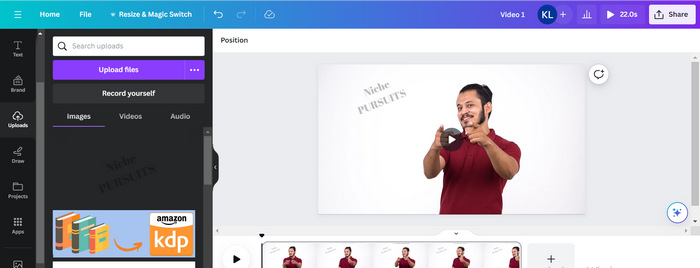
مرحله ۴. ویدیوی خود را پخش کنید تا پیشنمایشی از نمایش واترمارک روی ویدیو ببینید. اگر همهچیز درست بود، روی دکمه Share کلیک کنید و با کلیک روی دکمه Download، فایل را بهصورت یک فایل ویدیویی MP4 دانلود کنید.
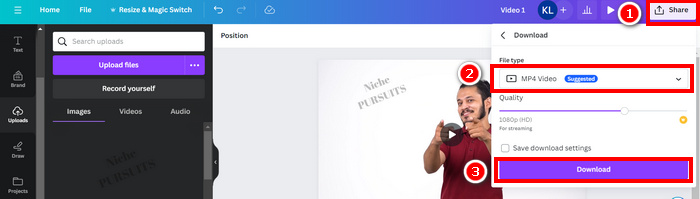
نکته: اگر تصویر واترمارک شما نسبت به ویدیو بیشازحد پررنگ یا تیره است، میتوانید شفافیت آن را تنظیم کنید تا طبیعیتر با تصویر ویدیو ترکیب شود و بدون اینکه بر عناصر بصری غلبه کند یا حواس بیننده را پرت نماید، روی تصویر قرار گیرد.
قسمت ۳. اضافه کردن واترمارک متنی به ویدیو به صورت آنلاین [رایگان]
اگر روشی مبتنی بر وب و رایگان را برای اضافه کردن واترمارک به ویدیو ترجیح میدهید، echowave.io میتواند گزینه بسیار خوبی باشد. این ابزار پلتفرم آنلاین، ویژگیهای بصری ارائه میدهد که به کاربران امکان ایجاد، ویرایش و تجسم محتوای صوتی و تصویری را میدهد. اما جدا از آن، با این ابزار، کاربران میتوانند از ویژگی ویرایش آن، جایی که میتوانند یک واترمارک متنی اضافه کنند، بهره ببرند. در زیر راهنمای گام به گام نحوه اضافه کردن واترمارک متنی به ویدیو به صورت آنلاین آمده است:
مرحله ۱. ابتدا در مرورگر Chrome خود، وبسایت echowave.io را جستجو کنید.
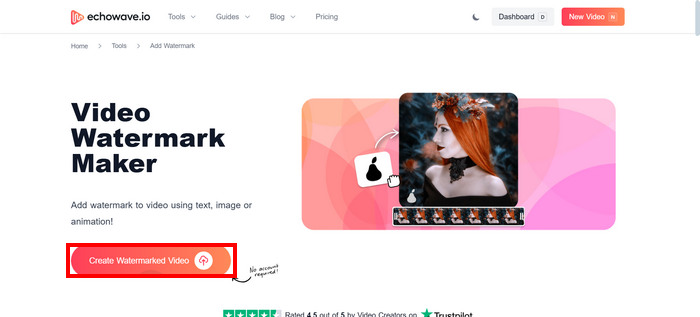
مرحله ۲. سپس، وقتی وارد رابط این ابزار شدید، روی Create Watermarked Video کلیک کنید.
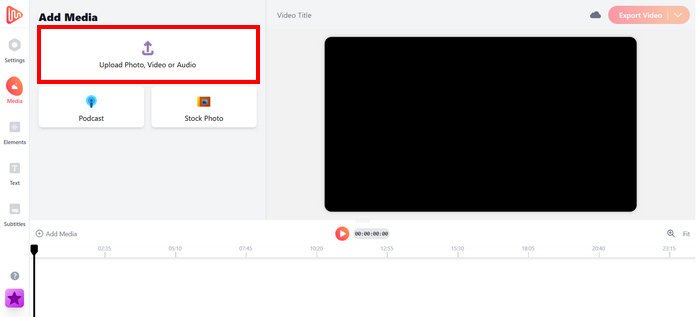
مرحله ۳. بعد از آن، روی Upload Photo, Video, or Audio کلیک کنید تا ویدیویی را که میخواهید واترمارک کنید آپلود نمایید.
مرحله ۴. در نهایت، در پنل سمت چپ صفحه، روی Text کلیک کنید تا متن واترمارکی را که میخواهید ایجاد کنید، اضافه کرده و بنویسید. اما ابتدا باید قالب (فرمت) موردنظر خود را انتخاب کنید. بعد از آن، متن را تایپ کنید. پس از اتمام، میتوانید محل قرارگیری واترمارک را تنظیم کنید و وقتی همهچیز مناسب بود، برای ذخیره فایل روی دکمه Export کلیک نمایید.
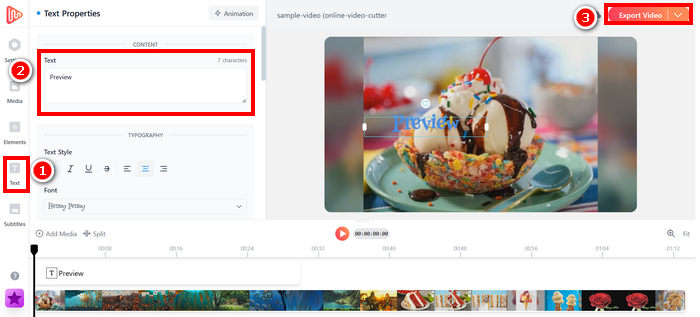
اگرچه اضافه کردن واترمارک به ویدیو با استفاده از echowave.io ساده و برای مبتدیان مناسب است، اما این ابزار گاهی اوقات حتی هنگام پردازش ویدیوهای کوتاه یا فایلهایی با حجم کم، دچار تاخیر میشود.
اگر علاقهمند هستید، برای مطالعه بیشتر درباره افزودن واترمارک به GIF اینجا کلیک کنید.
بخش ۴. سوالات متداول در مورد اضافه کردن واترمارک به ویدیو
آیا پوشاندن واترمارک غیرقانونی است؟
بله، غیرقانونی است. واترمارکها اغلب به عنوان نوعی حفاظت از حق چاپ استفاده میشوند که نشاندهنده مالکیت یا حق نشر محتوا است. پنهان کردن یا حذف عمدی آنها ممکن است قوانین حق چاپ را نقض کند و میتواند منجر به عواقب قانونی شود، به خصوص اگر محتوای تغییر یافته دوباره توزیع شود، مورد استفاده مجدد قرار گیرد یا برای اهداف تجاری استفاده شود.
چگونه در نرمافزار DaVinci Resolve به ویدیو واترمارک اضافه کنیم؟
برای افزودن واترمارک در DaVinci Resolve، ویدیوی خود و تصویر یا متن واترمارک خود را وارد کنید. ویدیو را روی تایملاین قرار دهید، سپس واترمارک را روی یک مسیر جداگانه بالای آن بکشید. از پنل Inspector برای تغییر اندازه، جابجایی و تنظیم میزان شفافیت استفاده کنید. وقتی همه چیز درست به نظر رسید، ویدیو را به همراه واترمارک موجود، خروجی بگیرید.
چگونه در لایتروم به ویدیو واترمارک اضافه کنیم؟
برای افزودن واترمارک به یک ویدیو در لایتروم، ابتدا لایتروم را باز کنید و تصویری را که میخواهید واترمارک کنید انتخاب کنید. سپس، روی تب لایتروم در بالای صفحه کلیک کنید و از منوی کشویی، گزینه ویرایش واترمارکها را انتخاب کنید. در پنجره ویرایشگر واترمارک که ظاهر میشود، متن واترمارک مورد نظر خود را در کادر زیر تصویر پیشنمایش تایپ کنید. از آنجا، میتوانید سبک، فونت، اندازه و محل قرارگیری واترمارک خود را نیز سفارشی کنید.
نتیجه
افزودن واترمارک به ویدیو واقعاً موضوع مهمی است و یادگیری نحوه انجام آن برای محافظت از محتوای شما و نشان دادن مالکیت اهمیت دارد. در حالیکه ابزارهای زیادی در دسترس هستند، FVC Video Converter Ultimate راهی ساده و کارآمد برای افزودن واترمارک به ویدیو ارائه میدهد. این برنامه واقعاً یک انتخاب کاربردی برای مبتدیانی است که بهدنبال یک راهحل سریع هستند، اما بسته به نیازتان، استفاده از ابزارهای دیگری مانند Canva یا ویرایشگرهای آنلاین هم میتواند مفید باشد.
-
 5 روش برای حذف واترمارک از ویدیو به روشی حرفه ای
 آیا نیاز به حذف واترمارک از یک ویدیو دارید تا حرفه ای به نظر برسد؟ خوب، این مقاله را بخوانید زیرا ما یک آموزش در مورد نحوه انجام آن اضافه می کنیم!
-
 2 برنامه عالی که می توانید برای حذف واترمارک از ویدیوهای MP4 استفاده کنید
 این مقاله سادهترین و سادهترین راهها را در مورد نحوه حذف واترمارک از ویدیوهای MP4 با استفاده از دستگاههایی مانند Windows و Mac به شما ارائه میدهد.
-
 حذف واترمارک Animotica در ویدیوهای صادراتی با 3 روش اثبات شده
 آیا تا به حال به این فکر کرده اید که آیا امکان حذف واترمارک Animotica در ویدیوهایی که صادر کرده اید وجود دارد؟ این مقاله نحوه انجام کار را ارائه می دهد.
