


 Video Converter Ultimate
 ضبط صفحه
 تعمیر ویدیو
نحوه تغییر متادیتای فایل های MOV در مک با مراحل بدون زحمت
همه ما میدانیم که MOV یکی از فرمتهای درجهیک برای پخش ویدیو روی دستگاههای اپل و نیز برای تدوین است. اما چه چیزی MOV را منحصربهفرد میکند؟ این فرمت از فشردهسازی ویدیو پشتیبانی میکند که ترجیحاً توسط حرفهایها استفاده میشود. با وجود اینکه میتواند چندین مؤلفه را در یک فایل ذخیره کند، همچنان ممکن است برچسبهای MOV بههمریخته شوند و مشکل ایجاد کنند. ویرایش درست این برچسبها برای داشتن متادیتای مناسب به حل سریع مشکل کمک میکند. با ابزار مناسب، این کار مثل آب خوردن است. پس امروز، ما بهترین روشها برای ویرایش فوری متادیتای فایل MOV را معرفی خواهیم کرد.

قسمت 1. نحوه ویرایش متادیتا MOV با ویرایشگر تگ نهایی در مک
FVC Video Converter Ultimate راهحل همهجانبه شما برای مشکل متادیتاست که از بیش از 1000 فرمت روی مک و ویندوز پشتیبانی میکند. با این ابزار میتوانید فوراً متادیتای فایل MOV خود را حذف، ویرایش یا اضافه کنید. فراتر از این، میتوانید چندین ویرایش دیگر روی MOV خود انجام دهید، مانند برش، تریم، ادغام، کراپ و هزاران کار دیگر، حتی اگر تدوینگر حرفهای نباشید. بدون شک داشتن این ابزار در کنار شما شگفتانگیز است و تنها با چند کلیک، کارهای بسیار بیشتری هم میتوانید با آن انجام دهید. اما امروز دستورالعملهای جزئیای را که تهیه کردهایم به شما ارائه میدهیم تا بتوانید با موفقیت متادیتای فایلهای MOV خود را ویرایش کنید.
مرحله 1. میتوانید این مبدل نهایی را روی مک یا ویندوز خود با زدن دکمه دانلود زیر دریافت کنید. سپس با کلیک روی فایل دانلودشده به فرایند نصب ادامه دهید و برای اجرای فوری ابزار، روی Start Now کلیک کنید.
دانلود رایگانبرای ویندوز 7 یا بالاتردانلود امن
دانلود رایگانبرای MacOS 10.7 یا بالاتردانلود امن
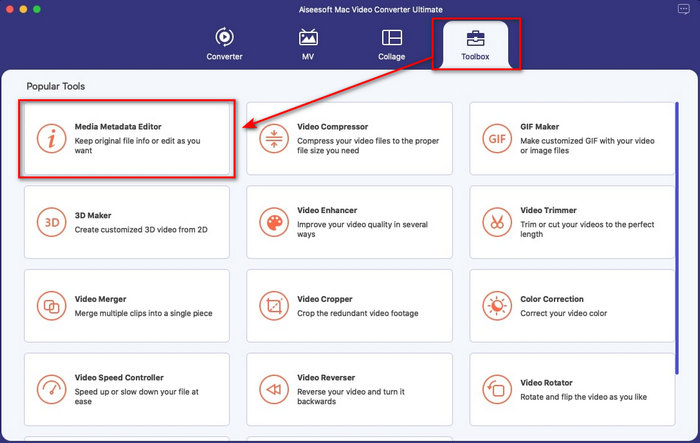
مرحله 2. رابط کاربری ابزار روی صفحه شما ظاهر میشود؛ به بخش Toolbox بروید و Media Metadata Editor را باز کنید.
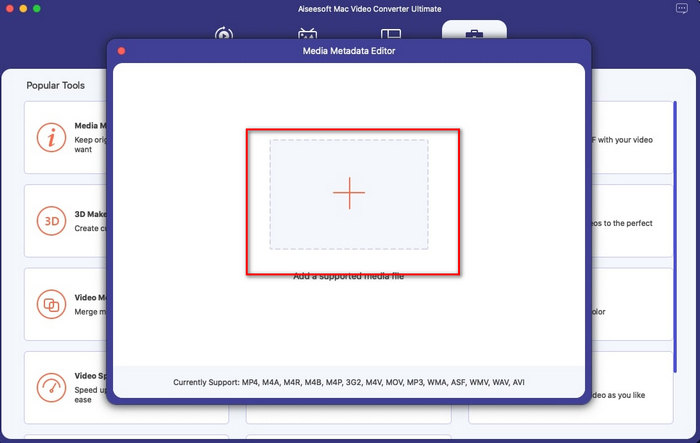
مرحله 3. پس از باز کردن ویرایشگر، یک پنجره کوچک ظاهر میشود؛ دکمه + را بزنید تا پوشهای را باز کنید که بتوانید فایل را در آن پیدا کنید و برای وارد کردن، روی Open کلیک کنید.
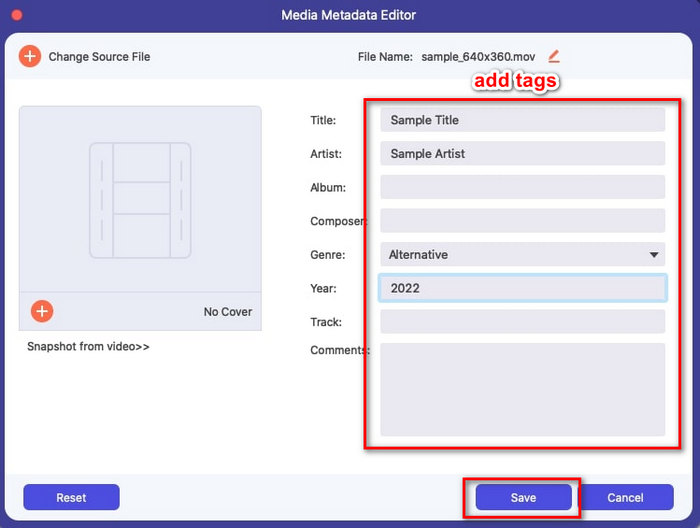
مرحله 4. حالا میتوانید اینجا در text box برچسبهای فایل MOV خود را اضافه، ویرایش یا حذف کنید. اگر کارتان تمام شد، روی دکمه Save کلیک کنید. به همین سادگی، متادیتای فایلهای MOV خود را ویرایش کردهاید.
مرتبط:
قسمت 2. 3 از بهترین ویرایشگرهای برچسب MOV برای تغییر متادیتای MOV
VLC Media Player
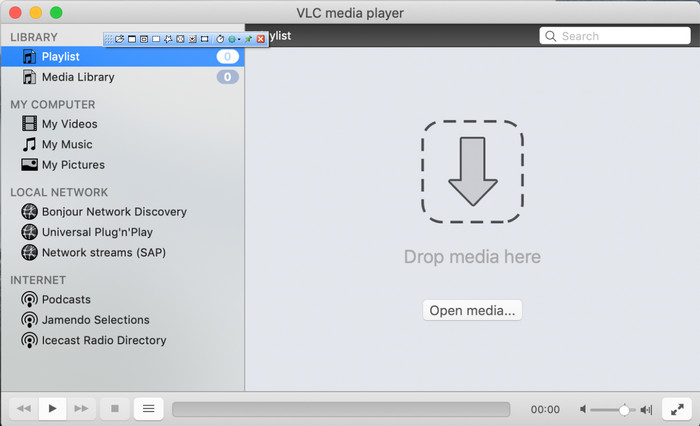
VLC Media Player یک پخشکننده رسانه معروف است که روی مک و ویندوز در دسترس است. اگرچه میتواند فرمتهای مختلف ویدیو را پخش کند، میتواند متادیتای فایل رسانه شما، مانند MOV، را نیز تغییر دهد. علاوه بر این، اگر میخواهید متادیتای فایل خود را ببینید، میتوانید بهراحتی از آن برای نمایش متادیتا استفاده کنید. با این حال، این برنامه به اندازه ویرایشگرهای متادیتای اختصاصی که روی مک یا ویندوز در دسترساند، قدرتمند نیست. با این وجود، همچنان میتوان با این پخشکننده رسانه متادیتای فایل MOV را ویرایش کرد.
مرحله 1. پخشکننده رسانه را از وبسایت رسمی VLC دانلود کرده و آن را باز کنید.
مرحله 2. روی صفحهکلید خود Command + I را فشار دهید تا اطلاعات رسانه نمایش داده شود، جایی که میتوانید متادیتای فایل MOV خود را اضافه یا حذف کنید.
مرحله 3. اگر اعمال برچسبها روی MOV را به پایان رساندهاید، روی Save Metadata کلیک کنید.
iTunes
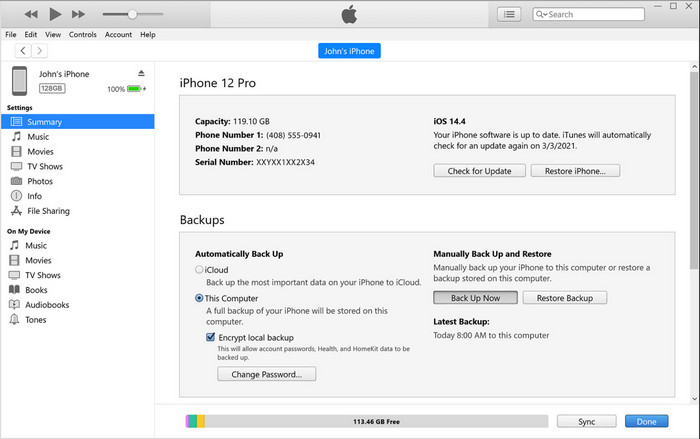
iTunes بهترین اپلیکیشن استریم داخلی است که میتوانید روی هر دستگاه اپل به آن دسترسی داشته باشید. این ابزار مملو از امکانات مختلفی مانند پخشکننده موسیقی و فروشگاه موسیقی، فیلم، پادکست و موارد دیگر است که همگی با DRM محافظت میشوند تا از مشکلات کپیرایت جلوگیری شود. با وجود اینکه یک اپلیکیشن داخلی عالی است، رقابت میان ویرایشگرهای متادیتا آنقدر شدید است که iTunes در این زمینه چندان برجسته نیست. اما ما همچنان این اپ را در نظر گرفتهایم، زیرا میتواند متادیتای MOV را روی مک تغییر دهد.
مرحله 1. فایل MOV را باز کرده و به کتابخانه iTunes وارد کنید.
مرحله 2. سپس روی فایل .mov که اضافه کردهاید راستکلیک کنید و Get Info را انتخاب کنید. پس از کلیک روی آن، گزینههای مختلفی برای تغییر متادیتا خواهید داشت، مانند جزئیات، تصویر کاور، متن ترانه، گزینهها، مرتبسازی و فایل؛ آنها را مطابق نیاز خود تنظیم کنید.
مرحله 3. برای ذخیره تغییرات، OK را فشار دهید.
MetaZ
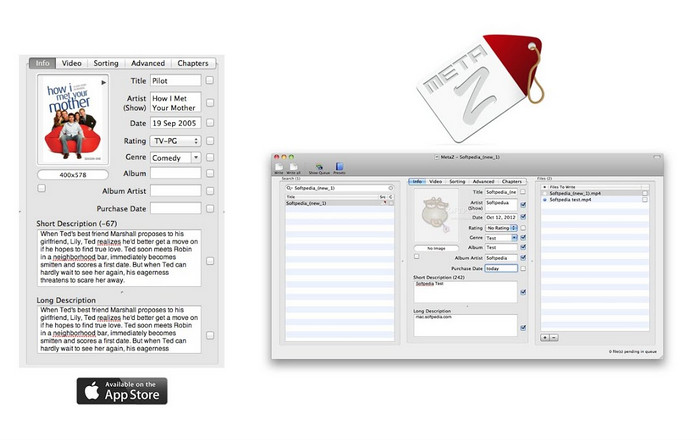
برای macOS X، میتوانید Metaz را آزادانه دانلود کنید تا متادیتای فایلهای خود را به راحتی تغییر دهید. این ویرایشگر فراداده می تواند به شما کمک کند تگ های ویدیوی خود را در اکثر فرمت ها، مانند MOV تغییر دهید. با استفاده از این برنامه، می توانید این ترفند را به راحتی انجام دهید و MOV را در کتابخانه خود سازماندهی کنید. با این حال، گزارش های بسیاری اخیراً با این برنامه اتفاق می افتد. کاربران در حین استفاده از برنامه با مشکلات دردسرساز زیادی مواجه می شوند. اگرچه ممکن است مشکلاتی پیش بیاید، اما همچنان یکی از برگزیدهترین ویرایشگرهای ابرداده MOV است که میتوانید در مک خود دانلود کنید.
مرحله 1. اپ را روی مک خود دانلود و اجرا کنید؛ سپس سه بخش در رابط ابزار روی نمایشگر دیده میشود که میتوانید در آن فایل را اضافه کنید، برچسبها را ویرایش کنید و به جستجوی برچسبها بپردازید.
مرحله 2. فایل MOV را بکشید و در سمت چپ رها کنید؛ در سمت چپ آن خواهید دید که برنامه بهطور خودکار بر اساس عنوان، برچسبهایی را برای فایل MOV شما جستجو میکند، اما اگر بخواهید میتوانید آنها را در بخش میانی اصلاح کنید.
مرحله 3. روی Write فشار دهید تا برچسبها به فایل MOV اضافه شوند.
بخش 3. سؤالات متداول در مورد ویرایشگر فراداده MOV
آیا می توانم از ویرایشگر ابرداده QuickTime برای تغییر برچسب ها استفاده کنم؟
متأسفانه، نمی توانید زیرا این ابزار فقط می تواند فرمت رسانه را پخش کند، فیلم ها را ویرایش کند و ضبط کند. اما شما می توانید آزادانه ابرداده فایل خود را در Quicktime با دنبال کردن این مراحل ساده مشاهده کنید. ابتدا فایل MOV را در Quicktime باز کرده و پخش کنید. گزینه های مختلفی را در قسمت بالایی مشاهده خواهید کرد. روی Window کلیک کنید، و در زیر آن، View Inspector را بزنید، سپس یک پنجره جدید روی صفحه نمایش شما نمایش داده می شود تا اطلاعات کمی در مورد فایل MOV شما مشاهده شود.
آیا تغییر تگ های MOV بر کیفیت تأثیر می گذارد؟
خوشبختانه اینطور نمی شود زیرا شما برچسب ها را تنظیم کرده اید، نه وضوح یا کیفیت فایل MOV. بنابراین، اگر نگران این هستید که پس از تغییر برچسب ها، وضوح ویدیو کاهش یابد، آن را تکرار می کنیم. این نمی شود.
آیا افزودن متادیتا در MOV باعث افزایش حجم فایل می شود؟
در هر فایلی، هنگامی که متادیتا را به آن فایل اضافه کردید، تفاوت بین فایلی که برچسب ندارد و فایلی که دارای برچسب است، خواهید دید. با این حال، این برچسب ها به اندازه محتوای فایل بزرگ نیستند. بنابراین، اگر متادیتا را روی MOV خود اضافه کنید، انتظار داشته باشید که اندازه آن کمی افزایش یابد زیرا اطلاعاتی درباره فایل ویدیویی اضافه کرده اید.
نتیجه
حال که آموزش تغییر متادیتای فایل MOV را به پایان رساندهایم، وقت آن است که انتخاب کنید کدام آموزش را میخواهید دنبال کنید. اگر میخواهید یک ابزار رایگان روی مک دانلود کنید، میتوانید VLC و Metaz را برای اصلاح یا ویرایش متادیتای MOV دانلود کنید. اما اگر تمایلی به این کار ندارید، میتوانید بهراحتی از iTunes برای ویرایش متادیتا استفاده کنید. هرچند این ابزارها برای استفاده عالیاند، هنوز هیچ ابزاری با قدرت ویرایشی قدرتمند روی متادیتا برای مک وجود ندارد که قابل مقایسه با چیزی باشد که FVC Video Converter Ultimate در اختیار شما میگذارد. بنابراین، اگر هنوز مردد هستید که از چه چیزی استفاده کنید، ما اکیداً توصیه میکنیم برای این کار از این ابزار نهایی استفاده کنید، زیرا کار با آن آسان است اما در عین حال بسته نهاییِ تمامی امکانات مورد نیازِ شما در هر روز را فراهم میکند.
-
 متا داده چیست: اطلاعات اولیه در مورد فراداده را بیاموزید
 Metadata چیست؟ آیا این مهم است؟ فراداده از چه بخش هایی تشکیل شده است؟ تو هم همین سوال را داری؟ در این مقاله با اطلاعات اولیه در مورد ابرداده آشنا خواهید شد.
-
 4 مورد از بهترین نمایشگر فراداده آنلاین و آفلاین [به روز رسانی در 2022]
 آیا می توانم فراداده فایل خود را بررسی کنم؟ بله، شما می توانید، با کمک این پست ما بینندگان متادیتاهای مختلفی را که می توانید استفاده کنید به شما معرفی می کنیم.
-
 4 برگزیده ترین ویرایشگر برچسب WMV روی دسک تاپ [به روز رسانی 2022]
 به یک ویرایشگر برچسب WMV قابل اعتماد برای ویرایش برچسب های WMV نیاز دارید؟ خوب، این مقاله دانش کافی در مورد ابزاری که WMV را پشتیبانی می کند ارائه می دهد.
