


 Video Converter Ultimate
 ضبط صفحه
 تعمیر ویدیو
گام به گام در مورد نحوه افزودن آلبوم هنری به MP3 با استفاده از بهترین نرم افزار روی دسکتاپ
اضافه کردن کاور آلبوم میتواند بسیار کاربردی باشد، بهویژه اگر بخواهید شنونده احساس نزدیکی بیشتری با موسیقیای که گوش میدهد پیدا کند. با داشتن کاور آلبوم، کاربران میتوانند نگاهی اجمالی به حالوهوای موسیقی، بهخصوص آثار دیجیتالی، داشته باشند. در برخی موارد، فایل MP3 کاور مناسبی ندارد یا اصلاً به فایل پیوست نشده است. اگر شما هم با این مشکل مواجه هستید، ضروری است که یاد بگیرید چگونه کاور آلبوم را به فایل MP3 اضافه کنید و این کار را روی دسکتاپ انجام دهید. برای آشنایی بیشتر با این موضوع، خواندن این مقاله را ادامه دهید، زیرا در ادامه، توضیحی فشرده و کاربردی در مورد این مشکل ارائه میدهیم.

قسمت 1. نحوه افزودن هنر آلبوم به MP3 با Video Converter Ultimate [ویرایشگر برچسب توصیه شده]
آیا بهدنبال استفاده از یک نرمافزار قدرتمند برای اضافه کردن کاور آلبوم به MP3 هستید؟ FVC Video Converter Ultimate ویرایشگر تگ پیشنهادی برای این کار است. این نرمافزار بیدلیل توصیه نشده است. بر خلاف بسیاری از برنامهها که فقط از تعداد محدودی فرمت کاور پشتیبانی میکنند و نمیتوانید هر تصویری را بهعنوان جلد MP3 خود استفاده کنید، این ابزار چنین محدودیتی ندارد. با این نرمافزار حرفهای میتوانید کاور آلبوم را روی MP3، WAV، WMA، AAC، FLAC و بیش از ۱۰۰۰ فرمت ویدئویی و صوتی دیگر اضافه کنید. شگفتانگیز نیست؟ این ابزار اولین انتخاب برای اضافه کردن تصویر کاور به آلبوم شماست. میخواهید بدانید چطور از این نرمافزار کامل استفاده کنید؟ در این صورت، میتوانید آموزش گامبهگامی را که در ادامه آوردهایم با دقت بخوانید و دنبال کنید.
مرحله 1. روی دکمه دانلود زیر کلیک کنید و سیستمعاملی را که در حال حاضر استفاده میکنید انتخاب کنید. پس از دانلود نرمافزار، نصب را انجام دهید. وقتی همه چیز تمام شد، روی Start Now کلیک کنید تا برنامه روی دسکتاپ اجرا شود.
دانلود رایگانبرای ویندوز 7 یا بالاتردانلود امن
دانلود رایگانبرای MacOS 10.7 یا بالاتردانلود امن
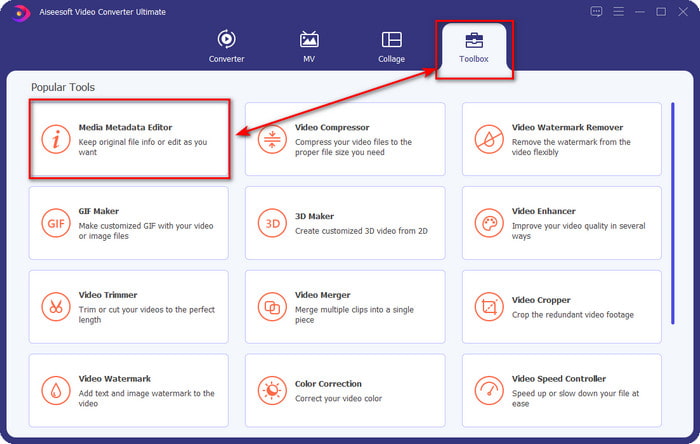
مرحله 2. به بخش Toolbox بروید و روی Media Metadata Editor در این قسمت کلیک کنید.
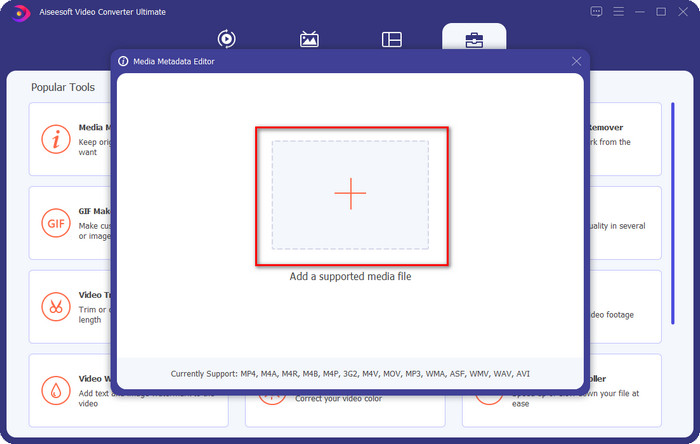
مرحله 3. با کلیک روی دکمه + فایل موسیقیای را که میخواهید برای آن کاور آلبوم اضافه کنید انتخاب کنید. برای وارد کردن فایل موسیقی انتخابشده، روی Open کلیک کنید.
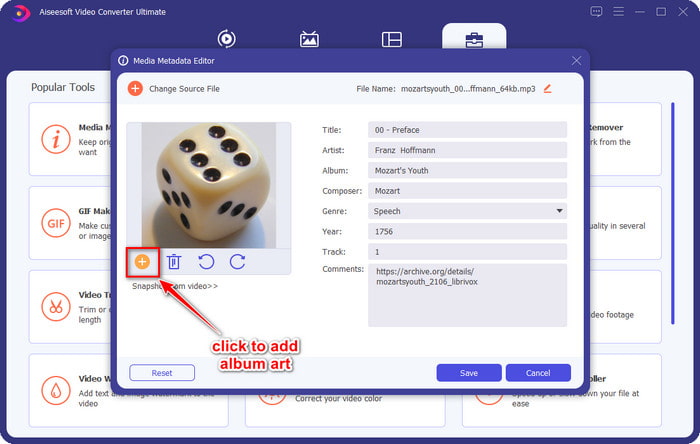
مرحله 4. سپس روی دکمه + در پایین سمت چپ رابط کلیک کنید، کاور آلبومی را که میخواهید استفاده کنید پیدا کرده و روی Open کلیک کنید. در صورت نیاز، سایر فرادادهها (متادیتا) را نیز در textbox وارد کنید.
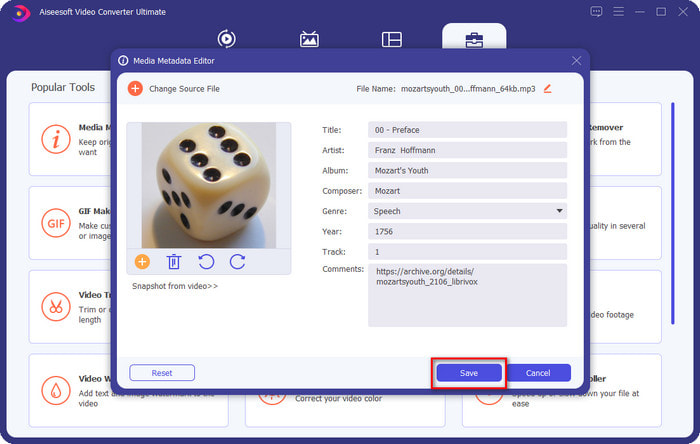
مرحله 5. اگر اضافه کردن کاور آلبوم و متادیتا به فایل MP3 تمام شد، اکنون میتوانید روی Save کلیک کنید تا کاور آلبوم به فایل MP3 آپلودشده پیوست شود. ساده نیست؟ با استفاده از این ابزار پیشرفته، انجام این کار و رفع مشکل، هم ممکن است و هم آسان.
قسمت 2. نحوه افزودن آلبوم هنری به MP3 با استفاده از ویرایشگر متادیتا رایگان VLC Media Player]
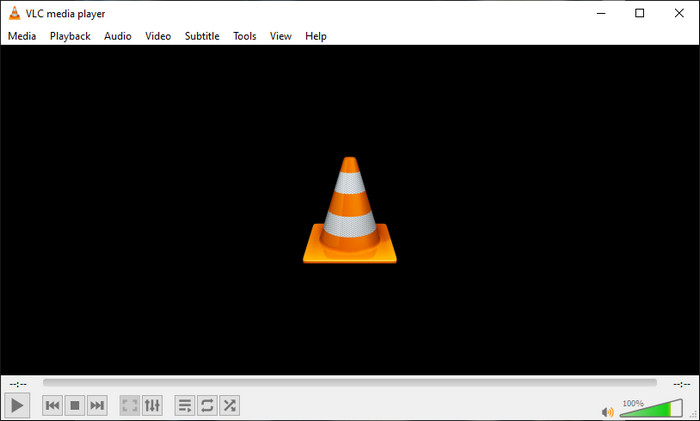
VLC Media Player بهترین پخشکننده رسانهای است که بیشتر ما آن را داریم. این ابزار میتواند هر فایل ویدیویی را پخش کند و علاوه بر آن، امکان ویرایش متادیتا را هم دارد؛ از جمله اضافه کردن کاور آلبوم به فایل موسیقی. با این پخشکننده میتوانید آزادانه متادیتا را تنظیم یا اضافه کنید. اگر به آموزش اضافه کردن کاور آلبوم به MP3 در ویندوز ۱۰/۱۱ یا مک با استفاده از این ابزار نیاز دارید، مراحل زیر برای شماست.
مرحله 1. این پخشکننده را روی دسکتاپ خود دانلود کرده و آن را باز کنید.
مرحله 2. در رابط اصلی، روی Tools کلیک کنید و در زیر آن، روی Information کلیک کنید.
مرحله 3. روی آیکون VLC در گوشه پایین سمت راست راستکلیک کنید، کاور آلبوم را اضافه کرده و روی Save کلیک کنید.
قسمت 3. نحوه افزودن آلبوم هنری به MP3 در iTunes [ویرایشگر فراداده داخلی در مک]
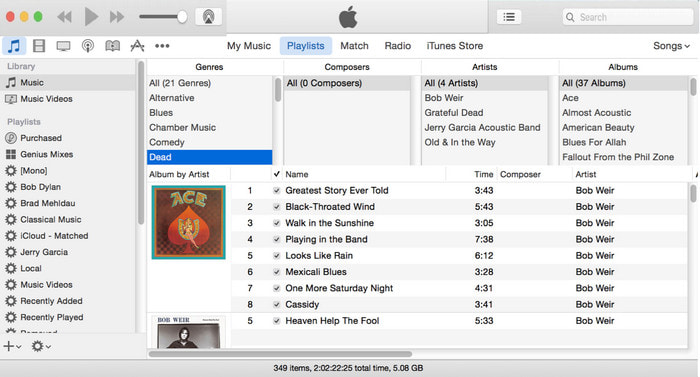
برای کاربران مک، iTunes ویرایشگر متادیتای پیشفرض ما برای اضافه کردن تصویر کاور به فایل MP3 است. این برنامه داخلی میتواند به ما کمک کند متادیتای فایلهایی را که روی مک داریم ویرایش کنیم. با این حال، این نرمافزار در برخی نسخههای جدید مک دیگر در دسترس نیست، چون به سه برنامه جداگانه تقسیم شده که عملکردی مشابه iTunes دارند. اما روی بعضی مکها با نسخههای قدیمیتر، همچنان موجود است. اگر یکی از کاربران مک هستید و میخواهید بدانید چگونه در iTunes به MP3 کاور آلبوم اضافه کنید، میتوانید مراحل زیر را دنبال کنید.
مرحله 1. برنامه iTunes را روی مک خود باز کنید.
مرحله 2. روی Music سپس Library کلیک کنید و روی فایل موسیقیای که کاور آلبوم ندارد راستکلیک کنید.
مرحله 3. در گزینههای بالا روی Artwork و سپس Add Artwork کلیک کنید، تصویری را که میخواهید آپلود کنید انتخاب کرده و برای اعمال آن روی OK کلیک کنید.
بخش 4. سوالات متداول در مورد نحوه افزودن آلبوم هنری به MP3
آیا می توانم آلبوم هنری را به MP3 در Audacity اضافه کنم؟
متأسفانه، با استفاده از Audacity نمی توانید تصویر هنری را روی فایل MP3 که دارید اضافه کنید. این ابزار هیچ فرمت تصویر یا ویدیویی را پشتیبانی نمی کند زیرا برای استفاده به عنوان یک ویرایشگر موسیقی در نظر گرفته شده است. اما اگر میخواهید ابرداده MP3 خود را ویرایش کنید، همچنان میتوانید از Audacity به عنوان ویرایشگر ابرداده استفاده کنید.
چرا هنر آلبوم من در فایل صوتی من وجود ندارد؟
سه دلیل وجود دارد که هنر آلبوم شما در فایل صوتی شما وجود ندارد. دلیل اول این است که فایلی که باید دانلود کنید شامل آلبوم هنری نمی شود، به خصوص اگر دزدی دریایی باشد. اکثر فایلهای موسیقی که در وب دانلود کردهایم، برای جلوگیری از مشکلات کپینویسی، آلبوم هنری ندارند. در مرحله بعد، فایل از بین رفت زیرا تصویر به درستی ضمیمه نشده بود. برخی از کاربران با این مشکل مواجه میشوند و رسیدگی به آن دشوار است، بنابراین استفاده از یک آلبوم هنری حرفهای ضروری است. در نهایت، تصویر خراب است. اگر فایلی که آپلود کرده اید به عنوان آلبوم هنری در دسترس نیست یا فایل موسیقی که دارید خراب است، ممکن است دلیل آن باشد.
بهترین ابرداده ای که می توانم استفاده کنم چیست؟
اگر ویرایشگرهای متادیتایی که در بالا معرفی کردیم برای شما محدود است، میتوانید روی این لینک کلیک کنید تا به مقالهای جدید منتقل شوید و همه بهترین ویرایشگرهای متادیتا را که میتوانید استفاده کنید، یکجا ببینید.
نتیجه
اکنون که ایده اضافه کردن آلبوم هنری به MP3 را داریم، زمان آن رسیده است که انتخاب کنیم کدام ابزار به نظر ما مناسبتر است. اگر کاربر مک هستید و نمی خواهید نرم افزاری را روی دسکتاپ خود دانلود کنید، باید iTunes را انتخاب کنید. اما iTunes در نسخه به روز شده مک کنار گذاشته شده است. اگر می خواهید ابزار رایگانی را دانلود کنید که می تواند به شما کمک کند کاور را به موسیقی خود اضافه کنید، VLC یک انتخاب عالی است. با این حال، این ابزار یک ابزار حرفه ای نیست. بنابراین، اگر نرمافزار تخصصی میخواهید که بتواند شما را در این کار در هر دو سیستمعامل، ویندوز و مک، جای دهد، از نرمافزار نهایی استفاده کنید. با کلیک بر روی دکمه دانلود ارائه شده در بالا، نرم افزار را روی دسکتاپ خود دانلود کنید تا ابزار حرفه ای در دسترس شما باشد.
-
 نحوه مشاهده آسان متادیتای عکس ها و ویدیوها در iOS
 آیا می خواهید بدانید که چگونه می توان ابرداده را در iPhone و iPad مشاهده کرد؟ سپس خواندن این مقاله ممکن است به شما کمک کند تا این مشکل را بدون دردسر حل کنید.
-
 بهترین تکنیک ها در مورد نحوه ویرایش برچسب های iD3 در iTunes [نکات موثر]
 آیا باید بدانید که چگونه برچسب ها را در iTunes ویرایش کنید؟ سپس شما در جای درستی هستید. همانطور که در مورد روش ها بحث کردیم، می توانید برای ویرایش برچسب ها با استفاده از iTunes دنبال کنید.
-
 نحوه ویرایش ویژگی های فایل های WAV در ویندوز 10/11 و مک [حل شد]
 آیا به دنبال راهی برای ویرایش ویژگی های فایل های WAV خود در ویندوز 10/11 هستید؟ اگر به خواندن این مقاله ادامه دهید این سوال پاسخی خواهد داشت.
