


 Video Converter Ultimate
 ضبط صفحه
 تعمیر ویدیو
چگونه واترمارک را از گراف مبدا به طور موثر بر روی نمودار حذف کنیم
ممکن است لازم باشد از Origin Graph برای ایجاد یک قالب بر پایه دادههای ریاضی یا علمی استفاده کنید که آنقدر پیچیدهاند که نتوان آنها را بهآسانی در قالب کلمات بیان کرد. این نرمافزار تا کنون به دانشجویان، پژوهشگران، استادان دانشگاه، فعالان حوزه کسبوکار و سایر افرادی که نیاز به ترسیم نمودار اختصاصی خود دارند کمک کرده است. با مجموعهای از قالبهای آمادهای که در اختیار شما میگذارد، میتوانید نموداری چشمنواز بسازید که توجه بینندگان را جلب کند. مشکلی که ممکن است هنگام استفاده از نسخه رایگان آن با آن روبهرو شوید، این است که روی خروجی نهایی متنِ واترمارک اضافه میکند. در برخورد با این واترمارک به دردسر افتادهاید؟ دیگر نگران نباشید! چون ما راهحل را در اختیار شما قرار میدهیم. در اینجا نکات مفیدی درباره حذف واترمارک از Origin Graph ارائه میکنیم تا پس از آن بتوانید نمودار را در ارائههای Word یا PowerPoint خود استفاده کنید.

قسمت 1. نحوه حذف واترمارک از گراف مبدا با حذف واترمارک تصویر آنلاین
FVC Free Watermark Remover Online یک ابزار آنلاین قدرتمند برای حذف واترمارک متنی است که میتوانید از آن برای از بین بردن واترمارک Origin Graph استفاده کنید. این ابزار در حذف هر گونه شیء ناخواسته روی تصاویر شما بسیار کارآمد است تا پس از حذف واترمارک، تصویر حرفهایتری داشته باشید. با استفاده از آن، میتوانیم اطمینان دهیم که با یک واترمارکبر تخصصی سروکار دارید که در چنین مواقعی میتوانید روی آن حساب کنید. میپرسید کار کردن با این ابزار ساده است یا نه؟ دیگر نگران نباشید! زیرا مراحلی که در زیر آوردهایم دقیقاً دستورالعملی است که میتوانید برای خلاص شدن از شر واترمارک متنی روی تصویری که Origin Graph اضافه میکند دنبال کنید.
گام ۱. روی این لینک کلیک کنید تا پاککننده واترمارک تصویر را بهصورت آنلاین باز کنید؛ با این کار، یک زبانه جدید باز میشود که در آن میتوانید به ابزار دسترسی داشته باشید.
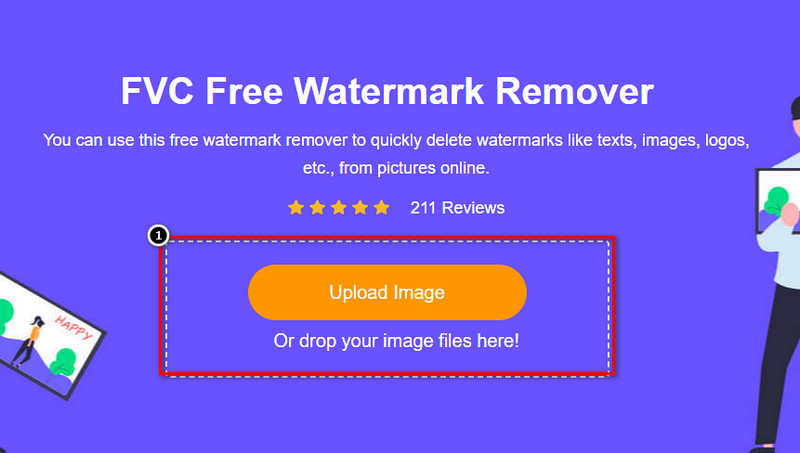
گام ۲. روی Upload Image کلیک کنید تا عکسی را که واترمارک دارد اینجا اضافه کنید، فایل تصویر را در پوشه پیدا کنید و روی Open بزنید تا با موفقیت بارگذاری شود.
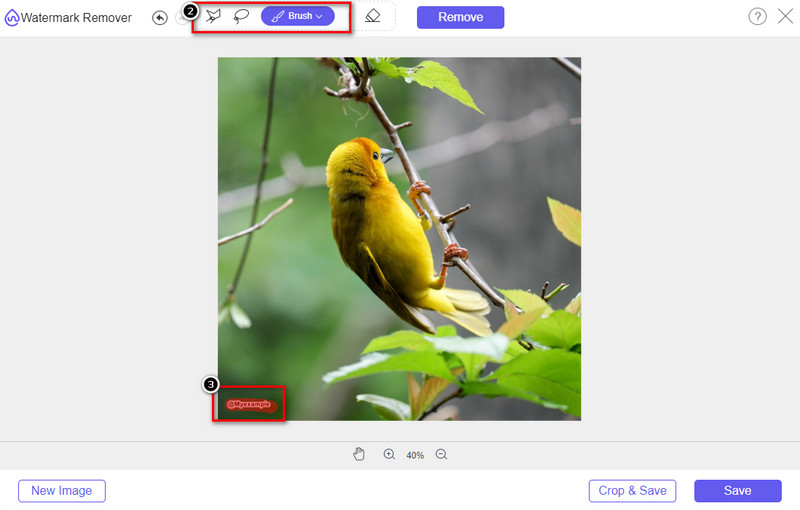
گام ۳. میتوانید از سه ابزار مختلف برای هایلایت کردن واترمارک استفاده کنید؛ هرچند عملکرد آنها با هم تفاوت دارد، اما همگی به یک اندازه مؤثرند. یکی از این ابزارها را انتخاب کنید و ناحیهای از تصویر را که واترمارک روی آن قرار دارد مشخص کنید.
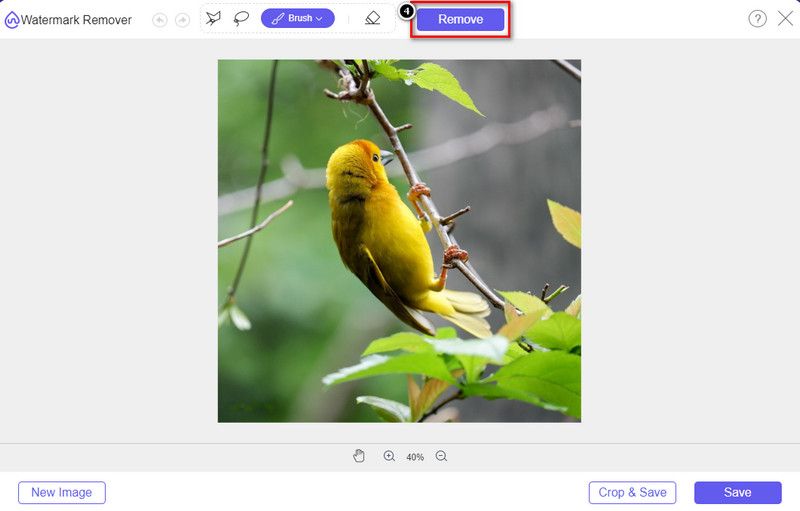
گام ۴. بعد از مشخص کردن واترمارک با ابزار، حتماً روی آیکون Remove کلیک کنید. این گام بسیار مهم است تا هنگام برونبَری تصویر، نسخهای بدون واترمارک در اختیار داشته باشید.
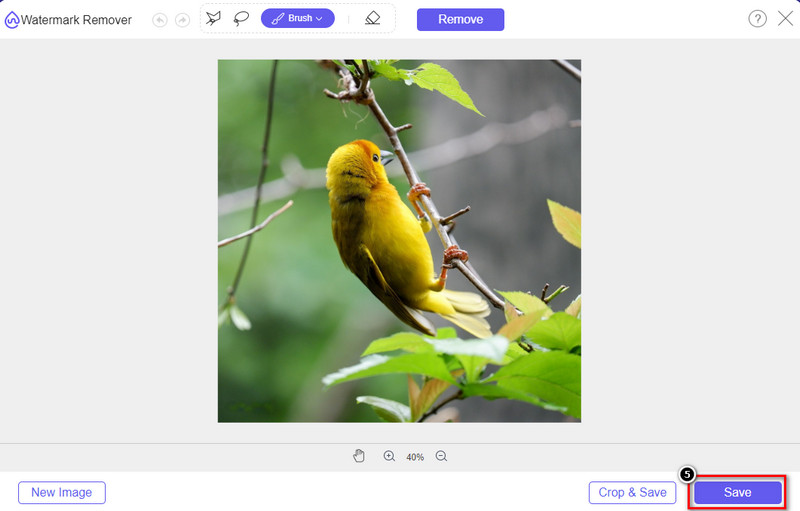
گام ۵. برای شروع فرایند برونبَری، اکنون میتوانید روی دکمه Save کلیک کنید. منتظر بمانید تا فرایند کامل شود و سپس میتوانید تصویر را بدون واترمارک Origin Graph در ناحیه قبلی بررسی کنید.
طرفداران
- یک پاک کننده واترمارک تصویر مبتنی بر وب رایگان که می توانید به آن دسترسی داشته باشید.
- با پشتیبانی از فناوری هوش مصنوعی در حذف واترمارک کارآمد است.
- از طیف گسترده ای از فرمت های تصویری که ممکن است در درایو محلی خود داشته باشید، پشتیبانی می کند.
- هیچ واترمارکی روی تصاویر صادر شده اضافه نمی شود.
منفی ها
- برای عملکرد به اتصال به اینترنت نیاز دارید.
- تمرکز آن بر حذف واترمارک است و هیچ چیز دیگری.
قسمت 2. چگونه نمودارها را از مبدا به ورد یا پاورپوینت بدون واترمارک کپی کنیم
در این قسمت از مقاله، روشی را که باید بدانید برای اضافه کردن نموداری که در Origin Graph ایجاد کردهاید، بدون واترمارک به شما ارائه میکنیم. برای اضافه کردن نموداری که با موفقیت در Microsoft Word و PowerPoint بدون واترمارک ایجاد میکنید، آن را دنبال کنید.
به دلیل حجم بالای فایل آن، باید حداقل 1.9 گیگابایت را آزاد کنید. در فایل 1.9 گیگابایتی می توانید کمک مورد نیاز خود را داشته باشید، اما اگر کمک نمی خواهید، می توانید نسخه 652 مگابایتی آن را از طریق .zip یا .exe دانلود کنید.
مراحل نحوه ایجاد یک نمودار در گراف مبدا بدون واترمارک:
گام ۱. ابتدا Origin Graph را از وبسایت رسمی آن روی سیستمعامل خود دانلود کنید. ابزار را باز کنید تا ساخت نموداری را که مد نظر دارید آغاز کنید.
گام ۲. پس از اجرای نرمافزار، مقادیر جدولی را که نیاز دارید اضافه کنید. میتوانید متغیرهای بیشتری و به همان نسبت تعداد بیشتری نمودار در اینجا اضافه نمایید.
نکته تکمیلی: میتوانید روی Plot کلیک کنید تا سایر نوع نمودارهایی را که میتوانید استفاده کنید، مانند Basic 2D، Bar، Statistical و موارد دیگر، مشاهده کنید.
گام ۳. روی File کلیک کنید و سپس دکمه Save را بزنید تا نموداری را که ساختهاید برونبَری کنید.
گام ۴. میتوانید مراحلی را که در بخش ۱ آوردیم دنبال کنید و با کمک FVC Free Watermark Remover Online آموزش حذف واترمارک از Origin Graph را اجرا نمایید.
نحوه استفاده از نمودار در Word بدون واترمارک:
گام ۱. برنامه Word را روی دسکتاپ خود باز کنید و روی صفحه خالی (Blank Page) کلیک کنید. اگر از قبل سند Word ساختهاید، همان فایل را باز کنید.
گام ۲. به بخش Insert بروید و سپس روی Pictures کلیک کنید. فایل نمودار را در درایو محلی خود جستوجو کنید، یک بار روی آن کلیک کرده و سپس روی Open بزنید تا در Word بارگذاری شود.
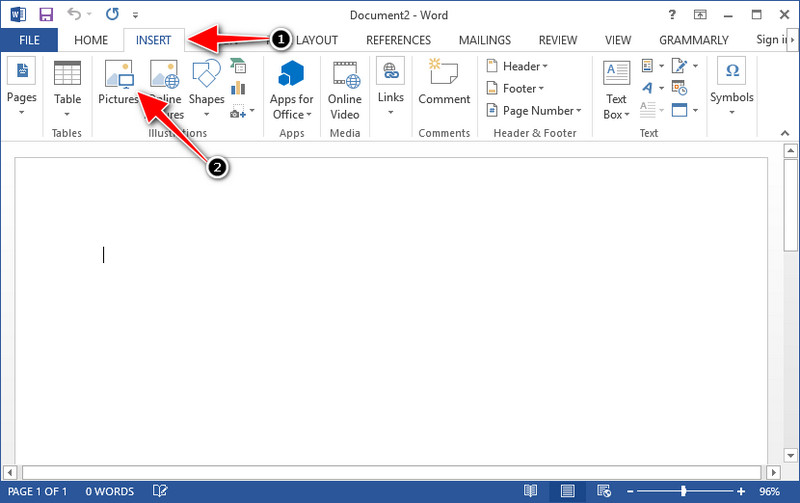
گام ۳. تصویر نمودار بهصورت خودکار در سند Word که باز کردهاید یا ساختهاید بارگذاری میشود؛ اکنون میتوانید با نگهداشتن و کشیدن تصویر، آن را در جای مناسب در صفحه قرار دهید.
نحوه استفاده از نمودار در پاورپوینت بدون واترمارک:
گام ۱. برنامه PowerPoint را روی کامپیوتر اجرا کنید و روی Blank Presentation کلیک کنید. همچنین میتوانید در سمت چپ، ارائههای اخیر خود را ببینید. اگر فایلی وجود دارد که باید نمودار را به آن اضافه کنید، روی آن کلیک کنید تا باز شود.
گام ۲. روی Insert فشار دهید و Picture را انتخاب کنید تا تصویر نموداری را که در Origin Graph ساختهاید درج کنید.
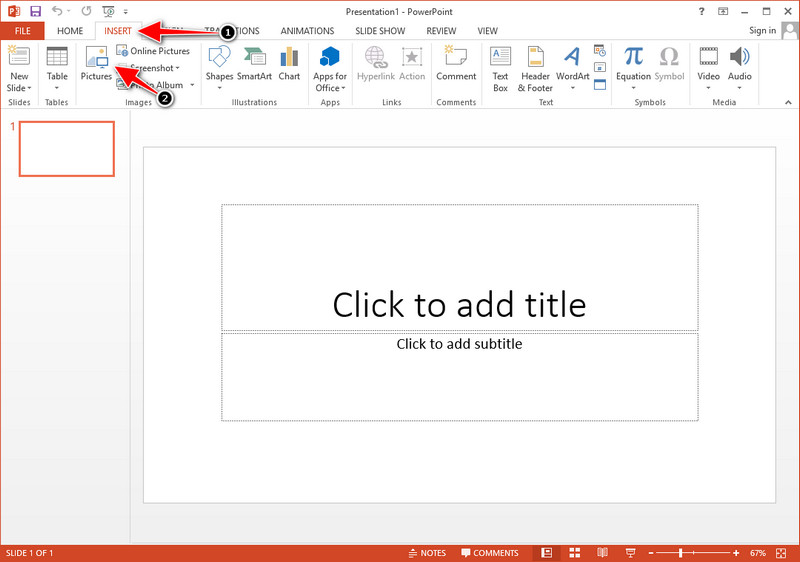
گام ۳. اندازه تصویر نمودار را تنظیم کرده و آن را در محل مورد نظر روی اسلاید قرار دهید.
مطالعه بیشتر:
چگونه واترمارک B612 را از روی تصاویر خود حذف کنیم
چگونه واترمارک WOW Slider را بهصورت رایگان حذف کنیم
بخش 3. سوالات متداول در مورد نحوه حذف واترمارک از نمودار مبدا
Origin Pro چقدر است؟
برای هر کاربر، میتوانید نسخه پریمیوم Origin Graph را برای $435 شروع کنید. می توانید از فروشگاه رسمی آن در Origin Lab دیدن کنید.
از کجا می توانم رسماً Origin Graph را دانلود کنم؟
برای دانلود Origin Graph به آزمایشگاه Origin مراجعه کنید. قبل از اینکه بتوانید نرم افزار را روی دسکتاپ خود دانلود کنید، سوالاتی را مطرح می کند. پس از آن، دو گزینه برای دانلود فایل وجود خواهد داشت، اگر بخواهید با کمک دانلود کنید یا نه، به صورت exe یا zip.
آیا اکسل و اوریجین یکسان هستند؟
Excel و Origin دارای یک رابط کاربری گرافیکی صفحه گسترده برای مرتب کردن داده ها، محاسبه و تعریف برچسب ها هستند. با این حال، اکسل روی تعداد ستونها و ردیفهایی که میتوانید استفاده کنید تمرکز دارد. اما با Origin، برای مرتب کردن ویژگی هایی است که به جای فرمول سلولی مانند آنچه اکسل پشتیبانی می کند، از فرمول ستونی استفاده می کند.
نتیجه
اکنون که یاد گرفتید چگونه واترمارک را از Origin Graph حذف کنید، وقت آن است که از نموداری که ایجاد کرده اید استفاده کنید و آن را به صورت حرفه ای ارائه دهید. اگر هدف شما استفاده از آن در Word یا Powerpoint است، میتوانید قسمت 2 را بخوانید تا نحوه انجام آن را بیاموزید. حذف واترمارک با این ابزار تا حد زیادی مورد درخواست افرادی است که می خواهند واترمارک روی تصاویر را حذف کنند. مشکل با این ابزار حل می شود. اگر این مقاله به شما کمک کرد، لطفاً یک ستاره 5 ستاره را در زیر بگذارید.
-
 نحوه حذف واترمارک با Pixlr در مراحل دقیق [موثر]
 آیا می خواهید بدانید چگونه با Pixlr یک واترمارک را حذف کنید؟ اگر چنین است، به خواندن زیر ادامه دهید تا بدانید چگونه این کار را انجام دهید و جایگزین هایی که می توانید استفاده کنید.
-
 حذف واترمارک Animotica در ویدیوهای صادراتی با 3 روش اثبات شده
 آیا تا به حال به این فکر کرده اید که آیا امکان حذف واترمارک Animotica در ویدیوهایی که صادر کرده اید وجود دارد؟ این مقاله نحوه انجام کار را ارائه می دهد.
-
 راه های رایگان برای حذف واترمارک VideoShop در ویدیوها [به زحمت]
 برای حذف واترمارک VideoShop، دستگاه شما به پاک کننده واترمارک نیاز دارد. برای اینکه بدانید اینها چیست، این مقاله را بخوانید.
