


 Video Converter Ultimate
 ضبط صفحه
 تعمیر ویدیو
چگونه به سرعت تصویر را در فتوشاپ تیز کنیم - راهنمای کاملی که باید بدانید
با بهترین ویرایشگر تصویر حرفهای، میتوانید هر عکسی را که دارید در سطحی بالاتر پردازش کنید. ادوبی فوتوشاپ طولانیمدتترین نرمافزار قابل اعتماد بوده است که میتوانید آن را روی ویندوز، مک، iOS و اندروید دانلود کنید. به لطف سازندهاش، Adobe، این برنامه ویرایش را در بالاترین حد خود معرفی کرده و متحول ساخته است. به دلیل امکانات پیشرفتهاش، ویرایشگران تازهکار از آن میترسند، چون رابط کاربری و عملکرد کلی آن پیچیده به نظر میرسد. ممکن است سخت به نظر برسد، اما در واقع اینطور نیست، مخصوصاً برای شارپتر کردن تصویر. در اینجا یک آموزش کامل در مورد چگونه بهسرعت تصویر را در فوتوشاپ شارپ کنیم ارائه میکنیم.
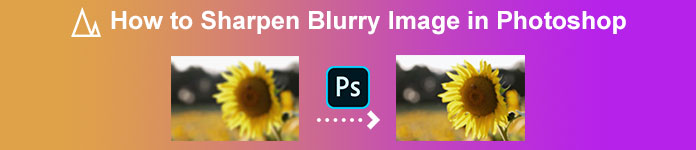
قسمت 1. آموزش کامل نحوه شارپ کردن تصویر در فتوشاپ [3 روش موثر شارپ کردن]
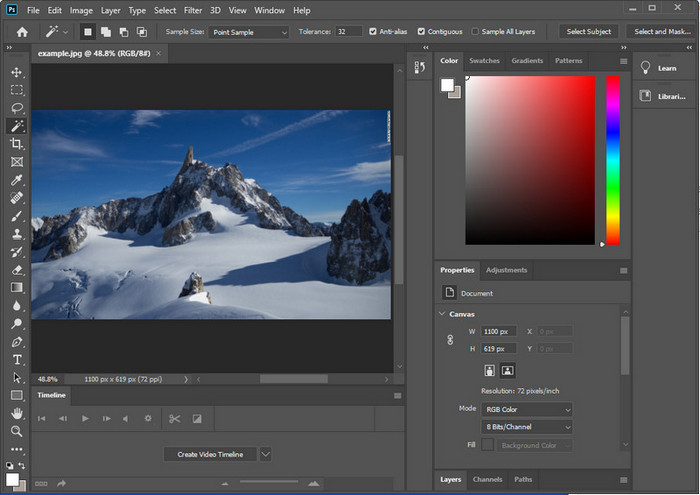
تیز کردن تصاویر فتوشاپ می تواند کسانی را که از این برنامه استفاده نکرده اند غافلگیر کند. اما قبل از ادامه آموزش، باید نرم افزار رسمی Adobe را دانلود کنید. لطفاً دکمه دانلود صحیح را انتخاب کنید تا آن را روی دسکتاپ خود داشته باشید. اگر این برنامه را روی دسکتاپ خود دانلود نکرده اید، می توانید از نسخه آزمایشی رایگان آن استفاده کنید، اما اگر نسخه آزمایشی را به پایان رسانده اید، باید یک برنامه ماهانه یا سالانه خریداری کنید. پس از انجام همه موارد زیر، مراحل انتخابی خود را که در زیر قرار داده ایم ادامه دهید.
راه 1. نحوه شارپ کردن تصویر در فتوشاپ با استفاده از High Pass:
Highpass به شما امکان می دهد تصویر را برجسته کنید و فیلتری را روی تصویر اعمال کنید که می تواند به شما کمک کند لبه های عکسی را که در فتوشاپ آپلود می کنید واضح کنید. برای یادگیری نحوه اعمال و استفاده از highpass روی تصاویری که دارید، میتوانید آموزشی را که در زیر اضافه میکنیم دنبال کنید.
مرحله ۱. پس از راهاندازی نرمافزار، روی File کلیک کرده و Open را بزنید تا تصویر را آپلود کرده و شروع به اعمال شارپسازی کنید.
مرحله ۲. لایهی تصویری را که در فوتوشاپ آپلود کردهاید، تکرار (Duplicate) کنید.
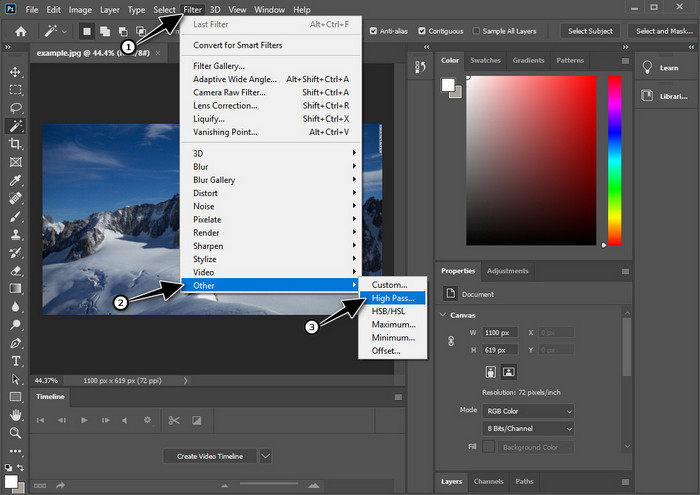
مرحله ۳. در قسمت بالای صفحه، منوی Filter را کلیک کنید، سپس Other و بعد High Pass را بزنید. اگر تصویرتان خاکستری شد نگران نباشید، چون هنگام اضافه کردن فیلتر High Pass این اتفاق طبیعی است.
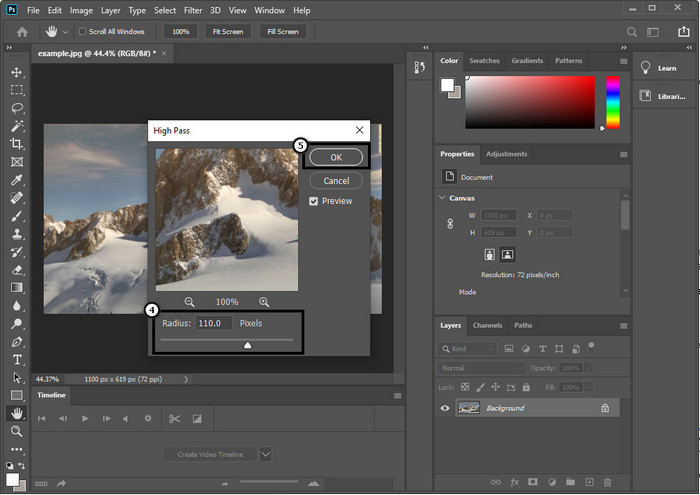
مرحله ۴. یک پنجره پاپآپ روی صفحه ظاهر میشود که میتوانید با کشیدن اسلایدر شعاع (Radius) را افزایش دهید تا جزئیات بهتری در تصویر داشته باشید. سپس روی OK کلیک کنید تا ذخیره شود.
مرحله ۵. به بخش لایهها برگردید، روی دکمهی drop-down کلیک کنید و نوع نوری را که میخواهید روی تصویر اعمال شود انتخاب کنید؛ از Soft Light، Hard Light و Vivid Light برای شارپتر شدن استفاده کنید. برای شارپسازی دوبارهی تصویر، مرحلهی ۳ تا این مرحله را تکرار کنید.
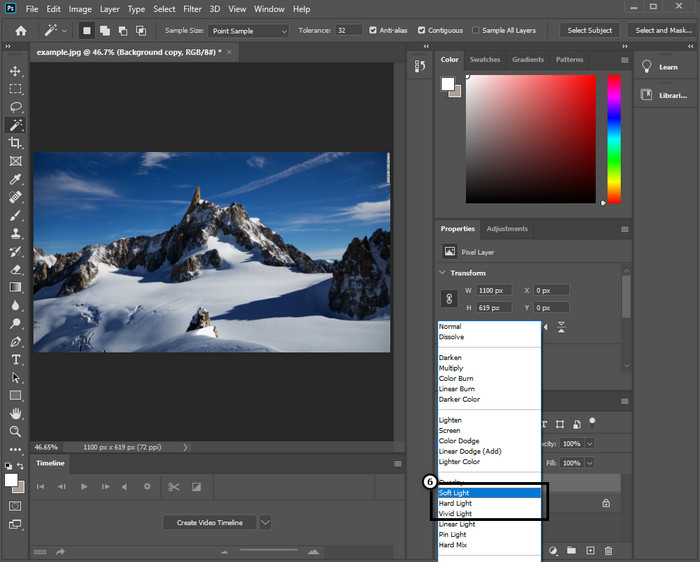
راه دوم نحوه شفافتر کردن تصویر در فتوشاپ با Smart Sharper:
Smart Sharpen یک قابلیت کاربردی در ادوبی فوتوشاپ است که میتوانید با آن همه چیز را در تصویرتان شارپ کنید. این ویژگی یک راهحل خودکار نیست و لازم است برخی پارامترها را تنظیم کنید تا همهچیز شارپ به نظر برسد. بنابراین اگر میخواهید از این قابلیت در ادوبی استفاده کنید، میتوانید مراحل بعدی که در ادامه آوردهایم را دنبال کنید.
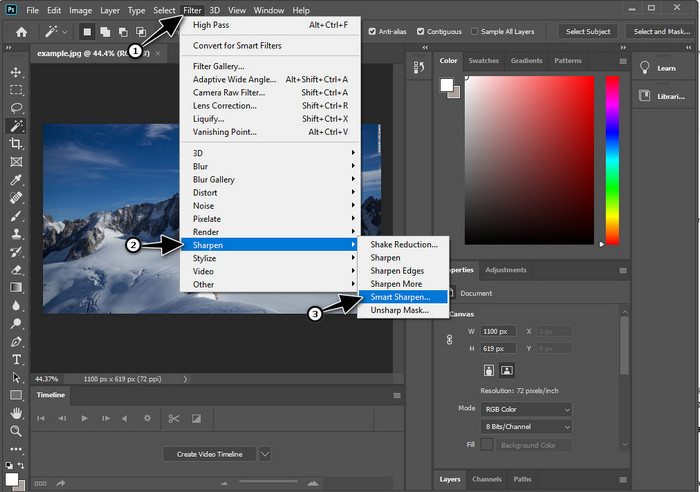
مرحله ۱. بعد از اینکه تصویری را که میخواهید شارپ شود اضافه کردید، روی منوی Filter کلیک کنید.
مرحله ۲. در گزینههایی که نمایش داده میشود، روی Sharpen کلیک کنید و سپس Smart Sharpen را بزنید.
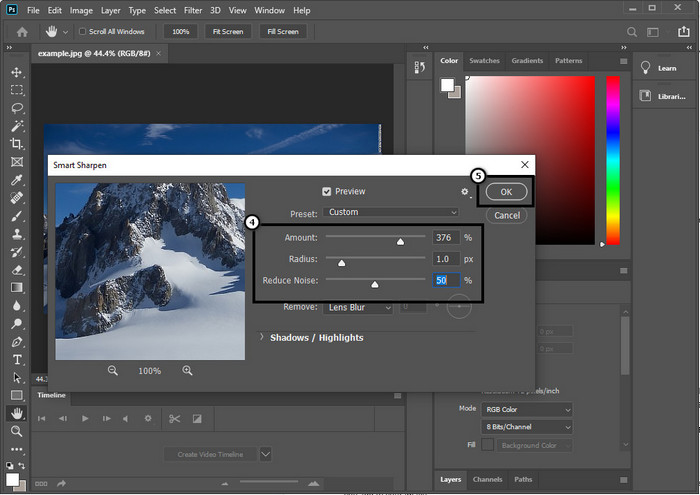
مرحله ۳. مقدار Amount و Radius شارپبودن را بر اساس سلیقهی خود تنظیم کرده و روی OK برای ذخیره تغییرات کلیک کنید. به همین سادگی، با ابزار Sharpening این نرمافزار، عکس خود را شارپ کردهاید.
راه سوم. نحوه تیز کردن تصویر روی عکس با تنظیم روشنایی و کنتراست:
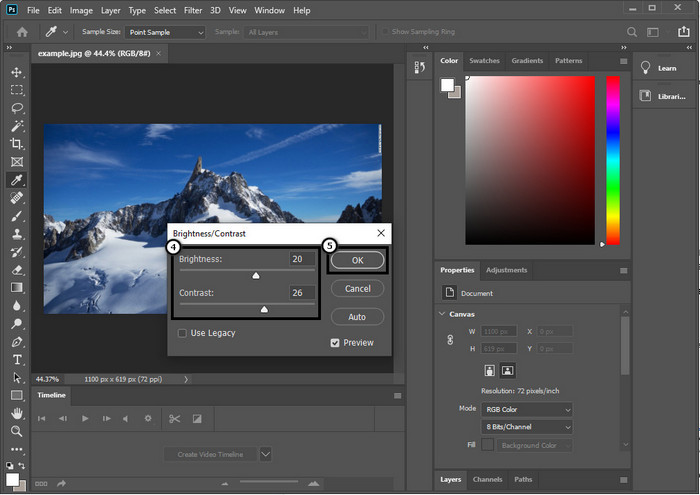
برخلاف دو روشی که معرفی کردیم، روشنایی و کنتراست بر روی برجسته کردن تصویری که آپلود میکنید تمرکز میکنند تا جزئیات بیشتری به نظر برسد، مانند کاری که ابزارهای وضوح انجام میدهند. تعداد کمی از کاربران این گزینه را می شناسند، بنابراین اگر می خواهید از این گزینه استفاده کنید و شروع به شارپ کردن تصویر خود کنید، مراحل زیر را دنبال کنید.
مرحله ۱. بعد از اینکه تصویر خود را در فوتوشاپ آپلود کردید، ادامه دهید و روی منوی Image کلیک کنید.
مرحله ۲. چندین گزینه نمایش داده میشود؛ روی Adjustment کلیک کنید و سپس Brightness and Contrast را بزنید.
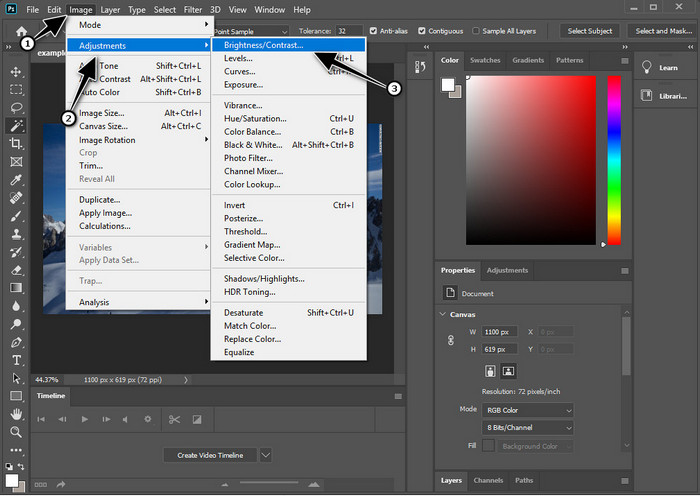
مرحله ۳. میزان روشنایی (Brightness) و کنتراست را با کشیدن اسلایدر تنظیم کنید و برای ذخیره تغییراتی که روی تصویر اعمال کردهاید، روی OK کلیک کنید.
مرتبط:
راهنمای ساده برای افزودن سریع واترمارک به ویدئو در فتوشاپ
قسمت 2. بهترین جایگزین برای فتوشاپ برای تیز کردن تصویر آنلاین [سرویس رایگان]
چگونه بدون استفاده از اپلیکیشن، یک تصویر تار را در فوتوشاپ شارپ کنیم؟ میتوانید از FVC Free Image Upscaler استفاده کنید. این ابزار آنلاین شما را از انجام کارهای پیچیده در اینجا نجات میدهد. تصویر را آپلود کنید و اجازه دهید هوش مصنوعی بهکاررفته در این نرمافزار کار را برای شما انجام دهد. همچنین نیازی به خرید لایسنس نرمافزار یا نسخه پریمیوم ندارید، چون برای همهی کاربرانی که نیاز دارند بلافاصله عکسهایشان را ویرایش کنند رایگان است. حتی اگر متخصص ویرایش نباشید، باز هم میتوانید با دنبالکردن مراحل زیر تصویر خود را شارپ کنید.
مرحله ۱. باید روی این لینک کلیک کنید تا ابزار تحت وب را باز کرده و عکس خود را شارپ کنید.
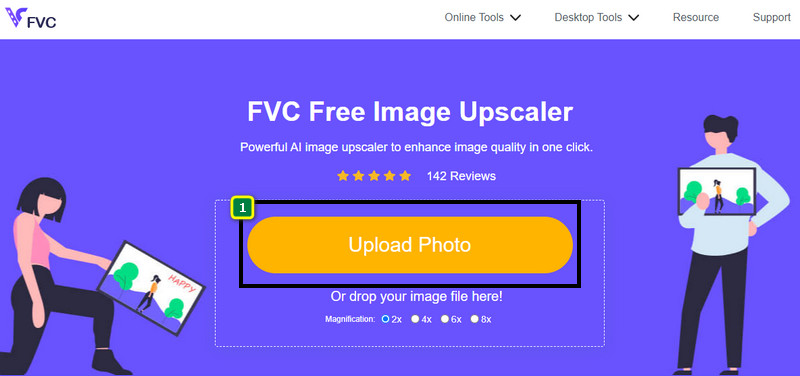
مرحله ۲. در وبسایت، لازم است روی Upload Image کلیک کنید تا عکسی را که میخواهید شارپ شود وارد کنید. یک پوشه روی صفحه نمایش ظاهر میشود، تصویر را انتخاب کنید و سپس روی Open کلیک کنید تا آپلود شود.
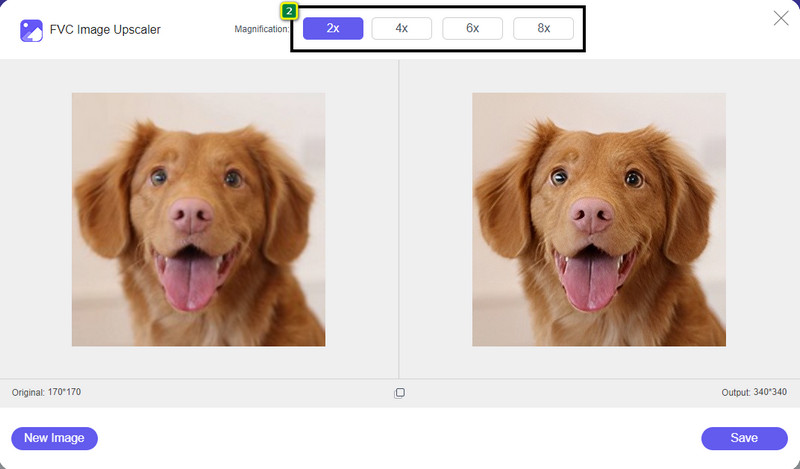
مرحله ۳. گزینههای مختلف بزرگنمایی برای تصویر شما وجود خواهد داشت تا با کمک فناوری هوش مصنوعی، تصویر را بهراحتی شارپ کنید.
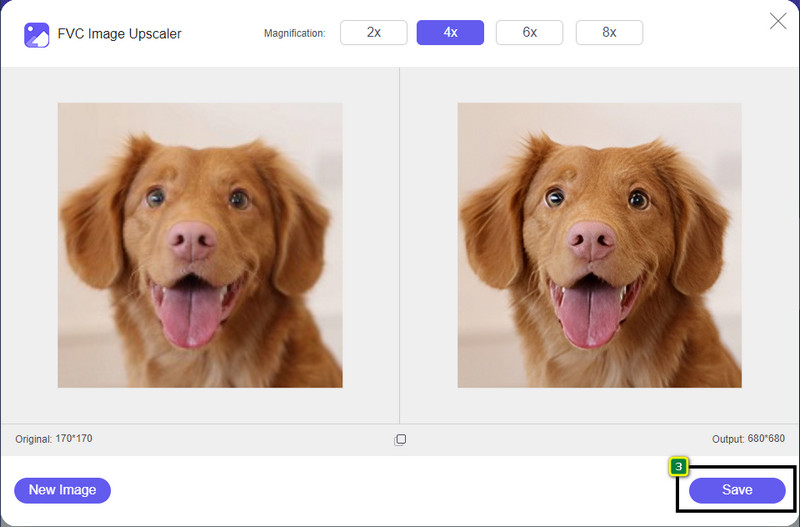
مرحله ۴. در بخش پایین، روی دکمهی Save کلیک کنید تا تصویر شارپشده را در حافظهی محلی خود دانلود کنید.
بخش 3. سوالات متداول در مورد نحوه تیز کردن تصاویر در فتوشاپ
اگر دوره آزمایشی رایگان فتوشاپ به پایان برسد چه باید بکنم؟
اگر میخواهید همچنان از این ویرایشگر حرفهای تصویری که ادوبی توسعه داده استفاده کنید، باید یک طرح (پلن) خریداری کنید تا بتوانید از این ادیتور استفاده را ادامه دهید. اما اگر میخواهید همان قابلیتهای ویرایشی مشابه فوتوشاپ را تجربه کنید، شروع به استفاده از FVC Free Image Upscaler کنید.
با فتوشاپ چه کار کنم؟
در اینجا میتوانید بسیاری از ویرایشهای تصویر و ویدیو را انجام دهید، که ویرایشگر دیگر ارائه نمیدهد. این یک ویرایشگر تصویر کامل است که شما باید چیزهای شگفت انگیزی مانند تبدیل تصویر دو بعدی به سه بعدی و موارد دیگر ایجاد کنید. با این حال، این نرم افزار کمی پیچیده است و شما باید وقت خود را صرف تسلط بر نحوه استفاده کلی از آن کنید.
از کجا می توانم فتوشاپ را دانلود کنم؟
Adobe Photoshop از ویندوز 10 با نسخه 64 بیتی یا جدیدتر و مک 10.15 کاتالینا یا جدیدتر پشتیبانی می کند. همچنین، از نسخه موبایل، Photoshop Express Photo Editor پشتیبانی می کند.
نتیجه
با آموزشی که دربارهی چگونه تصویر را در فوتوشاپ شارپ کنیم ارائه دادیم، اکنون میتوانید بهراحتی به روشهای مختلف با استفاده از بهترین ویرایشگر، تصویر را شارپ کنید. اگر دورهی آزمایشی رایگان شما تمام شده باشد و بخواهید تصویر را شارپ کنید، چه باید بکنید؟ نگران نباشید، زیرا ما یک جایگزین آنلاین برای شارپ کردن تصویر بهصورت سادهتر و رایگان، تا زمانی که به اینترنت دسترسی دارید، معرفی کردهایم و آن FVC Free Image Upscaler است.
-
 با بهترین راه هایی که می توانید در بازار پیدا کنید، عکس HD بسازید
 آیا شما تعجب می کنید یا می خواهید عکس HD بسازید؟ می توانید آموزشی را که در زیر اضافه می کنیم با راه حل های مختلفی که می توانید استفاده کنید دنبال کنید.
-
 4 کاهش دهنده کیفیت تصویر برتر که می توانید به صورت آنلاین و آفلاین استفاده کنید
 این کاهش دهنده های کیفیت تصویر به دلایلی می توانند به شما کمک کنند تا کیفیت تصویر خود را کاهش دهید. اگر به یکی نیاز داشتید، این مقاله را بخوانید!
-
 راه های رسمی برای ارتقاء تصویر به 4k با آموزش عملی
 برای ارتقای کیفیت تصویر به 4k به یک نرم افزار در دستگاه خود نیاز دارید. اگر ابزاری ندارید، باید ابزاری را که در اینجا قرار داده ایم انتخاب کنید.
