


 Video Converter Ultimate
 ضبط صفحه
 تعمیر ویدیو
مبدل های برتر MP3 به M4A: تبدیل سریع و آسان صدا
آیا هنگام گوش دادن به صدای بیکیفیتی که حقِ آهنگهای محبوبتان را ادا نمیکند احساس نارضایتی میکنید؟ وقت آن رسیده که تجربه شنیداری خود را با قدرت تبدیل MP3 به M4A ارتقا دهید! با تبدیل فایلهای صوتی به M4A، میتوانید پتانسیل واقعی کتابخانه موسیقیتان را آزاد کنید و خودتان تفاوت را بشنوید. در این راهنما، مزایای تبدیل MP3 به M4A را برایتان توضیح میدهیم و بهترین نرمافزارهای مبدل را معرفی میکنیم تا از یک فرایند تبدیل روان و بیدردسر بهرهمند شوید. آماده شوید تا تجربه صوتی خود را متحول کنید و از موسیقیتان مانند هیچوقتِ دیگر لذت ببرید.

بخش 1. بهترین راه برای تبدیل MP3 به M4A
در اینجا برخی از بهترین مبدل های صوتی از MP3 به M4a آورده شده است. یک راه آفلاین وجود دارد که یک برنامه دسکتاپ است و یک ابزار آنلاین دیگر که یک برنامه مبتنی بر وب است. آنها را بررسی کنید تا بیشتر بدانید.
1. Video Converter Ultimate
Video Converter Ultimate نرمافزاری چندمنظوره است که مجموعهای از قابلیتها را برای تبدیل صدا و ویدیو ارائه میدهد. وقتی صحبت از تبدیل MP3 به M4A میشود، Video Converter Ultimate انتخابی عالی است و فرایندی ساده و سرراست برای تبدیل فایلهای صوتی در اختیار کاربران میگذارد. این ابزار از طیف گستردهای از فرمتهای صوتی پشتیبانی میکند و فناوری پیشرفته کُدِک صوتی آن، خروجی باکیفیت بالایی را تضمین میکند. چه برای استفاده شخصی و چه برای اهداف حرفهای نیاز به تبدیل فایلهای صوتی داشته باشید، Video Converter Ultimate این فرایند را سریع انجام میدهد تا بتوانید روی مهمترین بخش تمرکز کنید: لذت بردن از فایلهای صوتی باکیفیت خود.
مرحله 1. دریافت و نصب برنامه
برای شروع، یکی از دکمههای Free Download را انتخاب کنید و سپس طبق دستورالعملهای روی صفحه عمل کنید تا فایل را در رایانه خود ذخیره نمایید. در مرحله بعد، برنامه را اجرا کرده و با کنترلهای ساده و کاربرپسند آن آشنا شوید.
دانلود رایگانبرای ویندوز 7 یا بالاتردانلود ایمن
دانلود رایگانبرای macOS 10.7 یا بالاتردانلود ایمن
مرحله 2. افزودن فایلهای صوتی
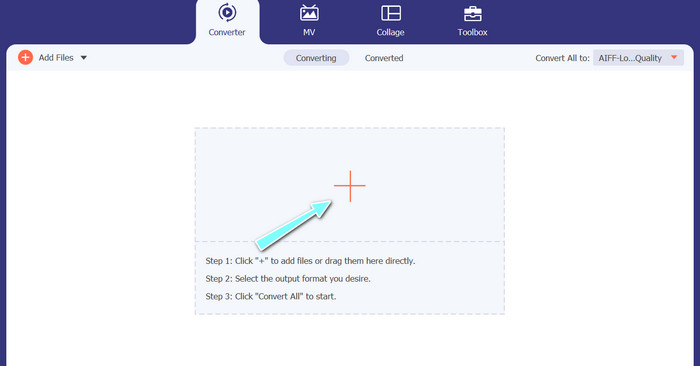
در مرحله بعد، از رابط اصلی روی علامت بهعلاوه کلیک کرده و به محل ذخیره فایل صوتیای که میخواهید تبدیل کنید بروید. پس از بارگذاری فایل، پیشنمایش آن در رابط کاربری نمایش داده میشود. اگر مایلید چندین فایل MP3 را بهصورت دستهای به M4A تبدیل کنید، میتوانید یک پوشه حاوی چند فایل را بارگذاری کنید.
مرحله 3. انتخاب فرمت خروجی
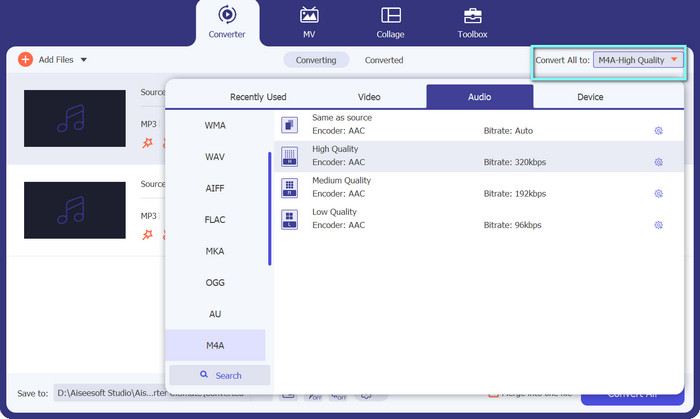
سپس، با کلیک روی تب Audio در منوی Profile (واقع در بالای سمت راست ابزار)، فرمت خروجی را انتخاب کنید. میتوانید با استفاده از فرمتهای MP3 یا M4a به MP3 تبدیل کنید یا از آن فرمتها خارج شوید.
مرحله 4. ذخیره خروجی
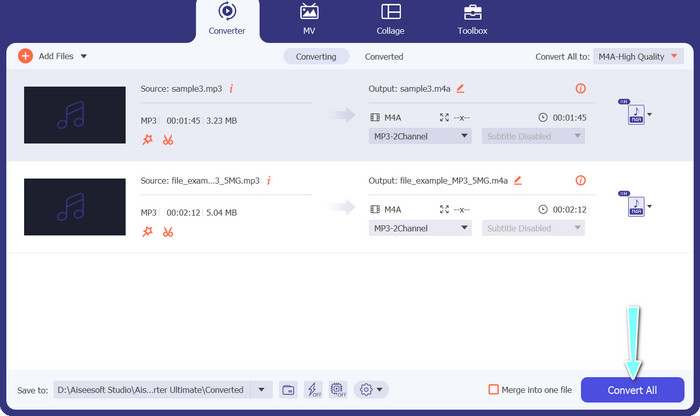
در پایین صفحه، پوشه مقصد را انتخاب کنید. هنگامی که برای شروع تبدیل آماده بودید، روی دکمه Convert All کلیک کنید.
2. تبدیل رایگان ویدیو آنلاین
برای برنامه دیگری فضای خالی ندارید؟ نگران نباشید، چون میتوانید از یک ابزار آنلاین استفاده کنید تا بدون دانلود برنامه، فایلها را تبدیل کنید. اپلیکیشن تحتوب Free Video Converter Online این امکان را میدهد که مستقیماً از طریق مرورگر خود تبدیل انجام دهید. علاوه بر این، این ابزار از فرمتهای متعددی برای فایلهای ویدیویی و صوتی پشتیبانی میکند. همچنین میتوانید با این ابزار آنلاین، فرایند تبدیل را بهصورت دستهای انجام دهید. علاوه بر همه اینها، امکان سفارشیسازی خروجی فایل صوتی یکی دیگر از ویژگیهای عالی این ابزار است. ببینید این مبدل آنلاین MP3 به M4A چگونه کار میکند.
مرحله 1. برای شروع استفاده از Free Video Converter Online، ابتدا مرورگر وب مورد علاقه خود را باز کرده و مستقیماً به وبسایت آن مراجعه کنید.
مرحله 2. سپس با کلیک روی دکمه Add Files to Convert، فایل MP3 موردنظر خود را برای تبدیل به M4A انتخاب کنید.
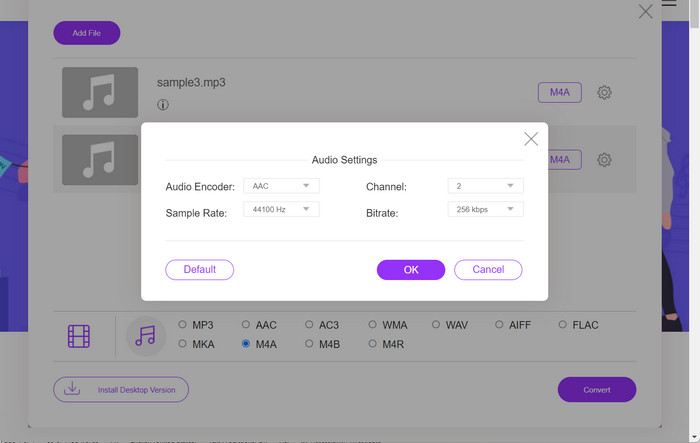
مرحله 3. از بخش گزینه فرمت Audio، M4A را بهعنوان فایل خروجی دلخواه برگزینید. همچنین میتوانید کیفیت خروجی یا بیتریت فایل M4A را تغییر دهید.
مرحله 4. برای آغاز فرایند تبدیل، روی دکمه Convert کلیک کنید. به این ترتیب میتوانید MP3 را بهصورت آنلاین به M4A تبدیل کنید.
قسمت 2. تبدیل MP3 به M4A در ویندوز
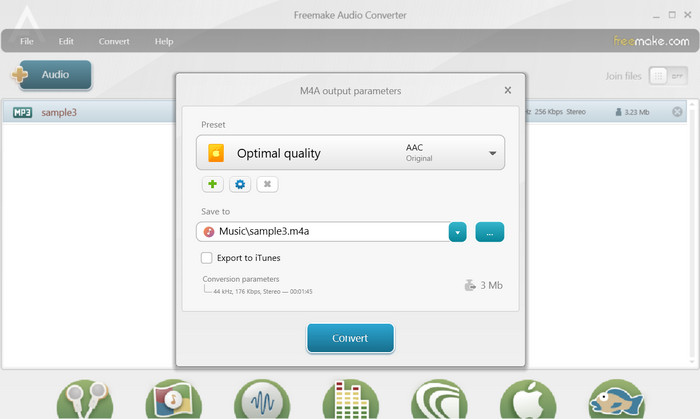
Freemake Audio Converter یک برنامه رایگان و با کاربری آسان است که به کاربران اجازه می دهد فایل های صوتی را به فرمت های مختلف از جمله M4A، MP3، WAV و غیره تبدیل کنند. با رابط کشیدن و رها کردن ساده آن، کاربران می توانند به راحتی فایل های MP3 خود را اضافه کرده و بدون هیچ گونه تنظیمات یا پیکربندی پیچیده، آنها را به M4A تبدیل کنند. این ابزار همچنین دارای طیف وسیعی از گزینه های سفارشی سازی است که به کاربران امکان می دهد پارامترهایی مانند میزان بیت و نرخ نمونه را تنظیم کنند تا کیفیت خروجی مورد نظر را به دست آورند. در مجموع، یکی از بهترین مبدل های MP3 به M4A است که می توانید استفاده کنید.
مرحله 1. برنامه Freemake Audio Converter را روی رایانه ویندوزی خود دانلود و نصب کنید.
مرحله 2. برنامه را اجرا کرده و برای افزودن فایل یا فایلهای MP3 به برنامه، روی دکمه +Audio کلیک کنید.
مرحله 3. در لیست فرمتهای موجود در پایین پنجره برنامه، گزینه M4A را انتخاب کنید. با استفاده از منوی کشویی، تنظیمات کیفیت دلخواه برای فایل خروجی را برگزینید.
مرحله 4. پوشه خروجی را که میخواهید فایل تبدیلشده در آن ذخیره شود انتخاب کنید. در نهایت، روی دکمه Convert کلیک کنید تا فرایند تبدیل آغاز شود.
قسمت 3. تبدیل MP3 به M4A در مک
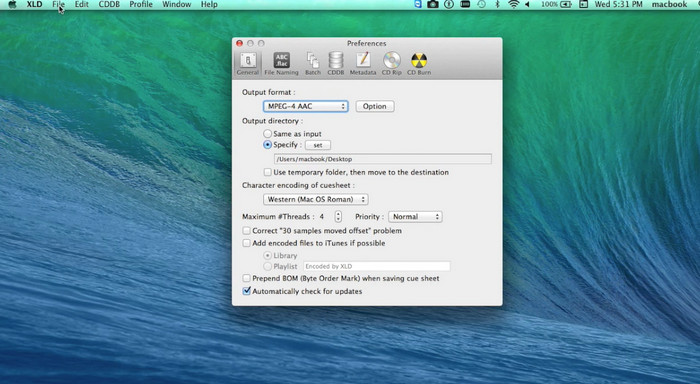
XLD یک برنامه رایگان و با کاربری آسان است که به کاربران مک اجازه می دهد فایل های صوتی را به فرمت های مختلف از جمله M4A، MP3، FLAC و غیره تبدیل کنند. با رابط کشیدن و رها کردن ساده آن، کاربران می توانند به راحتی فایل های MP3 خود را اضافه کرده و بدون هیچ گونه تنظیمات یا پیکربندی پیچیده، آنها را به M4A تبدیل کنند. XLD همچنین طیف وسیعی از گزینه های سفارشی سازی را ارائه می دهد که به کاربران امکان می دهد پارامترهایی مانند میزان بیت و نرخ نمونه را برای دستیابی به کیفیت خروجی مورد نظر تنظیم کنند.
مرحله 1. برنامه XLD را روی رایانه مک خود دانلود و نصب کنید.
مرحله 2. برنامه را اجرا کرده و برای افزودن فایل یا فایلهای MP3 به برنامه، روی دکمه Open کلیک کنید.
مرحله 3. در تنظیمات برنامه، از فهرست فرمتهای موجود، M4A را انتخاب کنید. میتوانید با استفاده از منوی کشویی، تنظیمات کیفیت دلخواه برای فایل خروجی را برگزینید.
مرحله 4. سپس پوشهای را که میخواهید فایل تبدیلشده در آن ذخیره شود انتخاب کنید. در نهایت، روی دکمه Convert کلیک کنید تا فرایند تبدیل آغاز شود. به این ترتیب میتوانید بهصورت رایگان MP3 را در مک به M4A تبدیل کنید.
قسمت 4. تبدیل MP3 به M4A در اندروید
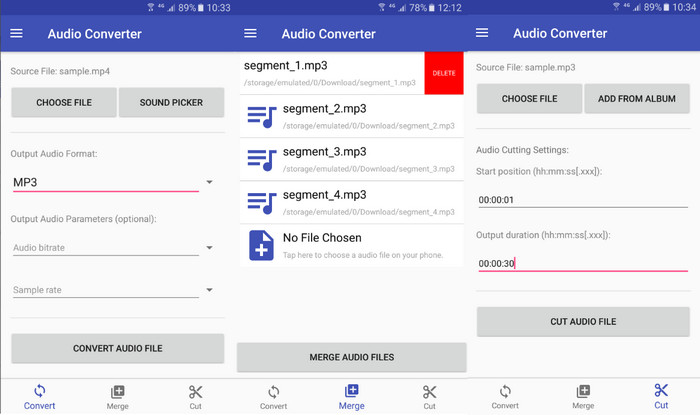
وقتی صحبت از تبدیل فایلهای صوتی به میان میآید، نرمافزار رایگان و ساده Android Audio Converter توسط Online-Convert.com سخت است. کاربران ممکن است به سادگی فایل های MP3 خود را در رابط برنامه بکشند و رها کنند تا فرآیند تبدیل به M4A را آغاز کنند. کیفیت خروجی یک فایل صوتی را می توان با تغییر تنظیماتی مانند میزان بیت و نرخ نمونه برداری در مبدل صوتی تنظیم کرد. در اینجا مراحل تغییر MP3 به M4A در اندروید آمده است:
مرحله 1. برنامه Audio Converter ساخته Online-Convert.com را از فروشگاه Google Play روی دستگاه اندرویدی خود دانلود و نصب کنید. برنامه را اجرا کرده و روی دکمه Convert Audio ضربه بزنید.
مرحله 2. سپس MP3 را بهعنوان فرمت ورودی و M4A را بهعنوان فرمت خروجی انتخاب کنید.
مرحله 3. حال روی دکمه Select Files ضربه بزنید تا فایل یا فایلهای MP3 خود را به برنامه اضافه کنید. در نهایت، برای شروع فرایند تبدیل، روی دکمه Start Conversion ضربه بزنید. به همین سادگی! اکنون یاد گرفتید چگونه روی اندروید، MP3 را تبدیل کنید.
قسمت 5. تبدیل MP3 به M4A در iOS
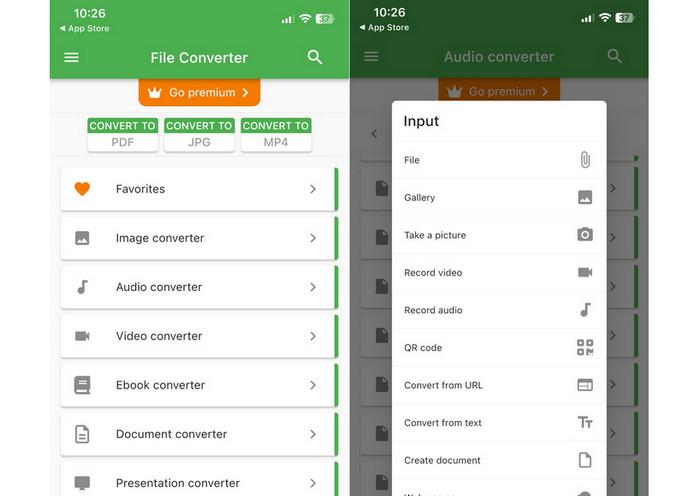
فایل های صوتی مانند MP3 را می توان با کمک File Converter Free، یک نرم افزار رایگان و ساده iOS، به فرمت M4A قابل حمل تر و بدون ضرر تبدیل کرد. طراحی ساده آن بارگذاری فایلهای MP3 و تبدیل آنها به M4A را برای هر کسی آسان میکند، بدون اینکه نیازی به انجام تنظیمات یا تنظیماتی باشد.
مرحله 1. برنامه File Converter Free را میتوانید در App Store پیدا کنید و بهصورت رایگان دانلود و استفاده نمایید. برنامه را اجرا کرده و روی تب Audio بزنید.
مرحله 2. MP3 را برای فرمت ورودی و خروجی، و M4A را برای فرمت AAC اپل انتخاب کنید. با استفاده از منوی کشویی، کیفیت دلخواه فایل خروجی را انتخاب کنید. برای وارد کردن فایل MP3 به برنامه، دکمه Add File را بزنید.
مرحله 3. برای آغاز فرایند تبدیل، روی دکمه Convert کلیک کنید.
بخش 6. سوالات متداول در مورد تبدیل MP3 به M4A
آیا می توانم MP3 را با استفاده از Windows Media Player به M4A تبدیل کنم؟
بله، میتوانید با استفاده از Windows Media Player، MP3 را به M4A تبدیل کنید، اما چون M4A بهطور بومی در Windows Media Player پشتیبانی نمیشود، این کار به چند مرحله اضافی نیاز دارد. یا میتوانید بهسادگی از یک جایگزین برای Windows Media Player استفاده کنید.
آیا تبدیل MP3 به M4A منجر به کاهش کیفیت صدا می شود؟
تبدیل MP3 به M4A ممکن است به دلیل تفاوت در الگوریتمهای فشردهسازی مورد استفاده در دو فرمت، باعث کاهش جزئی کیفیت صدا شود.
آیا می توانم M4A را به MP3 تبدیل کنم؟
بله، بسیاری از برنامهها و ابزارهای تبدیل صوتی این امکان را میدهند که در صورت نیاز، M4A را به MP3 تبدیل کنید. با این حال، آگاه باشید که تبدیل چندباره بین فرمتها میتواند به افت کیفیت منجر شود.
نتیجه
تبدیل MP3 به M4A فرایندی ارزشمند برای هر کسی است که بهدنبال بهبود کیفیت و سازگاری فایلهای صوتی خود است. با دنبال کردن مراحل و نکتههای مطرحشده در این مطلب، میتوانید بهآسانی فایلهای MP3 خود را به M4A تبدیل کرده و از صدای باکیفیت روی هر دستگاهی لذت ببرید.
-
 رایگان و آنلاین | نحوه تبدیل MP4 به M4A در ویندوز / مک
 چگونه MP4 را به M4A بصورت آنلاین تبدیل کنم؟ آیا می توانم صدا را از فایل های MP4 استخراج کنم؟ این پست را بخوانید ، و همه پاسخها را در مورد تبدیل MP4 به M4A دریافت خواهید کرد.
-
 بهترین ابزارهایی که می توانید برای تبدیل دسته ای فایل های MP3 به M4R استفاده کنید
 به دنبال مبدلی هستید که بتواند فایل MP3 شما را به صورت دستهای به آهنگ زنگ M4R برای iPhone یا iPad شما تبدیل کند؟ مقاله را بخوانید تا برخی از بهترین آنها را کشف کنید.
-
 5 برش MP3 برای برش آسان هر صدایی [به روز رسانی 2023]
 آیا برای برش صدا به کاتر MP3 نیاز دارید؟ در این صورت، این مقاله را بخوانید زیرا ما ابزارهایی را ارائه میدهیم که میتوانید به آنها وابسته باشید که برش آسان صدا را فراهم میکنند.
