


 Video Converter Ultimate
 ضبط صفحه
 تعمیر ویدیو
نحوه رفع مشکل صدا در آیفون [3 راه آسان]
آیا راههای بیشماری را برای برگرداندن صدا در ویدیوهای آیفون خود امتحان کردهاید، اما هنوز هم صدا پخش نمیشود؟ اینطور نیست که اصلاً راهحلی برای مشکل صدای ویدیوهای آیفون وجود نداشته باشد؛ فقط تاکنون از روش درستی استفاده نکردهاید. در این مقاله، قصد داریم ۳ روش بسیار ساده برای رفع مشکل «ویدیوی آیفون من صدا ندارد» را بررسی کنیم. ما درک میکنیم که این مشکل تا چه حد میتواند آزاردهنده و خستهکننده باشد. پس اگر با این مشکل روبهرو هستید و نمیتوانید برای حل آن روی ویدیوهای آیفون خود صبر کنید، این مقاله را بخوانید، متوجه شوید چرا صدای ویدیوهایتان پخش نمیشود و سپس متناسب با علت، مشکل را برطرف کنید.

قسمت 1. چرا آیفون من روی ویدیوها صدا ندارد
اینکه چرا آیفون من روی ویدیوها صدا ندارد واقعاً یک سؤال و مشکل است که بسیاری با آن روبرو هستند. خوب، دلایل مختلفی وجود دارد که چرا این اتفاق می افتد، اما آیا واقعاً می دانید که چرا معمولاً این اتفاق می افتد؟ دلایلی که آیفون در هنگام پخش ویدیوها صدا ندارد به شرح زیر است:
ویدیوی آیفون در عکس ها صدا ندارد
Photos یک برنامه مدیریت و ویرایش عکس است که توسط اپل ساخته شده است. این جایی است که کاربران می توانند عکس ها و فیلم های خود را ذخیره کنند، آنها را مشاهده و ویرایش کنند و موارد دیگر! در حالی که Photos یک پلتفرم معتبر برای مشاهده و پخش فیلم است، در برخی موارد پخش فیلم در این برنامه صدا ندارد. موارد زیر برخی از دلایلی است که باعث می شود ویدیوی آیفون در عکس ها صدا نداشته باشد:
• ممکن است صدا قطع (Mute) شده یا روی حداقل تنظیم شده باشد. مطمئن شوید صدای آیفون را زیاد کردهاید و کلید قطع صدا (Ringer) روی حالت بیصدا قرار نگرفته است.
• ممکن است فایل ویدیویی خراب شده باشد و باعث شود ترک صوتی درست کار نکند یا اصلاً پخش نشود.
• ممکن است یک مشکل نرمافزاری یا باگ در اپلیکیشن Photos وجود داشته باشد که جلوی پخش صدا را بگیرد.
• ممکن است اپلیکیشن Photos در خواندن کُدک صوتی ویدیو دچار مشکل شود، بهویژه اگر فرمت آن بهطور کامل پشتیبانی نشود.
• ممکن است آیفون به یک دستگاه بلوتوثی مانند هدست یا اسپیکر که در حال استفاده نیست متصل باشد و صدا به آن دستگاه منتقل شود.
ویدیوی آیفون در رول دوربین صدا ندارد
هنگامی که مستقیماً در آیفون خود فیلم می گیرید، می توانید ویدیوی خود را با پخش آن از رول دوربین خود پیش نمایش کنید. با این حال، برخی از کاربران آیفون هنگام پخش ویدیوهای خود از رول دوربین خود هیچ صدایی را تجربه نمیکنند و باعث میشود که در مورد اینکه چرا ویدیوهایشان صدا ندارد، احساس ناراحتی و سردرگمی کنند. در زیر برخی از دلایلی وجود دارد که صدا در آیفون هنگام پخش در دوربین کار نمی کند:
• ممکن است میکروفون در هنگام ضبط مسدود شده یا درست کار نکرده باشد و در نتیجه هیچ صدایی ضبط نشده باشد.
• اگر آیفون شما روی حالت «مزاحم نشوید» (Do Not Disturb) باشد، ممکن است هنگام پیشنمایش ویدیوها در Camera Roll مانع پخش صدا شود.
• ممکن است آیفون در حالت بیصدا باشد که میتواند باعث شود ویدیو بدون صدا پخش شود.
آیفون صدایی برای پخش ویدیوها در IG ندارد
پخش ویدئو در اینستاگرام گاهی اوقات می تواند مشکل ایجاد کند. برخی ناتوانی در پخش ویدیو را تجربه می کنند. مواردی وجود دارد که هنگام پخش ویدیوها در IG، فقط صدا پخش نمی شود. اکنون، برای درک بهتر چرایی این اتفاق، در زیر به دلایلی اشاره میکنیم که چرا آیفون صدا در IG پخش نمیکند:
• ممکن است اینستاگرام ویدیو را بهصورت پیشفرض بیصدا کرده باشد و لازم باشد کاربر روی آیکون بلندگو بزند تا صدا فعال شود.
• حجم صدای داخل خود اپلیکیشن اینستاگرام ممکن است کم یا قطع شده باشد و از صدای سیستم آیفون جدا باشد.
• ممکن است یک مشکل موقت یا باگ در اپلیکیشن اینستاگرام وجود داشته باشد که نیاز به بستن و اجرای مجدد یا بهروزرسانی برنامه داشته باشد.
• اتصال ضعیف یا ناپایدار اینترنت میتواند باعث لود نادرست ویدیو شود و در نتیجه صدا پخش نشود.
• ممکن است آیفون روی حالت بیصدا یا ویبره تنظیم شده باشد که میتواند بر خروجی صدا در داخل اپلیکیشن اینستاگرام تأثیر بگذارد.
بخش 2. راه حل هایی برای رفع عدم کارکرد صدا در آیفون
اکنون که برخی از دلایلی که آیفون شما روی ویدیوها صدا ندارد را فهمیدید، وقت آن رسیده است که یاد بگیرید چگونه این مشکل را برطرف کنید.
روش 1: استفاده از FVC Video Repair
وقتی آیفون شما در ویدیوها صدا ندارد چون در حال پخش یک ویدیوی خراب هستید، راهحل ایدهآل استفاده از ابزار FVC Video Repair است. همه میدانیم وقتی یک ویدیو خراب میشود، این خرابی فقط روی قابلیت پخش تصویر تأثیر نمیگذارد، بلکه روی صدا هم اثر گذاشته و باعث بروز مشکلاتی مثل نداشتن صدا میشود. خرابی در یک فایل ویدیویی میتواند هماهنگی بین ترکهای صدا و تصویر را بر هم بزند یا حتی ترک صوتی را کاملاً از بین ببرد و باعث پخش بیصدا شود. در چنین شرایطی، ابزار FVC Video Repair برای رفع این مشکلات طراحی شده است؛ این ابزار هم یکپارچگی تصویری ویدیو و هم صدای همراه آن را بازیابی میکند تا دوباره یک تجربه پخش روان و همراه با صدا داشته باشید.
مرحله 1. ابتدا به وبسایت رسمی آنها مراجعه کنید. سپس ابزار را دانلود کرده و روی دستگاه خود نصب کنید.
دانلود رایگانبرای Windows 7 یا جدیدتردانلود امن
دانلود رایگانبرای MacOS 10.7 یا جدیدتردانلود امن
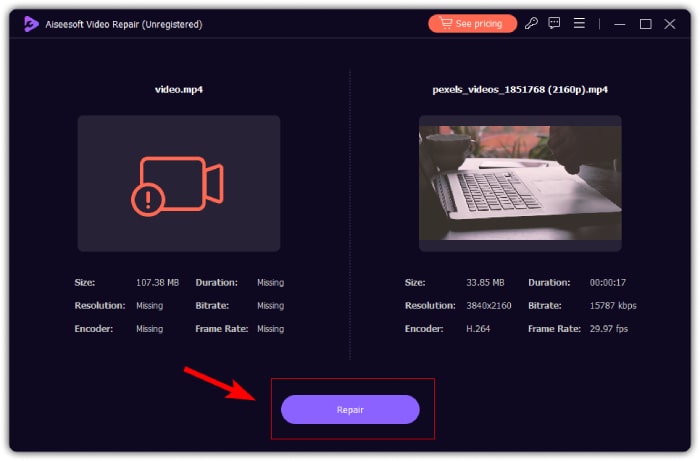
مرحله 2. در ادامه، با کلیک روی دکمه «بهعلاوه قرمز» ویدیوی خراب را اضافه کنید، درست مانند زمانی که برای افزودن ویدیوی نمونه روی دکمه «بهعلاوه آبی» کلیک کردید. بعد از آن، روی دکمه Repair کلیک کنید تا فرایند تعمیر مشکل صدا آغاز شود.
مرحله 3. در نهایت، روی دکمه «Preview» کلیک کنید تا ویدیوی تعمیرشده را پیشنمایش کرده و بررسی کنید که آیا صدا بازیابی شده است یا نه. وقتی فرایند تعمیر با موفقیت انجام شد، میتوانید با کلیک روی دکمه «Save» آن را ذخیره کنید.
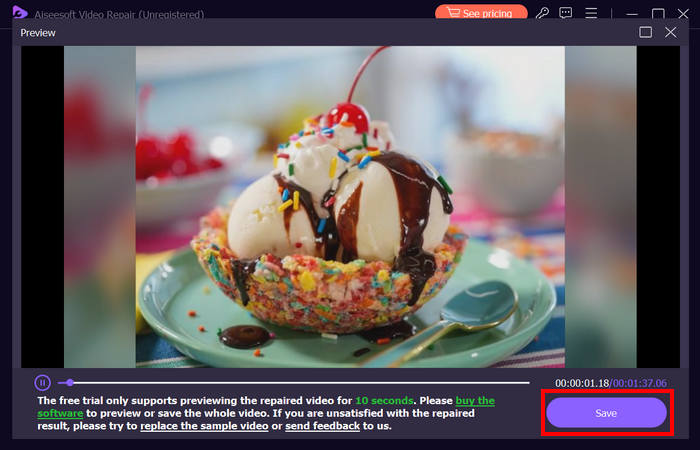
FVC Video Repair واقعا می تواند به راحتی مشکل آیفون بدون صدا در فیلم را برطرف کند. با جدیدترین الگوریتم هوش مصنوعی و تشخیص خودکار اطلاعات حیاتی و رفع مستقیم آنها، می تواند به طور موثر صدای ویدیو را در آیفون شما بازیابی کند.
روش 2: استفاده از FVC Picked Video Converter Ultimate
در همین حال، اگر مشکل شما بهدلیل نبود ترک صوتی است، یعنی جزء صوتی ویدیوی شما از بین رفته، خراب شده یا بهدرستی کُدگذاری نشده است، میتوانید از ابزار انتخابی FVC یعنی Video Converter Ultimate استفاده کنید. این ابزار میتواند با تبدیل ویدیوی شما به یک فرمت سازگار، ترک صوتی از دسترفته را برطرف کند. برای رفع مشکل پخش نشدن صدا در آیفون بهدلیل ترک صوتی مفقود، مراحل زیر را دنبال کنید:
مرحله 1. اگر این ابزار را روی رایانه خود نصب نکردهاید، ابتدا آن را دانلود و روی رایانه نصب کنید.
دانلود رایگانبرای ویندوز 7 یا بالاتردانلود ایمن
دانلود رایگانبرای macOS 10.7 یا بالاتردانلود ایمن
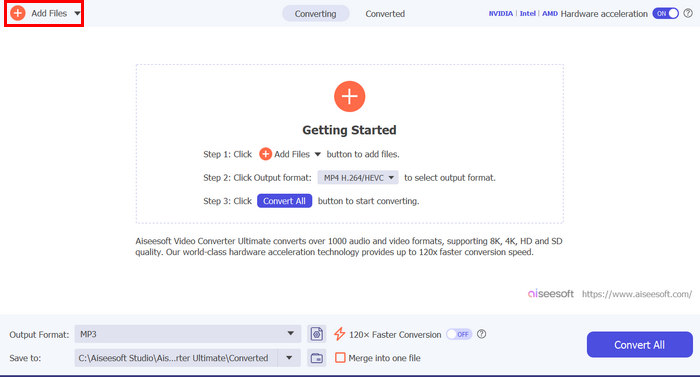
مرحله 2. سپس ویدیویی را که صدایش در آیفون شما پخش نمیشود، با کلیک روی دکمه «Add Files» اضافه کنید.
مرحله 3. حالا روی «Output Format» کلیک کرده، «MP3» را انتخاب کنید و از منو فرمت صوتی دلخواه برای ویدیوی خود را برگزینید. در آخر، روی دکمه «Convert All» کلیک کنید تا فایل شما ذخیره شود.
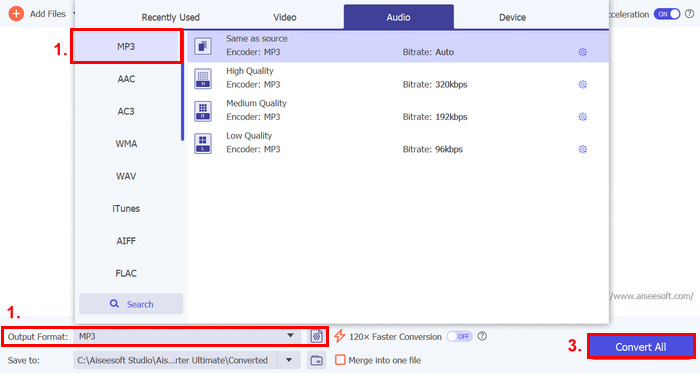
این ابزار FVC انتخاب شده Video Converter Ultimate با امکانات کامل، واقعاً ابزاری برای هر مشکل مرتبط با ویدیو و صدا است. صرف نظر از مشکل، یا یک فایل خراب، کدک نادرست یا فرمت پشتیبانی نشده، این ابزار واقعا می تواند کمک کند.
روش 3: راه اندازی مجدد آیفون
اگر آیفون شما مشکلی در سیستم دارد که صدا را هنگام پخش ویدیوها تحت تأثیر قرار می دهد، می توانید به سادگی آیفون خود را ریستارت کنید. به این ترتیب، میتوانید سیستم عامل دستگاه را بهروزرسانی کنید، که میتواند اشکالات یا اشکالات موقتی را که ممکن است باعث مشکل صدا میشوند را برطرف کند. در اینجا نحوه راه اندازی مجدد آیفون برای رفع مشکل آیفون بدون صدا در ویدیو آمده است:
برای آیفونهای X و مدلهای بعد از آن
مرحله 1. برای ریاستارت کردن آیفون، دکمه کناری (Side Button) و یکی از دکمههای تنظیم صدا را نگه دارید تا اسلایدر خاموش کردن روی صفحه ظاهر شود.
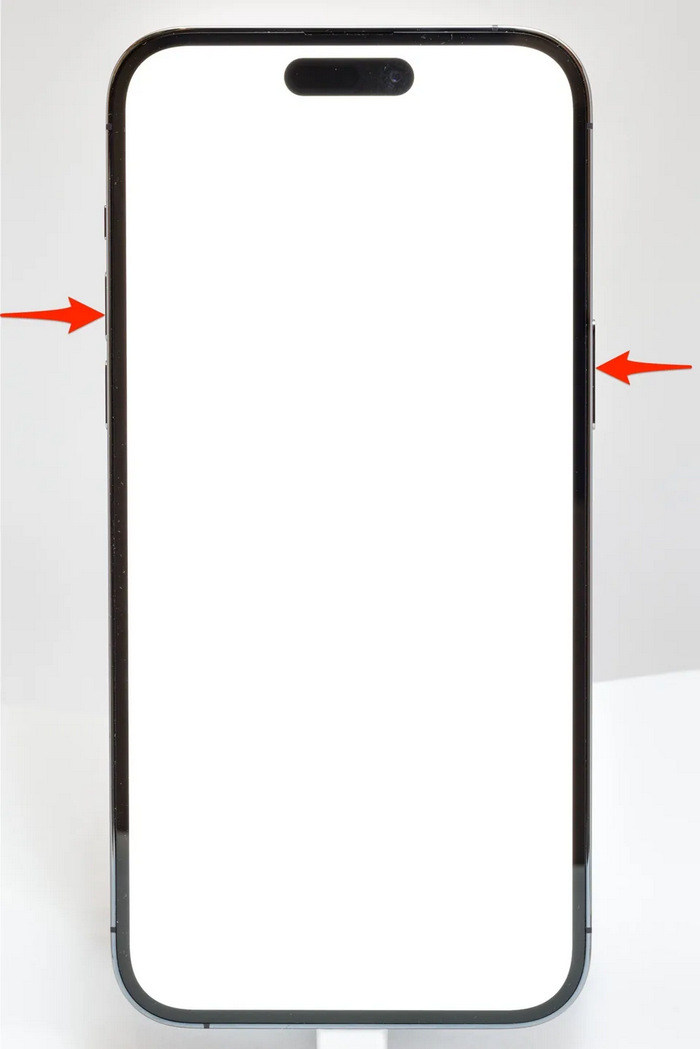
مرحله 2. اسلایدر را بکشید تا آیفون شما خاموش شود.
مرحله 3. حالا برای روشن کردن دستگاه، دکمه کناری را فشار دهید.
برای آیفون 6، 7، 8 و SE
مرحله 1. ابتدا باید دکمه کناری را فشار داده و نگه دارید.
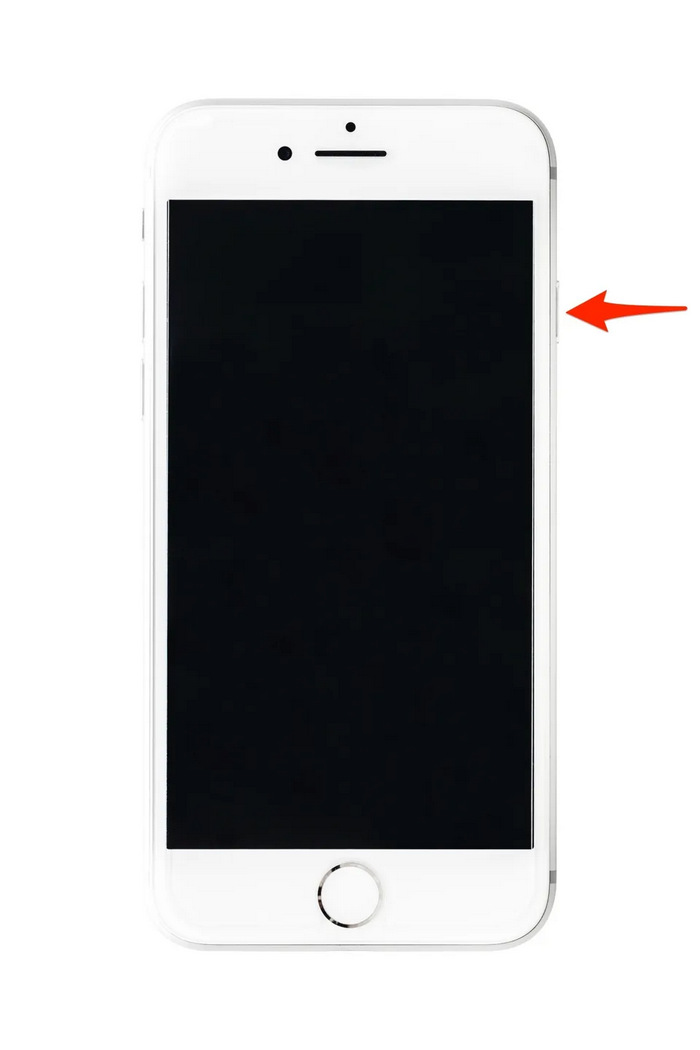
مرحله 2. صبر کنید تا اسلایدر خاموش کردن ظاهر شود و سپس اسلایدر را بکشید تا دستگاه خاموش شود.
مرحله 3. حالا برای روشن کردن دستگاه، دکمه کناری را فشار دهید.
انجام این روش ها ساده است و نیازی به استفاده از ابزار شخص ثالث ندارد. با این حال، این راه حل بسیار ابتدایی و متداول است و تعمیر کامل این آیفون را تضمین نمی کند که مشکل صدا در تصویر ندارد.
بخش 3. سوالات متداول در مورد تعمیر Stellar برای ویدئو
کدام آیفون از صدای Dolby Vision یا DTS پشتیبانی می کند؟
آیفونهای سری آیفون 12 و جدیدتر از Dolby Vision پشتیبانی میکنند که کیفیت ویدیو را با رنگ و کنتراست بهتر افزایش میدهد. با این حال، آیفونها مستقیماً از صدای DTS پشتیبانی نمیکنند، زیرا از فناوریهای صوتی دیگری مانند Dolby Atmos استفاده میکنند.
آیا می توانید FLAC auan dio را در آیفون بازی کنید؟
بله، میتوانید صدای FLAC را در آیفون خود پخش کنید، اما به یک برنامه شخص ثالث مانند VLC یا یک پخشکننده صوتی تخصصی نیاز دارید، زیرا برنامه موسیقی داخلی آیفون به طور بومی از FLAC پشتیبانی نمیکند.
آیا ویدیوها در آیفون صدا را در حالت بی صدا پخش می کنند؟
خیر، اگر آیفون شما در حالت بی صدا باشد، ویدیوها صدا پخش نمی کنند. برای شنیدن صدا، باید با چرخاندن سوئیچ کنار آیفون خود، حالت بی صدا را خاموش کنید.
نتیجه
دلایل مشکل «نداشتن صدا در ویدیوی آیفون» متفاوت است و به همان اندازه، راهحلهای برطرف کردن آن نیز گوناگوناند. حالا که میدانید چطور این مشکل را رفع کنید، امیدواریم اگر دوباره با آن مواجه شدید، دلسرد نشوید. اما در حال حاضر، اگر همین مشکل را دارید، میتوانید هر یک از روشهای توضیحدادهشده در این مقاله را امتحان کنید.
-
 2 روش برتر برای تبدیل FLV به آیفون تصویری به صورت رایگان
 این راهنمای ملموس دو روش آسان را برای کمک به شما در یادگیری نحوه تبدیل فایلهای FLV به آیفون تصویری یا بسیاری از قالب های دیگر بدون پرداخت یک پنی به اشتراک می گذارد.
-
 [حل شد] نحوه رفع عدم پخش ویدیوها در آیفون با مراحل دقیق
 ویدیوهای محلی موجود در گالری را نمی توان از طریق پخش کننده پیش فرض ویدئو در iPhone شما پخش کرد؟ فیلم های آنلاین YouTube که در iPhone پخش نمی شوند همیشه اتفاق می افتد؟ در اینجا 5 راه حل وجود دارد که در این مقاله به شما کمک می کند.
-
 راهنمای بتن برای بارگذاری فیلم های FLV در YouTube
 FLV را در YouTube بارگذاری کنید اما ناموفق بود؟ شما می توانید این مشکل را توسط خود حل کرده و FLV را به کدک های پشتیبانی شده توسط YouTube تبدیل کنید تا راهنمای گام به گام ما را دریافت کنید.
