


 Video Converter Ultimate
 ضبط صفحه
 تعمیر ویدیو
چگونه فایل های FLV را بدون افت کیفیت ، به فیلم های آیفون تبدیل کنیم
همه میدانند که آیفون و آیپد به جدیدترین نسلِ نمایشگرها مجهز هستند. منطقی است که تماشای فیلم روی آیدیوایسها یک فعالیت محبوب باشد. با این حال، کاربران iOS هنگام پخش فیلم همیشه با مانع فرمت روبهرو میشوند. برای مثال، فایلهای FLV که بسیار رایج هستند توسط نرمافزار بومی اپل پشتیبانی نمیشوند. به همین دلیل این راهنما را به اشتراک میگذاریم تا به شما کمک کنیم بهراحتی روی دسکتاپ یا بهصورت آنلاین فرمت FLV را به ویدئوی قابل پخش در آیفون تبدیل کنید.

قسمت 1: بهترین نرم افزار رایگان برای تبدیل FLV به آیفون تصویری
بهصورت پیشفرض، آیفون از M4V (بخشی از MP4)، MOV و بخشی از AVI پشتیبانی میکند. این موضوع تبدیل FLV به فرمت سازگار با آیفون را دشوار میسازد. FVC Free FLV Converter یک ابزار قدرتمند است. این برنامه پیشتنظیمهایی ارائه میدهد که امکان تبدیل مستقیم فایلهای چندرسانهای به فرمت مناسب آیفون را فراهم میکنند. مهمتر از همه، استفاده از آن کاملاً رایگان است.
ویژگیهای اصلی بهترین مبدل رایگان FLV به ویدئوی آیفون
- 1. به راحتی فایل های FLV را به فرمت ویدئویی آیفون تبدیل کنید.
- 2. بسیاری از موارد از پیش تعیین شده را برای iPhone ، iPad و موارد دیگر وارد کنید.
- 3. ارائه ویژگی های پاداش گسترده ، مانند بهبود ویدئو.
دانلود رایگانبرای ویندوز 7 یا بالاتردانلود امن
دانلود رایگانبرای مکاواس 10.7 یا بالاتردانلود امن
چگونه FLV را به صورت دسته ای به iPhone Video تبدیل کنیم
مرحله 1: اضافه کردن پرونده های FLV
پس از نصب، مبدل رایگان FLV به ویدئوی آیفون را اجرا کنید. سپس روی دکمه Add File(s) کلیک کنید تا پنجره انتخاب فایل باز شود. همه فایلهای FLV را که میخواهید روی آیفون پخش کنید پیدا و انتخاب کرده و روی Open کلیک کنید. این مبدل از تبدیل گروهی پشتیبانی میکند.

مرحله 2: فرمت خروجی را تنظیم کنید
بعد از بارگذاری FLV، همه آنها را در بخش کتابخانه خواهید دید. به بخش پایین صفحه بروید، روی گزینه Output format کلیک کرده و آن را باز کنید. در فهرست، Apple iPhone را انتخاب کرده و مدل دستگاه خود را برگزینید. سپس نرمافزار پارامترها را متناسب با آن بهینه میکند. این تنظیمات فرمت خروجی را برای همه فایلهای FLV تعیین میکند. اگر میخواهید پارامتر خاصی را تغییر دهید، روی آیکون Gear کلیک کنید تا پنجره پروفایل باز شود.

مرحله 3: تبدیل FLV به ویدئو آیفون
در مرحله بعد، روی دکمه Open Folder کلیک کنید، پوشه مقصد را انتخاب کرده و تأیید کنید. بهطور پیشفرض، نرمافزار ویدئوهای آیفون را در کتابخانه ویدئوی شما ذخیره میکند، اما میتوانید آن را مطابق سلیقه خود تغییر دهید. در نهایت روی دکمه Convert کلیک کنید تا تبدیل FLV به ویدئوهای آیفون آغاز شود.

علاوه بر این، برنامه از تبدیل ویدئوهای FLV به Xbox، PS4، سامسونگ، Apple TV و سایر دستگاههای محبوب نیز پشتیبانی میکند.
قسمت 2: نحوه تبدیل FLV به فرمت آیفون آنلاین
برخی افراد دوست ندارند روی هارددیسک خود نرمافزار نصب کنند. گاهی هم ممکن است فقط گهگاه به تبدیل FLV به ویدئوهای آیفون نیاز داشته باشید. در چنین مواقعی، اپلیکیشنهای مبدل ویدئوی تحت وب مانند FVC Free Online Video Converter یک گزینه قابلحمل هستند. این سرویس بدون نیاز به نصب هیچ نرمافزاری، نیاز شما را برطرف میکند. علاوه بر این، هیچ هزینه یا ثبتنامی نمیخواهد. برخلاف بسیاری از اپلیکیشنهای تحت وب دیگر، محدودیت حجم فایل هم ندارد؛ بنابراین میتوانید تعداد نامحدودی فایل FLV را برای تبدیل آپلود کنید.
مرحله 1: مرورگر وب را باز کرده و به آدرس https://www.free-videoconverter.net/free-online-video-converter/ بروید تا صفحه اصلی باز شود. دکمه Add Files to Convert را فشار دهید و لانچر را دانلود کنید.

مرحله 2: پس از پایان دانلود، لانچر بهطور خودکار باز میشود. سپس روی دکمه Add File در گوشه بالا-چپ کلیک کنید و فایلهای FLV را که میخواهید روی آیفون پخش کنید، بارگذاری کنید.
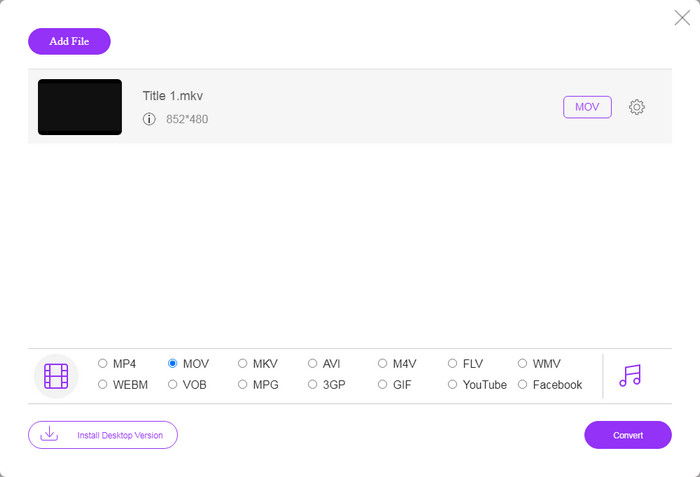
مرحله 3: به بخش فرمت در پایین صفحه بروید و MOV را انتخاب کنید؛ این سازگارترین فرمت ویدئویی برای دستگاههای iOS است. روی دکمه Convert کلیک کنید تا اپلیکیشن تحت وب، تبدیل FLV به فرمت سازگار با آیفون را بهصورت آنلاین انجام دهد. صبر کنید تا فرایند کامل شود و سپس نتیجه را روی هارددیسک خود دانلود کنید.
اگر می خواهید گزینه ها را بازنشانی کنید ، روی نماد تنظیمات کلیک کنید و آنها را در گفتگوی تنظیمات مانند وضوح ، کدک و غیره خواهید یافت.
قسمت 3: س FAالات متداول در مورد تبدیل FLV به آیفون تصویری
آیا می توانید فایل های FLV را بدون تبدیل در آیفون پخش کنید؟
تنها راه پخش فایلهای FLV روی آیفون بدون تبدیل آنها، نصب یک پخشکننده FLV شخص ثالث، مانند VLC for iOS است. سپس میتوانید بهراحتی فیلمهای موردعلاقه خود را تماشا کنید.
فیلم ها در iPhone کجا ذخیره می شوند؟
فیلم هایی که در iPhone ضبط و انتقال می دهید در برنامه Photos ذخیره می شوند. اگر ویدئویی را با استفاده از برنامه بارگیری کنید ، در برنامه ذخیره می شود. به هر حال ، نمی توانید به سیستم فایل در iPhone یا iPad دسترسی پیدا کنید.
آیفون از چه نوع پرونده هایی برای فیلم استفاده می کند؟
در آیفون ، H.264 تنها کدک ویدیویی پشتیبانی شده است. وقتی صحبت از فرمت های ویدئویی می شود ، MOV و MP4 با هم ارتباط تنگاتنگی دارند. برای ضبط ویدئو در iOS ، اپل از کدک ویدیویی جدیدتر H.265 یا HEVC استفاده می کند.
نتیجه
اکنون ، شما باید نحوه باز و پخش فایل های FLV را در آیفون درک کنید. ظاهراً نمی توانید فیلم های FLV را مستقیماً در آیفون باز کنید. بهترین راه این است که فایلهای خود را به فرمت پشتیبانی شده از iPhone ، مانند MOV تبدیل کنید. سپس می توانید فیلم ها را هموار پخش کنید. FVC Free FLV Converter یکی از بهترین مبدل های ویدیویی FLV به آیفون رایگان است. استفاده از آن نه تنها آسان است ، بلکه می تواند کیفیت خروجی عالی نیز ایجاد کند. س questionsالات بیشتری دارید؟ لطفا در زیر بنویسید
-
 3 روش آسان برای تبدیل FLV به AVI در دسک تاپ و آنلاین
 1. فیلم های FLV را به راحتی به قالب های چندرسانه ای دیگر تبدیل کنید. 2. تقریباً از همه فرمت های ویدئویی مانند AVI ، MP4 ، MKV و غیره پشتیبانی کنید. 3. پردازش دسته ای صدها پرونده FLV در هر تبدیل.
-
 3 روش برتر برای تبدیل FLV به WMV در ویندوز و مک
 آیا به دنبال بهترین روش تبدیل FLV به WMV بدون از دست دادن کیفیت در رایانه یا مک هستید؟ شما خوش شانس هستید زیرا ما در اینجا سه روش را برای انجام آسان کار انجام می دهیم.
-
 راهنمای بتن برای بارگذاری فیلم های FLV در YouTube
 FLV را در YouTube بارگذاری کنید اما ناموفق بود؟ شما می توانید این مشکل را توسط خود حل کرده و FLV را به کدک های پشتیبانی شده توسط YouTube تبدیل کنید تا راهنمای گام به گام ما را دریافت کنید.
