


 Video Converter Ultimate
 ضبط صفحه
 تعمیر ویدیو
نحوه فشرده سازی MP3: حجم فایل خود را کاهش دهید
MP3، محبوب ترین فرمت صوتی امروزی، به دلیل سهولت توزیع و سازگاری گسترده اش شناخته شده است. تعداد بیشماری از تولیدکنندگان محتوا و وبلاگنویسان استفاده از فرمت MP3 را برای اشتراکگذاری آهنگها و آهنگهای خود انتخاب میکنند. با این حال، گاهی اوقات ممکن است با فایل هایی مواجه شوید که حجم آنها بسیار زیاد است و دانلود آنها بسیار کند است و این گونه فایل ها ممکن است مقدار زیادی از حافظه رایانه شما را اشغال کنند و باعث کندی عملکرد دستگاه شما شوند. در این مورد، شما به یک ابزار حرفه ای نیاز دارید تا به شما در کاهش حجم فایل هایتان کمک کند.
امروزه فشردهسازهای حرفهای زیادی در بازار وجود دارد و ممکن است با خودتان فکر کنید چطور گزینه مناسب را انتخاب کنید. در این مقاله، چهار ابزار را برایتان معرفی میکنیم تا بتوانید در موقعیتهای مختلف، یک فایل MP3 را فشرده کنید. امیدواریم از خواندن این مطلب بهره ببرید.

قسمت 1. فشرده سازی MP3 با کمپرسور حرفه ای صدا
اگر بهدنبال یک ابزار حرفهای برای فشردهسازی MP3 هم هستید، نگاهی به Video Convert Ultimate بیندازید؛ یک ابزار همهکاره برای ویرایش فایلهای چندرسانهای. همانطور که از نامش پیداست، از تبدیل فایلها میان بیش از صد فرمت مختلف پشتیبانی میکند و در این فرایند، میتوانید آنها را مطابق سلیقه خودتان تغییر دهید. علاوه بر این، در جعبهابزار آن قابلیتهای بیشتری پیدا میکنید، از جمله فشردهساز صدا، فشردهساز ویدیو، حذفکننده واترمارک، بهبوددهنده ویدیو و غیره. این برنامه مورد اعتماد کاربران در سراسر جهان است و ایمنی آن تضمین شده است. مطمئنیم راندمان بالا و کیفیت فایلهای پردازششده با آن شما را جذب خواهد کرد. علاوه بر این، صفحه ساده و محیط کاربری روان آن هم یکی از دلایلی است که ما آن را برای معرفی انتخاب کردهایم.
دانلود رایگانبرای ویندوز 7 یا بالاتردانلود امن
دانلود رایگانبرای MacOS 10.7 یا بالاتردانلود امن
اگر می خواهید MP3 را با FVC Video Convert Ultimate فشرده کنید، مراحل زیر را دنبال کنید.
مرحله 1. FVC Video Convert Ultimate را روی کامپیوتر خود دانلود و نصب کنید.
مرحله 2. برنامه را اجرا کرده و روی Toolbox کلیک کنید. ابزارهای زیادی روی صفحه ظاهر میشوند. در میان آنها Audio Compressor را پیدا کرده و روی آن کلیک کنید.
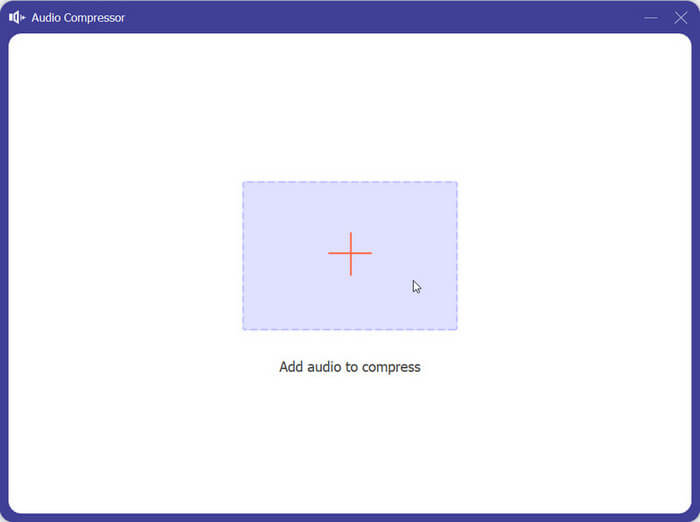
مرحله 3. پس از ورود به پنجره Audio Compressor، روی دکمه بعلاوه در صفحه کلیک کنید تا فایل MP3 موردنیاز برای فشردهسازی را اضافه کنید.
مرحله 4. حجم Size را متناسب با نیاز خود تغییر دهید. درصد فشردهسازی فایلها مستقیماً به شما نمایش داده میشود.
مرحله 5. از منوی کشویی کنار Save to یک پوشه برای ذخیره فایل فشردهشده خود انتخاب کنید. در نهایت روی Compress کلیک کنید تا تغییرات اعمال و ذخیره شوند.
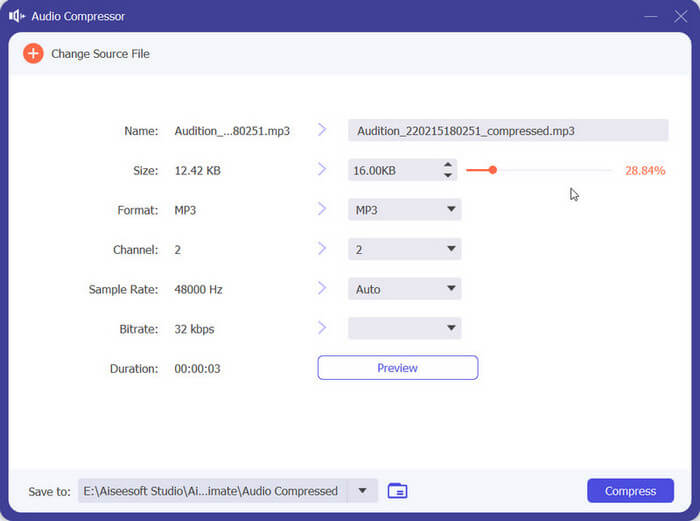
البته هیچ ابزاری کامل نیست. این ابزار کاستی هایی دارد. نمیتوانید جلوه صوتی فشردهشده را قبل از صادرات فایل پیشنمایش کنید. با این حال، درصد فشردهسازی را مستقیماً به شما نشان میدهد و فایلها را کاملاً کارآمد مدیریت میکند، بنابراین اگر راضی نیستید میتوانید فایلهای MP3 خود را دوباره کوچک کنید.
قسمت 2. فشرده سازی MP3 در Audacity
اگر بهدنبال نرمافزاری هستید که در ویرایش صدا واقعاً کامل باشد، Audacity بهترین انتخاب خواهد بود. این ابزار برای ضبط و ویرایش موسیقی طراحی شده است. علاوه بر پشتیبانی از ضبط پادکست، صداگذاری و یادداشتهای صوتی، میتوانید طول فایل صوتی را ویرایش کنید، افکتهای ویژه به صدا اضافه کنید، حجم فایلهای MP3 را کاهش دهید، فرمتها را تبدیل کنید و موارد دیگر. این ضبطکننده صدا و ویرایشگر کاملاً رایگان است و در حال حاضر با سیستمعاملهای Windows، macOS و Linux سازگار است. این ویژگیها باعث شدهاند در فهرست پیشنهادی ما برجسته باشد.
در اینجا عملیاتی است که باید برای فشرده سازی فایل های MP3 با Audacity اعمال کنید.
مرحله 1. Audacity را از منبع رسمی روی دستگاه خود دریافت کنید.
مرحله 2. پس از باز کردن این ابزار روی کامپیوتر، فایل صوتی MP3 موردنیاز برای ویرایش را بارگذاری کنید.
مرحله 3. روی Edit > Preference کلیک کنید. سپس گزینه Quality را انتخاب کنید.
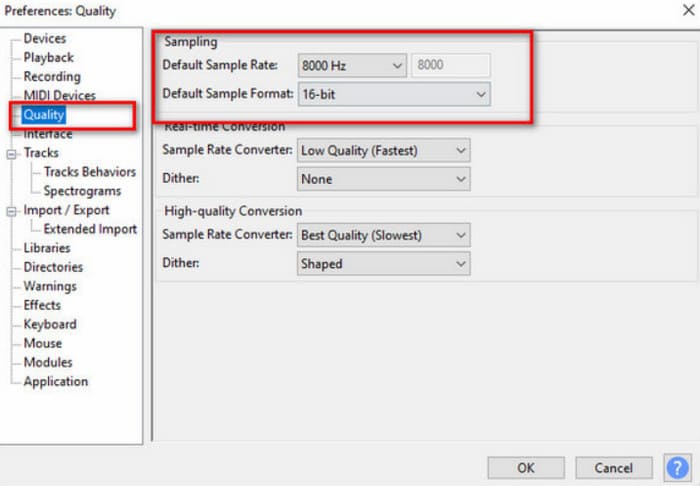
مرحله 4. برای فشردهسازی فایل صوتی اضافهشده، Default Sample Rate را کاهش دهید و Default Sample Format را تغییر دهید.
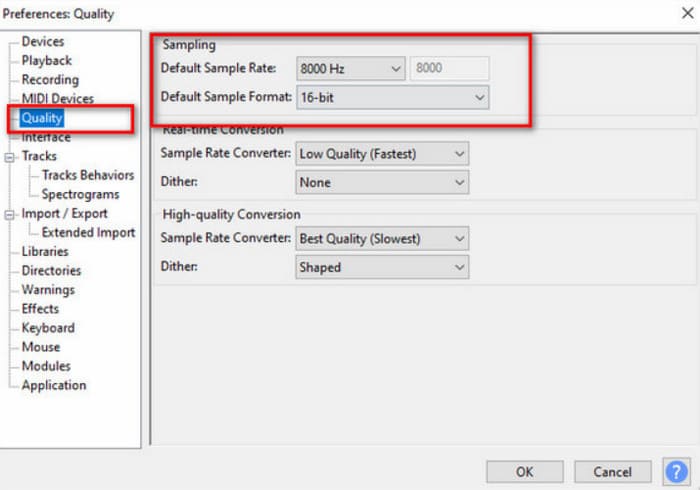
اشکال آشکارتر Audacity عدم سادگی آن در استفاده از رابط است. ممکن است برای مبتدیان چندان دوستانه نباشد و یافتن ویژگی های مورد نیاز و نحوه استفاده دقیق از آنها سخت باشد.
قسمت 3. فشرده سازی MP3 با QuickTime در مک
نرمافزار QuickTime Player که توسط اپل توسعه داده شده، عمدتاً برای پخش فایلهای صوتی و تصویری با فرمتهای مختلف استفاده میشود. این برنامه اغلب پخشکننده پیشفرض رسانه در سیستمهای macOS است. اگرچه ممکن است به اندازه برخی ویرایشگرهای حرفهای رسانه، امکانات پیشرفته نداشته باشد، اما همچنان گزینهای قابلاعتماد برای پخش و انجام کارهای پایهای ویرایش فایلهای چندرسانهای محسوب میشود. حتی میتوانید با آن از صفحهنمایش خود فیلم بگیرید. اگر میخواهید در مک ابزاری برای فشردهسازی فایلهای MP3 پیدا کنید که کاملاً با macOS سازگار باشد، QuickTime Player را امتحان کنید. برای استفاده از آن معمولاً نیازی به دانلود یا نصب اضافه ندارید؛ فقط آن را روی دستگاه خود پیدا کرده و باز کنید.
در اینجا، ما یک مقدمه گام به گام برای فشرده سازی MP3 با QuickTime ارائه خواهیم داد.
مرحله 1. QuickTime Player را روی کامپیوتر خود باز کنید.
مرحله 2. روی File کلیک کرده و گزینه Open File را برای بارگذاری فایل MP3 خود انتخاب کنید.
مرحله 3. سپس دوباره به تب File بروید. روی آن کلیک کرده و از منوی کشویی Export را انتخاب کنید. در اینجا میتوانید گزینه خروجی موردنظر خود را برگزینید.
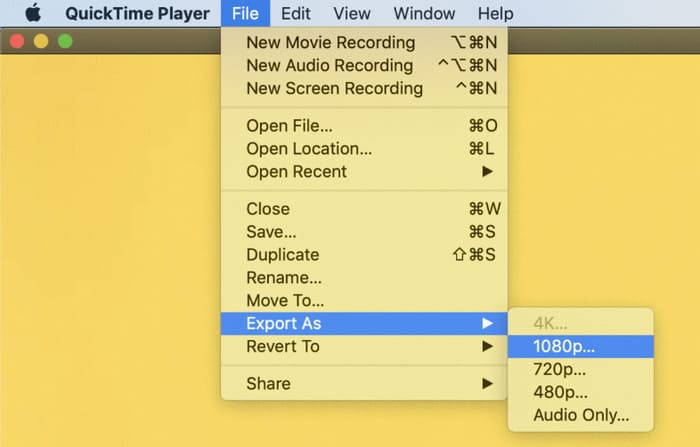
اگرچه Quick Time Player از شما در فشردهسازی فایلهای صوتی پشتیبانی میکند، ممکن است کنترل محدودی بر تنظیمات فشردهسازی در مقایسه با نرمافزار اختصاصی فشردهسازی صدا ارائه دهد. این می تواند در هنگام تنظیم پارامترهایی مانند نرخ بیت، نرخ نمونه یا گزینه های کدک انعطاف پذیری کمتری داشته باشد.
قسمت 4. فشرده سازی MP3 آنلاین
اگر می خواهید از فشرده سازی MP3 سبک تر لذت ببرید، یک ابزار آنلاین انتخاب بهتری نسبت به نرم افزار دسکتاپ خواهد بود. FreeConvert MP3 Compressor ارزش امتحان کردن را دارد زیرا یکی از محبوب ترین ابزارهای ویرایش آنلاین چندرسانه ای است. با وجود اینکه این یک ابزار آنلاین است، در مورد مدیریت فایلهای MP3 بزرگ، کار سادهای نیست. شما می توانید صدای پردازش شده را در چند ثانیه دریافت کنید. سهولت استفاده از آن یکی از دلایل اصلی توصیه ما آن است. اگر بخواهیم یک فایل MP3 را بدون از دست دادن کیفیت فشرده کنیم، نیازی به پرش صفحه نداریم. همه چیز را می توان در یک صفحه وب انجام داد. برای محافظت از حریم خصوصی شما، فایل های آپلود شده شما ظرف چند ساعت حذف خواهند شد.
مراحل زیر را دنبال کنید تا MP3 را به صورت آنلاین با کمپرسور FreeConvert MP3 فشرده کنید.
مرحله 1. از طریق مرورگر خود وارد وبسایت FreeConvert MP3 Compressor شوید.
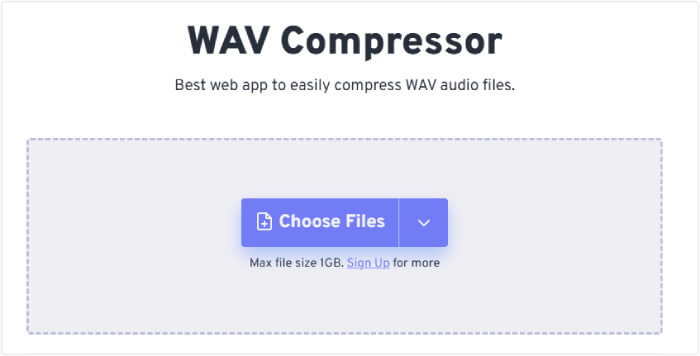
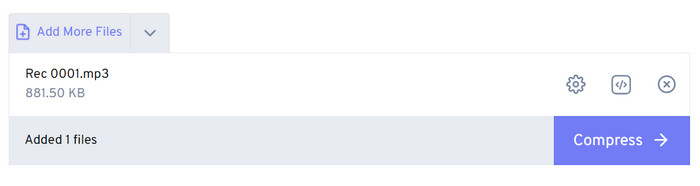
مرحله 2. روی Choose Files کلیک کنید تا فایل صوتی MP3 خود را بارگذاری کنید.
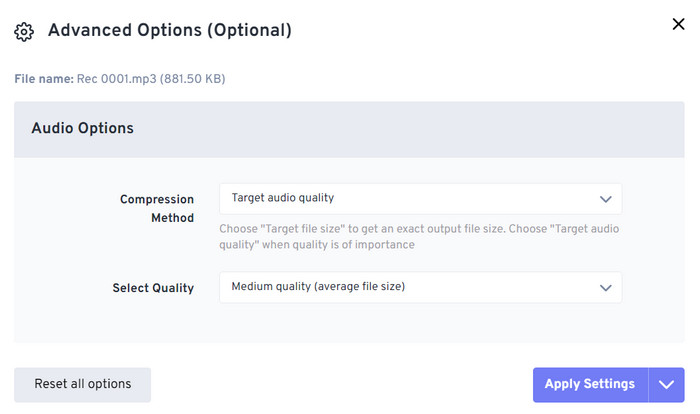
مرحله 3. پس از افزودن فایل، روی Advanced settings (option) کلیک کنید. یک پنجره کوچک باز میشود. میتوانید روش فشردهسازی (Compression Method) را تغییر دهید. سپس روی Apply Settings کلیک کنید.
مرحله 4. روی Compress کلیک کنید تا فرایند آغاز شود.
مرحله 5. در نهایت روی Download کلیک کنید تا فایل MP3 فشردهشده خود را دریافت کنید.
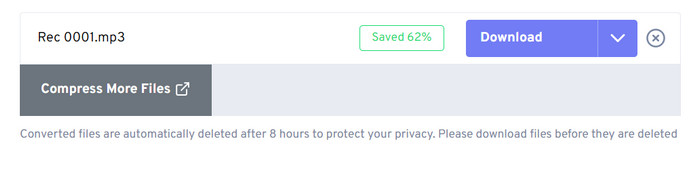
اگرچه FreeConvert MP3 Compressor در همه جنبه ها عملکرد خوبی دارد، کاربران فقط می توانند از آن برای فشرده سازی فایل های صوتی تا 1 گیگابایت استفاده کنند. اگر بخواهیم از آن برای فایل های MP3 بزرگتر استفاده کنیم، باید هزینه کنیم.
بخش 5. سوالات متداول فشرده سازی MP3
آیا فشرده سازی فایل های MP3 کیفیت را کاهش می دهد؟
این فرآیند می تواند منجر به از دست دادن کیفیت صدا شود، به خصوص اگر سطح فشرده سازی بالا باشد. سطوح فشردهسازی بالاتر باعث کیفیت پایینتر صدا میشود، در حالی که سطوح فشردهسازی پایینتر باعث حفظ کیفیت بهتر صدا میشود. ما باید تعادلی بین کاهش حجم فایل و حفظ کیفیت صدای قابل قبول در هنگام فشرده سازی فایل های MP3 پیدا کنیم.
آیا می توان MP3 را از حالت فشرده خارج کرد؟
هنگامی که یک فایل MP3 فشرده شد، امکان بازگرداندن کامل آن به حالت اولیه وجود ندارد. فرآیند فشرده سازی شامل حذف برخی از داده های صوتی است. اگر میخواهید کیفیت صدای یک فایل MP3 را بهبود ببخشید، بهتر است قبل از تبدیل آن به MP3 با بهترین کیفیت فایل منبع ممکن شروع کنید.
نتیجه فشرده سازی بیش از حد یک فایل صوتی چیست؟
فشرده سازی بیش از حد یک فایل صوتی می تواند منجر به کاهش کیفیت صدا شود و باعث می شود صدا مخدوش به نظر برسد. همچنین می تواند نویز و اعوجاج را در سیگنال صوتی ایجاد کند. برای جلوگیری از این مشکلات، مهم است که تعادلی بین کاهش حجم فایل و حفظ کیفیت صوتی قابل قبول هنگام فشرده سازی فایل های صوتی پیدا کنید.
نتیجه
اگر میخواهید فایلهای MP3 خود را فشرده کنید، مطمئنیم پاسخ موردنظر خود را در این مقاله پیدا میکنید. ما چهار ابزاری را که میتوانید استفاده کنید بهطور مفصل معرفی کردهایم. چه بخواهید از یک برنامه دسکتاپ استفاده کنید، چه بخواهید فرایند فشردهسازی را آنلاین انجام دهید، و چه از کامپیوتر ویندوزی استفاده کنید یا مک، با راهنمایی ما قادر به انجام این کار خواهید بود. اگر نگران این هستید که در طول فرایند مرتکب اشتباه شوید، کافی است گامبهگام راهنمای ما را دنبال کنید؛ این کار کمک میکند از بیشتر مشکلات جلوگیری کنید. همچنین به متداولترین پرسشها درباره فشردهسازی MP3 پاسخ دادهایم. امیدواریم این پاسخها برای شما مفید بوده و ابهاماتتان را برطرف کند.
-
 نحوه حذف پس زمینه از تصویر: ابزارهای بدون دردسر
 شش ابزار را برای حذف پسزمینه از هر تصویری بدون زحمت کشف کنید. امروز با ویرایش پیچیده خداحافظی کنید و پسزمینه تصاویر را به راحتی پاک کنید!
-
 کاهش حجم عکس KB/MB: 3 ابزار کمپرسور ضروری
 نمیدانید از چه کاهنده اندازه عکس برای نیازهای تبدیل خود استفاده کنید؟ در این بررسی، 3 ابزار را یاد خواهید گرفت که می توانند به شما کمک کنند تصویر خود را به راحتی کوچک کنید.
-
 3 روش نهایی برای فشرده سازی SVG [آنلاین و آفلاین]
 می خواهید فایل های SVG را فشرده کنید اما نمی دانید چگونه؟ در این مقاله ما 3 ابزار را به شما پیشنهاد می کنیم و یک فرآیند گام به گام برای استفاده آسان از آنها به شما آموزش می دهیم.
