


 Video Converter Ultimate
 ضبط صفحه
 تعمیر ویدیو
برش فایل های WMA: راهنمای نهایی برای کاربران ویندوز و مک
ویرایش فایلهای صوتی کار لذتبخشی است، تا زمانی که لازم شود با ترکهای طولانی WMA سروکله بزنید که به نظر میرسد بریدنشان غیرممکن است. چه یک پادکستر باشید، چه موزیسین، یا فقط کسی که از دستکاری صدا لذت میبرد، بریدن فایلهای WMA بدون ابزار و دانش مناسب میتواند کاری دلهرهآور به نظر برسد. این مقاله قصد دارد این فرایند را برای کاربران ویندوز و مک ساده کند و با ارائه دستورالعملهای گامبهگام و معرفی بهترین ابزارهای موجود، مسیر ویرایش صدای شما را روانتر و کارآمدتر سازد. برای آشنایی بیشتر، این مطلب را تا انتها بخوانید.

قسمت 1: بهترین راه برای برش فایل WMA در ویندوز/مک
بهترین و نهاییترین راه برای برش فایلهای WMA هم در ویندوز و هم در مک، استفاده از برنامه منتخب FVC یعنی Video Converter Ultimate است. این ابزار همهکاره تبدیل ویدیو و صدا، بهویژه در کار با فرمت WMA، مخصوصاً برای برش این نوع فایلها، عملکرد بسیار خوبی دارد. این برنامه یک قابلیت ویژه دارد که فایلهای صوتی را بهآسانی کوتاه میکند. این ویژگی بهخصوص برای کسانی مفید است که باید فایلهای WMA خیلی طولانی یا حاوی بخشها و قطعات ناخواسته را کوتاه کنند. افزون بر این، با این ابزار میتوانید بهصورت دستی بخش موردنظر از فایل WMA را که میخواهید ببرید انتخاب کنید، یا با استفاده از قابلیت Fast Slip آن را به شکل خودکار و سریع برش دهید.
مرحله 1. ابتدا، روی کامپیوتر مک یا ویندوز خود، برنامه Video Converter Ultimate را دانلود و نصب کنید.
دانلود رایگانبرای ویندوز 7 یا بالاتردانلود امن
دانلود رایگانبرای MacOS 10.7 یا بالاتردانلود امن
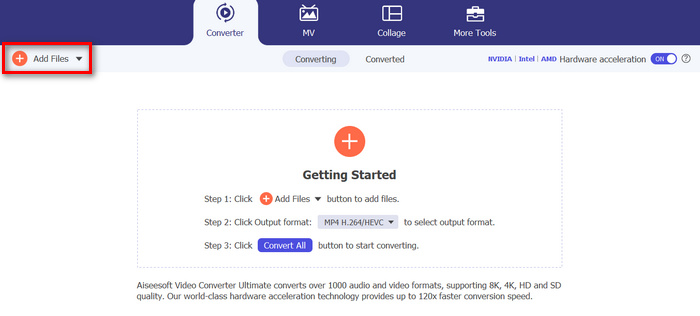
مرحله 2. برای وارد کردن فایلهای WMA که میخواهید برش دهید، روی دکمه Add Files کلیک کنید.
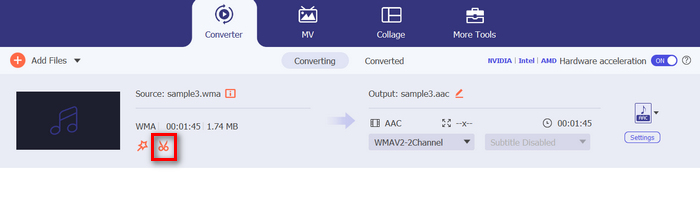
مرحله ۳. بعد از آن، روی دکمهٔ Cut کلیک کنید.
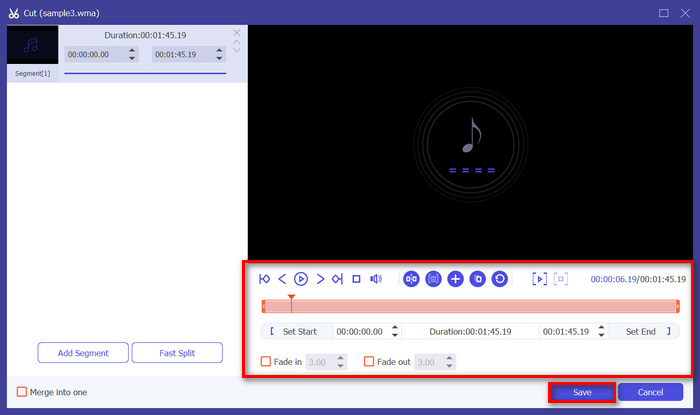
مرحله 4. برای برش فایلهای WMA میتوانید این کار را بهصورت دستی انجام دهید؛ کافی است نوار شروع و پایان کلیپ را با کشیدن و جابهجا کردن از چپ به راست تنظیم کنید، یا زمان شروع و پایان بخش موردنظر فایل WMA را که میخواهید کوتاه کنید، بهصورت دستی وارد کنید.
این فرآیند به طور خودکار بخشی از صدا را بر اساس زمانی که میخواهید شروع و پایان تریم را شروع کنید، قطع میکند.
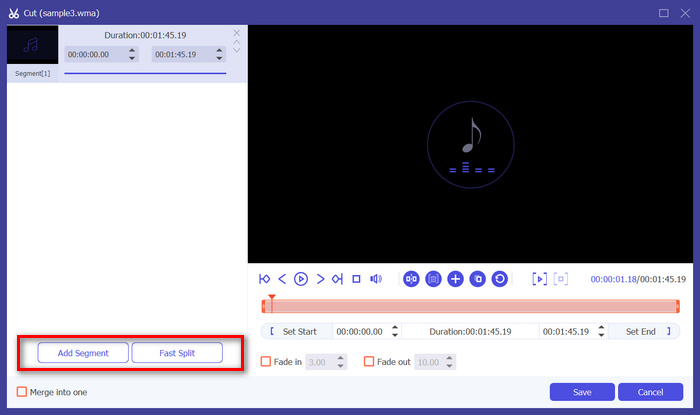
مرحله 5. در همین حال، اگر میخواهید از قابلیت Fast Slip trimmer برای برش استفاده کنید، کافی است روی دکمه Fast Slip در کنار دکمه Add Segment کلیک کنید. سپس حالتی را که میخواهید قطعه بر اساس آن تقسیم شود انتخاب کنید. اگر گزینه تقسیم بر اساس میانگین را انتخاب کردید، فقط تعداد را مشخص کنید؛ اما اگر میخواهید بر اساس زمان تقسیم کنید، زمان را تعیین کنید. پس از آن روی دکمه Save کلیک کنید.
مرحله 6. در نهایت، برای خروجی گرفتن از فایل WMA برشخورده، روی دکمه Convert All کلیک کنید.
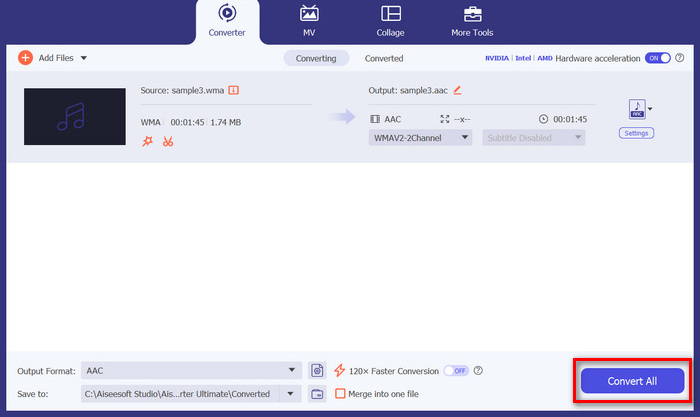
وقتی صحبت از برش فایلهای WMA میشود، این Video Converter Ultimate با انتخاب FVC در واقع یک راه حل ضروری است. رابط کاربری ساده و کاربرپسند این اطمینان را به شما میدهد که میتوانید بدون زحمت و با دقت فایلهای WMA خود را برش دهید، و گزینههای مختلف برش آن به شما انعطافپذیری در نحوه برش آسان فایلهای صوتی خود میدهد.
قسمت 2: برش فایل WMA آنلاین به صورت رایگان
Audio Trimmer ابزاری رایگان است که به کاربران امکان می دهد فایل های صوتی را در لحظه کوتاه کنند. این از طیف گستردهای از فرمتهای صوتی محبوب، از جمله WMA پشتیبانی میکند، که این ابزار را به یکی از بهترین گزینهها تبدیل میکند اگر ترجیح میدهید فایلهای WMA را به صورت آنلاین برش دهید.
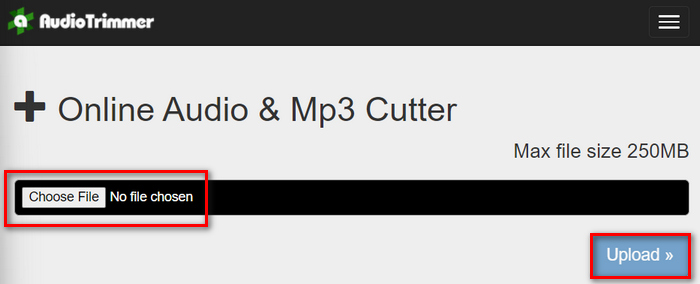
مرحله 1. برای وارد کردن فایلهای WMA که میخواهید برش دهید، روی دکمه Choose File کلیک کنید و سپس دکمه Upload را بزنید.
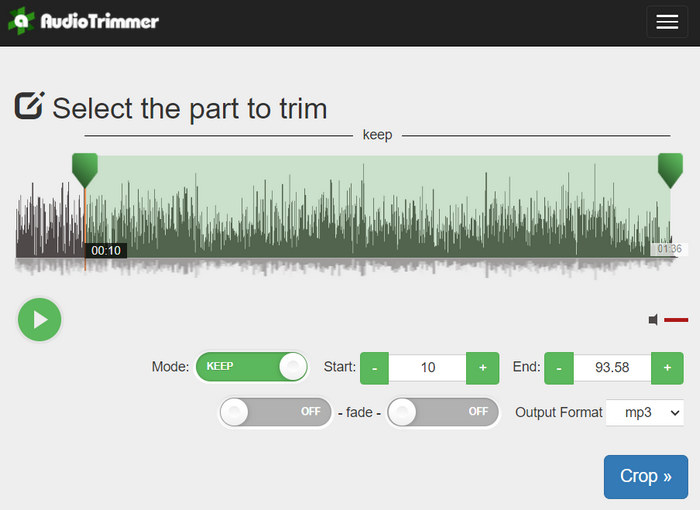
مرحله 2. حالا نوار را به پایین بکشید و بخش موردنظر از ترک صوتی را که میخواهید کوتاه کنید انتخاب کنید. پس از پایان، روی دکمه Crop کلیک کنید.
مرحله 3. در نهایت، برای ذخیره فایل WMA برشخورده، فقط روی دکمه Download کلیک کنید.
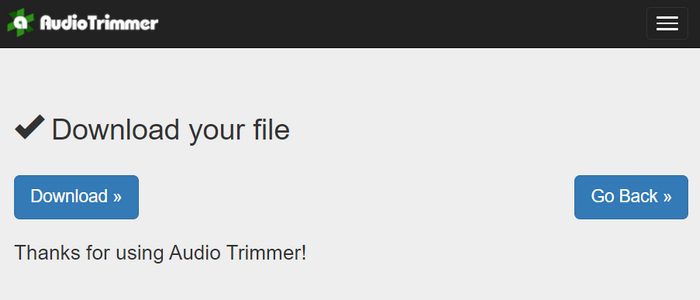
به این ترتیب کار تمام است؛ میتوانید کلیپهای خود را با پخشکننده WMA تماشا کنید تا ببینید آیا آنها را درست بریدهاید یا نه. با رابط کاربری بسیار ساده و شهودی این ابزار، بریدن فایلهای WMA فقط در ۳ مرحله انجام میشود. با وجود اینکه این ابزار آنلاین رایگان کار برش صدا را بسیار آسان میکند، همه کاربران نمیتوانند از آن استفاده کامل ببرند، زیرا پردازش آن به فایلهای کمتر از 250 مگابایت محدود است.
قسمت 3: برش WMA با VLC Media Player
VLC Media Player به دلیل تطبیق پذیری اش یک پخش کننده رسانه ای متن باز است که به طور گسترده مورد استفاده قرار می گیرد. این ابزار از انواع فرمت های صوتی و تصویری از جمله فایل های WMA پشتیبانی می کند. این ابزار علاوه بر امکاناتی که برای پخش، پخش و ضبط رسانه دارد، می تواند برای برش فایل های WMA نیز استفاده شود. با این کار، کاربران می توانند به راحتی بخش ها را با ضبط در زمان واقعی بدون نیاز به تغییر زمان پخش به صورت دستی برش دهند.
مرحله 1. برنامه VLC Media Player را باز کنید. فایل WMA که میخواهید برش دهید را فقط بکشید و در پنجره برنامه رها کنید.
مرحله 2. صدا بهطور خودکار پخش میشود. پخش را برای لحظهای متوقف کنید، سپس روی دکمه View کلیک کرده و گزینه Advanced Controls را تیک بزنید. اکنون چهار دکمه جدید بالای آیکون پخش ظاهر میشود.
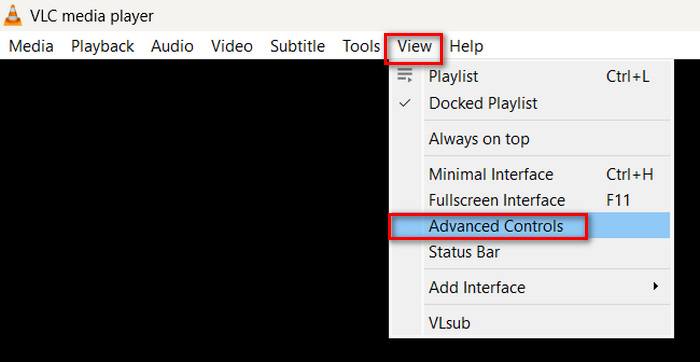
مرحله 3. نوار پیشرفت را به نقطهای ببرید که میخواهید کلیپ از آن شروع شود. حالا نوار را روی جایی تنظیم کنید که میخواهید برش فایل WMA از آن آغاز شود. وقتی آماده بودید، پخش را شروع کرده و روی دکمه Record کلیک کنید.
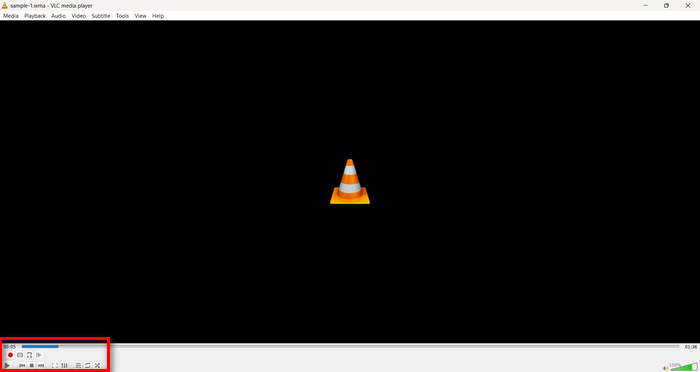
مرحله 4. وقتی به انتهای بخشی رسیدید که میخواهید ذخیره کنید، دوباره روی دکمه Record کلیک کنید تا ضبط متوقف شود.
در حین ضبط، از کشیدن نوار پیشرفت برای تغییر زمان پخش خودداری کنید، چون VLC باید این بخش را بهصورت لحظهای (real-time) ضبط کند. اگر از این ابزار خوشتان آمده، جایگزینهای VLC را در اینجا از دست ندهید.
بخش 4: سوالات متداول در مورد برش WMA
چگونه قسمتی از فایل صوتی را برش دهم؟
برای برش بخشی از یک فایل صوتی، می توانید از ابزارهایی مانند Video Converter Ultimate استفاده کنید. برای انجام این کار، فقط باید فایل WMA خود را وارد کنید، روی دکمه Cut کلیک کنید و زمان شروع و پایان را تنظیم کنید.
آیا WMA بهتر از MP3 است؟
فرمت WMA اغلب در نرخ بیت پایینتر، کیفیت صوتی بهتری نسبت به MP3 ارائه میدهد که در نتیجه آن، اندازه فایلها کوچکتر بوده و در عین حال کیفیت صدا خوب میماند. با این حال، MP3 روی دستگاهها و پلتفرمهای مختلف پشتیبانی گستردهتری دارد. انتخاب بین WMA و MP3 به نیاز شما از نظر کیفیت و سازگاری بستگی دارد. همچنین میتوانید با استفاده از ابزارهای تبدیل WMA به MP3 بهسرعت فرمت WMA را به MP3 تغییر دهید.
چگونه فایل های صوتی را در Windows Media Player برش دهیم؟
برای برش فایل های صوتی در Windows Media Player، باید از افزونه ای به نام SolveigMM WMP Trimmer Plugin Home Edition استفاده کنید. این افزونه به کاربران امکان میدهد تا فایلهای صوتی را مستقیماً در رابط Windows Media Player برش دهند و راهحلی مناسب برای کارهای ویرایش صدا ارائه کنند.
نتیجه
بریدن فایلهای WMA لازم نیست کار پراسترس و سختی باشد. چه استفاده از نرمافزاری مانند Video Converter Ultimate را ترجیح بدهید، چه ابزار آنلاین مانند Audio Trimmer، یا پلیر چندمنظوره VLC Media Player، روشهای کارآمدی هم برای کاربران ویندوز و هم مک در دسترس است. روشی را که بیشتر با نیازهای شما همخوانی دارد انتخاب کنید و ویرایش فایلهای صوتی خود را با آسودگی آغاز کنید. آمادهاید ویرایش صدا را برای خودتان آسانتر کنید؟ امروز یکی از این روشها را امتحان کنید!
-
 2 روش برای تبدیل صدای FLV به WMA [رایگان و آنلاین]
 آیا می خواهید صدای WMA را از فیلم FLV استخراج کنید؟ در اینجا 2 استخراج کننده صوتی WMA رایگان برای تبدیل FLV (Flash Video) به WMA (Windows Media Audio) با سرعت تبدیل سریع در Mac OS X و Windows 10/8/7 وجود دارد.
-
 برترین ویرایشگرهای فراداده WMA که نباید از دست بدهید [2024]
 چرا نمی توانم تگ های WMA را ویرایش کنم؟ این مشکل در کاربران رایج است' پرس و جوها اما امروز ویرایشگرهای متا WMA را در اختیار شما قرار می دهیم که می توانید در سال 2024 از آنها استفاده کنید.
-
 8 روش برای تبدیل MP4 به MP3 صوتی (تبدیل دسته ای و اندازه بزرگ)
 اگر می خواهید صوتی MP3 را از فیلم MP4 استخراج کنید ، می توانید این مقاله را بررسی کرده و 8 راه حل دریافت کنید. روش های آنلاین و آفلاین وجود دارد که MP4 را به راحتی در تلفن یا رایانه خود به MP3 تبدیل کنید.
