


 Video Converter Ultimate
 ضبط صفحه
 تعمیر ویدیو
نحوه تبدیل فایلهای ویدئویی FLV به فرمت AVI در PC / Mac
این راهنما بر این تمرکز دارد که چگونه با استفاده از نرمافزارهای دسکتاپ و برنامههای آنلاین، فرمت FLV را به AVI تبدیل کنید. دلایل زیادی وجود دارد که ممکن است بخواهید ویدئوهای FLV خود را تبدیل کنید. FLV برای توزیع محتوای ویدیویی به صورت آنلاین طراحی شده است، نه برای پخش روی دستگاههای دیجیتال. وقتی میخواهید فایل FLV را روی رایانه تماشا کنید، باید آن را به یک فرمت ویدئویی دیگر تبدیل کنید. علاوه بر این، برای ویرایش حرفهایتر فایلهای ویدیویی، تبدیل FLV به یک فرمت ویدئویی بدون فشردهسازی ایده خوبی است.

قسمت 1: 2 روش برتر برای تبدیل FLV به AVI
روش 1: با FLV Converter FLV را به AVI تبدیل کنید
وقتی میخواهید FLV را به AVI تبدیل کنید، ممکن است نگران چند عامل مختلف مانند کیفیت خروجی، سهولت استفاده و موارد دیگر باشید. FVC Free FLV Converter بهترین انتخاب است. با اینکه این برنامه رایگان است، اما بدون نیاز به مهارتهای فنی زیاد، امکاناتی در حد نرمافزارهای حرفهای در اختیار شما میگذارد. علاوه بر این، ابزارهای جانبی فراوانی مانند ویرایش ویدئو ارائه میدهد.
ویژگی های اصلی بهترین مبدل FLV
- 1. فیلم های FLV را به راحتی به قالب های چندرسانه ای دیگر تبدیل کنید.
- 2. تقریباً از همه فرمت های ویدیویی مانند AVI ، MP4 ، MKV و غیره پشتیبانی کنید.
- 3. دسته ای صدها پرونده FLV را در هر تبدیل پردازش کنید.
دانلود رایگانبرای ویندوز 7 یا بالاتردانلود امن
دانلود رایگانبرای مکاواس 10.7 یا بالاتردانلود امن
نحوه تبدیل FLV به AVI در دسک تاپ به صورت رایگان
مرحله 1: افزودن فایلهای FLV
به محض اینکه بهترین مبدل رایگان FLV را روی رایانه خود نصب کردید، آن را اجرا کنید. این برنامه با هر دو سیستمعامل ویندوز و مک سازگار است. روی منوی Add File(s) در گوشه بالا سمت چپ کلیک کنید تا پنجره انتخاب فایل باز شود. سپس ویدئوهای FLV را در رایانه خود پیدا و انتخاب کرده و روی دکمه Open کلیک کنید تا اضافه شوند.

مرحله 2: ویرایش ویدئو و تنظیم فرمت
اگر میخواهید فایلهای ویدیویی خود را ویرایش کنید، فایل FLV مورد نظر را انتخاب کرده و روی منوی Edit کلیک کنید. سپس به پنجره ویرایشگر ویدئو منتقل میشوید. طبق دستورالعملهای روی صفحه آن را ویرایش کرده و بعد به رابط اصلی برگردید.
برای باز کردن گفتگوی نمایه ، روی منوی کشویی قالب خروجی در پایین رابط اصلی کلیک کنید. سپس AVI را جستجو کرده و آن را در تب General Video انتخاب کنید.

مرحله 3: تبدیل FLV به AVI
روی آیکون سهنقطه کنار فیلد Output folder کلیک کرده و پوشه مشخصی را برای ذخیره فایلهای AVI انتخاب کنید. در نهایت روی دکمه Convert کلیک کنید تا فرآیند تبدیل FLV به AVI بلافاصله آغاز شود.

روش 2: نحوه تبدیل FLV به AVI با VLC
VLC بسیار بیشتر از یک پخش کننده رسانه ساده است. شما می توانید بسیاری از ویژگی های مفید از جمله تبدیل فیلم را پیدا کنید. به عنوان یک پروژه منبع باز ، VLC به شما امکان می دهد FLV را به صورت رایگان به AVI تبدیل کنید. علاوه بر این ، VLC قادر است ویدیوهای AVI خراب را ترمیم کند.
مرحله 1: مبدل رایگان FLV را باز کنید. اگر VLC ندارید، آن را بهصورت رایگان از وبسایت رسمی دانلود کنید.
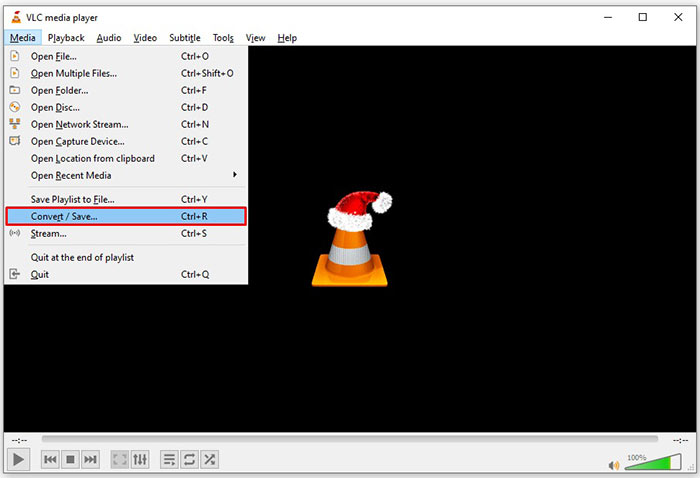
مرحله 2: از نوار منوی بالا به منوی Media بروید و گزینه Convert/Save را انتخاب کنید. در مک، از منوی File گزینه Convert/Stream را برگزینید.
مرحله 3: در پنجره Open Media روی دکمه Add کلیک کرده و فایل FLV مورد نظر برای تبدیل را اضافه کنید.
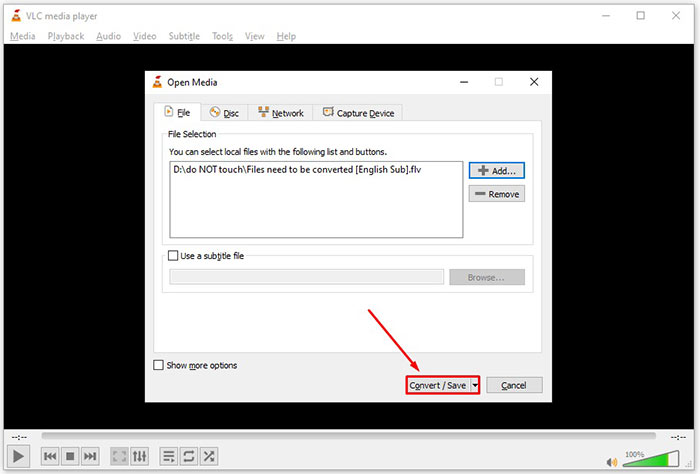
مرحله 4: سپس روی دکمه Convert/Save کلیک کنید تا به پنجره بعدی بروید.
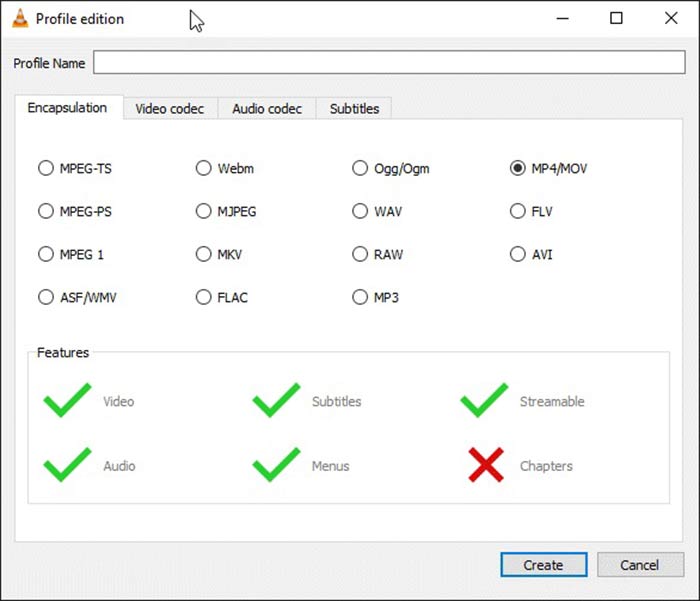
مرحله 5: فهرست کشویی Profile را باز کنید و AVI را انتخاب کنید. اگر آن را پیدا نکردید، روی دکمه سوم کنار Profile کلیک کنید. با این کار، پنجره Profile edition باز میشود. AVI را انتخاب کرده و یک Profile Name (نام پروفایل) بنویسید. برای تأیید روی Create کلیک کنید. سپس مورد جدید را از فهرست Profile انتخاب کنید.
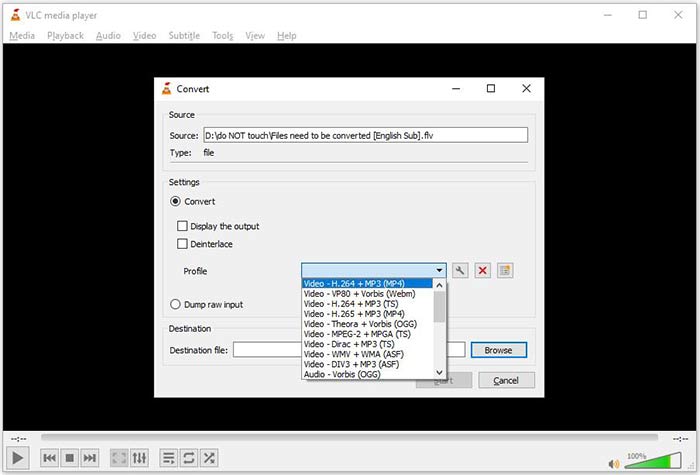
مرحله 6: با کلیک روی دکمه Browse پوشه خروجی را تعیین کنید. سپس روی دکمه Start کلیک کنید تا VLC فرمت FLV را به AVI تبدیل کند.
از دست ندهید:
- • 3 روش برتر برای تبدیل FLV به MOV
- • چگونه فیلم های FLV خود را به فایل های صوتی MP3 در دسک تاپ و آنلاین تبدیل کنیم
قسمت 2: نحوه تبدیل FLV به AVI آنلاین
گاهی فقط گاهبهگاه لازم است FLV را به AVI بهصورت آنلاین تبدیل کنید. علاوه بر این، برخی کاربران تمایلی به نصب نرمافزار ندارند. FVC Free Online Video Converter میتواند نیاز شما را برآورده کند. این ابزار بهصورت آنلاین کار میکند، اما برای تبدیل چند فایل FLV به AVI کاملاً کافی است. برخلاف بسیاری از برنامههای تحت وب دیگر، محدودیتی در اندازه فایل، واترمارک و موارد مشابه ندارد.
مرحله 1: هر زمان که نیاز به تبدیل ویدئو داشتید، در مرورگر خود به آدرس https://www.free-videoconverter.net/free-online-video-converter/ بروید. روی دکمه Add Files to Convert کلیک کرده و لانچر را دانلود کنید.
برای تبدیل دستهای فایلها، نسخهٔ دسکتاپ را دانلود کنید.
مرحله 2: پس از اتمام دانلود، لانچر بهصورت خودکار باز میشود. روی دکمه Add File در بالای سمت چپ کلیک کرده و فایلهای FLV مورد نظر برای تبدیل را بارگذاری کنید. سپس در پایین، فرمت AVI را انتخاب کنید.
برای تغییر وضوح تصویر (رزولوشن)، نرخ فریم و سایر پارامترها، روی آیکون Gear کلیک کنید تا پنجره تنظیمات پروفایل باز شود.
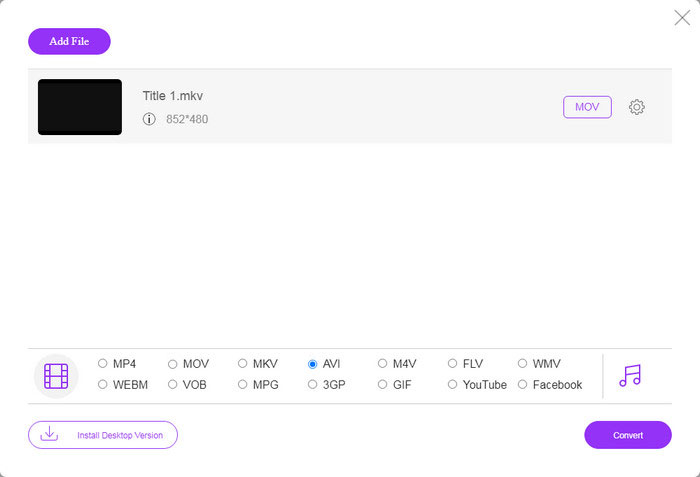
مرحله 3: پس از کلیک روی دکمه Convert، این برنامه تحت وب همانطور که میخواهید شروع به کار میکند. در صورت نمایش پیام، فایلهای ویدیویی AVI را روی هارد دیسک خود دانلود کنید.
در مقایسه با سایر مبدل های ویدئویی وب ، مبدل ویدیوی آنلاین رایگان به سرعت کار می کند ، اما شما به اتصال به اینترنت خوبی نیز نیاز دارید.
FLV در مقابل AVI
Adobe Flash Player از FLV برای ارائه محتوای ویدیویی مانند فیلم ها و برنامه های تلویزیونی استفاده می کرد. امروزه Adobe دیگر پخش کننده را توسعه نمی دهد و به کاربران توصیه می کند به دلایل امنیتی آن را حذف نصب کنند. با این حال، همچنان می توانید از فرمت FLV در بسیاری از برنامه های غیر Adobe/Macromedia استفاده کنید.
بر اساس فرمت فایل تبادل منابع (RIFF)، فرمت AVI توسط مایکروسافت در سال 1992 معرفی شد. این فرمت می تواند ویدئو/صوتی با کیفیت بالا را ذخیره کند زیرا از فشرده سازی کمتری استفاده می کند. اما این امر همچنین باعث بزرگی فایل AVI می شود که ممکن است در صورت وجود فضای محدود مشکل ساز شود.
قسمت 3: س FAالات متداول درباره FLV به AVI
چه مدت باید منتظر تبدیل FLV به AVI باشم؟
به موقعیت شما بستگی دارد. به طور کلی ، تبدیل فیلم ها روی دسک تاپ بسیار سریع است. برای ابزارهای آنلاین ، اتصال به اینترنت شما کارایی را تعیین می کند.
آیا تبدیل FLV به AVI بصورت آنلاین ایمن است؟
اکثر برنامه های مبدل FLV آنلاین قول می دهند که فیلم های شما را پس از تبدیل حذف کنند. با این حال ، نباید فیلم های خصوصی را بصورت آنلاین بارگذاری کنید ، مگر اینکه مطمئن باشید از برنامه وب برای استفاده 100% بی خطر است.
آیا AVI از FLV بهتر است؟
FLV یک فرمت ویدیویی با ضرر است در حالی که AVI فرمت ویدئویی فشرده نشده است. این بدان معنی است که فایل FLV در همان شرایط کوچکتر از AVI است. با این حال ، AVI کیفیت فیلم بهتری را ارائه می دهد. FLV برای به اشتراک گذاشتن آنلاین فیلم ها استفاده می شود ، در حالی که AVI گزینه خوبی برای ویرایش فیلم ها است.
نتیجه
این راهنما سه روش برای تبدیل فایلهای ویدئویی FLV به فرمت AVI را با نرم افزار دسک تاپ و برنامه وب به اشتراک گذاشته است. VLC هم یک پخش کننده رسانه رایگان است و هم مبدل فیلم ، اگرچه استفاده از آن دشوار است. علاوه بر این ، بدون نصب هیچ نرم افزاری می توانید کار را بصورت آنلاین انجام دهید. با این حال ، ما پیشنهاد می کنیم FVC Free FLV Converter را امتحان کنید زیرا کیفیت خروجی شگفت انگیز است. بعلاوه ، استفاده و پیمایش آن بسیار آسان است. اگر س otherالات دیگری در رابطه با تبدیل FLV به AVI دارید ، لطفاً زیر این پست پیام بگذارید.
-
 3 روش رایگان برای تبدیل FLV به WAV
 چگونه یک فایل FLV را تبدیل کنم؟ آیا VLC می تواند FLV را به WAV تبدیل کند؟ این پست 3 روش رایگان برای تبدیل FLV به WAV بدون افت کیفیت را بیان می کند.
-
 3 روش رایگان برای تبدیل FLV به MPG
 چگونه FLV را به MPEG تبدیل کنیم؟ آیا می توانم FLV را به MPG به صورت رایگان تبدیل کنم؟ این پست دارای 3 مبدل ویدیوی رایگان است که به شما کمک می کند FLV را بدون افت کیفیت به MPG تبدیل کنید.
-
 3 روش رایگان برای تبدیل FLV برای بازی در Xbox
 نمی توانید فایل های FLV را در Xbox One یا Xbox 360 پخش کنید؟ آیا نیاز به تبدیل FLV به قالب Xbox پشتیبانی شده مانند MP4 ، AVI ، MOV یا WMV دارید؟ در این پست لیست 3 مبدل FLV به Xbox رایگان برای بازی FLV در Xbox وجود دارد.

