


 Video Converter Ultimate
 ضبط صفحه
 تعمیر ویدیو
نحوه تبدیل و بارگذاری فایل های ویدیویی FLV در YouTube
“من همین الان یک فایل ویدیویی با پسوند .flv آپلود کردم، اما یک پیام هشدار دریافت کردم که میگفت فرمت فایل نامعتبر است. چطور میتوانم فایل FLV را در یوتیوب آپلود کنم؟” FLV فقط یک پسوند فایل نیست، بلکه یک کانتینر ویدیو هم محسوب میشود. یعنی یک فایل ویدیویی FLV میتواند انواع کُدک ویدیویی و صوتی مختلف را در خود ذخیره کند و بعضی از آنها توسط یوتیوب پشتیبانی نمیشوند. این مطلب هرآنچه باید درباره آپلود روان و بدون مشکل FLV در یوتیوب بدانید، به شما توضیح میدهد.

قسمت 1: کدک های ویدیویی و صوتی YouTube از چه چیزی پشتیبانی می کند
به گفته گوگل ، یوتیوب قالب پخش و همچنین پخش های MPEG-2 سازگار با DVD با پسوند .mpg را ترجیح می دهد. کدک های پشتیبانی شده توسط YouTube شامل موارد زیر هستند:
- MPEG-2
- کدک صوتی: MPEG Layer II یا Dolby AC-3
- بیتریت صدا: 128 کیلوبیت بر ثانیه یا بهتر
- MPEG-4
- کدک ویدیویی: H.264
- کدک صوتی: AAC
- بیتریت صدا: 128 کیلوبیت بر ثانیه یا بهتر
علاوه بر این ، YouTube فقط از ظرف WAV با صدای MP3 یا PCM ، MOV با صدای AAC و صدای FLAC پشتیبانی می کند. YouTube با رمزگذارهای مناسب از WMV ، AVI ، MOV ، MP4 و FLV پشتیبانی می کند.
وقتی صحبت از FLV می شود ، یوتیوب به فیلم های رمزگذاری شده با کدک ویدئویی Adobe-FLV1 همراه با MP3 و AAC صوتی دسترسی پیدا کنید. اگر ویدئوی FLV شما شامل صدای غیر فشرده یا صوتی ADPCM باشد ، YouTube آن را نمی پذیرد.
علاوه بر این ، قوانین بیشتری برای بارگذاری FLV در YouTube وجود دارد:
- پیشنهاد نرخ فریم: 24 تا 60
- وضوح تصویر را توصیه کنید: 1080p
- حداقل مدت زمان: 33 ثانیه
قسمت 2: ساده ترین راه ها برای تبدیل FLV به یوتیوب
روش 1: تبدیل FLV به YouTube در دسک تاپ
اگر هنگام آپلود فایل FLV در یوتیوب با خطا مواجه شدید، اولین کار این است که بهدنبال یک مبدل FLV بگردید، مانند FVC Free FLV Converter. این برنامه به شما امکان میدهد کُدکهای ویدیو و صدا و همچنین سایر پارامترها را تنظیم کنید تا فایلهای FLV خود را با قوانین یوتیوب منطبق کنید. علاوه بر این، از شتابدهی سختافزاری و چندریسمانی (multi-thread) برای بهبود کارایی استفاده میکند.
ویژگی های اصلی بهترین مبدل FLV برای یوتیوب
- 1. کدک های تصویری و صوتی FLV را به راحتی تنظیم کنید.
- 2. دسته ای فیلم های FLV نامحدود را همزمان انجام دهید.
- 3. هنگام تبدیل ، از کیفیت فیلم به طور خودکار محافظت کنید.
دانلود رایگانبرای ویندوز 7 یا بالاتردانلود امن
دانلود رایگانبرای مکاواس 10.7 یا بالاتردانلود امن
نحوه تبدیل FLV برای YouTube در دسک تاپ
مرحله 1: افزودن فایلهای FLV
پس از نصب بهترین مبدل FLV روی رایانه ، آن را راه اندازی کنید. روی منوی Add File (s) در سمت راست بالا کلیک کنید و فایلهای FLV را که می خواهید در YouTube بارگذاری کنید اضافه کنید.

مرحله 2: تغییر کُدکها
روی منوی کشویی کنار گزینه Output format در پایین کلیک کنید تا پنجره پروفایل باز شود. عبارت FLV را در کادر Search Profile وارد کرده و کلید Enter را روی صفحهکلید فشار دهید. سپس فرمت FLV را با کُدک ویدیویی و صوتی مناسب انتخاب کنید.
اگر ویدیوی FLV شما خیلی طولانی است، بهتر است آن را به چند کلیپ تقسیم کرده و سپس در یوتیوب آپلود کنید. میتوانید روی منوی Edit کلیک کنید تا پنجره ویرایشگر ویدیو باز شود.

مرحله 3: تبدیل FLV برای یوتیوب
سپس به قسمت پایین بروید و روی دکمه Open Folder کلیک کنید. یک پوشه مشخص را برای ذخیره ویدیوهای خروجی انتخاب کنید. در نهایت روی دکمه Convert کلیک کنید تا بلافاصله تبدیل FLV برای یوتیوب آغاز شود.

راه 2: FLV را به YouTube Online تبدیل کنید
اگر دوست ندارید نرمافزار مبدل ویدیو را روی هارددیسک خود نصب کنید، FVC Free Online Video Converter یک راهحل جایگزین مناسب است. این سرویس کاملاً رایگان است و هیچ محدودیتی، مثل واترمارک، ندارد. علاوه بر این، محدودیتی برای اندازه فایل هم در آن وجود ندارد. مراحل کار به این صورت است:
مرحله 1: در مرورگر خود به آدرس https://www.free-videoconverter.net/free-online-video-converter/ بروید و روی دکمه Add Files to Convert کلیک کنید تا لانچر دریافت شود.

مرحله 2: روی دکمه Add File کلیک کنید تا چند فایل FLV را آپلود کنید. سپس روی آیکون Gear فشار دهید تا پنجره پروفایل باز شود. در اینجا میتوانید Video Encoder و Audio Encoder را تنظیم کنید. برای تأیید، روی OK بزنید.

مرحله 3: یک فرمت پشتیبانیشده توسط یوتیوب را در پایین انتخاب کنید و روی دکمه Convert کلیک کنید تا تبدیل FLV برای یوتیوب آغاز شود. پس از اتمام، فایلهای خروجی را دانلود کنید.
از دست ندهید:
قسمت 3: نحوه بارگذاری FLV در YouTube
پس از تبدیل ، اکنون می توانید فایل های FLV خود را در رایانه خود در YouTube بارگذاری کنید. مراحل را در اینجا به اشتراک می گذاریم تا گم نشوید.
مرحله 1: به صفحه اصلی یوتیوب بروید و وارد حساب کاربری خود شوید.
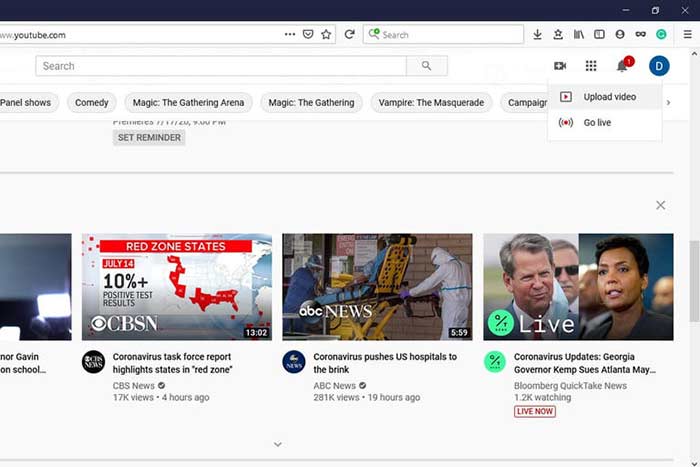
مرحله 2: روی آیکون Camcorder کلیک کرده و گزینه Upload video را انتخاب کنید تا وارد صفحه آپلود شوید.
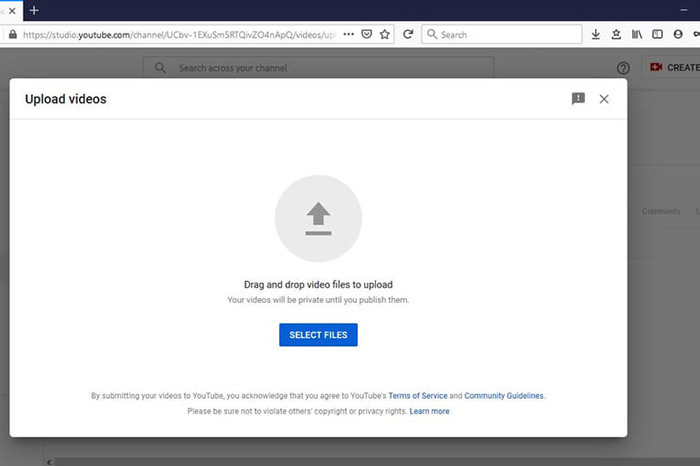
مرحله 3: روی دکمه بزرگ Select Files در صفحه کلیک کنید، سپس فایلهای FLV تبدیلشده برای یوتیوب را باز کنید. یا فایلهای FLV را بکشید و در صفحه رها کنید تا آپلود شوند.
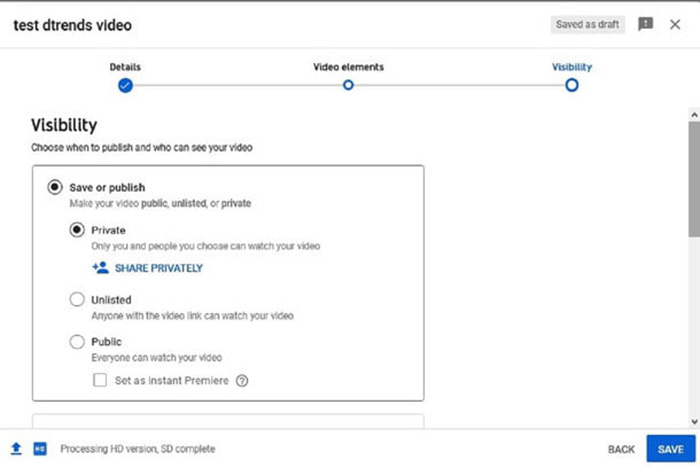
مرحله 4: سپس تنظیمات حریم خصوصی را مشخص کنید. بهطور پیشفرض روی Public قرار دارد، اما میتوانید آن را به Private، Schedule یا Unlisted تغییر دهید.
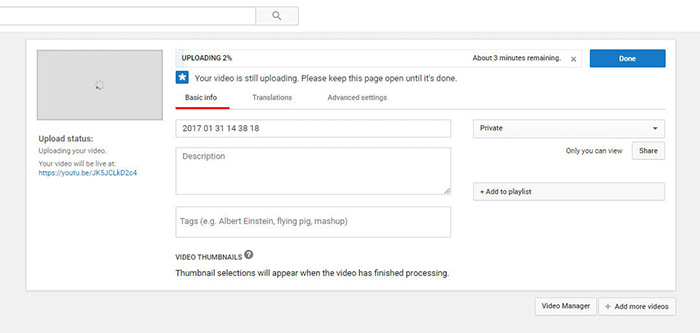
مرحله 5: پس از انجام تنظیمات، روی دکمه Save یا Publish کلیک کنید. سپس به صفحه Dashboard منتقل میشوید. در اینجا میتوانید ببینید که فایل FLV در حساب یوتیوب شما آپلود شده است.
قسمت 4: س FAالات متداول درباره FLV به YouTube
آیا می توانید FLV را در YouTube بارگذاری کنید؟
بله و خیر. YouTube از قالب ویدئویی FLV پشتیبانی می کند ، اما به عنوان یک ظرف ویدیویی ، فقط می توانید فایل های FLV را با کدک های صوتی و تصویری پشتیبانی شده بارگذاری کنید. در غیر این صورت ، این شکست است.
آیا می توانم فیلم های یوتیوب را به صورت FLV دانلود کنم؟
اگر ویدیوی یوتیوب دکمه دانلود را ارائه می دهد، می توانید روی آن کلیک کرده و فرمت FLV را به عنوان خروجی انتخاب کنید.
کدام قالب ویدئو برای YouTube بهتر است؟
MP4 بهترین قالب ویدیویی برای YouTube است. Google توصیه می کند از MP4 به همراه کدک ویدیویی H.256 و کدک صوتی AAC استفاده کنید. دلیل آن این است که کیفیت بالایی را با اندازه پرونده کوچکتر تولید می کند. علاوه بر این ، MOV ، WMV ، AVI ، FLV و 3GPP نیز در YouTube پشتیبانی می شوند.
نتیجه
این راهنما به شما گفته است که YouTube چه قالب های ویدیویی را می پذیرد و چگونه FLV را بدون مشکل در YouTube بارگذاری کنید. FVC Free FLV Converter می تواند به شما در تبدیل FLV برای یوتیوب کمک کرده و به شما امکان تنظیم کدک های صوتی و تصویری را به راحتی فراهم کند. حتی به مهارت فنی نیز احتیاج ندارد ، بنابراین مبتدیان می توانند به سرعت تسلط پیدا کنند. اگر هنگام بارگذاری ویدیو در YouTube با مشکلات دیگری مواجه شدید ، لطفاً زیر این پست پیام بگذارید.
-
 نحوه تبدیل فایلهای ویدئویی FLV به MP4 بدون پرداخت یک پنی
 این راهنما چهار روش رایگان برای تبدیل فایلهای ویدئویی FLV شما به فرمت MP4 در ویندوز 10/8/7 / XP و Mac OS X را به اشتراک می گذارد ، بنابراین می توانید از فیلم ها در هر دستگاهی لذت ببرید.
-
 چگونه فیلم های FLV خود را به فایل های صوتی MP3 در دسک تاپ و آنلاین تبدیل کنیم
 چگونه می توان FLV را به فایل MP3 تبدیل کرد؟ تنها کاری که باید انجام دهید این است که این مقاله را با دقت بخوانید ، روش مورد علاقه خود را پیدا کرده و راهنمای گام به گام ما را دنبال کنید تا به خواسته خود برسید.
-
 3 روش رایگان برای تبدیل FLV به WAV
 چگونه می توانم یک فایل FLV را تبدیل کنم؟ آیا VLC می تواند YouTube FLV را به WAV تبدیل کند؟ این پست 3 روش رایگان برای تبدیل FLV به WAV بدون افت کیفیت را بیان می کند.
