


 Video Converter Ultimate
 ضبط صفحه
 تعمیر ویدیو
2 روش کارآمد برای تبدیل فیلم های AVI به GIF به صورت رایگان
هر وقت بخواهید یک بخش اجرای جالب یا یک حالت چهره بامزه را از فیلمهای AVI محبوبتان جدا کنید و آن را بهصورت میم برای دوستانتان بفرستید، بهتر است ویدیوهای AVI را به فایلهای GIF تبدیل کنید. اگرچه ویدیوهای AVI با مرورگرها و بسیاری از پلتفرمها سازگارند، اما حجم بالای آنها ارسال سریع را دشوار میکند. بنابراین، تبدیل کلیپهای AVI به فایلهای GIF بهترین راه برای پخش کردن میمهاست. در واقع GIF یک قالب گرافیکی با حجم بسیار کم است و به همین دلیل برای انتشار در اینترنت بسیار مناسب است.
شاید شما کنجکاو باشید که آیا فرمت ویدیوی AVI می تواند به قالب گرافیکی GIF تبدیل شود یا خیر. پاسخ بله است. لطفاً این مقاله را بخوانید ، و شما دو روش آسان و کارآمد برای انتقال فیلم های AVI به پرونده های GIF خواهید آموخت.

قسمت 1: بهترین روش برای کلیپ فیلم های AVI و تبدیل فایلهای AVI به GIF به راحتی
وقتی میخواهید ویدیوهای طولانی AVI را به فایلهای GIF کوتاه تبدیل کنید تا میم بسازید یا آنها را به پاورپوینتتان اضافه کنید، باید ویدیوهای اصلی را برش دهید و فقط بخشهای موردنیاز را نگه دارید. بنابراین، FVC Free Video to GIF Maker بهترین انتخاب شماست، چون نرمافزاری چندمنظوره است که هم میتواند ویدیوها را برش دهد و هم بخشهای AVI را به GIF تبدیل کند. علاوه بر این، میتوانید وضوح (رزولوشن) ویدئوی GIF و نرخ فریم را تنظیم کنید تا روان بودن و کیفیت تصویر حفظ شود.
- 1. فیلم های AVI را به راحتی با 30 برابر سرعت پردازش سریعتر به پرونده های متحرک GIF تبدیل کنید.
- 2. قادر به کلیپ فیلم های اصلی AVI و انتخاب قسمت های مورد نظر برای تبدیل.
- 3. وضوح تصویر و نرخ فریم را سفارشی کنید تا GIF های روان با کیفیت بالا ایجاد کنید.
- 4- عملکرد ویرایش را برای افزودن مضامین ، جلوه ها ، علامت های آبی و زیرنویس ها فراهم کنید.
دانلود رایگانبرای Windows 7 یا بالاتردانلود ایمن
دانلود رایگانبرای MacOS 10.7 یا بالاتردانلود ایمن
مرحله 1: نرمافزار FVC Free Video to GIF Maker را روی کامپیوترتان دانلود و اجرا کنید. روی دکمه Add Files کلیک کنید تا ویدیوهای AVI موردنظر را انتخاب کرده و یک دسته از فایلهای AVI را به سازنده GIF اضافه کنید.
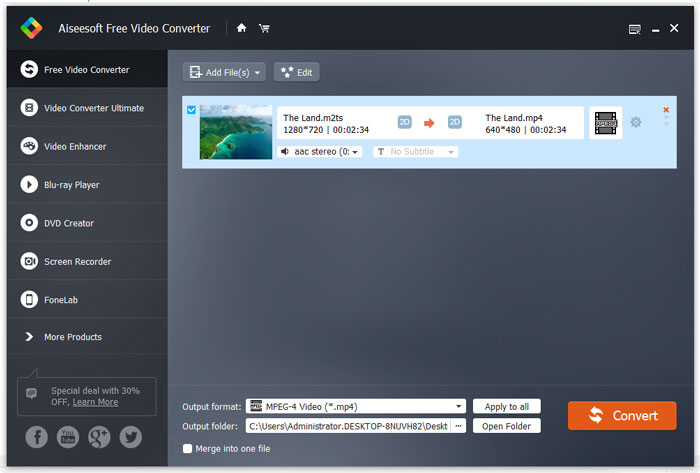
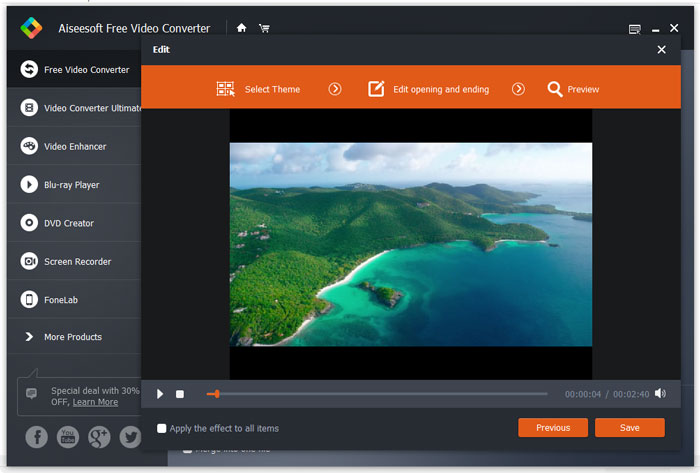
مرحله 2: برای بریدن بخش دلخواه و تبدیل آن به GIF، میتوانید از قابلیت Clip استفاده کنید. بهراحتی میتوانید نوار زمان را جابهجا کنید و بخش موردنظر را آزادانه برش دهید. علاوه بر این، میتوانید روی دکمه Edit کلیک کنید تا تمهای ازپیشتعریفشده و زیرنویسها را به ویدیو اضافه کنید. پیش از خروجی گرفتن نیز میتوانید پیشنمایش افکتها را ببینید. سپس روی دکمه Save کلیک کنید تا تنظیمات ذخیره شوند.
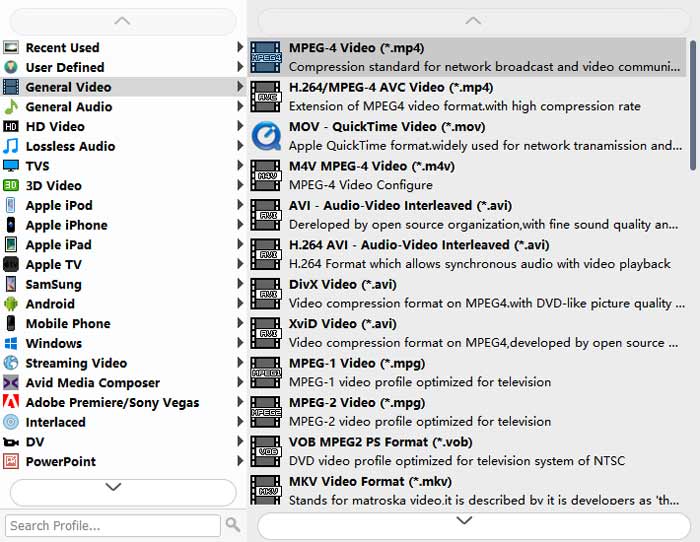
مرحله 3: پس از بازگشت به رابط اصلی، روی منوی Output Format در پایین کلیک کرده و فرمت GIF را برای خروجی بگیرید. اگر هنوز میخواهید تنظیمات جزئی را تغییر دهید، روی آیکون Settings کنار ویدیوها کلیک کنید. سپس میتوانید وضوح اصلی ویدیو را حفظ کرده و نرخ فریم را بهصورت دلخواه تنظیم کنید. برای تبدیل همزمان یک دسته ویدیوی AVI به GIF، فراموش نکنید روی دکمه Apply to all کلیک کنید. در نهایت روی دکمه Convert کلیک کنید تا فایلهای GIF ذخیره شوند.
میتوانید همینجا بمانید و تفاوت بین AVI و MP4 را پیدا کنید.
قسمت 2: چگونه فیلم های AVI را به صورت فایلهای GIF بصورت آنلاین تبدیل کنیم
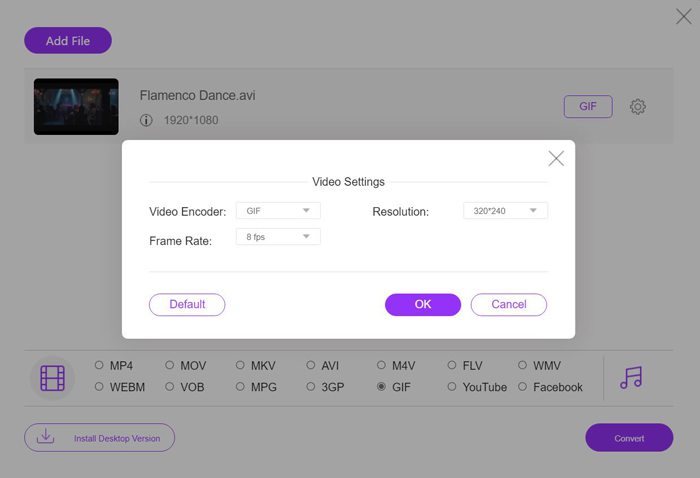
یک مبدل ویدئوی آنلاین رایگان و ساده نیز برای شما وجود دارد. بدون نیاز به دانلود هیچ نرمافزاری، میتوانید با استفاده از FVC Free Online Video Converter بهراحتی AVI را به فایلهای GIF متحرک تبدیل کنید. هرچند میتوانید پارامترهای ویدیو را هم تنظیم کنید، اما برای فایلهای GIF تنها حداکثر وضوح 320x240 و نرخ فریم 8 fps را ارائه میدهد که منجر به ایجاد GIFهایی با روانی و کیفیت پایین میشود. همچنین باید از قبل ویدیوها را برش دهید، چون این ابزار از بریدن ویدیو پشتیبانی نمیکند. مراحل دقیق در ادامه معرفی شده است:
مرحله 1: وبسایت رسمی FVC Free Online Video Converter را در هر مرورگری باز کنید. روی دکمه Add Files to Convert کلیک کنید تا لانچر در چند ثانیه نصب شود، سپس دوباره روی این دکمه کلیک کنید و فایلهای ویدیویی موردنظر را از کامپیوترتان انتخاب کرده و به مبدل اضافه کنید.
برای تبدیل دستهای فایلها، نسخهٔ دسکتاپ را دانلود کنید.
مرحله 2: فرمت GIF را در فهرست ویدیوهای پایین صفحه انتخاب کنید، سپس روی آیکون Settings کلیک کنید تا وضوح و نرخ فریم ویدیو را برگزینید. بهدلیل وجود محدودیت، بهتر است حداکثر تنظیمات را انتخاب کنید تا حد امکان کیفیت حفظ شود. سپس روی دکمه OK کلیک کنید تا تنظیمات ذخیره شوند. و در پایان، روی دکمه Convert کلیک کنید تا مسیر ذخیرهسازی را انتخاب کرده و تبدیل AVI به GIF را آغاز کنید.
AVI در مقابل GIF
بر اساس فرمت فایل تبادل منابع (RIFF)، فرمت AVI توسط مایکروسافت در سال 1992 معرفی شد. این فرمت می تواند ویدئو/صوتی با کیفیت بالا را ذخیره کند زیرا از فشرده سازی کمتری استفاده می کند. اما این امر همچنین باعث بزرگی فایل AVI می شود که ممکن است در صورت وجود فضای محدود مشکل ساز شود.
GIF یک فرمت تصویر رایج برای گرافیک های وب است. علاوه بر ذخیره تصاویر کوچک و تصاویر حاوی متن، GIF همچنین میتواند انیمیشنهای اصلی را در وبسایتها نمایش دهد. این یک فرمت بدون تلفات است و فشرده سازی GIF وضوح تصویر را کاهش نمی دهد.
قسمت 3: س FAالات متداول در تبدیل AVI به پرونده های متحرک GIF
1. آیا می توانم هنگام تبدیل فیلم های AVI به GIF ، کلمات یا علامت های آبی اضافه کنم؟
بله، تو میتونی. از طریق FVC Free Video به GIF Maker ، می توانید هنگام تبدیل فیلم های AVI به GIF ، از ویژگی ویرایش برای اضافه کردن زیرنویس ، علامت های آبی و مضامین به پرونده های صادر کننده استفاده کنید. علاوه بر این ، می توانید فیلم های اصلی را به صورت آزاد در چندین بخش کلیپ کنید.
2. آیا تبدیل AVI به GIF متحرک به کیفیت فیلم آسیب می رساند؟
آره. فرمت GIF برای پخش پرونده ها در اینترنت طراحی شده است ، بنابراین فیلم های فشرده شده با فرمت GIF همیشه دارای اندازه های بسیار کوچک و کیفیت پایین هستند. و فرمت AVI سرعت فشرده سازی کمی دارد ، بنابراین فیلم های AVI دارای اندازه های بزرگ و با کیفیت بالا هستند.
3. آیا تبدیل فیلم های AVI به GIF بصورت آنلاین ایمن است؟
البته بی خطر است. پس از اتمام مراحل تبدیل ، FVC Free Video Converter Online فایلهای واردات و صادرات شما را ذخیره نمی کند. بنابراین می توانید با اطمینان از این مبدل برای انتقال فایل های AVI به GIF استفاده کنید.
نتیجه
فایل های GIF برای پخش در اینترنت بهتر از فیلم های AVI است. و در این مقاله 2 راه حل کارآمد برای تبدیل فیلم های AVI به پرونده های GIF معرفی شده است. نرم افزار حرفه ای - FVC Free Video to GIF Maker با تنظیمات سفارشی و کیفیت بالا تمام نیازهای شما را برآورده می کند. اما اگر به کیفیت اهمیت نمی دهید ، می توانید مبدل آنلاین رایگان را به راحتی امتحان کنید. خوش آمدید تا نظرات و توصیه های خود را در زیر بنویسید
-
 راهنمای گام به گام تبدیل MP4 به GIF در دسک تاپ یا آنلاین
 به دنبال بهترین راه برای تبدیل فیلم MP4 خود به GIF متحرک هستید؟ در اینجا یک راهنمای دقیق برای انجام آن در فتوشاپ ، Windows Movie Maker ، مبدل ویدیوی آنلاین و موارد دیگر آورده شده است.
-
 نحوه تبدیل AVI به MP4 در دسک تاپ یا آنلاین به صورت رایگان
 گاهی اوقات هنگام تماشای فیلم با تلفن ، پخش کننده ای که ما از آن استفاده می کنیم باعث می شود که ویدیو پخش نشود زیرا از فرمت AVI پشتیبانی نمی کند. بنابراین چگونه می توان سریع و بدون افت کیفیت ، AVI را به MP4 تغییر داد؟ در اینجا چندین روش رایگان وجود دارد که می توانید امتحان کنید.
-
 GIF Player - 5 بهترین بازیکن GIF برای ویندوز PC ، Mac ، Android و iPhone
 چه برنامه ای فایل های GIF را باز می کند؟ چگونه می توانم GIF ها را در Android مشاهده کنم؟ آیا آیفون دارای پخش کننده GIF برای باز کردن GIF ها است؟ این پست 5 بهترین بازیکن GIF را برای شما به اشتراک می گذارد.

