


 Video Converter Ultimate
 ضبط صفحه
 تعمیر ویدیو
3 روش برای افزودن پس زمینه به عکس آنلاین، در آیفون، اندروید و کامپیوتر
هنگام ویرایش یک تصویر، اغلب لازم است پسزمینه اصلی را حذف کرده و یک پسزمینه متفاوت به آن اضافه کنید. برای تصویری با پسزمینه شفاف، میتوانید بهراحتی با استفاده از یک ویرایشگر تصویر، پسزمینه را تغییر دهید. در بیشتر موارد، باید ابتدا پسزمینه فعلی را حذف کرده و سپس یک پسزمینه جدید به عکس اضافه کنید. آیا بهدنبال یک برنامه ویرایش تصویر خوب هستید تا به یک عکس پسزمینه اضافه کنید؟
این پست 3 روش موثر برای افزودن پس زمینه به عکس را بیان می کند. چه بخواهید مستقیماً به صورت آنلاین پسزمینه سفید را به عکس اضافه کنید، چه بخواهید پسزمینه عکس را در آیفون اضافه کنید یا پسزمینه تصویر را در دستگاه اندرویدی تغییر دهید، میتوانید از روش خاصی برای این کار پیروی کنید.

قسمت 1. چگونه به رایگان پس زمینه به عکس آنلاین اضافه کنید
برای افزودن سریع پسزمینه به یک عکس، میتوانید ابتدا برخی ویرایشگرهای آنلاین تصویر را امتحان کنید. در اینجا ما بهشدت حذفکننده پسزمینه رایگان آنلاین را که کار کردن با آن بسیار آسان است، به شما توصیه میکنیم تا پسزمینه اصلی تصویر خود را حذف کرده و یک پسزمینه متفاوت به آن اضافه کنید. این ابزار رایگان تغییر پسزمینه تصویر، از تمام فرمتهای پرکاربرد مانند JPG، PNG، GIF و موارد دیگر پشتیبانی میکند. این ابزار راهی ساده برای افزودن پسزمینه سفید به یک عکس یا جایگزینی پسزمینه فعلی با تصویری دیگر در اختیارتان میگذارد.
مرحله 1. مرورگر وب خود مانند Chrome، Safari، Yahoo، IE یا Firefox را باز کرده و به این سایت تغییر پسزمینه رایگان عکس بروید. وقتی وارد صفحه شدید، میتوانید بهسادگی روی دکمه Upload Portrait کلیک کنید تا عکس خود را برای ویرایش بعدی انتخاب و اضافه کنید.

مرحله 2. با استفاده از فناوری پیشرفته هوش مصنوعی، این ابزار بهطور خودکار سوژه اصلی تصویر آپلودشده شما را تشخیص میدهد. سپس میتوانید با استفاده از قابلیت Keep یا Erase ویرایشهای بیشتری انجام دهید.
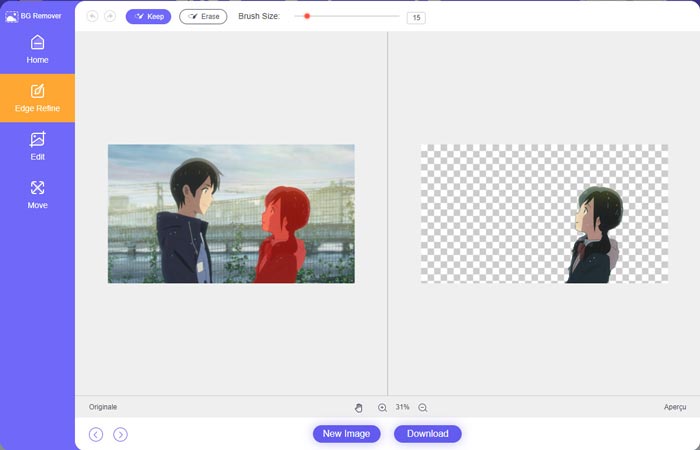
مرحله 3. روی گزینه Edit در سمت چپ کلیک کنید و سپس میتوانید رنگ پسزمینه را عوض کنید یا به عکس پسزمینه اضافه کنید. در این مرحله، میتوانید با تکیه بر قابلیت Crop اندازه تصویر را مطابق نیازتان تنظیم کنید.
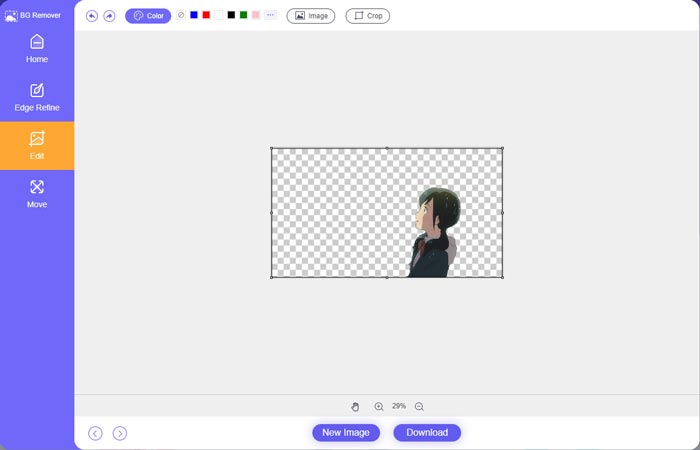
مرحله 4. پس از آنکه یک پسزمینه مناسب به عکس اضافه کردید، میتوانید روی دکمه Download کلیک کنید تا آن را در رایانه خود ذخیره کنید. فایل تصویر ویرایششده شما بهطور پیشفرض در قالب PNG ذخیره خواهد شد.
قسمت 2. چگونه با استفاده از Adobe Photoshop یک پس زمینه به عکس اضافه کنیم
ادوبی فتوشاپ یکی از معروف ترین ویرایشگرهای تصویر است که ویژگی های زیادی برای ویرایش تصاویر، افکت های سفارشی و انجام عملیات های دیگر برای شما به همراه دارد. اگر فتوشاپ را روی رایانه خود نصب کرده اید، می توانید انتخاب کنید که پس زمینه عکس را در فتوشاپ اضافه کنید.
مرحله 1. نرمافزار Photoshop را در رایانه خود باز کرده و عکس خود را به آن اضافه کنید. میتوانید آخرین نسخه Photoshop را بهصورت رایگان از وبسایت رسمی Adobe دانلود کنید. توجه داشته باشید که Adobe فقط یک دوره آزمایشی ۷روزه رایگان برای استفاده از Photoshop ارائه میدهد.
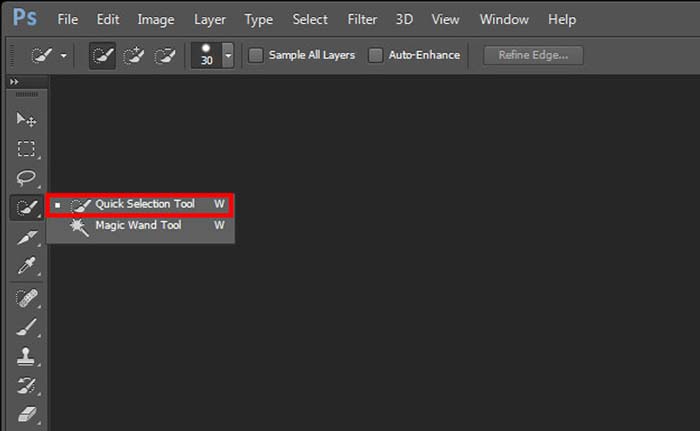
مرحله 2. هنگامی که عکس شما در Photoshop بارگذاری شد، میتوانید روی آیکون Quick Selection Tool یا Magic Wand Tool در جعبهابزار سمت چپ کلیک کنید تا پسزمینهای را که میخواهید تغییر دهید انتخاب کنید.
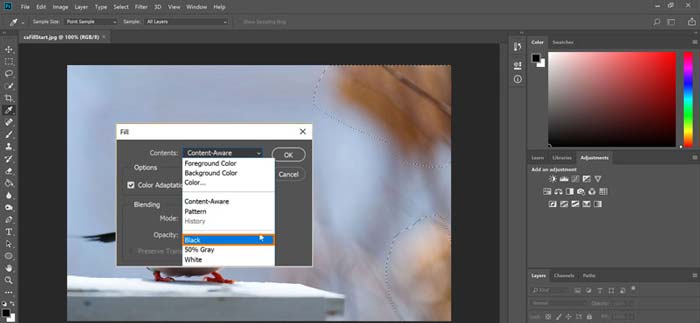
مرحله 3. پس از انتخاب پسزمینه عکس، میتوانید روی آن راستکلیک کرده و گزینه Fill را انتخاب کنید. اکنون میتوانید بهسادگی پسزمینه سفید به عکس اضافه کنید یا رنگ پسزمینه را به رنگ دیگری مانند مشکی، آبی، خاکستری یا هر رنگ موردنیاز خود تغییر دهید.
مرحله 4. اگر میخواهید یک تصویر جدید را بهعنوان پسزمینه اضافه کنید، ابتدا باید پسزمینه انتخابشده را حذف کنید. میتوانید با فشردن کلید Delete روی صفحهکلید خود، از شر پسزمینه فعلی خلاص شوید. سپس میتوانید فایل تصویر را به Photoshop اضافه کرده و لایه آن را زیر لایه پسزمینه قرار دهید. با این کار، میتوانید بهراحتی پسزمینه اصلی را با یک تصویر جدید جایگزین کنید.
مرحله 5. پس از آنکه در Photoshop به یک عکس پسزمینه اضافه کردید، میتوانید روی منوی File در بالا کلیک کرده و سپس از فهرست کشویی گزینه Save As را انتخاب کنید. فرمت مناسب تصویر را برای این عکس برگزینید و آن را در رایانه خود ذخیره کنید.
قسمت 3. نحوه اضافه کردن پس زمینه به عکس در آیفون و تلفن اندروید
وقتی میخواهید پسزمینه عکسی را در آیفون، آیپد یا گوشی اندرویدی اضافه کنید، باید یک برنامه ویرایشگر پسزمینه تصویر خوب پیدا کنید.
LightX یک اپلیکیشن ویرایش عکس کامل برای کاربران iOS و Android است. این برنامه امکان حذف آسان پسزمینههای ناخواسته، افزودن پسزمینه جدید به عکس، افزودن افکتهای مختلف، ساخت سلفیهای باکیفیت و موارد بیشتر را مستقیماً روی گوشی به شما میدهد. ابزارهای پیشرفته بسیاری برای ویرایش تصویر در برنامه LightX طراحی شدهاند؛ مانند ترکیب رنگ، اشباع سفارشی عکس، کنتراست، تهرنگ (Hue)، منحنیها (Curves) و موارد دیگر. میتوانید آن را از App Store یا Google Play Store دانلود کنید.
مرحله 1. برنامه LightX را روی iPhone، iPad یا گوشی Android خود نصب و باز کنید. اجازه دسترسی این برنامه به عکسهای موجود در دستگاهتان را بدهید. عکس خود را برای ویرایش پسزمینه بعدی به آن اضافه کنید.
مرحله 2. برای حذف پسزمینه فعلی عکس و تغییر آن به چیزی دیگر، میتوانید به سمت چپ سوایپ کنید تا گزینههای مختلف ظاهر شوند. در بخش Creative، میتوانید قابلیت Cutout را برای افزودن پسزمینه به عکس انتخاب کنید. اکنون باید سوژه اصلی را بهصورت دستی انتخاب کرده و پسزمینه اصلی را پاک کنید.
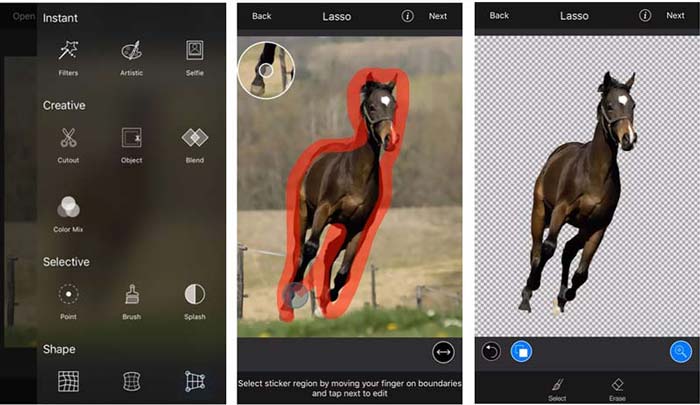
مرحله 3. پس از حذف پسزمینه، میتوانید روی Next در گوشه بالا-راست ضربه بزنید تا ادامه دهید. سپس میتوانید با استفاده از قابلیت Crop اندازه تصویر را تغییر دهید. روی Done ضربه بزنید تا عملیات خود را تأیید کنید. بعد از آن، میتوانید در پایین صفحه روی BG Image ضربه بزنید تا یک پسزمینه متفاوت به عکس اضافه کنید. شما میتوانید افکتهای پسزمینه جدید را آزادانه و مطابق نیاز خود تنظیم کنید.
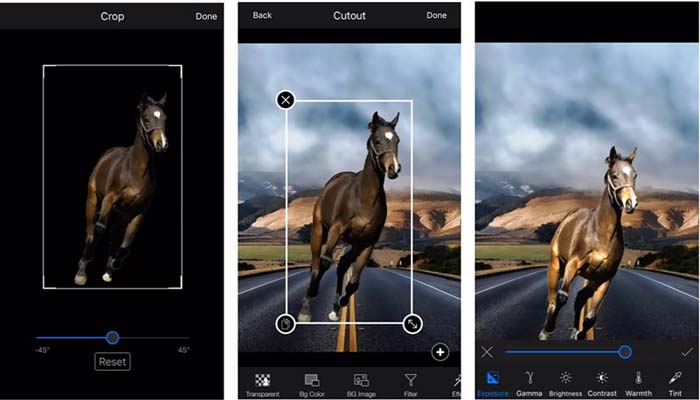
چه از یک دستگاه iOS یا Android استفاده می کنید، می توانید مراحل مشابهی را برای افزودن پس زمینه به عکس با استفاده از برنامه LightX دنبال کنید. توجه داشته باشید که به عنوان یک کاربر iOS، باید $3.99 برای این برنامه افزودن پسزمینه بپردازید. اگر کاربر اندروید هستید، می توانید آن را از فروشگاه گوگل پلی نصب کنید. برای ارتقاء به نسخه پریمیوم، باید همان قیمت را بپردازید.
مرتبط:
وضوح ویدیو چیست: نگاهی عمیق به رزولوشن و نکات بیشتر
۶ فیلتر متحرک محبوب اسنپچت در اسنپچت
بخش 4. سوالات متداول نحوه افزودن پس زمینه به عکس
چگونه یک پس زمینه متفاوت به یک عکس در مک خود اضافه کنم؟
میتوانید از دو روش اول برای تغییر ساده پسزمینه عکس خود در Mac استفاده کنید. علاوه بر حذفکننده پسزمینه رایگان آنلاین و Adobe Photoshop توصیهشده، میتوانید برای افزودن یک پسزمینه جدید به عکس خود، به سایر ویرایشگرهای تصویر نیز تکیه کنید.
چگونه تصویر زمینه آیفون را تغییر دهیم؟
iOS یک راه ساده برای تغییر تصویر زمینه در آیفون یا آی پد ارائه می دهد. می توانید به برنامه تنظیمات بروید، روی گزینه Wallpaper ضربه بزنید و سپس روی Choose a New Wallpaper ضربه بزنید.
آیا می توانم به یک عکس زنده در آیفون خود پس زمینه اضافه کنم؟
خیر. آیفون راه مستقیمی برای تغییر پسزمینه یک عکس زنده به شما پیشنهاد نمیکند. شما فقط مجاز به برش دادن آن، اعمال فیلترها، تنظیم جلوه ها و تغییر آن به تصویر ثابت هستید.
نتیجه
در این پست 3 روش مفید برای افزودن پس زمینه به عکس به اشتراک گذاشته شده است. هنگامی که نیاز به حذف پسزمینه اصلی عکس و اضافه کردن یک پسزمینه جدید به آن دارید، میتوانید ویرایشگر تصویر دلخواه خود را برای انجام این کار انتخاب کنید.
-
 3 روش برتر برای افزودن فیلتر به GIF با بهترین ویرایشگرهای GIF [مورد علاقه]
 آیا می خواهید بدانید که چگونه یک فیلتر به GIF اضافه کنید تا آن را بهتر کنید؟ در این وبلاگ به راحتی تکنیک های مختلف برای افزودن فیلتر به فایل های GIF خود را یاد خواهید گرفت.
-
 3 ساده ترین راه برای افزودن واترمارک به GIF آنلاین و آفلاین
 اگر به درستی از ابزار مناسب استفاده کنید، افزودن واترمارک به یک GIF می تواند به آسانی 1-2-3 باشد. ابزارهای موجود در بازار بیش از حد گسترده هستند، اما ما سه ابزاری را که میتوانید به آنها وابسته باشید، ارائه میکنیم.
-
 5 بهترین راه برای تغییر تصویر به GIF متحرک [به روز رسانی 2022]
 آیا نیاز به تبدیل تصویر به GIF دارید؟ این مقاله پنج بهترین مبدل را که میتوانیم در بازار پیدا کنیم، ارائه میکند. بنابراین، بیایید با خواندن این مقاله به این ابزارها پی ببریم.
