


 Video Converter Ultimate
 ضبط صفحه
 تعمیر ویدیو
Adobe Resize Images - ساده ترین راه برای تغییر اندازه تصویر به صورت آنلاین و آفلاین
اگر میخواهید در ادوبی اندازهٔ تصاویر را تغییر دهید، ما راهحلی داریم که به دنبالش هستید. ادوبی نامی مشهور در حوزهٔ برنامههای ویرایش تصویر و ویدیو است. ادوبی برنامههای زیادی دارد که میتوانید با آنها تصاویر و ویدیوها را بهبود دهید، برش بزنید، ویرایش کنید و کارهای بسیار دیگری انجام دهید؛ هرچه بخواهید! ادوبی تقریباً برای هر نوع ویرایش عکس و ویدئو یک برنامه دارد. اما آیا میدانستید ادوبی یک برنامهٔ مخصوص تغییر اندازهٔ تصویر هم دارد؟ درست خواندید! Adobe Express یک ابزار آنلاین برای تغییر اندازهٔ تصویر است. و اگر میخواهید بهصورت آفلاین این کار را انجام دهید، میتوانید از Adobe Photoshop استفاده کنید. در ادامه، این ابزارها را معرفی میکنیم و به شما آموزش میدهیم چطور با استفاده از Adobe Express و Adobe Photoshop اندازهٔ تصاویر را تغییر دهید.
قسمت 1. نحوه تغییر اندازه تصویر در Adobe Express Online
اگر دوست دارید از تغییر اندازه تصویر آنلاین استفاده کنید، ابزارهای زیادی وجود دارد که می توانید در اینترنت جستجو کنید. با این حال، جستجو در اینترنت گاهی اوقات بهترین انتخاب نخواهد بود زیرا ابزارهایی وجود دارند که خروجی های با کیفیت عالی ارائه نمی دهند. همچنین، بسیاری از افراد در حال جستجوی آنلاین تصاویر تغییر اندازه در Adobe Photoshop هستند. مشکل اینجاست که Adobe Photoshop نسخه آنلاین ندارد. بنابراین، یک ابزار Adobe دیگر برای تغییر اندازه یک تصویر ارائه خواهیم کرد.
Adobe Express احتمالاً بهترین ابزار آنلاین تغییر اندازهٔ تصویر است که میتوانید در اینترنت پیدا کنید. این برنامهٔ آنلاین به شما اجازه میدهد با انتخاب یکی از پیشتنظیمهای مقیاسدهی، اندازهٔ تصویر را تغییر دهید. میتوانید بین نسبتهای 9:16 (استوری)، 1:1 (مربع)، 4:5 (پرتره) و 1.91:1 (افقی/لنداسکیپ) انتخاب کنید. علاوه بر این، رابط کاربری سادهای دارد که آن را به ابزاری کاربرپسند تبدیل میکند. همچنین میتوانید با نگهداشتن و کشیدن اسلایدر، تصویر خود را بهصورت دستی مقیاسدهی کنید. افزون بر این، اگر میخواهید تصویری را برای اینستاگرام، فیسبوک، توییتر یا پینترست تغییر اندازه دهید، Adobe Express در این کار به شما کمک خواهد کرد. با این حال، برخلاف دیگر برنامههای ویرایشی ادوبی، این ابزار قابلیتهای ویرایشی دیگری ندارد.
نحوه تغییر اندازه یک تصویر با استفاده از Adobe Express:
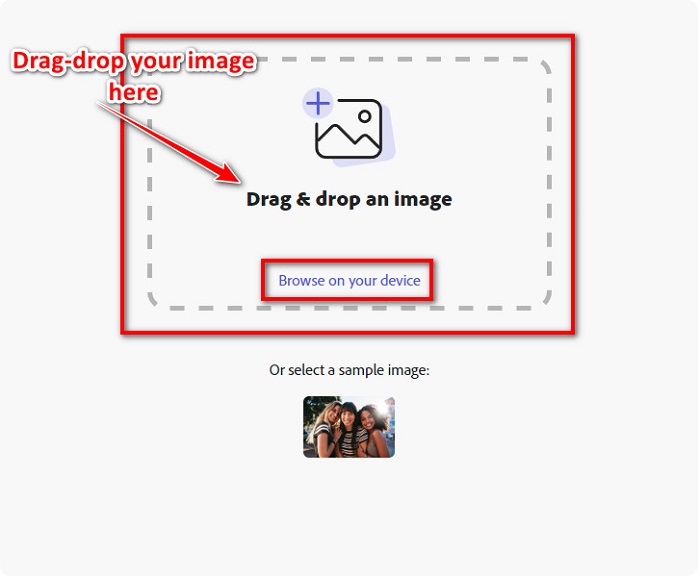
مرحله ۱. مرورگر خود را باز کرده و در کادر جستوجو عبارت Adobe Express image resizer را جستوجو کنید. سپس روی دکمهٔ Upload your Photo در رابط کاربری اصلی کلیک کنید تا تصویری را که میخواهید تغییر اندازه دهید، بارگذاری کنید.
مرحله ۲. سپس تصویر خود را از پوشههای رایانه به داخل صفحه بکشید و رها کنید (drag and drop). همچنین میتوانید روی دکمهٔ Browse on your device کلیک کنید تا تصویر را انتخاب و بارگذاری کنید.
مرحله ۳. در نهایت، با کلیک روی فلش کشویی کنار Resize for انتخاب کنید که برای کجا میخواهید اندازه را تغییر دهید. سپس در سمت چپ رابط، اندازهٔ دلخواه خود را انتخاب کنید. همچنین میتوانید با نگهداشتن و کشیدن اسلایدر زیر پیشتنظیمهای اندازه، تصویر را بهصورت دستی تغییر اندازه دهید.
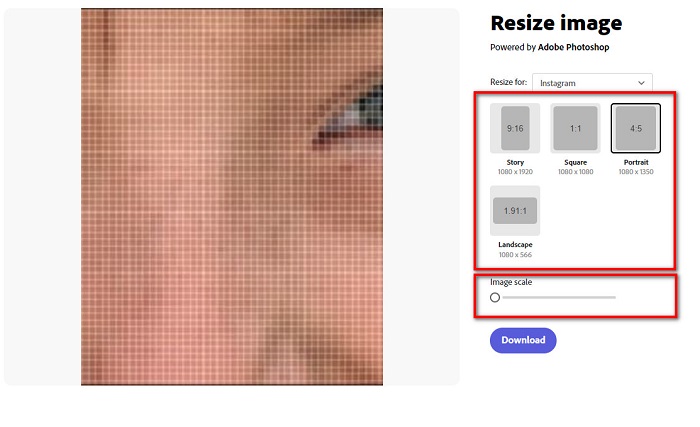
مرحله ۴. روی دکمهٔ Download کلیک کنید تا تصویر تغییر اندازهدادهشده را دانلود کنید.
قسمت 2. نحوه تغییر اندازه تصویر با استفاده از Adobe Photoshop Offline
با وجود این، استفاده از یک ابزار آنلاین خوب است زیرا به شما امکان می دهد در فضای دستگاه خود صرفه جویی کنید، اما همچنان بهترین انتخاب برای استفاده از ابزار آفلاین است. اکثر تغییر اندازهدهندههای تصویر آفلاین دارای ویژگیهای ویرایش بسیاری هستند. همچنین مزیت استفاده از ابزارهای آفلاین این است که برای تغییر اندازه تصویر خود نیازی به دسترسی به اینترنت ندارید. در این قسمت برجستهترین تغییر اندازهدهنده ویدیوی آفلاین را ارائه میکنیم.
Adobe Photoshop بهترین برنامهٔ ویرایش عکس است که میتوانید روی رایانهٔ خود داشته باشید. این برنامهٔ ویرایش عکس ابزارها و قابلیتهای زیادی دارد که میتوانید برای ویرایش تصاویر از آنها استفاده کنید. علاوه بر این، میتوانید از این ابزار برای تغییر اندازهٔ هر تصویری استفاده کنید. این برنامه به شما امکان میدهد تصاویر دیجیتال، طراحیها، نقاشیها و انیمیشنها را بهبود دهید و آنها را برای اهداف تجاری به کار ببرید. همچنین بسیاری از متخصصان از این برنامهٔ ویرایش تصویر به دلیل قابلیتها و کیفیت خروجی آن استفاده میکنند.
علاوه بر این، می توانید از این برنامه برای افزودن متن، ایجاد سه بعدی و افزودن وضوح به تصویر خود استفاده کنید. اما نقطه ضعف Adobe Photoshop این است که قبل از استفاده از برنامه باید آن را خریداری کنید. و همچنین استفاده از آن سخت است، به خصوص برای مبتدیان. با این وجود، این برنامه ارزش قیمتش را دارد و مطمئنا از استفاده از این برنامه لذت خواهید برد.
نحوه تغییر اندازه تصاویر با استفاده از Adobe Photoshop به صورت آفلاین:
مرحله ۱. برنامهٔ Adobe Photoshop را روی دستگاه خود دانلود کنید. سپس مراحل نصب برنامه را دنبال کرده و آن را روی دستگاه خود اجرا کنید.
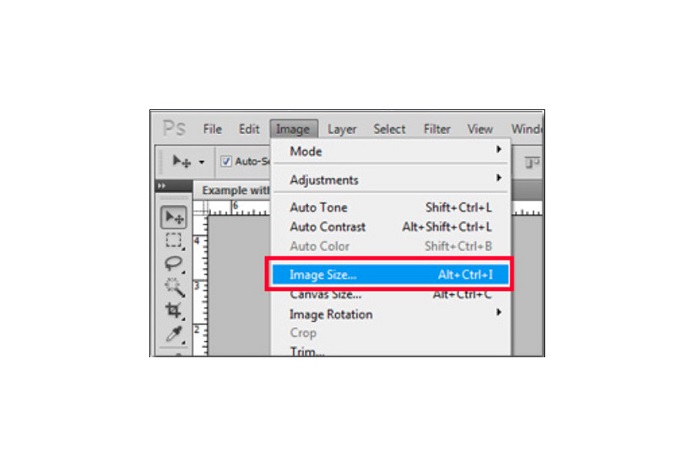
مرحله ۲. تصویر خود را در فتوشاپ باز کنید، سپس در بالای سمت چپ رابط کاربری به منوی Image بروید. بعد گزینهٔ Image Size را انتخاب کنید.
مرحله ۳. در مرحلهٔ بعد، پنجرهٔ جدیدی ظاهر میشود که باید در آن، تیکِ جعبهٔ کنار Constrain Proportions را فعال کنید.
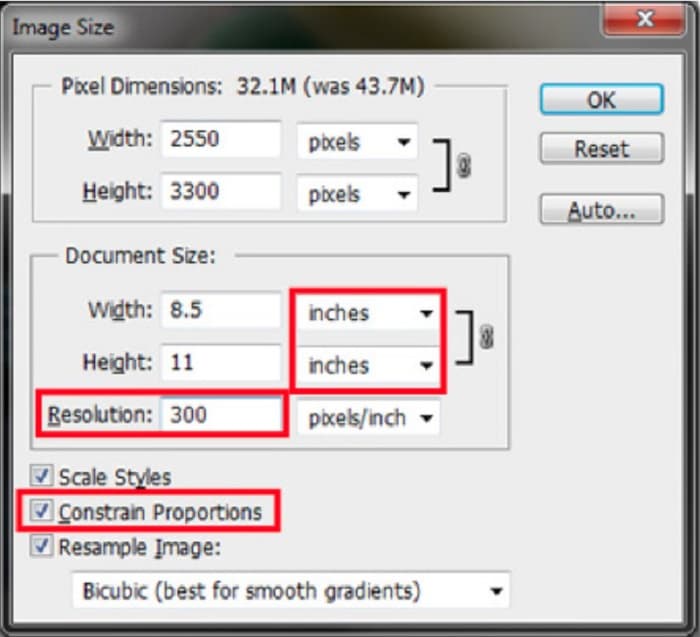
مرحله ۴. و در بخش Document Size، واحد اندازهگیری را روی اینچ قرار دهید. مطمئن شوید وضوح (Resolution) کمتر از ۲۰۰ پیکسل در اینچ نباشد.
مرحله ۵. عرض (width) و ارتفاع (height) مورد نظر خود را برای تصویر وارد کنید. سپس روی دکمهٔ OK کلیک کنید تا تغییرات ذخیره شوند.
مرحله ۶. در پایان، فایل خود را روی رایانه ذخیره (save) کنید.
حالا که یاد گرفتید چطور با استفاده از بهترین ابزار تغییر اندازهٔ عکس ادوبی، اندازهٔ تصویر را تغییر دهید، یک ابزار جایگزین برای تغییر اندازهٔ تصویر به شما معرفی میکنیم.
قسمت 3. جایگزینی برای Adobe Photoshop در تغییر اندازه تصاویر
از آنجایی که Adobe Photoshop یک ابزار کاربرپسند نیست، ما به دنبال جایگزینی برای تغییر اندازه تصویر خود هستیم. بنابراین، ما یک برنامه نرم افزاری ارائه می دهیم که می توانید آن را در دستگاه ویندوز یا مک خود دانلود کنید. ما همچنین به شما یاد خواهیم داد که چگونه با استفاده از این برنامه نهایی، اندازه یک تصویر را تغییر دهید.
FVC Free Image Resizer یک ابزار آنلاین قدرتمند تغییر اندازهٔ تصویر دیگر است که اگر بخواهید اندازهٔ تصویر خود را عوض کنید میتوانید از آن استفاده کنید. همچنین میتوانید از برنامههای تغییر اندازهٔ تصویر برای بهبود کیفیت عکس خود استفاده کنید، و این دقیقاً کاری است که FVC Free Image Resizer انجام میدهد. این ابزار آنلاین میتواند تصویر شما را تا بزرگنمایی 2x، 4x، 6x و 8x ارتقا دهد. علاوه بر این، از همهٔ فرمتهای تصویری مانند JPG، JPEG، PNG و BMP پشتیبانی میکند. نکتهٔ جالبتر این است که این برنامه رابط کاربری بسیار ساده و قابل فهمی دارد. افزون بر آن، از فناوری هوش مصنوعی استفاده میکند که بهطور خودکار بخشهای تار تصویر را شناسایی کرده و آنها را بهبود میدهد.
نحوه تغییر اندازه یک تصویر با استفاده از FVC Free Image Upscaler:
مرحله ۱. در مرورگر خود بهدنبال FVC Free Image Upscaler بگردید و سپس وارد صفحهٔ اصلی برنامه شوید. روی دکمهٔ Upload Photo در رابط کاربری اصلی کلیک کنید تا تصویری را که میخواهید تغییر اندازه دهید، بارگذاری کنید.

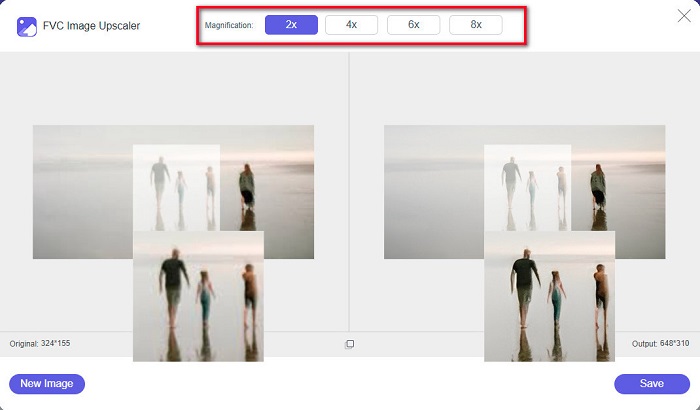
مرحله ۲. پس از بارگذاری تصویر، بزرگنمایی دلخواه خود را برای عکس انتخاب کنید. میتوانید بین 2x، 4x، 6x و 8x یکی را برگزینید. هرچه عدد بزرگتر باشد، کیفیت بهتر خواهد بود.
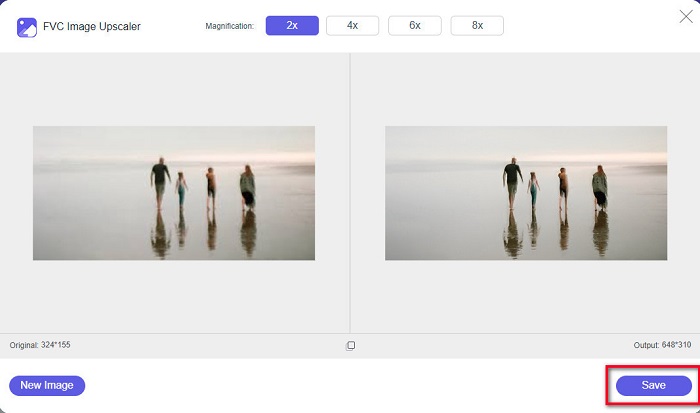
مرحله ۳. سپس روی دکمهٔ Save کلیک کنید تا خروجی را روی دستگاه خود ذخیره کنید.
بخش 4. سوالات متداول در مورد چگونگی تغییر اندازه تصویر در ادوبی فتوشاپ
آیا Adobe اندازه تصاویر را بدون ضرر تغییر می دهد؟
با استفاده از Adobe Photoshop می توانید اندازه تصاویر خود را بدون افت کیفیت تغییر دهید. علاوه بر این، خروجی هایی با کیفیت بالا تولید می کند.
Adobe Photoshop از چه فرمت های فایلی پشتیبانی می کند؟
Adobe Photoshop تقریبا تمام فرمت های تصویر شناخته شده مانند JPG، JPEG، PNG، BMP، TIFF، EPS، PDF و غیره را می پذیرد.
قیمت Adobe Photoshop چقدر است؟
می توانید Adobe Photoshop را با قیمت $19.99 در ماه خریداری کنید. می توانید از آزمایش رایگان 30 روزه آن برای آزمایش ابتدا برنامه استفاده کنید.
نتیجه
اکنون که پرسش شما دربارهٔ تغییر اندازهٔ تصاویر با ادوبی پاسخ داده شد، میتوانید با استفاده از Adobe Express یا Adobe Photoshop اندازهٔ تصویر را تغییر دهید. با هر یک از ابزارهای ذکرشده در بالا که کار کنید، میتوانید بهطور موفقیتآمیز اندازهٔ تصویر خود را تغییر دهید. اما اگر میخواهید راهی سادهتر و کارآمدتر برای تغییر اندازه و بهبود تصویر داشته باشید، از FVC Free Image Upscaler استفاده کنید.
-
 چگونه تصویر را به صورت آنلاین و آفلاین با 4 روش آسان تیز کنید
 اگر می خواهید یک تصویر را شارپ کنید، روش های زیادی وجود دارد که می توانید انجام دهید. در زیر بهترین و ساده ترین راه ها برای شارپ کردن تصاویر به صورت آنلاین و آفلاین را مورد بحث قرار خواهیم داد.
-
 ترمیم عکس قدیمی به صورت آنلاین و آفلاین [مراحل آسان]
 آیا می خواهید یک عکس قدیمی را بازیابی کنید؟ با استفاده از این ابزار، فرآیند بازسازی عکس قدیمی را خواهید دانست. این پست را بخوانید تا ساده ترین روش ها را بیاموزید.
-
 نحوه تغییر اندازه عکس برای فیس بوک [گام های سریع و آسان]
 اگر برای آپلود یک تصویر با اندازه بزرگ در فیس بوک مشکل دارید، ما یک راه حل برای شما داریم. برای یادگیری نحوه تغییر اندازه عکس ها برای فیس بوک، این مقاله را تمام کنید.
