


 Video Converter Ultimate
 ضبط صفحه
 تعمیر ویدیو
یاد بگیرید چگونه با این روش های آسان تصویری واضح تر بسازید
هر زمان عکسی بگیرید و تصویر حاصل تار از آب دربیاید، این یک نقص به حساب میآید. داشتن عکس تار بسیار ناخوشایند است. اما خوشبختانه امروزه تعداد زیادی برنامه وجود دارد که میتوانند به شما کمک کنند عکستان را شفافتر کرده و از حالت تاری خارج کنید. ادوبی فتوشاپ از معروفترین برنامههای ویرایش عکس است، اما برای مبتدیان چندان مناسب و ساده نیست. بنابراین در ادامه روشهای سادهتری را معرفی میکنیم که با آنها میتوانید کیفیت عکس تار خود را عالی کنید. این مطلب را بخوانید تا با مراحل ساده بیاموزید چطور یک عکس را واضحتر کنیم.

قسمت 1. چگونه یک تصویر را به صورت آنلاین پاک کنیم
با استفاده از فناوری هوش مصنوعی، اکنون تعداد زیادی ارتقا دهنده تصویر آنلاین وجود دارد که می تواند تصویر شما را به طور خودکار واضح کند. استفاده از برنامههای آنلاین برای شفافتر کردن تصویر راحتتر است، زیرا نیازی به دانلود چیزی در دستگاه خود ندارید. همچنین فضای ذخیره سازی دستگاه شما را ذخیره می کند زیرا می توانید در مرورگر خود به آن دسترسی داشته باشید.
FVC Free Image Upscaler مشهورترین برنامه آنلاین برای زمانی است که میخواهید عکستان را شفافتر یا واضحتر کنید. این ابزار استفاده آسانی دارد، چون رابط کاربری آن بسیار ساده است. علاوه بر این، میتوانید کیفیت تصویر خود را با بزرگنماییهای 2، 4، 6 و 8 برابر افزایش دهید. همچنین FVC Free Image Upscaler از فناوری هوش مصنوعی (AI) استفاده میکند که بخشهای تار تصویر را بهطور خودکار تشخیص داده و آنها را بهبود میبخشد. این ابزار به شما امکان میدهد پیکسلهای از دست رفته، بافتهای رنگ و جزئیات دیگر را با دقت ترمیم کنید.
علاوه بر این، از چندین فرمت تصویر مانند PNG، JPG، JPEG و WebP پشتیبانی می کند. و چیزی که حتی در مورد این ابزار آنلاین عالی است این است که برای دسترسی به آن به هیچ حساب کاربری نیاز ندارید. همچنین استفاده از آن رایگان و ایمن است. و علیرغم اینکه این یک برنامه آنلاین است، حاوی تبلیغات مزاحم نیست که ممکن است حواس شما را پرت کند و استفاده از آن سریع و کارآمد است. بنابراین، اگر به دنبال یک ابزار مناسب هستید، FVC Free Image Upscaler بهترین ابزار است.
چگونه با استفاده از FVC Free Image Upscaler یک تصویر را بصورت آنلاین واضح تر کنیم:
مرحله 1. در کامپیوتر خود مرورگر را باز کرده و در نوار جستجو، FVC Free Image Upscaler را جستجو کنید. یا میتوانید روی لینک دادهشده کلیک کنید تا مستقیماً به صفحه اصلی برنامه بروید. روی دکمه Upload Photo کلیک کنید تا برنامه اجرا شود.
مرحله 2. بعد از اجرای برنامه، دوباره روی Upload Photo کلیک کنید تا عکس موردنظر خود را برای بزرگنمایی/شارپ کردن اضافه کنید. پنجره فایلهای کامپیوتر باز میشود؛ در آنجا تصویر را پیدا کرده و باز کنید.
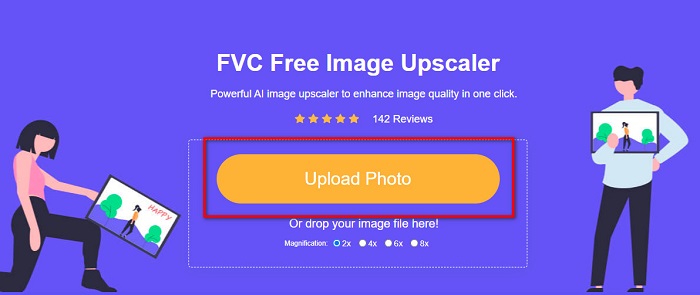
مرحله 3. سپس، پیشتنظیم بزرگنمایی (magnification) موردنظر خود را انتخاب کنید. هرچه بزرگنمایی بیشتر باشد، میزان شارپ شدن تصویر نیز بیشتر خواهد شد. اما توجه داشته باشید که با افزایش کیفیت، حجم فایل نیز بیشتر میشود. میتوانید میزان بزرگنمایی را بین 2x، 4x، 6x و 8x انتخاب کنید.
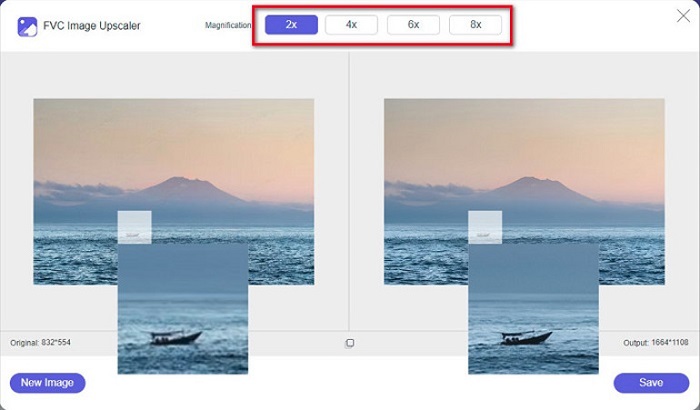
مرحله 4. نتیجه را در سمت راست رابط کاربری خواهید دید. اگر از خروجی راضی بودید، روی دکمه Save کلیک کنید تا تصویر نهایی در دستگاهتان ذخیره شود.
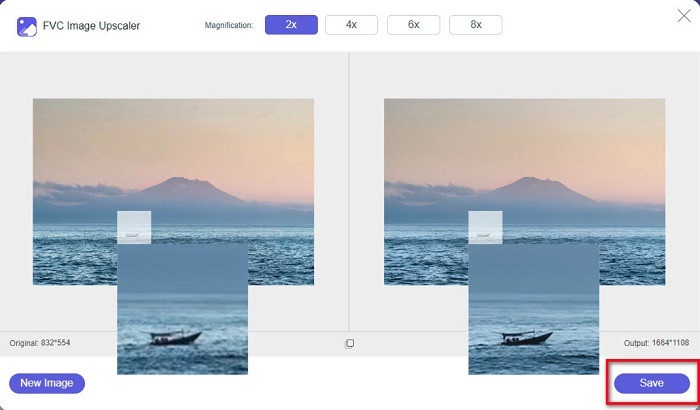
فقط صبر کنید تا تصویر شما ذخیره شود و voila! اکنون میتوانید عکس شگفتانگیز خود را با دوستان یا سایر پلتفرمهای رسانههای اجتماعی به اشتراک بگذارید.
قسمت 2. چگونه یک تصویر را به صورت آفلاین پاک کنیم
همچنین هنگامی که می خواهید تصویر خود را شارپ کنید یا ویرایش کنید، استفاده از یک برنامه آفلاین خوب است. بسیاری از برنامه های ویرایش عکس آفلاین هستند. قبل از استفاده باید آنها را خریداری کنید. اما نگران نباشید؛ در این بخش، ما یک ابزار آفلاین رایگان ارائه می دهیم که می توانید از آن بر روی دسکتاپ خود استفاده کنید.
برنامه Paint.net از پرکاربردترین نرمافزارهای ویرایش عکس است که رایگان و امن است. این ابزار آفلاین رابط کاربری سادهتری نسبت به ادوبی فتوشاپ دارد که بیشتر توسط حرفهایها استفاده میشود. با وجود سادگی رابط کاربری، همچنان میتواند خروجیهای فوقالعادهای تولید کند و به شما امکان میدهد تصویر تار خود را شارپ کنید. علاوه بر این، قابلیتهای ویرایشی دیگری هم دارد که میتواند به بهبود عکس شما کمک کند. با Paint.net میتوانید تصویر را شارپ کنید، اصلاح رنگ انجام دهید و برای عکس پسزمینه اضافه کنید.
علاوه بر این، با حرکت دادن نوار لغزنده، می توانید وضوح تصویر خود را انتخاب کرده و قسمت های تار آن را حذف کنید. با این حال، فقط در دستگاه های ویندوز در دسترس است. با این حال، اگر می خواهید تصویری را در حین شارپ کردن آن بزرگتر کنید، می توانید از Paint.net استفاده کنید.
چگونه با استفاده از Paint.net یک تصویر بزرگتر و واضح تر کنیم:
مرحله 1. ابتدا Paint.net را در دسکتاپ خود دانلود و نصب کنید و پس از پایان نصب آن را باز کنید. سپس برای بارگذاری تصویر، روی File > Open کلیک کنید.
مرحله 2. سپس به مسیر Effects > Photo > Sharpen بروید. پنجره دیگری باز میشود که در آن میتوانید میزان شارپ بودن تصویر را تنظیم کرده و آن را از حالت تاری خارج کنید.
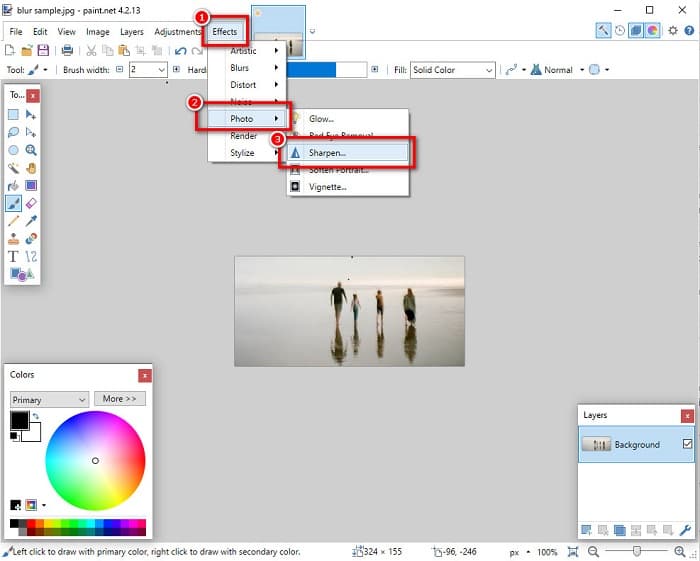
مرحله 3. در پنجره Sharpen، سرِ نوار لغزنده را حرکت دهید تا میزان شارپ بودن دلخواه تصویر را انتخاب کنید. همچنین میتوانید با استفاده از فلشهای بالا/پایین مقدار شارپ بودن تصویر را بهصورت عددی تنظیم کنید.
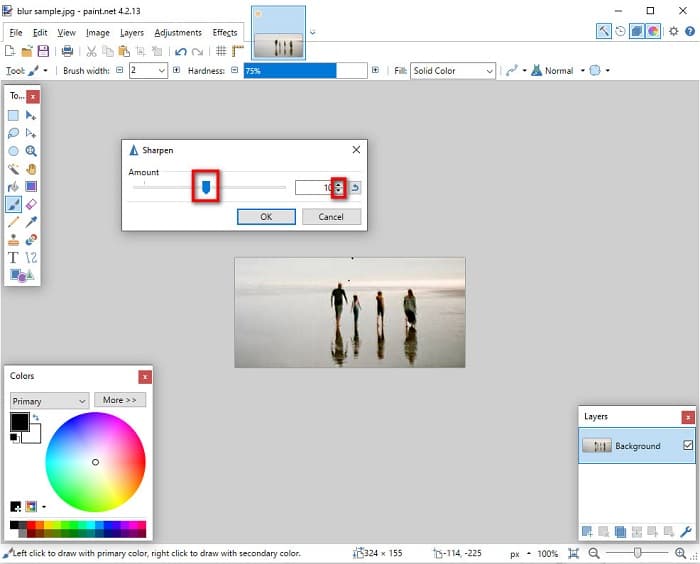
مرحله 4. در نهایت روی دکمه OK کلیک کنید و سپس به File > Save بروید تا خروجی در دسکتاپ شما ذخیره شود.
قسمت 3. چگونه یک تصویر واضح تر در آیفون خود ایجاد کنیم
و اگر تصویری تار دارید که با استفاده از آیفون خود گرفته شده است، می توانید از یک برنامه رفع تاری برای دستگاه آیفون خود نیز استفاده کنید. برنامههای ویرایش تصویر متعددی که میتوانید از AppStore دانلود کنید، میتوانند به شما در رفع محو کردن تصویر کمک کنند. با این حال، استفاده از همه برنامه ها رایگان نیست. قبل از استفاده باید آنها را خریداری کنید. خوشبختانه، ما یک برنامه تصویر محو کننده پیدا کردیم که استفاده از آن از AppStore رایگان است. این بخش را به طور کامل بخوانید تا یاد بگیرید چگونه یک تصویر را در دستگاه آیفون خود واضح تر کنید.
اگر به دنبال یک برنامه ویرایش عکس رایگان هستید که بتواند تصویر شما را از حالت تاری خارج کند، VSCO همان برنامهای است که دنبالش میگردید. VSCO یک اپلیکیشن شناختهشده برای ویرایش عکس است که میتوانید آن را از اپاستور دانلود کنید. علاوه بر این، هنگام خارج کردن عکس از حالت تاری با VSCO، چند تنظیم وجود دارد که باید روی آنها تمرکز کنید. برای رفع تاری عکس در VSCO باید وضوح (Clarity)، شارپنس (Sharpness)، شفافیت و نوردهی (Exposure) تصویر را تنظیم کنید. VSCO ابزارهای ویرایشی دیگری نیز دارد که میتوانید برای ویرایش تصاویر خود از آنها استفاده کنید. همچنین از رایجترین فرمتهای تصویری آیفون مثل HEIC و HEIF پشتیبانی میکند. یکی از نقاط ضعف این برنامه این است که تنها از تعداد محدودی فرمت تصویری پشتیبانی میکند و برای استفاده از برخی قابلیتهای ویرایشی آن باید اشتراک خریداری کنید.
نحوه شفافتر کردن تصویر در آیفون با استفاده از VSCO:
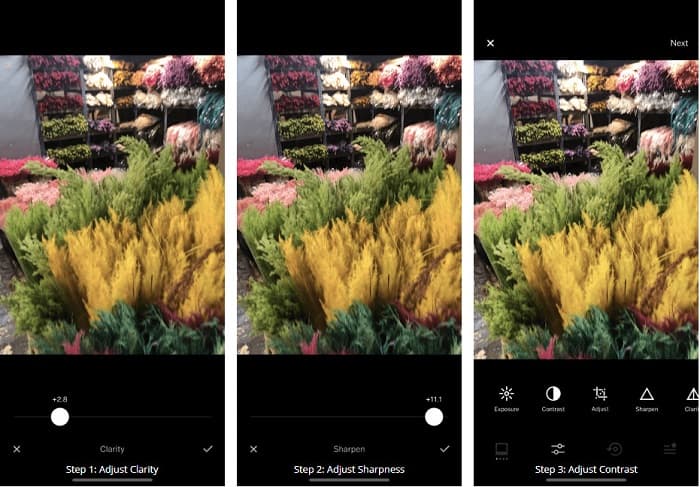
مرحله 1. برنامه VSCO را از اپاستور نصب کرده و سپس آن را در آیفون خود باز کنید.
مرحله 2. تصویر خود را باز کنید و سپس به گزینه Clarity بروید. گزینه Clarity به شما کمک میکند نویزهای درشت و در مقیاس بزرگ تصویر را کاهش دهید. کافی است نوار لغزنده Clarity را کمی در پایین رابط کاربری جابهجا کنید.
مرحله 3. در مرحله بعد، شارپنس تصویر را تنظیم میکنیم. قابلیت Sharpen به شما کمک میکند تیزی و وضوح دلخواه را در تصویر به دست آورید. سپس با جابهجا کردن نوار لغزنده (slider) میتوانید میزان شارپنس موردنظر خود را انتخاب کنید.
مرحله 4. پس از ویرایش وضوح و شارپنس تصویر، حالا نوبت به تنظیم کنتراست میرسد. گزینه Contrast و نوار لغزنده Contrast را جابهجا کنید تا میزان روشنایی و تیرگی دلخواه را برای تصویر انتخاب کنید.
مرحله 5. در آخر، نوردهی Exposure عکس را کمی زیاد میکنیم تا تصویر کمی روشنتر شود. افزایش Exposure به شما کمک میکند تیرگی تصویر را با کنتراست متعادل کنید. و تمام! با تنظیم این ویژگیها میتوانید عکس تار خود را از حالت تاری خارج کنید. برای یادگیری نحوه تغییر اندازه یک عکس در آیفون اینجا کلیک کنید.
قسمت 4. چگونه یک تصویر واضح تر در اندروید خود ایجاد کنیم
همچنین برنامههایی در اندروید وجود دارد که میتوانید از آنها برای شفافتر کردن تصویر استفاده کنید. بنابراین، اگر میخواهید یک عکس تار در گالری خود ذخیره شود، این برنامه میتواند به شما در بهبود تصویر کمک کند. این قسمت را بخوانید تا یاد بگیرید چگونه یک تصویر را در دستگاه اندرویدی خود حذف کنید.
اپلیکیشن Remini (برای اندروید) احتمالاً یکی از بهترین برنامههای ویرایش عکس برای دستگاههای اندرویدی است. این برنامه به شما اجازه میدهد عکس خود را ویرایش کرده و حتی آن را از حالت تاری خارج کنید. علاوه بر این، استفاده از آن آسان و رایگان است. با استفاده از گزینه Enhance میتوانید تصویر خود را شفافتر کنید. با این حال، قبل از استفاده از برنامه باید یک حساب کاربری بسازید. در نسخه Pro نیز میتوانید به قابلیتهای پیشرفته رفع تاری در این برنامه دسترسی داشته باشید.
نحوه رفع تاری تصویر با استفاده از Remini برای اندروید:
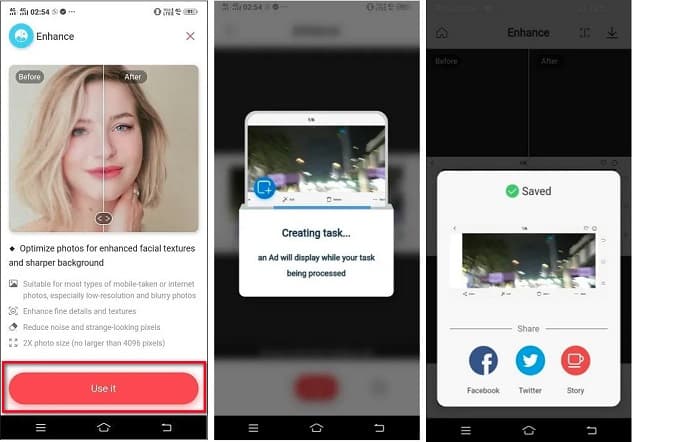
مرحله 1. برنامه Remini را روی دستگاه اندرویدی خود نصب کنید. پس از نصب، فوراً برنامه را باز کنید. در صفحه اصلی رابط کاربری برنامه، روی دکمه Use it ضربه بزنید تا وارد مرحله رفع تاری تصویر شوید.
مرحله 2. سپس تصویر را انتخاب کرده و روی دکمه قرمز در پایین رابط کاربری ضربه بزنید. یک تسک (وظیفه پردازش) ایجاد میشود و در حین پردازش، یک تبلیغ نمایش داده خواهد شد.
مرحله 3. بعد از آن، خروجی نهایی نمایش داده میشود و میتوانید قبل و بعدِ تصویر را با هم مقایسه کنید. اگر از نتیجه راضی بودید، تصویر را ذخیره کنید.
بخش 5. پرسشهای متداول در مورد چگونگی شفافتر کردن تصویر
آیا می توانم از GIMP برای محو کردن تصویر استفاده کنم؟
آره. GIMP یک نرم افزار ویرایش عکس شگفت انگیز است که می توانید از آن برای از بین بردن تصویر خود استفاده کنید. شما همچنین می توانید این برنامه را در دستگاه ویندوز خود دانلود کنید.
آیا محو کردن تصویر باعث افزایش حجم فایل می شود؟
آره. محو کردن تصویر به معنای افزایش کیفیت و وضوح تصویر شماست. با افزایش وضوح، اندازه فایل تصویر شما نیز افزایش می یابد.
برای محو کردن تصویر از چه برنامه ای استفاده کنم؟
YouCam Perfect اپلیکیشنی است که می تواند به شما کمک کند تصویر خود را تار کنید. با فناوری هوش مصنوعی آن، می توانید بلافاصله تصویر خود را تار کنید.
نتیجه
در این نوشته تمام نکاتی را که لازم است درباره چگونگی واضحتر کردن یک عکس بدانید توضیح دادیم. پس اگر بهدنبال برنامههایی هستید که امکان رفع تاری تصویر را به شما بدهند، روشهای بالا میتوانند شما را به هدفتان برسانند. اما اگر ترجیح میدهید از یک ابزار آنلاین با رابط کاربری ساده استفاده کنید، از FVC Free Image Upscaler کمک بگیرید.
-
 بررسی واقعی PicResize که باید این را بدانید 2022
 آیا می خواهید بدانید که PicResize بهترین گزینه برای ویرایش تصویر است؟ در حالی که ابزار کلی را بررسی می کنیم، این مقاله را بخوانید.
-
 هر آنچه که باید در مورد Waifu2x و جایگزین بدانید
 آیا نیاز به دانستن بیشتر در مورد Waifu2x دارید؟ این مقاله اطلاعاتی را ارائه می دهد که باید در این برنامه و جایگزین آن برجسته شود.
-
 نحوه بهینه سازی تصویر برای وب با استفاده از بهترین راه حل ها [سریع]
 چگونه تصویر را برای وب بهینه کنیم؟ شما به نرم افزار قابل اعتماد و یک آموزش نیاز دارید. تمام اطلاعات اینجاست
