


 Video Converter Ultimate
 ضبط صفحه
 تعمیر ویدیو
حذف شی از عکس ها با 6 نرم افزار موثر [رایگان]
میلیونها عکاس، حتی آنهایی که تازهکار و در حال یادگیری هستند، از غروب آفتاب، ساحل، جاذبههای گردشگری، ماه و بسیاری مناظر دیگر بارها و بارها عکس گرفتهاند. با تصاویر میتوانیم آنچه واقعاً هستیم را بیان کنیم. با یک عکس ساده میتوانید خلاقیت و جنبه هنری درون هر کسی را بیدار کنید. هر بار که عکاسی میکنیم، نتیجه لزوماً یک تصویر بینقص نیست؛ گاهی لازم است یک شیء خاص را که نمیخواهیم، از عکسی که گرفتهایم حذف کنیم. آیا به ابزاری نیاز دارید که بتواند اشیاء را از روی عکس حذف کند؟ در اینجا روشها و ابزارهای مختلفی را معرفی میکنیم که میتوانید برای حذف فوری اشیای اضافی از عکسی که گرفتهاید، از آنها استفاده کنید.

قسمت 1. حذف شی از عکس با استفاده از بهترین پاک کننده اشیا [وب سرویس]
FVC Free Watermark Remover اولین انتخاب ما برای حذف رایگان اشیاء از روی عکسها به صورت آنلاین است. با کمک این ابزار میتوانید هر چیزی را که تصویر بینقص شما را خراب کرده، فوراً پاک کنید، بدون اینکه نرمافزاری روی سیستم خود نصب کنید، حتی اگر هیچ تجربهای در چنین ویرایشی نداشته باشید. میتوانید روی این ابزار حساب کنید، چون فقط کافی است شیء موردنظر را هایلایت کنید و این برنامه آن را بدون برجا گذاشتن اثری از تصویر حذف میکند. ما این ابزار را در حذف موارد ناخواسته روی عکس، هم جالب و هم مؤثر یافتیم؛ اگر میخواهید از آن استفاده کنید، مراحل زیر را که آوردهایم دنبال کنید.
مرحله 1. برای باز کردن عکس و حذف شیء با استفاده از ابزار FVC، روی این لینک به وبسایت رسمی کلیک کنید.
مرحله 2. روی Upload Image بزنید تا عکسی را که شیء ناخواسته دارد وارد کنید.
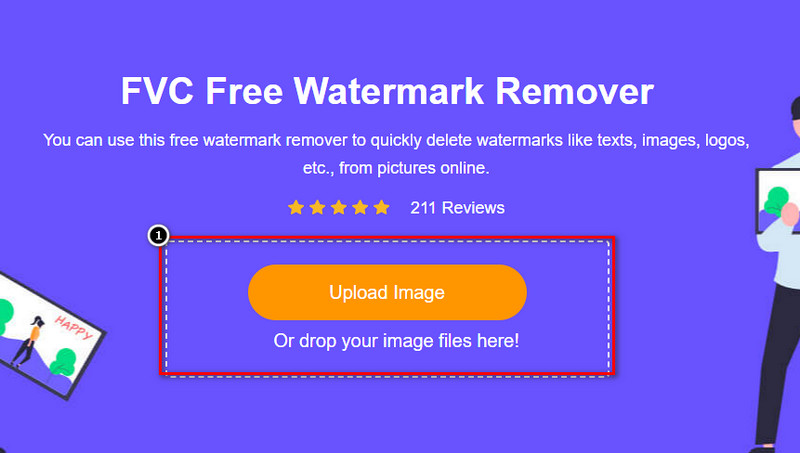
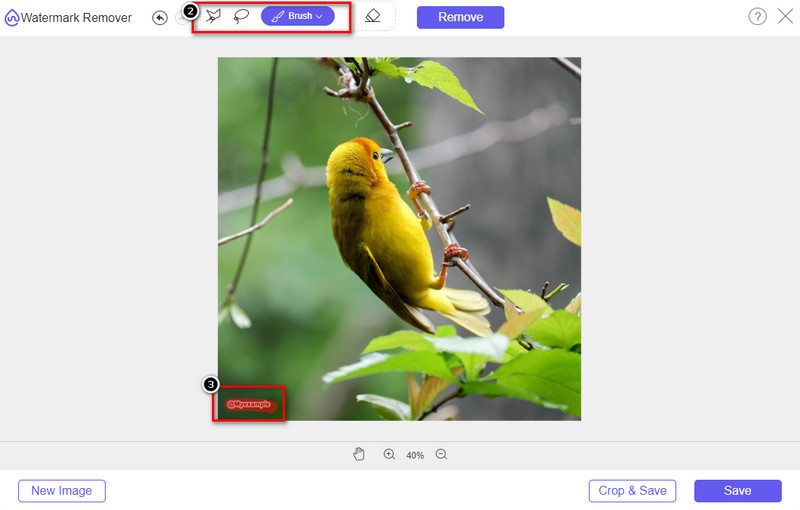
مرحله 3. با استفاده از ابزارهای موجود، باید شیء موردنظر را هایلایت کنید.
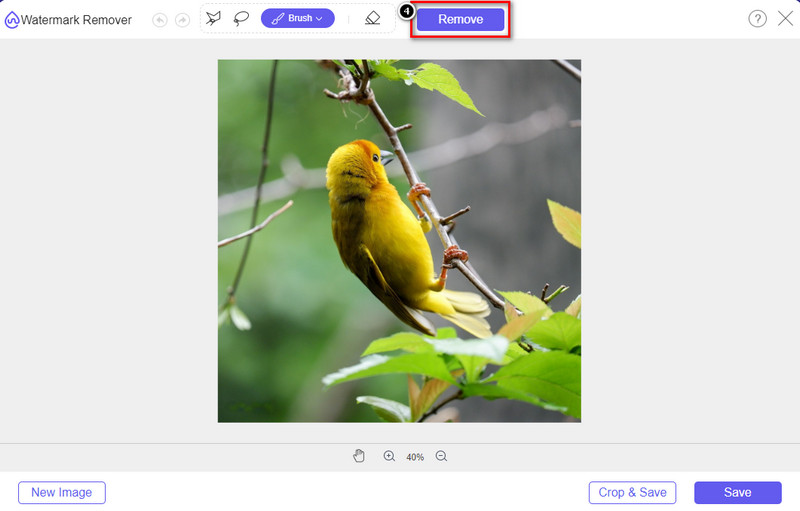
مرحله 4. دکمه Remove را فشار دهید تا با کمک فناوری هوش مصنوعی پشتیبانیشده در این ابزار، شیء حذف شود.
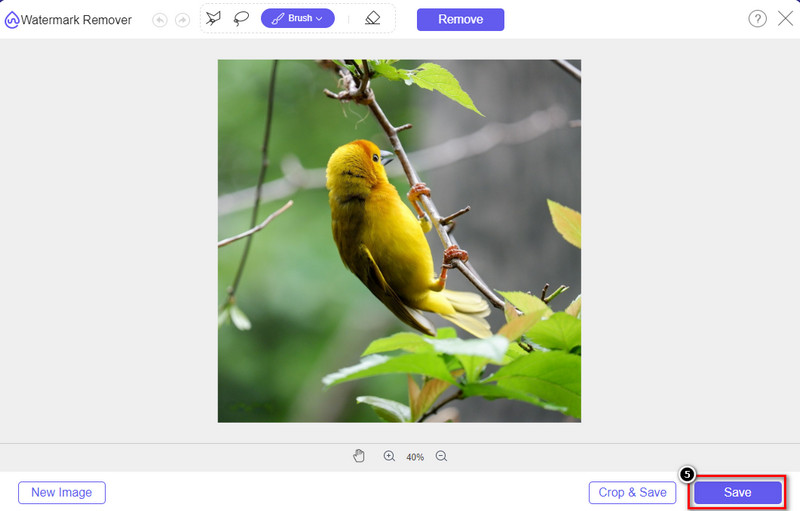
مرحله 5. برای دانلود تصویر بینقصی که اینجا ویرایش کردید، روی Save کلیک کنید.
قسمت 2. حذف شیء از عکس به صورت حرفه ای با استفاده از برنامه های دسکتاپ [ویندوز و مک]
فتوشاپ
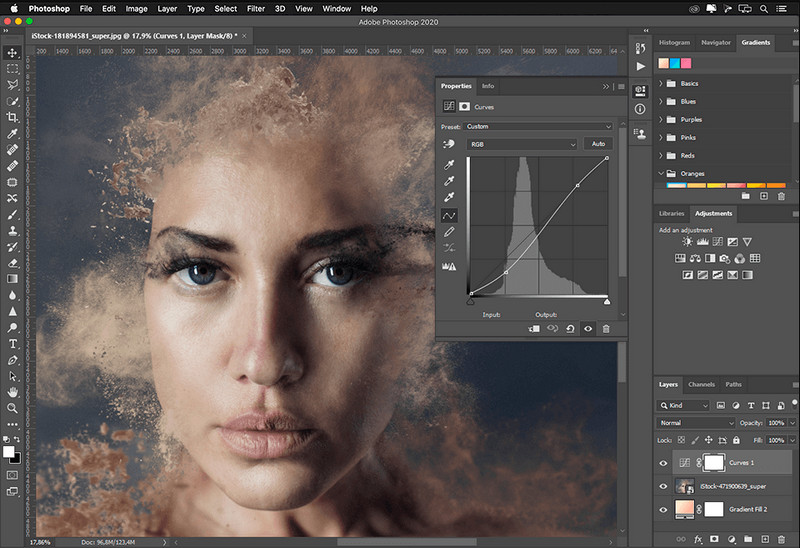
اگر به یک ابزار حرفه ای برای حذف اشیاء از عکس ها نیاز دارید، فتوشاپ پاسخگوست! این ابزار یک ویرایشگر تصویر کامل است که Adobe با افتخار به ما ارائه می دهد. هیچ چیز شما را از ایجاد باورنکردنی تصویر با ویژگی و عملکرد آن باز نمی دارد. با توجه به محبوبیت آن در بین حرفه ای ها، بسیاری از مبتدیان سعی می کنند از این نرم افزار برای ویرایش و ایجاد تصاویر خود استفاده کنند. بنابراین، اگر می خواهید بدانید که چگونه از این ابزار حرفه ای استفاده کنید، می توانید آموزشی را که در زیر اضافه می کنیم دنبال کنید.
مرحله 1. وبسایت رسمی ادوبی را باز کنید و سپس Photoshop را روی دسکتاپ خود دانلود کنید.
مرحله 2. روی File کلیک کرده و با انتخاب Open، تصویری را که باید اینجا ویرایش کنید، بارگذاری کنید.
مرحله 3. در بخش سمت چپ، Magic Wand Tool را انتخاب کنید تا شیء موجود در تصویر بهطور خودکار ردیابی شود.
مرحله 4. به منوی Edit بروید و زیرمجموعه آن، Content-Aware Fill را انتخاب کنید.
مرحله 5. پس از باز شدن این بخش، واترمارک بهطور خودکار حذف میشود؛ سپس روی OK کلیک کنید.
GIMP
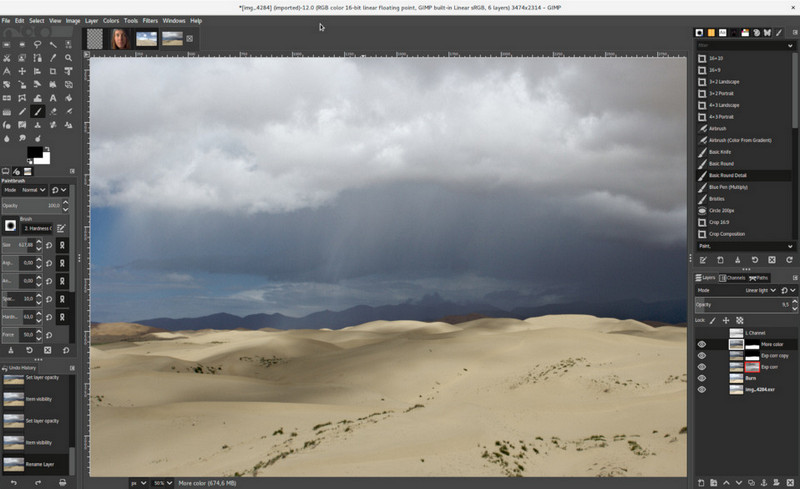
GIMP یک ویرایشگر تصویر کامل است که میتوانید برای حذف اشیاء از عکسها در مک، لینوکس و ویندوز به صورت رایگان از آن استفاده کنید. این ابزار مانند Photoshop قابل اعتماد است. اگرچه هنگام صحبت از جایگزینهای Adobe Photoshop، نام این ابزار معمولاً در صدر قرار میگیرد، اما همچنان در حال توسعه فعال است. با این ابزار میتوانید تصاویر خود را به صورت عمیق و حرفهای ویرایش کنید تا برای مخاطب جذاب شوند. همچنین میتوانید رابط کاربری آن را برای سهولت کار، مطابق سلیقه خود سفارشیسازی کنید. اگر به فکر دانلود این ابزار برای ویرایش حرفهای هستید، میتوانیم اطمینان دهیم که به این هدف میرسید. با وجود اینکه یک ویرایشگر متنباز است، هنوز باید تکمیل شود، زیرا رابط گرافیکی آن همچنان در حال توسعه است. بنابراین اگر میخواهید از آن استفاده کنید، مراحل زیر شما را راهنمایی میکند تا حذف یک شیء از روی عکس در GIMP را یاد بگیرید. مراحل ارائهشده در ادامه راهنمای شما خواهد بود.
مرحله 1. نرمافزار را دانلود و سپس اجرا کنید تا بتوانید تصویری را که باید ویرایش شود، آپلود کنید. همچنین افزونه آن یعنی Resynthesizer plug-in را نیز دانلود کنید.
مرحله 2. در نوار ابزار سمت چپ، Free Select را انتخاب کنید و حالت را به Add Current Selection تغییر دهید.
مرحله 3. دور شیئی که میخواهید حذف شود، رسم کنید؛ پس از اینکه با موفقیت شیء را ردیابی کردید، روی صفحهکلید خود Enter را بزنید.
مرحله 4. برای استفاده از افزونهای که دانلود کردهاید، به منوی Filter، سپس Enhance بروید و روی Heal Selection کلیک کنید.
مرحله 5. سپس یک پنجره گفتوگو باز میشود؛ در صورت لزوم عرض نمونهبرداری (sampling width) را تغییر دهید، گزینه نمونهبرداری را روی all-around تنظیم کنید و Filling the Order را روی random قرار دهید. برای شروع سنتز ناحیه داخل تصویر، روی OK فشار دهید.
برنامه عکس در مک
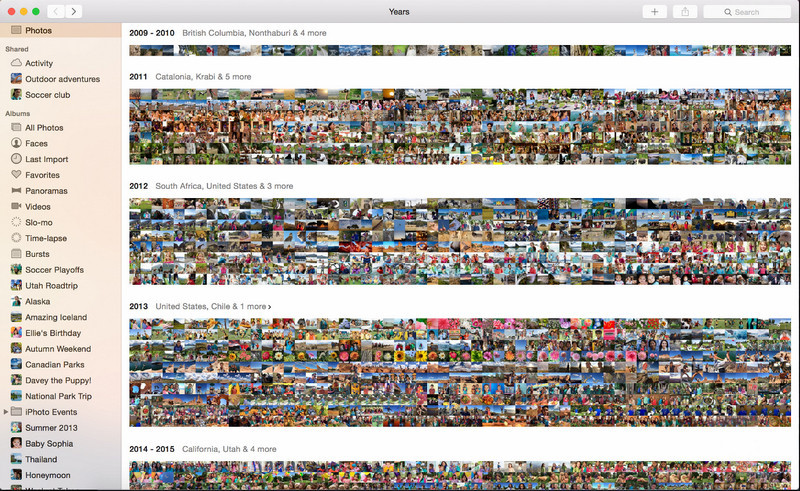
برنامه Photo App یک قابلیت داخلی روی محصولات بهروز اپل، مانند مک، است. این برنامه از قبل نصب شده است، بنابراین میتوانید مرحله دانلود را رد کرده و فوراً از آن استفاده کنید. این نرمافزار یک ویرایشگر تصویر حرفهای نیست، زیرا هدف اصلی آن کتابخانه و نمایشگر عکسها در مک یا دستگاههای iOS است. با این حال، حتی اگر روی مک خود ویرایشگر حرفهای نداشته باشید، میتوانید از برخی امکانات آن استفاده کنید و تنها با یک کلیک خروجی نسبتاً حرفهای بگیرید. پس اگر میخواهید در Photo App یک شیء را حذف کنید، میتوانید به مراحلی که در ادامه آوردهایم مراجعه کرده و آنها را بهترتیب دنبال کنید.
مرحله 1. برنامه Photos را روی مک خود باز کرده و تصویری را که دارای شیء ناخواسته است انتخاب کنید.
مرحله 2. در بخش بالای سمت راست، روی دکمه Edit کلیک کنید تا ویرایش تصویر را آغاز کنید.
مرحله 3. در سمت راست، گزینه Retouch را میبینید؛ برای استفاده از این قابلیت روی آن کلیک کنید.
مرحله 4. روی ناحیهای که میخواهید حذف شود، کلیک کرده و ماوس را بکشید.
مرحله 5. برای ذخیره تغییراتی که روی تصویر اعمال کردهاید، روی دکمه Done فشار دهید.
قسمت 3. حذف شی از عکس با استفاده از برنامه در اندروید و iOS
رفع فتوشاپ
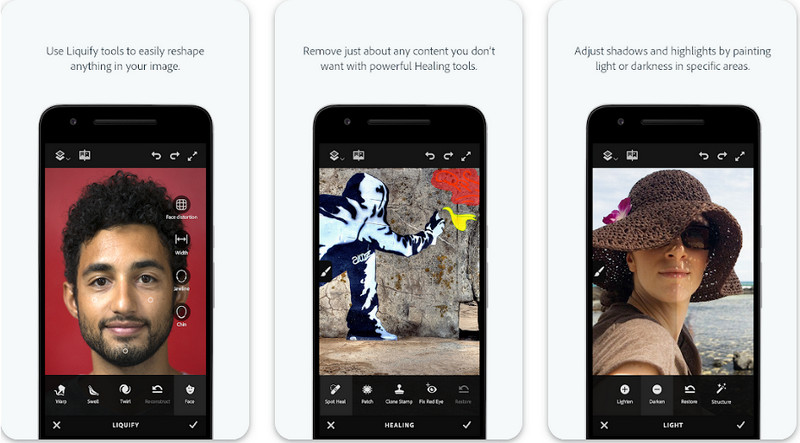
برنامه Photoshop FIX یک اپلیکیشن اندرویدی کارآمد است که به شکل حرفهای، اما در عین حال ساده، اشیاء را از روی عکسها حذف میکند. این اپلیکیشن متنباز است و میتوانید آن را از PlayStore روی دستگاه خود دانلود کنید. با وجود متنباز بودن، قابلیت حذف اشیاء در این برنامه بدون تردید بسیار عالی عمل میکند. این یکی از اپلیکیشنهای محبوب و پر دانلود روی دستگاههای اندرویدی برای انجام این کار است. اگر میخواهید بدانید چگونه از این برنامه استفاده کنید، مراحل زیر را بخوانید.
مرحله 1. اپلیکیشن را روی دستگاه اندرویدی خود دانلود کنید.
مرحله 2. روی On My Phone بزنید تا تمام تصاویر موجود در گالری شما نمایش داده شود. تصویر موردنظر برای ویرایش را انتخاب کنید.
مرحله 3. برای استفاده از قابلیت حذف اشیاء در این برنامه، روی Healing کلیک کنید.
مرحله 4. در اینجا دو گزینه برای حذف در اختیار دارید. برای پاککردن شیء با قلم، گزینه Spot Heal را انتخاب کنید. اما اگر میخواهید یک پیکسل را شبیهسازی (clone) کنید، باید Clone Stamp را انتخاب کنید. واترمارک را با گزینهای که انتخاب کردهاید هایلایت کنید.
مرحله 5. تصویر را در Camera Roll خود ذخیره کنید؛ همین!
روتوش عکس
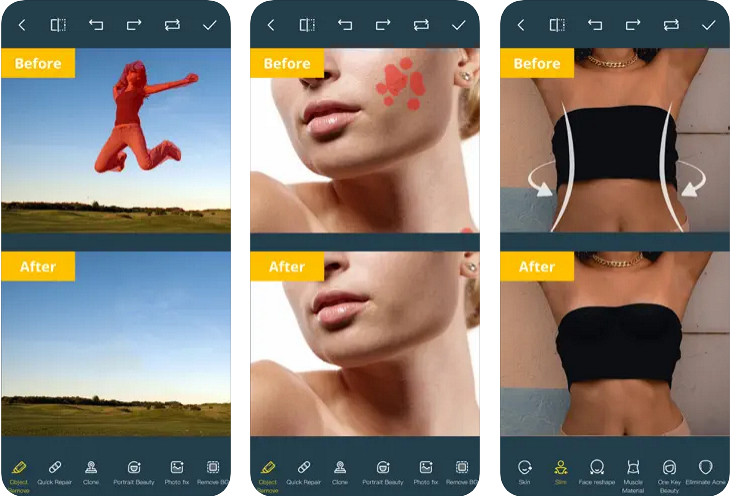
برنامه Photo Retouch یک اپ مطمئن برای حذف اشیاء از روی عکس در آیفون بدون دردسر است. حتی اگر در حذف اشیاء از روی تصاویر خود حرفهای نباشید، میتوانید با این برنامه آنها را مؤثر و تمیز حذف کنید. اگر میخواهید این اپ را امتحان کنید، میتوانید آن را بهصورت رایگان از AppStore دانلود کنید. همچنین در صورت نیاز میتوانید پسزمینه و واترمارک را نیز از روی عکس حذف کنید. اگر آماده هستید تا با این اپ، شیء موجود روی تصویر خود را پاک کنید، مراحل زیر را دنبال کنید.
مرحله 1. اپ رسمی را دانلود کرده و آن را اجرا کنید.
مرحله 2. روی Photo Eraser و سپس Photo کلیک کنید. تصویری را که پسزمینه یا شیء ناخواسته دارد انتخاب کنید و مطمئن شوید عکس در بخش Photos آیفون شما ذخیره شده است.
مرحله 3. در بخش پایینی صفحه، گزینه Object Removal را انتخاب کنید.
مرحله 4. از قلممویی که این اپ ارائه میدهد استفاده کنید تا شیء موردنظر را ردیابی کرده و سپس برای حذف شیء روی GO کلیک کنید.
مرتبط:
بخش 4. سوالات متداول در مورد نحوه حذف اشیاء از عکس ها
چرا باید اشیا را از عکس ها حذف کنم؟
زمان های زیادی وجود دارد که ما از چیزی عکس می گیریم، و Photobomber وجود دارد. این شیء برای اکثر افراد حرفه ای مشکل ساز است زیرا تصویری را که گرفته اید برجسته نمی کند. بنابراین، به جای گرفتن مجدد تصویر، می توانید روش های ایده آل زیر را برای حذف شیء روی عکس خود بخوانید.
آیا می توانم تصویر را برای حذف اشیاء برش دهم؟
بله، تو میتونی. اگر شیئی که می خواهید آن را در کنار عکس حذف کنید، می توانید سعی کنید تصویر را با ویرایشگر داخلی خود برش دهید. با این حال، این انتخاب یک گزینه نیست، به خصوص اگر جسم در قسمت میانی یا نزدیک تصویری باشد که میگیرید. برش تصویر باعث قطع شدن عکس می شود، بنابراین اگر می خواهید این گزینه را امتحان کنید بهتر است کمی فکر کنید.
چرا نمی توانم تصویری را برای حذف شی آپلود کنم؟
شما نمی توانید تصویر را آپلود کنید. یا تصویر خراب است یا پسوند تصویر پشتیبانی نمی شود. اگر تصویر شما خراب است، راه هایی برای رفع آن وجود دارد. اگر در وب جستجو کنید می توانید آنها را پیدا کنید. معمولاً میتواند پسوند فایل تصویر باشد. برای حل این مشکل باید آن را تبدیل کنید.
نتیجه
حذف اشیاء از عکس به دلیل ابزار و برنامه ای که در این مقاله استفاده می کنیم آسان است. بنابراین، کدام ابزار را بیشتر ترجیح می دهید؟ امیدواریم این راهنمای اضافه شده به شما در حل آسان مشکل کمک کند.
-
 نحوه تبدیل تصویر با وضوح پایین به وضوح بالا به صورت آنلاین
 اگر می خواهید نحوه تبدیل تصاویر با وضوح پایین به تصاویر با وضوح بالا را به صورت آنلاین یاد بگیرید، این مقاله برای شما مناسب است. کامل بخوانید تا یاد بگیرید چگونه.
-
 روشهای آسان برای حذف واترمارک ضد شلیک
 با پیروی از این روش های آسان، واترمارک Shootproof را حذف کنید. از این پاک کننده های واترمارک شگفت انگیز برای حذف واترمارک Shootproof از تصویر خود به راحتی استفاده کنید.
-
 نحوه حذف بدون زحمت واترمارک Bandicam [3 روش موثر]
 چگونه واترمارک Bandicam را حذف کنیم؟ با ابزارهایی که در اینجا اضافه می کنیم، می دانید که چگونه به طور موثر با آن مقابله کنید!
