


 Video Converter Ultimate
 ضبط صفحه
 تعمیر ویدیو
نحوه حذف آسان واترمارک از تصاویر فارغ التحصیلی
واترمارک ها در هر عکسی که می بینید باعث ناراحتی چشم می شوند و کیفیت عکس را خراب می کنند. هر زمان که سازنده بخواهد اثرش به سرقت برود، واترمارک روی عکس ها خواهید دید. و اگر دانشجو هستید، احتمالاً واترمارک هایی روی عکس فارغ التحصیلی خود خواهید دید که نشان دهنده نام استودیو یا عکاسی است که آن را گرفته است.
اگر میخواهید واترمارک روی عکس فارغالتحصیلی خود را حذف کنید، به ابزارهایی نیاز دارید که به شما در حذف واترمارک کمک کنند. در این مقاله، سه مورد از پرکاربردترین ابزارهای حذف واترمارک را فهرست کردهایم و همچنین گامهای لازم برای حذف واترمارک از عکسهای فارغالتحصیلی را یاد خواهید گرفت.

قسمت 1. نحوه حذف واترمارک از تصاویر فارغ التحصیلی آنلاین
ابزارهای بسیاری برای حذف واترمارک وجود دارد که در اینترنت خواهید دید. با این حال، همه رایگان و آسان برای استفاده نیستند. همچنین در این قسمت با نحوه حذف واترمارک به راحتی و کارآمد آشنا خواهید شد.
FVC Free Watermark Remover یک ابزار آنلاین حذف واترمارک است که به شما امکان میدهد واترمارک روی عکسهای فارغالتحصیلی خود را بهراحتی حذف کنید. این ابزار آنلاین محبوب است زیرا پیش از استفاده نیازی به دانلود هیچ چیزی ندارید. علاوه بر این، از رایجترین فرمتهای تصویری مانند PNG، JPG، JPEG، BMP و غیره پشتیبانی میکند. و حتی اگر واترمارک را از تصویر خود حذف کنید، هنگام دانلود، تصویر همچنان با همان فرمت قبلی ذخیره خواهد شد.
با استفاده از این حذف کننده واترمارک، می توانید از پیش تنظیم های حذف کننده در انتخاب ناحیه واترمارک یکی را انتخاب کنید. می توانید بین چند ضلعی، کمند یا قلم مو یکی را انتخاب کنید. علاوه بر این، می توانید از این ابزار برای پاک کردن سایر موارد غیر ضروری روی تصویر خود استفاده کنید.
طرفداران
- دارای رابط نرم افزاری با عملکرد سریع است.
- استفاده از آن بی خطر است.
- استفاده از آن 100% رایگان است.
- در تمام مرورگرهای وب از جمله گوگل، فایرفاکس و سافاری موجود است.
منفی ها
- به اینترنت وابسته است.
چگونه با استفاده از FVC Free Watermark Remover از شر واترمارک روی تصاویر فارغ التحصیلی خلاص شویم:
گام 1. در مرورگری که استفاده میکنید، عبارت FVC Free Watermark Remover را جستجو کنید. میتوانید روی این لینک کلیک کنید تا مستقیماً به صفحه وب آنها بروید.
گام 2. در رابط اصلی نرمافزار، روی دکمه Upload Image کلیک کنید. پوشههای کامپیوتر شما باز میشود و در آنجا عکس فارغالتحصیلی را انتخاب و آپلود میکنید.
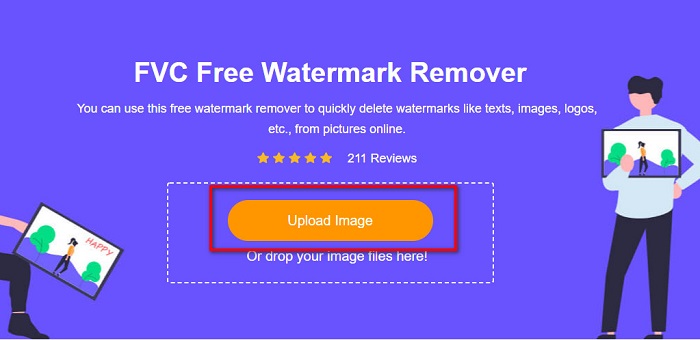
گام 3. سپس، ابزار حذفکنندهای را که میخواهید برای حذف واترمارک استفاده کنید انتخاب کنید. از بین Polygonal، Lasso یا Brush یکی را برگزینید. و بعد، ناحیه حاوی واترمارک را که میخواهید حذف کنید انتخاب کنید.
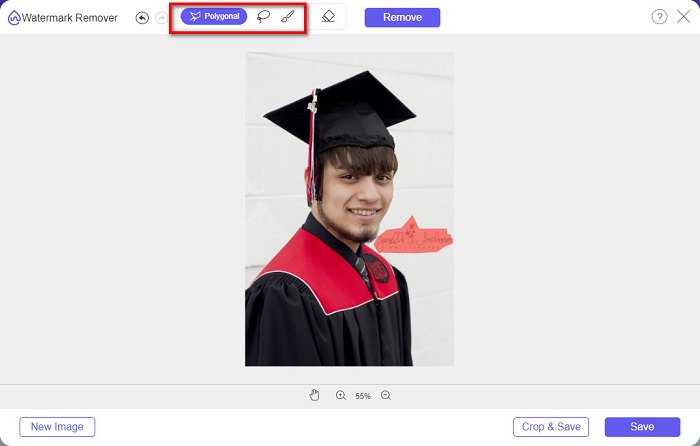
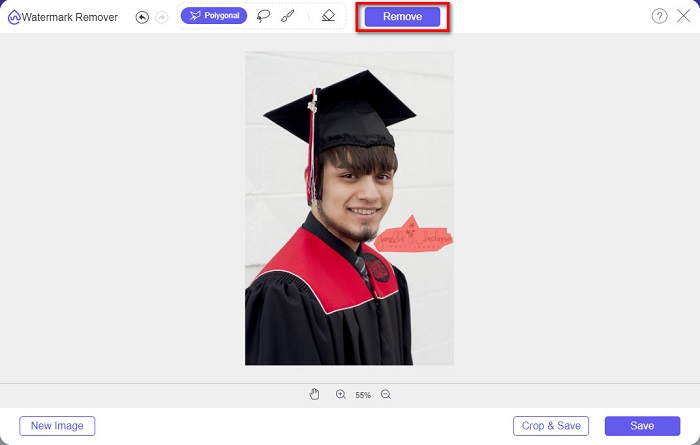
گام 4. پس از انتخاب ناحیه واترمارک، روی دکمه Remove کلیک کنید تا واترمارک پاک شود.
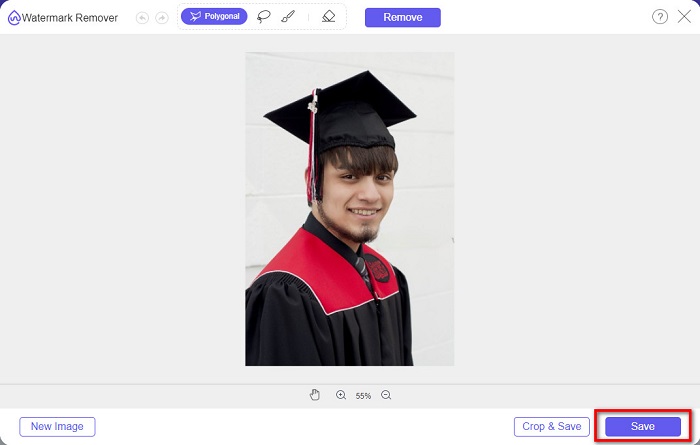
گام 5. مشاهده میکنید که واترمارک حذف شده است. روی دکمه Save کلیک کنید تا تصویر را روی دستگاه خود دانلود کنید. علاوه بر این، این ابزار آنلاین حذف واترمارک یک حذفکننده واترمارک Photobucket نیز هست.
قسمت 2. نحوه حذف واترمارک از تصاویر فارغ التحصیلی با استفاده از Inpaint
مردم گاهی واترمارک را روتوش می کنند تا عکس را به ظاهر اصلی خود برسانند. اما چگونه این کار را انجام می دهند؟ حرفه ای ها از یک ویرایشگر عکس استفاده می کنند و برچسب را پیکسل به پیکسل رنگ می کنند و در نتیجه چند ساعت کار می کنند. با این حال، ابزار دیگری وجود دارد که به شما کمک می کند زندگی خود را آسان کنید. در این قسمت با نحوه استفاده از Inpaint و مزایای آن آشنا می شوید.
Inpaint یک ابزار آنلاین حذف واترمارک است که به شما در حذف واترمارک از عکس فارغالتحصیلیتان کمک میکند. این نرمافزار آنلاین همچنین نسخه قابل دانلود برای ویندوز و مک دارد. افزون بر این، به شما اجازه میدهد موارد ناخواسته روی عکس، مانند لوگوها، متنها، اشیا و غیره را حذف کنید. شگفتانگیزتر اینکه قابلیتی دارد که میتوانید با آن عکسهای قدیمی را ترمیم کرده و به کیفیت اولیهشان بازگردانید. همچنین ابزارهای مختلفی برای انتخاب ناحیه واترمارکی که میخواهید حذف کنید در اختیار شما میگذارد.
طرفداران
- دارای یک رابط نرم افزاری با کاربری آسان.
- این امکان را به شما می دهد تا روتوش دیجیتالی صورت را انجام دهید.
- این به شما امکان می دهد مناطق سیاه پانوراما را پر کنید.
- تقریباً در تمام مرورگرهای وب مانند Google و Firefox قابل دسترسی است.
منفی ها
- وابسته به اینترنت است.
نحوه حذف واترمارک از تصویر فارغ التحصیلی با استفاده از Inpaint:
گام 1. در مرورگر خود Inpaint را جستجو کرده و سپس به صفحه وب آن بروید. سپس، در رابط اصلی نرمافزار، روی دکمه Upload Image کلیک کنید تا عکس فارغالتحصیلی خود را آپلود کنید.
گام 2. سپس، ابزار حذفکنندهای را که میخواهید برای انتخاب ناحیه واترمارک استفاده کنید، برگزینید. از بین marker tool، lasso tool و polygonal lasso tool یکی را انتخاب کنید.
گام 3. سپس با استفاده از ابزاری که انتخاب کردهاید، ناحیه واترمارکی را که میخواهید حذف کنید مشخص کنید.

گام 4. در نهایت، روی دکمه Erase کلیک کنید تا واترمارک روی عکس فارغالتحصیلی شما حذف شود. سپس روی دکمه Download کلیک کنید تا عکس را دانلود کنید.
قسمت 3. نحوه حذف واترمارک از تصویر فارغ التحصیلی با استفاده از فتوشاپ
Adobe Photoshop معروف ترین نرم افزار ویرایشی است که بسیاری از حرفه ای ها از آن استفاده می کنند. اما چیزی که بسیاری از کاربران نمی دانند این است که این فقط یک نرم افزار ویرایش نیست. همچنین می تواند واترمارک های ناخواسته روی عکس شما را حذف کند. برای یادگیری نحوه حذف واترمارک از عکس خود، این قسمت را به طور جامع بخوانید.
Adobe Photoshop محبوبترین نرمافزار ویرایش عکس با امکانات ویرایشی فراوان است. بسیاری از حرفهایها از این برنامه ویرایشی استفاده میکنند، زیرا میتوانید تصویر خود را بهصورت کاملاً حرفهای ویرایش کنید. این نرمافزار ابزارهایی دارد که به شما امکان میدهد تصویر خود را با جزئیات ویرایش کنید. افزون بر این، خروجیای با کیفیت بالا تولید میکند که میتوانید آن را در هر پلتفرم رسانه اجتماعی به اشتراک بگذارید.
طرفداران
- دارای بسیاری از ویژگی های ویرایش پیشرفته برای استفاده است.
- این شامل ابزارهای زیادی برای ویرایش است.
- خروجی هایی با کیفیت بالا تولید می کند.
- این امکان را به شما می دهد که هم تصاویر چاپی و هم وب را ویرایش و ایجاد کنید.
منفی ها
- این دارای یک رابط نرم افزاری سخت برای استفاده است.
- برای دانلود باید برنامه را خریداری کنید.
نحوه حذف واترمارک روی عکس خود با استفاده از Adobe Photoshop:
گام 1. Adobe Photoshop را روی دستگاه خود دانلود کرده و برنامه را اجرا کنید. در رابط کاربری اصلی، تصویر را در Photoshop باز کنید.
گام 2. ناحیه واترمارک را انتخاب کنید. میتوانید از Pen tool، Quick Selection tool یا Magic Wand tool استفاده کنید.
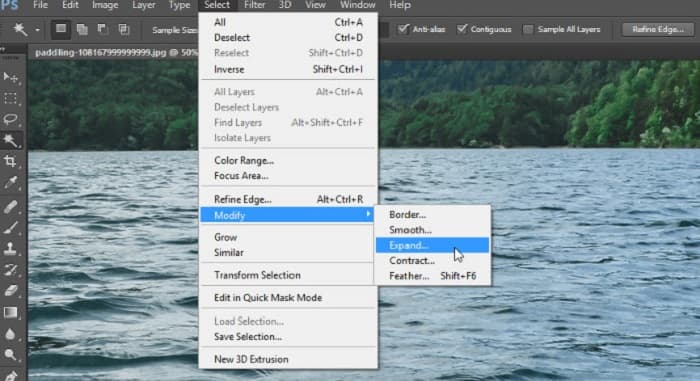
گام 3. به مسیر Select > Modify > Expand بروید تا پیکسلهای پسزمینه نیز در انتخاب شما گنجانده شوند.
گام 4. به مسیر Edit > Fill بروید، سپس در بخش Contents گزینه Content-Aware را انتخاب کنید.
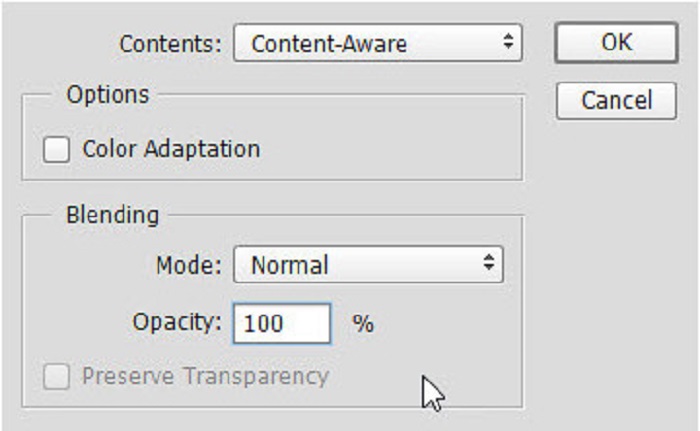
گام 5. سپس دکمههای CTRL+D را فشار دهید. خواهید دید که ناحیه واترمارک با پسزمینه پر شده است. سپس برای از بین بردن خط دور واترمارک، از Clone Stamp Tool استفاده کنید.
گام 6. کلید Alt را نگه دارید و دور محدوده واترمارک را ترسیم کنید. وقتی پاکسازی ردها تمام شد، مشاهده میکنید که واترمارک کاملاً حذف شده است.
بخش 4. سوالات متداول در مورد حذف واترمارک از تصویر فارغ التحصیلی
آیا حذف واترمارک از تصاویر فارغ التحصیلی کیفیت را خراب می کند؟
حذف واترمارک از تصاویر فارغ التحصیلی لزوماً کیفیت را خراب نمی کند. با این حال، وقتی واترمارک را حذف میکنید، برخی از ابزارها همچنان آثاری از خود باقی میگذارند.
آیا می توانید واترمارک روی Canva را حذف کنید؟
آره. Canva دارای ویژگی است که در آن می توانید واترمارک ها را به صورت رایگان حذف کنید. برای انجام این کار، فقط روی دکمه Remove Watermarks کلیک کنید.
آیا می توانید واترمارک های PDF را حذف کنید؟
با استفاده از ابزارهای معرفیشده در بالا، میتوانید هر نوع واترمارکی را از فایل PDF خود حذف کنید.
نتیجه
از آنجا که اکنون روش حذف واترمارک از عکسهای فارغالتحصیلی را آموختهاید، میتوانید خودتان این کار را انجام داده و ابزارهای معرفیشده را امتحان کنید. حذف واترمارک با استفاده از یک حذفکننده واترمارک بسیار آسان شده است. با این حال، بسیاری از کاربران استفاده از FVC Free Watermark Remover را توصیه میکنند، زیرا این ابزار هم کاربردی است و هم استفاده از آن ساده است.
-
 چگونه به راحتی واترمارک Lumion را در ویندوز و مک حذف کنیم
 آیا باید واترمارک Lumion را برای ارائه حرفه ای حذف کنید؟ خوب، ابزارهایی وجود دارد که می توانید از آنها برای خلاص شدن از شر واترمارکی که به جا می گذارد استفاده کنید.
-
 نحوه حذف واترمارک Weibo در فیلم ها و تصاویر به راحتی
 برای حذف واترمارک Weibo در ویدیو و تصویر صادر شده مشکل دارید؟ در این صورت، شما باید یک پاک کننده واترمارک که در زیر لیست می کنیم باید به شما کمک کند.
-
 آموزش حذف واترمارک Movavi به صورت رایگان $91; Must Have!$93;
 صادرات یک ویدیو یا تصویر در Movavi یک واترمارک باقی میگذارد، اما آیا امکان حذف آن وجود دارد؟ برای آموزش حذف واترمارک به صورت رایگان این مطلب را بخوانید.
