


 Video Converter Ultimate
 ضبط صفحه
 تعمیر ویدیو
تغییر اندازه تصویر بدون از دست دادن کیفیت: فشرده سازی بدون اتلاف
یکی از بزرگترین نگرانیها هنگام تغییر اندازهی یک تصویر، از دست رفتن کیفیت آن است. پاسخ این موضوع به این بستگی دارد که عکس چگونه تغییر اندازه داده شده، از چه ابزاری استفاده شده و عوامل دیگر. خوشبختانه، یک حقیقت کمتر شناختهشده این است که اگر این کار بهدرستی انجام شود، میتوانید اندازهی تصویر را بدون کاهش کیفیت تغییر دهید. با دنبال کردن بهترین روشها، درک ظرافتهای تغییر اندازهی تصویر و پیدا کردن ابزار مناسب، میتوانید وضوح و شفافیت تصاویر خود را، صرفنظر از میزان تغییر در اندازه، حفظ کنید.
در این راهنما، ما به سه روش موثر برای تغییر اندازه تصاویر با حفظ یکپارچگی بصری و اطمینان از کیفیت تقریباً ثابت می پردازیم.

قسمت 1. سریعترین راه برای تغییر اندازه تصویر بدون از دست دادن کیفیت [پشتیبانی از دسته]
FVC Free Image Compressor یک ابزار رایگان آنلاین برای فشردهسازی تصویر است که برای کاربرانی ایدهآل است که بهدنبال روشی سریعتر برای تغییر اندازهی تصاویر بدون کاهش کیفیت هستند. تنها با یک کلیک، عکسهای شما بهطور خودکار تغییر اندازه داده میشوند و کیفیت آنها تقریباً به همان صورت اولیه باقی میماند. همچنین این ابزار بسیار کاربرپسند است، بهطوریکه کاربران در هر سطحی میتوانند بدون سردرگمی از آن استفاده کنند. در نهایت، زمانی که تعداد زیادی فایل تصویری برای تغییر اندازه دارید، این ابزار به شما امکان میدهد تا حداکثر ۴۰ تصویر را بهصورت همزمان فشرده کنید.
در اینجا نحوهی تغییر اندازهی تصویر بدون کاهش کیفیت با استفاده از FVC Free Image Compressor آورده شده است
مرحله ۱. مرورگر خود را باز کنید و در نوار جستجو عبارت Free Image Compressor را تایپ کنید.
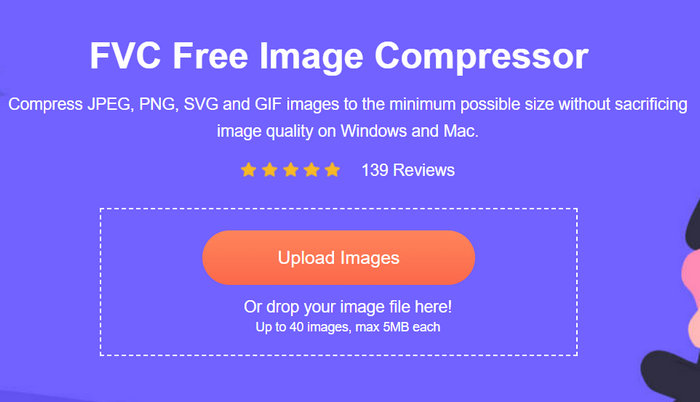
مرحله ۲. وقتی وارد وبسایت شدید، روی Upload Images کلیک کنید تا عکسهایی را که میخواهید تغییر اندازه دهید وارد کنید. ابزار بهطور خودکار تمام عکسهای آپلودشده را فشرده میکند.
مرحله ۳. منتظر بمانید تا فرآیند فشردهسازی به پایان برسد. پس از اتمام، نوار وضعیتی را میبینید که پایان کار را اعلام میکند و اطلاعاتی درباره اندازه قبل و بعدِ تصویر فشردهشده نشان میدهد. سپس روی Download All کلیک کنید تا تصویر خود را ذخیره کنید.
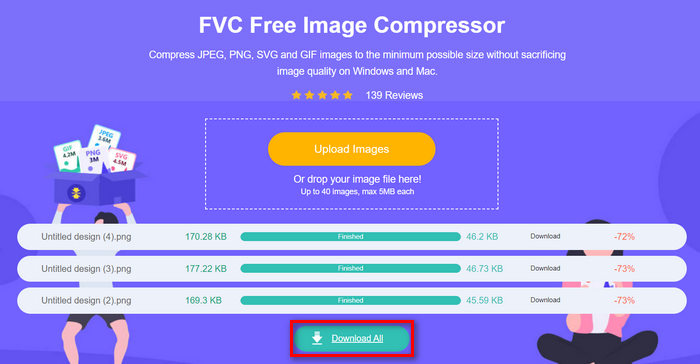
با استفاده از کمپرسور تصویر رایگان FVC، تغییر اندازه یک تصویر ضرری بر تلاش شما نخواهد داشت. همچنین، این ابزار کاملا رایگان و فوق العاده در دسترس است، بنابراین در واقع یک ابزار فشرده سازی در حال حرکت برای همه است.
قسمت 2. چگونه یک تصویر را در فتوشاپ بدون از دست دادن کیفیت کاهش دهیم
در همین حال، هنگامی که فتوشاپ را روی دستگاه خود نصب کرده اید، می توانید از آن برای کاهش فایل های تصویری خود استفاده کنید. این ابزار به دلیل مجموعه ای از ویژگی ها و قابلیت های فوق العاده، یک نرم افزار ویرایش عکس شناخته شده است. با فتوشاپ، نه تنها می توانید عکس ها را با دقت ویرایش و ارتقا دهید، بلکه آنها را برای اهداف مختلف از جمله کاهش حجم فایل بهینه سازی کنید. در اینجا دو روش وجود دارد که می توانید سعی کنید اندازه یک تصویر را بدون از دست دادن کیفیت تغییر دهید.
تغییر اندازه تصویر بر اساس پیکسل
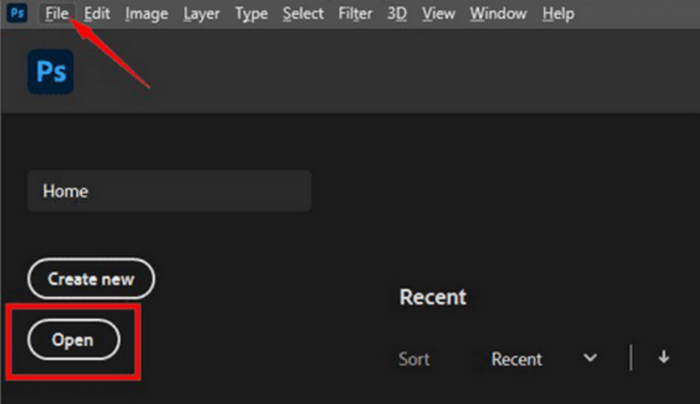
مرحله ۱. تصویر خود را در فتوشاپ با کلیک روی Open باز کنید یا به منوی File بروید و تصویری را که میخواهید تغییر اندازه دهید انتخاب کنید.
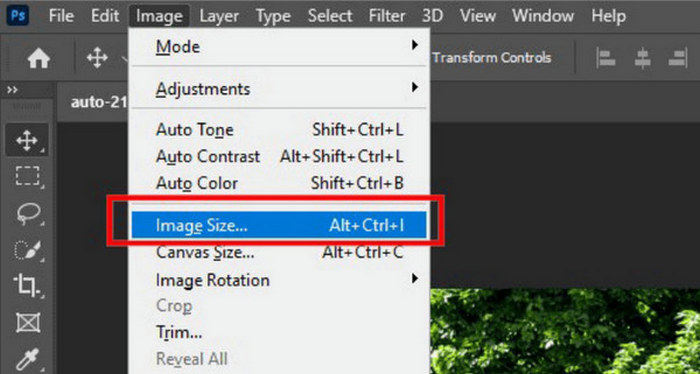
مرحله ۲. حالا به تب Image بروید و از منو گزینهی Image Size را انتخاب کنید.
مرحله ۳. در کادر محاورهای Image Size، از منوی کرکرهای گزینهی Pixels را انتخاب کنید. برای تنظیم ابعاد مشخص، مقادیر مورد نظر را در کادرهای متنِ عرض و ارتفاع وارد کرده و برای تغییر اندازهی تصویر روی OK کلیک کنید.
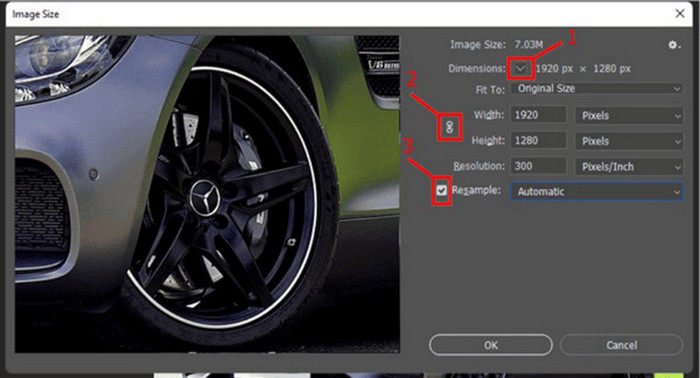
مرحله ۴. در نهایت، با کلیک روی دکمهی Save As در زیر تب File، فایل تصویری خود را ذخیره کنید.
فایل PSD را قبل از ذخیره با فرمت JPEG ذخیره کنید.
تغییر اندازه تصویر بر حسب اینچ
مرحله ۱. تصویر خود را در فتوشاپ با کلیک روی Open باز کنید یا به منوی File بروید و تصویر خود را انتخاب کنید.
مرحله ۲. اکنون به تب Image بروید و گزینهی Image Size را انتخاب کنید.
مرحله ۳. در کادر محاورهای Image Size، از منوی کرکرهای گزینهی Inches را انتخاب کنید. برای تنظیم ابعاد مشخص، مقادیر مورد نظر را در کادرهای متنِ عرض و ارتفاع وارد کرده و برای تغییر اندازهی تصویر روی OK کلیک کنید.
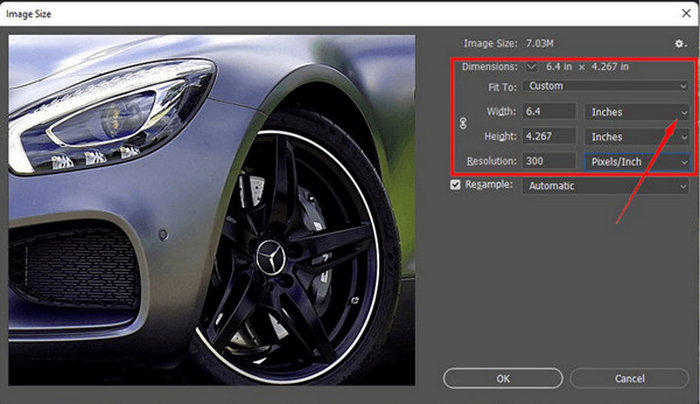
مرحله ۴. در پایان، برای ذخیرهی تصویر نهایی روی دکمهی Save As در زیر تب File کلیک کنید.
فتوشاپ یک ابزار همه کاره و قدرتمند است که به کاربران امکان ویرایش عکس ها و تغییر اندازه آنها را بدون افت کیفیت می دهد. علاوه بر این، کاربران میتوانند از الگوریتمهای باکیفیت فتوشاپ استفاده کنند تا اطمینان حاصل کنند که تصاویرشان حتی پس از تنظیمات قابل توجه اندازه، واضح و شفاف باقی میمانند. با این حال، یکی از معایب استفاده از این ابزار این است که می تواند بسیار پیچیده باشد، که کار را برای مبتدیان دشوار می کند تا ویژگی های آن را مرور کنند.
قسمت 3. تغییر اندازه تصویر بدون از دست دادن کیفیت توسط AI Upscaling
ابزار FVC Free Image Upscaler یک ابزار مبتنی بر هوش مصنوعی است که برای تغییر اندازهی تصویر بدون کاهش کیفیت طراحی شده است. این ابزار از فناوری «ابر وضوح» (سوپر رزولوشن) هوش مصنوعی استفاده میکند که با میلیونها نمونه آموزش دیده تا بهطور خودکار بخشهای تار تصویر را تشخیص داده و بهبود دهد. این ابزار میتواند پیکسلهای از دست رفته، رنگها، بافتها و سایر جزئیات را اصلاح کند تا مطمئن شود تصویر بدون از دست دادن کیفیت تغییر اندازه مییابد.
مرحله ۱. ابتدا باید به وبسایت رسمی آنها دسترسی پیدا کنید.
مرحله ۲. پس از ورود به وبسایت، با کلیک روی دکمهی Upload Photo تصویر مورد نظر خود برای تغییر اندازه را بارگذاری کنید.
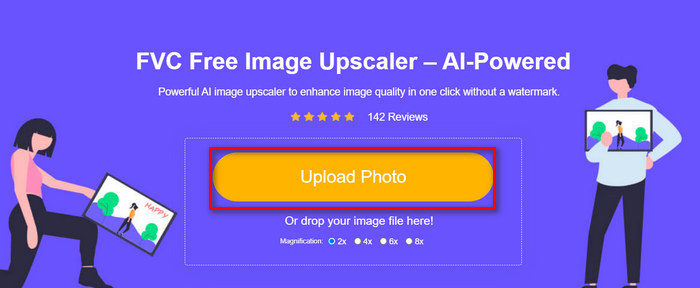
مرحله ۳. حالا انتخاب کنید که میخواهید تصویرتان چقدر بزرگنمایی شود. میتوانید تصویر خود را از ۲ برابر تا ۸ برابر بزرگتر کنید. به این شکل میتوانید تصویر خود را بدون کاهش کیفیت تغییر اندازه دهید.
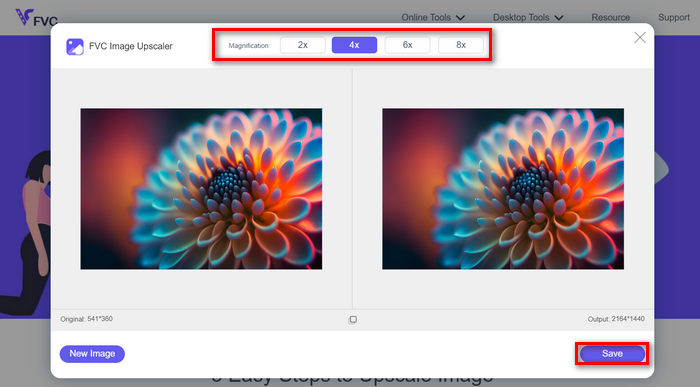
مرحله ۴. پس از پایان کار، روی دکمه Save کلیک کنید تا فایل جدیدِ تغییر اندازهیافته بهطور خودکار در رایانه شما دانلود شود.
این ابزار بزرگنمایی تصویر مبتنی بر هوش مصنوعی، گزینهای عالی برای تغییر اندازهی تصاویر بدون از دست دادن کیفیت است. این قابلیت نهتنها اندازهی تصویر را تغییر میدهد، بلکه آن را بزرگنمایی و تقویت هم میکند.
قسمت 4. مقایسه 3 روش برای تغییر اندازه تصویر بدون از دست دادن کیفیت
| ابزار تغییر اندازه تصویر | فشرده سازی دسته ای | سرعت | سهولت عملیات |
| کمپرسور تصویر رایگان FVC | بله، تا 40 تصویر | سریع | بسیار کاربر پسند |
| فتوشاپ | نه | میانگین | عملکرد نسبتاً ساده |
| ارتقا دهنده تصویر رایگان FVC | نه | سریع | بسیار کاربر پسند |
بخش 5. سوالات متداول در مورد تغییر اندازه تصویر بدون از دست دادن کیفیت
آیا تصاویر با کوچک شدن کیفیت خود را از دست می دهند؟
تا حدی، نه. معمولاً تصاویر با کوچک شدن کیفیت خود را از دست نمی دهند. کوچک کردن یک تصویر یا کاهش اندازه آن، جزئیات و وضوح اصلی تصویر را حفظ می کند زیرا اطلاعات پیکسل را از دست نمی دهید. با این حال، ادراک کیفیت ممکن است بر اساس روش فشرده سازی استفاده شده و توانایی نرم افزار برای مدیریت موثر فرآیند کاهش مقیاس متفاوت باشد.
چگونه در Paint اندازه تصویر را بدون افت کیفیت تغییر دهیم؟
برای تغییر اندازه تصویر در Paint بدون افت کیفیت، Paint را باز کرده و تصویر خود را بارگذاری کنید. پس از آن، روی دکمه تغییر اندازه در تب home کلیک کنید. در کادر محاوره ای تغییر اندازه و انحراف، گزینه درصد یا پیکسل را انتخاب کنید. اطمینان حاصل کنید که چک باکس حفظ نسبت تصویر علامت زده شده است تا نسبت تصویر حفظ شود. از آنجا نحوه تغییر اندازه تصویر خود را وارد کنید و روی OK کلیک کنید.
بهترین ابزار برای تغییر اندازه تصاویر بدون افت کیفیت چیست؟
ابزارهای بسیار خوبی برای تغییر اندازهی تصاویر بدون کاهش کیفیت وجود دارد. با این حال، وقتی صحبت از سریعترین روش همراه با قابلیت فشردهسازی دستهای میشود، ابزار FVC Free Image Compressor بهترین گزینه است. این ابزار به شما امکان میدهد تا حداکثر ۴۰ تصویر را بهصورت همزمان و در عین حفظ کیفیت بالا تغییر اندازه دهید که آن را برای کاربران در همه سطوح، بسیار کارآمد و کاربرپسند میکند.
نتیجه
با استفاده از روشها و ابزارهای مناسب، میتوانید تصاویر را بدون از دست دادن کیفیت تغییر اندازه دهید. بنابراین، چه این ابزارها را انتخاب کنید و چه ابزار دیگری، هدف اصلی این است که ابزار مناسب خود را پیدا کنید. آمادهاید تا بهسادگی تصاویر خود را ارتقا دهید؟ همین امروز این ابزارها را امتحان کنید و خودتان تفاوت را ببینید!
-
 برترین کاهشدهنده اندازه تصویر در دسکتاپ و دستگاههای موبایل
 برای بهترین کاهش اندازه عکس در دستگاه مورد علاقه خود، به برنامه های فهرست شده در این مقاله نگاه کنید. اکنون بهترین بهینه سازی اندازه برای تصاویر را بیاموزید!
-
 5 بهترین روش برای کاهش اندازه تصویر در هر دستگاه
 با کلیک بر روی این پست روش های موثر تغییر اندازه یا فشرده سازی اندازه تصویر را بیاموزید. تغییر اندازه های عکس استثنایی و دستورالعمل های گام به گام آنها را کشف کنید.
-
 حذف افراد از عکس ها: ویرایش سریع و ساده عکس
 آیا می خواهید افراد را از عکس خود حذف کنید؟ این مقاله را بخوانید زیرا بهترین و سادهترین روشها را برای حذف افراد از عکسها با استفاده از برنامهها به شما نشان میدهیم.
