


 Video Converter Ultimate
 ضبط صفحه
 تعمیر ویدیو
فرآیند تبدیل فایل WebM به MOV: روش های بی دردسری که باید بدانید
وقتی صحبت از تولید و پخش می شود، هر فرمت ویدیویی با هر پلتفرم دیجیتال سازگار نیست. هنگام تلاش برای وارد کردن، تولید، آپلود یا بارگیری فایلهای مربوطه، ممکن است مشکلات بزرگی ایجاد شود. برای مثال، اپل از مرورگرهای سنتی استفاده نمیکند که در گذشته به آنها تبدیل شدهایم – این پلتفرم خود به نام سافاری را دارد. به همین دلیل است که فرمت های ویدئویی که فقط توسط گوگل کروم، موزیلا فایرفاکس، اپرا و مایکروسافت اج پشتیبانی می شوند، همیشه از نظر مرورگر برای کاربران مک در دسترس نیستند.
یکی از این فرمتها ویدئوی WebM است که قالبی برای فشردهسازی ویدیوی متنباز در HTML5 محسوب میشود. اگر کاربر مک هستید، برای تماشای آن به یک پخشکنندهٔ رسانهٔ شخصثالث نیاز دارید. اما اگر میخواهید بدون دردسر ویدئوهای خود را پخش کنید، قالب فایل MOV همان چیزی است که دنبالش هستید، زیرا این فرمت توسط خود اپل برای Apple QuickTime Player توسعه داده شده است. بنابراین، آنچه لازم دارید این است که ویدئوی WebM را در مک خود به MOV تبدیل کنید و ما در این مقاله بهترین روشها را برای انجام این کار در اختیارتان قرار میدهیم.
بخش 1. مروری بر: WebM و MOV
اگر مدت زیادی است که در معرض مصرف و پخش ویدیو بوده اید، حتما ویدیوهای زیادی را با فرمت های مختلف با استفاده از پلتفرم های مختلف تماشا کرده اید. شاید زمانی فکر کرده باشید که این پسوند فایل ها چه چیزی را نشان می دهند یا چگونه با یکدیگر متفاوت هستند. مطمئناً سعی کردهاید ویدیوی خاصی را در مرورگر خود پخش کنید، اما این کار را انجام نمیدهد، زیرا پشتیبانی نمیشود. برای مثال WebM تنها توسط چندین مرورگر مدرن مانند کروم، فایرفاکس و اج پشتیبانی می شود زیرا معمولاً در صفحات وب با استفاده از HTML5 تعبیه شده است.
بخش 2. بهترین مبدلی که به تبدیل WebM به MOV کمک می کند
تبدیل فایلهای ویدئویی آنقدرها هم که فکر میکنید سخت نیست. هرچند نرمافزارها و برنامههای متعددی برای این کار وجود دارد، اما در میان آنها، یک مورد هست که کار را سریع و ساده انجام میدهد. FVC Video Converter Ultimate نرمافزاری است که میتوانید بهصورت رایگان دانلود کنید و شما را از جستوجوی طولانی در اینترنت برای یافتن بهترین مبدل آنلاین بینیاز میکند. هدف ما این است که بهترین گزینه را در اختیارتان بگذاریم. لازم نیست نگران فرمت ویدیویی که میخواهید تبدیل کنید باشید، چون این نرمافزار از فرمتهای متنوعی پشتیبانی میکند و علاوه بر این، هنگام تبدیل، گزینههای زیادی برای ویرایش ویدئو در اختیار شما میگذارد. برای استفاده از این نرمافزار، مراحل زیر را دنبال کنید:
مرحله ۱: پیش از شروع فرایند تبدیل، ابتدا باید نرمافزار را دانلود کنید که با کلیک روی دکمه Free Download امکانپذیر است. میتوانید نسخه ویندوز یا مک را انتخاب کنید. در این مورد، For Mac OS را انتخاب کنید. منتظر بمانید تا فایل .exe بهطور کامل دانلود شود و پس از اتمام، آن را باز کنید تا فرایند نصب آغاز شود.
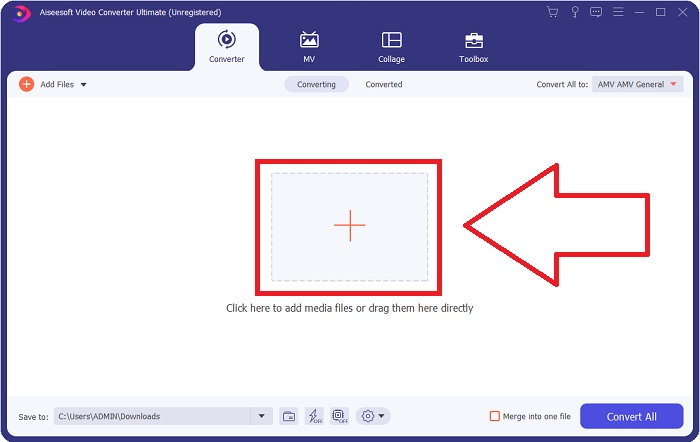
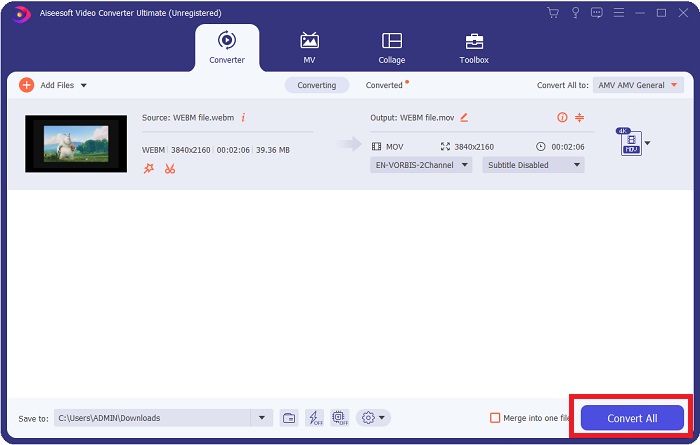
مرحله ۲: پس از پایان نصب نرمافزار، آن را اجرا کنید؛ رابط کاربری برایتان نمایش داده میشود. بهصورت پیشفرض، بعد از اجرای نرمافزار، در تب Converter قرار میگیرید. اگر اینطور نیست، روی آن کلیک کنید.
مرحله ۳: یک دکمه + در وسط رابط کاربری وجود دارد که با کلیک روی آن میتوانید فایل ویدیویی مورد نظر برای تبدیل را وارد کنید. همچنین میتوانید بهراحتی ویدئوهای خود را بکشید و در همان قسمت رها کنید.
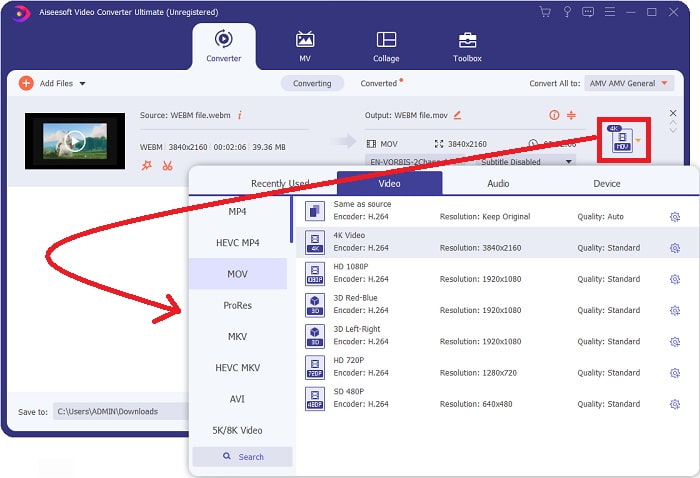
مرحله ۴: پس از وارد کردن موفق ویدئو، رابط دیگری ظاهر میشود. در آنجا میتوانید در سمت راست، فرمت فعلی ویدئوی خود را ببینید. کنار آن یک فلش کشویی وجود دارد؛ روی آن کلیک کنید تا گزینههای مختلف نمایش داده شود. میتوانید هر فرمتی را که میخواهید برای تبدیل ویدئو انتخاب کنید، اما در این مورد، گزینه MOV را برگزینید. گزینههایی مانند وضوح تصویر (رزولوشن) و کیفیت صدا نیز برای انتخاب وجود دارد. برای گزینههای بیشتر، روی آیکون چرخدنده کنار کیفیت یا رزولوشنی که انتخاب کردهاید کلیک کنید تا بتوانید بسته به نیازتان، ویدئو را بیشتر ویرایش کنید. برای ذخیره تغییرات، روی Create New کلیک کنید.
مرحله ۵: وقتی کار شما تمام شد و از تغییرات راضی بودید، میتوانید دکمه Convert All را در گوشه پایین سمت راست رابط پیدا کرده و روی آن کلیک کنید تا ویدئوی تبدیلشده خروجی گرفته شود.
بخش 3. نکات پاداش: سایر مبدل های آنلاین که WebM را به MOV تبدیل می کنند
روش 1: از تبدیل رایگان استفاده کنید
اگر دیگر نمیخواهید نرمافزار را دانلود کنید و از قبل فرآیند تبدیل را ادامه دهید، میتوانیم جایگزینهایی برای این نرمافزار به شما نشان دهیم. این کار کاملاً آنلاین انجام می شود در حالی که هنوز ویژگی هایی را که برای نیازهای ویرایشی خود نیاز دارید به شما ارائه می دهد. اگر روشی بدون دردسر میخواهید، این ابزار وب یکی از راههای کار است.
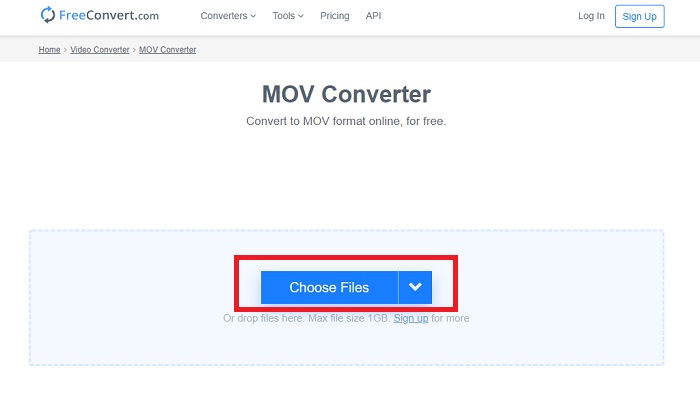
مرحله ۱: به سایت مربوطه بروید؛ در رابطی که نمایش داده میشود، دکمه Choose Files را در وسط صفحه میبینید. روی آن کلیک کنید تا فایل ویدیویی مورد نظر برای تبدیل را وارد کنید.
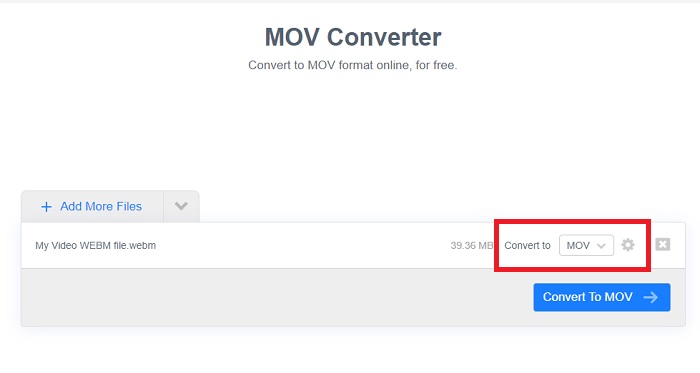
مرحله ۲: درست مانند خود نرمافزار، میتوانید فرمت فعلی ویدئوی خود را در سمت راست ببینید و کنار آن یک فلش کشویی قرار دارد. روی آن کلیک کنید و از میان فرمتها، فرمتی را که میخواهید ویدئو به آن تبدیل شود انتخاب کنید. برای گزینههای بیشتر، روی آیکون چرخدنده کلیک کنید تا ویدئوی خود را بیشتر ویرایش کنید. برای حفظ تغییراتی که اعمال کردهاید، دکمه Apply Settings را بزنید.
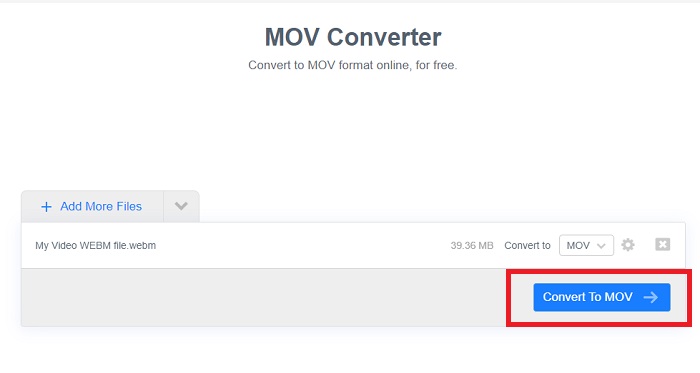
مرحله ۳: اگر از تمام تغییرات اعمالشده راضی هستید، اکنون میتوانید با کلیک روی دکمه Convert to MOV در قسمت پایین، فرایند تبدیل را آغاز کنید و منتظر بمانید تا پایان یابد. سپس میتوانید با کلیک روی Download MOV، ویدئوی تبدیلشده خود را دانلود کنید.
روش 2: از Cloud Convert استفاده کنید
این ابزار وب چند گزینه دیگر را در حین تبدیل فایل WebM خود به MOV به صورت آنلاین به شما ارائه می دهد. شما نه تنها می توانید وضوح یا کیفیت صدا را ویرایش کنید، بلکه می توانید فریم در ثانیه، زیرنویس ها و بسیاری موارد دیگر را نیز ویرایش کنید. برای استفاده از این مبدل آنلاین مراحل زیر را دنبال کنید:
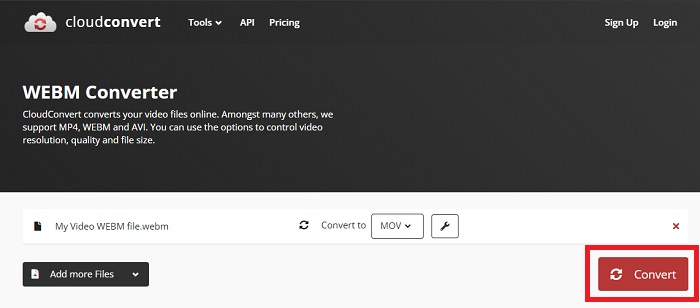
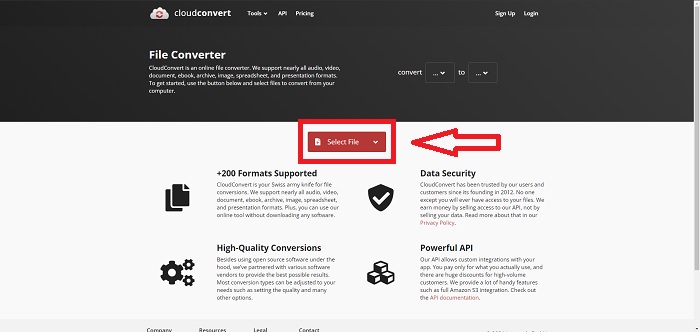
مرحله ۱: ابتدا باید فایل ویدیویی مورد نظر برای تبدیل را با کلیک روی دکمه Select File در وسط صفحه وارد کنید. اگر میخواهید چند فایل را همزمان تبدیل کنید، روی Add more Files کلیک کنید.
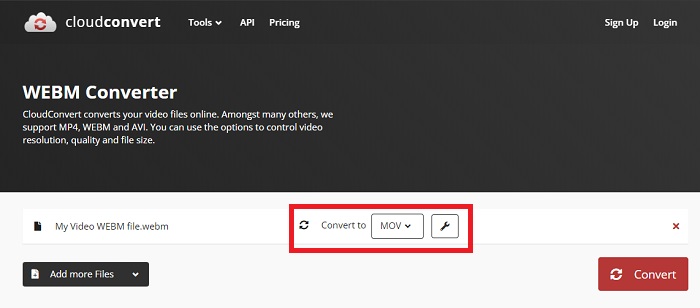
مرحله ۲: کنار فایل، میتوانید با کلیک روی فلش کشویی، فرمت ویدیویی مورد نظرتان را انتخاب کنید. همچنین با کلیک روی آیکون آچار، به گزینههای بیشتری دسترسی خواهید داشت. در آنجا میتوانید بخشهای مختلف تصویر و صدای ویدئو را ویرایش کنید. سپس برای ذخیره تغییرات روی OK کلیک کنید.
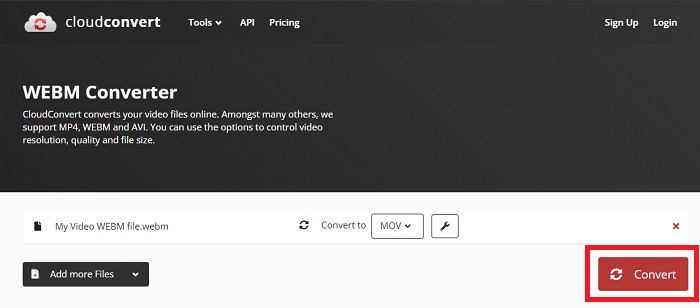
مرحله ۳: پس از پایان ویرایشها، روی دکمه Convert که با رنگ قرمز مشخص شده کلیک کنید و منتظر بمانید تا فرایند تبدیل کامل شود. در نهایت، روی دکمه Download که با رنگ سبز مشخص شده کلیک کنید تا ویدئوی کاملاً تبدیلشده خود را دریافت کنید.
روش 3: از ZamZar Convert استفاده کنید
این ابزار وب گزینه های کمتری را برای ویدیوی شما ارائه می دهد زیرا فقط فرمت ویدیو و صدا را تبدیل می کند. با این حال، کار را سریعتر از سایر روش های ذکر شده انجام می دهد. برای استفاده از این مبدل آنلاین، مراحل ارائه شده را دنبال کنید:
مرحله ۱: در وسط صفحه، تنها سه دکمه وجود دارد که با کلیک روی آنها ویدئوی شما تبدیل میشود. ابتدا روی Add files کلیک کنید تا فایل ویدیویی خود را وارد کنید.
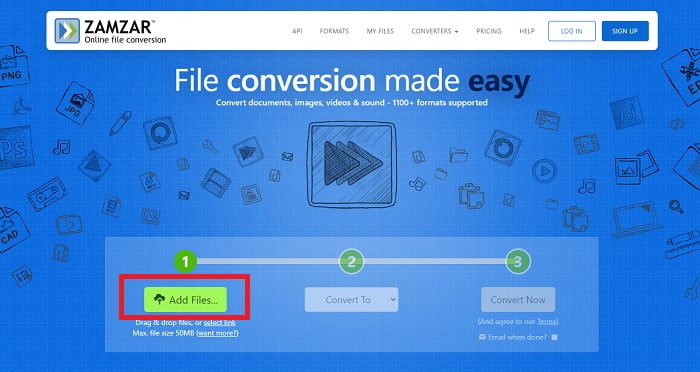
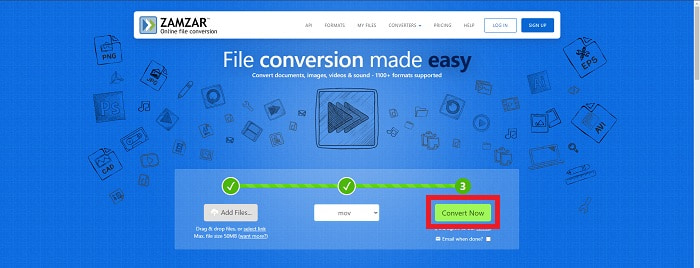
مرحله ۲: با دکمه دوم میتوانید فرمت ویدئو و صدا را برای خروجی انتخاب کنید. در این مورد، فرمت MOV را برگزینید.
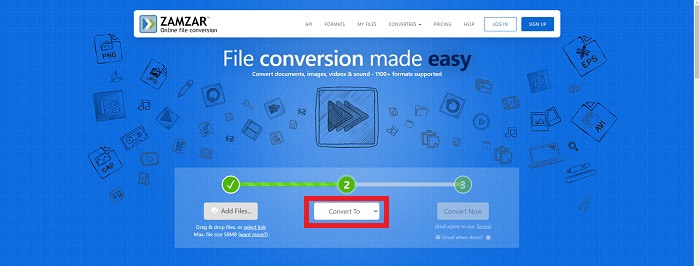
مرحله ۳: در نهایت روی دکمه سوم و آخر، یعنی Convert Now کلیک کنید تا فرایند اصلی تبدیل آغاز شود و منتظر بمانید تا پایان یابد. پس از اتمام، روی Download کلیک کنید تا ویدئوی خود را نهایتاً روی دسکتاپ ذخیره کنید.
بخش 4. سوالات متداول در مورد تبدیل WebM به MOV
فرمت WebM دقیقا چیست؟
WebM یک فرمت فایل رسانه باز ویژه وب است که شامل جریان های ویدیویی فشرده شده با کدک های ویدیویی VP8 یا VP9، جریان های صوتی فشرده شده با کدک های صوتی Vorbis یا Opus و متون WebVTT است. ساختار فایل WebM بر اساس ظرف رسانه Matroska است. اکثر مرورگرهای وب فایل های WebM را می پذیرند زیرا گاهی اوقات در وب سایت های HTML5 برای پخش فیلم های آنلاین استفاده می شوند. به عنوان مثال، یوتیوب از فرمت فایل WebM Video برای همه ویدیوهای صفحه خود، از 360p تا سایر کیفیت های بسیار بالا استفاده می کند. ویکی مدیا و اسکایپ یکی هستند.
اگر نمیخواهم ویدیوهای WebM را به MOV تبدیل کنم، به چه پخشکنندههای رسانهای نیاز دارم؟
اگر نمیخواهید برای پخش ویدئوی WebM خود تمام مراحل تبدیل را طی کنید، یک راهحل جایگزین وجود دارد. میتوانید از یک برنامهٔ شخصثالث یا به اصطلاح، برنامهٔ چندسکویی استفاده کنید. چند نمونه از این پخشکنندههای رسانهای شخصثالث عبارتاند از: VLC، KM Player، Media Player Classic، Winamp، jetAudio Basic، Moovidia، MPlayer و XBMC که میتوانید آنها را از وبسایتهای مربوطه دانلود کنید تا فایلهای WebM خود را پخش کنید.
آیا MOV کیفیت بالایی دارد یا پایین؟
پخش ویدئو با فایل های MOV بسیار با کیفیت است. MOV به ویژه مفید است زیرا می تواند رسانه های ترکیبی مانند تصاویر، فیلم ها و انیمیشن های 360 درجه را در خود نگه دارد. همچنین شامل تمام اطلاعات تصویری و صوتی می باشد. این کار ویرایش فایل را بسیار ساده تر می کند.
نتیجه
در واقع ابزارهای زیادی وجود دارد که می توانید برای تبدیل ویدیوی خود از یک فرمت به فرمت دیگر استفاده کنید، چه از طریق استفاده از یک نرم افزار یا از طریق یک ابزار وب که می توانید به صورت آنلاین پیدا کنید. با این حال، آنها همچنان از نظر گزینه ها یا راحتی که ارائه می دهند، دست به دست هم می دهند. برخی فقط کار را انجام می دهند و برخی گزینه های مختلفی را در اختیار شما قرار می دهند تا از بین آنها یکی را انتخاب کنید. این مقاله بر این موضوع تمرکز دارد تا به شما کمک کند تا در مورد اینکه بسته به نیاز خود باید از کدام یک استفاده کنید آگاه باشید. به همین دلیل است که ما Video Converter Ultimate را بیشتر توصیه می کنیم زیرا همه گزینه های اضافی را ارائه می دهد که ممکن است هرگز متوجه نشوید که چه زمانی به آن نیاز خواهید داشت. بهتر است این نرم افزار را همیشه در کنار خود داشته باشید تا هر زمان که به یک مبدل نیاز داشتید، از تمام زحمت پیدا کردن یک مبدل به صورت آنلاین جلوگیری کنید.
-
 نحوه تغییر GIF به قالب WebM بدون از دست دادن کیفیت فایل ها
 Gif های خود را به قالب ویدئویی WebM تبدیل کنید تا دارای برچسب ویدئویی HTML5 باشید. به این ابزار زیر اعتماد کنید تا بدانید کدام یک برای کار مناسب است.
-
 3 راه برای تبدیل WebM به MP3 بدون از دست دادن کیفیت صدا
 آیا مشکلی دارید زیرا فایل های WebM نمی توانند برای پخش صدایی که ذخیره می کنید استفاده شوند؟ سپس این مقاله را بخوانید زیرا ما کمک موثری با تبدیل WebM به MP3 ارائه می کنیم.
-
 3 نرم افزار خیره کننده مورد استفاده برای تبدیل فایل WebM به فرمت AVI
 آیا هیچ ایده ای برای تبدیل WebM به AVI ندارید؟ سپس بیایید خواندن این مقاله را شروع کنیم. همانطور که تمام جزئیات WebM و سه مبدلی که می توانید برای تبدیل استفاده کنید را مشخص می کنیم.
